By clicking Accept, you agree to the storing of cookies on your device to enhance site navigation, analyze site usage, and assist in our marketing efforts. View our Privacy Policy or manage preferences.
Oops! Something went wrong while submitting the form.
or continue with
This month we shipped four updates: an AI-friendlier public API, a full Spanish interface, sharper space search, and a sweep of UX and stability fixes across web, desktop, and mobile.
Here is what is new.
AI-Friendly Public API
Rock has had a public API for a while. This month we expanded it with the building blocks AI assistants need to act inside your spaces.
The result: you can connect ChatGPT, Claude, Gemini, or any AI assistant, and have it create tasks, send messages, post updates, or pull context from a space. All from a simple conversation.
Claude spinning up a new client project from a brief, straight inside a Rock space.
What that looks like in practice:
Use case
What your AI does in the space
Project kickoff from a brief
Drop a client brief in the space and ask your AI to read it. It breaks the work into tasks, assigns them, and sets the sprint.
Status TL;DR of a space
Coming back from PTO or jumping into a busy space? Ask your AI to read the recent messages, tasks, and notes, and post a summary of where each project stands.
Daily standup recap
Your AI scans yesterday's activity each morning and posts a recap: what shipped, who is blocked, what is next.
Dev updates from Claude Code
Hook Claude Code into your engineering space so it posts when it opens a PR, finishes a build, or pushes a deploy. No more copy-pasting from GitHub.
Client emails to tasks
Paste a long client email and your AI creates the right tasks, with deadlines and owners. No more manual breakdown.
Weekly client recaps
End of the week, your AI scans the space and drafts a status message you can send to the client. Copy, edit, send.
How to set it up
Setup takes minutes. From inside the space you want to plug your AI into:
1. Open Space settings from the space header.
2. Go to Integrations, then Custom Webhook.
3. Click Add new to generate a bot token. (Custom webhooks are part of the Unlimited plan.)
4. Hand the token to your AI assistant. It can now read and act inside that one space, not your whole workspace.
It works the same way MCP connections work in Claude: your AI gets direct access to a single space at a time.
Bring your own key. No per-seat AI fees, no vendor lock-in. Unlike platforms that charge extra for proprietary AI, Rock lets your team use whatever AI they already pay for.
We are actively expanding what the API can do. If there is a workflow you want to automate but cannot yet, let us know.
Rock en Español
Rock is now available in Spanish. The full interface, notifications, and onboarding flow have been translated for Spanish-speaking teams.
Latam is one of our fastest-growing regions, with agencies and small businesses across Mexico, Argentina, Colombia, and Spain running their work on Rock. Until now, those teams worked in English. Now they can work together and with clients in both English or Spanish.
To switch your language: open your user settings, select Language, and toggle to Spanish.
This is our first step toward making Rock accessible to more teams around the world. More languages are on the way. Want to request a language? Poke us in the support space.
Rock now speaks Spanish across the entire workspace.
Sharper Space Search
Space search is now faster and more accurate. Whether you are looking for a message, a task, or a file from a few weeks back, results surface where you expect them.
UX, UI, and Stability
We rolled out a batch of small improvements across the platform: visual refinements, performance updates, and stability fixes on web, desktop, and mobile.
Nothing flashy. Just smoother day-to-day use.
What's Next
This is the start of a busier release cadence for Rock. Over the next few months we will keep expanding the API and shipping the improvements our users ask for most.
Have a feature request or a bug to flag? Ping us in the Rock Support and Updates space. We read every message, and the things you raise shape what we build next.
It is Monday morning. You open WhatsApp to find 47 unread messages across six client groups. Somewhere in there is a design approval, a revision request, and a deadline that passed on Friday. But which project? Which client?
If you run a digital agency with 5 to 50 people and serve clients in different time zones, this situation probably feels familiar. Work lives in chat threads. Deadlines live in someone's head. Status updates happen in meetings that could have been a message.
A task board changes that. It gives your team one place to see what needs to happen, who is doing it, and where things stand. No scrolling through chat history. No "did you see my message?" follow-ups.
By the end of this article, you will know how it works, whether your agency actually needs one, and how to set one up in 15 minutes. You can even try building one yourself with the interactive demo below.
What Is a Task Board (and What Is It Not)?
A task board is a visual way to organize client work into columns that represent stages of progress. The most common setup has three columns: To Do, In Progress, and Done. Each task gets its own card that moves from left to right as work progresses.
The concept comes from kanban boards, first used in Toyota's manufacturing plants in the 1940s. The idea is simple: make work visible so nothing falls through the cracks.
A basic task board layout with three columns. Each card represents one task assigned to a team member.
It is not a full project management suite. It is not a Gantt chart with dependencies and critical paths. It is not a spreadsheet with color-coded cells. It is the simplest useful layer of project tracking, and that simplicity is exactly why it works for agencies where not everyone is a project manager.
Best for: Teams of 5 to 50 managing multiple client projects at once. Especially useful when your team currently tracks work through chat messages or spreadsheets.
Skip this if: You work solo with one or two clients and can hold everything in your head. Adding a board adds a step you might not need yet.
The Real Cost of Not Using One
According to Asana's Anatomy of Work Index, workers spend 58% of their time on "work about work," meaning status updates, searching for information, and chasing approvals. Only 33% goes to the skilled work they were hired to do.
For an agency, that math is brutal. If your 10-person team bills at $25 per hour and each person works 160 hours a month, 58% of that time on coordination means roughly $23,200 per month goes to work that does not produce anything for clients. That is time spent asking "where is the file?", sitting in status meetings, or re-explaining what was already decided in a chat thread.
Microsoft's Work Trend Index found a similar pattern: workers spend 57% of their time communicating and only 43% creating. Harvard Business Review calls this collaboration overload, noting that time spent in collaborative activities has increased by 50% over the past decade. For an agency, creation is the product. Every hour spent on coordination instead of design, code, or copy is an hour you cannot bill.
The WhatsApp Problem
Most agencies in Southeast Asia, Africa, and Latin America start the same way: a WhatsApp group per client. It works when you have two clients and three people. It breaks when you have eight clients and fifteen people.
Here is what happens. A client sends feedback on a design at 11pm their time. Your designer in Manila sees it the next morning, buried under 30 messages about a different project. The revision sits for two days. The client follows up. Your account manager scrambles to find the original message. A meeting gets scheduled to "align." That meeting could have been avoided if the feedback was a task card on a board.
"They know how much money is coming into their business and can see the final profit figure. However, what happens in between remains a mystery." - Marcel Petitpas, CEO of Parakeeto
How It Actually Works
The core of any board is three columns:
To Do: Tasks that are defined and ready to start. Someone is assigned, the brief is clear, and everything needed to begin is available.
In Progress: Tasks that someone is actively working on right now. This column should never be overloaded. If every card is "in progress," nothing is actually moving.
Done: Completed tasks. Moving a card here means the work is finished, reviewed, and delivered. Not "mostly done" or "waiting for one more thing."
Each card on the board represents one task. A good card has a short title (under 10 words), an assignee, a label for the client or project type, and a due date. That is enough. Do not over-engineer your cards with 15 custom fields on day one.
The board becomes a snapshot of your entire project. In a three-second glance, you can see how much work is waiting, what is being worked on, and what just shipped. That is the entire point.
Beyond Three Columns: What Agencies Add
After a few weeks, most agencies add one or two columns specific to their workflow:
Client Review: Tasks that are done on your side but waiting for client feedback. This column makes it visible when the ball is in the client's court, which is valuable when clients ask "why is this taking so long?"
Blocked: Tasks that cannot move forward because of an external dependency. Waiting for stock photos from the client, API credentials, or brand guidelines. A "Blocked" column prevents these tasks from sitting invisibly in "In Progress."
Start with three columns. Add more only when you feel the need, not before.
The Agency Task Board Playbook: Build Yours Now
Every agency runs repeating workflows. Client onboarding follows the same steps. Content production has the same stages. The trick is turning those repeating patterns into board templates you can duplicate for each new project.
Below are five workflows that cover most agency work. Pick the one closest to what your team does and try it out. You can drag cards between columns, add your own tasks, and see how the board feels before setting one up for real.
What we do at Rock: Our content production board has five columns: Briefed, Writing, Review, Approved, Published. Each card is a blog post or social batch. We use labels to tag the content type (blog, social, email) and due dates synced to our content calendar. Draft feedback happens in task comments instead of email threads. When someone finishes a draft, they move the card to Review. No message needed. The team sees it.
"Plans are nothing; planning is everything." - Dwight D. Eisenhower, 34th President of the United States
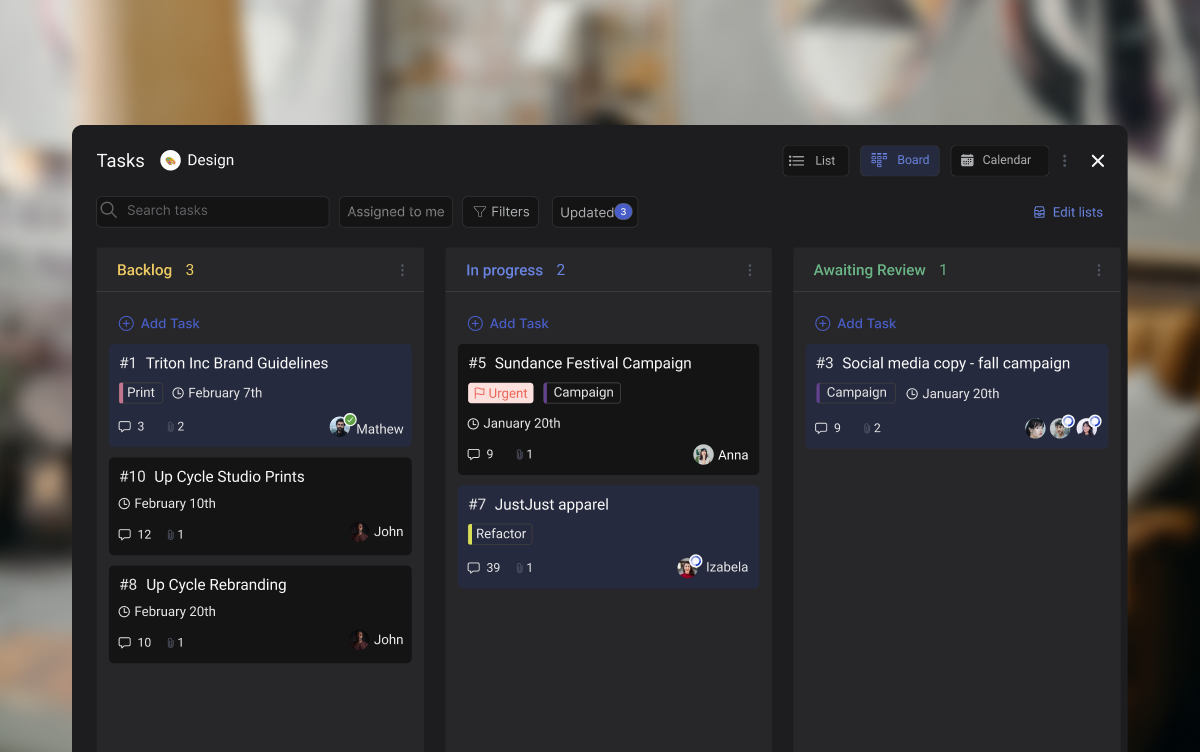
A board in Rock with tasks organized by status. Labels help separate work by client or project type.
Which Tool Fits Your Agency?
There are dozens of task management apps out there, and most of them will show you a board view. The difference is what else comes with it, what it costs, and whether your team will actually use it.
Instead of reading a comparison table, answer four questions and get a recommendation tailored to how your agency works.
Which task board fits your agency?
4 questions. 30 seconds. Get a recommendation.
1. Does your team already use a chat tool for work?
WhatsApp / Telegram
Slack / Teams
Not really
2. Do clients need to see project progress?
Yes, regularly
Sometimes
No, internal only
3. How comfortable is your team with new software?
Rock is a good fit when you want chat and a project board in the same place, you regularly invite clients into project spaces, your team is 5 to 50 people, and you prefer flat pricing over per-seat costs. At 20 people, Rock's $89/month plan works out to $4.45 per user. Most per-seat tools cost $7 to $12 per user at that size.
Rock is not the best fit when you need advanced resource management with capacity planning, built-in time tracking with invoicing, or complex dependency mapping like Gantt charts. For those, tools like Teamwork or Productive.io are stronger. Rock keeps things simple on purpose. If your agency needs enterprise-level project controls, you will outgrow it.
Being honest about this matters. The worst tool choice is one that looks good in a demo but sits unused because it is too complex for your team.
"Most agencies often suffer from indigestion, not starvation. They are fundamentally broken in how they convert revenue into profit, and adding more work only makes the problem worse." - Marcel Petitpas, CEO of Parakeeto
A board set up for client work. Simple enough that clients can check progress without a training session.
Set Up Your First Board in 15 Minutes
You do not need to move your entire agency onto a new tool today. Start with one project and see if the board works for your team.
Step 1: Pick Your First Project
Choose one active client project. Not all of them. Pick the project that causes the most "where is this at?" questions. That is the one where a board will make the biggest immediate difference.
Step 2: Create Three Columns
To Do, In Progress, Done. Nothing more. You can always add columns later, but starting simple means your team has fewer decisions to make on day one.
Step 3: Add Your Tasks
Write one card per deliverable. Keep titles short. "Design homepage banner" is better than "Work on the homepage banner design for the Q2 campaign refresh." Add the person responsible and a due date. If a task does not have a clear owner, it will not get done.
In Rock, you can turn any chat message into a task with one click. The context stays attached.
Step 4: Invite Your Team (and Maybe Your Client)
Get your team on the board first. Let everyone move their own cards for a week or two. Once the habit is established, consider adding the client so they can see progress without scheduling a call to ask for updates.
Step 5: Make It a Daily Habit
Spend five minutes each morning reviewing the board. Move cards that have progressed. Flag anything blocked. This replaces your weekly status meeting. The board is the status update.
If your team uses asynchronous work across time zones, the morning board review becomes even more valuable. You see what your colleagues in a different time zone completed while you were offline, without reading through a thread of messages.
Common Mistakes to Avoid
Too many columns. Start with three. Add more only when cards pile up in one column and you need to see a finer status. Five columns is usually the max before a board becomes hard to scan.
No clear ownership. Every card needs one person responsible. "The team" is not a person. If two people share a task, pick the one who drives it forward.
Ignoring the board after setup. A board only works if people update it. Build it into your daily routine or morning standup. If cards stay in "In Progress" for two weeks, the board is not reflecting reality.
Putting everything on one board. Separate boards per client or per project. One giant board with 200 cards helps nobody. If you cannot see the full picture in a glance, the board is too crowded.
Skipping labels. Labels let you filter by client, project scope, or priority. Without them, the board is just a list with extra steps. Most agencies use one label set for client names and another for work type (design, copy, development).
A board will not fix a broken process. But it will make a working process visible. And for agencies juggling multiple clients across time zones, visibility is the difference between a team that delivers on time and a team that is always chasing.
Go back to that Monday morning scenario. Instead of opening WhatsApp to 47 unread messages, you open your task board. You see three tasks in "Client Review," two in "In Progress," and one marked "Blocked" because the client has not sent their brand assets yet. You know exactly where everything stands. No meetings needed.
If you want to try this with a tool that combines chat and boards in one place, Rock's free plan gives you everything you need to get started.
Why Most Meeting Agendas Fail (And What to Do Instead)
You already know you need a meeting agenda. That is not the problem. The problem is that most agendas look like a vague list of topics nobody prepared for. "Discuss project updates" tells your team nothing about what to bring, what decisions need to happen, or when the meeting should end.
A Harvard Business Review survey found that 71% of senior managers said meetings are unproductive and inefficient, and most report Zoom fatigue on top of it. The agenda is usually where things go wrong. Not because it does not exist, but because it lacks structure.
A good agenda does three things: it tells people what to prepare, sets a time limit for each topic, and names who is responsible for leading each part. If yours does not do all three, it is just a topic list pretending to be a plan.
A structured agenda with time blocks and assigned owners for each topic.
"The single biggest problem with communication is the illusion that it has taken place." - George Bernard Shaw, Playwright
This article gives you concrete agenda examples you can copy and use today. Each one includes a recommended duration, a list of who should attend, and the common mistakes that make that type of meeting waste everyone's time.
Build your meeting agenda
Pick a meeting type to get a ready-made agenda you can edit.
A structured agenda turns vague meetings into focused conversations.
The 5-Minute Agenda Framework
Before we get into specific examples, here is a simple framework you can apply to any meeting. It takes about five minutes to set up and saves you from the "what was that meeting even about?" feeling.
For every meeting, answer these five questions before sending the invite:
What decision or outcome do we need? If you cannot answer this, you might not need a meeting. Consider asynchronous work instead.
Who needs to be there? Only invite people who have context or need to give input. Everyone else can read the notes.
What does each person need to prepare? Write this in the invite. "Review Q2 metrics before the call" is better than "let's discuss Q2."
How much time does each topic get? Assign time blocks. A 30-minute meeting with three topics means roughly 8-10 minutes each.
Who leads each section? The person closest to the topic should present it. The meeting organizer does not have to run every part.
Best for: any meeting type. This framework works whether you are running a quick standup or a full project review.
Skip this if: you are running a casual 1:1 where rigid structure would feel forced. In that case, a simple list of 2-3 topics is enough.
Meeting Agenda Examples by Type
1:1 Meetings (Manager and Report)
The 1:1 is the most personal meeting on anyone's calendar. It should focus on the team member, not on status updates the manager could read in a task board.
Recommended duration: 30 minutes, weekly or biweekly
Who should attend: Manager and direct report only. No exceptions.
Example agenda:
(5 min) Check-in: How are you doing this week? Any wins or frustrations? Use check-in questions to keep this from becoming repetitive.
(10 min) Employee topics: The report brings 1-2 topics they want to discuss. This is their time.
(10 min) Manager topics: Feedback, upcoming projects, or organizational changes to share.
(5 min) Action items: Agree on 1-3 specific next steps with deadlines.
Common mistakes: Turning the 1:1 into a status update. If you spend the whole time reviewing tasks, you are wasting a chance to build trust and address real issues.
Best for: building strong working relationships. Regular 1:1s reduce surprises during performance reviews.
Skip this if: you are already communicating daily through chat and the relationship is strong. Some teams do 1:1s biweekly instead.
1:1 Meetings (Client and Freelancer)
Client 1:1s have a different dynamic. The freelancer needs to show progress and the client needs to feel informed without micromanaging.
Recommended duration: 20-30 minutes, weekly
Who should attend: The freelancer or account lead, plus the client's primary contact.
Example agenda:
(5 min) Quick wins: What shipped since last meeting? Show, do not just tell.
(10 min) In-progress work: Walk through current tasks. Flag anything blocked or needing client input.
(5 min) Upcoming priorities: Preview next week's focus so the client can raise concerns early.
(5 min) Questions and feedback: Open the floor. Clients often hold back unless you explicitly invite feedback.
Common mistakes: Not sharing the agenda before the call. Clients should never walk into a meeting wondering what will be discussed.
A client check-in agenda that focuses on showing progress and collecting feedback.
Team Standups and Weekly Syncs
Standups exist to remove blockers, not to give status updates. If your standup is just people reading their task list out loud, you can replace it with an async message. A Forbes study found that professionals spend an average of 31 hours per month in unproductive meetings.
Recommended duration: 15 minutes for standups, 30-45 minutes for weekly syncs
Who should attend: The working team only. Standups with more than 8 people become slow and unproductive.
Example standup agenda:
(1 min per person) Three questions:
What did I finish since yesterday?
What am I working on today?
What is blocking me?
(5 min) Blocker discussion: Only discuss blockers that need group input. Everything else moves to a separate conversation.
Example weekly sync agenda:
(5 min) Wins from last week: Celebrate progress. This keeps energy up.
(15 min) Key updates by project: Each project lead gives a 2-3 minute update. Focus on decisions needed, not tasks completed.
(10 min) Blockers and dependencies: Where are teams waiting on each other?
(5 min) Priorities for next week: Align on the top 3 team priorities.
Common mistakes: Letting the standup stretch to 30+ minutes. If it takes longer than 15 minutes, you have too many attendees or too little discipline. Consider work efficiency strategies to tighten things up.
Best for: teams that work on shared projects and need daily alignment.
Skip this if: your team works independently on separate projects. An async update in your team chat is often enough.
"If you had to identify, in one word, the reason why the human race has not achieved, and never will achieve, its full potential, that word would be meetings." - Dave Barry, Pulitzer Prize-winning Author
Client Check-Ins and Project Reviews
Client check-ins are about maintaining trust. The agenda should make the client feel they know exactly where their project stands without needing to chase your team.
Recommended duration: 30-45 minutes, biweekly or monthly
Who should attend: Account manager, project lead, and the client's key decision-maker. Avoid bringing your whole team unless the client requests it.
Example agenda:
(5 min) Relationship check: How is the collaboration going? Any communication gaps?
(10 min) Progress against milestones: Share a visual timeline or board. Show what is done, what is in progress, and what is next.
(10 min) Budget and timeline review: Be transparent. If something is off-track, say so early.
(10 min) Scope discussion: Address any new requests. Define what is in scope and what requires a change order. "Scope creep" is when new work gets added to a project without adjusting the budget or timeline.
(5 min) Action items: Assign clear owners and deadlines.
Common mistakes: Avoiding tough conversations about budget or delays. Clients respect honesty far more than surprises at the deadline.
Best for: agencies and freelancers managing ongoing client relationships.
Skip this if: you are in the middle of a sprint with no major changes. A quick async message saying "on track, no changes" saves everyone 30 minutes.
A project review meeting focused on milestone tracking and transparent budget discussions.
Sprint Planning and Retrospectives
Sprint planning decides what the team will work on. The retrospective looks at how the team worked. These are two different meetings with two different agendas. Do not combine them. If you are new to sprints, check out our guide on sprint duration first.
Sprint Planning
Recommended duration: 45-60 minutes
Who should attend: The full working team plus the product owner or whoever sets priorities.
Example agenda:
(5 min) Review last sprint outcomes: What shipped? What carried over?
(10 min) Sprint goal: Define one clear goal for the sprint. "Complete the client dashboard redesign" is a goal. "Work on stuff" is not.
(20 min) Backlog review and task selection: Pull items from the backlog. Discuss scope and effort for each. Use task prioritization methods to decide what makes the cut.
(10 min) Task assignment and estimation: Who is doing what? How long will each task take?
(5 min) Dependencies and risks: What could block us this sprint?
Sprint Retrospective
Recommended duration: 30-45 minutes
Who should attend: The same team that worked the sprint. No managers who were not involved, unless the team invites them.
Example agenda:
(5 min) Set the tone: This is a safe space for honest feedback. No blame.
(10 min) What went well? Celebrate wins before digging into problems.
(10 min) What did not go well? Be specific. "Communication was bad" is not actionable. "We missed the deadline because the design specs were unclear" is.
(10 min) What will we change? Pick 1-2 improvements to try next sprint. More than that and nothing sticks.
Common mistakes: Skipping the retrospective because the team is "too busy." Teams that skip retros repeat the same mistakes every sprint.
Skip this if: your project has no clear phases or iterations. A simple weekly sync might serve you better.
All-Hands and Town Halls
All-hands meetings are about alignment and transparency. They fail when they become a lecture from leadership. The agenda should include time for questions, or people will tune out.
Recommended duration: 45-60 minutes, monthly or quarterly
Who should attend: The entire company or department. Keep it optional for teams in very different time zones.
Example agenda:
(5 min) Welcome and context: What is the purpose of today's all-hands?
(10 min) Company updates: Key metrics, wins, and challenges. Be real about the challenges.
(10 min) Team spotlights: 2-3 teams share what they shipped or learned. Rotate this every meeting.
(10 min) Strategic focus: What is the company focusing on next quarter? Connect it to day-to-day work.
(15 min) Open Q&A: Collect questions anonymously beforehand so people feel safe asking tough ones.
(5 min) Closing and next steps: Summarize key takeaways.
Common mistakes: Reading slides that could have been an email. If your all-hands has no interactive component, people will open another browser tab.
Best for: companies with 20+ people where teams do not naturally cross paths.
Skip this if: your team is under 10 people and talks daily. A casual team lunch works better at that size.
Brainstorming Sessions
Brainstorming needs more structure than most people think. Without it, the loudest voices dominate and everyone else checks out.
Recommended duration: 45-60 minutes
Who should attend: 4-7 people with diverse perspectives. More than 7 and participation drops.
Example agenda:
(5 min) Problem statement: Define the exact problem you are solving. Share this before the meeting so people come with ideas.
(10 min) Silent ideation: Everyone writes ideas individually. No talking. This prevents groupthink.
(15 min) Idea sharing: Each person presents their top 2-3 ideas. No critiquing yet.
(10 min) Discussion and clustering: Group similar ideas. Ask clarifying questions.
(5 min) Voting: Each person gets 3 votes. Top ideas move forward.
(5 min) Next steps: Who will research or prototype the winning ideas? Set a deadline.
Common mistakes: Jumping straight into open discussion without individual thinking time. Research shows that groups generate fewer ideas than the same number of people working alone first.
Best for: creative problem-solving when you need fresh perspectives.
Skip this if: you already know the solution and just need buy-in. That is a decision meeting, not a brainstorm.
"Meetings are indispensable when you don't want to do anything." - John Kenneth Galbraith, Economist and Author
What to Do After the Meeting
An agenda only matters if someone follows up. The best meetings end with three things documented: decisions made, action items assigned, and the next meeting date (if needed).
A meeting minutes template that captures decisions, action items, and owners.
Meeting minutes should include:
Date, attendees, and the meeting's purpose
Key decisions with context on why
Action items with owners and deadlines
Open questions to address next time
Share these within 24 hours. The longer you wait, the less accurate they become. Use your team's existing chat or project management template to track action items, not a separate document nobody checks.
Best for: any meeting where decisions are made or tasks assigned.
Skip this if: it was a casual brainstorm with no firm next steps. Even then, a one-line summary in chat helps.
Good meeting minutes make the next meeting shorter.
When to Cancel Instead of Meeting
Not every meeting deserves to happen. If you cannot fill an agenda with items that need real-time discussion, cancel the meeting and send an async update instead.
Cancel the meeting when:
There is no clear decision to make or problem to solve
The key decision-maker cannot attend
The agenda only has "updates" that could be shared in chat
You are meeting out of habit, not necessity
Fewer than half the required people can make it
Replace with async when:
You need to share a status update. Post it in your project channel.
You need a simple yes/no decision. Send a message with context and a deadline for the answer.
Your team spans multiple time zones and finding a common time is painful. Asynchronous work often produces better results for distributed teams.
Canceling a meeting and replacing it with a well-written message is not lazy. It is respectful of everyone's time.
How We Handle Meeting Agendas at Rock
At Rock, we are a remote team spread across time zones. Most of our meetings happen inside the same workspace where we chat and manage tasks. Here is what works for us.
We pin the agenda as a note in the relevant Rock space before every meeting. The note includes the agenda, links to related tasks, and a section for meeting minutes at the bottom. After the meeting, we update the note with decisions and action items, then create tasks directly from those items.
This keeps everything in one place. Nobody needs to dig through emails or a separate doc to find what was decided. The agenda, the discussion, and the follow-up all live in the same space where the work happens.
For recurring meetings like our weekly sync, we reuse the same note and add a new section each week. Over time, this creates a searchable history of decisions. When someone asks "why did we change the onboarding flow?" we can find the exact meeting where that decision was made.
We also skip meetings aggressively. If the agenda for a weekly sync is empty by the morning of, we cancel and post a quick update in chat instead. Nobody misses the 30 minutes.
What works for us might not work for every team. But the core principle holds: keep your agenda where your team already works, and make follow-up as easy as possible.
Start Running Meetings Worth Attending
A solid agenda is not a formality. It is the difference between a meeting that moves work forward and one that wastes an hour of everyone's day. Pick the template that fits your next meeting, fill it in with the 5-minute framework, and share it before the call starts. For the agency client kickoff specifically, see our client kickoff meeting agenda and script.
If you want a workspace where your agenda, tasks, and meeting notes all live in the same place, try Rock for free. Chat and tasks in one space, no switching between apps.
Monday.com is one of the most popular project management tools on the market. Colorful boards, strong automations, and a polished interface make it easy to see why teams sign up. But staying on Monday.com is getting harder to justify.
In February 2026, Monday.com announced an 18% price increase across all plans. Seats are sold in bundles of five, so a team of 11 pays for 15. Products like monday CRM and monday dev are billed separately. And essential features like time tracking, guest access, and automations beyond basic limits are locked behind Pro and Enterprise tiers.
Then there is the missing piece: Monday.com has no built-in chat. Your team still needs Slack or Teams on the side. According to Harvard Business Review, knowledge workers toggle between apps over 1,200 times per day. Every extra tool adds to that cost.
If you are rethinking your Monday.com subscription, here are 10 monday.com alternatives worth considering in 2026. We tested each one with agencies, remote teams, and small businesses in mind.
Monday.com offers visual boards, but the pricing adds up at scale.
Not sure what Monday Alternative Suits You Best? Take the Quiz!
Questions regarding your team size, budget and needs that help you find the best match among these 10 Monday.com alternatives.
Which Monday.com alternative fits your team?
Answer 4 questions. Takes 30 seconds.
1. What features matter most?
Select all that apply
Built-in chat / messaging
Visual boards + automations
Docs / knowledge base
Time tracking / proofing
Simplicity over features
Client collaboration
2. How many people will use it?
1-5
6-15
16-30
30+
3. Do external people (clients, freelancers) need access?
Best Monday.com Alternatives for Agencies and Client Teams
Rock combines team messaging with task boards in one workspace.
1. Rock - Best for agencies that need chat and tasks in one place
Monday.com handles tasks well, but your team still needs a separate app for messaging. Rock removes that gap. Every project space includes chat, a task board, notes, and file storage. No Slack subscription on the side.
For agencies, the client collaboration model is the key differentiator. External clients and freelancers join your spaces at no extra cost. They see the same updates your team sees. There are no guest seat fees or limited viewer tiers.
"AI isn't replacing project managers. It's revealing what great project leaders have always done best: connecting purpose with progress." - Antonio Nieto-Rodriguez, World's #1 PM Thought Leader, Thinkers50
The pricing is flat: $89 per month for unlimited users, spaces, and tasks. For a team of 20, that works out to $4.45 per user. Monday.com Standard for 20 users costs $240 per month. The gap widens as your team grows.
Pricing: Free plan (3 group spaces, 50 tasks each). Unlimited: $89/mo flat. Best for: Agencies managing multiple client projects who want chat and tasks together without per-seat pricing. Skip this if: You need advanced Gantt charts, custom automations, or deep integrations with tools like Salesforce or HubSpot.
2. Basecamp - Best for async-first teams with client access
Basecamp is built around a specific idea: fewer features, less noise, more focus. Each project gets a message board, to-do lists, a schedule, a chat room (Campfire), and file storage. There is no Kanban board, no Gantt chart, and no automations. That is intentional.
The message board format works well for async teams. Long-form updates replace constant pings. Clients can be added with limited visibility. Hill Charts give a visual sense of project momentum without requiring daily status updates.
Basecamp's flat pricing ($299/mo for unlimited users on the Pro tier) makes it predictable. But the limited feature set means teams that need visual boards or reporting will hit walls fast.
Pricing: Free trial (30 days). Paid: $15/user/mo or $299/mo flat (Pro Unlimited). Best for: Remote teams that prefer async communication and want opinionated simplicity. Skip this if: You need Kanban boards, automations, dependencies, or detailed cross-project reporting.
Best Monday.com Alternatives for Feature-Rich PM
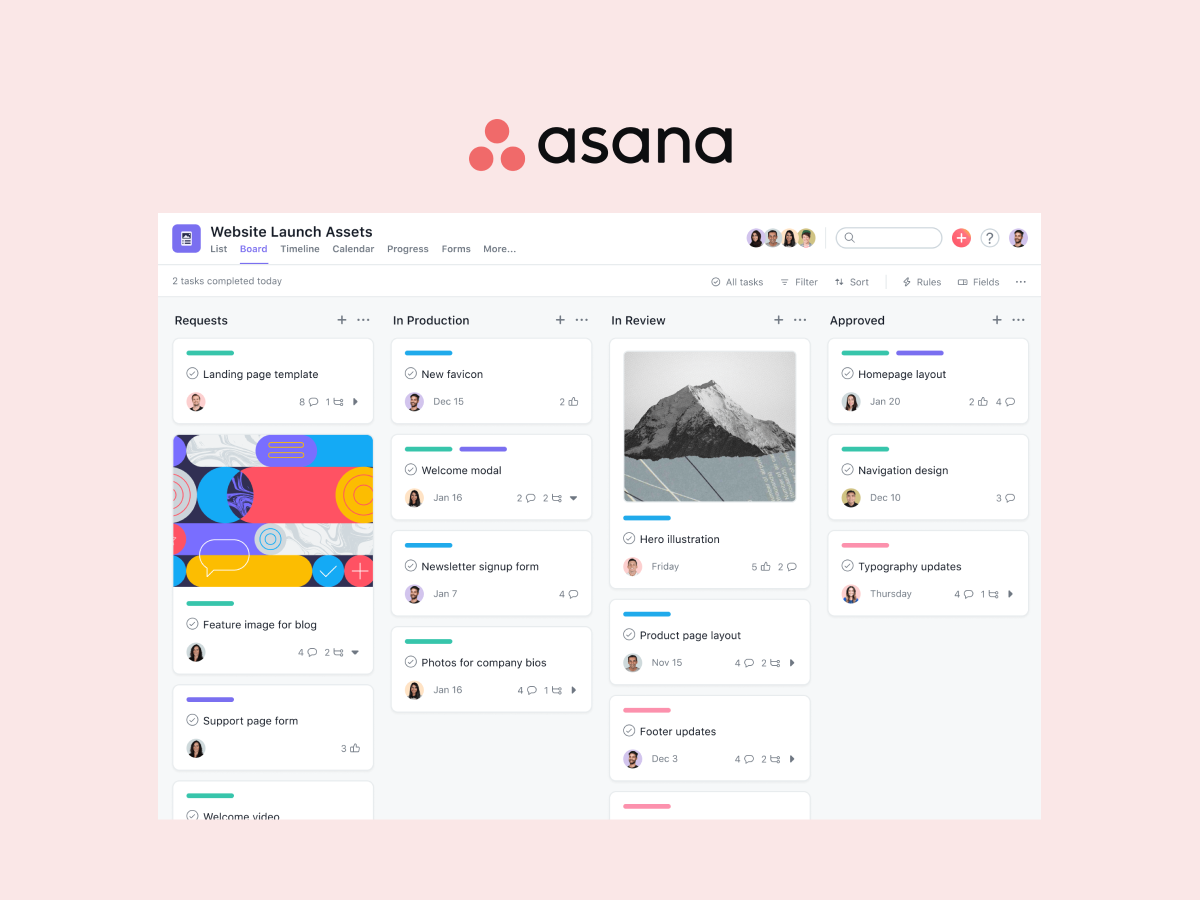
3. Asana - Best for cross-project reporting and portfolios
Asana is the closest match to Monday.com in terms of feature depth. Timeline views, board views, custom fields, and automations all come standard. Where Asana pulls ahead is portfolio management: a single dashboard that tracks the status, owner, and progress of every active project.
For agencies running ten or more client projects at once, that portfolio view is genuinely useful. You see which projects are on track and which are slipping without opening each one individually.
The pricing is steep. Asana Starter costs $10.99 per user per month (annual billing). Advanced, which unlocks portfolios and proofing, costs more. A 20-person agency pays roughly $220 to $500 per month depending on the tier.
Pricing: Free plan (up to 2 users). Starter: $10.99/user/mo. Advanced: $24.99/user/mo. Best for: Teams that need visibility across multiple projects with cross-functional reporting. Skip this if: You want built-in chat, flat pricing, or a simpler tool with less setup.
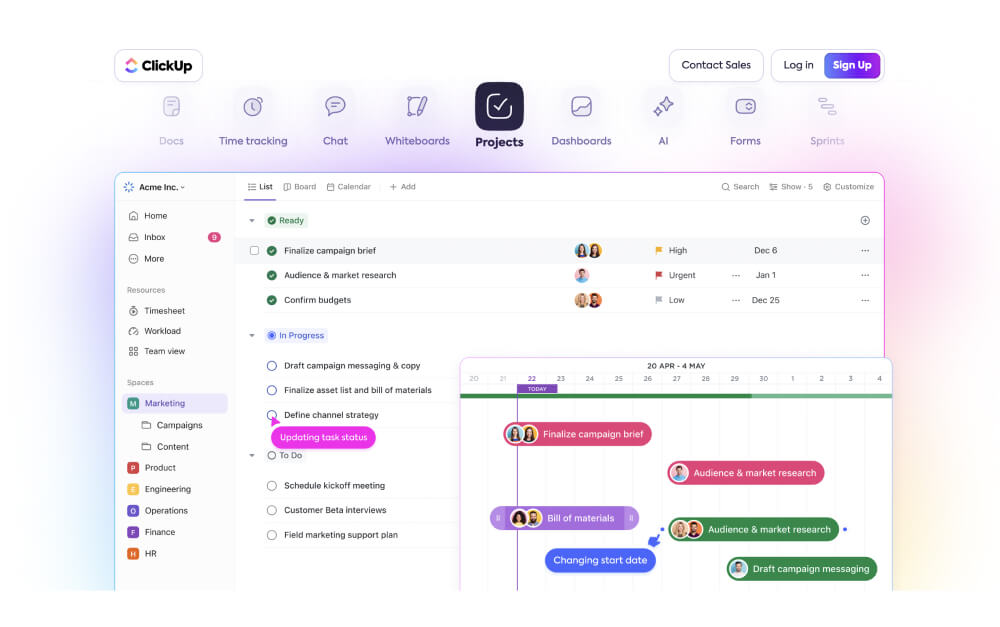
4. ClickUp - Best for teams that want maximum customization
ClickUp is the Swiss Army knife of project management. Tasks, docs, whiteboards, goals, time tracking, chat, dashboards, and forms are all built in. If Monday.com felt like it was missing something, ClickUp probably has it.
The Unlimited plan at $7 per user per month is one of the best values in the market for feature depth. Custom fields, views, automations, and statuses can be configured at every level.
The trade-off is complexity. ClickUp's interface is dense, and the setup process takes time. New team members often need training to navigate it effectively. If Monday.com's learning curve was already a challenge, ClickUp's will be steeper.
Pricing: Free plan (100MB storage). Unlimited: $7/user/mo. Business: $12/user/mo. Best for: Teams that want one platform for everything and are willing to invest in setup and configuration. Skip this if: You value simplicity. ClickUp's depth comes at the cost of ease of use.
Best Monday.com Alternatives for Simplicity
5. Trello - Best for simple Kanban boards
Trello is the opposite of Monday.com's complexity. Cards, lists, and boards. That is the core experience. Drag a card from "To Do" to "In Progress" to "Done." New team members understand the system within minutes.
"Your mind is for having ideas, not holding them." - David Allen, Author of Getting Things Done
That principle is what makes Trello effective for small teams. The tool stays out of your way. Power-Ups add calendar views, voting, custom fields, and integrations, but the free plan limits you to one Power-Up per board.
Trello falls short when projects get complex. There is no built-in time tracking, no native Gantt view, and no cross-board reporting. For anything beyond basic task management, you will need to add integrations or switch to a fuller platform.
Pricing: Free plan (unlimited boards, 1 Power-Up/board). Standard: $5/user/mo. Premium: $10/user/mo. Best for: Small teams and freelancers that want dead-simple Kanban boards. Skip this if: You need automations, reporting, or collaboration features beyond basic task tracking.
6. Todoist - Best lightweight personal task manager
Todoist does one thing well: it keeps track of what you need to do. Tasks, due dates, priorities, labels, and projects. No boards, no Gantt charts, no team dashboards. The interface is fast and clean.
Natural language input lets you type "Call client Tuesday at 3pm #marketing" and Todoist creates a task with the right date, time, and label. Recurring tasks are simple to set up. The daily view keeps your focus on what matters today.
Todoist is a personal productivity tool first. The team features exist, but they are basic compared to Monday.com. If you need client access, visual boards, or cross-project reporting, Todoist will feel too limited.
Pricing: Free plan (5 active projects). Pro: $4/user/mo. Business: $6/user/mo. Best for: Individuals and small teams that want a minimal task manager without project management overhead. Skip this if: You need team collaboration, visual boards, client access, or anything beyond personal task lists.
Best Monday.com Alternatives for Docs and Tasks
7. Notion - Best for document-heavy workflows
Notion is part wiki, part database, part project tracker. For the direct comparison, see our Monday vs Notion head-to-head, or our broader Notion alternatives guide. The block-based editor lets you build anything: meeting notes, project boards, product roadmaps, company wikis, and client portals. The flexibility is unmatched.
For teams that spend as much time writing and organizing information as managing tasks, Notion is a strong pick. Linked databases let you connect tasks to documents, create relational views, and build dashboards from your data.
The downside: Notion is not a traditional PM tool. There are no native Gantt charts, no resource management, and no proofing features. Building a project management system in Notion requires time and ongoing maintenance. It is flexible, but it is not turnkey.
Pricing: Free plan (1 member, unlimited blocks). Plus: $10/user/mo. Business: $18/user/mo. Best for: Teams that need a combined knowledge base and task system, especially content, product, and engineering teams. Skip this if: You want structured project management out of the box without building your own system.
8. Hive - Best for creative teams with design proofing
Hive includes built-in proofing that lets designers, clients, and managers mark up images and documents directly in the platform. Combined with six project views (Gantt, Kanban, calendar, table, portfolio, and summary), it covers a wide range of creative workflows.
The native time tracker, resourcing views, and forms for client intake requests make it practical for agencies that handle incoming work from multiple clients. At $5 per user per month, it is one of the more affordable options with proofing included.
The free plan is limited, and some analytics features are locked behind enterprise pricing. The integration ecosystem is smaller than Monday.com's.
Pricing: Free plan (limited). Teams: $5/user/mo. Enterprise: custom. Best for: Creative agencies and design teams that need proofing, time tracking, and visual project views. Skip this if: You need advanced automations or a large integration library.
Best Monday.com Alternatives for Enterprise
9. Wrike - Best for enterprise workflows and proofing
Wrike is built for structured, repeatable processes at scale. Request forms, multi-level approval workflows, proofing, Gantt charts, resource management, and time tracking are all native. For organizations with compliance requirements or formal review processes, Wrike offers the depth that Monday.com lacks on lower tiers.
"Rather than obsess over idea generation, we would be better served by developing the capacity to make ideas happen." - Scott Belsky, CSO at Adobe, Founder of Behance
Wrike supports both agile and waterfall methodologies with dedicated views. Cross-tagging lets tasks exist in multiple projects simultaneously, which simplifies reporting across teams.
The trade-off is complexity. Wrike's interface is dense, and onboarding takes longer than most tools on this list. Smaller teams often find it overpowered for their needs.
Pricing: Free plan (basic, up to 5 users). Team: $10/user/mo. Business: $25/user/mo. Best for: Larger teams and enterprises that need proofing, compliance controls, and detailed resource management. Skip this if: Your team is under 15 people or you want a tool you can set up in an afternoon.
10. SmartSuite - Best for data-driven teams
SmartSuite sits between Monday.com and Airtable. You get visual project views (grid, Kanban, timeline, calendar, card, map, chart) combined with database-level flexibility: formulas, rollups, linked records, and pivot tables.
The automation builder is capable and easier to configure than Monday.com's for most use cases. The template library covers over 200 solutions, from sales pipelines to product roadmaps to HR onboarding.
The trade-off: SmartSuite has a smaller user base and integration ecosystem compared to Monday.com. Support resources and community forums are less extensive. The free plan limits you to two users.
Pricing: Free plan (2 users). Team: $10/user/mo. Professional: $25/user/mo. Best for: Operations, finance, and data-heavy teams that want spreadsheet-like flexibility with PM views. Skip this if: You need a large integration ecosystem or extensive community support.
Tools We Didn't Include (and Why)
Jira: Purpose-built for software development. If your team is not running sprints and tracking code issues, Jira is overkill.
Airtable: A powerful database tool with PM add-ons, but not a direct Monday.com replacement. Best used alongside a dedicated PM platform.
Microsoft Project: Enterprise scheduling software tied to the Microsoft 365 ecosystem. Not practical for small or mid-size teams.
Zoho Projects: Works well inside the Zoho suite (CRM, Books, Desk). Standalone, it lacks the polish and integrations of dedicated PM tools.
GoodDay: Budget-friendly ($4/user), but limited market presence, fewer integrations, and a smaller support community than established alternatives.
We also considered tools like Teamwork and Productive, which target agencies specifically. Both are solid but priced at $13 or more per user per month, which puts them in the same cost bracket as Monday.com without enough differentiation to justify the switch.
How to Choose the Right Monday.com Alternative
The right tool depends on three things: how your team communicates, how many external people need access, and how much you want to pay.
If your team relies on chat alongside tasks, look at Rock or Basecamp. Both include messaging so you are not paying for a separate tool like Slack. If external clients need regular access, Rock's flat pricing model removes the per-seat cost that makes guest access expensive on Monday.com.
A UCI study found that it takes over 23 minutes to refocus after switching between tools. Choosing a platform that covers more of your workflow in one place can reduce that switching cost significantly.
For feature-rich PM, Asana and ClickUp are the strongest options. Asana is better for reporting across projects. ClickUp is better for teams that want to customize everything. Both charge per user, so calculate the cost at your actual team size.
For simplicity, Trello and Todoist stand out. Both have generous free plans and minimal learning curves. They work best for small teams or individuals who do not need heavy collaboration features. But be honest about your growth plans: a tool that works at five people may not work at fifteen.
Start with what your team actually needs today, not what you might need in a year. Most tools on this list offer free plans or trials. Pick two or three that match your priorities, run a real project in each for a week, and let your team vote. The best monday.com alternative is the one your team will actually use. For the direct Rock comparison, see Rock vs Monday. For the head-to-head against the calmer alternative, see Basecamp vs Monday.
Rock brings messaging and tasks into one workspace with flat pricing.
Looking for a Monday.com alternative that combines chat and tasks without per-user pricing? Try Rock for free.
ClickUp is a powerful project management tool. It can do almost anything you need, from task boards and docs to time tracking and automations. But "can do everything" comes with trade-offs.
In 2025, ClickUp raised its Unlimited plan price from $5 to $7 per user per month. Some teams saw their bills jump overnight after guests were reclassified as limited members. On top of that, the learning curve is steep. Teams that just need a clean task board and a way to communicate often find themselves buried in features they never use.
According to Harvard Business Review, knowledge workers toggle between applications over 1,200 times per day. Adding a complex tool to the mix can make this worse instead of better.
If you are looking for something simpler, cheaper, or just a better fit for your team, here are 10 ClickUp alternatives worth considering.
ClickUp offers deep customization, but that complexity is not for every team.
Answer a few questions to learn which ClickUp alternative fits your team best
We've created a custom quiz to help you decide on the best ClickUp alternative depending on your team and workflows. Try it out, just takes 30 seconds!
Which ClickUp alternative fits your team?
Answer 4 questions. Takes 30 seconds.
1. What features matter most?
Select all that apply
Built-in chat / messaging
Visual boards + automations
Docs / knowledge base
Time tracking / proofing
Simplicity over features
Client collaboration
2. How many people will use it?
1-5
6-15
16-30
30+
3. Do external people (clients, freelancers) need access?
Best ClickUp Alternatives for Agencies and Client Teams
1. Rock - Best for agencies that need chat and tasks in one place
Rock combines team messaging with task boards in one workspace.
Rock is built for teams that work with external clients. Instead of running Slack for messaging and ClickUp for tasks, Rock puts both in the same workspace. Every project gets its own space with chat, a task board, notes, and files.
Clients and freelancers join your spaces directly without paying extra. This is a big deal for agencies that manage five or ten client relationships at once. No separate "guest" pricing tier that inflates your bill.
The pricing model is different from most tools on this list. Rock charges a flat $89 per month for unlimited users, instead of charging per seat. For a team of 20, that works out to $4.45 per person. At 30 people, it drops to $2.97. The math gets better as your team grows.
The trade-off is that Rock is not as feature-deep as ClickUp. You will not find custom fields, complex automations, or Gantt charts. It covers chat, task management, notes, files, and meetings. For many agencies, that is enough.
Pricing: Free plan (3 group spaces, 50 tasks each) | Unlimited: $89/mo flat Best for: Agencies managing multiple client projects who want chat and tasks together. Skip this if: You need advanced automations, custom fields, or Gantt charts.
2. Basecamp - Best for async-first teams with client access
Basecamp takes a different approach to project management. Instead of giving you dozens of features to configure, it gives you a fixed set of tools: message boards, to-dos, schedules, file storage, and group chat. You cannot customize the layout much, and that is the point.
"The most common mistake teams make is buying a tool based on its feature list instead of how their team actually works." - Jason Fried, CEO, Basecamp
Basecamp works well for agencies that communicate with clients through the platform. You can invite clients to specific projects and control what they see. The flat pricing option ($349/mo for unlimited users) makes it predictable for larger teams.
The downside is the limited flexibility. You cannot create custom workflows, there are no Kanban boards, and reporting is basic. If your team needs sprints or visual project tracking, Basecamp will feel too rigid.
Pricing: Free plan (1 project, 20 users) | $15/user/mo or $349/mo flat Best for: Teams that want opinionated structure and async communication. Skip this if: You need visual boards, custom workflows, or detailed reporting.
Best ClickUp Alternatives for Visual Project Management
3. Monday.com - Best for visual workflows and automations
Monday.com offers colorful visual boards with built-in automations.
Monday.com is one of the most visually polished project management tools available. The boards are colorful, easy to read, and the drag-and-drop interface works well for teams that think visually.
Where Monday.com stands out is automations. You can set rules like "when status changes to Done, notify the project lead and move the item to the Archive group." These automations are easier to build than ClickUp's, though slightly less powerful.
The pricing adds up quickly. At $12 per user per month (Standard plan), a 25-person team pays $300 monthly. You also need at least 3 seats to start, and the free plan is limited to 2 seats.
Pricing: Free plan (2 seats) | Standard: $12/user/mo Best for: Teams that want visual boards with solid automations and templates. Skip this if: You are cost-conscious or need deep customization beyond pre-built automations.
4. Trello - Best for simple Kanban boards
Trello is the tool that popularized Kanban boards for business teams. Cards, lists, drag and drop. If you found ClickUp overwhelming and just want a clean board to track tasks, Trello is the simplest option on this list.
The free plan is generous enough for small teams. You get unlimited cards, up to 10 boards per workspace, and basic automations through Butler. The paid plans add calendar views, timeline views, and more dashboard features.
The limitation is that Trello stays simple. There is no built-in communication tool, no docs, and no time tracking. For anything beyond basic task tracking, you will need to add integrations or switch to a more complete platform. Trello is also owned by Atlassian, which means its pricing and features can shift with Atlassian's broader strategy.
Pricing: Free plan (unlimited cards, 10 boards) | Standard: $6/user/mo Best for: Small teams that want dead-simple Kanban without a learning curve. Skip this if: You need reporting, built-in chat, or anything beyond basic boards.
Best ClickUp Alternatives for Complex Projects
5. Asana - Best for cross-project reporting and portfolios
Asana is a strong pick for teams managing multiple projects at once. The portfolio feature gives you a bird's-eye view of all active projects, their status, and who is responsible. This is where Asana is clearly better than ClickUp for some teams.
The interface is cleaner than ClickUp's. You can switch between list, board, timeline, and calendar views without the clutter. Cross-functional collaboration is easier because the navigation is more intuitive.
The pricing is steep though. Asana's Starter plan starts at $13.49 per user per month, and the Advanced plan (needed for portfolios, proofing, and approvals) jumps higher. There is no flat pricing option, so costs scale directly with headcount.
Pricing: Free plan (up to 10 users) | Starter: $13.49/user/mo Best for: Teams juggling multiple projects that need portfolio-level reporting. Skip this if: You want built-in chat, or your team is price-sensitive at 15+ seats.
6. Wrike - Best for enterprise workflows and proofing
Wrike is built for larger organizations that need structure, compliance, and detailed reporting. The proofing feature lets teams mark up images, PDFs, and videos directly in the platform, which is useful for agencies handling creative work.
The tool also offers strong time tracking, resource management, and Gantt charts. If your team uses agile or waterfall methodologies, Wrike supports both with dedicated views.
The challenge is that Wrike feels enterprise-first. The interface is dense, the setup takes time, and smaller teams may find it too heavy. Pricing starts at $10 per user per month (Team plan), but the features most teams want are on the Business plan, which costs more.
Pricing: Free plan (basic) | Team: $10/user/mo Best for: Larger teams that need proofing, time tracking, and compliance controls. Skip this if: Your team is under 15 people or you want something lightweight.
Best ClickUp Alternatives for Docs and Tasks
7. Notion - Best for document-heavy workflows
Notion blends databases, docs, and task management into a flexible workspace. For a deeper Notion-vs-ClickUp breakdown, see our Notion vs ClickUp or ClickUp vs Jira head-to-heads, or our wider Notion alternatives guide. If your team spends as much time writing and organizing information as managing tasks, Notion is a natural fit.
The free plan is strong. You get unlimited pages, and the collaborative editing works well for team wikis, meeting notes, and project documentation. The task management features are functional but secondary to the docs experience.
"The best tool is the one that fits how your team already works, not the one with the longest feature list." - Claire Lew, CEO, Canopy (formerly Know Your Team)
Notion's weakness is that it is not a dedicated project management tool. There are no built-in automations, no proofing, and no time tracking. You can build task boards using databases, but it requires setup and ongoing maintenance. For teams used to ClickUp's out-of-the-box PM features, Notion may feel too unstructured.
Pricing: Free plan (unlimited pages) | Plus: $12/user/mo Best for: Teams that need a knowledge base with lightweight task tracking. Skip this if: You need dedicated PM features like Gantt charts, time tracking, or automations.
8. Hive - Best for creative teams with design proofing
Hive is a mid-range project management tool that includes built-in proofing for design files. Teams can mark up images and documents directly, leave comments on specific areas, and track approval status.
The platform offers six project views (Gantt, Kanban, calendar, table, portfolio, and summary), plus a built-in time tracker. The forms feature lets you create intake forms for client requests, which is useful for agencies handling incoming work.
At $5 per user per month, Hive is one of the more affordable options that includes proofing. The free plan exists but is limited to basic features for small teams.
Pricing: Free plan (limited) | Teams: $5/user/mo Best for: Creative teams that need proofing and approval workflows. Skip this if: You do not need proofing and want something simpler or cheaper.
Best ClickUp Alternatives on a Budget
9. Todoist - Best lightweight personal task manager
Todoist is not trying to compete with ClickUp on features. It is a focused task manager that handles personal and small-team task management without the overhead of a full PM platform.
The interface is clean. You add tasks, set due dates, assign priorities, and check them off. Natural language input lets you type "Submit proposal Friday p1" and it creates a high-priority task due on Friday. No training needed.
The free plan covers up to 5 active projects and 5 collaborators. The Pro plan at $5 per user per month adds reminders, labels, filters, and comments.
Pricing: Free plan (5 projects) | Pro: $5/user/mo Best for: Individuals or small teams that want a clean task list without project management complexity. Skip this if: You need boards, client access, or team-level collaboration features.
10. SmartSuite - Best for data-driven teams
SmartSuite is a newer platform that combines work management with data tools. Think of it as a middle ground between Airtable and Monday.com. You get visual boards, but also spreadsheet-like views with formulas, rollups, and linked records.
The platform includes over 200 templates and supports multiple views per solution (grid, Kanban, timeline, calendar, map, and chart). The automation builder is capable without being as complex as ClickUp's.
"Nearly 9 in 10 disappointed software buyers experienced implementation disruptions, most often due to integration issues, data migration errors, or project delays." - Capterra Software Buying Trends Report
At $12 per user per month, SmartSuite sits in the mid-range. The free plan is available for basic use with limited records.
Pricing: Free plan (limited) | Team: $12/user/mo Best for: Teams that want work management with spreadsheet-level data flexibility. Skip this if: You want something simple, or your team does not need data-driven workflows.
Tools We Didn't Include (and Why)
Jira: Designed for software development teams, not general project management. Overkill for most agencies and non-engineering teams.
Airtable: Excellent as a database, but not a full PM tool. Best used alongside other tools rather than as a replacement.
Microsoft Project: Enterprise-focused, expensive, and requires the Microsoft ecosystem.
Zoho Projects: Capable but tightly coupled to the Zoho suite. If you are not already using Zoho CRM or Zoho Books, the value drops.
GoodDay: Budget-friendly at $4 per user, but limited market presence and fewer integrations than established alternatives.
How to Choose the Right ClickUp Alternative
The right tool depends on what drove you away from ClickUp in the first place.
If ClickUp is too complex: Look at Todoist, Trello, or Rock. All three prioritize simplicity over feature depth.
If ClickUp is too expensive at scale: Rock's flat $89 per month beats per-user pricing at 12+ people. Basecamp's flat plan works for larger teams too. For the head-to-head, see ClickUp vs Basecamp.
If you need client collaboration: Rock and Basecamp both let clients join your workspace without extra per-seat costs.
If you need visual boards and automations: Monday.com is the closest match to ClickUp's visual approach, with an easier learning curve.
If you need docs and tasks together: Notion is the strongest option, though it trades PM features for flexibility.
Rock brings messaging and tasks into one workspace with flat pricing.
A University of California, Irvine study found that it takes 23 minutes to regain focus after switching between tools. Whatever you choose, picking one tool that covers your core needs is better than stitching three together.
Looking for a ClickUp alternative that combines chat and tasks without per-user pricing? Try Rock for free.
Asana is a solid project management tool, but it is not the right fit for every team. Per-seat pricing adds up fast once you grow past ten people. You can only assign one person per task. There is no built-in chat, which means you still need Slack or Teams running on the side. And many useful features, like timeline views and custom fields, are locked behind the Business or Enterprise tiers.
That forced toggling between apps has a real cost. Harvard Business Review found that workers switch apps up to 1,200 times per day, losing roughly four hours a week to context switching. A UCI study confirmed it takes over 23 minutes to refocus after an interruption.
If you are shopping for Asana alternatives, the good news is that the market has matured. There are options built for agencies, for visual thinkers, for teams that live in documents, and for people who just want a simple task list. This guide covers ten tools worth testing in 2026, organized by what they do best.
"The tools that have been around for a long time just don't work the way teams work anymore. Business moves so quickly and the tools can't keep up with that pace of change." - Liz Pearce, former CEO, LiquidPlanner
Asana is feature-rich, but that complexity drives many teams to look for alternatives.
Not sure what Asana Alternative fits you best? Take the Quiz
We'll recommend an Asana alternatie for you team based on Budget, needs and size.
Which Asana alternative fits your team?
Answer 4 questions. Takes 30 seconds.
1. What features matter most?
Select all that apply
Built-in chat / messaging
Visual boards + automations
Docs / knowledge base
Time tracking / proofing
Simplicity over features
Client collaboration
2. How many people will use it?
1-5
6-15
16-30
30+
3. Do external people (clients, freelancers) need access?
Best Asana Alternatives for Agencies and Client Teams
Rock combines team messaging with task boards in one workspace.
1. Rock - Best for agencies that need chat and tasks in one place
Most Asana alternatives solve tasks but ignore communication. Rock takes a different approach: every project space includes its own chat, task board, notes, and file storage. You do not need a separate messaging app.
For agencies, the client collaboration angle stands out. External clients and freelancers join spaces directly at no extra cost. They see the same chat and task updates your team sees. No guest seat fees, no permission headaches. What we do at Rock: we run our own marketing in Rock spaces where the team and external partners work side by side.
The pricing model is flat. $89 per month for unlimited users, spaces, and tasks. For a team of 15, that is under $6 per user. For 30 people, under $3. Per-seat tools like Asana get more expensive as you grow. Rock gets cheaper.
Pricing: Free plan (3 group spaces, 50 tasks/space). Unlimited plan: $89/mo flat.
Best for: Agencies with 10+ people who work with clients daily and want chat and tasks in one workspace.
Skip this if: You need advanced Gantt charts, resource leveling, or deep integrations with enterprise tools like Salesforce.
2. Basecamp - Best for async-first teams with client access
Basecamp takes the opposite approach to feature-heavy tools. Each project gets a message board, to-do lists, a schedule, a chat room, and file storage. That is it. No custom fields, no dependencies, no automations.
That simplicity is the point for async teams. The message board format encourages longer, thoughtful updates instead of rapid-fire chat. Clients can be added to projects with limited visibility. Hill Charts give a visual sense of progress without requiring everyone to update task statuses daily.
The trade-off is real, though. There are no Kanban boards, no timeline views, and no subtask structures. If your projects involve complex dependencies, Basecamp will feel limiting fast.
Pricing: Free plan (1 project, limited storage). Paid: $15/user/mo or $299/mo flat (unlimited users).
Best for: Remote teams that value async communication and want a calm, structured workspace for client projects.
Skip this if: You need visual boards, automations, or detailed reporting across projects.
Best Asana Alternatives for Visual Project Management
3. Monday.com - Best for visual workflows and automations
Monday.com is the strongest pick for teams that think visually. Color-coded boards, timeline views, and Gantt charts come standard. The automation builder is powerful: set triggers for status changes, due dates, assignments, or custom conditions without writing code.
The template library covers marketing campaigns, sprint planning, CRM pipelines, and more. Dashboards pull data from multiple boards into one view, which helps managers track progress across teams.
The downside is pricing. The $12/user/mo rate requires a minimum of three seats, and useful features like time tracking and automations are limited on lower tiers. A 20-person team pays $240/month before hitting feature caps.
Pricing: Free plan (2 seats). Standard: $12/user/mo. Pro: $20/user/mo.
Best for: Marketing teams and agencies that need visual workflows, automations, and cross-functional dashboards.
Skip this if: You are a small team watching costs, or you prefer a simpler tool without a learning curve.
4. Trello - Best for simple Kanban boards
Trello invented the digital Kanban board, and it is still the simplest way to manage tasks visually. Drag cards across columns, add checklists, attach files, set due dates. The interface is intuitive enough that new team members figure it out within minutes.
Power-Ups extend Trello's functionality with calendar views, voting, custom fields, and integrations. But the free plan limits you to one Power-Up per board, and advanced features like dashboard views require the Premium tier.
Trello works well for small teams and straightforward workflows. It starts to struggle when projects involve multiple dependencies, cross-board reporting, or client-facing deliverables.
Best for: Small teams that want a simple, visual task board without setup time. A solid Trello-level experience with room to grow.
Skip this if: You manage complex projects with dependencies, need time tracking, or want built-in reporting.
Best Asana Alternatives for Feature-Rich PM
5. ClickUp - Best for teams that want maximum customization
ClickUp tries to be everything: tasks, docs, whiteboards, goals, time tracking, chat, and dashboards in one platform. For teams that want to consolidate tools, it delivers. The customization depth is unmatched. Custom fields, views, automations, and statuses can be configured per space, folder, or list.
"Nearly 9 in 10 disappointed software buyers experienced implementation disruptions, most often due to integration issues, data migration errors, or project delays." - Capterra Software Buying Trends Report
That depth has a cost. The learning curve is steep. Setting up ClickUp to match your workflow takes hours, not minutes. And the interface can feel cluttered for teams that do not need every feature. It is a powerful tool, but not a simple one.
Pricing: Free plan (100MB storage). Unlimited: $7/user/mo. Business: $12/user/mo.
Best for: Teams that want one platform for everything and are willing to invest time in setup and configuration.
Skip this if: You value simplicity. If Asana felt overwhelming, ClickUp will feel worse.
6. Wrike - Best for enterprise workflows and proofing
Wrike is built for structured, repeatable processes. Request forms, approval workflows, proofing tools, and Gantt charts make it a strong pick for teams that manage complex deliverables. The proofing feature lets reviewers mark up images, videos, and PDFs directly inside the platform.
Time tracking is native, and resource management views help managers balance workloads across the team. Cross-tagging lets a single task live in multiple projects, which Asana handles differently with its multi-home feature.
The trade-off: Wrike is not simple. The interface takes getting used to, and smaller teams may find it heavy for their needs.
Pricing: Free plan (basic features). Team: $10/user/mo. Business: $25/user/mo.
Best for: Enterprise teams and agencies with formal approval processes, proofing needs, and compliance requirements.
Skip this if: You are a small team or startup that needs a lightweight tool. Wrike's setup time is significant.
Best Asana Alternatives for Docs and Tasks
7. Notion - Best for document-heavy workflows
Notion blurs the line between project management and knowledge management. For the broader field, see our Notion alternatives guide or our head-to-head Asana vs Notion, Asana vs Basecamp, and Asana vs Jira comparisons. Its block-based editor lets you build anything: wikis, databases, task boards, meeting notes, and project trackers. The flexibility is the draw.
For teams that create a lot of documentation, Notion is hard to beat. You can link databases, create relational views, and build dashboards from your data. The free plan is generous for personal use.
The downside: Notion is not a traditional PM tool. There are no native Gantt charts, no resource management, and no built-in time tracking. Task management works, but it requires building your own system from templates or scratch.
Best for: Teams that need a combined wiki and task system, especially for content, product, and engineering workflows.
Skip this if: You want structured project management out of the box. Notion requires setup to work as a PM tool.
8. Hive - Best for creative teams with design proofing
Hive combines project management with tools that creative teams actually use. Built-in proofing lets designers and clients mark up files directly. Time tracking is native. And the action card system supports multiple views: Kanban, Gantt, calendar, table, and summary.
Hive also includes a simple messaging feature and integrates with over 1,000 tools through Zapier. The interface is clean and less overwhelming than ClickUp or Wrike.
The free plan is limited to 10 workspace members, and some features like analytics dashboards are locked behind higher tiers.
Pricing: Free plan (10 members). Teams: $5/user/mo. Enterprise: custom pricing.
Best for: Creative agencies and design teams that need proofing, time tracking, and visual project views in one place.
Skip this if: You need advanced automations, custom fields, or client-facing portals.
Best Asana Alternatives on a Budget
9. Todoist - Best lightweight personal task manager
Todoist strips task management down to the essentials: tasks, due dates, priorities, labels, and projects. The interface is clean and fast. Adding tasks feels natural with the quick-add bar and natural language date parsing.
It is not a project management tool in the traditional sense. There are no boards, no Gantt charts, no team dashboards. But for individuals and small teams that just need a reliable task list, Todoist does the job without the overhead.
"There is surely nothing quite so useless as doing with great efficiency what should not be done at all." - Peter Drucker
The Todoist philosophy fits that quote. Not every team needs a complex PM system. Sometimes a clean task list is enough.
Best for: Freelancers and small teams that want a fast, minimal task manager without project management complexity.
Skip this if: You need team collaboration features, visual boards, or client access. Todoist is built for personal productivity first.
10. SmartSuite - Best for data-driven teams
SmartSuite is a newer player that combines work management with database-like flexibility. Think of it as a middle ground between Monday.com and Airtable. You get task views (grid, Kanban, calendar, timeline, card, map) plus the ability to build custom data structures with formulas, automations, and linked records.
The template library is strong, covering use cases from sales pipelines to product roadmaps. Dashboards aggregate data across solutions with charts, metrics, and pivot tables.
The trade-off: SmartSuite is not widely known yet. The integration ecosystem is smaller than Asana's or Monday's. And the pricing can add up for larger teams.
Pricing: Free plan (limited records). Team: $15/user/mo. Professional: $25/user/mo.
Best for: Teams that need structured data alongside project management, especially operations and finance workflows.
Skip this if: You want a large integration ecosystem or need an established tool with a big community and support library.
Tools We Didn't Include (and Why)
Jira: Built for software development teams, not general project management. Overkill for most agencies and non-technical teams.
Airtable: A database tool with project management add-ons. Powerful, but the learning curve and pricing make it a poor direct Asana replacement.
Microsoft Project: Enterprise-grade scheduling software. Requires Microsoft 365 and is designed for program managers, not everyday team collaboration.
Zoho Projects: Part of the Zoho ecosystem. Works best if you already use Zoho CRM, Books, and other Zoho apps. Standalone, it is underwhelming.
GoodDay: Interesting AI-powered features, but the small user base means fewer integrations, slower updates, and limited community support.
How to Choose the Right Asana Alternative
Start with why you are leaving Asana. If it is pricing, calculate your per-user cost at your current team size and compare flat-rate options like Rock. If it is complexity, lean toward simpler tools like Trello or Todoist. If it is missing features, look at ClickUp or Wrike.
Think about who needs access. Agencies that bring clients into projects need tools built for external collaboration: Rock and Basecamp handle this well. Internal-only teams have more flexibility.
The best Asana alternative is the one your team will actually use. Most of these tools offer free plans or trials. Pick two or three from this list, run a real project through each, and let the team vote. The quiz at the top of this page can narrow your starting point.
According to industry surveys, 59% of Scrum teams use 2-week sprints. That is the default, but it is not always the right answer. Sprint length depends on how fast you can get feedback, how experienced your team is, and how much changes between reviews. Get started with the sprint planning template.
For agencies managing client work, sprint length is often dictated by the client's feedback timeline, not by Scrum theory. If your client reviews work every Friday, a 2-week sprint means they see half-finished work at the review. A 1-week sprint aligns with their rhythm.
This guide helps you pick the right sprint length for your team, with an interactive tool, a decision framework, and specific advice for agencies running client projects.
"A Sprint should be as short as possible and no shorter." - Ken Schwaber, Co-creator of Scrum
Find Your Sprint Length
Answer four questions and get a recommendation based on your team's situation.
1. How often does your client (or stakeholder) review work?
2. How many people are on the team?
3. How much do requirements change between reviews?
4. Is your team new to sprints?
Sprint Length Options at a Glance
1-week sprints: Best for fast-changing requirements, small teams, or when clients review weekly. High planning overhead (you plan every week) but maximum alignment with feedback. Good for agencies where the client expects to see progress every few days.
2-week sprints: The industry standard. 59% of teams use this length. Balances planning overhead with delivery. Works well when clients review bi-weekly or when your team is still learning sprint practices.
3-4 week sprints: For complex work with stable requirements. The Scrum Guide sets one month as the maximum. Gives teams extended focus time but increases the risk of scope drift and late feedback. Consider a mid-sprint check-in to catch issues early.
Sprints for Agency Client Work
Most sprint guidance is written for product teams building software. For more on the full product development process, see our guide. Agencies are different in ways that directly affect sprint length.
The client is the Product Owner. In a product company, the Product Owner is an employee who understands sprint boundaries. In an agency, the client fills that role, and they may not understand that adding scope mid-sprint has consequences. This means shorter sprints often work better for agencies because there is less time for scope to creep.
Multi-client capacity. A developer on three client projects cannot commit fully to any one sprint. If your team splits time across clients, shorter sprints give you more flexibility to rebalance capacity week to week.
Client feedback is the real constraint. Sprint length should align with when the client can actually review work. If they only have time for a review call every other Friday, a 2-week sprint ending on Thursday gives you time to prepare the deliverable. If they check in weekly, match that rhythm.
"Part of why we love the Agile approach is because it bakes in adaptation, and we can learn as we go." - Emily Theis, Head of Producers at Upstatement, via Medium
Your team spends more time in planning and retros than building
Nothing meaningful ships at the end of each sprint
Velocity is unpredictable from sprint to sprint (the burndown chart usually shows the Wave or Flatline shape)
Team feels like they are constantly starting over
Fix: Extend to 2 weeks. Batch smaller tasks together. Reduce ceremony time by sharing meeting agendas in advance so retros and planning stay focused.
Signs Your Sprints Are Too Long
Requirements change before the sprint ends
Client feedback arrives too late to act on
Scope creep fills the extra time (more gets added because "we have the time")
Team procrastinates early and rushes at the end
Fix: Shorten to 2 weeks. If you cannot go shorter, add a mid-sprint check-in to catch drift early. For more on managing scope changes, see our guide on defining project scope.
Sprint Fatigue: The Problem Nobody Talks About
After 6 or more consecutive sprints without a break, teams often report blurred lines between sprints, lower productivity, shorter tempers, and increasing sick days. This is sprint fatigue, and it is real. At the individual level, the equivalent rhythm protection is the Pomodoro Technique: short focused intervals with structured breaks that prevent the same exhaustion at a daily scale.
The fix: build in a rest sprint every 6-8 weeks. Use it for learning, process improvement, documentation, or technical debt. Not client work. This is not lost time. It is an investment in the team's ability to sustain pace over months, not just weeks.
Rock has built-in sprints that work alongside chat, tasks, notes, and files in every project space. Set your sprint cadence (weekly, bi-weekly, or monthly), assign tasks to sprints, and track progress on the sprint board.
Because the sprint board lives in the same space as your project chat, clients can see sprint progress directly without a separate status meeting. Sprint reviews can happen asynchronously: share the board, the client reviews when they have time, and you discuss only what needs discussion.
For a broader look at how sprints fit into your tool stack, see our guide on task management apps.
Final Thoughts
Sprint length is not a one-time decision. Start with 2 weeks if you are unsure. After 3-4 sprints, look at what is working and what is not. If planning overhead is eating your time, go longer. If client feedback is arriving too late, go shorter. The right sprint length is the one that matches your team's feedback cycle, not the one a framework prescribes.
"Better remote communication is not about sending more messages. It is about making the right information visible at the right time, so nobody has to chase it." - Nicolaas Spijker, Marketing Expert
Want sprints, chat, and client collaboration in one workspace? Rock combines messaging, task boards with built-in sprints, notes, and files. One flat price, unlimited users. Get started for free.
According to research from My Hours, 48% of workers say their last meeting was unnecessary. Meeting time has tripled since 2020. The average professional now spends more than half their workweek in meetings and messages, leaving less than half for actual work.
Sometimes the right move is to cancel. Sometimes the right move is to replace the meeting with an async update. And sometimes the meeting should happen, just shorter. This article covers all three situations, with templates you can copy for each one.
"A meeting hangover is the idea that when we have a bad meeting, we just don't leave it at the door. It sticks with us and it negatively affects our productivity." - Steven Rogelberg, Professor at UNC Charlotte and Author of The Surprising Science of Meetings, via CBS News
Before You Cancel: Should This Meeting Exist?
Before writing the cancellation message, ask yourself which category this meeting falls into:
Cancel it if there is no agenda, or the agenda can be covered in a single message. If you cannot explain what the meeting will accomplish in one sentence, it probably should not happen.
Make it async if it is a status update, information share, or a decision that does not need real-time discussion. A written update or a short recorded video can replace most of these. For the calls that do stay live, our video conferencing guide covers when the format earns its cost. For more on this, see our guide on virtual communication practices.
Keep it but shorten it if the topic needs discussion but 15 minutes would be enough instead of 60. Most meetings default to 30 or 60 minutes because that is what the calendar app suggests, not because the topic requires it.
Keep it as-is if it is a brainstorm, a conflict resolution conversation, relationship-building with a new client, or onboarding. These benefit from real-time interaction and body language.
According to Reclaim.ai, replacing just 4 unnecessary meetings per week with email or chat updates saves about 2.67 hours. Over a year, that adds up to more than two full work weeks.
How to Cancel an Internal Meeting
Internal meetings are the simplest to cancel. Your team understands competing priorities. The key is to always say what happens instead: an async update, a rescheduled date, or nothing (because the meeting was not needed).
Template: Slack or chat message
"Hey team, canceling today's [meeting name]. [Reason in one sentence]. I will send a written update by [time] instead. If anything needs discussion, drop it in the thread and we will sort it out async."
Template: Email
"Hi everyone, I am canceling our [meeting name] scheduled for [date/time]. [Brief reason]. Instead, I have posted an update in [location: project space / shared doc / email below]. Please review and flag anything that needs a live conversation. We can always add a shorter sync if needed."
Notice both templates include what replaces the meeting. "Canceled with no follow-up" feels like something got dropped. "Canceled, here is the update instead" feels like you are respecting everyone's time.
How to Cancel a Client Meeting
Client meetings are different. Canceling an internal sync is forgiven. Canceling a client meeting, especially more than once, signals unreliability. With new clients or prospects, there are rarely second chances.
A few rules that protect the relationship:
Call or message directly first, then follow up in writing. An email-only cancellation can feel dismissive. A quick phone call or direct message shows you take the relationship seriously.
Always offer something in return. A brief async update, a deliverable sent ahead of schedule, or a shorter alternative meeting. Never cancel and leave a vacuum.
Never cancel the same client's meeting twice in a row. One cancellation is understandable. Two back-to-back is a pattern, and clients notice.
Give as much notice as possible. 48 hours is ideal. Same-day cancellations should only happen for genuine emergencies.
Template: Client cancellation message (phone or chat)
"Hi [name], I need to move our meeting scheduled for [date]. [Brief honest reason: a client deliverable needs my attention / a team issue came up that I need to handle today]. I want to make sure we use our time well, so I would like to suggest [alternative: rescheduling to X date / sending you an async update today / a shorter 15-minute check-in tomorrow]. What works best for you?"
Template: Follow-up email after cancellation
"Hi [name], following up on our conversation. I have rescheduled our meeting to [new date/time]. In the meantime, here is a quick update on where things stand: [2-3 sentences on project status]. Let me know if anything needs attention before we meet."
If your team or clients are in different countries, meeting cancellation norms vary more than you might expect.
Southeast Asia (Philippines, Indonesia): Hierarchy matters. Canceling a meeting with a senior person requires more deference and explanation than canceling with a peer. Indirect communication is preferred. Instead of "I am canceling because it is not needed," try "I want to make sure we are using your time well. Would it be helpful if I sent a written update instead?"
Latin America (Brazil, Colombia, Mexico): Personal relationships come first. A phone call is better than an email. The personal touch matters more than efficiency. Even if the cancellation is straightforward, spending 30 seconds acknowledging the relationship makes a difference.
General rule: When in doubt, over-communicate the reason and offer a concrete alternative. This works across cultures because it shows respect for the other person's time regardless of local norms. For more on building culture across regions, see our article on remote work culture for agencies.
All Templates in One Place
Here are all six templates for easy reference:
1. Internal meeting - chat message: "Hey team, canceling today's [meeting]. [Reason]. I will send a written update by [time] instead."
2. Internal meeting - email: "I am canceling our [meeting] on [date]. [Reason]. Update posted in [location]. Flag anything that needs a live conversation."
3. Client meeting - direct message: "Hi [name], I need to move our meeting on [date]. [Reason]. Can I suggest [alternative]? What works for you?"
4. Client meeting - follow-up email: "Following up. Rescheduled to [date]. Here is a quick update: [status]. Let me know if anything needs attention."
5. Recurring meeting you want to eliminate: "I have been thinking about our weekly [meeting]. Most weeks, the updates could be covered in a written message. What if we switch to a Friday async report and only meet when there is something that needs real-time discussion? We can try it for two weeks and see how it feels."
6. Proposing async instead of a meeting: "Before we schedule a call for this, can I try something? I will record a 5-minute walkthrough of [topic] and share it. You can watch when it works for you and leave comments. If anything needs a live conversation after that, we will schedule a shorter call."
When to Replace Meetings with Async Updates
Canceling a meeting is one thing. Replacing the pattern is another. If you find yourself canceling the same type of meeting repeatedly, the meeting itself might be the problem.
Status updates: Replace with a Friday async report. What shipped, what is blocked, what comes next week. Two to three paragraphs or a 3-minute recorded video.
Design or work reviews: Replace with recorded walkthroughs. Your team member records a 5-minute Loom, the reviewer watches and leaves timestamped comments. More thoughtful feedback, no scheduling needed.
Decision meetings: Replace with a written decision template. Context, options, recommendation, deadline for input, decision owner. See our guide on remote communication for the full framework.
What we practice at Rock: we share a meeting agenda 24-48 hours before every meeting. At the start, we ask if everyone has read it. If not, we give 5 minutes for short agendas or reschedule for longer ones. This alone eliminates most unproductive meetings because the preparation requirement filters out the ones that should not happen.
"The most productive meetings contain only five to eight people." - Robert Sutton, Professor of Organizational Behavior at Stanford University
Final Thoughts
Canceling a meeting is not a failure of management. Keeping an unnecessary meeting is. The best teams cancel more meetings than average teams because they have systems that make real-time discussion optional for most work.
Start with the decision framework: cancel, make async, shorten, or keep. Use the templates above when you need them. And if you notice you are canceling the same meeting every week, replace the pattern with something better.
"Better remote communication is not about sending more messages. It is about making the right information visible at the right time, so nobody has to chase it." - Nicolaas Spijker, Marketing Expert
Want to reduce meetings by keeping your team and clients in one workspace? Rock combines messaging, tasks, notes, and files in every project space. Clients join directly. Get started for free.
If you are reading this, you probably already know what Trello does well: Kanban boards, drag-and-drop cards, a clean interface that anyone can learn in five minutes. For small projects and simple workflows, it is hard to beat.
But you are also here because something is not working anymore. Maybe you need to see across multiple projects at once and Trello does not do portfolios. Maybe your team is copying task updates into Slack because Trello has no built-in messaging. Maybe your board has 200 cards and finding anything takes longer than doing the work. Or maybe the per-user pricing is adding up now that your team has grown.
This guide covers 10 alternatives organized by the specific Trello limitation you are trying to solve.
"Your system needs to be as simple as it can, but no simpler." - David Allen, Author of Getting Things Done
Trello Alternative Picker for your Team
Answer the following questions to see which tools fits the needs of your team best.
Which Trello alternative fits your team?
Answer 4 questions. Takes 30 seconds.
1. Why are you looking beyond Trello?
Select all that apply
Need built-in chat
Need more than Kanban
Need docs / notes
Need automations
Want something simpler
Too expensive at scale
2. How many people will use it?
1-5
6-15
16-30
30+
3. Do external people (clients, freelancers) need access?
Rock combines messaging, tasks, notes, and files in every project space.
Trello handles tasks. Rock handles the conversation around tasks too. Every project space includes chat, a task board, notes, and files. Clients and freelancers join directly without a guest portal or per-user fee.
Where Trello requires you to pair it with Slack or email for communication, Rock combines both. Kanban boards, list view, calendar view, sprints, and custom fields on the paid plan. The open API lets you connect any AI (Claude, ChatGPT, Gemini) as a bot in your workspace.
Pricing: Free (3 group spaces, unlimited messages) | Unlimited: $89/month flat regardless of team size. That works out to $5.93/user for a 15-person team, or $2.97/user for 30 people. Compare that to Trello Premium at $10/user or Asana at $10.99/user. The value gets better as your team grows.
Best for: Agencies with 10+ people that want chat and task management in one workspace with client access at no extra cost.
Skip this if: You are a small team of 3-5 where per-user tools may be cheaper, or you need advanced PM features like Gantt charts. See the full Rock vs Trello comparison.
Asana fills the portfolio and reporting gap that Trello does not cover.
Asana fills the gap Trello leaves once you manage multiple projects. Portfolio views show you where every project stands at a glance. Workload management helps balance team capacity. Timeline views give you Gantt-style planning that Trello cannot do.
The free plan supports 15 users with unlimited tasks. The trade-off: no built-in messaging. You still need a separate chat tool.
Best for: Agencies managing 10+ concurrent projects that need visibility across all of them. Rock vs Asana.
3. Monday.com - Best Visual Alternative
Monday.com offers Trello's visual approach with more power underneath.
If you like Trello's visual approach but need more power, Monday.com is the natural step up. Color-coded boards, timeline views, drag-and-drop automations, and a polished interface that works well in client presentations.
Monday.com raised prices 18% in February 2026. The 3-seat minimum on paid plans means you pay at least $27/month even for a small team.
Best for: Teams that want Trello's visual simplicity with more features underneath. Rock vs Monday.com.
4. ClickUp - Best for Customization
ClickUp is the opposite of Trello's simplicity. Every view, field, and workflow is customizable. List, board, Gantt, calendar, table, and more. ClickUp Brain adds AI features for an additional $9/user/month.
Two things worth knowing: ClickUp raised prices 40% in 2025, and some users have reported billing issues where guests were reclassified as paid members. See our ClickUp vs Monday.com vs Rock comparison for details.
Best for: Technical teams that want maximum control over their workflow. Rock vs ClickUp.
Skip this if: You value simplicity or onboard clients into your workspace. The learning curve is steep.
Best for Simplicity
5. Todoist - Best for Personal Task Management
Todoist is even simpler than Trello. Natural language input ("email client brief tomorrow at 3pm") makes adding tasks fast. The new Ramble feature (January 2026) converts voice to organized tasks in 38 languages.
Best for: Freelancers and individual contributors who need a personal task system, not a team PM tool.
6. Basecamp - Best for Async-First Teams
Basecamp replaces Trello's boards with to-do lists, message boards, and automatic check-ins. It is opinionated: no Gantt charts, no complex automations. Designed for teams that prefer asynchronous work over constant real-time collaboration.
Best for: Teams that find Trello too lightweight but find ClickUp/Asana overwhelming.
Best for Docs + Tasks Combined
7. Notion - Best for Teams That Think in Documents
Notion replicates Trello boards and adds databases, wikis, and client portals. For the direct comparison, see our Notion vs Trello head-to-head, or the wider Notion alternatives guide.
Notion can replicate Trello's Kanban boards and add databases, wikis, client portals, and SOPs on top. The flexibility is both its strength and its challenge. You can build anything, but you have to build it yourself.
Notion removed standalone AI as an add-on in May 2025. AI features now require the Business tier at $20/user/month.
Best for: Small agencies that want docs, tasks, and wikis in one place.
8. MeisterTask - Best Visual Kanban with Automation
MeisterTask is the closest to Trello's Kanban feel, with built-in column automations.
MeisterTask is the closest alternative to Trello's visual Kanban approach, but with built-in automation. Automations trigger when tasks move between columns: assign a team member, change the due date, send a notification. If you like Trello's simplicity but wish it automated more, MeisterTask fills that gap.
Best for: Teams that love Kanban boards and want column-based automations without the complexity of ClickUp.
Best for Enterprise
9. Wrike - Best for Workflow Automation at Scale
Wrike is the enterprise option. 400+ integrations, advanced workflow automation, proofing tools, and custom request forms. It handles the kind of complexity that Trello was never designed for.
Best for: Large agencies (50+ people) with complex approval workflows.
Skip this if: You are under 30 people. Wrike's complexity is more than most smaller teams need.
10. Hive - Best for Document Reviews and Approvals
Hive combines project management with built-in proofing and approval workflows. Upload a design, leave comments directly on it, route it through an approval chain. For creative agencies that spend hours on review cycles, this is where Hive differentiates.
"Better remote communication is not about sending more messages. It is about making the right information visible at the right time, so nobody has to chase it." - Nicolaas Spijker, Marketing Expert
Looking for a Trello alternative with built-in messaging? Rock combines chat, task boards, notes, and files in every project space. Clients join directly. One flat price, unlimited users. Get started for free.
Read that again. Your remote team feels productive and connected. They are also quietly browsing job boards.
This is the engagement paradox, and it explains why "remote culture" initiatives like water cooler channels and Zoom happy hours do not actually reduce turnover. They address engagement (which is already high) instead of the structural reasons people leave: no visible career path, burnout from context switching, isolation from decision-making, and the feeling that nobody notices their work. Left unchecked, these are the early signs of a toxic work culture.
For agencies, these problems are amplified. You have rotating client projects, freelancers who come and go, timezones that never fully overlap, and a designer context-switching between three clients before lunch. Virtual pizza parties do not fix any of that.
"What you do is who you are. Culture is not what your company says about itself, it's how it makes decisions when you're not in the room." - Ben Horowitz, Co-founder of Andreessen Horowitz, from What You Do Is Who You Are
What Doesn't Work (and Why)
Virtual water coolers, mandatory social events, Friday trivia, team Spotify playlists. These are the most common remote culture recommendations. They are also the least effective at reducing turnover when used as the foundation.
The reason: they address loneliness symptoms without touching the structural causes of attrition. A Slack memes channel creates a moment of connection, but it does not help the junior developer who has no idea what "senior" looks like at your agency, or the freelancer who ships work every week but has never been in a strategy conversation.
"Burnout does not happen in isolation. It is shaped by culture, by leadership behaviors, and by the norms we reinforce every day at work. When exhaustion becomes normalized and silence feels safer than speaking up, burnout stops being an individual issue and becomes a reflection of the environment itself." - Jennifer Moss, Author of The Burnout Epidemic
This matters because the activities you skip reveal more about your culture than the activities you add. If your agency has a #celebrations channel but no quarterly growth conversations, the message is: we care about morale but not your career. People notice.
That said, social activities still have a place once the structural foundation is in place. The key is to ask your team what they actually enjoy rather than assuming everyone wants the same thing. A monthly optional game night might work great for one team and feel forced for another. Let the team shape the social layer after the important things (recognition, career paths, workload balance) are working.
For agencies, this is simple and free. When a team member ships a deliverable that the client loves, say so publicly in the project space. Not in a private message. In the shared space where the whole team can see it. Name the person, name what they did, and name why it mattered.
This compounds over time. People who feel seen stay longer. People who feel invisible start looking.
2. Fix Context Switching Before Adding Culture Activities
Research from Asana's Anatomy of Work shows that workers switch contexts an average of 15 times per hour. For agencies where one designer handles three clients, this is worse. One study documented agencies losing 208 hours per employee per year to context switching alone.
Culture starts with not burning people out. Everything else is decoration on top of exhaustion.
The fix: dedicated work blocks. One client per morning, another per afternoon. Agencies that implemented this saw 21% fewer project touchpoints per day. Your team delivers better work, and they have energy left for the things that build connection. For more on protecting focus time, see our guide on virtual communication practices.
3. Make Career Paths Visible
According to HR Source research, 82% of HR leaders cite unclear promotion paths as a top driver of turnover. In remote agencies, this problem is invisible because growth is invisible. Nobody sees who got promoted, what skills were rewarded, or what "the next level" looks like.
Fix: quarterly growth conversations with every team member. Not annual reviews. A 30-minute conversation every three months: "Here is where you are. Here is what senior looks like. Here is what you would need to work on to get there." Define "senior" with specific skills and responsibilities, not just years of tenure.
This is especially important for agencies in Southeast Asia and Latin America, where hierarchical communication norms mean team members are less likely to ask about their growth path unprompted. If you do not bring it up, they will not either. They will just leave.
4. Include Freelancers in Culture, Not Just Projects
If 40% of your agency's capacity comes from freelancers who feel "invisible, not part of something," you do not have agency culture. You have a staffing arrangement.
Freelancers do not need to attend every all-hands meeting. But they should:
Be included in project retros (they have context nobody else has)
See team-wide updates about what the agency is working toward
Get recognized publicly when they ship good work
Know who else is on the team, not just their project lead
Research from Together Mentoring shows that structured mentorship improves retention by 82% and productivity by 70%. For freelancers who are technically outside your org, even light mentorship (a monthly check-in, access to learning resources, feedback on their work) can shift them from "contractor" to "extended team."
5. Break Project Silos with Cross-Team Visibility
Project-based work creates silos by default. The design team only interacts with design clients. Dev only talks to dev. Strategy never meets operations. After six months, you do not have one agency culture. You have four micro-cultures that barely know each other.
Fix: a monthly "show and tell" where each project team shares one thing they learned, one thing that worked, or one thing that failed. Keep it short: 15 minutes, async video or live. Not mandatory, but visible. Over time, people start seeing the agency as a whole, not just their corner of it.
In Rock, cross-project visibility is built into the workspace. Team members can see what other spaces are working on. When someone ships work in one project, the recognition is visible to the whole agency, not just the people in that space.
The Developing Nations Reality
Most remote culture advice is written for US and European tech companies. If your agency is in the Philippines, Nigeria, or Brazil, some of it applies and some of it does not.
Southeast Asia: Many SEA cultures favor indirect communication, especially around conflict. Team members in Indonesia or the Philippines may hint at problems rather than state them directly, prioritizing harmony over confrontation. This means your feedback mechanisms need to account for this. Anonymous pulse surveys and private 1-on-1s will surface issues that an open Slack channel never will.
Africa:43% of the African population cannot access reliable electric power. When a team member's third restart of the day is due to a power outage, the Zoom happy hour is not their problem. Remote culture in Africa means accounting for infrastructure realities: flexible deadlines, async-first workflows, and tools that work on low bandwidth.
Latin America: Work culture in Brazil, Colombia, and Mexico places high value on personal relationships. Trust comes from connection with leadership, not from process docs. Regular 1-on-1s with leadership (not just project managers) are essential, not optional. If the agency owner is invisible, the culture feels hollow.
In all three regions, WhatsApp is where your team bonds informally. Quick messages, voice notes, group chats. That informal layer is valuable and you should not try to replace it. What you do need is a structured workspace alongside it for project management, client collaboration, and decisions that need to be tracked. The informal and the structured serve different purposes. Keep both, and be clear about when each one is the right tool.
Final Thoughts
Remote agency culture is not about adding fun activities on top of a broken structure. It is about fixing the structure so that connection happens naturally.
Recognition costs nothing and compounds. Fixing context switching gives people energy for connection. Visible career paths give people a reason to stay. Including freelancers turns a staffing arrangement into a team. And cross-project visibility turns a collection of project silos into an actual agency.
Once those foundations are working, bring in the social layer. Ask your team what they actually want. Some teams thrive on weekly casual video calls. Others prefer an async photo channel where people share their weekend. The format matters less than the fact that it came from the team, not from a "remote culture best practices" blog post.
The data supports this: fully remote teams retain at 94.2% when the culture works, compared to 81.6% for office-based teams. Remote can be better. But only if you build for it intentionally.
"Better remote communication is not about sending more messages. It is about making the right information visible at the right time, so nobody has to chase it." - Nicolaas Spijker, Marketing Expert
Want a workspace where your team, freelancers, and clients all see the same project space? Rock combines messaging, tasks, notes, and files. One flat price, unlimited users. Get started for free.
Task management apps all do the same basic things: tasks, assignments, deadlines, boards. The difference is in what else they do, how much they cost, and whether your clients can use them too. If client access is the priority, our best client portal software guide covers that angle directly.
This guide covers 10 options with updated 2026 pricing. Several tools raised prices this year, and one has a billing controversy worth knowing about.
"Your system needs to be as simple as it can, but no simpler." - David Allen, Author of Getting Things Done
Custom Task Management App Picker
Explain your situation and we'll recommend a task management app for you.
Rock combines messaging, tasks, notes, and files in every project space.
Most task management apps handle tasks. Rock handles the conversation around tasks too. Every project space includes chat, a task board, notes, and files. Clients join directly without a guest portal or per-user fee.
Rock's task management is simpler than ClickUp or Asana, and for many agencies that simplicity is actually what works best. Kanban boards, list view, calendar view, sprints, and custom fields on the paid plan. Clients can pick it up on day one without training. If you need Gantt charts or resource allocation, the tools below will be a better fit. If you need chat and tasks together with client access, Rock is built for that.
The open API lets you connect any AI (Claude, ChatGPT, Gemini) as a bot in your workspace. No AI surcharge.
These three tools are built for teams that need advanced project management. They are powerful, though they come with per-user pricing that scales with your team.
2. ClickUp - Best for Customization
ClickUp offers the most customization, but the learning curve is steep.
ClickUp is the most customizable task management app on this list. Multiple views (list, board, Gantt, calendar, table), custom fields, automations, docs, and now ClickUp Brain for AI features. If you want granular control over every aspect of your workflow, ClickUp can handle it.
Two things worth knowing in 2026. First, ClickUp raised prices 40% in 2025 (Unlimited went from $5 to $7/user/month). Second, some users have reported billing issues where guests were reclassified as paid members, with bills jumping from $144 to over $1,250 in some cases. Worth checking how ClickUp classifies your external collaborators before committing.
Best for: Technical teams that want maximum customization and can invest time in setup.
Skip this if: You regularly onboard clients into your workspace. Rock vs ClickUp. The complexity can be overwhelming for people who are not power users.
3. Asana - Best for Reporting and Portfolios
Asana is strongest for portfolio-level reporting across multiple projects.
Asana is a strong option for agencies that need visibility across multiple projects at once. Portfolio views, workload management, and reporting dashboards let you see where every project stands without opening each one individually.
The free plan supports 15 users with unlimited tasks, which is generous. The main trade-off: Asana does not include built-in messaging. You will still need a separate chat tool, which means your team switches between apps for communication and tasks.
Best for: Agencies managing 10+ concurrent projects that need portfolio-level reporting.
Skip this if: You want chat and tasks in one place. Asana focuses on tasks and project management only. Rock vs Asana.
4. Monday.com - Best Visual Project Management
Monday.com is the most visual option in this category. Color-coded boards, timeline views, and drag-and-drop automations make it approachable for non-technical team members. The interface is polished and works well in client presentations.
Something to keep in mind: Monday.com raised prices 18% in February 2026. The minimum purchase is 3 seats, so you are paying at least $27/month even for a small team. Automation limits are also strict on lower tiers (250 runs/month on Standard), which can be limiting for agencies running multiple client workflows.
Best for: Teams that value visual design and need to present project status to clients who are not comfortable with traditional PM tools.
Skip this if: You are a small team (the 3-seat minimum inflates cost) or you need heavy automation on a budget. Rock vs Monday.com.
Best for Simplicity
Not every agency needs a full project management suite. These tools do less, on purpose. They are faster to set up, easier to learn, and cheaper to run.
5. Trello - Best Simple Kanban
Trello is the original Kanban board app. Cards, columns, drag and drop. If your workflow is "To Do, In Progress, Done," Trello handles it with zero learning curve. Power-ups add extra features like calendar views, time tracking, and integrations.
Best for: Small teams that think visually and need a lightweight task board.
Skip this if: You manage complex multi-phase projects. Trello's simplicity becomes a limitation once you need dependencies, portfolios, or cross-project views.
6. Todoist - Best Personal Task Management
Todoist is a personal task manager first and a team tool second. Natural language input ("email client brief tomorrow at 3pm") makes adding tasks fast. The new Ramble feature (January 2026, built on Gemini) converts voice to organized tasks in 38 languages, which is handy for agencies with multilingual teams.
Todoist raised prices in December 2025 (Pro went from $4 to $5/month). Still affordable, but the team features are limited compared to dedicated PM tools.
Best for: Individual contributors and freelancers who need a personal task system. The voice-to-task feature is a genuine differentiator for people on the go.
Skip this if: You need team-level project management. Todoist is built for personal productivity, not multi-person project workflows.
7. Basecamp - Best for Async-First Teams
Basecamp is opinionated about how work should happen. No Gantt charts, no complex automations, no endless customization. Instead: to-do lists, message boards, automatic check-ins, and a hill chart for tracking progress. It is designed for teams that believe most work should happen asynchronously.
Basecamp simplified its pricing in 2025. The Pro Unlimited plan at $349/month (or $299/month annual) covers unlimited users, which makes it competitive for larger teams.
Best for: Teams that want simplicity and structure over customization. Agencies that find traditional PM software frustrating often end up here.
Best for Docs + Tasks Combined
8. Notion - Best for Teams That Think in Documents
Notion is a workspace where you can build just about anything: databases, wikis, project boards, client portals, SOPs. The flexibility is its strength and its challenge. You can create a system that fits perfectly, but you do need to build it yourself.
Notion removed standalone AI as an add-on in May 2025. For deeper picks, see our Notion alternatives roundup, plus the Notion vs ClickUp, Notion vs Trello, Monday vs Notion, and Basecamp vs Notion head-to-heads. AI features are now bundled in the Business tier at $20/user/month, which is a noticeable jump from the $10/user Plus plan. If you do not need AI, the Plus plan is solid. If you do, budget accordingly.
Best for: Small agencies (under 20 people) that want docs, tasks, and wikis in one place and have someone willing to set it up.
Skip this if: You need built-in messaging or want something that works out of the box. Notion takes some setup time to get right.
Best for Enterprise
9. Wrike - Best for Workflow Automation
Wrike is the enterprise option. 400+ integrations, advanced workflow automation, custom request forms, and proofing tools for creative review. If your agency manages large accounts with complex approval chains, Wrike can handle that level of complexity.
The trade-off is the interface. Wrike is powerful but not the most intuitive. New team members will need time to get comfortable, and it is generally better suited for teams that already have PM experience rather than clients who need something simple.
Best for: Large agencies (50+ people) with complex approval workflows and enterprise clients.
Skip this if: You are a small or mid-size team. The complexity and minimum seat requirements make Wrike more than most agencies under 30 people need.
Build Your Own (Vibe-Coded Task Management)
Building your own task management tool is easier than ever. Maintaining it is not.
In 2026, you can build a custom task management app in a weekend using Claude Code, Cursor, or Codex. Fully custom to your workflow, no per-user fees, and you own the code. It is an appealing idea, especially for technical agencies.
The reality is more nuanced. According to a comprehensive analysis of AI code quality research, AI-generated code has 2.74x more security vulnerabilities than human-written code. A METR study found that experienced developers were actually 19% slower when using AI coding tools, despite believing they were 20% faster.
The first 80% of a custom tool comes together fast. The last 20% (edge cases, integrations, production hardening) is where projects tend to stall. And six months later, when the developer who built it has moved on, maintaining what was created becomes a real challenge.
"In vibe coding you don't care about the code, just the behaviour of the system. In augmented coding you care about the code, its complexity, the tests, and their coverage." - Kent Beck, creator of Extreme Programming
Best for: Technical agencies with in-house developers who have specific workflow needs that no off-the-shelf tool covers.
Skip this if: Your dev time is better spent on client work. The hours maintaining a custom tool almost always cost more than a subscription.
The middle ground: If what you really want is AI in your task management, you do not need to build a whole tool. Rock's open API lets you connect Claude, ChatGPT, or Gemini as a bot in your workspace. It can read spaces, create tasks, send messages, and analyze patterns. You get the AI layer without building or maintaining the infrastructure underneath it.
Do You Actually Need a Separate Task Management App?
Before adding another subscription to your stack, it is worth asking: does your current tool already include task management?
Rock, Basecamp, and Notion all include task management alongside other features. If you use one of these, you might not need a standalone PM tool at all. See our full guide on remote work tools for how these stack together.
You likely need a dedicated PM tool when: You require Gantt charts, resource allocation, workload balancing, complex dependencies, time tracking tied to client billing, or portfolio-level reporting across 10+ projects. For a deeper comparison of dedicated PM tools, see our guide on PM software for agencies.
You probably do not need one when: Kanban boards, task lists, assignments, deadlines, and client visibility cover your workflow. In that case, the built-in tasks in Rock or Basecamp save you a subscription and reduce the context switching between chat and your PM tool.
Final Thoughts
The task management market is crowded, and honestly, every tool on this list works. The real question is which one fits your team without adding complexity or cost you do not need.
For agencies specifically: the biggest cost is usually not the subscription itself. It is the time your team spends managing the tool instead of doing the actual work. The tools with the steepest learning curves (ClickUp, Wrike) are also the most powerful. The simpler tools (Rock, Trello, Basecamp) get you productive faster. Pick based on what you need today, not what you might need someday.
"Better remote communication is not about sending more messages. It is about making the right information visible at the right time, so nobody has to chase it." - Nicolaas Spijker, Marketing Expert
Want task management and messaging in one workspace? Rock combines chat, task boards, notes, and files in every project space. Clients join directly. One flat price, unlimited users. Get started for free.
Here is a number that should change how you think about client management: 68% of clients leave businesses due to perceived indifference. Not because the work was bad. Not because the price was too high. Because they felt like you stopped caring.
For agencies, this hits hard. You deliver good work. Your clients seem happy. Then one day they tell you they are "going in a different direction." What happened? In most cases, nothing dramatic. The check-in calls got shorter. The updates became less frequent. The client started feeling like just another project in your pipeline rather than a partner you are invested in.
This article is about fixing that. Not with fancy CRM software or enterprise playbooks. With practical changes to how your agency manages client relationships, starting from the first week. For a working example from an engineering agency, see our Metio case study.
"68% of business is lost due to perceived indifference. Customers leave nearly five times more often because they feel you don't care than because they're dissatisfied with your product." - John Gattorna, Visiting Professor at Macquarie Graduate School of Management
The Numbers Behind Client Retention
Retention is not a soft metric. It directly determines your revenue tier.
Client retention is not a feel-good metric. It is the clearest predictor of agency revenue. According to a benchmark study of 300+ agencies, 8-figure agencies retain 92% of their clients annually. 7-figure agencies retain 78%. The gap between those two numbers is not about talent or services. It is about how well they manage the relationships.
Some other numbers worth knowing:
It costs 5 to 7 times more to win a new client than to keep an existing one
Retainer-based agencies keep clients an average of 56 months. For the solo-operator version of these practices, see our freelance client management guide. Project-based agencies average 24 months. That is 2.3 times longer.
Increasing retention by just 5% can boost profits by 25-95%
If your agency loses a $3,000/month client, that is $36,000 in annual revenue gone. Replacing them costs 5-7 times what keeping them would have. And the replacement client starts at zero trust, zero context, and zero referral potential.
Working with clients across orgs?
Rock lets clients join your space directly, at no extra cost.
The first three months of a client relationship determine its trajectory. This is when trust is built or lost, expectations are set or assumed, and the communication rhythm is established. Get this right and the relationship has a foundation. Get it wrong and you spend the next year patching gaps.
Week 1: Send a welcome document. Not a contract. A simple doc that covers: who their point of contact is, your response time expectations (we recommend the P1/P2/P3 framework), how to submit feedback, and when they will get updates. This sets the rules before any friction can develop.
Week 1-2: Run the kickoff. An async kickoff document works better than a 90-minute meeting. Share the project brief, success metrics, timeline, team roles, and communication plan. The team reads and comments. Then hold a short sync (30 minutes max) for anything unresolved.
Week 2+: Set the update cadence. Friday async reports work well: what shipped, what is blocked, next week's priorities, budget status. Clients get predictable visibility. Your team gets the time back. For more on this, see our guide on replacing status meetings with async reports.
Day 30: The relationship check-in. This is not a project status call. This is 15 minutes where you ask: \"How is this going for you? What could we do better?\" Then listen. If something is off, you will hear it here before it becomes a reason to leave. For a deeper dive on client onboarding best practices, see our full guide, or use the onboarding checklist template to get started right away.
How to Stay Visible Without Over-Communicating
The goal is to be visible, not to flood inboxes.
The 68% indifference stat creates a temptation: send more updates, schedule more calls, cc the client on everything. But over-communication is its own problem. Clients drown in updates and start ignoring them. What you need is visibility, not volume.
The most effective approach is making progress visible without requiring you to actively send updates. When a client can see the task board, the project space, and recent conversations at any time, the status is available before they think to ask. You only message when you genuinely need their input.
This is where the right tooling makes a real difference. In Rock, every project space includes chat, a task board, notes, and files. Clients join directly. They can check the status of their project whenever they want without you sending a single extra message. That is visibility without volume.
A monthly value check-in adds to this. Fifteen minutes, once a month, where you ask one question: \"What is one thing we could do better?\" Then act on what you hear. This single habit fights perceived indifference more effectively than any amount of status emails.
Scope Creep is a Relationship Problem
Scope creep happens when a project gradually expands beyond what was originally agreed on. A client asks for \"just one more thing,\" then another, and before long your team is doing 30% more work than planned without extra budget.
It is usually framed as a budget problem. But for agencies, it is really a relationship problem. Research shows that over half of agency projects experience scope creep, and the vast majority of agencies never successfully bill for all out-of-scope work. The unbilled hours add up, and resentment builds quietly on both sides.
The agency resents the client for constantly adding requests. The client senses the resentment and feels the relationship cooling. Eventually, the client attributes this to \"the agency does not care anymore\" (there is that indifference problem again), and the relationship ends.
The fix is not saying \"no\" to every extra request. It is having a clear process for handling them:
A statement of work with specific deliverables and revision limits before any project starts
A change request process that is professional, not punitive: \"That is a great addition. Since it falls outside the original scope, here is a quick estimate for the extra work.\"
Response time expectations that separate urgent from non-urgent (our P1/P2/P3 urgency framework works well here)
When handled well, scope management actually strengthens the relationship. It signals that you are organized and professional. Clients respect agencies that have clear processes. For more on preventing revision spirals, see our article on client revisions and our guide on defining project scope.
The Referral Gap: Why Happy Clients Don't Refer You
According to referral marketing research, 83% of satisfied clients say they are willing to refer. But only 29% actually do. That is a massive gap between intention and action.
The reason: nobody asks, or they ask at the wrong time in the wrong way.
When to ask: Right after a successful deliverable. Not at the end of the engagement when the energy has faded. The moment a client says \"this looks great\" or \"the campaign is performing well\" is when their enthusiasm is highest and they are most likely to follow through.
How to ask: Be specific. \"Do you know another agency owner who struggles with managing client projects across timezones?\" works much better than \"know anyone who might need our services?\" The specific version gives them a face and a name to think of. The generic version gives them nothing.
The math matters here: referred clients have 16% higher lifetime value and generate 25% more profitability than clients acquired through other channels. They arrive with pre-built trust because the referrer's credibility transfers.
Client retention is not just about keeping clients. It is your most effective sales strategy. Every month a client stays is another month they could refer someone to you.
\"Better remote communication is not about sending more messages. It is about making the right information visible at the right time, so nobody has to chase it.\" - Nicolaas Spijker, Marketing Expert
Final Thoughts
Client management for agencies is not about being \"white glove\" or having enterprise software. It is about being visible, proactive, and organized. For flagship agency accounts, see our full agency onboarding playbook.
The agencies that retain clients at 90%+ are not doing anything magical. They set expectations in the first week. They make progress visible without flooding inboxes. They have a process for scope changes that keeps the relationship healthy. And they ask for referrals at the right moment.
If you are losing clients and you are not sure why, start with the indifference question: would your clients say you care about their business as much today as you did in month one? If the honest answer is no, the fixes above are where to start.
Remote work tools are not the problem. For more on the difference between remote and distributed work, see our guide. By 2026, there are dozens of good options for every category: video calls, messaging, file storage, project management. The problem is how they fit together. Most agencies run 5-8 tools that do not talk to each other, and their team spends hours every week switching between them. Our best collaboration software guide compares all-in-one workspaces against best-of-breed stacks for that exact tradeoff.
According to research published in Harvard Business Review, workers toggle between applications roughly 1,200 times per day. That adds up to about 4 hours per week just reorienting, or 9% of annual work time lost to switching.
This guide to remote work tools is organized differently from most "best tools" lists. Instead of grouping tools by category, we organized them by workflow: the actual stages of remote agency work. For each workflow, we recommend a primary tool with alternatives and pricing. At the end, we put together three ready-to-use tool stacks with real costs for a 15-person agency.
"We need to call time on the great productivity scam. There's been an explosion in the number of apps we rely on to do our jobs, but the result isn't greater productivity, it's total chaos." - Tariq Rauf, Founder and CEO of Qatalog, in UNLEASH
Quick Comparison
Tool
Workflow
Pricing
Rock
Client communication + tasks
Free / $89/mo flat
Loom
Async video updates
Free (25 videos) / $12.50/creator/mo
Notion
Documentation + wikis
Free / $10/user/mo
Google Drive
File sharing (Google ecosystem)
15 GB free / $1.99/mo for 100 GB
Dropbox
File sharing (standalone)
2 GB free / $9.99/mo for 2 TB
OneDrive
File sharing (Microsoft ecosystem)
5 GB free / $1.99/mo for 100 GB
Figma
Design collaboration
Free (3 files) / $12/mo
Google Meet
Video calls (Google ecosystem)
Free (60-min limit) / $6/user/mo
Zoom
Video calls (standalone)
Free (40-min limit) / $13.33/user/mo
Jitsi
Video calls (free, open-source)
Free
n8n
Workflow automation (open-source)
Free (self-hosted) / $24/mo cloud
Zapier
Workflow automation (no-code)
Free (100 tasks/mo) / $19.99/mo
Make
Workflow automation (visual)
Free (1,000 credits) / $9/mo
1. Client Communication and Collaboration
Rock combines messaging, tasks, notes, and files in every project space. Clients join directly.
This is the workflow most remote work tool lists get wrong. They recommend a messaging tool and a separate project management tool, then leave it to you to figure out how clients fit in. For agencies, the client is part of the workflow. They need to see the task board, join the chat, and access files without a separate guest portal or extra per-user fees.
What we use at Rock: Every project gets its own space with chat, tasks, notes, and files built in. Clients and freelancers join that space directly. They see the same task board and the same conversations. No "can you add me to Slack?" or "where do I find the latest version?" The status is visible before anyone has to ask. For details on how to structure client communication, see our full guide.
Rock also has an open API that lets you connect any AI (Claude, ChatGPT, Gemini) as a bot in your workspace. No AI surcharge, no lock-in. Your bot can send messages, create tasks, and read everything in a space.
Pricing: Free forever (unlimited messages, 5 group spaces) | Unlimited: $89/month flat, unlimited users and spaces.
Best for: Agencies that manage multiple client projects and want one tool for chat, tasks, and client access.
Skip this if: You need advanced enterprise features like SSO or you already have a PM tool you are happy with and just need a messaging layer. In that case, check our 15 best instant messaging apps or 20 Slack alternatives.
2. Project and Task Management
If Rock's built-in task management covers your needs (Kanban boards, lists, calendar view, sprints, custom fields on the paid plan), you do not need a separate PM tool. That is the whole point of an integrated workspace.
But some agencies need more. Gantt charts, resource allocation, workload balancing, complex dependencies. If that is you, here is what to look at:
Asana offers advanced project views for agencies that need more than basic task boards.
Asana is the strongest option for agencies that need advanced project views and reporting. The free plan supports up to 10 users. Paid starts at $10.99/user/month. It does not include built-in messaging, so you still need a chat tool alongside it.
Trello is simpler. Kanban boards, card-based tasks, and power-ups for extra features. Free for up to 10 boards. Paid starts at $5/user/month. Good for teams that think visually and do not need complex PM features.
Notion works for agencies that think in documents rather than boards. You can build databases, wikis, and project trackers in one workspace. Free for personal use. Team plans start at $10/user/month.
Async video replaces status meetings. Record once, watch anytime.
Agencies with team members and clients across timezones cannot run on meetings alone. Asynchronous work needs its own tools: async video for walkthroughs and updates, and documentation for SOPs, project briefs, and decisions that need to live beyond a chat thread.
Loom is the standard for async video. Record a 3-5 minute walkthrough of a design, a project update, or a client deliverable. Share the link. Stakeholders watch on their own time and leave timestamped comments. It replaces the "let me schedule a 30-minute call to show you this" pattern. Free for up to 25 videos (5-min limit). Business plan: $12.50/creator/month.
For written documentation, Notion works well as a wiki and knowledge base. Rock Notes handles lighter docs inside the project space, keeping everything alongside chat and tasks. The key is having one place where decisions and context are written down, not scattered across chat messages that scroll away. See our article on remote communication mistakes for more on why decisions die in chat threads.
4. File Sharing and Creative Assets
File storage is a solved problem. The question is which ecosystem you are already in and how your creative team works.
Google Drive is the default file sharing tool for teams on Google Workspace.
Google Drive is the default for agencies on Google Workspace. 15 GB free. Real-time collaboration on Docs, Sheets, and Slides means you can share a brief with a client and both edit it at the same time. The search is excellent, which matters when you have hundreds of client folders.
Pricing: 15 GB free | Google One 100 GB: $1.99/month | Included in Google Workspace ($6/user/month).
Dropbox integrates well with Figma and Adobe Creative Cloud for design agencies.
Dropbox works best as a standalone option for teams not locked into Google or Microsoft. The integrations with Figma and Adobe Creative Cloud matter for design agencies. Dropbox also handles large file transfers better than Drive, which is useful for video and design assets.
OneDrive is the pick if your agency runs Microsoft 365. 5 GB free. 1 TB included with most Microsoft 365 plans. Version history and automatic backups are built in. Note: Microsoft is retiring standalone OneDrive plans in 2026, so this only makes sense as part of the broader Microsoft ecosystem.
Pricing: 5 GB free | 100 GB: $1.99/month | 1 TB included with Microsoft 365 ($6/user/month).
Figma is not just file storage. For design agencies, Figma is where the work happens. Real-time collaboration on designs, prototyping, developer handoff, and now FigJam for brainstorming. Clients can view and comment on designs without a Figma account, which makes feedback loops faster.
All of these integrate with Rock, so files are accessible from inside the project space without switching remote work tools.
5. Meetings and Video Calls
The best meeting tool is the one that causes the fewest meetings. Before picking a video platform, read our guide on virtual communication practices. Most agency meetings can be replaced with async updates. The remote work tools that matter here are the ones your clients already have installed.
When you do need to meet:
Google Meet is free, works in the browser, and guests do not need an account. 60-minute limit on group calls. If you use Google Workspace, it is already included. The simplicity matters for client calls where you do not want to troubleshoot login issues.
Pricing: Free (60-min group limit, 100 participants) | Included in Google Workspace ($6/user/month).
Zoom is the most widely installed video tool for client-facing calls.
Zoom is the most reliable option for client-facing calls. Recording, transcription, and breakout rooms work well for workshops and presentations. Most clients already have it installed, which removes friction. The 40-minute limit on free group calls pushes most agencies to the paid plan.
Pricing: Free (40-min group limit) | Pro: $13.33/user/month (annual).
Jitsi is free, open-source, and requires no account for anyone. Up to 100 participants. Share a link and everyone joins instantly. Good for agencies that want a privacy-focused alternative or teams in regions where Zoom is restricted.
Pricing: Free. No paid tier for the core product.
6. Automation and AI
Automation connects your tools so work flows without manual handoffs.
This is the remote work tools category that has changed the most since 2022. AI assistants and workflow automation are now practical tools, not experiments.
AI assistants (Claude, ChatGPT, Gemini): Agencies use these for drafting content, summarizing long threads, analyzing data, and generating first passes on deliverables. The question is not whether to use AI, but how to connect it to your workspace. Rock's open API lets you plug in any AI as a bot in your project space. It can read messages, create tasks, and post updates. No per-user AI surcharge. Bring your own key and pay the AI provider directly.
n8n is an open-source workflow automation tool. Self-host it for free or use the cloud version starting at $24/month. It connects your tools and automates repetitive workflows: when a client fills out a form, create a task in Rock, notify the team, and add it to the project board. n8n gives you more control than Zapier and costs less, especially if your team can manage a self-hosted instance.
Zapier is the no-code option. Connect 7,000+ apps with "if this, then that" workflows. The free plan covers 100 tasks/month with two-step automations only. Paid starts at $19.99/month. Zapier has moved toward enterprise pricing in recent years, so costs add up for heavier usage.
Make (formerly Integromat) is the visual workflow builder. More complex automations than Zapier at a lower price point. Free plan includes 1,000 operations/month. Core plan starts at $9/month. Good middle ground if n8n is too technical and Zapier is too expensive.
"The way work is designed inherently causes people to pay the toggling tax, lose focus, and get distracted." - Rohan Narayana Murty, Sandeep Dadlani, and Rajath B. Das, in Harvard Business Review
Recommended Tool Stacks for Agencies
Instead of picking tools one by one, start with a stack that works together. Here are three options with real monthly costs for a 15-person agency.
Budget Stack (free or near-free)
Rock (free) + Google Drive (free) + Google Meet (free) + Loom (free tier) + n8n (self-hosted, free)
Monthly cost for 15 people: $0. You get messaging, tasks, file sharing, video calls, async video, and automation without paying anything. The trade-off: Rock's free plan limits you to 5 group spaces, Loom caps recordings at 5 minutes and 25 videos, and n8n requires someone technical to self-host.
Mid-Range Stack
Rock Unlimited ($89/mo) + Google Workspace ($7/user/mo) + Loom Business ($12.50/creator/mo for 5 creators) + Zapier Professional ($19.99/mo)
Monthly cost for 15 people: ~$271/month. Unlimited spaces, unlimited users, full Google suite, async video for key team members, and workflow automation. This is the sweet spot for most agencies in the 10-30 person range.
Enterprise Stack
Microsoft Teams (included with Microsoft 365 Business Basic at $6/user/mo) + OneDrive (included) + Zoom Pro ($13.33/user/mo) + Asana Starter ($10.99/user/mo) + Loom Business ($12.50/creator/mo for 10 creators)
Monthly cost for 15 people: ~$580/month. This stack works for larger agencies that need advanced PM features (Asana), enterprise security (Microsoft 365), and reliable client-facing video (Zoom). The per-user costs add up fast, which is why this only makes sense at scale.
Notice the gap: the mid-range stack costs less than half the enterprise stack because Rock's flat pricing removes the per-user multiplier. That is the math that changes for agencies.
How to Choose Your Stack
Start with what you already pay for. If your agency runs on Google Workspace, you already have Drive, Meet, and Chat. If you use Microsoft 365, you have Teams, OneDrive, and Office apps. Do not add a third ecosystem on top.
Then ask two questions:
Do clients need access to your workspace? If yes, you need a tool that makes external collaboration easy without per-guest fees. Rock handles this. Most other tools charge extra or make it clunky. Good client onboarding starts with the right tool.
Does your team need a dedicated PM tool? If you need Gantt charts, dependencies, and resource allocation, add Asana or a similar tool. If Kanban boards and task lists cover your workflow, Rock's built-in tasks are enough and you save a subscription.
Building a strong remote work culture is not about having the most tools. It is about having the right ones and using them consistently.
Final Thoughts
The best remote work tools for agencies are the ones your team actually uses. Not the ones with the longest feature list or the biggest marketing budget.
For most agencies, the answer is fewer tools that do more, not more tools that each do one thing. If your messaging, tasks, and client access live in one place, you eliminate the toggling tax that costs your team 9% of their work year.
"Better remote communication is not about sending more messages. It is about making the right information visible at the right time, so nobody has to chase it." - Nicolaas Spijker, Marketing Expert
Pick a stack from above, try it for a week, and see what sticks.


.jpeg)