Showing 0 results

From the team that brought you @mention anything, you can now @mention everywhere! In addition to doing this in messages and comments, you can now @mention tasks, notes, topics, and attachments in task and note descriptions and a bunch of other places.

This release also includes new features and improvements such as importing tasks from Trello, Asana, ClickUp andJira, Quick Settings, major notifications improvements, bulk adding/removing users on the TEAMS plan (mobile only), and lots and lots more.

@Mention Everywhere

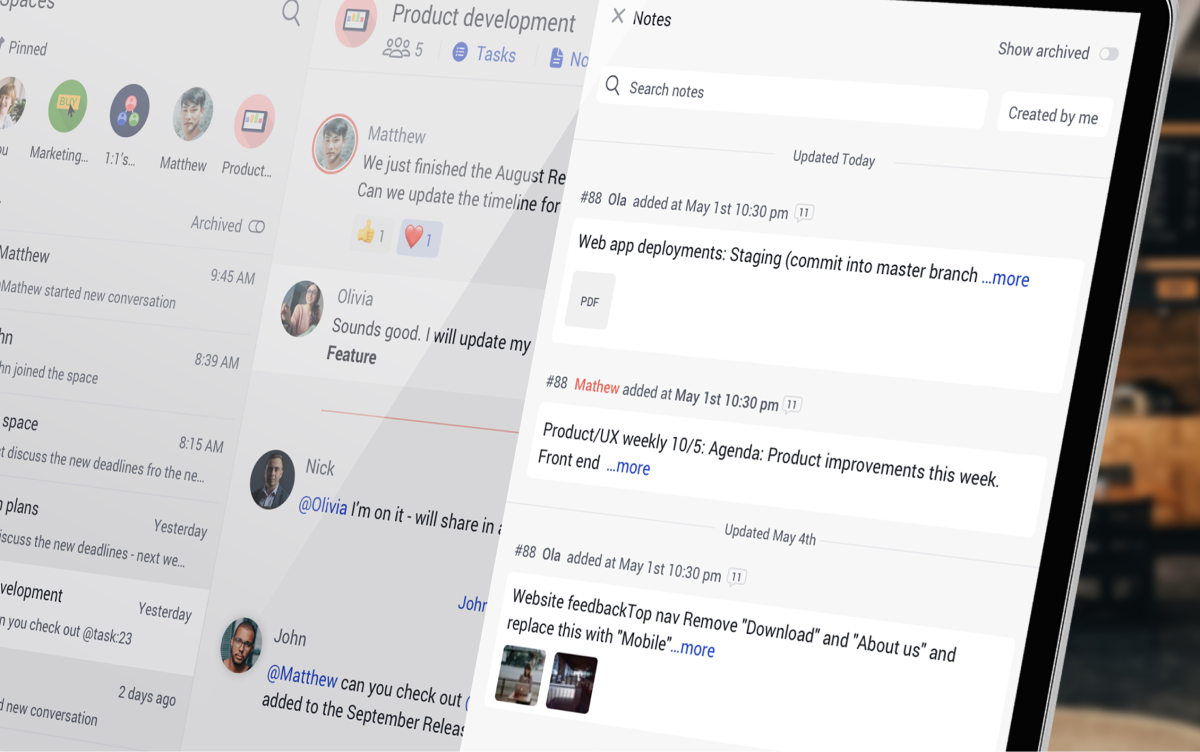
Collaboration on Rock has become even more connected with @mention in the description of tasks, notes, and topics. Seamlessly reference tasks, notes, topics, across different spaces with this powerful mentioning feature.

Include important information, add relevant context and truly connect the work you are doing across projects. Curious to try it out? The only thing you have to do is write an @ in the description of any task, note or topic to get started.

As an example – if you use the Notes mini-app to share a meeting agenda, you can now not just add the agenda but also specific tasks that you want to discuss during the meeting. Another thing you can now do is create a task that @ mentions another task in the description.

Just a couple of examples of what Rock does to bring order to chaos.

Import from Asana, Jira and ClickUp

Switching tools? You can now take your tasks with you. Import tasks from other tools to any new or already existing space on Rock.

In addition to importing task boards from Trello, it is now also possible to bring over tasks from Asana, Jira, and ClickUp. This way you don't have to lose past documentation and work, while seamlessly continuing with what you were working on.

Quick Settings ⚙️

Switch in seconds between accounts, light or dark mode, the mute notifications panel and your contacts with quick settings! You can access the panel by pressing your user image in the top left corner of your screen.

Looking for the expanded settings panel? You can still access it by selecting 'Settings'.

Authenticate with your phone number on web and desktop

We have added phone numbers as a way to authenticate your login on web and desktop. This way you enter your account with just your phone in addition to the already existing email codes or third party authentication through Google, Apple, and others.

If you currently only have an email validated account, you can add a phone number to your account by going to user settings, my profile, adding a phone number and saving it.

When logging in, select 'you can also continue with phone number' under login to toggle between phone number and email authentication. By doing this you will always have a backup in case you don't have access to email or your phone but still want to log in.

Notification improvements

We have further improved the notification experience since our last product release with improvements to how blue dots highlight updates in a space, notifications on mobile, and some changes to the notification panel in your user settings.

Improved blue dot behavior: We have improved blue dot behavior across spaces and the different mini-apps so you can more easily catch up with changes or updates relevant to your work.

Notification settings improvementsThe notification settings are more structured and we have added a few new options that you can toggle regarding your notifications. You can now more easily manage:

  • System notifications: Device alerts for new activities on mobile, web or desktop.
  • Email notifications: Dedicated emails that notify you about activities or due dates on Rock.
  • Updates: Product releases and marketing updates from the Rock Team.

You can access the notification panel by going to your user settings and then selecting 'Notifications'.

Search improvements

We have improved search to find more relevant results across messages, notes, topics and tasks.

Mobile improvements

We have also made some changes to the mobile app that should make it easier to work across mini-apps and have people join you on Rock. If you're on the TEAMS plan – you can now easily add, suspend, and remove multiple users in one go saving you a lot of time.

@mention

  • Use @ mentions in task and note descriptions so you can easily reference and link to other items on Rock

Inviting people

  • Invite users to a space with a phone number
  • Import users with phone numbers to make it easier to invite others

TEAMS plan

  • Bulk add, remove, and suspend users with the TEAMS plan

Other

  • Improved notifications settings for tasks, notes, and topics
  • Various bug fixes and improvements
  • Reply to comments in tasks and notes

Download the mobile app for free

Questions about this product release? Reach out to us in the 'Rock Support and Updates’ space. We support most major languages and try to respond as soon as we can.

Feb 23, 2022
April 24, 2026

Product Update: @ mention everywhere, import tasks, quick settings

Announcements
Kenzo Fong
CEO & founder
5 min read

Ready to rock the new year? We're kicking off the new year with a ton of updates that are on top of everybody's wishlist: 1) dark mode 2) Calendar view 3) better notifications! Find out more below:

Improved notifications

Major improvements and changes have been made to the notification experience on web, desktop and mobile. The new notification system should make it easier to keep up with new tasks, notes, and topics as well as comments.

Some of the biggest changes are blue dots on the mini-apps, an easy way to see all updated objects, and activities grouped by space on mobile.

Blue dots

The Chat, Tasks, Topics, and Notes mini-apps now display blue dots when there are updates. This way you can more easily check where changes have been made, or when new tasks, notes, or topics have been created.

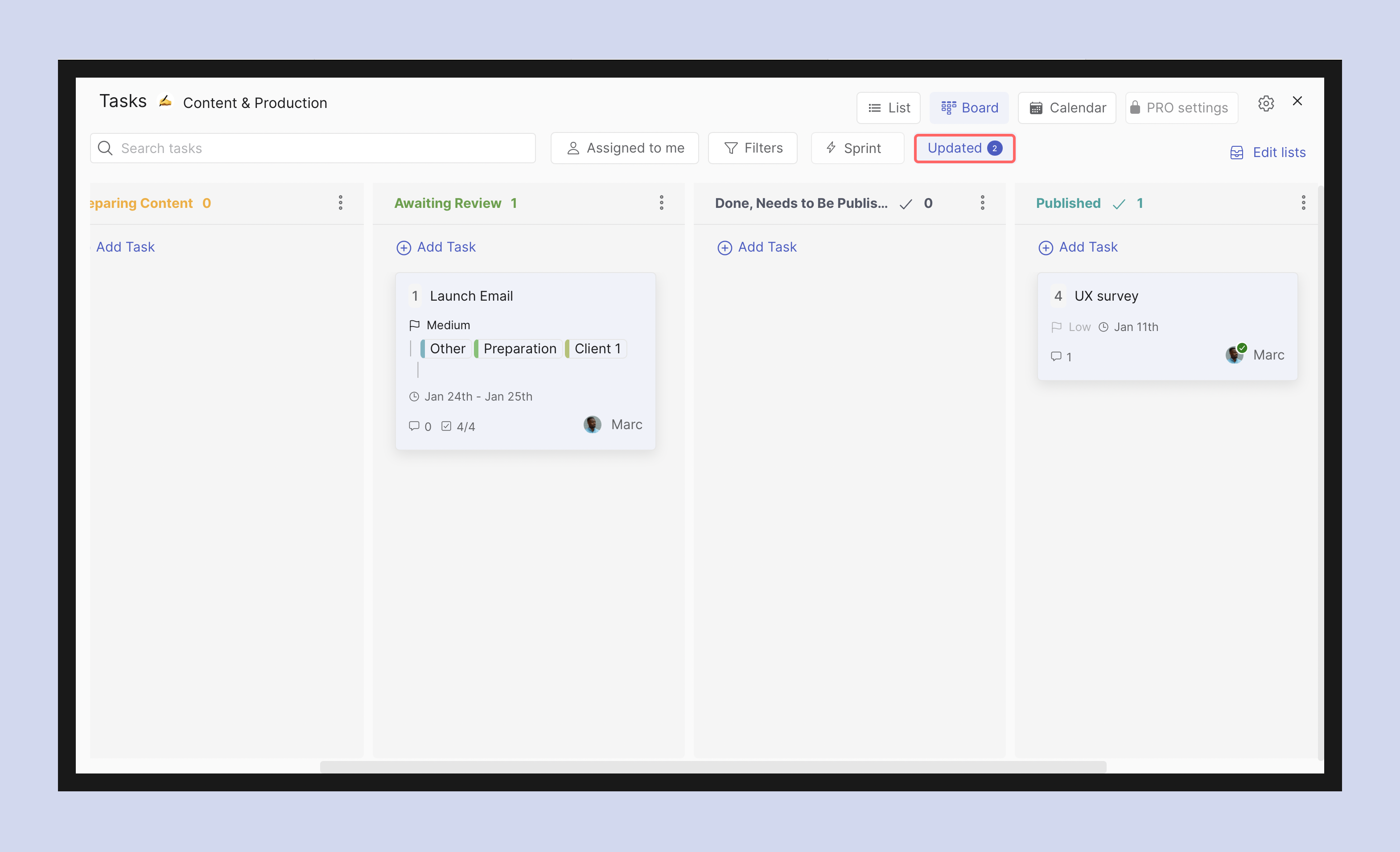
"Updated" filter

You can now filter Tasks, Notes and Topics to just show updated objects so you don't need to guess what has been updated. This way you can quickly catch up on the latest changes or discussions.

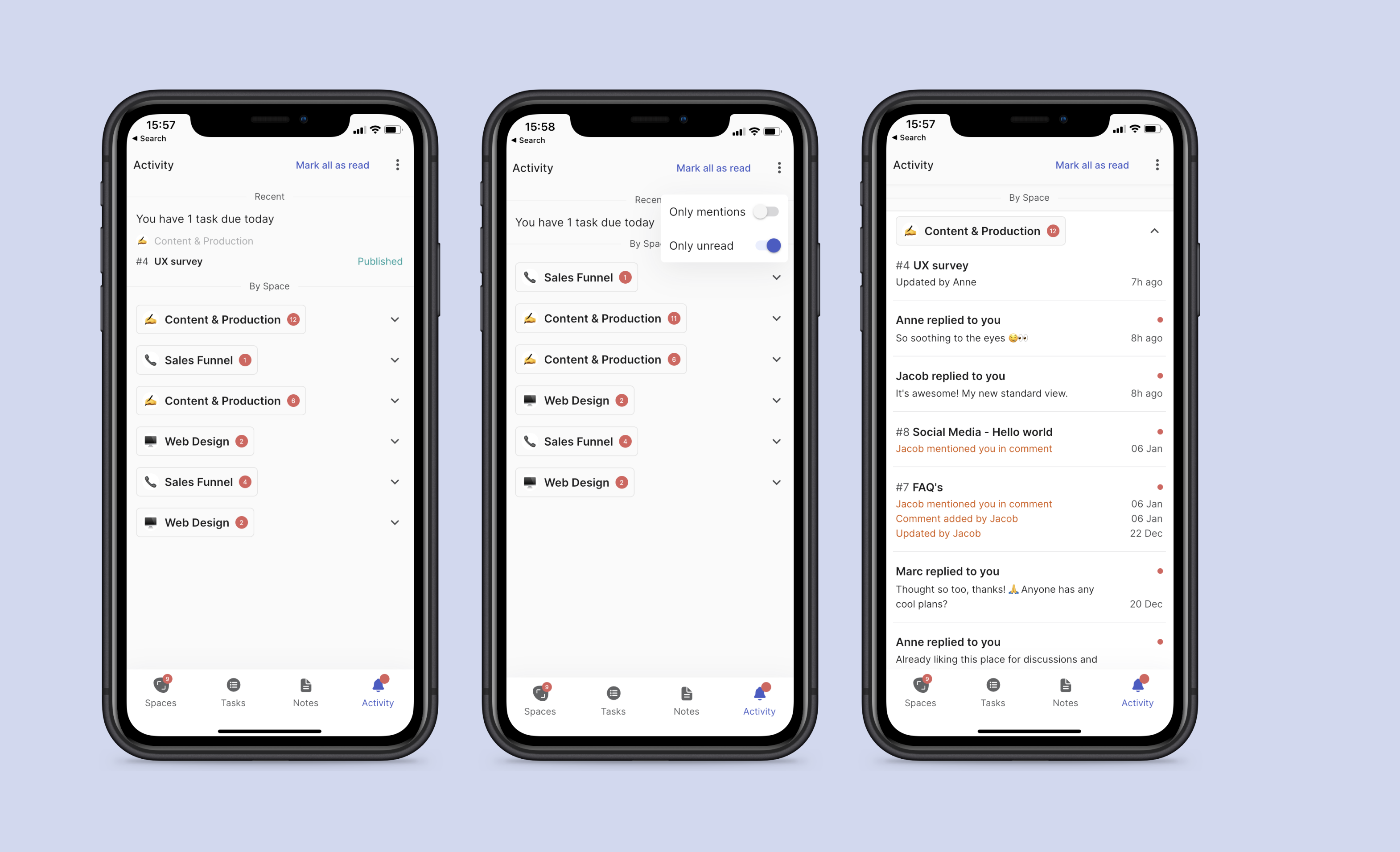
Activity notifications grouped by space (Mobile)

Notifications on the mobile ? Activity Panel are now organized by space. When clicking on a space you can see each individual update for more detailed information.

The Activity panel also has two new filters which can be accessed from the three dots in the top right corner: Only Mentions, and Only Unread activities.

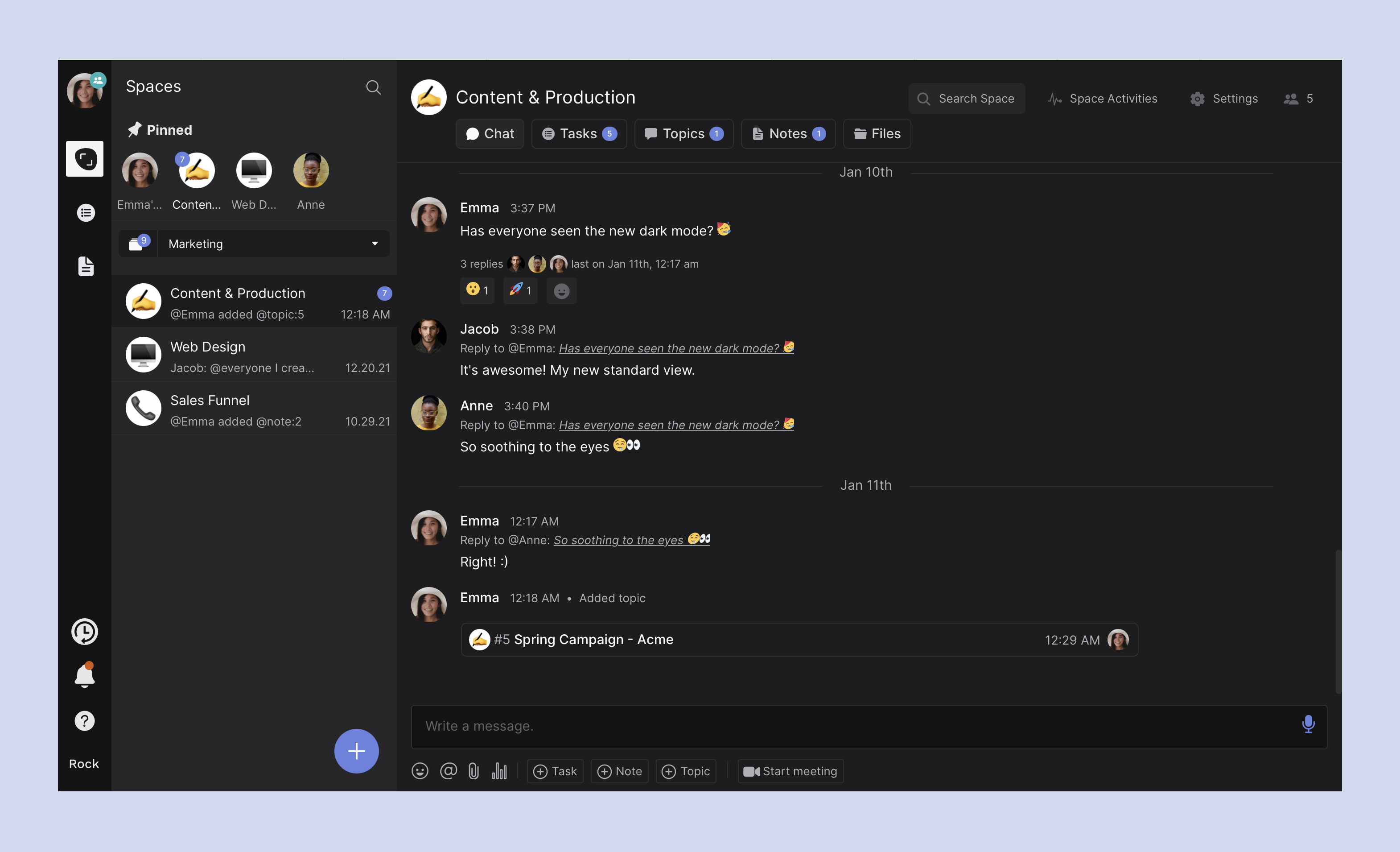
Dark mode

Switch between light and dark mode on web and desktop! This highly requested feature soothes the eyes and makes it easier to focus.

Manage your Dark Mode settings through your user settings. Press your user image (top left corner) to access the panel and toggle between Dark and Light Mode. By default, Rock follows whatever you have set up on your computer.

Easter egg: Try pressing 'Rock' in the bottom left corner of your web or desktop interface 5 times quickly and see what happens!

Calendar view

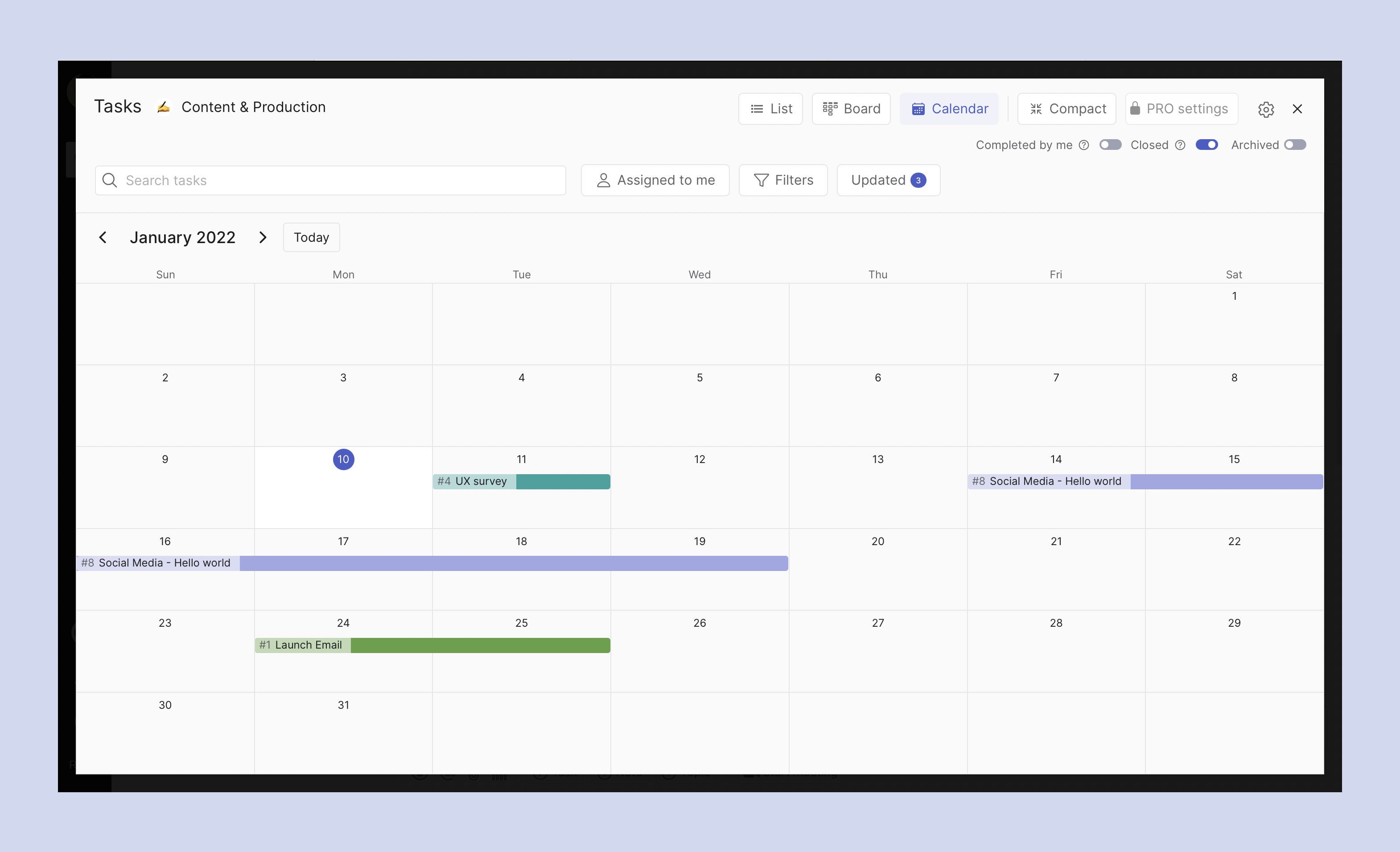
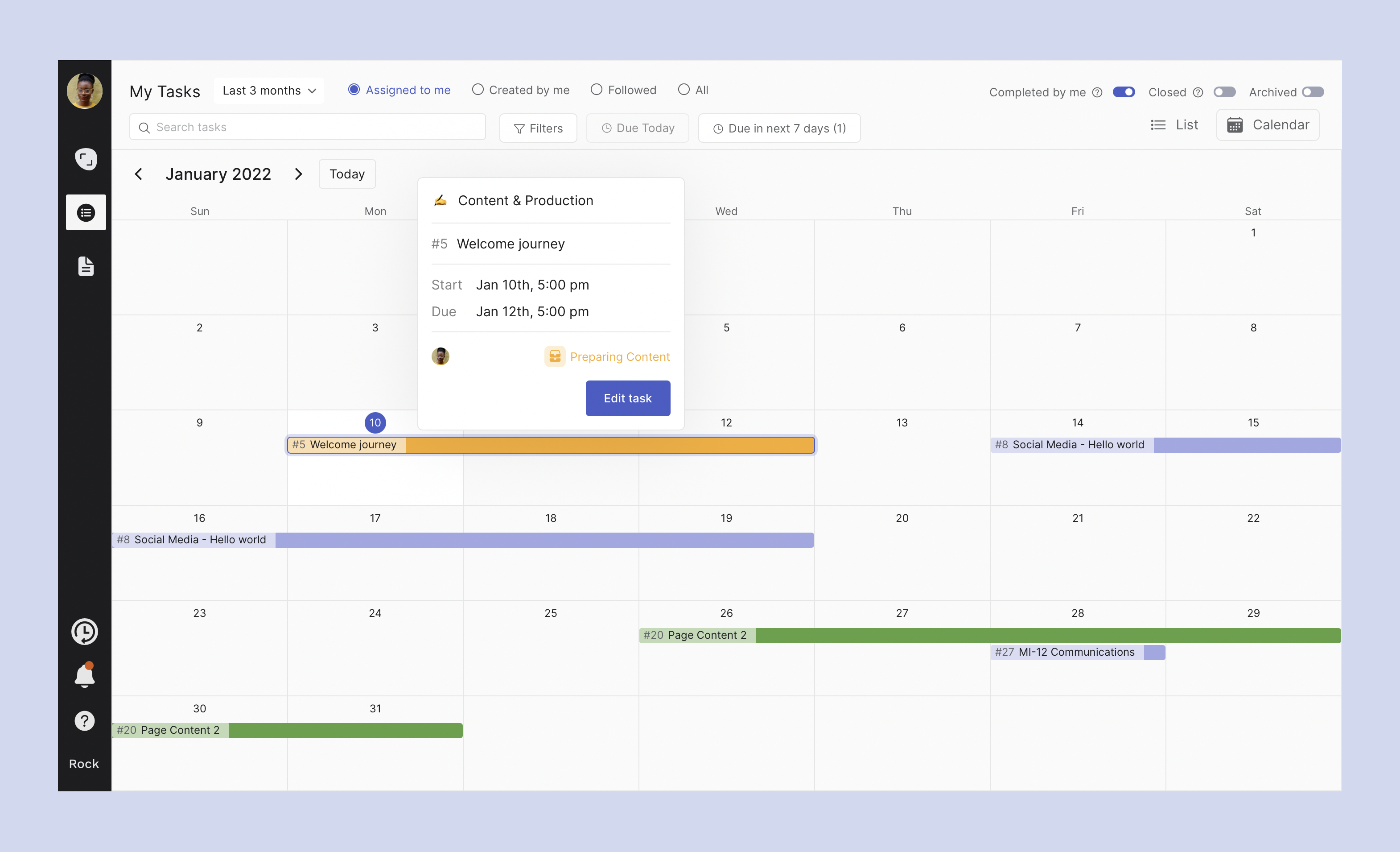
You can now also access Calendar View on web and desktop (note: this was already available on mobile). Keep track of important deadlines and milestones within your space by visualizing start and due dates on the calendar view.

You can also Create new tasks or Edit existing tasks. The task filtering experience in Calendar View works in a similar way as the Board and List views. Filter by label, Assignees, and more to manage your workflow and keep projects running.

My Tasks Calendar view

We have also added a Calendar View to the 'My Tasks' panel. This allows you to view all tasks you are assigned to, have created and/or are following by start and due date.

Tasks can be created, edited and filtered from the Calendar View. Filter tasks by space(s) they were created in, due date, last time updated, priority or assignee status and manage or follow up on tasks across spaces.

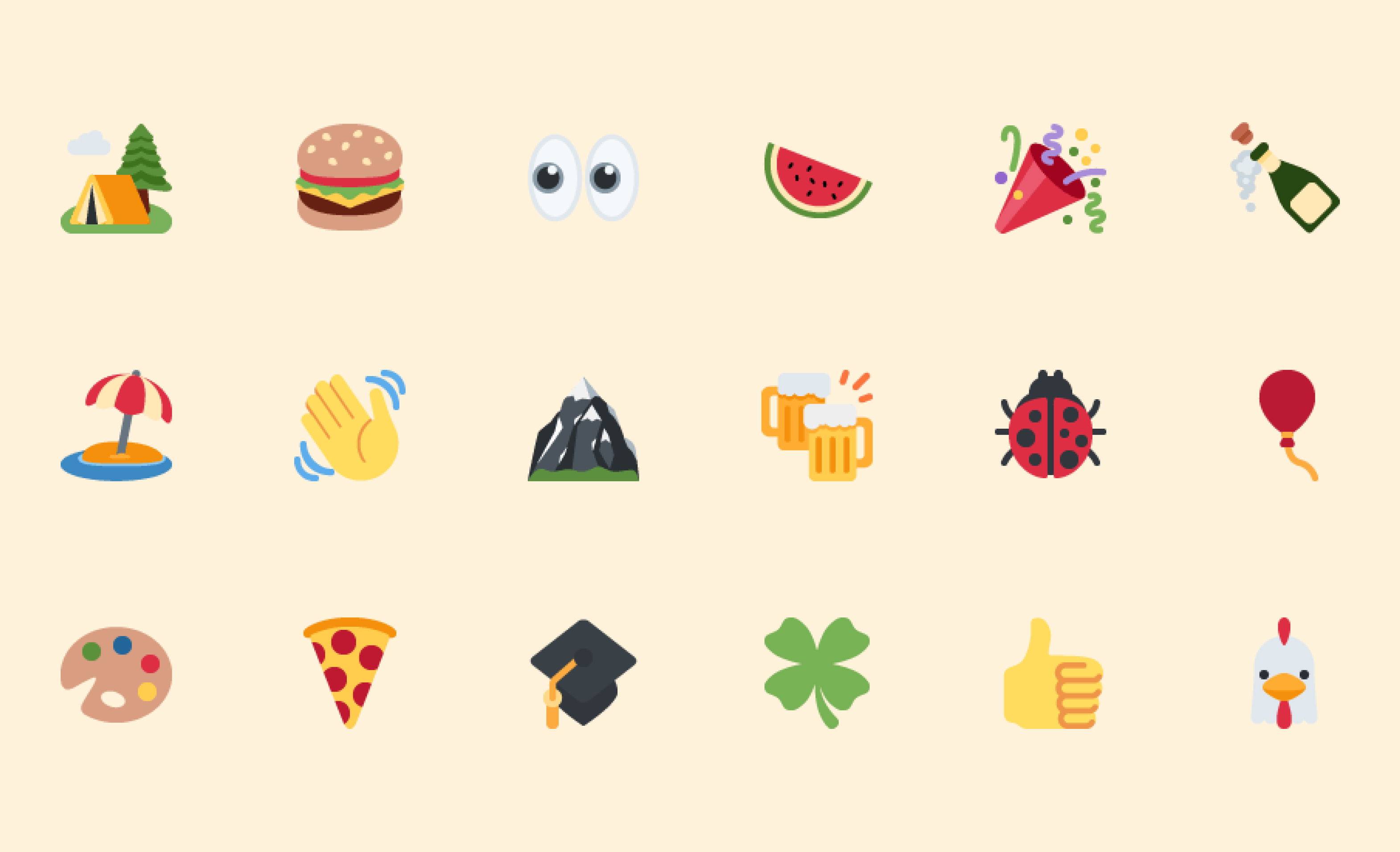
The same emojis everywhere

Emojis are different on Windows, Mac, Android, and iOS which can be confusing and leads to a different emoji experience for every user. To fix this, we have updated the emoji library on web and desktop to Twemojis, so everyone sees exactly the emoji you shared and nothing gets lost in translation.

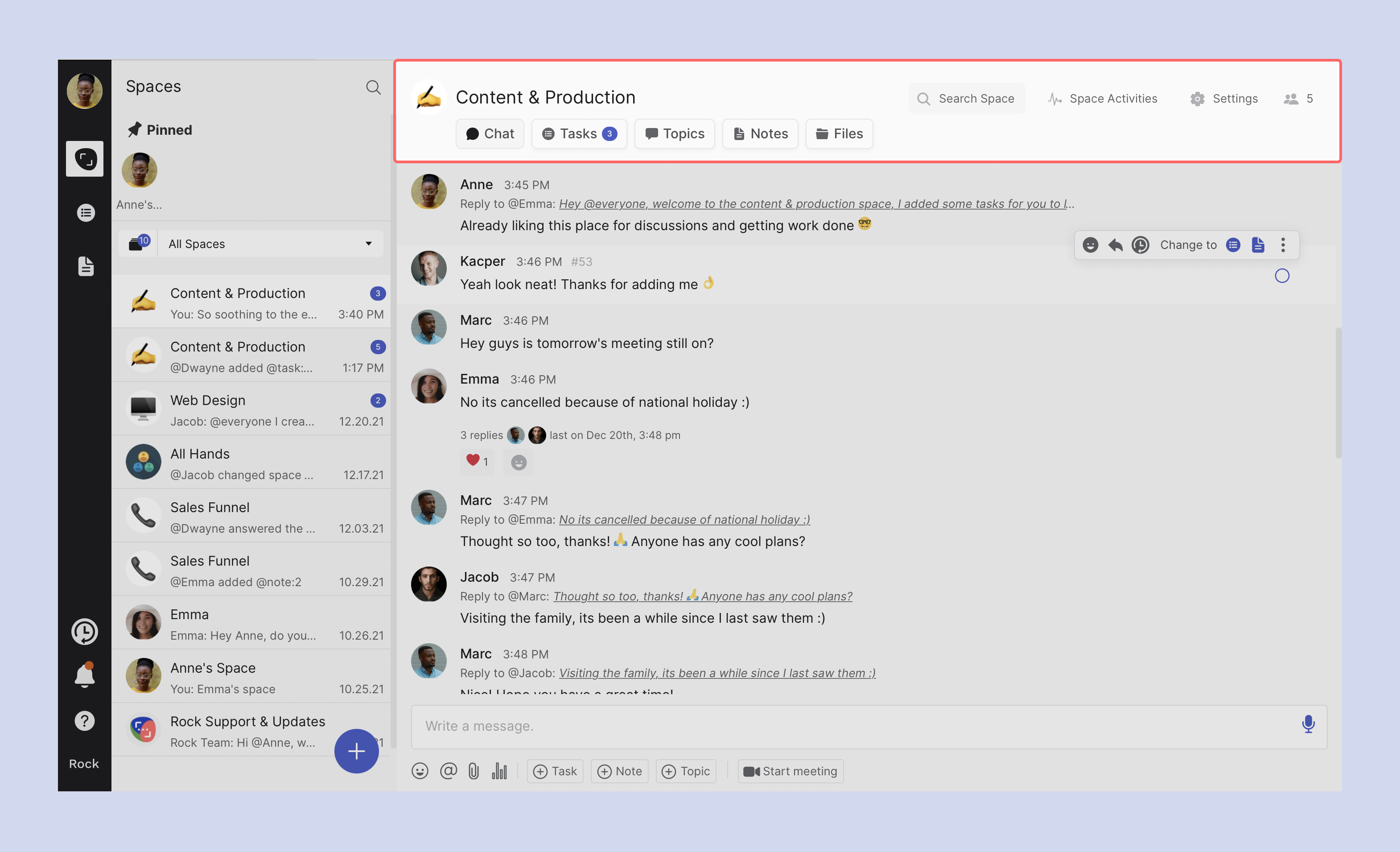
Cleaner & more organized space view on web ✨

Each space now looks a lot cleaner, organized, and has a ton of improvements that make it easier to read messages. The new space view allows you to more quickly switch between mini-apps and makes it easier to access Search, Activities and Settings.

You can now also unmute spaces by pressing the Mute bell that appears when muting a space.

Improvements to mobile

In addition to some of the updates mentioned above this product release is mainly focused on improving the notification experience alongside some other small improvements. In addition to just your email, you can now also sign up and log in with your phone number.

Notifications

  • Added more ways to customize your Notification preferences through ⚙️ Settings.
  • Blue dots on different mini-apps so you can quickly see updates, comments, and other changes.
  • ✨ Highlighting of updated tasks and notes so you can easily see what has changed.
  • Activities are now grouped by spaces in the Activity panel, so you it's easier to go through all your updates.

Tasks ✅

  • Filter tasks by Assignees in the Tasks mini-app

Other ➕

  • Add your phone number to Rock instead or in addition to an email address so you have another way of getting into your account.
  • Other small improvements and bug fixes

Download the mobile app for free

Questions about this product release? Reach out to us in the 'Rock Customer Support’ space. We support most major languages and try to respond as soon as we can.

Jan 11, 2022
May 24, 2026

Product Update: Improved Notifications Plus Dark Mode and Calendar View for Web & Desktop

Announcements
Kenzo Fong
CEO & founder
5 min read

Instead of having multiple discussions and threads in chat use the brand new Topics mini-app to organize your conversations. Topics are more asynchronous, more organized, and allow you to bring order to the chaos of chat.

This release also includes new features and improvements such as attaching cloud files to tasks and notes, importingtask boards from Trello and signing in with more identity providers.

Topics mini app

Organize your conversations with the brand new Topics mini-app. Topics were added to solve three issues that are often associated with heavy messaging:

- More structured discussions: Having multiple long messaging threads in spaces can quickly get confusing. Topics allow you to organize your discussions in one place so you can catch up with relevant conversations more quickly.

- Documenting information: When discussing things it can get tricky to find important information especially if it’s lost in a pile of other chat messages. Topics solve this issue by providing a single place where team members can go to find relevant information & background on specific topics.

- Notification overload: Receiving notifications for messages that are not directly relevant to you can be distracting. By organizing specific conversations into topics, notifications will only come to those who are following and taking part in the discussion.

You can create new topics or move existing messages into a topic with Tap to Organize. Check out the dedicated product guide for more information!

Attach cloud files to tasks and notes ☁️

If you have files on Figma, Adobe, Dropbox, or other cloud services, you can now easily attach these to specific tasks and notes instead of having to copy paste URLs.

Attach a design file on Figma to a product design task in a space and make a creative review easier, or add a spreadsheet on Google Drive to a data analysis task to make sure everyone has access to the latest. Just one more way to bring everything together in one space!

You can access the feature by selecting Add attachment under every task or note.

In addition to third party cloud files that you had previously linked to a space, you can also attach any file that has been previously shared in the space.

Import from Trello

Move entire projects from Trello to Rock with a task import feature, available in every space.You can access import from Trello in the main view of the Tasks mini-app, or in the Import section in your My Account panel.

For more information on how to import your tasks from Trello you can check out this dedicated product guide.

New identity providers ‍‍

Create an account and access Rock from more third party applications. We have added Apple, Github and Gitlab in addition to the already existing Sign in with Google option. This should make it easier to make an account on Rock and log in faster when re-entering or logging in from a new device.Fear not if your current provider is not in the list, we are planning on adding Facebook and Microsoft very soon.

Updates to mobile

We also made some changes to the mobile app. Check out the list below for a brief summary on the latest mobile changes.

Files mini-app

  • Attach cloud files to tasks & notes: Documents from linked cloud storage providers in the Files Mini-app can now be added as an attachment. This way you can more easily connect your different cloud files to your task and note workflow.
  • Figma integration: share and access relevant design files with this new integration for mobile in the Files mini-app.

Tasks mini-app

  • Better filtering for board view in the Tasks mini-app.

Messaging

  • Parse web links without https:// or www. for a better link-sharing experience.
  • Convert conversations into Topics.
  • Changed the message threads to overlapping avatars.
  • [PRO space] Allow mentioning specific space bot to pull information.

Other

  • Sign up to Rock with new identity providers: Apple, Github, and Gitlab.
  • Blocking contacts in 1:1 space is made easier.
  • Many bug fixes and improvements.
  • If you have any questions, suggestions or feedback about Rock or this release you are always welcome to reach out to us in the Rock Customer Support space or send an email to hello@rock.so

Download the mobile app for free

If you have any questions, suggestions or feedback about Rock or this release you are always welcome to reach out to us in the Rock Customer Support space or send an email to hello@rock.so

Dec 23, 2021
May 11, 2026

Product Update: Topics mini-app, Attach Cloud Files, And More!

Announcements
Kenzo Fong
CEO & founder
5 min read

In the spring of 2020, it seemed like workplaces (and everything else) changed overnight. Offices were empty and workers logged into work from spare bedrooms and kitchen tables. Even though it seemed sudden, the shift to remote work and distributed work opened the path to the future of work.

Remote work has been on the rise even before the COVID-19 pandemic accelerated that shift. Now, more workers are enjoying elements of the “future of work” like more flexibility, independence, and productivity. It’s also clear that remote work is here to stay.

As a result of the move to remote work, we can expect to see more changes in the future of work trends that will make workers’ lives better.

Here are ten things that highlight what the future of work actually looks like:

1. A workplace that works for you

Instead of commuting to an office every day, remote work lets workers and teams choose what fits them best. Workers can leave exhausting commutes and high rent behind. When you’re not tied to a desk, you can complete your work from anywhere. Your office could be poolside, in a coffee shop, or at your kitchen table.

If you and your team need an in-person brainstorming session, you can schedule time for working from a shared workplace while still keeping the rest of the week for remote work.

Regardless of where you do your work, you’ll be better able to build a way of working that is best for you.

2. Working hours that fit you & your life

Remote work can give you more say over your work schedule. Instead of working a 9-to-5 workday, you can choose the hours that are the best fit for you. For example, if you are a morning person, you can start work earlier in the day since you’ll spend less time commuting. If you do your best work later in the day or at night, you can have a later start and stay logged on after your team members are done for the day.

Both early birds and night owls will (finally) have the chance to work the hours they enjoy the most. By adjusting your hours to be a better fit for your life, you can make more time for your family, friends, and hobbies.

3. More flexibility in communication

A key benefit of remote work is getting work done without being constantly connected to people. You can work independently and still have a team to reach out to for questions and discussions.While many of today’s tools are focused on synchronous (real-time) work, we know that remote and distributed teams need more flexibility.

Rock built a productivity platform for distributed teams and any changes in the future of work. It’s also one of the first tools to feature both synchronous and asynchronous communication styles in one place.

future of work tool Rock

Synchronous communication, like meetings, calls, or messaging, is real-time. Asynchronous communication, like task boards, lets someone respond when it’s convenient for them. With a tool that gives you both communication styles, you can focus on work without worrying that you’re out of the loop.

4. Fewer meetings

The future of work reserves meetings to when strictly necessary. People can move towards relying on asynchronous work that is heavy on documentation to get work done. This allows remote workers to stay connected and informed without having to sit through too many meetings.

Instead of having a meeting to decide who gets which assignment, tasks and projects can be assigned through a task board. Task management is a great alternative to continuous meetings, as everyone can give updates that can be retrieved later on.

future of work meetings

5. Focusing on tasks, not punching a timecard

Because remote work is asynchronous by default, the focus of work shifts to achieving results instead of clocking in for a certain amount of time. The future of work is more results-oriented.

People can focus on achieving results rather than worrying about if you’ve been logged on for the right amount of time. This allows everyone to get more work done while being less stuck to time slots.

6. A shift to a more collaborative culture

While working remotely, email can be an ineffective communication method that makes it hard to connect with enough people.

Remote work tools are often better suited for teams that work across timezones and geographical regions. They make it easier to work with team members and external partners. With a variety of communication options, you can choose what works best for the task at hand.

future of work collaborate

7. More job opportunities & fewer geographic limits

The nature of remote work means opportunities are not limited to expensive cities. Anyone can apply for jobs, no matter where they live.

You’ll have more options that don’t require you to relocate or spend a lot of time away from family. With more accessible work opportunities, you’ll be better able to pursue your passions and career.

8. The future of work has reliable documentation

With remote workers and distributed teams, the future of work will rely heavily on documentation. Documentation makes it easier to see the work that you’ve completed. You’ll be able to get a high-level view of everything you’ve accomplished with tools like task boards and notes.

Task boards, notes, and shared Google Drive folders will help you make sure that none of your work gets missed. Documentation features also make sure that important details don’t fall through the cracks. With a better overview of what you’re working on, you can get the satisfaction of crossing things off your to-do list with tasks completed in a monthly sprint.

future of work documentation

9. More opportunities for continued education & development

Online courses, seminars, and development opportunities have only gotten more popular during the pandemic. As these growth and development options have become more widespread, they’ve also gained more respect in corporate environments.

With a flexible schedule, you can pick up new skills and develop your existing talents to grow more and reach your future goals.

10. Less stress

Asynchronous working styles make it easier for you to disconnect from work. You can spend a lot more time of the future of work from home. This means that you can turn off your devices and grab a coffee, work out, or chat with family and friends during work breaks.

Because asynchronous working styles don’t rely on real-time interactions, work tasks are often better defined. With clear direction and communication, you’re less likely to get burnt out.

The future of work looks bright

Remote work has enabled a huge number of people to enjoy a more flexible and productive workday. Changes like this offer a positive outlook for the future of work. As workplaces continue to evolve, it’s critical to have tools that you can rely on.

With Rock, remote workers have a productivity platform they can rely on to keep their work organized and streamlined.

Nov 24, 2021
May 11, 2026

The Future of Work: 10 Changes to Look Forward to

Nicolaas Spijker
Editorial @ Rock
5 min read

The TEAMS plan is now officially available to everyone! With the TEAMS plan you can more easily work with people across your domain, manage different members across spaces, and up- or downgrade PRO spaces.

We’re also making inviting people and collaborating on Rock a lot easier with Invite by Link, Figma integration in the Files mini-app and Calendar View for tasks, (mobile only, web & desktop coming soon)!

TEAMS plan

Work more closely with your team and centrally manage team members across spaces. The TEAMS plan gives you everything in PRO and more. It is now possible to claim a corporate domain and assign manager status to users within your domain allowing them to create their own PRO spaces.

This allows you to better control who has access to your corporate spaces and makes it easier to allow managers to upgrade spaces. The TEAMS plan continues to offer seamless collaboration and communication with users outside of your team, as you can invite them to join any space.

The TEAMS plan starts at just $24.99 per month for 5 managers and unlimited free users!

Note: the TEAMS plan is currently only accessible for accounts registered under a private domain. Gmail and other accounts can not yet upgrade to teams, but we plan on adding this in the near future.

You can follow the steps in this product guide if you are interested in upgrading your plan to TEAMS or learn more about the plan.

Invite by link

Skip sending emails and invite anyone to join a space on Rock through invite links. Invite by link makes it easier to get larger teams and/or communities to move to Rock as you can easily share these links through email, WhatsApp, and other messaging apps.

When you create a new space you will automatically get the invite link after you’ve created a space. For existing spaces, you can access the invite by link feature by going to space settings and selecting Invitation Links.

This option is only visible for users with member or admin status, not guests.

Note: the invite by link panel will also not be accessible for members if an admin disables the feature in the space.Members and admins can share their own links to invite new users to join them in a space.

It is not possible to invite people to join as admin directly, but you can always upgrade their status once they join the space if you are an admin yourself. There are a few options in the panel:

  • Copying the link: You can copy a link either by pressing the “Copy link” button or selecting the URL and saving it.
  • Reset my link: You can reset your own link, so any existing link you have shared in the past will stop working
  • Reset all invite links (admin only): Reset all the links from people in the space, so any already shared link stops working.

Figma integration

It is now possible to integrate Figma with the Files mini-app. Access designs, discuss your workflow, and keep your different projects better organized with relevant files in every space.

The integration works for both free and premium Figma accounts, and you can decide to add a whole project, or just a page depending on what is relevant to the space. Note that users still have to be given access in Figma before being able to edit the different files.

Google Meet integration‍‍

Start an audio or video call through Google Meets to discuss anything with your team. Available in every space so your team can easily jump on a meeting if needed.

When you start a meeting in a space an event is automatically added to your Google Calendar. This way you can more easily manage your different activities throughout the day.

Calendar view on mobile

You ask, we deliver! If you are using the mobile version of Rock you can now visualize your tasks with a shiny new calendar view on mobile. This makes it easier to know when tasks need to be completed and what your day, week, or month looks like.

You can access the calendar view in both the Tasks mini-app within a space and the My Tasks panel by pressing change view in the top right corner and selecting Calendar. You can also decide whether you want to show completed (in a list with a checkmark) and archived tasks.

Using Rock on web or desktop? Stay tuned to the upcoming releases, the team is working hard on adding the calendar view to all devices. ⏰ In the meantime you can already get familiar with the view on mobile.

More detailed tasks and notes objects in chat

When you create or @ mention a task or note, we’re now showing more details about each object so you don’t always need to open the task or note.For tasks, you are now able to see the following fields:

  • Space: useful when cross-space mentioning tasks, the first visible field is the icon of the space where the task is present.
  • Number and title: defining the main title of the task and its number.
  • Assignee(s): shares who is working on the task.
  • List: defines what list of your tasks mini-app the task is.

Notes now also give a lot more relevant information. When creating or @mentioning a note, you get the following details:

  • Space: useful when cross-space mentioning note, the first visible field is the space where the note is present.
  • Note Title and number: First line of information in a note
  • Date of creation: the day and time the note was created.
  • User: the user who created the note.
  • Overview: summary of information in the note.

Upgrades to Desktop

We have added a bunch of changes specific to the desktop app. You can access the added features by going to your desktop settings, selecting preferences and adding one of them:

  • Automatically launch at login: You can now launch the desktop app as soon as you restart your computer. This way you don’t have to search across apps and can directly start communicating and collaborating with your team members.
  • Notification count in badge: Stay updated on the number of new notifications received in the app. A number will now display in the desktop app icon in the bottom right corner.
  • Tray mode: Add Rock to your menu bar so you can more easily find the app if you are working with a lot of different applications at the same time.

Upgrades to mobile

Besides the Calendar view in the Tasks mini-app there have also been some other changes and improvements to the mobile version of Rock. Check out the summary for what’s new and download the mobile app:

General

  • Tap to Organize on mobile – tap and select any number of messages and turn these into tasks, notes, or comments allowing you to organize and clean up your chat log.
  • Contact list import - easily import all your contacts into Rock and make it easier to invite people to a space.
  • Bug fixes and speed improvements.
  • Deleting a space has been improved.

Messaging improvements

  • Richer event messages for new tasks and notes
  • Improved readability of messages
  • Web links are created automatically without http://

Tasks mini-app ✅

  • Calendar view in tasks mini-app
  • Calendar view in ‘My Tasks’

Teams plan

  • Upgrade your account to teams, add managers, manage users across spaces.

Download the mobile app for free

Questions about this product release? Reach out to us in the Rock Customer Support space. We support most major languages and try to respond as soon as we can.

Nov 4, 2021
April 24, 2026

Product Update: Teams Plan, Invite by Link, Calendar View and more!

Announcements
Kenzo Fong
CEO & founder
5 min read

To keep everything working smoothly, you need to manage a constant flow of information, projects, and feedback—that’s easier said than done! Without proper documentation it can be overwhelming to ​​sort through your inbox for information, maintain your team’s workflows, and stay on top of all the little things that matter.

With so much to keep track of, it is crucial to organize and store your information so you can centralize information and streamline your processes. The broader discipline is knowledge management.

To break it down: documentation is the storage of your information. It can be simple–like meeting notes uploaded to a shared folder. Documentation can also be complex–like developing a step-by-step process for tackling new projects or advanced explanations in code.

What is project documentation?

By documenting information, you establish a shared understanding of the details. For example, when you create a process for addressing client feedback, you can document that process to make sure nothing gets missed. Documentation is always available. It will be there for your team to reference–no matter where they are or when they log on.

Project documentation helps establish processes, reduces the amount of communication needed, and keeps everyone up-to-date. Especially for remote work teams. For example—with a step-by-step process for your team, it will be easier for your team to be consistent when completing tasks and projects.

Anyone can reference procedure documentation when they have questions, which will reduce the number of emails and calls needed. You also reduce the chance of confusion or miscommunication when information is well-documented. With established and clear expectations, you and your team can spend more time focusing on your work.

Why is documenting work information important?

Documentation makes your life easier! With thorough documentation, it’s easier to stay organized and get clear insights into your work. Anyone can use documentation to standardize and simplify their workflows and streamline their communications.

Documentation is essential for asynchronous work (which relies on interactions that are not real-time). Examples of asynchronous communication are task boards, notes, and shared files. After you document something, anyone can reference it whenever they need to.

You can look at a task board to check a project’s status report or brush up on the most recent details. Catch up on a meeting you missed by referencing a shared file where your team keeps meeting notes.

why documentation important

When you document information, do it right

Documentation can save time and make work easier. It can reduce stress and make collaboration smoother.

However, when documentation is bad, your team could be headed for trouble. Confusing or outdated documentation can be worse than no documentation. Communication can fall apart and your work can get derailed quickly if files or notes are not regularly updated.

For the best results, communication and documentation should go hand in hand. You can email or chat with a team member about things not covered by the documentation. Not many platforms do a good job storing documentation and offering smooth communication, like messaging or chats. You end up switching between different apps and platforms.

Eventually, you might get overloaded with tools, waste valuable time, and you’ll have a harder time finding important information. You need a platform for documentation that also incorporates key parts of work like messaging or virtual meetings.

You can pack a lot more action into one platform when you use multimodal tools. Since these tools centralize different functions, your team won’t have to switch between apps to do their work. Multimodal tools make it easier to collaborate because communication is smoother and better organized.

documentation files rock

Rock makes documenting information easy

Rock keeps messaging, task management, notes, files, and meetings in one place for you. With Rock, you can combine communication strategies to get smooth discussions and helpful documentation.

You can easily document the different work that your team is doing with the tasks feature. With the notes and files features, you can create onboarding processes or folders with everything a new team member needs.

There is a comments section in every task so you can refresh yourself on the history of that task when you need to.

With the notes feature in Rock, you can store anything and keep the most important information at your fingertips. The notes feature makes it easy to keep details where everyone can find them. Rock also has built-in messaging! That way, you can talk about your tasks and notes without switching to a different platform or app.

You can also add remote work tools such as Google Drive, Dropbox, One Drive, Smartsheet, and other services to a space in Rock. All your docs, sheets, and presentations will be just a click away. A client or team member can review project deliverables when it’s convenient or leave feedback where everyone can access them.

With your documents in the right space, you won’t need to dig through files or folders to find what you’re looking for. Get started with Rock today, all for free!

Oct 5, 2021
May 11, 2026

How to Harness the Power of Documentation While Working Remotely

Nicolaas Spijker
Editorial @ Rock
5 min read

This product update makes it easier to organize your conversations through tasks and notes, adds support for Dropbox, One Drive, Smartsheets, and Adobe Creative Cloud, and makes the mobile app even more useful and beautiful.

Read along to find out more!

Duplicate spaces [PRO]

If you are on the PRO plan, you are now able to duplicate spaces in Rock! When you have multiple projects that use the same workflow (e.g. website development, marketing campaigns, employee onboarding) you can now easily make a copy of a space.

You can access the duplicate space feature in space settings by pressing "Details" in the top right corner of every space. Duplicate spaces can be accessed by pressing the three dots on the right.

Note: You must be an admin in a group space for the duplicate space option to appear in your space settings. Only group spaces can be duplicated, both PRO and free spaces can be duplicated.

When duplicating a space, you can decide whether you want to move all tasks and/or notes to the new space.

Members, chat messages, task comments and assignees, attachments, and integrations in a space are not copied. This allows you to start with a clean slate. You can always add the information again when the space has been created.

You can also directly invite people to your duplicated space in the panel. It is possible to invite up to 100 people to join you by sharing their emails separated by comma, semicolon, space or newlines.

Rock Team tip: If you know you want to reuse a specific space, create this space but don’t use it for the actual project. Instead set up your space and name it as a template (e.g. “Website [TEMPLATE]”). This way you can easily copy the space for future projects.

Tap to Organize

Even though Rock is asynchronous by default, most of us still send messages to discuss certain things. The problem with these messages is that they can easily get lost in a space and if they are related to a specific task or note it’s difficult to refer to them.

With the new Tap to Organize feature, you can double click any number of messages to create tasks and notes from these conversations. By doing this you clean up the chat stream by adding & moving messages to the dedicated tasks and notes making everything more organized.Double click one message or a handful of messages into:

  • New tasks or notes
  • Comments in tasks or notes

You can also group several messages together so they don't take up too much space.

The feature is activated by double-clicking a message and then individually selecting other messages you want to include in the item you are creating.Check out this short video to see the feature in action!

More storage solutions for everyone

It is now possible to connect more of your favorite tools to Rock. Besides the already existing Google Drive integration, you can now also add the following storage providers to your files mini-app:

  • Adobe Creative Cloud
  • Dropbox
  • OneDrive
  • Smartsheet

Other improvements web and desktop improvements

Based on user feedback, we’ve made a handful of small but important improvements:

  • Sticky task board views - the Tasks mini-app now remembers the last view you had open, so if you last had the board view open the next time you open tasks again this view will automatically open again.
  • Hidden event messages - We have hidden event messages from the messaging stream on both web and mobile. Reactions are still visible under the original message, but will no longer be displayed as actions in the messaging interface. This helps clean up the conversation panel and allows for more focused conversations.
  • Now available on the Windows Store - In addition to being able to download Rock directly from our website, we also passed certification from Microsoft to be available in the Windows Store. This makes it a bit easier to find and install Rock and get going on your Windows computer.

Upgrades to mobile

We have made some substantial changes to the theme and messaging readability of the mobile apps. Check out the list below for a brief summary of the changes that the latest release has brought to the mobile apps.

General

  • More beautiful mobile app with improved readability, colors, and theming.
  • Bug fixes and speed improvements.

Messaging improvements

  • Richer event messages for new tasks and notes
  • Improved readability of messages
  • Auto scroll to messages when opening notifications
  • Add reactions, replies, copy, set aside, and more to message replies
  • Hide event messages

Tasks mini-app ✅

  • Add task lists as a filter
  • Scroll to bottom in Board View when user creates a new task
  • Files mini-app: Support OneDrive, Dropbox, Smartsheet, and Adobe Creative Cloud

PRO plan

  • Duplicate spaces. Copy any space and reuse the same space tasks lists, tasks, and notes for multiple projects.

Questions about this product release? Reach out to us in the 'Rock Team’ space. We support most major languages and try to respond as soon as we can.

Oct 1, 2021
May 24, 2026

Product Update: Duplicate Spaces, Tap to Organize, and More File Integrations

Announcements
Kenzo Fong
CEO & founder
5 min read

PRO is now available for anyone who wants to supercharge Rock! Sign up for advanced features like custom fields, recurring tasks, webhooks, and a shiny Zapier integration. And for a limited time -- get 20 instead of 10 PRO spaces which can be used to upgrade existing spaces or create brand new spaces to supercharge your projects. PRO starts at just $4.99 per month!

We have also made some improvements to the Files mini-app and made a bunch of improvements to the mobile app. See below!👇

Upgrade your spaces to PRO 🚀

The PRO plan allows you to upgrade up to 20 spaces and add functionality, integrations and more that make Rock even more useful. Anyone in a space will be able to use PRO features even if they haven’t purchased PRO themselves.

Each PRO space includes:

You will know a space has successfully been upgraded to PRO by checking the Pro badge in the top of your space or by going to “Space Details”. You can also find all your PRO spaces through your Settings.

Managing your PRO spaces

PRO spaces can be managed from the Settings panel. You can downgrade spaces once you don’t require the added PRO functionality.

Pick and choose which spaces you want to upgrade or downgrade depending on new projects, teams, partnerships or clients.

Files mini-app upgrade 📂

We have made some tweaks and improvements to the Files mini-app. This will make it easier to share, collaborate, and discuss your workflow on Rock.

Google Drive upgrade

You are now able to get more done with the Google Drive integration. You can create a wide variety of documents from Rock:

  • Google Docs
  • Google Sheets
  • Google Slides
  • Google Forms
  • Google Drawings
  • ☁️ Upload your own files to Google Drive

Set Aside for the files mini-app

In addition to setting aside messages, tasks and notes you can now also set aside different folders and documents in the files mini-app:

  • Set Aside folders: If you need quick access to a folder in your Google Drive that is connected to a Rock space you can set aside the complete folder. This way you can seamlessly access the folder without having to go looking. You can set aside folders by pressing “Set Aside” on the top right corner of the folder view in the files mini-app.
  • Set Aside individual files: Set aside any document saved in a folder connected to a Rock space. This makes it easier to directly access that file without having to search a folder. You can set aside documents by hovering over them and selecting the “Set Aside” icon.

Coming soon! Figma, OneDrive, Dropbox, and Adobe Creative Cloud in the Files mini-app!

In the coming weeks, you will be able to link your Figma, OneDrive, DropBox, and Adobe Creative Cloud documents to a space and the Files mini-app. This way you can more easily access all your cloud files and have them available to team members, partners and clients all from the same space.Stay tuned to our blog and different social media channels for the latest information on product releases!

Updates to Mobile

In addition to the changes to the web and desktop version, we have also added some improvements to the mobile version of Rock. The following has been added in this release.

  • Improvements to URL previews
  • Share content from outside Rock as a task
  • Reply to a message directly in a thread
  • Twemojis in the app.
  • Domain member management (Teams plan)
  • Minor bug fixes and improvements

Don’t forget to update your app if you’re not seeing any of these changes yet.

If you have any questions about this release you can reach out to us in the Rock Customer Support space. We support most major languages and try to respond as soon as we can.

Sep 1, 2021
April 24, 2026

Product Update: PRO now available for everyone & do more with the Files mini-app.

Announcements
Kenzo Fong
CEO & founder
5 min read

Get the most out of your tasks mini-app! We've created a handy overview with some of the best features in the Tasks mini-app so you can master tasks quickly. Stay productive and easily collaborate with any team members, partner or client.

1. Master tasks by using the different views in every space

Tasks should be flexible to fit how you work. When task boards have different views, they provide more functionality and make it easier to manage your tasks. It’s an intuitive visualization of your processes and workflows so you can see what needs to get done next. Rock offers three different view options in the Tasks mini-app so you can pick what works for you.

  • Compact view gives you quick access to a task so you can go in and update it without having to navigate away from what you’re doing.
  • Expanded List view is for quick edits and managing several tasks. It lets you create a bunch of tasks quickly and assign them to your team. With this view, you can spend less time on creating and managing your task boards.
  • Board view is popular because it’s intuitive and helps visualize workflows. With a visualized process, it’s easier for you to track progress and see bottlenecks. Because of its effectiveness, it’s been widely used across different industries.
  • Calendar view allows you to visualize deadlines and manage your project timeline from a single view.

2. Make the most of the Board view

Master tasks by becoming a board view pro. It's easy to learn and lets you instantly see what everyone is working on. The task board offers a thorough overview of projects and processes. Knowing how to make the most of the board view will help your team be more effective and organized.

You can use board view to do the following:

  • Spot obstacles early. Since task boards give you a birds-eye view of a project, it’s easier to identify roadblocks and resolve them. You can follow a task to easily track its status and look out for roadblocks. Tasks can be assigned to one or multiple team members so everyone knows who is accountable for each deliverable.
  • Break up your work into different stages. You can mark tasks as backlogged, to-do, or in-progress to track statuses and stay on top of your work. You can also create custom labels and rename your lists. That way, your task status aligns perfectly with your workflows.
  • Create lists to fit your workflow and processes. Add lists for each stage in your workflow or process to make it fit how you work. You can also highlight actions across different verticals, like sales, HR, or operations, to get a better overall view of what needs to be done.
  • Evaluate your team's workload. Check how many tasks your team members are working on to make sure that work is assigned fairly. With the board view, you can help an overburdened team member and reassign tasks to address workload problems before they happen.

3. Master tasks by using the comments section in every task

Leverage asynchronous work by using the comments section on a task. Your team can discuss task-related information in one easy-to-reference place. Instead of getting lost in an inbox or message thread, the discussion will be saved if you need to revisit it.

By commenting on tasks, you can document the details and keep them accessible for everyone in that space. You won’t have to dig through an inbox or forward a messy email string to find and reference information.

Involve other people by tagging them when you need their input or feedback. This approach to collaboration makes it easier to work with your team members, wherever they (and you) are.

4. Use the 'Set Aside' function when you're busy

Rock offers this unique feature so you can store messages, tasks, and notes for follow-up. Because Set Aside works across all of your workspaces, you can bookmark all your priority items to work on later. Putting important tasks in your Set Aside will keep them easily accessible during your busiest days.

As you’re working, you can update those tasks or quickly reference the deadlines and information when you need to.

When you start your day, you might need to focus on a few high-priority tasks that need to get done ASAP. When smaller tasks get assigned to you during the day, you can set them aside for later. That way, you're free to work on time-sensitive tasks. Everything you set aside will be kept in one place to go through when you have time.

5. Duplicate your tasks to automate your workflows

You can use similar task boards for different projects and clients. For example, your onboarding process might be the same for all new hires so you can duplicate tasks and make sure that nothing gets missed.

When you duplicate tasks, you can move task descriptions and titles to different workspaces.

The task duplication feature allows you to set up new projects quickly, without having to copy and paste everything. It’s an easier way to make sure your tasks are consistent across your workflows.

6. Keep an eye on all your tasks

In Rock, you can put all your tasks in one view with the My Tasks view. This gives you a convenient overview of every task assigned to you. You’ll never miss anything again. In the overview, you can filter by space, priority, deadline, or task status.

To get an overview of your workload, you can use the filters to find tasks that haven’t been started yet. In My Tasks, you can also find all the tasks you’ve created or that were assigned to you. Once tasks are completed, they’re archived and no longer visible in a space.

This keeps your space less cluttered but if you need to find a completed or discarded task, they’re easy to access.

7. Mention a task to discuss it

Rock’s chat messaging feature is integrated with Tasks so you can mention a task in the space to discuss it. This feature is unique to Rock. Cross-space task mentioning lets you mention a task from another space as long as everyone has access to that space.

If you and a team member are having a discussion in one space, you can mention a task from another space that you both have access to.

By mentioning a task, your team can make sure that they’re on the same page and easily pull up the details of a task in Quick View. You can avoid having long conversations in a Task’s comment section but still have critical discussions with your team and external partners.

Your life is easier when your work integrates seamlessly with your conversations which is why we included this feature in Rock. You and your team might be discussing a task in Rock and you can mention it.

By doing so, anyone can pull that task up quickly and see the information on the task card. From there, a team member can update the task card with new details or discuss it in more detail. With the ability to mention tasks, you and your team won’t have to share endless URL links or messy email threads.

Get started & create your first tasks in Rock!

Now you’re ready to start building tasks. In Rock, you can organize what needs to get done with the following functionalities

  • Task title: Let everyone know what the task action is.
  • Task assignees: Select one or more team members to be accountable for the task.
  • Task due date: Set a due date to keep your work on track.
  • Task labels: Master tasks by using labels for different projects and workflows
  • Task urgency: Set the urgency level for a task to communicate how it should be prioritized.
  • Task description: Describe the task and include any helpful details.
  • Task checklist: Use checklists to divide the tasks into more manageable actions that contribute to the master task.
  • Task attachments: Add attachments and never lose important documents that need to be directly connected to the task.
  • Task follower: have a team member stay up to date with changes and progress in a task without being assigned the task.

Tasks help you identify problems and bottlenecks, making it easy for you to stay on top of your work. They also make it easy for your team to prioritize the right things and stay on the same page.

Everyone will know what they’re accountable for and you can check a task’s progress in real-time. In addition to an integrated task-board feature in all of your workspaces, Rock offers built-in messaging, notes, files, and meetings. The days of juggling too many remote work tools are over.Now you’re ready to start creating tasks!

The Tasks mini-app in Rock can make your workload less stressful and easier to prioritize. Harness the effectiveness of task management and use the Tasks mini-app to help your team be more organized and productive.

Aug 12, 2021
May 11, 2026

How to Master Tasks in Rock: 7 Things to Know

Nicolaas Spijker
Editorial @ Rock
5 min read

The latest product release brings some exciting new features to Rock. In this release you can find a quick rundown of the new features that you can find in Rock.

So... What's new?

Space Search [Web]

Space search is now available on web and desktop! Find conversations, tasks, labels, notes by searching for specific keywords or other search terms in each space.

How to get started?

  1. Access Space Search in the top right corner of every space (see above).
  2. Search any word or sentence you want to find back. The feature will look for information in tasks, notes, files, messages and comments.
  3. Narrow your search if needed to tasks, notes, files, messages or comments.
  4. Look at all instances and directly access what you were looking for!

Search will remember your past queries and will retrieve all instances where something you've searched for has appeared in the history of the space.

Rock Bots, Integrations, and Webhooks [PRO Space Feature]

It is now possible to connect Rock to Github, Rollbar, Zapier, and a bunch of other apps through webhooks. Set up bots that can automatically create tasks, messages, or notes on Rock on your behalf so you stay up to date with the latest changes in your other apps. To set up your very own bots, follow these steps:

  1. If you're on a Pro account, go to a space you want to add a new bot to.
  2. Select space details (top right on web & desktop) and press the blue + button next to "Integrations"
  3. Follow the steps to add your first bot to Rock

Reply in thread

Keep conversations in one place by replying directly in a thread! You will be able to easily keep up with all messages and respond right away. Add reactions, @mentions, polls and more within the thread just like in regular messages.

Updates to mobile

Some minor changes and bug fixes have also been introduced to the mobile version of Rock. You can now:

  • Select emojis as avatars for spaces
  • Delete comments on tasks and notes
  • Improved text editing experience
  • Other bug fixes and improvements to Rock

Questions about this product release?

Reach out to us in the Rock Customer Support space. We support most major languages and try to respond as soon as we can.

Aug 5, 2021
April 24, 2026

Product Update: Space search, Integrations, Webhooks, and More!

Announcements
Kenzo Fong
CEO & founder
5 min read

With Rock, we're on a mission to empower anyone to work from anywhere. As we've always operated as a distributed first company we are no strangers to remote work.In the last 12 months, it's been interesting to see people's reactions about remote work change from "What do you mean you don't have an office?" to once the pandemic hit, "Wow, it's great to not have to commute!" to finally where most people are now: "Ugh, I don't even know when the day begins and when it ends!".

Clearly remote work is not working for everyone

Our team is spread across 10 countries and 7 timezones and -- even though there are always things that we can improve -- the pandemic hasn't really changed anything for us work-wise.

How did we do this? In addition to using our own product, we also learned a lot from companies like Gitlab, Automattic, Zapier & InVision that have been distributed first for a very long time. After spending countless hours going through some of their best practices, these are the things they do to make remote work work for them:

1) START FROM A PLACE OF TRUST

"Assume your team is working and trying their best regardless if they are sitting right next to you or they are working from home." Aadil Mamujee. Head of Product, Automattic

Trust the people on your team to be able to work autonomously and when it comes down to written communication, always assume positive intent.

2) DOCUMENT EVERYTHING

Create a handbook that captures how your team does things and make this easily accessible to everybody. When the entire team is distributed it becomes crucial to document everything so nobody feels like they missed out on an important conversation or meeting.

3) ASYNCHRONOUS BY DEFAULT

Instead of relying on synchronous communication like real-time messaging or video calls make it easy to share information independent of time. Asynchronous communication doesn't require someone's attention right away so they can stay focused & productive.

4) SAVE MEETINGS FOR THE IMPORTANT STUFF

Face-to-face meeting time is one of the most precious commodities you have, so reserve this time for the more complex topics that aren't as easily discussed asynchronously. If you do end up meeting, make sure you make the best use of this time by providing an agenda in advance and sharing meeting notes afterwards.

5) FOCUS ON OUTCOMES, NOT HOURS

Longer hours and being online all the time is not equal to being productive. Instead, look at the quality and quantity of work measured against clearly communicated objectives.

6) MINIMIZE YOUR TOOL STACK

“Aim to funnel communication into as few places as possible to reduce silos and fragmentation.” Darren Murph, Head of Remote at Gitlab.

Simplify things for your team by minimizing the number of collaboration tools being used. This avoids confusion, prevents gaps in communication, and makes it easier to find things.

7) RECOGNIZE GOOD WORK

Make the extra effort to recognize work that people on the team have done. This could be anything from a “Thank You” message to the entire team to a simple ? once somebody completes something.

So what do you do with all of this? Like any new habit, some of these might be harder than others especially if not everybody fully commits to remote work or if the tools currently being used were built for a more synchronous, always-on environment. If you do end up adopting these -- remote work will become more of a joy, work will happen in a state of flow and you will get precious time back in your day.

If you're interested in what we're doing to empower anyone to work from anywhere, follow us on LinkedIn and try out Rock today.

Jul 31, 2021
May 11, 2026

The 7 Habits of Highly-Effective Remote Teams

Kenzo Fong
CEO & founder
5 min read

Delivering results for clients is crucial to freelancing. Whether you’re brand new to freelancing or a seasoned pro, without client satisfaction, you might as well pack it up and go home. Showing clients that they can count on you to be capable and efficient means that they’ll turn to you for future projects.

Balancing your clients and projects is what will determine your success as a freelancer. Having the right freelancing tools is a big part of being able to deliver for clients.

Since freelancing is different for everyone, you need to figure out what works best for you. Communication, organization, and collaboration are critical parts of successful and productive freelancing. When you evaluate your productivity, keep those three elements in mind.

Keep Up With Communication

To provide a good client experience and to market yourself to potential clients, you need good communication skills. Communication is a big part of making your current clients happy and working with new ones.

Keeping up with emails, chats, message threads, and virtual calls can be tricky these days. It’s frustrating to manage all the different ways people use to communicate. Even the main ways of communicating, like email, are hard to keep up with because they’re hard to organize.

It’s easy to leave a client or collaborator off an email string, or for an email to get buried in an inbox folder. Even if you stay on top of your inbox, email is only one tool out of the many you need to manage your projects.

Rock keeps all the freelancing tools you need in one place. You can send messages, add notes, set up a Zoom meeting, link your Google Drive, and manage your tasks without ever leaving Rock. Add your notes from calls or virtual meetings with clients to the designated project space in Rock.

That way, you or your client can reference them later. Your clients can check in on progress for a real-time update on the project with Rock’s built-in task boards.

If you’re a graphic designer, use Rock’s built-in task board to keep your client and collaborators updated on a project. Your client can comment on tasks to ask a question, provide feedback on designs, update deadlines, or send a quick chat—all in Rock.

With your communication centralized in one hub, you won’t have to search inboxes to reference or re-share information with clients. After you streamline communication, you won’t need to juggle so many different tools to keep up.

Get (And Stay) Organized

Staying organized at work helps you successfully manage your freelancing projects. It’s a key element of any work— especially freelancing— because organization makes it easier to adapt to different projects, deadlines, and clients.

No freelancing projects are the exact same. A client might ask you to work with another freelancer on a big project or on something that’s partially outside your skillset. Other times, you might be delivering a straightforward asset. Whatever the client needs, staying organized is key to your ability to deliver.

Make a working schedule and set routines so you can keep a healthy work-life balance. Making sure that you don’t bite off more than you can chew is another important part of staying organized. Taking on too many projects leads to serious stress and burnout.

It’s bad for you and bad for your freelancing clients who are counting on the quality of your work. You should also make sure to centralize your work as much as you can. When you freelance, you work with a lot of moving parts.

Centralizing your tools, projects, and communication in one place helps you manage your freelancing work. Most importantly, it reduces stress for you.Without a hub for your work, you’ll have to use a bunch of tools and platforms—like Slack, Trello, Figma, Google Drive, and email—to communicate and work.

That’s a lot to manage and you’ll have a tough time staying on top of things without an organizational method. This is especially true for freelancers since you’re always working with multiple clients and projects.

You can create a space in Rock for a specific project and invite anyone to join. This helps to streamline your work and communication, freeing you up to focus on what needs to get done. Create a space for each of your freelance projects so you can keep track of everything without ever switching to another app or tool.

If you’re a freelance copywriter, you can link your Google Drive folders to a space in Rock. Then your drafts are organized in the space that’s dedicated to that project. Once the folder is linked, your clients and any collaborators can easily review drafts and give you feedback.

Whether you need to jump on a quick Zoom call, assign a task, or send a chat—everything you need is in Rock. After you find an organizational approach that works, you can spend more of your working hours on your freelancing projects.

Streamline Your Collaborations

To keep a steady stream of projects moving, freelancers need to stay on their toes. It’s critical to have prospective projects and clients at all times. Working with your clients shouldn’t be a hassle (for you or them), whether you’re asking for a meeting or asking for feedback.

Since freelancers work with a wide variety of people, you often need a wide variety of tools. Some are open to everyone, like email. Others limit you to only the people in an organization or certain email addresses. You lose valuable time while navigating the growing number of tools, platforms, and apps.

To save time (and stress), centralize your collaborations and projects in one place as much as you can. That way, you’ll have to worry about less. You’ll also be able to spend less time switching between tools.If you’re a freelance web developer, you likely have to collaborate with a lot of people on projects.

With Rock, you don’t have to worry about someone being left out of the loop again since you can add clients, collaborators, or team members. Rock is open to everyone, just like email, but the project-based spaces keep your work more organized than an inbox. You can invite anyone to join your space.

After you add someone to a space in Rock, they’ll be able to access all of the linked files, folders, notes, and tasks in that space.You can customize workflows and spaces to fit the client and the project. This helps you keep everything in one place and streamline the way you work.

By centralizing your different clients and projects in one place, you save time and make your day-to-day work a lot easier.

Do Your Freelancing Your Way

With Rock, you can create as many spaces as you need for your freelancing project and invite anyone. Rock also gives you unlimited messages, tasks, Google Drive folders, and files for free. You need space to work and Rock doesn’t put any limits on you.

Jul 30, 2021
May 11, 2026

Use Your Time Wisely: How to Maximize Your Productivity as a Freelancer

Nicolaas Spijker
Editorial @ Rock
5 min read
No results found
Try a different search term or check your spelling.

Rock your work

Get tips and tricks about working with clients, remote work
best practices, and how you can work together more effectively.

Rock brings order to chaos with messaging, tasks,notes, and all your favorite apps in one space.