By clicking “Accept All Cookies”, you agree to the storing of cookies on your device to enhance site navigation, analyze site usage, and assist in our marketing efforts. View our Privacy Policy for more information.
Discover our insights on the Future of work, learn how to build better teams & work environments .
Thank you! Your submission has been received!
Oops! Something went wrong while submitting the form.
or continue with
Navigating through a sea of urgency and identifying what truly deserves our focus can be challenging. Multiple tasks and responsibilities demand our immediate attention making it hard to just keep up.
This is where the Eisenhower Matrix comes in. Developed by President Dwight Eisenhower, this matrix is a simple yet effective tool for prioritizing tasks based on their urgency and importance.
Throughout this article we’ll explain:
The history and rise in popularity of the Eisenhower decision matrix
Concise description of how the matrix classifies tasks
A practical example of the matrix in action
How to apply the Eisenhower matrix for time management into your task management
History of the Eisenhower Matrix
What is the Eisenhower Matrix? The Eisenhower Matrix, also known as the Urgent-Important Matrix, is a time-management and prioritization framework developed by President Dwight Eisenhower.
President Eisenhower used the matrix to manage his time and make important decisions during his presidency term. The Eisenhower prioritization Matrix has garnered popularity for its simplicity and effectiveness in distinguishing between task urgency and importance.
“What is important is seldom urgent and what is urgent is seldom important.” — Dwight D. Eisenhower
We often find ourselves caught up in a never-ending loop of urgent tasks, neglecting the ones that are truly important. This leads to a lack of progress on our long-term goals and a feeling of constant busyness without true accomplishment.
By using the matrix, individuals can avoid getting overwhelmed by urgent but unimportant tasks. Instead, the framework focuses on the tasks that will have the greatest impact in achieving company goals and objectives.
Free Eisenhower Matrix Template
Prioritize tasks based on urgency and importance
Work with tasks, chat, notes, files and meetings in one place.
“The key is not to prioritize what’s on your schedule, but to schedule your priorities.” — Stephen R. Covey
His endorsement of the matrix made it widely popular among organizations seeking better productivity and decision-making.
The book emphasized the importance of distinguishing between urgent and important tasks. Covey believed that people often focus on urgent tasks that may not necessarily contribute to long-term goals. Meanwhile, they often neglected tasks that matter most but lack a deadline.
He encouraged individuals to allocate meaningful time to important tasks, even if they are not urgent, in order to achieve long-term success.
Covey also discussed eliminating or delegating tasks that are not important, regardless of their urgency. As a result, people can set aside more time and energy to what truly matters.
The Eisenhower Decision Matrix Explained
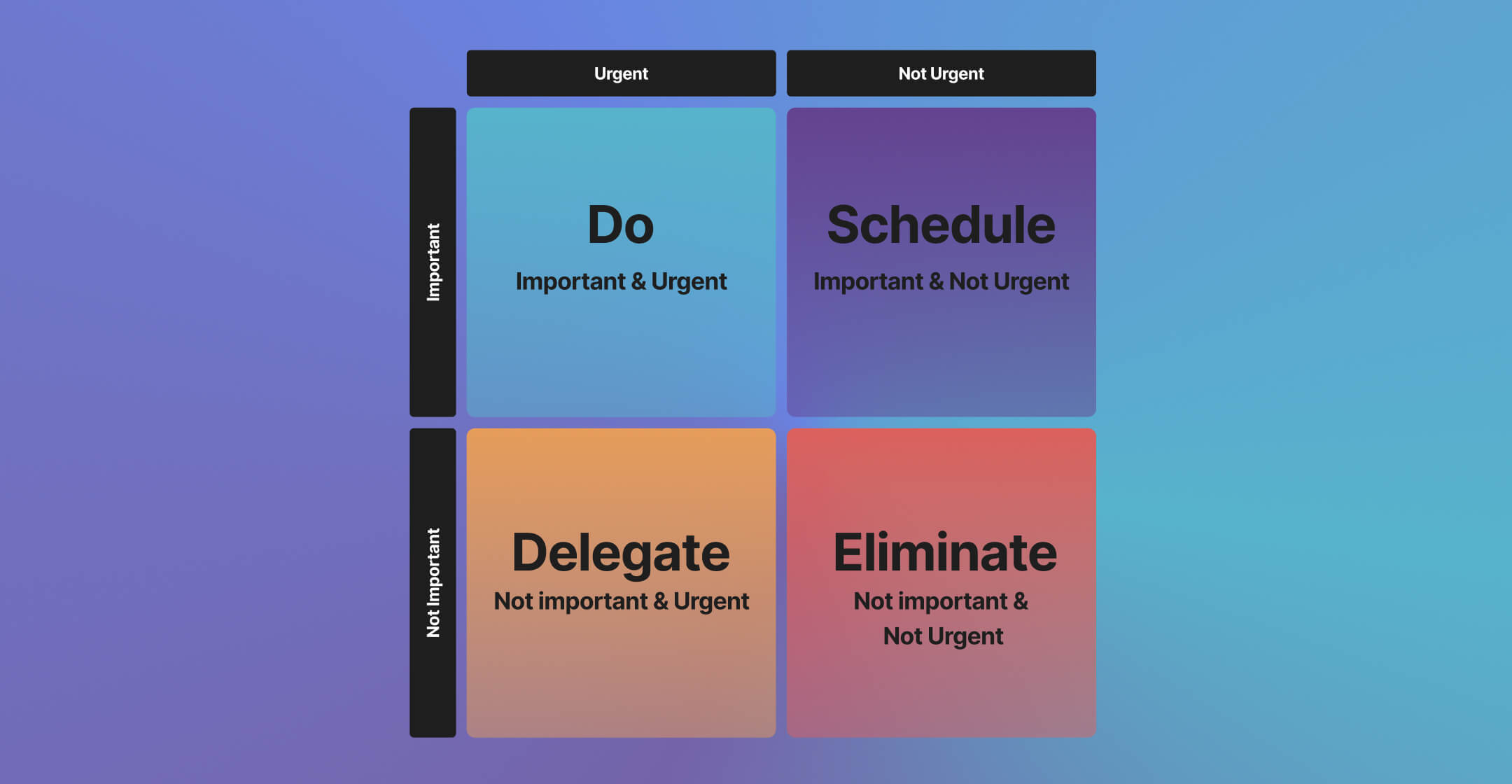
The Eisenhower prioritization matrix consists of four quadrants that sort tasks into four clear categories.
Urgent & Important (Quadrant I): These activities require immediate attention and directly impact long-term goals. Act on them first.
Not Urgent & Important(Quadrant II): Think of activities that are crucial for your long-term success but do not require immediate action. Think personal development, strategic planning, and goal setting.
Urgent & Unimportant (Quadrant III): Work that is urgent but does not contribute significantly to your long-term goals. Quadrant III activities are often distractions, interruptions, or tasks that can be delegated to others.
Not Urgent & Unimportant (Quadrant IV): These tasks are neither urgent nor important and should be minimized to maximize your effectiveness. Not urgent and unimportant tasks often include unnecessary meetings, or trivial tasks.
Each quadrant highlights a different action: do it now, schedule it, delegate it, or drop it. This clarity helps you escape the trap of busywork disguised as progress.
The Importance of Distinguishing Between the Urgent and the Important
Distinguishing between the urgent and the important is crucial for making progress on your goals and achieving long-term success.
When you focus on tasks that are important, even if they are not urgent, you can proactively work towards your long-term goals. Applying this strategy can help you avoid the constant firefighting mode of addressing only urgent tasks.
Let’s see what actually implementing this framework would look like with real life Eisenhower Matrix examples.
Eisenhower Matrix Examples: The Case of The Project Manager
For this Eisenhower Matrix example, let’s say you are a project manager working on multiple projects with strict deadlines. You have a long to-do list that includes tasks such as meeting with stakeholders, reviewing project documents, and updating project status reports.
You are also responsible for managing your team and ensuring they are staying on track. Using the Eisenhower decision matrix, you categorize your tasks as follows:
1. Urgent & Important (Quadrant I):
Meeting with stakeholders to address any issues or concerns that may impact project progress.
Resolving any critical project errors
Related problems that need immediate attention.
2. Not Urgent & Important (Quadrant II):
Reviewing project documents to identify any potential risks or areas for improvement.
Setting long-term goals for your projects and creating a plan to achieve them.
Allocating time to mentor and support your team members to enhance their skills and productivity.
3. Urgent & Unimportant (Quadrant III):
Responding to non-essential emails or phone calls that require immediate attention but do not contribute directly to project success.
Attending meetings or conferences that are not directly related to your project but others label as urgent.
4. Not Urgent & Unimportant (Quadrant IV):
Checking social media or browsing the internet for personal or non-work-related purposes.
Participating in non-work-related activities during office hours.
By using the Eisenhower Matrix, you can prioritize your tasks in a better way:
Your primary focus would be on Quadrant I tasks to ensure project success and address any urgent issues.
You would also allocate sufficient time for Quadrant II activities to prevent urgent issues from arising and work towards long-term project goals.
Delegate or minimize Quadrant III tasks as much as possible to ensure they do not take away valuable time from important activities.
Avoid spending significant time on Quadrant IV tasks that do not contribute to your work or project success. (For example, cancel a meeting if you are not contributing to it)
Applying the Eisenhower Matrix in your project management role allows you to work more effectively and efficiently. The framework allows you to manage your time, prioritize tasks, and achieve long-term success in your projects.
Implementing the Eisenhower Matrix in task management apps like Rock can further enhance productivity and make progress towards achieving success.
Putting The Eisenhower Decision Matrix Into Action With Task Management
A task management app brings this framework to life. You can quickly sort what needs doing now from what can wait. Users can focus on high-impact work, delegate distractions, and cut unnecessary activities.
The best Eisenhower Matrix app can make it easier to prioritize tasks effectively. Rock allows you to do so by organizing lists into the four quadrants.
The key benefits of implementing the Eisenhower Matrix in a task management app is the visual clarity it brings to your daily priorities.
Here’s what Rock would look like when used as an online Eisenhower Matrix app:
Urgent and important (Quadrant I): Do
Not urgent but important (Quadrant II): Schedule
Urgent but not important (Quadrant III): Delegate
Not urgent and not important (Quadrant IV): Delete
By delegating or eliminating unimportant tasks, users can free up valuable time and focus on more meaningful and impactful activities.
We’ve created a dedicated template where you can easily convert Rock into an Eisenhower Matrix app. Try it out for free yourself!
I joined Rock in 2020 as a business development working student. A lot has changed since then. I now find myself traveling around the world as a digital nomad while managing a wide variety of marketing activities at Rock.
What does working full-time at Rock look like for you?
There are a lot of things I love about my job at Rock: ownership of awesome projects, a hands-on learning experience, and seeing direct results from my efforts.
My day-to-day looks completely different compared to two years ago. When I joined we were working on officially releasing Rock to the public, with a product hunt launch, listing Rock on different sites, and other business development activities. Now, 2 years and thousands of signups later, I find myself leading content, growth and analytical activities across channels.
A lot of my workday is planned around individual deep work: managing content, changes in our branding across channels, and other less-defined growth activities. With only 4-5 meetings on a weekly basis, I find my schedule to be open and flexible to focus on important tasks instead of being stuck in meetings that could have been emails – or as we like to say, meetings that could have been a task or topic.
Having only a few meetings does not mean I’m not connected to everyone in the team though. With constant updates in different 1:1 and group spaces, I often chat to team members, partners and users from across the world (and occasionally share some GIFs now that they are finally available everywhere!).
Only a few meetings a week and asynchronous-first work means I often don’t work a 9-5 (this doesn’t mean I’m being lazy though!). Splitting my time throughout the day allows me to go surfing in the morning, to the gym at 2pm or leave early on a Friday to go travel for the weekend every now and then.
Because we organize our work with tasks, performance is not connected to when I’m online. Instead, we focus on what is being accomplished in every sprint or week-over-week period.
What does remote work look like for you?
I decided to go fully remote in January 2022, leaving Rotterdam (which had been my home for 5 years) behind. Leaving behind great friends and a city that had given me so much wasn’t easy. But the idea of getting to travel the world while taking my career forward at the same time was an opportunity I did not want to skip.
For my first solo location I found accommodation in San Juan Del Sur, Nicaragua and decided to spend the next two months remote working there.
What is Nicaragua like?
I was scared of the idea of booking an Airbnb and spending large amounts of time working by myself in a holiday home. Thus, I booked a coliving space, which has an awesome view by the way!
Coliving spaces bring together remote workers and digital nomads from around the world. This makes them a great place to meet like-minded people. Another perk is that they often offer a fast internet connection, a must-have when working remotely. Or as Kenzo likes to call it, the base of the Maslov pyramid for remote workers’ needs.
A definite highlight of my stay was the opportunity to meet amazing people from all over the world with different careers, goals, and dreams. From consultants to freelance copywriters and nutrition & health experts, I shared my ‘office’ (the living room) and free time with people of different trades, backgrounds, and life goals.
Two months in Nicaragua also allowed me to visit places all over the country. I had the chance to visit typical backpacker destinations such as Ometepe, Granada, and León. I also got to surf a handful of times during work days and weekends, do short hikes around town, and check out most of the local bars and restaurants.
Oh, I also got to slide down a volcano which is definitely one of the highlights of my stay here. How does that work you ask? A Breaking Bad jumpsuit, a makeshift wooden board, and some goggles are all one needs.
What’s next?
We have great things coming up for Rock. Now that our help center and blog were recently updated, you can expect to see some rockin’ content across those and some new channels throughout the next few weeks.
My two-month journey in Nicaragua has come to an end by the time you read this article. My next travels are fully confirmed already though. After spending a month visiting friends and family I’m excited to visit Lisbon for 3 months and learn more about Portuguese culture and a new language. Portugal also has plenty of surf and a lot of interesting people to meet for sure.
No more volcanoes though, I think I scratched that itch for the time being by summiting San Cristóbal, the highest volcano in Nicaragua (allow me some bragging rights, it’s a 12-hour hike that starts at 2:30 am).
Will you be in Lisbon or are you interested in e-meeting? You can open a Quick Connect space with me through this link space.new/nicolaas. :)
Saying “no” is an important part of setting boundaries. Without it, we often let other people’s priorities take precedence over our own, which in the workplace, leads to unrealistic expectations, and less time to say “yes” to the things that really matter.
Saying “no” takes practice, and many people won’t be used to hearing it, but once it becomes part of your organizational culture, you’ll realise that work can be so much more than struggling to find time for productive work in between an onslaught of meetings.
When to say “no” to meetings
Before you start saying “no” to every meeting request that comes your way, it might help to understand the difference between which meetings you should accept, and which to reject.
Bad meetings are usually too frequent, poorly timed and badly run, whereas good meetings have a clear purpose, occur only when needed, fit around productive working hours, and are facilitated by someone who knows how to keep a group on track.
It isn’t always easy to spot the difference, especially when responding to a last-minute meeting invite. Here are some hard and fast rules to help you say “no” more often.
Say “no” to meetings where you’re not needed
Andy Grove, founder and former CEO of Intel, categorizes meetings into two types: Process- and Mission-oriented. Process-oriented meetings, such as weekly 1-1s and team all-hands, often require some level of direct involvement, which makes them harder to skip.
Mission-oriented meetings on the other hand, are often focused on a specific decision or project, and unless you’re the project owner, it’s unlikely you need to be in every meeting.
Establish what your contribution to the project is at the very beginning, that way you only need to join the conversation when there is information related to deliverables that you own.
Say “no” to meetings without a clear agenda
It’s not uncommon to receive a meeting invite from someone out of the blue, which often comes with very little, if any, context, and is scheduled at the last minute. Without a clear agenda, how do you know if the meeting will be a productive use of your time?
Before you say “yes”, it’s a good idea to ask a few questions. What is the context of the meeting? What kind of expectations does the organiser have in terms of outcomes and next steps? Is there anyone else that needs to be involved?
You will often find that when you ask the right questions, it becomes clear there isn’t actually a need for the meeting. A little bit of resistance will also force people to think twice before firing off an invite in future, reducing the amount of times you have to say “no”.
Say “no” to meetings longer than 30 minutes
Research suggests that only 50% of time spent in meetings is effective, which means the longer the meeting, the more likely that your time, or someone else's, is being wasted.
Many meetings take longer than needed because so much time is spent getting everyone on the same page. You can accomplish the same thing without extending a meeting by sharing documents and relevant pre-reading material beforehand.
Anyone familiar with Parkinson’s Law will know that "work expands so as to fill the time available for its completion", which means it’s often best to limit meetings to half an hour. In most cases, it will be enough, and if not, you can always schedule a follow-up.
Say “no” to meetings that kill your flow
Getting into a flow state doesn’t happen instantly, which means setting aside distraction-free blocks of time that allow you to focus. Interruptions not only kill your momentum, they can also cost you additional time and productivity in the form of meeting recovery syndrome.
For the meetings that you have no choice but to accept, try and group them together at times when you would normally work on other shallow tasks such as admin and replying to emails. There are even tools you can take advantage of to do it for you, like Clockwise.
Say “no” to meetings for an entire day
Companies such as Facebook and Shopify have gone so far as to introduce no meeting days. Many of them understand the pressures that come with remote working, which is why they have adopted policies at the organisational level that support employees.
The aim is not to shift meetings from one day to another, but increase the amount of time you have available for productive work each week. It might not work for all teams, but meeting days can help you rely less on synchronous forms of communication.
As many of the world’s best technology companies have shown, it’s possible to run a successful business with very few meetings. Synchronous forms of communication like in-person and online meetings have their place, but they don’t need to be the default mode.
5-minute screen recordings and short audio messages can be much more effective than 30-minute meetings, it’s just a question of people embracing a new way of working.
Rock is working hard to enable remote teams in a way that means less time spent in meetings, and more time working on things that matter — click here to learn more.
No more back-and-forth on which tools to use to work together, as with Quick Connect, you can instantly start working with anyone. If you want a more memorable Quick Connect link, you can now claim your own custom space.new URL when you’re on PRO or TEAMS.
This release also includes link previews and GIFs on the web and desktop versions, a new help center and blog, and many improvements to the mobile app.
Check out the first-ever product release webinar, where Nico & Greta walk you through the latest features and their different use cases.
Quick Connect PRO ?
Personalize your Quick Connect to highlight your business name or the service you’re offering with a custom link.
You can add your Quick Connect link to social media channels & communications, your freelance profile, or client-facing websites or business cards. This makes it easier for people to start a conversation with you and collaborate on anything.
Use Quick Connect to seamlessly get in touch with new clients, offer customer support, or collaborate with anyone for an up and coming business partnership. Make sure to claim your link in time, once it’s taken it’s gone!
We have also added template spaces to Quick Connectto create a more customized experience. Available templates include: operations, recruiting, product design, marketing campaign, engineering, project management and customer support. Customized template options are coming soon to PRO and TEAMS!
Link Previews on web and desktop
In addition to previewing links on mobile, Rock now shares a thumbnail of links that are shared within your spaces. Get a quick sense of videos, articles and other links that people share in a space with a thumbnail and a snippet describing what you shared.
GIFs on web and desktop
You can now share your favorite GIFs on the web and desktop versions of Rock!
GIFs become available in a group space with more than three people. You will receive a notification saying ‘GIFs unlocked ?’ and the GIF button will appear next to the emoji functionality.
Browse thousands of different options from the Giphy library and share them in the chat with your team to say something only the right GIF can express.
Pinboard [Mobile only]
Pin important information in a dedicated panel in each space. This makes it easier to find important tasks, topics, notes, files or messages without having to go looking. You can pin multiple objects in a space, allowing everyone to quickly check out and access information by clicking on the pin button in the top right corner of the space. This may include a welcome message, a weekly announcement, or an important task or note. How to pin:
Messages: keep the message you want to pin pressed for a few seconds and click on the pin icon afterwards.
Tasks, notes, files and topics: press the pin button in the top right corner of the object. You can unpin items by selecting the same pin button again.
Pinned information can be accessed by clicking on the pin next to the space name. You can also filter pinned information to quickly browse through relevant objects by mini-app.
Import tasks from CSV [PRO & TEAMS]
Are you looking to quickly create a large amount of tasks or move documented information over to tasks? The import from CSV functionality makes it easy to quickly create a whole set of tasks. Add your information into the provided template and migrate it to Rock within a few clicks. You can access the import from CSV feature in the Import section of your Settings panel.
Log out from all devices
Not sure on what devices your current account is logged in? This feature allows you to log out of all devices your profile is still connected to in one go. That way you can make sure that you’re the only one with access to your account. You can access the feature from your Settings, press the three dots, and select ‘Log out from all devices’
Rock Help Center ?
Resources, documentation and so much more! Browse the help center for support material on tasks, messages, notes and any other Rock feature. We will be adding new help center articles on a continuous basis so if you’re looking for something specific let us know by opening a space with us!
The new Rock blog ?️
We have also upgraded the navigation experience on web and mobile for the Rock blog. This makes it easier to find relevant articles and improves the reading experience across devices. We are also enabling guest posting. Are you a writer, company or user that has a story to tell that you think is relevant to our audience? Feel free to reach out to open a space with us to further discuss possibilities.
Mobile updates
We have added a bunch of improvements to the mobile experience. This product release includes the following changes and fixes to the mobile apps:
Quick Connect (PRO) - pick your own custom Quick Connect link and use a template for your Quick Connect space.
Pinboard: pin anything in a space for easy access to all your important tasks, notes, files, and more.
Force log out from all devices
A whole lot of bug fixes and smaller improvements.
Meetings can be excellent at establishing and maintaining connections between team members (who might be geographically distant). But too often, virtual meetings are not a productive use of everyone’s time. Throughout this article we share a few best practices for your virtual meetings to make sure you are getting the most out of your time together.
When the shift to remote work was new and unfamiliar, many of us became all-too-familiar with virtual meeting burnout. Managers and companies relied too heavily on virtual meetings to bridge the gap between in-office camaraderie and the often isolated reality.
Why are virtual meeting best practices important?
As we have written elsewhere, we believe, “video conferencing (when done right) is a helpful tool because it’s a high-quality communication method.” Implementing best practices can help your team use virtual meetings effectively and keep them from being time-consuming.
You can improve virtual meetings by establishing a shared virtual meeting etiquette where you determine who takes notes in advance. While these common-sense insights are good to remember, thinking more critically about meetings drives some of the best practices.
We know that when it comes to virtual meetings, it is important to ask yourself some questions before sending those invites. Your team members’ calendars are a valuable resource, so make sure you are using their time wisely. Here are some best practices that can help teams plan and execute virtual meetings more effectively.
Cancel (or shorten) meetings
This is a bold suggestion but hear us out. Canceling your meetings can help you make sure that you are thinking critically about how your team’s time is used. Before you schedule a meeting, identify what you want the outcome to be. What decisions need to be made? Are you looking for insight from your team?
Reflecting on the topic of the meeting, are the benefits of a meeting (such as interactive discussion and quick decision-making) essential? Instead of a regular status update meeting, written updates can provide the same information.
We have all heard the saying, “this meeting could have been an email.” Sometimes, a meeting should have been an email. Recognizing that a virtual meeting is not needed is a good skill to have. Written updates can provide a thoughtful summary of statuses for projects and tasks that you can easily reference later. You can add that summary to project documentation or share it with a team member.
If a meeting is needed, shortening it can help to make sure you discuss the important items. When a meeting is 30 minutes instead of an hour, the shorter meeting length can ensure that priorities are discussed and addressed first. It limits your meetings to only the essentials, which is what meetings should be for anyway.
Substitute your meetings with other tools and resources
While you might not need an hour-long meeting for check-ins, being able to communicate with your team about how their work is important. It contributes to overall transparency and helps you keep an eye out for any roadblocks.
Giving your team the ability to check in on projects and tasks enables them to work independently and cuts down on some of the need for virtual meetings. Turn to your tools to find a solution that doesn’t rely on time-consuming meetings.
Take care of things with tasks
Tools like Rock often have a tasks feature to help workers manage and organize the actions that need to be completed.
You can also give your team members access to shared files or task boards so they can check on how something is progressing when they need or want to. This frees up your time and puts the tools in your teams’ hands so they can work more independently.
Make the most of messaging
Group chats can also be a useful way of sharing information passively with your team. Those methods also allow your coworkers to respond when they can. Their responses will likely be more thoughtful and helpful than if you asked them to jump on a call.
With Rock’s messaging feature, you can chat with everyone in a space or tag a team member to ask them something directly while still enabling the rest of your coworkers to see their answer. This helps to prevent information from being siloed while freeing everyone to focus on their work.
Rock’s messaging also allows you to share polls where everyone in a space can quickly weigh in with their opinion.
Rethink how you use your meeting time
Does your team spend time on discussions that could be a one-on-one conversation between two team members instead of the whole group? Do they ask for information?
Instead of providing in-depth answers, create an action item to share existing documentation or task boards with a team member. This provides a more comprehensive resource for them that they can reference when needed. You will answer their questions and help them work more independently.
Structure can save you from stress
If your team has trouble staying on track, share an agenda ahead of the meeting. Agendas help make sure meetings have a defined plan and objective. They can also help shut down any tangents or vague discussions.
Asking your coworkers to send items for discussion in advance can also help prevent the meeting from wandering off-topic. This also makes sure that you and your team are talking about the topics they have questions or opinions on. When a team member sends an item for discussion, you can sometimes address the topic via tasks or chat.
Summarize the meeting at the end, and reiterate any action items to confirm that everyone understands what they have been asked for. Making meeting notes along with action items available to your team after the meeting can provide a useful reference, promote asynchronous work and be added to project documentation.
Your time is a valuable resource
Virtual meetings remain a staple feature of modern workplaces. Whether you are working remote, part of a distributed workforce, or in an office connecting with coworkers on the other side of the world. It provides workers with a venue for interactive discussions and quick decision-making.
Without structure or thinking critically about the objective, virtual meetings can quickly get out of hand. Remember, best practices for how to tame virtual meetings are:
Canceling your meetings means that you won’t “meet by default”. Apply this to standing meetings that are supposed to be for check-ins. Your time is wasted by calling in, reviewing updates, and reiterating unnecessary information that can be documented in tasks or messages. If you do need a meeting, shortening the length will force you to stick to the essentials.
Replacing meetings with other tools involves thinking about what you need and the best way to get it. Using messaging and task management can better organize information and empower your team to work independently.
Rethinking how you spend time in your meetings means that, when you do need a meeting, it is effective. Structuring your meetings with agendas, note-taking, and action items can help you make the most of them.
These best practices will help you and your team focus on what matters, not meetings. Remote work tools like Rock can help you share information via documentation and messaging. Collaborate with task boards, and meet when you need to.
While it's great to work from anywhere, flexibility can still be an issue for teams that struggle with timezones and remote work. Distributed and remote teams can leverage asynchronous work to be less dependent on direct responses, meetings and just being online.
No matter where you’re working, you might have to align your schedule with your company’s headquarters in another time zone or continent. You might also be stuck working a nine-to-five schedule that’s difficult to juggle with your personal life.
The increased importance of asynchronous work
Since remote work is far more widespread today, companies and teams should adapt to overcome this challenge. A new type of remote work is emerging that offers workers the flexibility they value while benefiting businesses too—asynchronous work.
While it may be an intimidating change, once you have nailed the right amount of communication and committed to detailed documentation, asynchronous work can be incredibly rewarding. People can enjoy benefits including flexibility, better communication, and documentation.
In addition, working asynchronously can prime you for “deep work,” a term that Cal Newport coined to describe the ability to work intensely without distraction. This ability to deeply immerse themselves in tasks allows employees to become more productive and produce better results.
With asynchronous work, people are empowered to be more independent and effective.
Asynchronous Work: Meaning & Methodology
So what is asynchronous communication and why is it so beneficial for remote teams? Asynchronous work is a methodology that treats work like a relay race instead of a sprint. This allows team members to pick up tasks from others without waiting for meetings or direct messages.
Two important parts, core to the methodology:
Documentation: Store information so anyone can find project details, past activities or important updates without relying on being online at the same time.
Task management: Document and track who is working on what with descriptions, assignees, start- and due dates, labels and more.
Instead of synchronous work, where a team needs to be online during the same hours, people now have the actual freedom to decide when and how to work.
One team member might start their day at 6 am while another might not start until noon. When there are people across different locations across a country or continent, working as their individual schedules permit provides a flexible solution.
The true meaning of asynchronous work
Simply put: asynchronous communication is communication that doesn’t happen in real-time. Instant confirmation or feedback is not guaranteed, and generally the team members are geographically dispersed.
Geographical dispersion itself however, doesn’t mean that the primary collaboration is done asynchronously. There are a couple of workflows remote teams need to implement to reduce the need for synchronous collaboration and make a shift closer to asynchronous.
Relying on remote asynchronous communication methods is especially important for distributed teams. Retrieving, tracking and following up on work can quickly become a challenge when working across locations and time zones. This often leads to constant checkins, meeting overloads and non-productive work schedules.
People can respond when it’s convenient and during their own set work times. Next steps can be taken without having to wait on someone else as everything can easily be found back. Asynchronous working setups often don't expect communication to be immediate. This gives people the flexibility to decide what hours they want to get work done.
You are never held up when a coworker is offline if you leverage asynchronous work correctly. You and your team can stay on top of work and move away from the hyper-responsiveness that often comes with live, real-time communication.
Benefits of asynchronous work
We’ve talked about what asynchronous work is and how it, well, works. As a new approach, asynchronous work provides quite a few benefits that more traditional, synchronous workplaces cannot.
With increased independence and communication, asynchronous work offers support to remote teams in a way that rigid schedules and set office hours simply can’t.
Longer periods of focus and concentration
Asynchronous work enables you to feel more focused on the task at hand with minimal interruptions. Normally, questions or messages can pull your attention away from what you’re working on and shatter your concentration.
With asynchronous work, there’s little to no pressure for workers to respond immediately. You can focus on writing, coding, or problem solving and get work done.
More flexibility
Asynchronous work adds more flexibility for you. Because you don’t need to be online at the same time as management or coworkers you can work when it’s best for you. This will help reduce stress, since work can be aligned to your life, not the other way around.
Additionally, since asynchronous work’s emphasis is on results, not the amount of time worked, you have greater independence to complete tasks and projects. You shouldn’t have to sit around when your work is done for the day.
Better communication and documentation
Since your team may not be online at the same time or have the same context as you, communication and documentation needs to be more thorough and intentional. Asynchronous work, by necessity, improves the quality of communication and documentation. Coworkers can understand decisions, request and projects without asking around for details or updates.
Documentation is also key to getting asynchronous work right. When your documentation is thorough and communication is effective, workers can get answers to their questions independently. This prevents important information from being siloed, increases transparency, and allows projects to move forward regardless of personal work schedules.
Disadvantages of asynchronous work
While asynchronous work offers a flexible, empowering, results-oriented approach, it has some drawbacks. The good news is that, if these drawbacks are given serious consideration and thoughtfully addressed, your team or company can easily avoid or resolve them.
It can be a hard change to navigate
Making the move to asynchronous work is a big shift, and with any change comes risk and the time-consuming realities of implementation. Although the COVID-19 pandemic may have given asynchronous work a boost, most workplaces still rely heavily on synchronous communication and work approaches.
Change can be stressful and complex, especially with larger teams or global companies. Some elements of communication can also be lost, making it harder to differentiate different types of communication styles.
Although it may be intimidating, remaining intentional and decisive about implementing asynchronous work will ensure that it’s a smooth transition.
The right amount of communication can be hard to find
Communication may be an issue if asynchronous work isn’t intentional and deliberate. Too much communication may keep your team in the loop but it can also lead to burnout, and information exhaustion. Messages, notes, and task boards can be powerful tools to make sure that nothing gets missed. Nevertheless, they also make it hard to organize and use information effectively when overdone.
On the other hand, too little communication can leave frustrated coworkers tearing out their hair in different time zones. Details can fall through the cracks and escape notice if communication is lackluster.
Asynchronous work requires an intentional and thoughtful approach to communication. Ask yourself: Who actually needs to see new information?
Documentation that needs constant maintenance
It’s hard to keep workers on the same page without thorough and up-to-date documentation. This is especially true if they take advantage of the flexibility that asynchronous work offers and work in different towns, time zones, or continents.
Building reliable, accurate information repositories can preemptively answer questions and provide guidance for workers, no matter where they are or what time it is.
With all things, these drawbacks can be intense or mild, depending on how you approach them. It’s important to remember: asynchronous work relies on structure, thorough documentation and high-quality communication to succeed.
What does it take to make asynchronous work successful?
The short answer is good communication! It’s important to make sure nothing gets missed when collaborating on work schedules that don't overlap. Just like how asynchronous work doesn’t need team members to work the same hours, asynchronous communication doesn’t need a real-time response.
Asynchronous communication methods require channels that allow team to track work at different times. These methods include:
Task management: Manage ongoing activities or projects in a documented way by creating, editing and updating your work through tasks.
Note taking: Write down important information about meetings, discussions or workflows so everyone can get an update without requiring a meeting.
File management systems: Store files, graphics and longer pieces of information in dedicated folders that are accessible to everyone in the team.
An asynchronous work methodology gives people more reference to work as information is well-document. People also get more time to process information because they don’t require an immediate response.
When to switch to synchronous channels
Synchronous communication can be a helpful tool too when really needed. This type of communication, which relies on real-time responses, is helpful when used for complex discussions, personal development, brainstorming sessions, or when things become too time-consuming to resolve through asynchronous communication.
For example, meetings can be exhaustive and unproductive, but when they’re limited to situations when they’re really needed for collaborative, fast decision-making, they’re valuable tools in any workplace.
Leverage your documentation
Effective and organized documentation is another pillar of successful asynchronous work. Since team members might log on late at night or from the other side of the world, it’s important to find and access the information you need, when you need it. Waiting for someone else to be online will slow you down by forcing you to wait for their availability.
Good documentation also reduces how often you need to communicate with your team members about the small stuff. If your documentation is organized, you can navigate to shared notes or files and find the project or workflow details you’re looking for.
Inboxes will stay uncluttered and your team can streamline their work by referencing and accessing important information at any time.
Maximize deep work with asynchronous work
Deep work is when you perform professional activities at the height of your mental capabilities. It relies on focus, on keeping your attention fully concentrated on the task at hand. With deep work, people are intentional and deliberate.
Cal Newport coined the term in his 2016 book Deep Work: Focused Rules for a Distracted World. He says, “Deep work is my term for the activity of focusing without distraction on a cognitively demanding task. It describes, in other words, when you’re really locked into doing something hard with your mind.”
Instead of investing a long period of somewhat-focused work, you deliberately incorporate limited spurts of intense focus.
Cal Newport says that, “instead of focusing too much on what’s bad about distractions, it’s important to step back and remember what’s so valuable about its opposite. Concentration is like a super power in most knowledge work pursuits.”
Working asynchronously supports deep work because it helps to free you from distractions. You can focus more on the task in front of you—bringing the power of your concentration to the table. Spend less time locating files or referencing emails buried in your inbox.
This empowers you to focus on the work that really matters.In addition, asynchronous work enables you to focus on productivity. You can focus on getting work done instead of paying attention to clocking in and being online.
What tools do you need for asynchronous work?
There are lot of different platforms that can come in handy for asynchronous work. Focus on those that offer well-documented communication, accessibility and asynchronous communication channels.
With the right resources, asynchronous work can take your work to the next level. Some remote work tools that help with asynchronous work are Rock, Notion, Coda and Google Drive.
Rock is asynchronous by default and synchronous when really needed. Asynchronous work should be the foundation of team communication. Nevertheless, you should not forget that synchronous communication still adds value to collaboration. Rock's multimodal nature lets you pick and choose how to communicate depending on urgency and priority.
Asynchronous features such as task boards, topics, notes, and comments help you organize your day-to-day work. Meanwhile, real time communication through features like messaging and video conferencing come in handy for discussing complex topics or brainstorming.
Notion
As a productivity and project management software tool, Notion provides a single interface for users instead of requiring that they cobble together various tools.
No matter what type of work you do, you can configure Notion to fit your needs. It’s highly customizable and therefore flexible to whatever organizational approach you take. You can collaborate with other users in Notion and have all of the visibility you need.
Coda
Coda is an all-in-one tool that combines text and tables. This allows teams a high-degree of versatility, since they can customize each doc to fit their needs. Coda helps to streamline internal workflows while keeping information accessible so teams can work together, wherever they are based.
As a platform that’s flexible and customizable, Coda can help your team work together asynchronously, no matter what they need.
Google Drive
Providing cloud-based storage, Google Drive is nearly ubiquitous in today’s workplaces, schools, and organizations. Shared files make it easier to access and organize work between people.
Because it’s a cloud solution and asynchronous in nature, Google Drive makes collaboration easy. Team members can share files with each other, make edits, and provide feedback in Google Drive.
Because Google Drive is so easy to navigate and comprehensive, it’s a valuable tool for asynchronous work. It also becomes easier to ask a coworker in another country to provide feedback on a draft you're working on.
Build a base of shared knowledge for your team
Rock is a central hub that provides a structure for stored team knowledge. Task boards allow you to see the status of a project, what everyone is working on, and how progress is going.
Task boards let users comment and ask questions. This creates an asynchronous workflow by default. People can catch up by looking at tasks instead of distracting video calls. The transparency of task boards helps teams declutter inboxes and prioritizing work.
In addition to task boards, teams can create notes or add files for better documentation without leaving Rock. You can also connect cloud storage providers like Google Drive, Dropbox or Figma keep important information at hand.
Look forward and work asynchronously
With asynchronous work, you can stay on top of your tasks, maintain work/life balance, and strengthen team knowledge. Rock is a tool that can help you reach these goals by being:
Multimodal: With tasks, notes, messages, files, and meetings in one place. You can get all of the project management or work functionality your team needs without ever leaving Rock.
Asynchronous: Rock has fewer elements like online status and read receipts so you can focus on your tasks and projects. With asynchronous communication, you can respond to non-urgent tasks when you have the bandwidth. You can also focus on deep work without calls and meetings interrupting.
Use fewer tools, platforms, and apps during your workday with Rock. By having tasks, notes, and topics alongside messaging and meetings in one place, you'll need fewer tools. You can also work in a more structured way, across teams and document important information.
Asynchronous work provides a better, more flexible way for teams and companies to approach remote work. Rock employs asynchronous work by default while making synchronous ways of communicating accessible for when really needed. This way teams can truly embrace the future of work.
Remote working used to be a perk or benefit that only came with snazzy tech startups or hip marketing agencies. But with the pandemic forcing most offices to close, many companies had to adapt quickly and implement remote work tools to keep their operations running despite the stay-at-home directives.
So now, remote work has become a necessity for many businesses, and it's only going to get more common as time goes on. A Forbes article shared some significant numbers concerning remote work and why it's here to stay:
First, 74% of professionals expect remote work to become standard practice.
Second, 97% of workers don’t want to return to the office full-time and prefer a hybrid set-up.
Finally, 61% of employees like being fully remote and like not to go to an office.
If companies want to continue being competitive, they have to treat remote working as a key part of their work practices rather than an afterthought. After all, according to TechRepublic, 81% of 4,000 surveyed respondents in 2020 would be more loyal to their organization if they offered flexible work options.
As businesses continue to adapt to the remote working environment, it's essential to ensure that employees have access to the best technology for working remotely. By providing your teams with the resources and solutions they need, you’re empowering them to do their best work.
Good work from home software is essential to ensure mindful productivity during work hours while still giving them time to have fulfilling lives outside of work. The key is to give them the tools they need for success at work, but also the space to create a positive work-life balance.
So, how can you ensure your remote teams stay connected in a healthy and productive way?
The Best Tools for Working Remotely
Many options are available in the market, but the problem is that many work from home tools were designed around face-to-face interaction.
This design may hinder employees’ and teams’ efforts to work remotely effectively because it forces them to adapt to a workflow not suited for their current circumstances.
To help sift through the ever-growing market of apps for work, here is a list of some of the best remote work tools available.
Video Conferencing
Video conferencing apps are essential software for working from home because they give teams much-needed face time to interact and connect with their colleagues.
With face-to-face meetings not possible or generally hard to coordinate due to distance or time zone differences, these apps give teams the chance to collaborate and communicate in real-time.
Zoom
Zoom is an online platform for video conferencing, collaboration, and content sharing. It’s a lightweight and straightforward software that allows people to easily join meetings and calls.
Users can easily create webinars, live chats, screen-share presentations, and share files from their computer or mobile device. Note that an account with Zoom is needed to host and set up meetings.
Google Meet
Google Meet is a virtual meeting platform developed by tech-giant Google. It's designed to let many people join the same virtual meeting and communicate with each other via various communication options - like video, audio, and chat.
The beauty of Google Meet is that it comes with a Google account, so there’s no need to create a separate account to hold online meetings.
Teams can get advanced features such as breakout rooms, saving meeting recording to Google Drive, intelligent noise canceling, and other useful conferencing features with a Google Workspace account.
Jitsi
Jitsi is an open-source video conferencing software. Multiparty video conferencing is possible through Jitsi’s Videobridge program. Videobridge allows users to run multiple video streams simultaneously from a single server. It’s suitable for building massively scalable multiparty video applications.
Since Jitsi’s efforts and development are commercially supported by 8x8, the developers do not require any subscription or payment to access its meeting and video conferencing features.
Remote work tools for messaging
Messaging apps are for communication or discussions that don’t need real-time collaboration or don’t need video-conferencing. This also leaves a paper trail of all meetings so that it’s easier for teams to get back to topics and other conversations.
Rock
Rock is an all-in-one messaging app that enables remote teams to communicate seamlessly. The app allows users, both free and paid, to create spaces to easily discuss projects and topics in one place.
In addition, Rock allows unlimited invites into the spaces, allowing teams to easily communicate with anyone: internally and externally.
The app allows users to create 1:1 Spaces (like direct messages) and Group Spaces depending on the need. Each Space also comes with its own project management, note-taking, and file management suite to make project communications flow better.
Slack
What started as an internal messaging tool has become one of the most used workplace message software globally. When you think of working for a remote or distributed organization, more often than not, Slack is one of the communication tools in their arsenal.
Slack allows users to create channels, basically group chats for specific topics. In addition, the app has a robust network of integrations with other apps, which allow for improved features and functionality.
Slack has a free plan that provides limited message history, limited integrations, and 1:1 calls. However, if teams want access to the entire message history, go on group calls, and other advanced features, then Slack has several tiers of paid plans (paid per active user per month) depending on the business needs.
Discord
Discord is a chat app similar to Slack in its ability to create channels and organize conversations. However, its origins couldn’t be any different - Discord is primarily targeted towards gamers as it’s a lightweight audio and video call app that allows streaming.
What brings people beyond gaming to Discord is its accessibility and high customization options. Discord is free for the most part. You can create and join as many servers without shelling out a cent.
Their Nitro Benefits (equivalent to a paid plan) is at $9.99 per month or $99.99 per year and give subscribers enhanced customization like personal profile and other perks like HD video for screen share and live streaming.
WhatsApp
WhatsApp is a messenger software that’s available on both mobile and desktop. It allows users to send messages and make calls over the internet. With WhatsApp, costs are significantly cheaper than traditional calls and SMS with a service provider.
With over 2 billion users worldwide, WhatsApp adoption within any team or organization will not be difficult. Aside from audio and video calls and texts, WhatsApp allows easy document sharing.
In addition, its end-to-end encryption makes discussing confidential information with the app secure. While it’s not specifically for business and internal team chatter, WhatsApp is still a good platform for real-time chat and messages. It’s also free so fees wouldn’t be a problem.
Telegram
Like WhatsApp, Telegram is a mobile and desktop messaging app that allows users to send messages and make calls over the internet.
Telegram differentiates itself from WhatsApp by focusing on security, encryption, and data privacy. However, in line with Telegram’s founders’ principles, the app will remain free, with some optional monetization options being rolled out in the future.
Work From Home Tools Focused On File Storage
Gone are days of manually printing documents and filing them in folders in metal cabinets. In the digital age, file management and storage files happen in the cloud, where one can access their files any time, any place.
Google Drive
Google Drive is one of the top file hosting services available today. It allows users to save files online and access them anywhere from smartphones, tablets, or computers. Google Drive also makes file sharing easier as anyone can access those files or folders provided that they have the link and the appropriate permissions.
Google Drive is integrated within the Google Suite ecosystem. 15GB of Google Drive storage comes with every free Google account. If users or teams need more, extra storage is available. Google Workspace accounts also give extended Drive capacity.
Dropbox
Dropbox is one of the most popular ways to share files online. It has been around since 2006 and continues to be updated regularly. Despite it being one of the forerunners of cloud storage, Dropbox is still widely used and is likely a better choice for file sharing online.
Dropbox also has a rich marketplace of integrations with other productivity apps, ensuring improved and synchronized processes within a team’s workspaces and cloud storage. Dropbox’s plan starts at $9.99 and already gives 2TB worth of storage.
For teams that need more storage and advanced features like API integration or teams management, Business plans start at $16.58/month.
OneDrive
OneDrive is an online file storage service offered by Microsoft that allows users to access their files from any device. Users can upload their documents, videos, images, and other types of files to OneDrive. In addition, the service provides file-sharing, automatic backups, and integrated version history, among other features.
Users can get up to 5GB of free OneDrive storage. Microsoft 365 has several pricing options for both home and business users. The paid OneDrive options start at 1TB of storage, so it’ll take a while before extra storage is needed.
Rock
Rock allows for unlimited file storage with a limit of up to 10MBper file for free. On the other hand, users with PRO spaces can upload up to 50MB per file.
For bigger files, Rock also allows teams to integrate with cloud storage providers such as Google Drive, OneDrive, Dropbox, Figma and Adobe Creative Cloud so that users can easily link out files and integrate them within the app’s other functions.
Remote work tools for Project Management
Project management apps are essential remote work tools because they allow managers and individuals to create a clear task schedule. Teams should be able to easily see who is working on what, what needs to be done, and when tasks should be done.
This helps teams plan better, allocate resources more efficiently, and avoid problems before they occur.
Rock
Rock is a powerful project management app that helps remote, distributed, and asynchronous teams work better. It’s an all-in-one tool that lets teams manage projects and collaborate with clients and stakeholders.
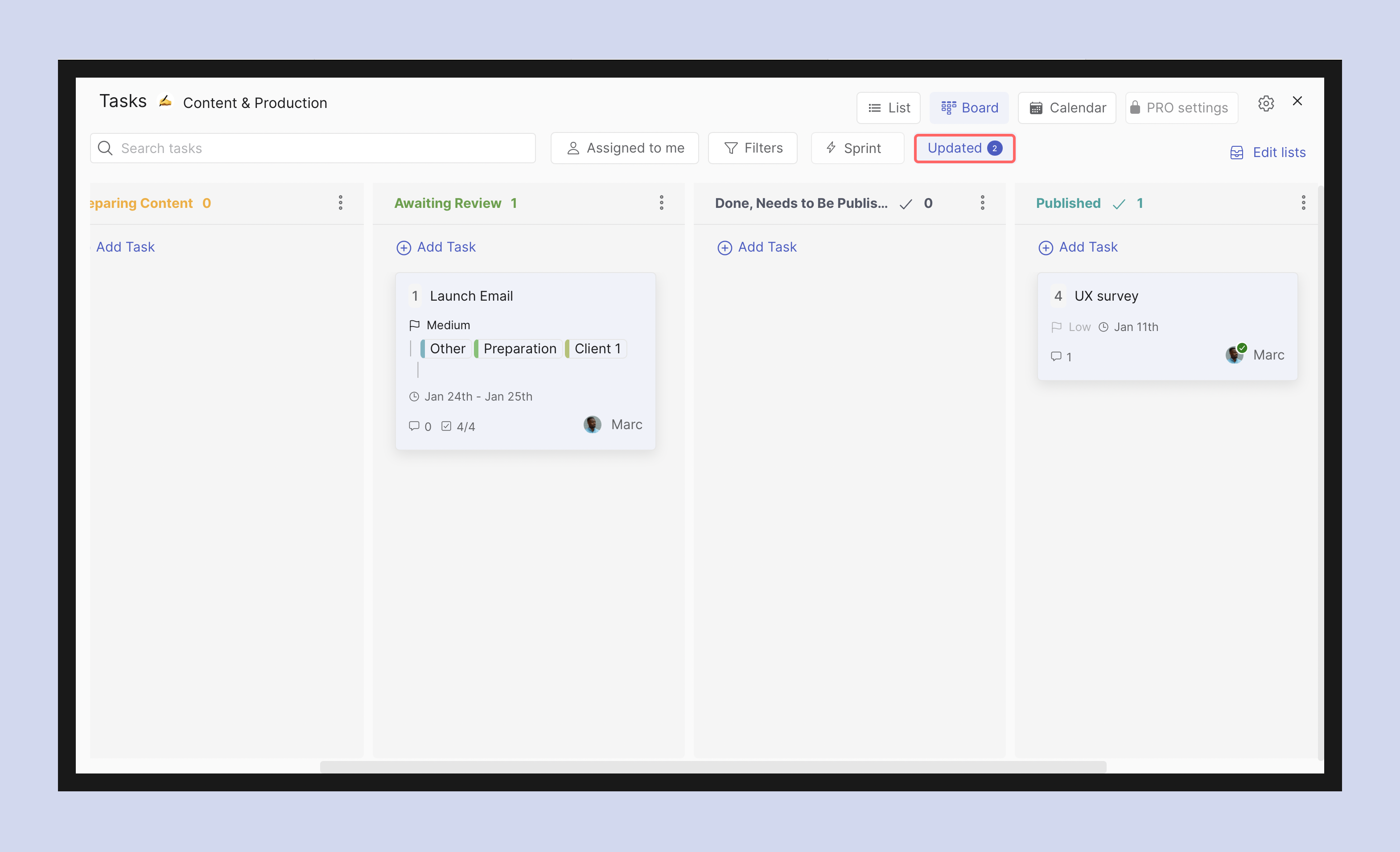
Users can create a spaces with mini-apps such as messages, topics, tasks, notes, files and meetings that allow teams to communicate and manage projects. The Tasks mini-app provides an actionable way to manage projects and gives team members different views to manage their work.
Users can also add an unlimited people to spaces. This way they can work with all the stakeholders and client accounts across their different projects.
Basecamp
Basecamp is a project management and team collaboration tool in one. The software lets users create boards for different teams and projects where each board is its self-contained repository for everything related to that project. The app aims to make remote working easier by lessening unnecessary meetings, decreasing micromanagement, and increasing productivity.
Basecamp has a free plan where users can experience the app with limited features. The free plan is best for individuals looking to get organized or those looking to try the tool out. As for a paid option, the company offers a $99/month flat rate regardless of the number of projects or users.
ClickUp
ClickUp is a cloud-based project management and collaboration tool that enables businesses to communicate and collaborate effectively. It allows users to create projects, assign tasks and send messages.
The app also provides dashboards that give real-time information on meaningful data with projects and ongoing work. In addition, ClickUp also has a rich bank of partner apps and integrations to make working easier for its users.
ClickUp has a free plan that allows users to create unlimited tasks and unlimited users. Unlimited's cheapest plan starts at $5/user/month if teams need more advanced features. After that, it goes up to $19/month for advanced business users and has custom pricing for Enterprise accounts.
Asana
Asana is a cloud-based integrated task management platform that provides a simple way for teams to organize their activities and track progress. It helps streamline work in organizations, giving team members a way to plan out multiple projects and tasks more efficiently.
The free plan comes with unlimited projects, tasks, and messages. However, it has a collaboration limit of up to 15 users. The paid plan starts at $10.99 per user per month. It includes adding more users or advanced features like Gantt charts.
Trello
Trello is an online task management application designed for individuals or teams. The Atlassian-owned software visualizes projects, quickly shows people assigned to specific tasks and allows for seamless collaboration between multiple users. The app uses the idea of Kanban boards to manage various projects and tasks easily.
Teams can quickly try out Trello’s project management capabilities through a free plan. The free plan comes with unlimited cards, up to 10 boards per Workspace, unlimited storage, and other cool features. Trello’s paid plan starts at $5 per user per month for more advanced features and improved visualization.
Note Taking and Documentation
Note apps help teams and individuals keep track of important information, whether taking down meeting minutes during a sprint call or meaningful feedback after a 1:1 with a manager or taking down information to share with the rest of the team.
Here are some of the most popular remote working tools for note taking and documentation currently available on the market.
Rock
Rock has a robust note-taking functionality that helps teams improve the way they share information and handle company knowledge. The Notes mini-app allows users to write down information in dedicated notes, easily accessible from every space.
Additionally, the Topics mini-app allows for in-depth discussion on one topic at a time. This allows for better documentation of messages, especially when it comes to more exhaustive discussions. This way, anyone looking for specific information can just open a topic instead of searching different chats.
Notion
Notion sees itself as an all-in-one workspace that helps teams stay organized by putting notes, tasks, to-dos, wikis, and databases in one place. The app also provides an easy-to-use interface using blocks, making it easier for users to create pages. In addition, Notion also provides a robust selection of app integrations, making it easy to put in with existing workflow.
For those interested in trying Notion, there’s a free plan that allows for unlimited pages, the ability to share for up to 5 guests, multi-device sync, and API access for custom integrations. Paid plans are available for improved features such as unlimited guests, unlimited file uploads, and more.
Evernote
Evernote is a cloud-based application that works and syncs on your smartphone and computer. The app allows you to take notes, to-dos, tasks, screenshots, audio notes, and other things to organize them into notebooks that you can later search through.
Evernote’s free plans easily allow for note-taking and synchronizing up to 2 devices. Users can also take advantage of its robust media support to upload or attach .pdfs, videos, images, and other documents. For those needing more features like increased monthly upload limits or integration to the calendar or exporting notes as PDF files, then paid plans are available.
Rock is an all-in-one remote work tool for teams
With remote working here to stay, it’s essential to be updated with some practical remote work tools.
Understandably, it can also be overwhelming when managers have to deal with searching the market to find software and platforms that would fit their specific business and process needs.
A good alternative is to consider an all-in-one platform that would empower teams to do their best by focusing on work instead of switching between remote working tools.
Rock is an all-in-one platform created for remote and distributed teams. The platform combines messaging with project management and notes. Teams can also connect third party cloud storage and videoconferencing software such as Google Drive, Google Meet, Zoom, Notion and more.
Rock has a free plan that allows teams and individuals to create unlimited spaces and invite unlimited people - both internal teammates and external stakeholders. In addition, teams can create unlimited tasks, notes, and topics. This means that anyone can enjoy Rock’s suite of productivity tools without paying.
You can import messages from Slack when switching to Rock so you don't lose any conversations. It is also possible to import tasks from Trello, Asana, ClickUp and Jira for free. This way you can switch from a project management platform without losing past documentation.
Try Rock for free now and see the difference an all-in-one app makes to your remote workflow.
Help us spread the word and earn extra income by joining the Rock Affiliate Program! Monetize inviting your network and earn a reward when they upgrade to the PRO or TEAMS plans.
Read along to learn more about how the Affiliate Program works, whom the program is for, what benefits are included, and how to get started.
How does the Affiliate Program work?
The Affiliate Program is pretty straightforward. Once you sign up, we will provide you with a dedicated sign up link through which your clients, friends, audience or anyone else can join Rock. These accounts will then be connected to your link, and you will receive a commission if they end up upgrading to one of the paid plans in the future.
You also receive a dedicated discount code to share with your audience. This means that you can provide them with a lower price if they want to upgrade to a paid plan.
Who is the Rock Affiliate Program for?
Anyone is welcome to apply to the Affiliate Program. Joining is best suited for those who want to advocate for more asynchronous ways of working and believe in Rock’s philosophy for enabling anyone to work from anywhere. Common affiliates tend to be:
Companies or freelancers that often work with clients: The Affiliate Program can be a great opportunity to monetize inviting your clients to Rock. Additionally, if you onboard teams to Rock this could be a great way to increase the ROI of getting new teams started on Rock.
Social media & content experts: Do you interact with an audience that fits Rock well through podcasts, blogs, video, newsletters or other channels? Joining the Affiliate Program is a great way to teach your audience how Rock can bring value to their work and productivity with dedicated content and internal promotions.
What rewards does the Rock Affiliate Program offer?
The reward received depends on the plan purchased by the user who signed up with your link and the billing cycle. Upgrades are paid out once a month and are associated with new users that signed up with your link.
For every new upgraded user you receive:
10% of a monthly plan on both PRO and TEAMS for the first year – That is up to over $100 per individual upgrade!
20 % of an annual plan on both PRO and TEAMS for the first year – Up to over $300 per individual upgrade!
Affiliate Program do’s & don’ts
Whether you are new to working in a Affiliate Program or a seasoned pro, here are some basic pointers on what we expect from you.
When joining the Rock Affiliate Program DO:
Share your link with relevant audiences.
Use the brand and content resource guides we provide.
Ask our team any questions to help you supercharge your activities.
When joining the Affiliate Program DO NOT:
Spam audiences or post your link on web pages with illegal or adult content.
Use predatory or false advertising for getting people to the website.
Try to use fraudulent tactics to play the payout system.
How to sign up to the program
Applying to the program is easy. First, give us as much useful information as possible when filling out the form in this dedicated signup link. This way we can see whether you are a good match and whether collaborating can be beneficial to both sides.
After that we will reach out to you to discuss the program and your activities more in depth. This way we can discuss different ways to support you throughout your time with us in the Affiliate Program.
Do you have any questions about the Affiliate Program that are not listed in the Q&A? You are always welcome to reach out to us in the Rock Customer Support space or send an email to partners@rock.so.
Questions and Answers
Is joining the Rock Affiliate Program FREE?
Yes, anyone can join the Rock Affiliate Program for free. There is no application or monthly membership cost.
Do you accept anyone to join the program?
We assess whether both parties can benefit from the affiliateship before accepting anyone. If we reject your application now you can always try applying again further down the road.
Do I receive rewards for free signups?
We are planning on introducing rewards for free signups sometime soon. Please apply to the program to further discuss free signup rewards with the team.
Can I leave the Affiliate Program at any time?
Yes, you can decide to leave the Affiliate Program at any point in time.
What resources does Rock provide to support me in the Affiliate Program?
We provide brand and content guidelines alongside a variety of marketing materials that you can use to promote Rock to your audience. You can also discuss dedicated or shared content with the team.
With Rock, we're building the front-end for any team and a big part of this is to integrate with as many other apps out there so you don't need to switch between different apps to get work done.
In the latest release we have a handful of super useful integrations now available on Rock:
Notion - you can now add Notion to the Files mini-app in a space. This makes it easy to find all your Notion docs together with all your other cloud files and makes it easy to attach Notion docs to specific tasks.
Loom - you can now easily send asynchronous videos/screen recording using Rock. This works in addition to the synchronous video meetings through Zoom, Google Meet, and Jitsi we already supported.
Slack import - stop slacking, and start rocking is now even easier. You can import all your Slack messages into Rock so you don't need to be worried about losing any messages. Best of all, you can know get rid of those irritating Slack limitations.
We also have a bunch of other features that will make your more productive and grab back control of your day-to-day work:
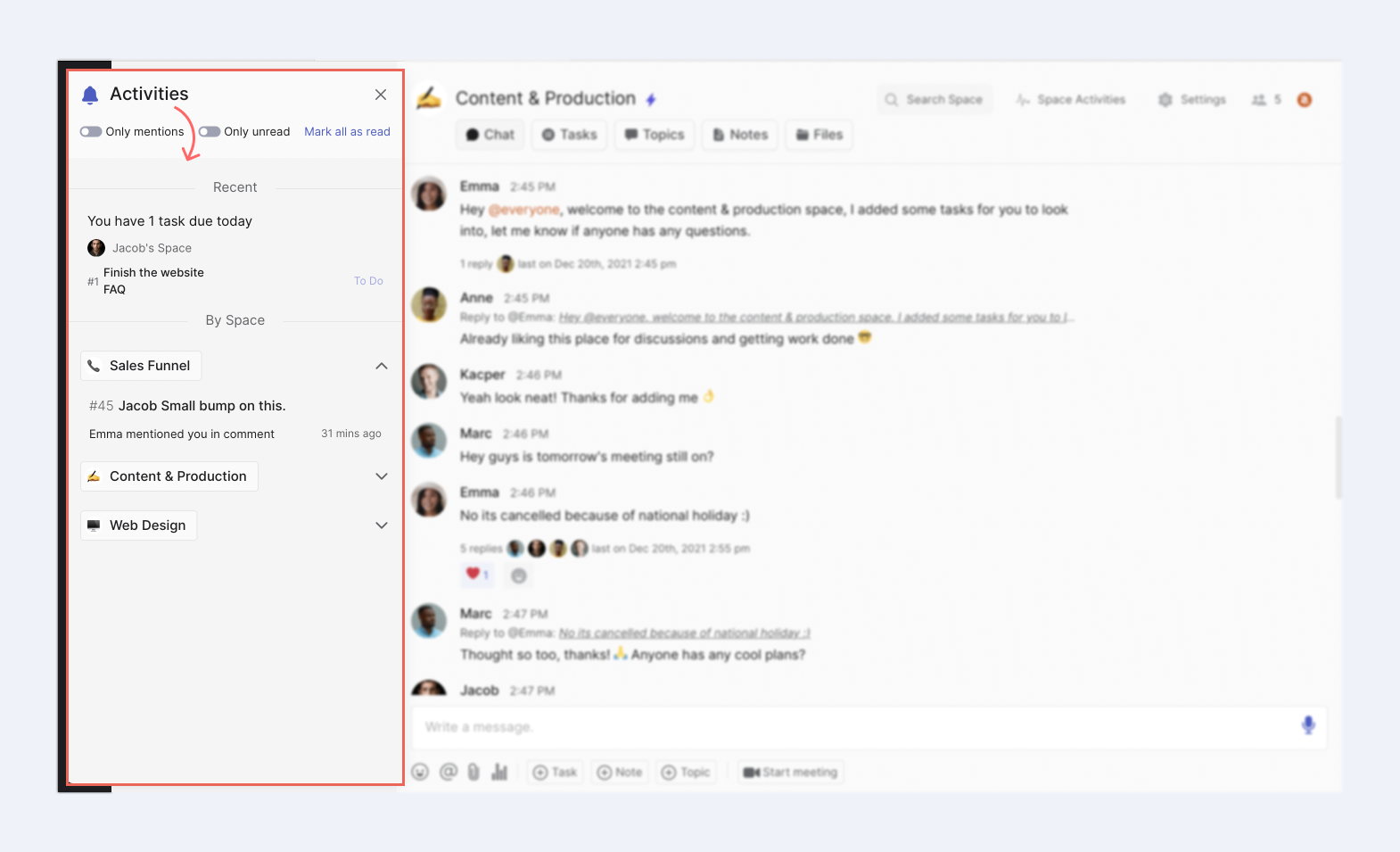
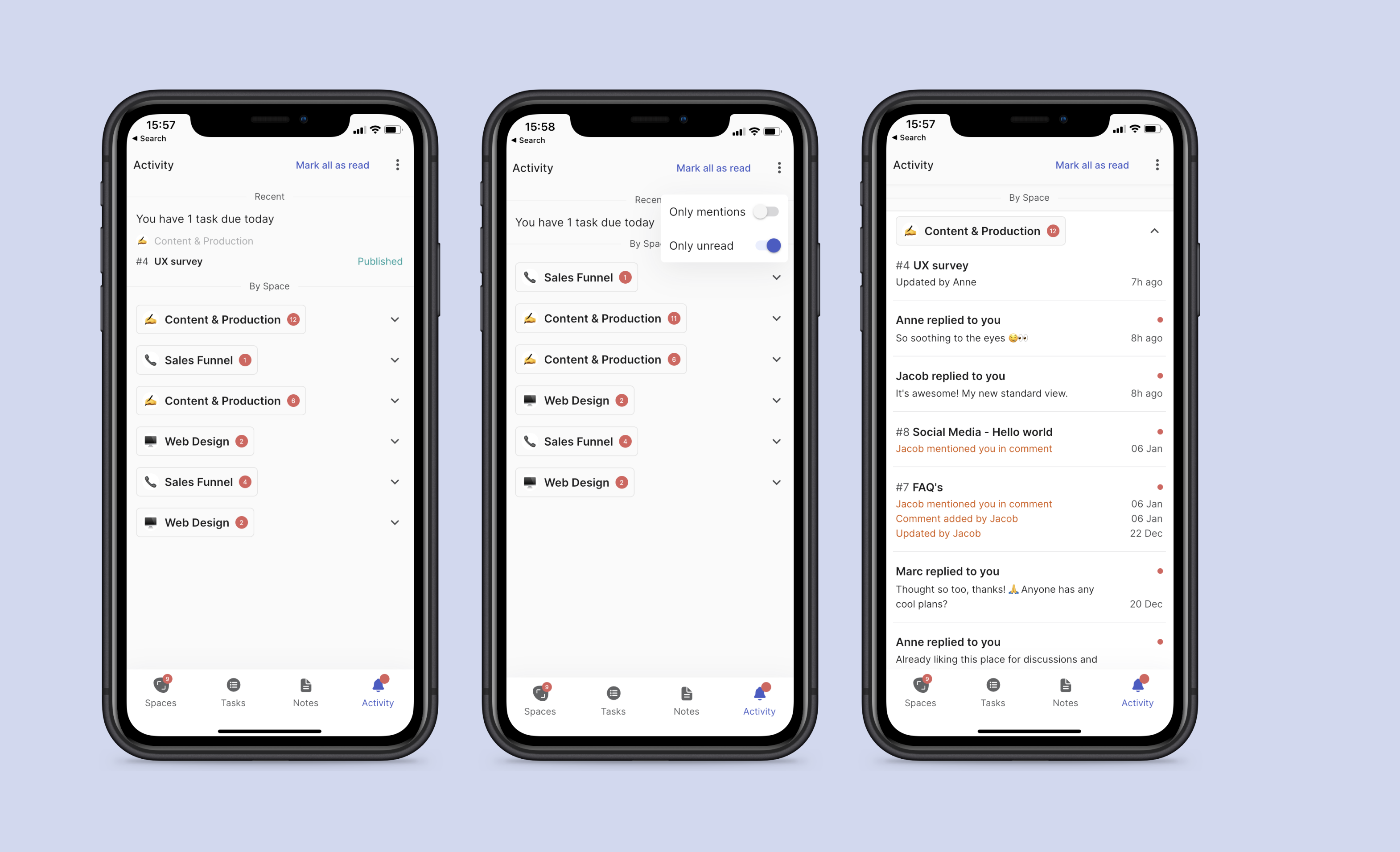
Activity panel - activities are now organized by space so you can more easily triage and follow up on messages, task updates, and more.
Improved team management(TEAMS) - easily add, remove, and suspend users across your entire domain on the TEAMS plan.
More details on all of these shiny new features below.
Notion integration with Files and Tasks mini-apps
You can now add Notion to the Files mini-app in a space and attach Notion docs to tasks in Rock.To get started, check out the following steps:
Go to the Files mini-app in any space
Select the (+) button and then select Notion
Go through the linking process to connect Notion to Rock
Select specific folders or documents to be added to a space
All your Notion docs will now be displayed in the Files mini-app and will show up as an attachment option on any task in this space.
Loom integration for async video sharing
You can now easily send asynchronous videos/screen recording using Rock with Loom. To get started, follow these steps:
Make sure to have the Loom extension for your browser installed (download)
Select the video camera icon at the bottom of any space
Select Loom and go through the steps to use Loom with your browser
Once the Loom video is recorded, you can easily share this in the space by adding the URL to a message, task, note, or topic.
Activity Panel - group by space and filter by unread or by mentions
Keeping up with updates on Rock is now a lot easier with the improved activity panel. Updates are now organized by space so you can quickly triage, and follow up on specific activities.
Spaces in the activity panel are sorted by recent updates with the most current one being displayed on top of the list. Expand the space dropdown to go through the latest updates in that particular space.You can now also filter the activities in two important ways:
Only mentions: Only see activities where you have been directly mentioned in the panel.
Only unread: When selected, notifications are cleared out of the panel after reading them. If you still need to find them back you can always turn off the toggle for all past notifications to appear.
Tasks that are due on that day will also appear in the Activity Panel so you are quickly reminded of work that has an upcoming deadline. Available on web, desktop, and mobile apps.
Note: updates in the activity panel are not connected to system notifications. Read more about notification management in this dedicated help guide.
Import from Slack
You can now import messages from Slack into Rock spaces. This makes it easier to stop slacking as you don't have to go back and forth to find past conversations hidden away in Slack.
The import from Slack feature also allows you to quickly invite new people to Rock and have spaces set up with all your past communications. This is only available on web & desktop.
Better member management on TEAMS - Add, remove, and suspend users from different spaces in one go
If you want to add add, remove, and suspend users across your domain up till now it's been a lot of manual work as you've needed to do this for each space and each user.
With improved member management (available only on the TEAMS plan), you can now do all these things in bulk so adding, removing, and suspending users becomes a breeze:
Go to Settings
Select Domain Admin and then Members
Use the checkboxes in front of each user to create a group of users you want to perform an action on.
Once at least one user is selected you will see options to Add to spaces, Remove, or Suspend.
Improvements to the mobile app (iOS/Android)
The features above are also available on the mobile apps. For a full list of mobile features, see below:
Notion integration in the Files mini-app
Send multiple attachments in one chat message
Move chat messages into comments for tasks, notes or topics with Tap to Organize
Filter by assignee on calendar view
PRO plan: iCal integration for the Tasks mini-app
Various bug fixes and improvements
Download the mobile app
If you have any questions or suggestions you are always welcome to ping us in the Rock Support and Updates space.
From the team that brought you @mention anything, you can now @mention everywhere! In addition to doing this in messages and comments, you can now @mention tasks, notes, topics, and attachments in task and note descriptions and a bunch of other places.
This release also includes new features and improvements such as importing tasks from Trello, Asana, ClickUp andJira, Quick Settings, major notifications improvements, bulk adding/removing users on the TEAMS plan (mobile only), and lots and lots more.
@Mention Everywhere
Collaboration on Rock has become even more connected with @mention in the description of tasks, notes, and topics. Seamlessly reference tasks, notes, topics, across different spaces with this powerful mentioning feature.
Include important information, add relevant context and truly connect the work you are doing across projects. Curious to try it out? The only thing you have to do is write an @ in the description of any task, note or topic to get started.
As an example – if you use the Notes mini-app to share a meeting agenda, you can now not just add the agenda but also specific tasks that you want to discuss during the meeting. Another thing you can now do is create a task that @ mentions another task in the description.
Just a couple of examples of what Rock does to bring order to chaos.
Import from Asana, Jira and ClickUp
Switching tools? You can now take your tasks with you. Import tasks from other tools to any new or already existing space on Rock.
In addition to importing task boards from Trello, it is now also possible to bring over tasks from Asana, Jira, and ClickUp. This way you don't have to lose past documentation and work, while seamlessly continuing with what you were working on.
Quick Settings ⚙️
Switch in seconds between accounts, light or dark mode, the mute notifications panel and your contacts with quick settings! You can access the panel by pressing your user image in the top left corner of your screen.
Looking for the expanded settings panel? You can still access it by selecting 'Settings'.
Authenticate with your phone number on web and desktop
We have added phone numbers as a way to authenticate your login on web and desktop. This way you enter your account with just your phone in addition to the already existing email codes or third party authentication through Google, Apple, and others.
If you currently only have an email validated account, you can add a phone number to your account by going to user settings, my profile, adding a phone number and saving it.
When logging in, select 'you can also continue with phone number' under login to toggle between phone number and email authentication. By doing this you will always have a backup in case you don't have access to email or your phone but still want to log in.
Notification improvements
We have further improved the notification experience since our last product release with improvements to how blue dots highlight updates in a space, notifications on mobile, and some changes to the notification panel in your user settings.
Improved blue dot behavior: We have improved blue dot behavior across spaces and the different mini-apps so you can more easily catch up with changes or updates relevant to your work.
✅ Notification settings improvementsThe notification settings are more structured and we have added a few new options that you can toggle regarding your notifications. You can now more easily manage:
System notifications: Device alerts for new activities on mobile, web or desktop.
Email notifications: Dedicated emails that notify you about activities or due dates on Rock.
Updates: Product releases and marketing updates from the Rock Team.
You can access the notification panel by going to your user settings and then selecting 'Notifications'.
Search improvements
We have improved search to find more relevant results across messages, notes, topics and tasks.
Mobile improvements
We have also made some changes to the mobile app that should make it easier to work across mini-apps and have people join you on Rock. If you're on the TEAMS plan – you can now easily add, suspend, and remove multiple users in one go saving you a lot of time.
@mention
Use @ mentions in task and note descriptions so you can easily reference and link to other items on Rock
Inviting people
Invite users to a space with a phone number
Import users with phone numbers to make it easier to invite others
TEAMS plan
Bulk add, remove, and suspend users with the TEAMS plan
Other
Improved notifications settings for tasks, notes, and topics
Various bug fixes and improvements
Reply to comments in tasks and notes
Download the mobile app for free
Questions about this product release? Reach out to us in the 'Rock Support and Updates’ space. We support most major languages and try to respond as soon as we can.
Ready to rock the new year? We're kicking off the new year with a ton of updates that are on top of everybody's wishlist: 1) dark mode 2) Calendar view 3) better notifications! Find out more below:
Improved notifications
Major improvements and changes have been made to the notification experience on web, desktop and mobile. The new notification system should make it easier to keep up with new tasks, notes, and topics as well as comments.
Some of the biggest changes are blue dots on the mini-apps, an easy way to see all updated objects, and activities grouped by space on mobile.
Blue dots
The Chat, Tasks, Topics, and Notes mini-apps now display blue dots when there are updates. This way you can more easily check where changes have been made, or when new tasks, notes, or topics have been created.
"Updated" filter
You can now filter Tasks, Notes and Topics to just show updated objects so you don't need to guess what has been updated. This way you can quickly catch up on the latest changes or discussions.
Activity notifications grouped by space (Mobile)
Notifications on the mobile ? Activity Panel are now organized by space. When clicking on a space you can see each individual update for more detailed information.
The Activity panel also has two new filters which can be accessed from the three dots in the top right corner: Only Mentions, and Only Unread activities.
Dark mode
Switch between light and dark mode on web and desktop! This highly requested feature soothes the eyes and makes it easier to focus.
Manage your Dark Mode settings through your user settings. Press your user image (top left corner) to access the panel and toggle between Dark and Light Mode. By default, Rock follows whatever you have set up on your computer.
Easter egg: Try pressing 'Rock' in the bottom left corner of your web or desktop interface 5 times quickly and see what happens!
Calendar view
You can now also access Calendar View on web and desktop (note: this was already available on mobile). Keep track of important deadlines and milestones within your space by visualizing start and due dates on the calendar view.
You can also Create new tasks or Edit existing tasks. The task filtering experience in Calendar View works in a similar way as the Board and List views. Filter by label, Assignees, and more to manage your workflow and keep projects running.
My Tasks Calendar view
We have also added a Calendar View to the 'My Tasks' panel. This allows you to view all tasks you are assigned to, have created and/or are following by start and due date.
Tasks can be created, edited and filtered from the Calendar View. Filter tasks by space(s) they were created in, due date, last time updated, priority or assignee status and manage or follow up on tasks across spaces.
The same emojis everywhere
Emojis are different on Windows, Mac, Android, and iOS which can be confusing and leads to a different emoji experience for every user. To fix this, we have updated the emoji library on web and desktop to Twemojis, so everyone sees exactly the emoji you shared and nothing gets lost in translation.
Cleaner & more organized space view on web ✨
Each space now looks a lot cleaner, organized, and has a ton of improvements that make it easier to read messages. The new space view allows you to more quickly switch between mini-apps and makes it easier to access Search, Activities and Settings.
You can now also unmute spaces by pressing the Mute bell that appears when muting a space.
Improvements to mobile
In addition to some of the updates mentioned above this product release is mainly focused on improving the notification experience alongside some other small improvements. In addition to just your email, you can now also sign up and log in with your phone number.
Notifications
Added more ways to customize your Notification preferences through ⚙️ Settings.
Blue dots on different mini-apps so you can quickly see updates, comments, and other changes.
✨ Highlighting of updated tasks and notes so you can easily see what has changed.
Activities are now grouped by spaces in the Activity panel, so you it's easier to go through all your updates.
Tasks ✅
Filter tasks by Assignees in the Tasks mini-app
Other ➕
Add your phone number to Rock instead or in addition to an email address so you have another way of getting into your account.
Other small improvements and bug fixes
Download the mobile app for free
Questions about this product release? Reach out to us in the 'Rock Customer Support’ space. We support most major languages and try to respond as soon as we can.
Instead of having multiple discussions and threads in chat use the brand new Topics mini-app to organize your conversations. Topics are more asynchronous, more organized, and allow you to bring order to the chaos of chat.
This release also includes new features and improvements such as attaching cloud files to tasks and notes, importingtask boards from Trello and signing in with more identity providers.
Topics mini app
Organize your conversations with the brand new Topics mini-app. Topics were added to solve three issues that are often associated with heavy messaging:
- More structured discussions: Having multiple long messaging threads in spaces can quickly get confusing. Topics allow you to organize your discussions in one place so you can catch up with relevant conversations more quickly.
- Documenting information: When discussing things it can get tricky to find important information especially if it's lost in a pile of other chat messages. Topics solve this issue by providing a single place where team members can go to find relevant information & background on specific topics.
- Notification overload: Receiving notifications for messages that are not directly relevant to you can be distracting. By organizing specific conversations into topics, notifications will only come to those who are following and taking part in the discussion.
You can create new topics or move existing messages into a topic with Tap to Organize. Check out the dedicated product guide for more information!
Attach cloud files to tasks and notes ☁️
If you have files on Figma, Adobe, Dropbox, or other cloud services, you can now easily attach these to specific tasks and notes instead of having to copy paste URLs.
Attach a design file on Figma to a product design task in a space and make a creative review easier, or add a spreadsheet on Google Drive to a data analysis task to make sure everyone has access to the latest. Just one more way to bring everything together in one space!
You can access the feature by selecting Add attachment under every task or note.
In addition to third party cloud files that you had previously linked to a space, you can also attach any file that has been previously shared in the space.
Import from Trello
Move entire projects from Trello to Rock with a task import feature, available in every space.You can access import from Trello in the main view of the Tasks mini-app, or in the Import section in your My Account panel.
Create an account and access Rock from more third party applications. We have added Apple, Github and Gitlab in addition to the already existing Sign in with Google option. This should make it easier to make an account on Rock and log in faster when re-entering or logging in from a new device.Fear not if your current provider is not in the list, we are planning on adding Facebook and Microsoft very soon.
Updates to mobile
We also made some changes to the mobile app. Check out the list below for a brief summary on the latest mobile changes.
Files mini-app
Attach cloud files to tasks & notes: Documents from linked cloud storage providers in the Files Mini-app can now be added as an attachment. This way you can more easily connect your different cloud files to your task and note workflow.
Figma integration: share and access relevant design files with this new integration for mobile in the Files mini-app.
Tasks mini-app
Better filtering for board view in the Tasks mini-app.
Messaging
Parse web links without https:// or www. for a better link-sharing experience.
Convert conversations into Topics.
Changed the message threads to overlapping avatars.
[PRO space] Allow mentioning specific space bot to pull information.
Other
Sign up to Rock with new identity providers: Apple, Github, and Gitlab.
Blocking contacts in 1:1 space is made easier.
Many bug fixes and improvements.
If you have any questions, suggestions or feedback about Rock or this release you are always welcome to reach out to us in the Rock Customer Support space or send an email to hello@rock.so
Download the mobile app for free
If you have any questions, suggestions or feedback about Rock or this release you are always welcome to reach out to us in the Rock Customer Support space or send an email to hello@rock.so
Remote communication becomes a real challenge for teams when done incorrectly. Get work done across timezones and geographical regions by increasing your understanding of remote communication methods.
Many teams move to remote work without updating their communication styles and expectations. Without adjustments, communication becomes ineffective. This causes stress, wastes time, and makes it harder for teams to get work done.
Knowing the “do’s” and “don’ts” of good communication in remote work is key to successfully adapting to changes in the workplace. Avoiding the “don’ts” and implementing the “do’s” helps your team collaborate easier and use communication strategies that work.
Shift your remote communication methods to something that works
You communicate and get work done differently when working remotely. Move to workflows that are more fitting for remote environments by leaving old habits behind.
Don’t: Work the same way that you did in the office. With remote work, you can’t always expect a direct answer or quick review from a team member. With added flexibility in your work schedule, you can optimize your schedule to best fit your projects, collaborators, and personal life. Since remote work lets you work at your own pace, schedule your day so you can get the most out of it.
Do: Share relevant information and be transparent. Remote work environments can be isolating so remember to be upfront about your feelings, workload, and experiences with team members. Being transparent can give everyone a better understanding of your workday.
Sharing information with your team
Nobody likes never-ending searches for important information or constantly having to reach out to team members to stay informed. Share updates, details and decisions in more effective to keep everyone involved and up to date.
Don’t: Over-rely on emails for communication. Long and messy email threads can get confusing quickly. Big email chains can also make it harder to document information, establish next steps, and include new people. Important details are easily available with shared documentation. No need to search through your inbox or schedule a meeting if information is easily accessible.
Do: Document as much as you can. Reliable and thorough documentation helps everyone stay in the loop. Team members and external partners can check the progress of projects or reference information without needing to be in touch all the time. When documentation is thorough, you can make sure that processes are in place for a range of different scenarios. Team members will also be able to find what they need when they need it.
Don’t: Schedule too many meetings. Virtual meetings, like their face-to-face counterparts, are time-consuming and unproductive when there are too many. Find other ways to keep other team members in the loop that don’t require them to spend valuable time in front of cameras.
Do: Set goals for meetings. Start meetings by outlining the goals that the meeting should achieve. Examples of meeting goals could be making a decision after a discussion or getting feedback on a project. Use one of our meeting agenda examples to get quickly get started. Reevaluate if a meeting is needed or not if you're having a hard time coming up with goals.
Trust is the foundation to effective remote work
Working remotely does not mean that nothing is getting done. Invasive surveillance strategies, micromanagement and continuous check-ups do your communication more harm than good.
Don’t: Bombard team members with constant messages. Messaging can be a quick way to get answers, but you should use more asynchronous work methods of communication and collaboration. With features and tools like task management, note taking, or files can be easy ways to update your team.
Do: Trust your team. To set expectations, note what goals you want to achieve and what projects you want to complete in a set time frame. Make sure that your team is empowered with tools that make it easier to do their work.
With remote work tools, you can track output (like tasks completed) as a metric instead of the number of hours worked. You can keep an eye on progress and get helpful high-level overviews without micromanaging team members.
Culture at the forefront of your communication
There are plenty of ways to encourage a healthy company culture, even with remote communication. While you might not see each other face-to-face there are still a lot of other ways to get in touch with, and stay connected to your team.
Don’t: Forget about the importance of good work culture. Working remotely doesn’t mean that your team can’t get to know each other. Find activities that connect team members, no matter where they are. These activities should give team members a chance to get to know each other better. Both asynchronous and synchronous ways of communication can be valuable for creating a supportive work culture.
Do: Celebrate victories. To help your team grow and stay engaged, make sure your team gets recognition for a job well done! Giving feedback is key to maintaining a supportive environment and will give you a chance to hear your team members’ thoughts and reactions.
Effective remote communication requires an adjustment from traditional communication styles. You're not in the office anyone, so the way you get work done can't stay the same.
When you keep these “do’s” and “don’ts” in mind, you and your team can cut down on stress, misunderstandings, and inefficient practices. That way, your communication can focus on what matters and boosts your productivity instead of bogging you down.