By clicking Accept, you agree to the storing of cookies on your device to enhance site navigation, analyze site usage, and assist in our marketing efforts. View our Privacy Policy or manage preferences.
Oops! Something went wrong while submitting the form.
or continue with
This month we shipped four updates: an AI-friendlier public API, a full Spanish interface, sharper space search, and a sweep of UX and stability fixes across web, desktop, and mobile.
Here is what is new.
AI-Friendly Public API
Rock has had a public API for a while. This month we expanded it with the building blocks AI assistants need to act inside your spaces.
The result: you can connect ChatGPT, Claude, Gemini, or any AI assistant, and have it create tasks, send messages, post updates, or pull context from a space. All from a simple conversation.
Claude spinning up a new client project from a brief, straight inside a Rock space.
What that looks like in practice:
Use case
What your AI does in the space
Project kickoff from a brief
Drop a client brief in the space and ask your AI to read it. It breaks the work into tasks, assigns them, and sets the sprint.
Status TL;DR of a space
Coming back from PTO or jumping into a busy space? Ask your AI to read the recent messages, tasks, and notes, and post a summary of where each project stands.
Daily standup recap
Your AI scans yesterday's activity each morning and posts a recap: what shipped, who is blocked, what is next.
Dev updates from Claude Code
Hook Claude Code into your engineering space so it posts when it opens a PR, finishes a build, or pushes a deploy. No more copy-pasting from GitHub.
Client emails to tasks
Paste a long client email and your AI creates the right tasks, with deadlines and owners. No more manual breakdown.
Weekly client recaps
End of the week, your AI scans the space and drafts a status message you can send to the client. Copy, edit, send.
How to set it up
Setup takes minutes. From inside the space you want to plug your AI into:
1. Open Space settings from the space header.
2. Go to Integrations, then Custom Webhook.
3. Click Add new to generate a bot token. (Custom webhooks are part of the Unlimited plan.)
4. Hand the token to your AI assistant. It can now read and act inside that one space, not your whole workspace.
It works the same way MCP connections work in Claude: your AI gets direct access to a single space at a time.
Bring your own key. No per-seat AI fees, no vendor lock-in. Unlike platforms that charge extra for proprietary AI, Rock lets your team use whatever AI they already pay for.
We are actively expanding what the API can do. If there is a workflow you want to automate but cannot yet, let us know.
Rock en Español
Rock is now available in Spanish. The full interface, notifications, and onboarding flow have been translated for Spanish-speaking teams.
Latam is one of our fastest-growing regions, with agencies and small businesses across Mexico, Argentina, Colombia, and Spain running their work on Rock. Until now, those teams worked in English. Now they can work together and with clients in both English or Spanish.
To switch your language: open your user settings, select Language, and toggle to Spanish.
This is our first step toward making Rock accessible to more teams around the world. More languages are on the way. Want to request a language? Poke us in the support space.
Rock now speaks Spanish across the entire workspace.
Sharper Space Search
Space search is now faster and more accurate. Whether you are looking for a message, a task, or a file from a few weeks back, results surface where you expect them.
UX, UI, and Stability
We rolled out a batch of small improvements across the platform: visual refinements, performance updates, and stability fixes on web, desktop, and mobile.
Nothing flashy. Just smoother day-to-day use.
What's Next
This is the start of a busier release cadence for Rock. Over the next few months we will keep expanding the API and shipping the improvements our users ask for most.
Have a feature request or a bug to flag? Ping us in the Rock Support and Updates space. We read every message, and the things you raise shape what we build next.
Communicating with people has changed a lot in the last couple of years and in addition to working from the office, many teams now enjoy fully remote or hybrid working environments.
Unfortunately, most of the collaboration tools used today were not made for those work environments which leads to less productive time, too many meetings, and anxiety & stress.
Collaboration is also no longer limited to just your company and your immediate co-workers. Your team is now a more fluid group of people including agencies, freelancers, clients, or even a decentralized DAO or open source community collaborating outside of a typical company setting.
With Rock, we are on a mission to:
Make remote or hybrid work “work” – When people are able to communicate both asynchronously and synchronously you don't need to be online or in meetings all the time. We believe that being able to pick and choose how you want to communicate allows teams to reduce noise while maximizing productivity and work life balance.
Make it easier to work with anyone - Some tools make it too difficult to work with clients, partners, freelancers, and others outside your organization. As a result, many teams end up relying on email or other outdated communication channels. We believe that by removing barriers, working together with others becomes more seamless, more productive and more organized.
Make next-gen communication tools accessible to everyone - Tools like Slack, Asana, Trello, and ClickUp charge per user which quickly becomes expensive and puts these tools out of reach for a large number of people. Controlling costs is even more important given the current economy where every dollar matters. We believe productivity tools should be fairly priced and instead of paying per user you should be able to pay per space irrespective of how many users have access to that space.
The first platform built for the way we work today
In the last 12 months, we’ve talked to hundreds of users and have shipped hundreds of new features and improvements that combined add up to something we're very proud of. Internally we’ve started calling this Rock 2.0 but you can also think about this really being a next-gen collaboration platform:
Messaging + tasks: Rock combines messages and tasks in a way that nobody else does it. Instead of choosing one or the other, you get full-fledged functionality for both making it easier to get work done in one place.
The fastest way to start working with anyone: With Rock you can start collaborating with anyone within seconds. Gone are the days of having to figure out over email how to get everybody set up on bunch of different tools before you can work together. Quick Connect with your own personalized web.rock.so link, and workspaces do away with all that friction.
The collaboration front-end for every team: Rock deeply integrates with cloud storage providers, document editors, and videoconferencing services allowing you to continue using your favorite tools in your Rock workflows.
No limits on the free plan & radically different pricing: You can do all of this on Rock for free and we won't limit the number of spaces you can create or the number of people you can have in each space. We have paid plans starting at $5.99 per month per space which still allow you to add as many users as you want without paying more.
1. Messaging + tasks together at last
Gone are the days of having to jump between different apps or hacking together bots and third-party services just to message or manage projects. Rock has a full-fledged task manager alongside a feature-rich chat in every space.
Chat and Topics mini-app
Topics are one of the most notable improvements to the messaging experience on Rock. Chat messages are great for ad-hoc and urgent conversations, but messages can quickly become distracting and chaotic if you’re not following along in real-time.
The Topics mini-app was introduced to solve this issue by enabling teams to discuss in more structured ways. Topics allow you to document information, keep conversations organized, and limit notifications only to those involved in the conversation.
Tasks mini-app
You should be able to manage any kind of project or workflow with the Tasks mini-app. The calendar view is the main highlight of changes in the Tasks mini-app experience. Teams can now view deadlines for projects and schedule new tasks with a time-based view.
We have also added a calendar integration for most major calendar services in the PRO plan. This allows teams to visualize work deadlines alongside other important weekly information.
Tap to Organize
By combining tasks and messaging, Rock provides a solution for a bunch of problems teams run into when work happens across different apps.
Two improvements that showcase this are Tap to Organize and the ability to @mention anything.
You can move conversations over to topics, notes, or tasks with a few clicks through Tap to Organize. Create tasks out of messages or document information by moving information to a relevant note or topic leaving the chat stream more organized and less chaotic.
Mention Anything
With information organized across different mini-apps, it’s easy to create links directly to information within Rock allowing you to share more context. We have made multiple improvements to the @mention anything feature so teams can more effectively link to information across mini-apps.
Besides a smart object snippet in the chat, teams can @mention tasks, notes, topics, and attachments in the description and comments section of every object. This allows you to jump to the object in question and we even introduced cross-space @mentions so you can interlink between spaces within seconds.
2. The fastest way to start working with anyone
Getting started on a new platform or tool can often be a tedious process. This is especially true if you have to leave behind both your task management and messaging platform. We’ve added some improvements focused on making it easier to invite new people as well as migrate your stuff from other platforms.
Quick Connect with web.rock.so links
Quick Connect is the fastest way to collaborate with anyone. You can set up your web.rock.so link and share it across your social channels, website, or email. When someone visits your link or scans the dedicated QR code, they are directly added to a group space with you.
Instead of first having to exchange emails and then go into different tools to give everyone access you can now just share your web.rock.so link and get a brand-new space set up so you can work together within seconds.
Import messages and tasks from multiple platforms
We understand how important it is for users to access past conversations. In order to make switching easier, we introduced import from Slack or WhatsApp. The import feature allows users to take all their data with them, assign messages to people, and directly migrate new users to Rock.
If your team cannot stop slacking, we also introduced a dedicated Rock bot for Slack that allows you to receive Rock notifications in your different Slack channels. Users can keep up with new tasks, notes, and topics across Rock spaces without leaving Slack.
For tasks, you can import all your project management information from Trello, Asana, Jira, and ClickUp. In addition to that, we have also added an import from CSV option. This makes it easier to convert large databases into individual tasks on Rock.
Bring it all together with workspaces
We introduced a big change to team and space management with workspaces. This feature was added to make it easier to manage multiple users and spaces from a single workspace similar to how you can do this with a Slack workspace or a Discord server.
Users can set up a workspace for different teams, clients, communities, or other use cases. A dedicated settings panel in every workspace allows you to invite people to the workspace and manage their overall permissions.
3. The collaboration front-end for any team
Unlike other apps out there, we don’t think you want to replace all your apps. Different teams still need access to documents, design files, meetings, or other important information in apps like Figma, Notion, Dropbox, Adobe, Miro, and Zoom.
Rock brings all of these together in one simple front-end with messaging and tasks enabling people to discuss, collaborate, and get work done with these external services.
Editors & Cloud storage
From design files to spreadsheets and other documentation is key for any team so we worked hard to expand the number of services you can add to Rock.
Users can now set up integrations with Google Drive, Onedrive, Dropbox, and Smartsheet and quickly access important folders and files from within a space. It is also possible to add a Notion knowledge base or Miro whiteboard to the Files mini-app.
For design teams, we added an Adobe Creative Cloud and Figma integration. This allows anyone to quickly access creative files and attach them to tasks, notes, or topics when relevant.
Video conferencing
Meetings and asynchronous video sharing can provide a lot of value when used correctly. Rock offers messaging, tasks, notes, and files for people to discuss in more asynchronous ways, but when really needed, we also provide more synchronous real-time channels.
Start meetings in any space with Zoom, Google Meet, and Jitsi integrations. While you should be mindful of your meeting frequency, it is sometimes better to just talk to someone face-to-face.
We also added a Loom integration to the Meetings mini-app to encourage more asynchronous video sharing. Do you really have to talk to someone live, or is a quick video walkthrough enough?
Automations
Automate the creation of tasks, notes, or messages with a Zapier integration in the PRO plan. With this integration, you can build automations for emails, social media posts, web forms, or other information that create messages and tasks in Rock when triggered.
For engineering teams, we have also introduced a public API for custom integrations, Github, Rollbar, and Sentry integrations. This means that you can more easily integrate Rock with technical, product, or development workflows.
A sneak peek into what’s next
Based on feedback from users, we’re building some of the most requested features which are shipping very soon. From a management dashboard to a time tracker we have a ton of stuff on the pipeline that will make Rock even better for everyone.
Are there any features you would like to see that are not available on Rock?
Let us know in the Rock Support space or create a new space with us through this Quick Connect link.
Celebrate Rock 2.0 with us in September ?
Thousands of hours and lots of hard work went into building all of these features so to celebrate all of this we are doing a special launch on Product Hunt. Our goal with this release is to share Rock with new users, teams, and communities worldwide and hopefully introduce them to a better way of working.
It would mean the world to our team if you can support us by signing up for the dedicated landing page. We’ll make sure to send updates when the date nears and we will provide you with special discounts and promotions on the official launch day!
You can also support us by sharing the landing page link across social media and tagging us on Facebook, Linkedin or Twitter.
Invite people and get PRO and TEAMS features for free! The referral & credit program allows you to access paid functionality including automations, larger workspaces, advanced task management functionality and so much more!
This release also includes import from WhatsApp to quickly migrate chats and team members. Additionally, the Files mini-app now also supports a Miro integration: add your retrospectives, diagrams and brainstorming boards to any task, note or topic.
Check out this product release webinar where Nico and Greta from the Rock team go over all of the latest features.
Referral & Credit Program
Invite people to Rock and upgrade to PRO starter or TEAMS starter for free! Earn new credits for every successful invite and quickly upgrade to access premium functionality. Check out this announcement for more information on the referral program.
You can extend your rewards if you have enough credits. This means that you can continue using the PRO starter or TEAMS starter plan for free if you have enough credits saved up on your profile.
Referral & credit program details
We’ve made it easy to quickly earn points with the credit program. Here are three quick ways to earn credits:
Invite new users and domains: Send your quick connect or invite link anywhere for people to join you on Rock. You can quickly earn a lot of credits with +1 credit for every new signup and +10 credits for every new corporate domain.
Import chats from other tools: The chat import feature rewards you with +10 credits and allows you to directly invite your whole team. Receive +1 credits for every invited user during your import and +10 credits for every new domain that signs up to Rock.
Master Rock and Integrate your tool stack: Integrate videoconferencing, file management, or import tasks to earn credits. You can also increase your credit count by starting to use tasks, notes, Tap to Organize, and other features.
There are three available rewards in the referral program. Here’s what’s included in each plan:
PRO starter plan: 5 free PRO spaces and two workspaces with up to 20 spaces each for 1 month.
TEAMS starter plan: 10 PRO spaces, 3 workspaces with up to 50 spaces. Team management functionality, 2 managers (user + someone else in your team) for 1 month.
Extend the PRO plan If you are currently under the PRO plan, you can extend your plan for free by 1 month.
Reward availability for the Rock credit and referral program depends on your current plan:
PRO starter plan/extension [20 credits] -> This reward is available to free users and those who want to continue using PRO starter
TEAMS starter plan/extension [150 credits] -> This reward is available to free users, those on PRO & TEAMS starter and PRO purchasers.
Extend full PRO plan for an additional month [120 credits] -> Available to paid PRO purchasers.
There are currently no rewards for TEAMS purchasers, but we will be adding those very soon! You can learn more about the overall credit program in this dedicated product guide.
Import from WhatsApp
Keep discussions going without friction by importing your different 1:1 and group chats from WhatsApp to Rock. Import from WhatsApp is a handy feature to migrate a complete chat while directly inviting and assigning users to messages.
When importing information, Rock allows you to map WhatsApp user names with existing or new Rock users. This way everyone can keep ownership over their own messages.
Check out the import from WhatsApp product guide to seamlessly move over your WhatsApp chats to Rock.
Miro integration
Integrate Miro for free in the Files mini-app of every 1:1 or group space! Access collaborative whiteboards right from within Rock and attach them to any note, task, or topic.
This makes it easier to access your team retrospective, brainstorming docs, diagramming or meeting discussions.
You can also start new drawings right from within Rock. No more link sharing or endless folder searching!You can learn more about the Miro integration in the dedicated product guide.
Mobile updates ?
We have added a bunch of improvements to the mobile experience. This product release includes the following changes and fixes to mobile apps:
Referral program: Invite people and upgrade for free in return! You now receive credits for every new user you invite (+1 credit) with additional credits for new domains (+10 credits). There are also some rewards unique to mobile: download the app (+5 credits) and import contact book (+10 credits)
Import from WhatsApp: Import chats from WhatsApp and directly invite users while importing their messages. Continue the conversation without losing any of your documentation.
Miro integration: Add your collaborative whiteboards to the Files mini-app of any Rock space! Access your brainstorming docs, meeting discussions or creative whiteboards right from within your Rock space.
Bug fixes and smaller improvements: Specifically, we have been working on improvements for notifications on web and mobile throughout this and the upcoming release.
Download the mobile app
Questions about this release? Feel free to send us a message in the Rock Support & Updates space or open a space with us.
Invite people and upgrade to PRO starter or TEAMS starter for free! The referral program rewards you with credits every time you invite new users and corporate domains. You can also earn credits by checking out different features on Rock, making it even easier to upgrade.
Top 3 ways to quickly earn a lot of credits
It is possible to quickly earn enough credits to upgrade to PRO or TEAMS. Here are three simple hacks to boost your credits.
Invite new users and domains
Import chats from other tools
Integrate your tool stack
1. Invite new users and domains
Send your Quick Connect link anywhere for people to join you on Rock. You can quickly earn a lot of credits with 1 new credit for every signup and 10 credits for every new corporate domain.Step by step:
Invite people to join you on Rock: Quick Connect, invite link, email or phone number.
Success! Receive 1 credit for every accepted invitation and 10 credits for every new domain.
Upgrade to PRO starter when you collect 20 credits or TEAMS starter with 150 credits.
Receive credits when the users you invited upgrade to a paid plan. Continue extending your PRO starter or TEAMS starter with enough credits.
2. Import from Slack or WhatsApp
The import feature rewards you with 10 credits and allows you to directly invite your whole team. Receive 1 additional credit for every user and 10 credits for every new domain you add during the import.Step by step:
Map users from your chats, this directly invites your imported spaces. Receive 1 credit per new signup and 10 credits for every new corporate domain.
Receive 10 credits for a successful signup.
3. Integrate your tool stack
The last few releases have added a lot of new videoconferencing and cloud storage integrations. Make sure to add your complete toolstack to quickly connect workstreams and gather some credits. Available integrations include:
Rewards from the Rock referral program depend on your current plan.
PRO starter plan/extension [20 credits] -> Available to free users and those already on PRO starter that want to continue using it.
TEAMS starter plan/extension [150 credits] -> Available to free users, those on PRO & TEAMS starter and PRO purchasers.
Extend full PRO plan for an additional month [120 credits] -> Available to paid PRO purchasers.
There are currently no rewards for TEAMS plan purchasers. We will be adding custom options very soon! You can still collect credits, and use them when new rewards become available.
PRO starter plan
Redeem 20 credits to earn 5 free PRO spaces and two workspaces with up to 20 spaces each for 1 month. You can continue extending the plan as long as you have enough credits.
PRO spaces accommodate a whole range of added functionality that you can use to supercharge your communication and collaboration. To get more out of your task management, PRO spaces unlock:
The TEAMS starter plan allows you to manage your team on Rock for 1 month in exchange for 150 credits. The plan includes the following:
10 PRO spaces: includes PRO functionality described in the previous section.
3 workspaces with up to 50 spaces.
Team management functionality, 2 managers (user + someone else in your team), and claim domain.
If you have enough credits to renew, you can extend your TEAMS starter plan for another month. There are currently no limits on the number of redemptions.
PRO users: Extend the PRO plan
If you are currently under the PRO plan, you can extend your plan for free by 1 month in return for 120 credits.
How to earn credits
Receive credit rewards by directly inviting clients, team members, friends, or corporate partners to Rock. You can use credits to upgrade to the PRO starter or TEAMS starter plans.The Rock referral program compensates you with credits are the following:
1 credit: Inviting a new user
10 credits: Inviting a new domain
50 credits: Invited user upgrades to PRO
300 credits: Invited user upgrades to TEAMS
Invite a new user - 1 credit per user
Invite anyone, either in or outside of your organization to Rock. We reward you with a credit once the invitee successfully created an account and entered the platform. Here are a few ways to invite new users:
Email invite: Create a space or add new users through space settings by inviting them by email.
Invite by link: Enter space settings and look for invite links, this allows new people to directly join your space as a member or guest.
Quick Connect: Use your Quick Connect link or QR code for people to open a new group space with you! When someone clicks on your dedicated link they can join you on Rock through a shared group space.
Phone number: Create a new 1:1 space with a user that is not yet on Rock by entering their phone number in the 1:1 invite panel.
Invite a new corporate domain - 10 credits per new domain
Invite a user from a new corporate domain (e.g. acmecorp.com). Check the ‘invite a new user’ section for different ways through which you can add someone that is not yet on Rock.
A user will be considered a new corporate domain user under the rock referral program when:
They are not signing up with a non-corporate domain (e.g. @gmail.com, @yahoo.com)
The corporate domain does not have any matching accounts that already exist on Rock.
You will receive 10 credits once a new corporate domain has fully registered an account in addition to the single credit received for the invite. The reward for a new domain might be slightly delayed if the new corporate domain is not directly recognized in our system.
Additional signups from that domain that you directly invite will reward you 1 credit. 10 credits will be awarded for each new corporate domain you bring in, and can be earned unlimited times as long as the domain is not registered.
Invited user upgrades to a paid PRO plan - 50 credits per upgrade
You receive 50 credits under the Rock referral program if one of the users you invited to Rock through email, invite links, quick connect or phone number upgrades to PRO. Learn more about the PRO plan here.
You receive the credit reward only the first time a user upgrades to PRO, and it applies both to the monthly and yearly memberships. If a user renews the following year you will not receive additional credits.
You receive 50 credits for any invited user that upgrades to PRO, even if they’re within the same domain.
Switching from monthly to yearly memberships will not award additional credits.
If a user upgrades from PRO to TEAMS, you will receive the reward credits for a TEAMS upgrade (if the user has not had the plan yet).
If a user downgrades from TEAMS to PRO and has not been on PRO before, you will still receive the 50 credits.
You receive 50 credits for every individual user that you invited who upgrades to the PRO plan. PRO plan upgrade rewards are given out once per invited user.
Invited user upgrades to a paid TEAMS plan - 300 credits per upgrade
You receive 300 credits under the rock referral program if a user you invited through email, invite links, quick connect or phone number upgrades to a monthly or yearly TEAMS subscription. Learn more about the TEAMS plan here.
You only receive the reward if it’s the first time they upgrade to TEAMS. No recurring credits are received for plan renewals or monthly payments.
You receive 300 credits for any directly invited user that upgrades to TEAMS, even if they’re within the same domain.
Switching from monthly to yearly memberships will not award additional credits.
Plan renewals will not award you with additional credits.
If a user downgrades from TEAMS to PRO, you will receive the reward credits for a PRO upgrade (if the user has not had the plan yet).
You receive 300 credits for every individual user that you invited who upgrades to the TEAMS plan. TEAMS plan upgrade rewards are only given once per invited user.
6 Rock team tips for inviting people and new domains
Looking to get more team members, clients, partners or friends to join you on Rock? Here are a few suggestions on how to get them to join you and receive credits with the Rock referral program!
1. Share your Quick Connect link across channels
You can conveniently move communications from channels such as social media, email, or other platforms to Rock with your Quick Connect link. Remember that under the Rock referral program you get +1 credit for every new signup and +10 credits for every new corporate domain.
Here are some channels where you can embed your link:
Email signature: Add your Quick Connect link to your email signature so people can quickly switch to communicate with you on Rock.
LinkedIn profile: You can add your Quick Connect link to your LinkedIn profile so anyone who wants to connect can create a group space with you on Rock.
Freelance platform profile (i.e. Upwork or Fiverr): Connect and communicate with clients on Rock by adding your Quick Connect link to your profile on Upwork or Fiverr.
Contact link on your website: Have a contact form or link on your website? You can replace it with a Quick Connect link, pick a template and adjust your welcome message to anything!
Social media messages: instead of inviting people to DM you, send a dedicated quick connect link for them to chat with you on Rock!
2. Import Tasks from other tools to continue work without friction
You can import tasks from Trello, Asana, ClickUp, Jira and CSV. This way you can continue your task management without losing past workflows and documentation.Continue work with all your tasks on Rock.
The import migrates titles, descriptions, labels, checklists and so much more! You receive 10 credits for each platform you import tasks from.
3. Import messages from Slack or WhatsApp and directly invite users
Rock allows you to import messages from Slack and WhatsApp so you don’t lose any past conversations while migrating your team. You can also configure the import feature to automatically invite the corresponding people to different spaces on Rock.
This means that you can instantly invite users across platforms while keeping past conversations available in every space. You receive +1 credit for every new user that joins and +10 credits for every new domain under the rock referral program!
4. Import your contact book on mobile
You can import your complete mobile contact book to Rock within a few seconds. This makes it easy to send invites to team members, clients, friends and even family members!
Here’s how you can import your contact book on mobile: user settings -> view my contacts -> import -> press ok.
You can invite new users by contact email or phone number by searching for their name when creating a new space. With your whole contact book on Rock, you won’t have to search for the correct phone number or email address.Importing your contact book also directly rewards you with +10 credits.
5. Explain the benefits of Rock
When inviting users to Rock, make sure to explain what makes Rock different from the rest. Here are a few unique features and benefits when switching to Rock:
Messaging + tasks: Rock provides different ways of communicating and collaborating so you don’t have to switch between platforms to collaborate with each other.
Unlimited spaces and invites: Instead of paying by team size or projects, you can create unlimited spaces and send as many invites to people in and outside of your organization for free.
Loads of free integrations: Integrate with Google Drive, OneDrive, Dropbox, Zoom, Google Meet, Notion, Miro, Figma, Loom and so many others for free!
Here is a sample text you can use when inviting people while earning credits for the rock referral program:
‘’Hi there! Join me on Rock to collaborate with messages, tasks and so much more in one place. Signing up only takes a few seconds and is completely free. Click on this link [insert Quick Connect link] to start communicating and collaborating for free!See you there!’’
6. Add your Quick Connect QR to posters, business cards, your website, or ads
Your quick connect link also comes with a custom QR code. Spark the interest of website visitors, clients or partners with a QR across your visual communications.
Here are some suggestions for locations where you can add your Quick Connect QR:
Business cards
Banners
Social media background/post visuals
Social ads
Youtube video thumbnails or end screens
Website pages: about us, contact, etc.
Allow people to join you on Rock by scanning your QR and earn credits from the Rock referral program!
A retrospective is an integral part of product management. It’s a dedicated timeframe where teams reflect on what has happened and learn how to do better. They are a place to celebrate success and understand failure. Only then can teams work towards continuous improvement.
However, many still do not know how to run a retrospective successfully.
Retrospectives promote knowledge and value sharing while working together towards a common solution. Employees can express concerns freely through a sense of trust and open communication.
They are also a form of risk mitigation. By evaluating tasks on a recurring basis, employees are able to spot issues early on. They can solve them before they become detrimental. At the end of a retrospective, teams are left with a clean slate, ready to take on the next sprint.
Retrospectives speak to the wider advantage of running agile projects that break a large output into smaller tasks. If you’re adopting an Agile project management framework, consider implementing these meetings.
According to PwC, agile projects are 28% more successful than traditional projects. It is no surprise that agile methodology is used by companies such as Apple, IBM, Microsoft, and Procter & Gamble. Agile practices are not only an effective strategy to make sure that a team is effective. They also make sure everyone feels listened to and valued.
If you are looking to foster agile practices in a remote setting, knowing how to run a retrospective is paramount.
What is a remote retrospective?
A remote retrospective is a virtual team meeting that occurs at the end of a project or sprint. Team members can think about and discuss how they can improve their future performance and what went wrong. The positives are also included and successful work is celebrated.
Keep in mind that a retrospective differs from a mere review meeting. A review meeting would entail team members presenting their completed work. However, a retrospective has a specific goal: to make sure work is continuously improved by identifying strengths and weaknesses.
A remote retrospective addresses specific questions:
Which tasks have carried over?
What are the completed tasks in a sprint?
Which tasks are no longer necessary?
How can we improve the project in the future?
How to run a retrospective: Agile methodology in remote settings
A remote retrospective is part of the wider frame of agile methodology in project management. Agile methodology is a way to manage a project by breaking it into smaller tasks and phases - sprints.
A sprint is a timeframe with a clear start and due dates where a team completes a set amount of tasks. You are breaking down large and complex projects into bite-sized pieces to improve productivity.
Remote retrospectives promote continuous improvement as work is regularly evaluated and then enhanced.
Benefits of a remote retrospective
Remote retrospectives are an integral part of ensuring project management is effective and the workflow runs successfully. Let’s take a look at some of the benefits of running a remote sprint retrospective.
Continuous improvement: By reflecting on what went wrong and what went right, a retrospective fosters continuous improvement throughout a whole project.
Team empowerment: Team members have a voice in the retrospective and the ability to change the way they work. This makes a team feel empowered as if they are taking charge together.
Increased productivity: The agile methodology increases productivity. A DeltaMatrix study found that agile teams are 25% more productive and 50% faster to market than other teams.
Highly documented: Conducting a retrospective remotely facilitates the documentation process, making task management easier afterward. Managers can assign tasks, track progress, and access files without having to rely on meetings or chat messages.
Open communication: Speaking freely (albeit politely) is key to team relations. Retrospectives allow team members to evaluate their work and the work of others in a safe and honest space. Many feel more comfortable speaking up in a virtual setting, rather than in person, according to Indeed.
Risk mitigation: Retrospectives allow you to fix issues early on in the process, rather than after completing an entire project. By evaluating each sprint, team members can fix the small issues before they become large ones.
5 Steps to Follow Before a Remote Retrospective
If you are wondering how to run a sprint retrospective, make sure to prepare before it even happens. Let’s take a look at the 5 steps to follow before a remote retrospective.
1. Document information
Team members should document all the materials and information throughout their sprint. This is essential in making sure a remote retro runs smoothly. Team members can prepare any questions they might have beforehand. They can also understand beforehand what each team member has been working on.
This will reduce any time-wasting during the meeting. You do not want to spend the meeting discussing completed work. It is not a sprint review where you present your tasks. Rather, you want to evaluate its quality and discuss how to keep improving it. The shape of the sprint burndown chart is a useful retro input, because patterns like the Cliff or the Flatline point at specific failure modes the team can name and fix.
However, having the right remote work tools is crucial to ensuring this is possible. With Rock, you can document every step taken to complete a sprint, from individual tasks, notes, feedback, and more.
2. Set clear agenda with discussion points
Managers should set discussion points in advance. It's important to establish a clear blueprint that you can use to stay on topic during the retrospective. Managers do not need to be too strict to make the retrospective feel too cold and formal.
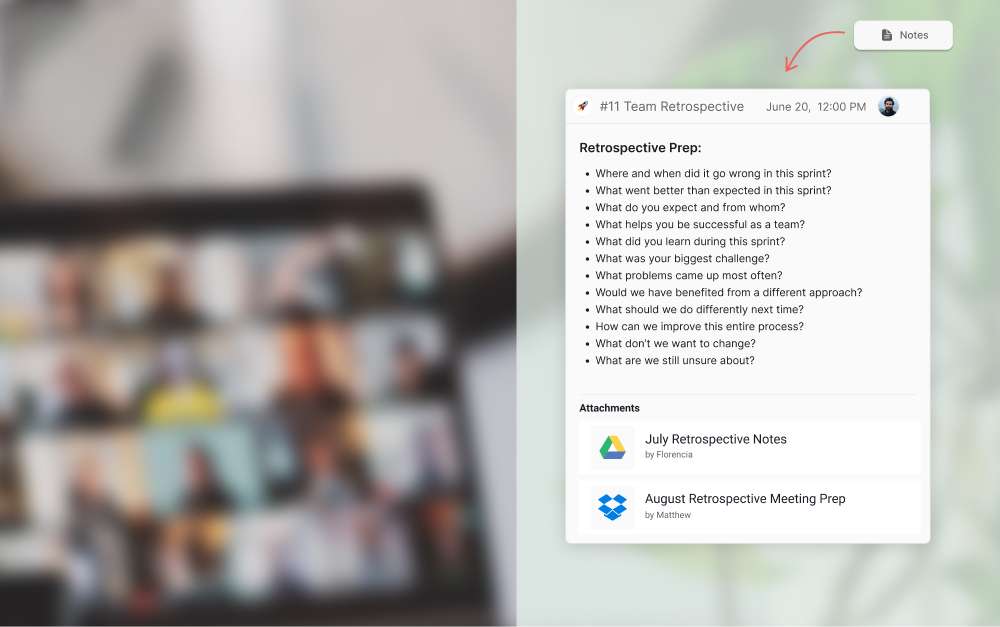
However, it’s helpful to have these guidelines. If you’re looking for some retrospective template questions, here are some useful ones:
Where and when did it go wrong in this sprint?
What went better than expected in this sprint?
What do you expect and from whom?
What helps you be successful as a team?
What did you learn during this sprint?
What was your biggest challenge?
What problems came up most often?
Would we have benefited from a different approach?
What should we do differently next time?
How can we improve this entire process?
What don’t we want to change?
What are we still unsure about?
You can also check our meeting agenda examples to further structure your meetings and make sure they are productive and relevant.
3. Share remote retro notes at least 48 hours before
Whoever is organizing the remote retrospective should share any important information at least 48 hours prior. This includes the decided-upon discussion points and any other necessary materials. This reduces time wasting and allows team members to clarify any questions before coming into the retrospective.
Managers can easily send these through Rock. They can also send a quick Loom where they explain all the discussion points and answer any questions. By leveraging asynchronous work through tasks, notes and files, teams can get a lot of the work done in advance.
This way the retrospective meeting can focus on the most important points.
4. Be mindful of invitees
Do not invite people to the remote retrospective that do not need to be there. Be mindful of everyone’s time. If someone only worked on a small task in a sprint, chances are they do not need to be there.A retrospective can also get messy if there are too many people involved.
While cross functional collaboration is valuable, a certain department might not need to be present. In fact, you want to foster a safe environment where everyone feels comfortable speaking out. A smaller team might not feel safe doing so in the presence of “outsiders”.
5. Introduce fun retrospective ideas for remote teams
Running a remote retrospective might sound challenging, but you can be creative and make it a unique experience. There are plenty of creative virtual retrospective ideas to use. A fun one could be having interesting virtual backgrounds. Set a theme beforehand, maybe it's your team's favorite movie or favorite color.
For example, ask your team members to go around the room and say one thing they would bring to a deserted island. Fun retrospectives will keep your team members engaged. We also recommend running virtual retro ideas by your team members and giving them a chance to get creative.
5 Steps to Follow During a Remote Retrospective
To make sure your sprint retrospective runs as planned, here are 5 steps to follow during a remote retrospective.
1. Designate a leader
Everyone should have their voice valued in a retrospective and a chance to express their concerns. A designated leader makes sure everyone gets the chance to speak, nurturing a fair environment.
The leader does not need to be a manager. Switching up the leader after every sprint is a great way of making sure every team member feels valued.
2. Nurture creativity
A remote retrospective is not too heavy or formal. While structure is important, fostering a creative environment is equally necessary. Every team member needs to feel like they can express a diversity of opinions and feedback.
Only then will they produce innovative outputs going forward.Being open to creativity will boost your team’s engagement, making them feel more connected to other employees and the company.
According to a Gallup report, companies with a highly engaged workforce have 21% higher profitability and 17% higher productivity.
3. Stay on topic
While creative strategies have their place in a retrospective, staying on topic is important. This is not the time for informal conversations about the weather. You can set time aside for these.
The leader is key here. They must guide the discussion within the designated guidelines and every main point addressed.
Whenever the conversation is going too off-topic, they should bring the team back to the discussion points at hand. However, without the prior preparation of a clear agenda, this will be hard to do.
4. Recognition matters
A retrospective is not just about righting wrongs. Managers should ensure they recognize their employees and make them feel valued. A study found that 37% of employees feel most encouraged by personal recognition.
Show your appreciation for what went right during the sprint and recognize those individuals publicly. By highlighting what did go right, improvement becomes continuous and natural. You will also be paving the way for better performance and driving team members to become more productive.
5. How to run a retrospective: Set next steps
A successful retrospective entails setting up actionable next steps. Ideas are great, but how will you implement them?
Too often, those leading retrospectives forget to actually set a framework to execute new ideas. Make sure to figure out how tasks will progress to put these ideas into practice. Who will take on what tasks and in what timeframe?
The next steps should also be realistic so as to not overwhelm your whole team. Again, this is where everyone’s input should be equally respected.
5 Actions to Take After a Remote Retrospective
Now that you know how to run a retrospective, what comes next? A remote retrospective is important in itself. However, the actions that come after are perhaps even more impactful.
Here are 5 actions to take after a remote retrospective.
1. Set tasks & deadlines with online retrospective tools
During the retrospective, you will loosely discuss your next steps or whether you are starting a new project. After the meeting, it’s time to get these down on “paper” and set those deadlines. Make sure these are reasonable and respect the decisions discussed in the retrospective.
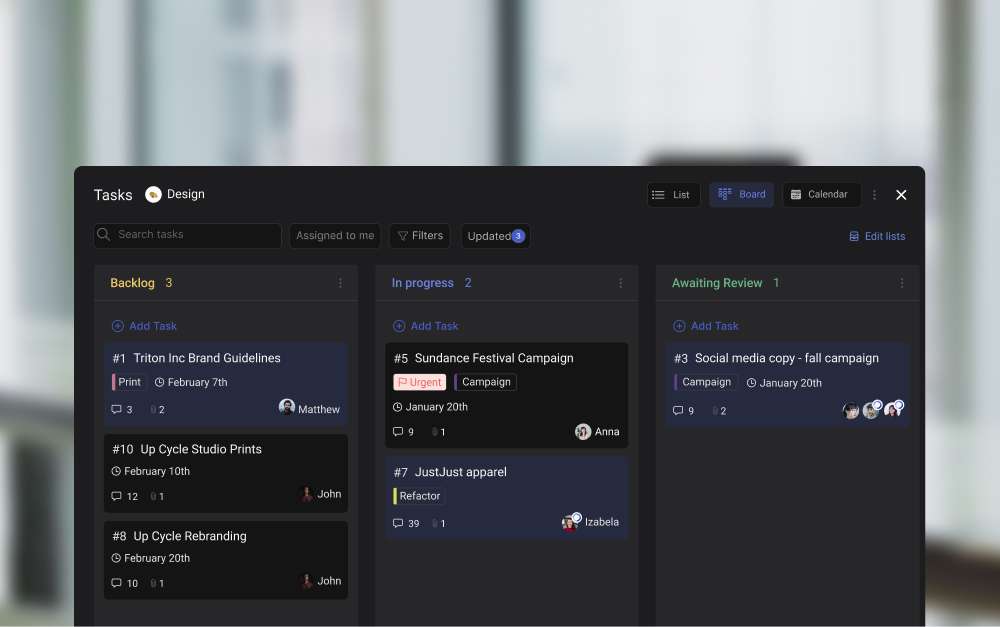
Aligned with agile methodology, set up another sprint where your team will work to complete a set of smaller tasks. Rock simplifies such task management. You can update the task board with new tasks, choose your time frames, and assign various assignees.
You can then view your tasks in a calendar, list, board, or compact view for better organization.
2. Gather feedback
A post-meeting feedback survey is a great way to measure your retrospective’s success.
As a leader, you won’t always know what was on your team members’ minds. Through an anonymous survey, they can be as honest as possible without the fear of judgment.
You can also have 1-1 meetings with each of your team members if you want more extensive feedback. For many, this is a safer environment that makes employees more comfortable communicating honestly.Whatever tool you decide to use to gather feedback, make sure to act upon it.
If there were issues expressed, brainstorm how you can improve your next retrospective. A retrospective does not just lead to the improvement of projects, but also of your management skills.
3. Share retrospective materials
The recording of the retrospective should be easily accessible for those who want to refer back to it. It could very well be that team members forget all the previously discussed details. This way, everything is right where you need it.
With Rock, you can share a video attachment in the notes feature with a list of the next steps to take. The comment section allows employees to ask any questions about the attachment or even provide more feedback.
Having such organized documentation will make the sprint workflow run smoother. It could also be beneficial for the next retrospective to look back at the progress made.
4. Follow up with the team
Agile methodology is all about continuous progress and improvement. After a retrospective, you’re not done and dusted. It’s necessary that managers follow up with their team so that they can continue to produce high-quality work.
A remote team meeting could be a way to follow up. However, if you see that an individual has a more complicated task, a 1-1 is always a good idea.According to Forbes, one-on-ones are one of the most important productivity tools that managers can use.
When conducted properly, a 1-1 is a valuable way to build trust and make an employee feel supported.
5. Highlight new goals and metrics
This point is different from just setting deadlines and tasks, that’s more of an project management task.
Highlighting newly established goals is what will drive productivity within your team and motivate them to reach such objectives.
What metrics are you trying to reach? Perhaps you came to the conclusion that you must reevaluate some of your previous goals. Maybe you planned to have 5 websites developed, but only finished 3.
Make the necessary adaptations to goals so that you can more realistically evaluate them in the next retrospective.
How to run a remote retrospective: common mistakes to avoid
Remote retrospectives can easily go wrong. Not because they are remote, but because they often involve various stakeholders with different outlooks. Without the right structure, a retrospective won't achieve its objectives.
Here are common mistakes to avoid in a remote retro:
Lack of prior preparation: Without prior preparation, your retrospective will likely be a mess. To prevent any disorganization, prepare a guideline with discussion questions beforehand
Going off-topic: Sticking to an agenda is key. Without a set goal and blueprint for the discussion, it won’t be a real retrospective. Instead, team members will go off-topic and not be able to foster improvement. This meeting is not the time for an informal conversation about your team’s personal life.
No clear actions set after meeting: Even if your team members were able to evaluate their work successfully, don't neglect the actionable steps that follow. To ensure continuous improvement, make sure that clear actions are set and tasks are assigned.
Too many voices: A common mistake is inviting too many people to the retrospective. Too many opinions can lead the meeting to focus on unnecessary factors. It can also be detrimental to open communication within a team as some might feel uncomfortable voicing their opinions. Make sure to invite those that need to be there only and that every voice has equal opportunity.
How to run remote retrospectives with Rock
Agile practices are all about breaking daunting and complex tasks into manageable ones. It requires organized task management where everything is documented and available for team members to review. Rock is an online retrospective tool that provides an all-in-one messaging with tasks, notes, files and so much more.
Rock is so effective that it avoids teams having to plan a retrospective altogether at times. Let’s be honest. Too many of us spend an absurd amount of time in unproductive meetings, according to the Harvard Business Review.
Stay mindful of the relevance of scheduling a retrospective. Meeting every day might be less productive compared to a retrospective every 2 weeks or once a month.
How to run a retrospective with Rock
Rock makes it so that not only the retrospective runs smoothly, but also the aftermath that follows. Employees can easily implement the goals defined in the retrospective with quick access to all the necessary materials:
Meetings: Jump on a Zoom or Google Meet call for your retrospective.
Tasks: Manage tasks, assign them to employees, and even start a new sprint. Managers can add labels and filters to these including their urgency.
Notes: Attach a video of the retrospective and upload it with notes so it is easily accessible to all. Team members can also comment on any feedback and additional questions with notes or files. You can also send out a video loom where you present the discussion guidelines prior to the retrospective.
Files: Connect cloud storage providers to your space and attach cloud files from Google Drive, Dropbox, Onedrive and more to your tasks and notes.
A retrospective with Rock is also a lot less time-consuming. Rock brings together different ways to communicate such messages, tasks, files and notes into one place. Tightly connected, you can add files to notes or mention tasks in messages.
All in all, the key to conducting a successful remote retrospective is having access to the right online retrospective tools.
As an all-in-one alternative, Rock provides full-fledged project management functionality in one place. Features allow both employees, managers and external stakeholders to prepare, conduct, and participate in retrospectives in an intuitive manner.
Workspaces have arrived! With workspaces, you can easily group and manage spaces and people together in one place. Set up a workspace for your marketing team, a specific client, or any other functional team and give everybody access to the same spaces by sharing the workspace link. Invite people to your workspace and manage their permissions and access from your workspace settings.
This release also includes a Rock bot for Slack, pinboard across devices, and reminders to make sure you don’t miss important deadlines.
Read along to learn more about this release!
Workspaces
You can now organize your team and spaces in a single place with workspaces. Once you create a workspace, everyone is directly added to it. Quickly onboard new people to Rock and have them communicate and collaborate in multiple spaces without sending separate space invites.
Everyone you invite to a workspace will have access to all selected spaces. Workspaces allow you to get your team more organized in a bunch of different ways:
Add or remove spaces from a workspace so everyone has access to the right set of spaces.
Quickly invite users to your workspace with a workspace link or by email. You can add a pin code to entering your workspace as an additional security measure.
Manageuser permissions for all spaces in a workspace with guest, member, or admin permissions for each user in your workspace.
Add, manage and remove users from your workspace with a dedicated user management panel.
Workspaces can be used in a lot of different ways. Here are some suggestions from the Rock team:
1. Communicate with your team
Most teams have multiple spaces where everyone from the team should be present. Think of an All-Hands for company announcements or a watercooler/random space where your team can share memes, GIFs, or non-work related topics. Each new workspace comes with 4 spaces to get things going with your team:
All hands: General communications, announcements and team discussions.
Random: Your very own water cooler space. Share GIFs, memes and get to know your team better!
Goals & Objectives: What are you trying to achieve as a team? Set milestones, goals and objectives and track them with this space.
Resource Center: Rock is all about documentation. Connect cloud file storage providers, upload documents and define company policies in notes or topics.
You can easily manage spaces once the workspace has been created. Add more spaces, adjust the template spaces, or remove them if you don’t need them.
2. Building communities with workspaces
Want to bring everyone together in a community? Workspaces are the solution you have been looking for! Each Rock space accommodates up to 500 people and can be used for messaging, topics, notes, tasks, and so much more!
Bring together your community on Rock with your workspace’s very own Quick Connect link or manually send email invites to the users you want to add to your community. Workspace admins can quickly make sure users have guest or member permissions in all spaces. Give a new moderator admin status in all spaces or remove a user if they are no longer welcome in the community.
3. Workspaces for different business functions
If you have different business functions in your team such as marketing, engineering, customer support, or operations - workspaces can make it so much easier to get things organized. Create workspaces by business function and invite relevant people to more easily manage your different workflows.
Quickly start new projects without sending invites as everyone in the workspace is directly added. New hires or team members can also be seamlessly added to the whole workspace, so they always have access to the spaces they need to be in.
4. Client and partner workspaces
Bring client attention and support to the next level with workspaces. Use multiple spaces for different activities and make sure that clients get the care and attention they deserve. Manage the members in a client workspace to make sure that the correct account manager, support or salesperson is connected with the client across spaces.
Workspaces across the free and paid plans
Workspaces are available for both the free and paid plans. While every free user gets 1 workspace with up to 10 spaces, paid plans get a higher limit on the number of workspaces and spaces that can be added to each. Here’s how it works:
FREE: 1 workspace with up to 10 Spaces
PRO: 3 workspaces with up to 20 Spaces
TEAMS5: 10 workspaces with up to 50 Spaces
TEAMS 10, 20 and 30 will have more workspaces with the same space limit. Curious to learn more about workspaces? Check out this dedicated guide.
Rock bot for Slack
Receive notifications on Slack for Rock updates. This Rock bot for Slack allows you to set up custom notifications in Slack when new tasks, notes or topics are created in Rock. You can also configure the bot to receive an update in Slack when a task, note or topic is edited on Rock.
The notification message on Slack you receive contains a direct link to Rock alongside some object details including the title, description and author of the new object. For object updates you receive a message with a direct link to the task, note or topic that was changed on Rock.
Curious to learn more about the Rock bot for Slack? Check out this dedicated product guide!
Note: Your space needs to be changed to PRO if you want to set up a Rock to Slack automation.
Pinboard across devices [PRO & TEAMS]
In addition to the pinboard feature on mobile launched with the previous release, you can now also pin items relevant to your space on web and desktop. The pinboard was added to Rock spaces to make it easier to document and centralize important communications.
You can store tasks, notes, messages, and so much more in a panel accessible to everyone in a space.
Pinboards can be a powerful tool for teams that are looking into setting up a dedicated knowledge base, releasing frequent announcements, have urgent activities that involve everyone in a space, or anything else that involves most users in a space.
You can access the feature in PRO spaces by clicking on the pin icon next to the space name. Curious to learn more about the pinboard? Check out this dedicated product guide for more information!
Reminders
Don’t leave your tasks hanging with reminders! You can now set reminders on Tasks to receive a notification in advance of the official due date. There are currently 5 different reminders you can configure:
5 minutes before the due date
10 minutes before the due date
30 minutes before the due date
1 hour before the due date
1 day before the due date
You can also select which user receives the reminder on a task. Note that only the assignees and the person setting the reminder will appear in the panel.If you want to select anyone else, you will have to add them as an assignee.
Mobile updates
We have added a bunch of improvements to the mobile experience.
This product release includes the following changes and fixes to the mobile apps:
Workspaces: Collaborate in more organized ways by organizing your team and spaces in a single place.
Reminders: Set custom reminders for tasks to never miss a deadline again!
Rock bot for Slack: Configure a Rock bot in your Slack space to receive notifications for updates to tasks, notes and topics on Rock.
A whole lot of bug fixes and smaller improvements.
Download the mobile app
Questions about this release? Feel free to leave us a message in the Rock Support & Updates space or open a space with us.
Fosca Cordidonne started using Rock a little over a year ago. Rock became her go-to project management and messaging platform after an online search for alternatives.
"I find Rock to be far superior to any other tool I've tried (and I assure you I've tried pretty much all of them!)" says Fosca.
Fosca works as a UX/UI designer and low-code developer. As a digital artisan she focuses on creating digital experiences for startups, small businesses and other clients. Her projects include websites and other personalised digital products and experiences.
In her free time she enjoys retrogaming and pizza, something very typical for creative and low-code freelancers, she says! Freelancers like her can use the portfolio website template to plan and launch their online presence.
Reliable and all-in-one functionality makes it easier for freelancers like Fosca to get work done
Fosca says that what makes Rock great for her is the combination of tasks, messaging, and files in a single tool. Many other popular tools do not have that all-in-one approach. Most tools either focus on project management or on communication but not both at once.
Quick and personal support is also a highlight of Fosca’s experience on Rock: ‘Last but not least, the best support experience I have ever had! The team continually seeks feedback from its users and is so easy to get in touch with.’
Day-to-day client management becomes a breeze with all-in-one messaging
When working with many different clients as a freelancer, collaborating through different channels can become a real challenge.
‘As soon as I started freelancing for startups, I realized that I urgently needed a platform where I could easily save documents, assign tasks and communicate with my clients.’
Getting work done in one place is the safest way to make sure that nothing gets missed out. It also helps keep everyone on the same page.Fosca creates a space for every client or organization she works with.
She continues all communication, collaboration, tasks, and file sharing in that dedicated space. This way everything can be accessed easily by all parties involved.
Her clients often start using Rock as well. Fosca says, I show clients how to use Rock, they become autonomous and start creating tasks, notes or topics themselves.’ Clients get used to Rock and the collaboration within the platform becomes even smoother. Because Rock is very intuitive and simple to use, clients get on board in no time!
Rock + Notion + Cosmos is all Fosca needs to manage her client communication and collaboration
Three online platforms are crucial for Fosca’s online communication and collaboration. She uses a combination of Rock, Notion and Cosmos to document information, give work updates and connect in-person when needed.
Cosmos is a virtual office where Fosca and her clients meet up synchronously. Often used by remote and hybrid teams, Cosmos creates personal experiences and a sense of belonging to the remote workers.
New users can create avatars, personalize their office space and mingle with others. It gives a great personal touch when communicating in remote environments!
Fosca uses Notion for file storage and documentation. Clients can quickly access relevant project information, design wiki’s and important docs in an organized manner.
Rock offers a Notion integration which allows users to add project information directly into the Files mini-app. This way freelancers like Fosca can quickly share new updates with clients, and even attach Notion files to tasks.
Rock brings everything together with integrated messaging and tasks. The combination of Cosmos + Notion + Rock allows freelancers to truly balance synchronous and asynchronous work.
This combination allows Fosca to reduce the number of apps she uses on the daily, and collaborate in a few places only!
What Rock functionality should freelancers check out?
Fosca highlights two features to check out for freelancers: the Topics mini-app and calendar view in the Tasks mini-app.The Topics mini app can be a powerful ally for freelancers.
‘It’s great to have conversations organized by topic inside a space. It gives our communication more structure.’
The Topics mini-app can be compared to threads, but more organized. It works well when you aim to discuss things asynchronously, as everyone can respond to a topic in their own time and still keep it well structured!
You can also quickly find information or discussions back as you don’t have to scroll past thousands of messages. You can learn more about the Topics mini-app here.
Fosca also recommends checking out the calendar view in the Tasks mini-app. Time management is essential for freelancers and the calendar view helps to improve it. It allows freelancers to keep track of important deadlines or show deliverable dates to clients with a timeline.
It is also possible to create, edit and filter tasks from the Calendar View which enhances your overview on projects.
How to get started with Rock as a freelancer
Fosca recommends Rock to any freelancer who is looking for a reliable and feature-rich tool: ‘Explore Rock, there are many features that you haven't even noticed yet!’
Some tips from Fosca for freelancers who are starting to transform their work via Rock:
Read guides on the help center: Rock has a lot of helpful material on how to use different mini-apps. Also, you can find step-by-step guides on integrations or imports from other tools.
Bring your clients to Rock: centralize your communication by creating a dedicated space for each client. You can easily do that by sharing your Quick Connect link. Bring in a personal touch in your interactions by combining Rock with tools like Cosmos.
Help clients become autonomous: once your clients are familiar with Rock, your work becomes so much easier! Help them to get on board by setting up a short session to introduce them to Rock. Alternatively, share relevant materials on getting started.
Make use of cloud storage integrations: file sharing is important for any freelancer! Integrate your preferred storage tool. Besides Notion, you can integrate Figma, Google Drive, ACC, Dropbox and more.
Fosca’s first-hand experience shows that freelancers can enhance their productivity and go headache-free by using the all-in-one approach on Rock. Bringing your clients to one platform saves time and allows you to focus on the results!
If you would like to get to know more about Fosca’s work or/and her experience on Rock, feel free to get in touch with her via Rock, Linkedin, Instagram or Behance.
In this case study, the founder and creative director of the design studio/creative agency New Aesthetics, Maximilian Helldörfer, talks about his company’s experience on transforming the way they work by using Rock. Design agencies like New Aesthetics can use the branding design template to structure client projects from onboarding to delivery.
Maximilian shares tips for marketing teams facing challenges related to remote work, having too many tools, and deep work.
An all-in-one approach helps New Aesthetics document information and manage communications without constant platform switching
New Aesthetics journey on Rock started around one and a half years ago. Before that, the agency was mainly using Slack for communication and Trello for task management. In addition to that, the company's clients would often come up with more suggestions for tools, like Microsoft Teams or Google Drive.
Maximilian describes the point in time when the agency decided to look for a solution which would help to keep all their communication and documentation in one place.
‘We realized that we can’t use so many different tools based on our clients as it gets all over the place. That was the moment when we decided that we need to look for a new tool which has an all-in-one approach.’
Having all their work centralized in one tool has improved their efficiency and given more time to focus on deep work.
Tasks + messaging in one place to bring order to the chaos of multi-channel communication
New Aesthetics shares that the biggest challenge before using Rock was information management across platforms.
‘If you use many different tools and send emails around, it’s inevitable that some information falls through the cracks. Also, it might happen that things are more up to date in one place which can cause confusion. This can be avoided only by having one tool which offers everything you need. Somewhere where you can store information and communicate, and this is exactly what Rock offers.’
An all-in-one approach means teams don't have to juggle apps and update work on different channels. With everything in one place, one update is more than enough.
The agency found that Rock replaced the combination of Slack and Trello and allowed them to keep everything in one place, which was their main challenge before discovering Rock. With functionality that natively switches between mini-apps, one can save time and easily jump, for instance, from tasks to messages or notes.
Leveraging tasks to collaborate more asynchronously, document information and organize work while working remotely
The Tasks mini-app quickly became a crucial part of the New Aesthetics workflow. The agency uses different labels to track the status of a task, for example, 'awaiting for client feedback'.
Maximilian shares that tasks helped them to save time by indicating the statuses instead of constantly chatting or meeting to share progress. The time which is saved can be used for deep work which is the key for making good progress.
Their team also loves the Activity panel feature: ‘It gives such a great overview of what the team has been working on’. One more unique feature which the team enjoys is the Set Aside panel. Set Aside allows users to store relevant tasks, messages, and notes in a dedicated panel.
‘Whenever a person says they can’t answer or do something straight away - I always suggest to set aside and do it later. It’s so nice that there’s a feature which you can refer to in those ‘I can’t answer now’ moments!’ - shares Maximilian.
Collaborating with clients on Rock to reduce inbound emails and platform switching for new projects
It was easy to get clients on board, too. Maximilian shared that the agency does not accept emails anymore and tries to bring their clients on Rock to collaborate. Even though some clients do not know about Rock at first, it does not take long for them to get used to it and start opening their own spaces.
We were curious about what New Aesthetics would suggest for creative teams who are looking for an all-in-one solution.
‘Just get started, experiment and find what workflow is best for you. Rock gives all options to find a way that works best for your specific case. Especially if you are a creative agency, you don’t want to make a burden for yourself by over organizing! Rock gives you the opportunity to create your workflow in an easy way’.
4 tips from New Aesthetics on getting started with Rock as a creative agency
Switching platforms can be a big change for teams. It often comes with transferring tasks, restructuring everything and getting used to new workflows. Here are some suggestions from Maximilian for creative teams looking into getting started with Rock:
Try out different workflows: Rock provides teams with resources to find a way that works best for your specific case. Give yourself some time to think about how you want things to work.
Experiment with features: Rock is flexible and provides different ways of customization. Experiment and find a way to organize your work the way you want.
Start at your own pace: In the first weeks you might not need much complexity and depth. When you get more familiar with Rock you can incorporate more and more features.
Fine-tune task management: focus on task statuses, assignee statuses or labels, or all of the above, to organize your tasks.
New Aesthetics’ story shows us that constant platform switching and scattered client communication can be avoided when communication is centralized. Tasks + messaging provides the foundation for more productive teams. Deep work is prioritized with asynchronous work, leading to a more productive team.
After the widespread adoption of remote work, work performance metrics that used to be relevant for in-office work have become outdated or harder to track. This leaves many with the question on how to improve work performance for remote environments.
It no longer makes sense for your performance to be graded based on who is present or speaks up in meetings. These are less relevant in workplaces where you and your team are in different cities, countries, or continents.
This leaves many wondering: how can I improve my work performance?
You do not want to waste your time and energy on performance metrics that you are no longer being evaluated on. Many of the opportunities to demonstrate your skills and work ethic aren’t easy to do with remote work. Since you and your team aren’t in the same location, it’s not as easy for them to see your workload, attitude, and capabilities.
With coworkers who may be located around the world, managing relationships will take a different set of skills than when you could catch up in the office on a daily basis. These quality tips will get you started off on the right foot.
8 Ways to improve work performance
While workflows and relationships to team members are different, you will also be evaluated on different performance metrics. This doesn’t mean you have to rethink the way you work, but you should remember that some rules might not apply anymore.
To figure out how to improve work performance in the world of remote work, you need to adjust your mindset and implement new strategies. Here are some improvement ideas to get started with.
1. Make sure your work is visible
Although “butts in chairs” is far less applicable in remote work, it’s still important to make sure that your work is being noticed. When your projects and work are more visible, it’s easier for you to point your successes out to managers and leaders. Using tasks is a helpful way to ensure that your work is easy for leaders to see.
Task management makes it easier for you to organize your workload and clearly illustrates what you are doing and what you’ve already completed. For metrics, you can track how many tasks are completed, what type of tasks you typically work on, and how long it takes you to finish them and your projects.
These numbers will provide a useful and easily quantifiable demonstration of your work—to both you and your team leader or manager.
2. Use asynchronous work for performance improvements
Because asynchronous work treats work like a relay race instead of a sprint, daily workflows are different than they are for in-office work. Asynchronous work empowers people to be more independent and impactful. This empowers you to work at your own pace; it’s also easier to focus on the task at hand.
Typically, there are fewer meetings when a team uses an asynchronous approach to work. When you have meetings, you can make them more impactful. Make sure that your meetings are necessary, short, and planned out. Meeting agendas can help your team prepare for any topics or questions.
With these things in mind, you can demonstrate your effectiveness, even if your team members are in different places.
3. Get the hang of documentation and file management
Working remotely entails managing a constant flow of information, projects, and feedback. The biggest pitfall of remote work is that details can be siloed or fall through the cracks. To stay on top of your work, stay organized and store information where it’s accessible to everyone who needs it.
Mastering the art of documentation and file management comes in handy for this. With these skills under your belt, you can record details and ensure that you and your team have the information you need, right at your fingertips.
For example, when a new team member is being onboarded, it’s easier to provide them with resources and training materials that can answer their questions and help them learn. If your team has outdated or unclear documentation, volunteering to clarify it can be beneficial when looking into ways on how to improve on work performance.
For evaluations, you will be able to point to your organizational skills and the many benefits that they bring to the team and company.
4. Master the art of communication
It’s important to have your communication strategies well-defined when thinking of how to improve work performance. Being a good communicator will help you stand out. Making sure that your asynchronous communication is effective is key.
Avoid overwhelming coworkers and team members with a constant stream of information that they need to sort through. Make sure that messages, tasks and notes you create on the daily are well thought-out. They should provide the recipient with all of the information they need to make a decision, complete a task, provide feedback, or take the next step.
If you’re overwhelmed, delegating work can help take things off your plate. Knowing that a team member may be better at a task or type of work is a strength—use it. Delegating tasks can save you time and stress.
It also highlights your strength as a team player who puts your work first; what matters is that projects get done, not who does them.
5. Focus on strategies for improving performance
Cut out distractions. Working asynchronously can prime you for “deep work,” a term that Cal Newport uses to describe the ability to work intensely and without distraction. Instead of partially focusing on tasks, with deep work, you purposefully incorporate limited spurts of intense focus. Pairing this with a productive morning routine that protects the first 90 minutes of the day is the single highest-leverage change most remote workers can make.
With asynchronous work, people are free to be more independent and effective. This makes it easier for you to maintain the deliberate focus that deep work requires. Knowing how to prioritize tasks and projects is a vital skill when looking into how to improve work performance.
Complete your most important work first, then move on to the second-most important thing on your to-do list. Prioritization demonstrates you can be counted on to get hard things done.Ask yourself if something is absolutely necessary.
Don’t waste your time on low-level priorities or things that aren’t essential. Those types of tasks or projects can be dealt with when you’re not busy.
6. Build a strong remote work culture
Work culture in remote work settings is crucial to team cohesion and collaboration. For example, if you start a new role with a new team, you may not interact with your team members in person very often.
Without the relationship that coworkers are used to building by sitting side-by-side or in offices, it can be difficult to know who to go to with questions or when you need help. That’s why intentionally building a good and supportive work culture is so critical for teams who work remotely.
Though it may be awkward initially, you will learn more about your team, develop relationships, and get a better sense for personalities and capabilities. This helps when looking for work performance improvements since you can ask coworkers for feedback or additional training.
Helping to build a stronger remote work culture can also demonstrate leadership skills and that you’re a team player. Volunteer to do more tasks and projects to demonstrate your go-getter attitude. Offer to start a series of virtual “coffee breaks” to catch up with your coworkers and stay in touch.
This will increase your visibility and your team members will know that they can count on you for help.
7. Maintain a healthy work/life balance
While it might seem logical to stay online for hours after everyone else logs off, or to log on when you’re sick, it’s not worth the cost to your mental health and well-being. Work-life balance is important because it enables you to recharge and enjoy your other priorities.
Without boundaries, it’s easy to burn out, which harms you in the long run. Not only is it bad for your health, but it can also negatively impact your performance at work. While you might feel like staying online longer is a sign of your dedication, it’s not sustainable.
Log off and spend time with friends, family, or your hobbies to keep your stress levels down. Set dedicated hours for working and stick to those. Prioritizing your projects and tasks can help you figure out what’s essential and what can be done later. Remember: Your personal life is important too.
8. Make sure you have the right tools
Rock is a project management tool with many features that can help boost your work performance. With tasks, notes, messages, files, and meetings in one place, Rock offers a multimodal tool that you can use anywhere.
It also structures your work to keep it streamlined and help you document important information. You can get all of the project management or work functionality your team needs without ever leaving Rock.
Rock is also an asynchronous work tool, making it a perfect fit for remote work. Here are some specific features that can help with improving your work performance metrics:
Set Aside: keep messages, tasks, notes, files and topics close with a dedicated panel
Board view in the Tasks mini-app: manage workloads and get a high-level overview of what needs to be done.
My Tasks panel: get started on your to-do list sort tasks by priority level, due date, or label.
Messaging and file sharing: mention folders and documents so everyone knows what you’re talking about.
Google Drive integration: connect your files and folders for seamless sharing and communication with your team.
Zoom integration: get together for virtual happy hours or meetings when really needed.
Rock empowers you to adapt to all of the changes that come with remote work. Easy-to-use communication features make it easy to stay in touch so you can stay updated on task and project changes.
Task management and documentation are all centralized in one place with Rock, making it easy for your work to be visible and accessible to your coworkers and team leaders. With the right tool and updated strategies you can improve your performance at work and prepare yourself for the future of work.
The availability of cloud-based technologies has helped level the playing field for small businesses around the world. Technology that used to depend on expensive and complicated infrastructure is now available to anyone with access to the internet.
Many small businesses have been quick to embrace this opportunity, especially in the wake of the Covid-19 pandemic. With 26% of small businesses investing in cloud based technologies such as Google Drive and Slack, according to a recent survey by Xero.
As a result, there has been a proliferation of tools, offering everything from digital payments and instant messaging, to predictive analytics. For small businesses, the challenge is finding the right combination of tools to help make them more competitive.
Unfortunately, this can sometimes lead to small business owners feeling overwhelmed by the number of choices. In many cases, having to reassess their technology stack every time a SaaS provider updates their pricing strategy.
For some startups it might make sense to build their own technology stack from the very beginning. However, most small businesses would be better served by an all-in-one solution that can tackle multiple use cases.
All-in-one collaboration tools for example, are not only able to speed up decision making within individual teams, but across the entire business. Beyond internal communication, they can sometimes also open up discussions with clients, partners, freelancers or volunteers.
Lowers the cost of doing business
The proliferation of cloud based technologies has resulted in products that are designed to perform a very specific business function. This makes sense when targeting a global enterprise with different departments and job functions.
Nevertheless, it is often an overdeveloped solution, especially for startups and smaller businesses with more generalist roles.
Having to purchase a number of different tools can quickly consume a large proportion of a small business’ budget, especially when paying for multiple memberships. These tools are often targeted at larger enterprises as well. This can make them unaffordable to smaller companies, or price them out completely if there is a minimum company size.
These problems especially impact small businesses in the developing world, who often try to compete with less access to capital, and lower purchasing power.
Some of the more accessible tools on the market include Buffer for social media management, Figma for product and marketing design, and Rock for collaboration. These all-in-one platforms enable small businesses to carry out all of the necessary activities for a certain aspect of their business in one place.
All of this without blowing their budget, or having to update their tech stack every few months.
Enables faster decision making
According to a global survey of decision makers at companies with less than 1,000 employees conducted by SAP, 49.3 percent of decision makers believe that technology levels the playing field for small businesses when competing against larger companies.
That being said, technology is rarely in and of itself the thing that allows small businesses to compete. Technology is a means to an end, allowing smaller organizations to be more agile and adaptable than their larger counterparts.
All-in-one tools speed up the decision making process by making all of the relevant information available in one place. Built-in video and messaging functionality can help to reduce the amount of face-to-face time required to make a decision. This enables asynchronous work for teams that are distributed around the world.
Smaller tool stacks also make it easier for everyone in the business to be part of the conversation. Shallow learning curves allow people to get up to speed quicker compared to custom implementations.
Provides access to a wider pool of talent
All-in-one tools make it easier for employees to collaborate because they provide a centralized hub with a single end-to-end workflow. This means more focus, and less time spent switching between different tools.
They also allow individuals to develop a more rounded skill set. Mainly because there is less focus on highly specialized tools and individual parts of a process. Instead, employees grasp the full scope of their role, and even branch out into other areas of expertise.
In addition to the business benefits, these platforms can provide opportunities for people in parts of the world that might not normally have access to job opportunities matching their areas of interest and expertise. In some cases this can be exploitative, but for organizations that embrace equitable compensation, it can be a win-win situation.
For example, a good all-in-one collaboration tool can help small businesses become more competitive by unlocking a global talent pool. With centralized communications and strong documentation small businesses can focus purely on finding the right person for the role.
All this without having to think of considering commute times, office communication mechanics and face-to-face dependent collaboration mechanics.
Even for small businesses that require people to be on-premise part of the time, all-in-one tools enable more flexible ways of working. A helpful option as remote working opportunities create more competitive labor markets.
Empowering small businesses around the world
Small businesses represent over 90% of the business population, 60-70% of employment, and 55% of GDP in developed economies, according to the World Trade Organization. They also form an important part of the UN Sustainable Development Goals to “promote inclusive and sustainable economic growth, employment and decent work for all”.
Much of recent news coverage has focused on household names such as Google, Microsoft, and Facebook. Nevertheless, small businesses are facing the same challenges presented by the future of work, forcing many to reassess work.
Speed and agility have always been a competitive advantage for small businesses. But, in order to adapt, and embrace the changes required to succeed in a digital-first world, they also need access to the right tools—without being barred by pricing walls or limited functionality.
I joined Rock in 2020 as a business development working student. A lot has changed since then. I now find myself traveling around the world as a digital nomad while managing a wide variety of marketing activities at Rock.
What does working full-time at Rock look like for you?
There are a lot of things I love about my job at Rock: ownership of awesome projects, a hands-on learning experience, and seeing direct results from my efforts.
My day-to-day looks completely different compared to two years ago. When I joined we were working on officially releasing Rock to the public, with a product hunt launch, listing Rock on different sites, and other business development activities. Now, 2 years and thousands of signups later, I find myself leading content, growth and analytical activities across channels.
A lot of my workday is planned around individual deep work: managing content, changes in our branding across channels, and other less-defined growth activities. With only 4-5 meetings on a weekly basis, I find my schedule to be open and flexible to focus on important tasks instead of being stuck in meetings that could have been emails – or as we like to say, meetings that could have been a task or topic.
Having only a few meetings does not mean I’m not connected to everyone in the team though. With constant updates in different 1:1 and group spaces, I often chat to team members, partners and users from across the world (and occasionally share some GIFs now that they are finally available everywhere!).
Only a few meetings a week and asynchronous-first work means I often don’t work a 9-5 (this doesn’t mean I’m being lazy though!). Splitting my time throughout the day allows me to go surfing in the morning, to the gym at 2pm or leave early on a Friday to go travel for the weekend every now and then.
Because we organize our work with tasks, performance is not connected to when I’m online. Instead, we focus on what is being accomplished in every sprint or week-over-week period.
What does remote work look like for you?
I decided to go fully remote in January 2022, leaving Rotterdam (which had been my home for 5 years) behind. Leaving behind great friends and a city that had given me so much wasn’t easy. But the idea of getting to travel the world while taking my career forward at the same time was an opportunity I did not want to skip.
For my first solo location I found accommodation in San Juan Del Sur, Nicaragua and decided to spend the next two months remote working there.
What is Nicaragua like?
I was scared of the idea of booking an Airbnb and spending large amounts of time working by myself in a holiday home. Thus, I booked a coliving space, which has an awesome view by the way!
Coliving spaces bring together remote workers and digital nomads from around the world. This makes them a great place to meet like-minded people. Another perk is that they often offer a fast internet connection, a must-have when working remotely. Or as Kenzo likes to call it, the base of the Maslov pyramid for remote workers’ needs.
A definite highlight of my stay was the opportunity to meet amazing people from all over the world with different careers, goals, and dreams. From consultants to freelance copywriters and nutrition & health experts, I shared my ‘office’ (the living room) and free time with people of different trades, backgrounds, and life goals.
Two months in Nicaragua also allowed me to visit places all over the country. I had the chance to visit typical backpacker destinations such as Ometepe, Granada, and León. I also got to surf a handful of times during work days and weekends, do short hikes around town, and check out most of the local bars and restaurants.
Oh, I also got to slide down a volcano which is definitely one of the highlights of my stay here. How does that work you ask? A Breaking Bad jumpsuit, a makeshift wooden board, and some goggles are all one needs.
What’s next?
We have great things coming up for Rock. Now that our help center and blog were recently updated, you can expect to see some rockin’ content across those and some new channels throughout the next few weeks.
My two-month journey in Nicaragua has come to an end by the time you read this article. My next travels are fully confirmed already though. After spending a month visiting friends and family I’m excited to visit Lisbon for 3 months and learn more about Portuguese culture and a new language. Portugal also has plenty of surf and a lot of interesting people to meet for sure.
No more volcanoes though, I think I scratched that itch for the time being by summiting San Cristóbal, the highest volcano in Nicaragua (allow me some bragging rights, it’s a 12-hour hike that starts at 2:30 am).
Will you be in Lisbon or are you interested in e-meeting? You can open a Quick Connect space with me through this link web.rock.so/nicolaas. :)
Help us spread the word and earn extra income by joining the Rock Affiliate Program! Monetize inviting your network and earn a reward when they upgrade to the PRO or TEAMS plans.
Read along to learn more about how the Affiliate Program works, whom the program is for, what benefits are included, and how to get started.
How does the Affiliate Program work?
The Affiliate Program is pretty straightforward. Once you sign up, we will provide you with a dedicated sign up link through which your clients, friends, audience or anyone else can join Rock. These accounts will then be connected to your link, and you will receive a commission if they end up upgrading to one of the paid plans in the future.
You also receive a dedicated discount code to share with your audience. This means that you can provide them with a lower price if they want to upgrade to a paid plan.
Who is the Rock Affiliate Program for?
Anyone is welcome to apply to the Affiliate Program. Joining is best suited for those who want to advocate for more asynchronous ways of working and believe in Rock’s philosophy for enabling anyone to work from anywhere. Common affiliates tend to be:
Companies or freelancers that often work with clients: The Affiliate Program can be a great opportunity to monetize inviting your clients to Rock. Additionally, if you onboard teams to Rock this could be a great way to increase the ROI of getting new teams started on Rock.
Social media & content experts: Do you interact with an audience that fits Rock well through podcasts, blogs, video, newsletters or other channels? Joining the Affiliate Program is a great way to teach your audience how Rock can bring value to their work and productivity with dedicated content and internal promotions.
What rewards does the Rock Affiliate Program offer?
The reward received depends on the plan purchased by the user who signed up with your link and the billing cycle. Upgrades are paid out once a month and are associated with new users that signed up with your link.
For every new upgraded user you receive:
10% of a monthly plan on both PRO and TEAMS for the first year – That is up to over $100 per individual upgrade!
20 % of an annual plan on both PRO and TEAMS for the first year – Up to over $300 per individual upgrade!
Affiliate Program do’s & don’ts
Whether you are new to working in a Affiliate Program or a seasoned pro, here are some basic pointers on what we expect from you.
When joining the Rock Affiliate Program DO:
Share your link with relevant audiences.
Use the brand and content resource guides we provide.
Ask our team any questions to help you supercharge your activities.
When joining the Affiliate Program DO NOT:
Spam audiences or post your link on web pages with illegal or adult content.
Use predatory or false advertising for getting people to the website.
Try to use fraudulent tactics to play the payout system.
How to sign up to the program
Applying to the program is easy. First, give us as much useful information as possible when filling out the form in this dedicated signup link. This way we can see whether you are a good match and whether collaborating can be beneficial to both sides.
After that we will reach out to you to discuss the program and your activities more in depth. This way we can discuss different ways to support you throughout your time with us in the Affiliate Program.
Do you have any questions about the Affiliate Program that are not listed in the Q&A? You are always welcome to reach out to us in the Rock Customer Support space or send an email to partners@rock.so.
Questions and Answers
Is joining the Rock Affiliate Program FREE?
Yes, anyone can join the Rock Affiliate Program for free. There is no application or monthly membership cost.
Do you accept anyone to join the program?
We assess whether both parties can benefit from the affiliateship before accepting anyone. If we reject your application now you can always try applying again further down the road.
Do I receive rewards for free signups?
We are planning on introducing rewards for free signups sometime soon. Please apply to the program to further discuss free signup rewards with the team.
Can I leave the Affiliate Program at any time?
Yes, you can decide to leave the Affiliate Program at any point in time.
What resources does Rock provide to support me in the Affiliate Program?
We provide brand and content guidelines alongside a variety of marketing materials that you can use to promote Rock to your audience. You can also discuss dedicated or shared content with the team.
With Rock, we're building the front-end for any team and a big part of this is to integrate with as many other apps out there so you don't need to switch between different apps to get work done.
In the latest release we have a handful of super useful integrations now available on Rock:
Notion - you can now add Notion to the Files mini-app in a space. This makes it easy to find all your Notion docs together with all your other cloud files and makes it easy to attach Notion docs to specific tasks.
Loom - you can now easily send asynchronous videos/screen recording using Rock. This works in addition to the synchronous video meetings through Zoom, Google Meet, and Jitsi we already supported.
Slack import - stop slacking, and start rocking is now even easier. You can import all your Slack messages into Rock so you don't need to be worried about losing any messages. Best of all, you can know get rid of those irritating Slack limitations.
We also have a bunch of other features that will make your more productive and grab back control of your day-to-day work:
Activity panel - activities are now organized by space so you can more easily triage and follow up on messages, task updates, and more.
Improved team management(TEAMS) - easily add, remove, and suspend users across your entire domain on the TEAMS plan.
More details on all of these shiny new features below.
Notion integration with Files and Tasks mini-apps
You can now add Notion to the Files mini-app in a space and attach Notion docs to tasks in Rock.To get started, check out the following steps:
Go to the Files mini-app in any space
Select the (+) button and then select Notion
Go through the linking process to connect Notion to Rock
Select specific folders or documents to be added to a space
All your Notion docs will now be displayed in the Files mini-app and will show up as an attachment option on any task in this space.
Loom integration for async video sharing
You can now easily send asynchronous videos/screen recording using Rock with Loom. To get started, follow these steps:
Make sure to have the Loom extension for your browser installed (download)
Select the video camera icon at the bottom of any space
Select Loom and go through the steps to use Loom with your browser
Once the Loom video is recorded, you can easily share this in the space by adding the URL to a message, task, note, or topic.
Activity Panel - group by space and filter by unread or by mentions
Keeping up with updates on Rock is now a lot easier with the improved activity panel. Updates are now organized by space so you can quickly triage, and follow up on specific activities.
Spaces in the activity panel are sorted by recent updates with the most current one being displayed on top of the list. Expand the space dropdown to go through the latest updates in that particular space.You can now also filter the activities in two important ways:
Only mentions: Only see activities where you have been directly mentioned in the panel.
Only unread: When selected, notifications are cleared out of the panel after reading them. If you still need to find them back you can always turn off the toggle for all past notifications to appear.
Tasks that are due on that day will also appear in the Activity Panel so you are quickly reminded of work that has an upcoming deadline. Available on web, desktop, and mobile apps.
Note: updates in the activity panel are not connected to system notifications. Read more about notification management in this dedicated help guide.
Import from Slack
You can now import messages from Slack into Rock spaces. This makes it easier to stop slacking as you don't have to go back and forth to find past conversations hidden away in Slack.
The import from Slack feature also allows you to quickly invite new people to Rock and have spaces set up with all your past communications. This is only available on web & desktop.
Better member management on TEAMS - Add, remove, and suspend users from different spaces in one go
If you want to add add, remove, and suspend users across your domain up till now it's been a lot of manual work as you've needed to do this for each space and each user.
With improved member management (available only on the TEAMS plan), you can now do all these things in bulk so adding, removing, and suspending users becomes a breeze:
Go to Settings
Select Domain Admin and then Members
Use the checkboxes in front of each user to create a group of users you want to perform an action on.
Once at least one user is selected you will see options to Add to spaces, Remove, or Suspend.
Improvements to the mobile app (iOS/Android)
The features above are also available on the mobile apps. For a full list of mobile features, see below:
Notion integration in the Files mini-app
Send multiple attachments in one chat message
Move chat messages into comments for tasks, notes or topics with Tap to Organize
Filter by assignee on calendar view
PRO plan: iCal integration for the Tasks mini-app
Various bug fixes and improvements
Download the mobile app
If you have any questions or suggestions you are always welcome to ping us in the Rock Support and Updates space.


.jpeg)