By clicking Accept, you agree to the storing of cookies on your device to enhance site navigation, analyze site usage, and assist in our marketing efforts. View our Privacy Policy or manage preferences.
Oops! Something went wrong while submitting the form.
or continue with
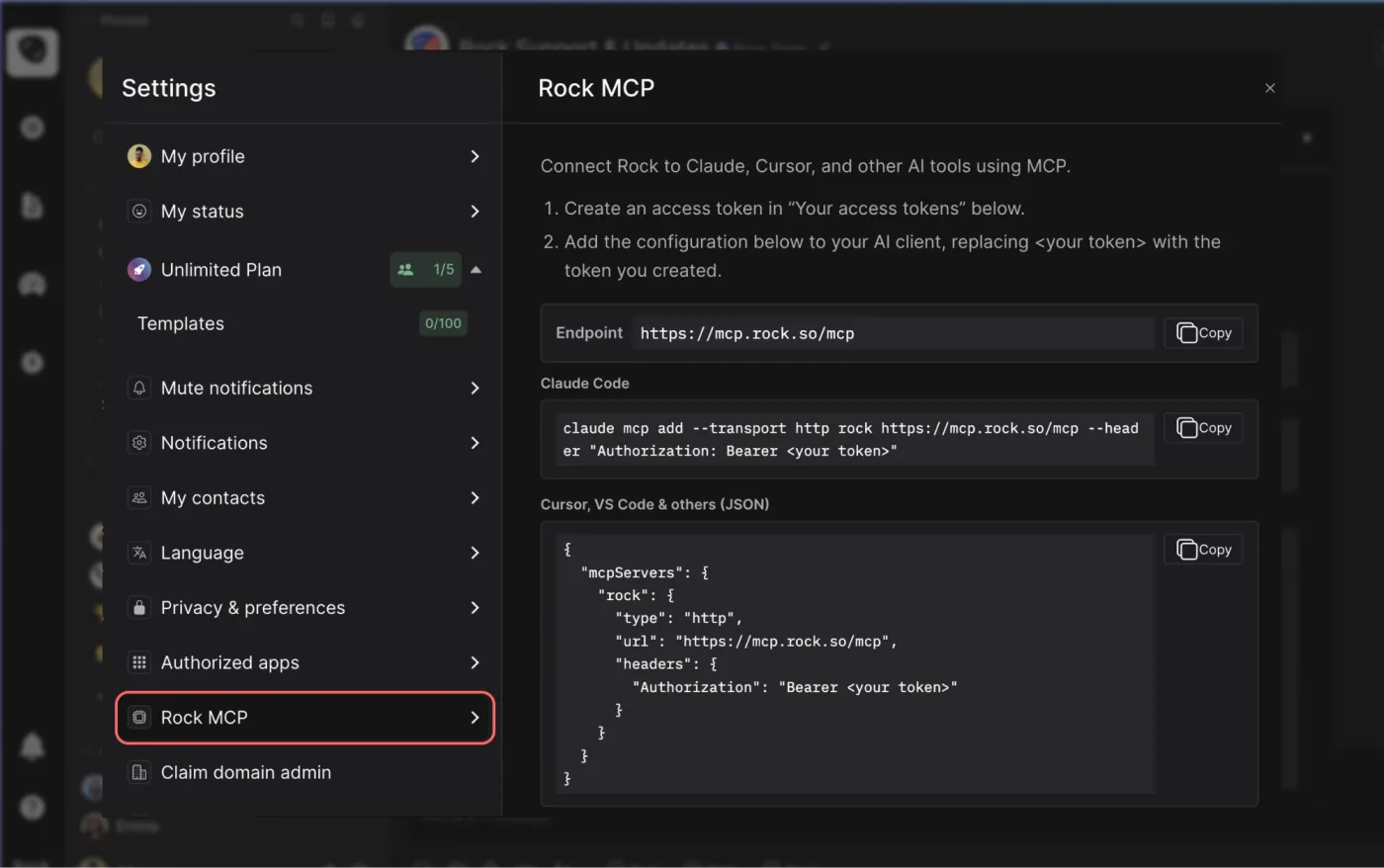
Rock MCP is here. You can now connect Rock to the AI tools you already use. Create a token in Rock, paste it into Claude, Cursor, or another client, and the assistant works inside your spaces as you, across all of them at once.
From earlier calls this month we learned that a lot of our active teams live in tools like Claude and Cursor now, and you would rather they reach into Rock than have you copy things back and forth. We work the same way.
Rock MCP is that connection: your AI assistant reads and updates your spaces directly, making it easier to stay up to date and manage projects across team members.
A few things worth knowing:
It works today with Claude Desktop, Claude Code, Codex, Cursor, VS Code, and Claude Cowork. A one-click connector for Claude on the web and mobile is coming next.
The token acts as you, read and write, across all your spaces. Treat it like a password, and revoke it any time.
It is on every plan, including Free.
Easiest setup: just ask Cowork
Claude Cowork can help you end-to-end with the setup. Share the prompt below and generate a new token, Claude will guide you through all steps.
Keep your token safe, never share in chat.
zsh
Works in coding environments
Add Rock MCP to Claude Code, Codex, Cursor, VS Code, or right from the terminal.
You will find it under your avatar, in a settings panel called Rock MCP. Full setup for every client is in the help guide.
What we use it for
A few of the things we ask it every day:
Search across your whole account. One question searches tasks, notes, and chat messages in every space you belong to. Try "where did we land on the Q3 pricing change?" or "find the onboarding brief and summarize it."
Turn a transcript or doc into tasks. Paste a meeting transcript or point it at a document, and ask it to create the tasks, with owners, due dates, and descriptions already filled in.
Push updates in. Drop your latest growth numbers, funnel metrics, or a status note straight into the right space, so the team sees it where they already work.
Run your to-do list from the chat. Ask "what is my most urgent task?", work on it together, then mark it done or update it without opening the app.
Plus, recent fixes
Since our last update, we also shipped:
Cleaner notifications and unread counts. Unread dots clear correctly for archived spaces and after "Mark all as read," and counts update the moment you open an item.
DMs in custom folders no longer disappear from your sidebar.
Chat threads stay in the right space now, with no more cross-space mix-up when you open one.
Add Spaces picker now targets the correct workspace inside embeds.
Facebook Messenger is fine for quick personal chats, but it was never built to run a business. No task management, no project structure, and your work threads tangled up with personal ones. As a team grows, those gaps start costing real time.
This guide covers 10 Messenger alternatives built for professional teams, grouped by what you are trying to solve: chat plus tasks, customer messaging, budget, privacy, or self-hosting. Each includes real pricing, who it is best for, and when to skip it.
Quick disclosure: we are the team behind Rock, one of the alternatives below. We build in this space and run these tools next to Rock, so we know where each is strong and where it is not. This is the honest landscape, not a pitch.
Messenger Alternatives: Quick Comparison
Here is a side-by-side overview of all 10 tools before the details.
Tool
Best For
Free Plan
Paid From
Rock
Chat + tasks, flat pricing
3 spaces, 5 members
$89/mo flat
Slack
Integrations, threading
90-day history
$7.25/user/mo
Microsoft Teams
Office 365 teams
Unlimited chat
$4/user/mo
Google Chat
Google Workspace
Personal Gmail
$7/user/mo
WhatsApp Business
Customer messaging
Free app
API per-conversation
Pumble
Free Slack alternative
Unlimited history
$2.49/user/mo
Discord
Communities and voice
Unlimited members
Free (Nitro $9.99/mo)
Signal
Privacy-first messaging
All features free
Free (nonprofit)
Telegram
Free channels and groups
All features free
Premium $4.99/mo
Rocket.Chat
Self-hosting
50 users (self-hosted)
$8/user/mo
Why Look for Messenger Alternatives?
Facebook Messenger is fast, free, and everyone on your team already has it. In parts of the world where a business is really a WhatsApp and Facebook page, Messenger is how clients reach you and how your team talks all day. More than 947 million people use it monthly, and for many small businesses it is the default channel.
The problem is that Messenger was built for personal chat, not work. There is no task management, no separation between your sister's vacation photos and a client brief, no admin controls, no audit trail when an employee leaves. End-to-end encryption only became the default for personal chats in late 2023, and even then, business messaging through Meta's API still goes through Meta's servers in plain form.
If your business runs on Messenger today and you are starting to feel the cracks, these 10 alternatives cover the realistic options for team communication, customer messaging, and privacy-first setups in 2026.
Short on time? Take the 30-second quiz to get a personalized recommendation.
Best Messenger Alternatives for Professional Teams
1. Rock - Best for Teams That Need Chat and Tasks Together
Best forTeams of 5-50 people that collaborate with external clients and want chat plus tasks without per-seat costs.
PricingFree (unlimited 1:1 spaces, 3 group spaces, 5 members/space) Unlimited: $89/month flat or $74.92/month annual
Skip it ifYou only need customer-facing messaging, not internal team coordination.
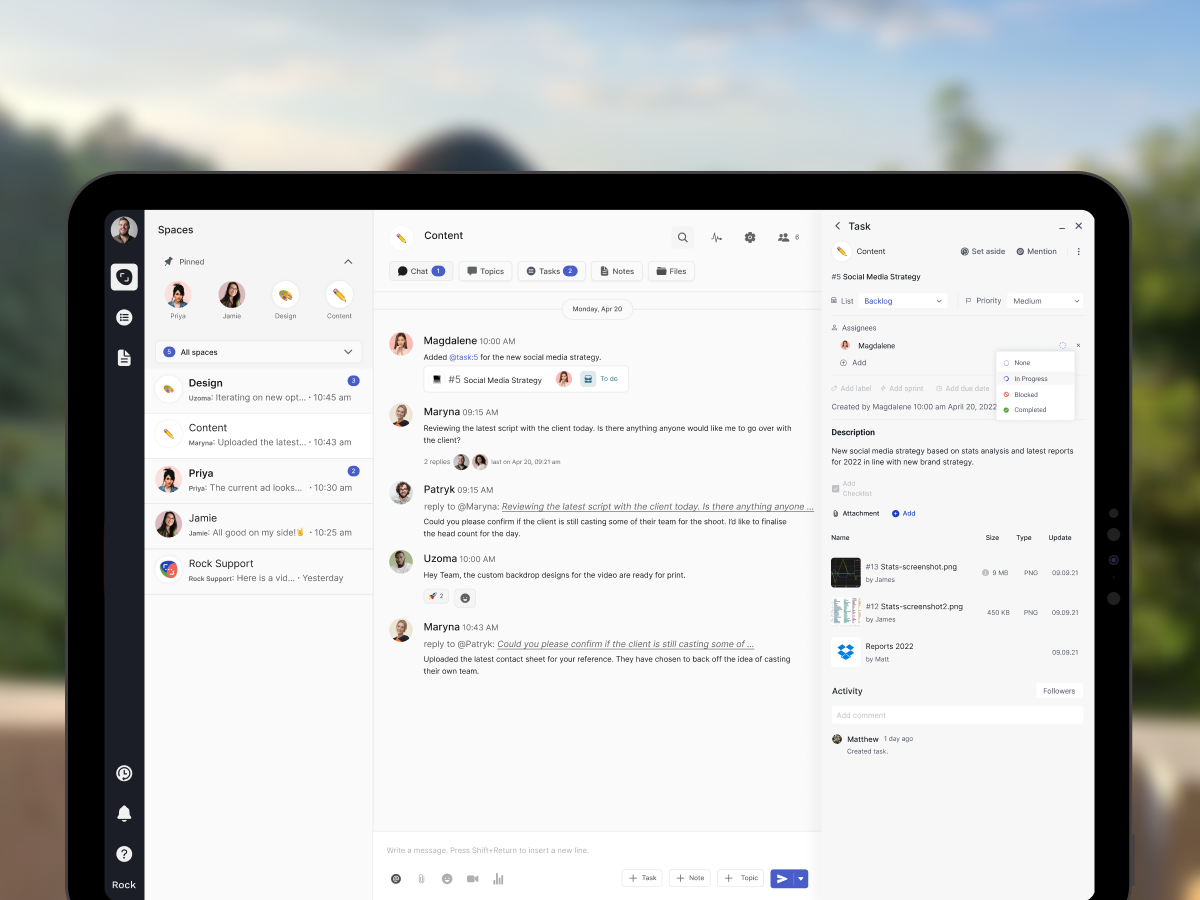
Rock combines team messaging with task management, notes, and file sharing in one workspace. Each project lives in its own space with chat next to a task board, so conversations and work sit in the same place instead of in Messenger and a spreadsheet.
For small businesses and agencies, the standout feature is cross-organization collaboration. Clients, freelancers, and contractors join your spaces at no extra cost. There is no guest limit and no per-seat pricing. The flat $89 a month covers unlimited users, which matters when your team size swings between projects.
Rock is simpler than enterprise tools like ClickUp or Monday.com. You will not find Gantt charts or advanced automations. But if your main problem is "we talk in Messenger and track everything else in our heads," putting both in one place solves a very specific kind of chaos.
What we do at Rock: each client project has its own space with chat, tasks, and files in one view. When a client sends a request, we turn the message into a task with one click. No searching Messenger threads for what was agreed three weeks ago.
Rock combines async messaging with a task board in every project space.
Rock also ships a native MCP server, so AI assistants like Claude, Cursor, and ChatGPT can operate your workspace directly: read messages, create tasks, and search across spaces. It is available on the free plan, not gated behind an enterprise tier.
2. Slack - Best for Teams That Live on Integrations
Best forTeams that rely on third-party integrations and need a mature internal communication platform.
Skip it ifYou use chat mainly to talk to customers, not your own team.
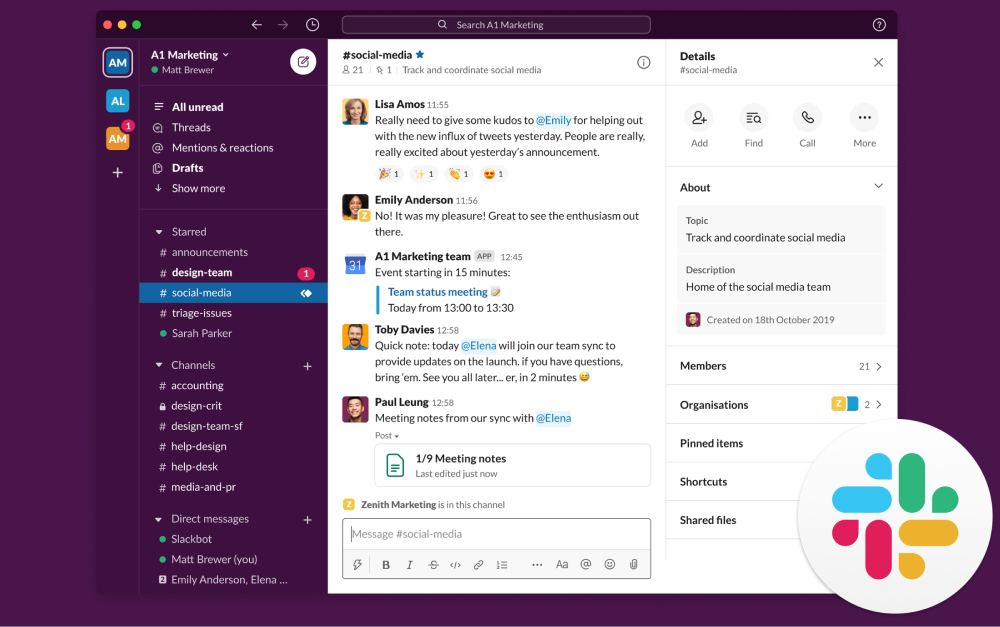
Slack is the professional standard for internal team messaging. Channels, threads, and search make it easy to keep conversations organized by client, project, or topic. The real strength is the ecosystem: more than 2,600 integrations connect Slack to nearly every tool your team already uses.
Compared to Messenger, Slack gives you real admin controls, SSO on higher tiers, audit logs, and data retention policies. Threads are far more structured than Messenger's reply system, and Workflow Builder automates routine tasks without code.
The trade-off is cost. Slack's free plan limits message history to 90 days, which is painful for client work. Pro starts at $7.25 per user per month. For a 15-person team that is over $100 a month, a real jump from the free Messenger habit.
Slack offers channels, threads, and over 2,600 integrations for professional teams.
3. Microsoft Teams - Best for Office 365 Organizations
Best forBusinesses already on Microsoft 365 that want messaging, video, and compliance in one suite.
Skip it ifYour team is under 15 people and you do not use Microsoft products.
Microsoft Teams bundles chat, video meetings, and deep integration with Word, Excel, SharePoint, and OneDrive. If your business already pays for Microsoft 365, Teams comes included.
Teams covers enterprise needs that Messenger cannot: SSO, compliance reporting, audit logs, data loss prevention, and retention policies. The meeting experience is more robust than Messenger's video calls, with screen sharing, breakout rooms, recording, and live transcription.
The downside is that Teams is built for large organizations, and it shows. The interface can feel heavy for small teams and the mobile app is slower than Messenger. If you are not already inside the Microsoft ecosystem, the setup cost is hard to justify.
Microsoft Teams bundles chat, video, and compliance inside the Office 365 suite.
4. Google Chat - Best for Google Workspace Teams
Best forTeams already on Google Workspace that want messaging built into their existing workflow.
PricingFree (personal Gmail) Business Starter: $7/user/month (30 GB) Business Standard: $14/user/month
Skip it ifYou need a standalone communication tool without a full productivity suite.
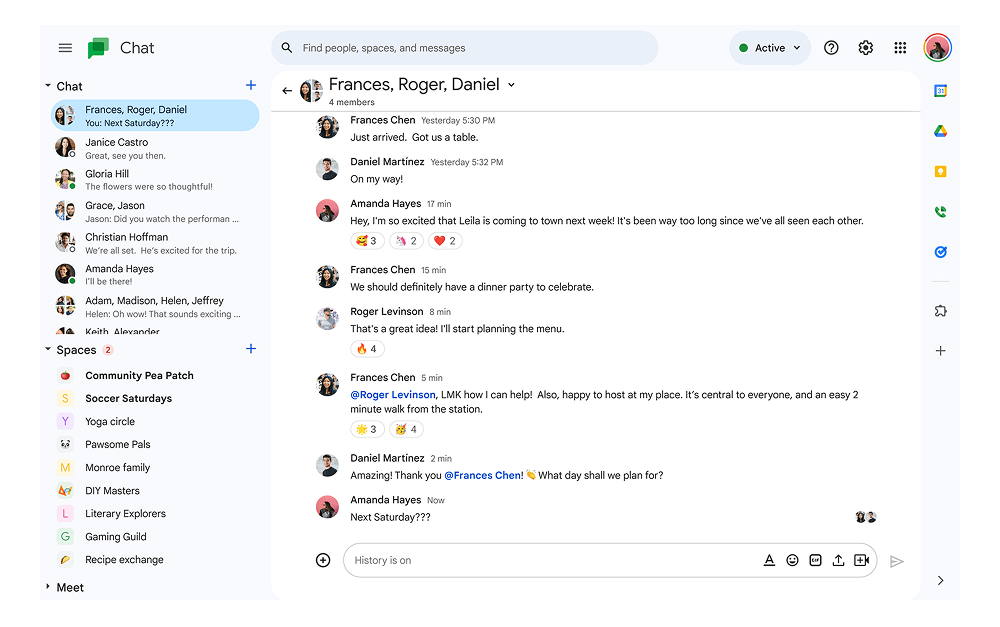
Google Chat connects directly to Docs, Sheets, Calendar, Drive, and Meet. You can create or edit documents inside a chat thread without opening a new tab. Gemini AI summaries are built in on higher tiers.
For businesses where Google Workspace is already the default, Chat is the natural messaging layer. The interface is clean. Spaces, which are group conversations, support threads and file sharing. Admin controls and data retention are handled through the Workspace admin console.
Google Chat is not sold on its own. It is part of Google Workspace, which starts at $7 per user per month. As a chat tool by itself, it is basic compared to Slack: no workflow builder, limited bot ecosystem, less granular notifications.
Google Chat integrates directly with Docs, Sheets, and Meet for Workspace teams.
“
The practical impact is that the vast majority of one-on-one Telegram conversations, and literally every single group chat, are probably visible on Telegram's servers.
Best Messenger Alternatives for Customer Communication
5. WhatsApp Business - Best for Customer-Facing Messaging in Key Markets
Best forSmall businesses in markets where WhatsApp is the default customer channel. Shops, restaurants, agencies handling client support.
PricingFree (WhatsApp Business app) API: per-conversation pricing, varies by country and category
Skip it ifYou need a pure internal team tool with tasks and admin controls.
WhatsApp Business is the most direct upgrade from Messenger for one specific reason: it is where your customers already are. In Brazil, India, Indonesia, and most of Latin America and Southeast Asia, WhatsApp is the default business communication channel, with over two billion monthly active users worldwide.
Compared to Facebook Messenger, WhatsApp Business offers a cleaner separation between business and personal profiles, a catalog for products and services, labels to organize conversations, automated greetings and away messages, and a business profile with hours, website, and address. The free app works for small operations. The API, billed per 24-hour conversation, scales to agency and enterprise use cases.
Keep in mind that WhatsApp Business is also owned by Meta, so the data privacy concerns that push people away from Messenger do not fully disappear here. Messages are end-to-end encrypted by default, but metadata still flows to Meta.
WhatsApp Business adds catalogs, labels, and automated replies on top of WhatsApp.
Budget-Friendly Messenger Alternatives
6. Pumble - Best Free Slack-Style Alternative
Best forSmall teams that want a Slack-like experience without paying for it. Budget-first businesses.
Skip it ifYou need deep integrations or built-in task management.
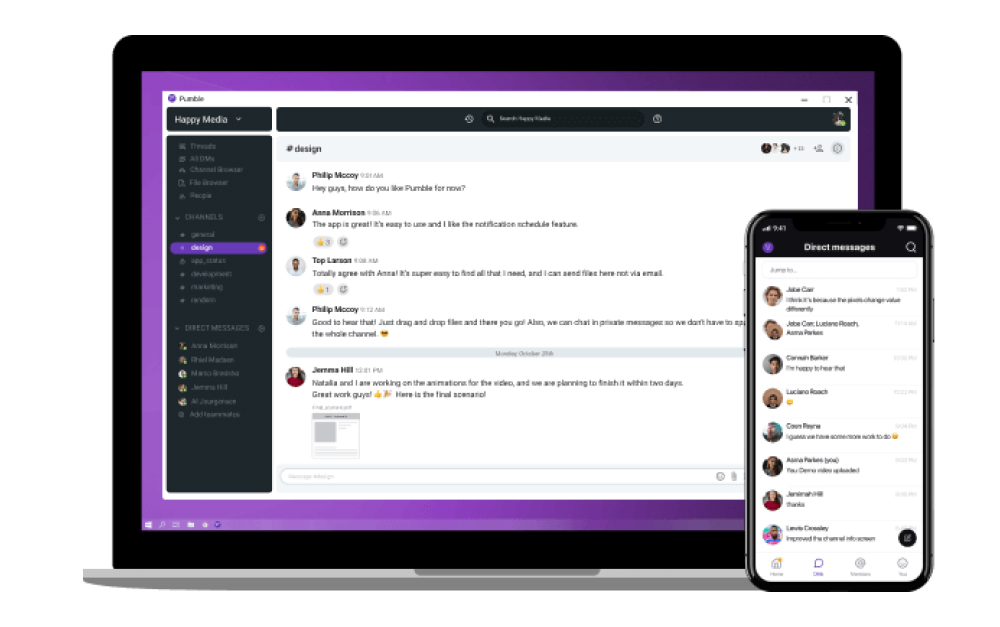
Pumble is a free Slack clone with one real advantage over Slack: unlimited message history on the free plan. Messenger does not search work chats well, and Slack charges for history beyond 90 days. Pumble gives you channels, threads, direct messages, and voice or video calls without paying anything.
The free plan supports unlimited users with 10 GB of total workspace storage. Paid plans start at $2.49 per user per month and add screen sharing, guest access, and integrations with Clockify for time tracking and Plaky for project management.
Pumble offers unlimited message history for free, which Slack and Messenger do not.
7. Discord - Best for Large Communities and Voice
Best forPublic communities, customer groups, or voice-heavy workflows.
Skip it ifYou handle confidential client work or need admin controls.
Discord is the closest Messenger alternative for community-style conversations. Servers, channels, roles, and always-on voice rooms let you organize hundreds or thousands of people with better moderation than a Messenger group chat could ever manage.
The free tier is generous: unlimited members, unlimited text channels, and voice channels for up to 25 participants. Discord is not built for professional work though. There is no task management, no client workspaces, and no enterprise admin features like SSO or audit logs on the free plan.
For businesses running public communities, customer forums, or large volunteer groups, Discord is a solid fit. For confidential work with clients, look at Rock, Slack, or the privacy tools below instead.
Discord scales to huge communities with roles, voice channels, and moderation tools.
Privacy-Focused Messenger Alternatives
8. Signal - Best for Privacy-First Messaging
Best forBusinesses where privacy is the top priority. Legal, healthcare, journalism, activism.
PricingFree (nonprofit, donation funded)
Skip it ifYou need task management, admin controls, or customer-facing channels.
Signal is what Messenger's security branding wishes it was. Every message, call, group chat, and file is end-to-end encrypted by default, not as an opt-in. The Signal Protocol is open source and actually powers the encryption behind WhatsApp and several others.
Signal Foundation is a nonprofit. No ads, no trackers, no shareholders. The app is free and funded by donations. For journalists, lawyers, activists, or any business where client confidentiality is non-negotiable, it is the default recommendation from security researchers.
The trade-off is that Signal is a messenger, not a workspace. There are no channels in the business sense, no task management, no file versioning, no admin console. For a team that needs private communication but still uses other tools for work, Signal sits alongside them rather than replacing them all.
9. Telegram - Best for Free Channels and Large Groups
Best forBroadcast channels, large communities, teams that want a free alternative without Meta's ecosystem.
Skip it ifYou need genuine end-to-end encryption by default or real team admin controls.
Telegram is free, fast, and handles groups that would cripple Messenger. Supergroups hold hundreds of thousands of members and channels broadcast to millions. The bot API is solid, and Telegram Premium adds extras like larger file uploads and custom emoji for under $5 a month.
The privacy reputation is misleading though. Default Telegram chats are not end-to-end encrypted. Only Secret Chats are, and you have to enable them manually for every one-on-one conversation. Group chats are never end-to-end encrypted. For a business looking to escape Messenger's data practices, Telegram is not actually an upgrade on privacy.
Telegram works well as a broadcast or community tool, and it runs without requiring each user to have an account tied to Facebook. That alone is why many teams switch.
Telegram scales to huge groups and channels but was not built for team workflows.
“
We cannot share data in response to valid legal requests that we never had in the first place.
10. Rocket.Chat - Best for Self-Hosting and Data Control
Best forTech-savvy teams that need self-hosting, data sovereignty, or on-premise deployment.
PricingFree (self-hosted, up to 50 users) Pro: $8/user/month (51-500 users) Enterprise: custom
Skip it ifYou do not have someone on the team who can manage server infrastructure.
Rocket.Chat is open source and self-hosted, giving you full control over your data. For businesses handling sensitive client information or operating under data residency rules, this matters more than any marketing claim Meta could make about Messenger. You can run it on your own servers or use their managed cloud.
Features include channels, threads, end-to-end encryption, omnichannel support (live chat, WhatsApp, SMS), and white-labeling. The free self-hosted plan supports up to 50 users, which covers most small business teams.
Rocket.Chat lets you self-host business messaging on your own servers.
Tools We Did Not Include (and Why)
Workplace from Meta: Meta's own business messaging product was shut down in 2024 and is no longer accepting new customers. Existing customers had to migrate by mid-2025, so it is not a forward-looking option.
Intercom, Zendesk Messaging, HubSpot Chat: Strong for customer support but priced and scoped as help-desk platforms, not team messaging. Different buyer, different budget. Worth looking at if your only goal is replacing Messenger for customer service, not team communication.
Viber, Line, WeChat: Dominant in specific regional markets but not built for team workflows or cross-border business use outside those regions.
Wire, Threema, Element: Solid privacy-first options, but pricing and enterprise fit are aimed at specific niches (EU compliance, Swiss jurisdiction, government). For most small businesses, Signal or Rocket.Chat cover the same ground at a lower price.
Run client work in one place
Rock keeps chat, tasks, and files together per project. Built for teams and agencies.
If your main use is customer messaging in WhatsApp-heavy markets: WhatsApp Business is the like-for-like upgrade. Your customers are already there.
If you need internal team chat plus tasks in one tool: Rock keeps conversations and work in the same space at a flat price. Clients join for free.
If integrations are your priority: Slack has the largest ecosystem. Almost every tool your business uses connects to it.
If you already use Microsoft 365 or Google Workspace: Teams or Google Chat is the path of least resistance. Messaging is bundled with productivity.
If budget is the top priority: Pumble offers a genuinely free Slack-style experience with unlimited history. Discord works for large communities at no cost.
If privacy is the main reason you are leaving Messenger: Signal is the consumer default. Rocket.Chat covers self-hosted team messaging.
The lens that actually matters here is simple. Chat apps are where conversations happen, and a workspace is where decisions turn into work. For a small business the question is not which app is most popular. It is which one keeps the conversations and the work in the same place.
The right communication tool keeps your business focused without adding complexity. Rock combines chat, tasks, and notes in one workspace. One flat price, unlimited users. Get started for free.
A project management framework is the shortcut to running work without chaos. Pick one, follow it, and you spend your day moving work forward instead of rebuilding the process from scratch for every new project. Skip it, and your team drifts on the same problems every week.
This guide covers the five most common project management frameworks: Waterfall, Agile, Scrum, Kanban, and the hybrid approach most teams quietly run. For the full catalog of project management methodologies, including Lean, Six Sigma, and PRINCE2, see the dedicated guide. You will see how each one works, where it fits, where it breaks, and how to pick a starting point that matches your team size, project type, and how much client input you deal with. There is a comparison table below so you can scan before reading the detail.
The honest reality for most agencies is that no team runs one pure framework across every client. They mix. This guide shows you which parts of each framework actually help day to day, and which parts to skip without guilt.
A project management framework gives the team a shared map: what is planned, what is in progress, and what is finished.
What Is a Project Management Framework?
A project management framework is a repeatable system for planning, executing, and finishing work. Inside any framework, the project charter is the authorization document that triggers the initiation phase. It defines how tasks get organized, who owns what, how progress is tracked, and how the team adapts when something changes. The framework is not the tool. The framework is the method. The tool (Rock, a spreadsheet, a whiteboard) enforces it.
Every framework answers the same three questions: how is work broken down, how is it prioritized, and how do you know when it is done. What varies is how rigid the plan is, how much change is allowed mid-flight, and how often the team checks in.
"What do we have to do today to be ready for an uncertain tomorrow?" - Peter Drucker, Managing in a Time of Great Change
That is the question every framework is built to answer. Waterfall answers it with a detailed plan up front. Agile answers it with short feedback loops. Kanban answers it with visible work limits. The question is the same. The shape of the answer is different.
The 2026 Reality: Hybrid Wins
Before we go framework by framework, the headline: most teams do not run one pure framework. They run a blend. According to the AgileSherpas State of Agile Marketing Report, 53% of agile marketers use hybrid frameworks rather than pure Scrum or Kanban. For a direct comparison of the two frameworks, see our Kanban vs Scrum guide. The 17th State of Agile Report from Digital.ai shows 63% of Agile teams run Scrum, but a large share still pull in Kanban elements, weekly cadences, or Waterfall-style sign-offs depending on the work.
That matters for two reasons. First, you do not have to pick one framework and never change it. Second, when purists tell you "that is not real Scrum" or "Kanban has no sprints," you can nod and keep doing what works. The goal is a team that finishes good work on time. The framework is a means, not the outcome.
Compare the 5 Frameworks at a Glance
The table below summarizes the five frameworks across project type, team size, change tolerance, client involvement, and best fit. Use it as a quick filter before reading the detailed sections.
Four questions decide this for most teams. Answer them honestly, and the framework usually picks itself.
How fixed is the scope? If the client signed a statement of work with defined deliverables, Waterfall or Scrum fits. If the scope flexes month to month (retainers, support, ongoing campaigns), Kanban fits. Mixing the two is where Hybrid earns its place.
How often will the plan change? A brand launch with a launch date will not shift much. A product team learning from user feedback will. High change tolerance points to Agile, Scrum, or Kanban. Low change tolerance points to Waterfall.
How big is the team, and how cross-functional? Three to nine people on one project suits Scrum well. Larger teams split the board by workstream (Kanban or Hybrid). Solo or duo teams often just need a Kanban board and a weekly check-in.
How involved is the client? Clients who review weekly and give feedback fit Agile or Scrum. Clients who sign off once up front and expect the finished deliverable fit Waterfall. Clients who drop requests unpredictably fit Kanban.
If your answers point in different directions (fixed scope but unpredictable client), that is the signal that a hybrid approach will serve you better than trying to force one framework on everything.
The Waterfall Framework
Waterfall is the oldest formal method on this list. Work flows downward through sequential phases: requirements, design, build, test, deploy. Visualizing those phases as a project roadmap makes them legible to clients and executives. Each phase finishes before the next starts. Sign-offs are formal. The plan is built up front and defended against mid-project change.
Waterfall traces back to early 20th century factory management. Frederick Taylor's Principles of Scientific Management laid the foundation: break work into measurable tasks, assign them, monitor them. That logic still sits at the core of Waterfall today.
"In the past the man has been first; in the future the system must be first." - Frederick W. Taylor, The Principles of Scientific Management, 1911
Best for. Fixed-scope projects with clear deliverables and low change tolerance. Brand launches, website builds, regulated work (healthcare, finance, government contracts), construction, events with hard deadlines.
Skip if. You expect the client to change their mind, the scope is vague, or the work is continuous with no "done" date. Waterfall hates change, and forcing change through a Waterfall plan creates paperwork instead of progress.
The honest limitation: Waterfall gets a bad rap from the Agile crowd, but it is still the right framework when the deliverable is known and the timeline matters more than flexibility. For a practical guide on running Waterfall at an agency, see our Waterfall for agencies guide.
Waterfall moves work through sequential phases. Each gate requires sign-off before the next phase starts.
The Agile Framework
Agile is less a single method and more a family of methods built on the 2001 Agile Manifesto. The core idea: build in short cycles, show working results often, adapt as you learn. Scrum and Kanban are the two most common implementations of Agile thinking, but the label "Agile" covers a wide range of practices.
Where Waterfall resists change, Agile assumes change. The plan is deliberately short-term. Detailed plans for work three months out are treated as wishful thinking, because three months from now the customer will know more than they do today.
"It is not enough to do your best; you must know what to do, and then do your best." - W. Edwards Deming, Out of the Crisis
That quote captures why Agile measures and adjusts rather than guessing once and executing. Doing your best on the wrong plan still produces the wrong outcome.
Best for. Product work, campaigns, anything where you will learn mid-flight and need to pivot. Teams of 5 to 50 with frequent client feedback, marketing that tests and iterates, software teams shipping every couple of weeks.
Skip if. You signed a fixed-price contract for a fixed deliverable. Agile's "adapt as we learn" clashes with "deliver exactly what I paid for." Agile also struggles when clients disappear for weeks and reappear demanding changes on a Friday night.
Agile runs in short iterations. Each cycle produces working output, feedback, and a revised plan.
The Scrum Framework
Scrum is the most common implementation of Agile. It adds structure: fixed-length sprints (usually two weeks), three roles (Product Owner, Scrum Master, Developers), five events (Sprint Planning, Daily Scrum, Sprint Review, Sprint Retrospective, and the Sprint itself), and three artifacts (Product Backlog, Sprint Backlog, Increment).
The Scrum Guide is deliberately minimal at 13 pages, so teams can adapt it to their context. In practice, most teams skip or shrink parts of Scrum (especially the Scrum Master role at small agencies). That is fine. The Scrum Guide itself is clear that partial Scrum is not full Scrum, but partial Scrum still works.
Best for. Teams of 3 to 9 working on a defined deliverable that benefits from iteration. Cross-functional teams (designers, writers, developers) building a campaign or product over multiple sprints. Teams that can hold a review cadence with the client every two weeks.
Skip if. Your team is under three people, your work is reactive rather than planned, or your clients cannot commit to sprint-end reviews. Full Scrum ceremonies (planning, standup, review, retro) across multiple clients drowns small teams in meetings.
Scrum wraps iterative work in sprint cycles with defined events and roles.
The Kanban Framework
Kanban is the simplest framework that still works. A board with columns (Backlog, In Progress, Review, Done). Cards for each task. A rule that limits how many items can sit in In Progress at once (the WIP limit). Work flows left to right. You cannot start something new until you finish something old.
Kanban originated at Toyota in the 1940s, where engineer Taiichi Ohno built it after watching grocery store workers restock shelves only when items sold. The pull principle (start new work only when capacity opens) is the heart of the method. Software teams adopted it in the 2000s, and it has since spread to marketing, support, and operations.
Best for. Retainers, support work, and ongoing flow where work arrives unpredictably. Marketing teams running continuous campaigns. Ops teams handling ticket-based work. Small teams who want visual progress without ceremonies.
Skip if. You need a hard deadline across many workstreams, or your project has a formal client sign-off gate at each stage. Kanban tracks flow well, but it does not naturally produce milestone-based deliverables the way Waterfall or Scrum do.
For a full Kanban setup including WIP limits, policies, and failure modes, see our Kanban methodology guide.
Kanban makes work visible and limits how much can sit in progress at once.
Hybrid Frameworks: What Most Teams Actually Run
The framework nobody learns in a course but everyone ends up running. Hybrid is a blend: Waterfall for the overall plan, Scrum for sprint cadence, Kanban for continuous work, and a pragmatic mix of practices picked by what each project needs.
Common hybrid patterns:
Scrumban. Scrum sprints with a Kanban board underneath. You keep sprint planning and retros, but within the sprint, work flows through WIP-limited columns. Useful when the team benefits from a sprint goal but the work itself is continuous.
Wagile (Waterfall plus Agile). An overall Waterfall plan with Agile sprints inside each phase. Common at agencies with fixed-price contracts: the milestones are locked, but the work inside each milestone runs in short iterations.
Kanban plus sprints. A Kanban board for continuous work, with a monthly or quarterly planning cycle that sets the bigger goals. This is a common agency pattern: the retainer work flows continuously, but every quarter there is a planning moment to realign.
The risk with hybrid is losing the discipline that made each framework work. If you take Scrum's ceremonies but ignore the WIP idea from Kanban, you end up with meetings and overloaded sprints. Pick the elements that solve your actual problem, not the ones that sound best.
The Four Phases Every Framework Shares
Whatever framework you pick, every project moves through four phases. Naming them helps when you are onboarding a new team or explaining the work to a client.
Initiation. Define scope, deliverables, and success. Agree on who is doing what and what "done" looks like. For client work, this is where the statement of work lives. See our SOW template guide for how to formalize scope.
Planning. Break work into tasks, estimate effort, assign owners, and schedule. The planning artifact is a work breakdown structure (WBS) or a backlog. This phase is where Agile and Waterfall diverge most: Waterfall plans the whole project, Agile plans the next sprint.
Execution. Do the work. The framework shapes how work moves: through sequential phases (Waterfall), through sprints (Scrum), or through a continuous flow (Kanban). The project manager's job here is to clear blockers and maintain communication.
Monitoring. Track progress against plan, surface problems early, adjust scope or timeline if needed. This is where cycle time, throughput, and burndown charts earn their keep. The feedback loop is faster in Agile frameworks and slower in Waterfall, but every framework has one.
Running Your Framework in Rock
Rock is built for teams that want to run these frameworks without paying per seat and without separate tools for chat, tasks, and notes. A single space per project holds the board, the discussion, and the documentation.
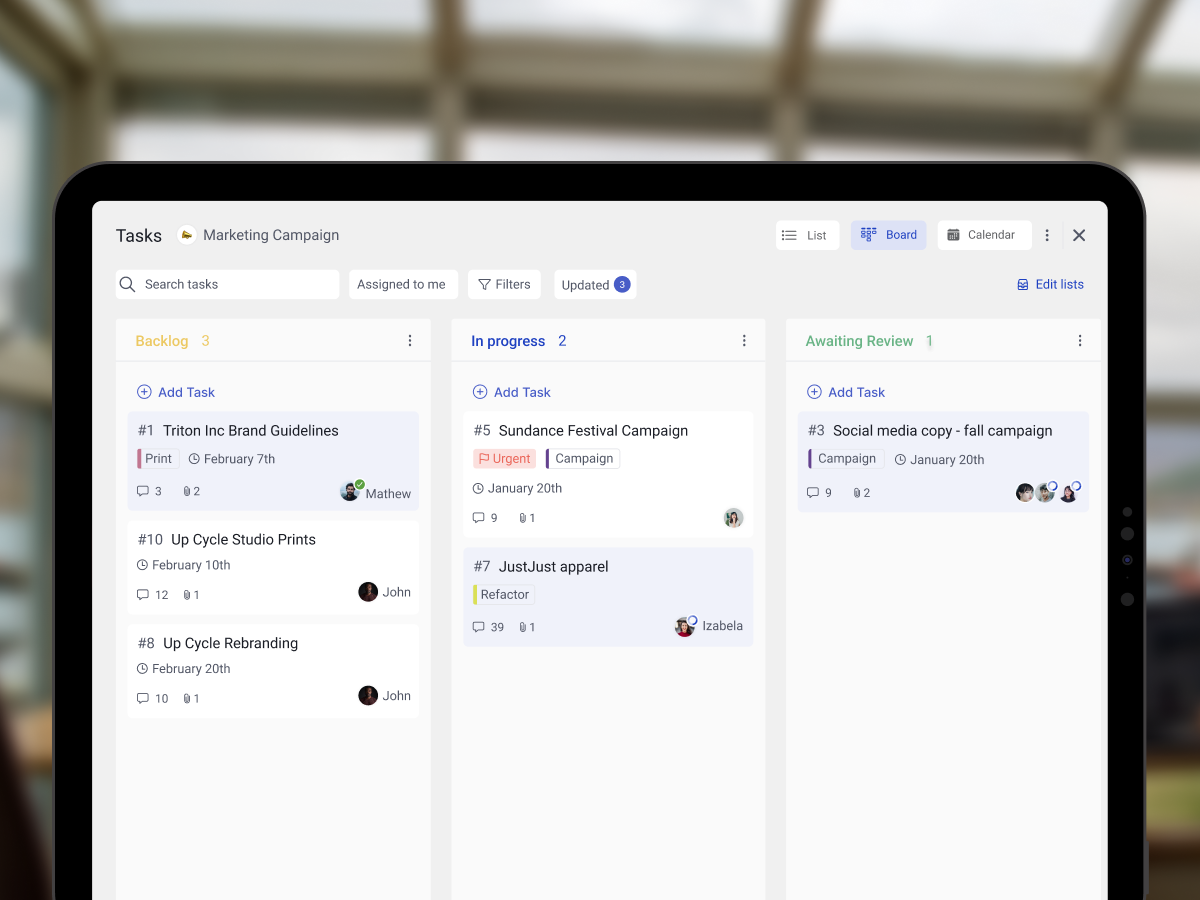
Board view for Kanban. The Tasks mini-app ships with a native Board view that looks like a Kanban board: columns for each stage, cards for each task. Add labels for priority or client, assign to one or multiple team members with per-person status (none, in progress, blocked, completed).
Sprints for Scrum and Agile. On the Unlimited plan, Sprints let you group tasks into weekly, biweekly, or monthly cycles. Filter the board by sprint to run a clean sprint review. The agile sprint planning template gives you a starting setup.
Calendar view for Waterfall. For milestone-based work, the Calendar view lays tasks across a timeline. Start dates and due dates create a lightweight Gantt-style view without the Gantt-tool overhead.
Cross-org spaces for client visibility. Add clients directly into the space at no extra cost. They see the board, comment on tasks, and sign off without email threads. For retainer agencies, this replaces the weekly status email.
What we do at Rock. We run a hybrid model internally. One space per project, a Kanban board for flow, a weekly sprint cadence on the Unlimited plan for planning, and Topics (our threaded chat feature) for async standups. Monthly retrospectives live in a shared note. We do not enforce strict WIP limits through software; we write the limit into the column name and trust the team to respect it. For teams under 20 people, this works well.
Rock's Board view runs Kanban out of the box. Switch to Calendar for Waterfall milestones or List for simple to-do tracking.
Final Thoughts
The best project management framework is the one your team will actually use. A perfect Scrum setup that nobody follows is worse than a scrappy Kanban board that gets updated every day. Start simple. Pick the framework that matches your most common project type. Run it for two weeks without changes. Then adjust based on what the board actually shows you.
And when the purists push back because you blended Scrum with Kanban or skipped a ceremony, remember: the goal is finished work, not framework compliance. Hybrid is not a failure mode. It is how real teams ship.
Run your project management framework in one place. Rock combines chat, tasks, and notes in one workspace. One flat price, unlimited users. Get started for free.
Most advice on how to fix inefficient meetings starts with the same line: "Write an agenda." It is also mostly wrong. Steven Rogelberg, the UNC Charlotte organizational psychologist who has spent 30 years studying workplace meetings, found in his agenda research for Harvard Business Review that the simple presence of an agenda has "little to no relationship" to whether attendees rate the meeting as useful. The agenda is table stakes. What actually matters is whether the items on it are relevant and whether the leader facilitates the discussion well.
For agencies, that distinction is expensive. Every inefficient meeting is a billable hour your team did not spend on client work. And there is no shortage of them. Calendly's 2024 report found that 52% of workers admit to multitasking during virtual meetings, and 40% cite lack of follow-up notes and action items as the single biggest reason meetings feel unproductive. Atlassian's 2024 research survey of 5,000 knowledge workers found 72% of meetings are ineffective at disseminating information or accomplishing tasks, and 93% of Fortune 500 executives believe teams could deliver the same outcomes in half the time.
This guide is for agency owners and team leads who have already decided a meeting needs to happen. It covers the three phases that make meetings actually work: before, during, and after. Plus the quarterly audit that kills the recurring meetings your calendar inherited from someone who left six months ago.
A meeting that produces a decision is worth the hour. A meeting that produces another meeting is not.
Why most meeting advice does not land
Pick any article in the top 10 for "how to run effective meetings" and you will find the same five tips. Set a purpose. Write an agenda. Invite only essentials. Start on time. Send notes. These are correct but obvious. Most teams already know them. The gap is not knowledge. It is that meetings keep failing even when the agenda is written and the invite is tight.
Rogelberg's explanation is useful.
"Frame agenda items as specific questions that drive decisions. Instead of 'Product Launch Update,' ask 'What are the critical risks to our product launch timeline, and how can we mitigate them?' If you can't identify questions to be answered when planning the meeting, that tells you that a meeting is likely not needed." - Steven Rogelberg, Organizational Psychologist at UNC Charlotte
An agenda that reads "Launch Update" produces status theater. The same items reframed as questions produce decisions. That one shift, from topic to question, does more than any other piece of meeting advice.
The other reason meetings fail: Microsoft's 2025 research found that 57% of meetings are ad hoc, with no calendar invite, and that PowerPoint edits spike 122% in the last 10 minutes before a meeting starts. People are walking in unprepared. The research signal is loud: meetings fail in the setup, not in the room.
Before the meeting: the 10 minutes that decide whether it works
Every minute spent preparing a meeting is worth five minutes during it. The three moves that matter:
Run the meeting-or-message test first. Before you book anything, ask: could this land as a written update, a comment thread, or a Loom? If yes, skip the meeting. Our guide on saying no to meetings has the full decision framework and scripts for proposing the async alternative.
Write the agenda as questions. Every line should be a specific question you want answered. "Review Q3 performance" becomes "Which two campaigns kept pace with their budget and which blew through it?" "Discuss the new client brief" becomes "What do we need from the client to start design on Monday?" If you cannot write the question, you are not ready for the meeting.
Cap the invite at seven. Rogelberg's canonical recommendation for decision-making and problem-solving meetings is seven people or fewer. For idea generation, fewer than 15. Every person added beyond seven reduces decision effectiveness by roughly 10% according to meeting researchers. If you find yourself inviting ten because "they might have input," split the meeting: a 30-minute core session with decision-makers, a 15-minute broader update after.
For agency settings, the two-pizza rule has a specific implication. Project kickoffs routinely balloon to 10 or 12 people because politeness says invite everyone who touches the account. Resist. Have the decision-makers in one room and send everyone else the written summary afterward.
Build the agenda in the embed below
If you want to skip the blank-page step, pick a meeting type and edit the pre-loaded agenda. Each item is a question. Each item has a time box. You can copy the whole thing to your clipboard and paste it into your invite or project space.
Build your meeting agenda
Pick a meeting type to get a ready-made agenda you can edit.
An agenda built as questions forces the meeting to produce decisions, not updates.
During the meeting: three roles, three timers, three rules
Most inefficient meetings are inefficient because nobody is responsible for making them work. The fix is assigning three roles at the start.
Facilitator. Keeps the discussion on the agenda. Calls out when the group drifts. Ends each agenda item before the next one starts. Does not have to be the most senior person. Often should not be, because the senior person will want to contribute, which makes facilitation harder.
Timekeeper. Watches the clock on each agenda item. Calls the 2-minute and 30-second warnings. Can be the facilitator's second hat on smaller calls, but for decision-heavy meetings split the role.
Scribe. Captures decisions, action items, and owners in real time. Not a full transcript. Just the three columns: what was decided, who owns the next step, when it is due. At the end of the meeting the scribe reads these back. Five minutes saved per item.
For the discussion itself, the 40/20/40 rule that Rippling and others popularize is a clean way to budget time. 40% of the slot for context and framing, 20% for discussion, 40% for decisions and next steps. Most meetings flip this, spending 40 minutes on context, 20 on decisions, and 0 on next steps because they ran out of time.
Three scripts every facilitator should have ready:
When the discussion drifts. "That is worth talking about, but it is not this meeting's agenda. I am going to put it in the parking lot and we can decide if it needs its own session."
When one person is dominating. "Let me pause us there. [Other name], what is your read on this?" Naming the quieter person explicitly, rather than asking "any other thoughts," is the research-backed move. Amy Edmondson's work on psychological safety shows that silence often means people do not feel invited to speak, not that they have nothing to say.
When the meeting will end on time. "We have 10 minutes left. Let me ask the scribe to read back the decisions and owners we have, and we will hold the remaining items for a follow-up if we need one." Never let a meeting spill past its end time because "we still have more to cover." Booking a follow-up is cheaper than draining the next hour.
After the meeting: the 24-hour window that decides whether anything happens
This is where most meetings quietly fail. The discussion was good, decisions were made, everyone left feeling productive. Then nothing ships because the action items never made it into a system where they could be tracked.
Calendly's 2024 data shows 54% of employees want post-meeting summaries but only 39% receive them. That 15-point gap is the single highest-leverage fix in meeting culture. Close it and your team's productivity jumps without any other change.
The move is a written follow-up within 24 hours, and an AI meeting assistant can draft it from the call. Format matters less than discipline. What every follow-up needs:
Decisions, explicit and standalone. One line each. "We decided to delay the Q3 launch by two weeks." Not "discussed launch timing."
Action items with owner and deadline, using verbs. "Priya ships the revised brief by Thursday EOD." Not "brief to be revised." The WHO-WHAT-WHEN frame is universal across effective meeting research. Vague action items are how retrospective action items die. One incident.io breakdown found that vague wording like "improve alerting" is the top reason post-mortem actions are never completed.
Parking lot items, named. The off-agenda topics you caught during the meeting should appear in the follow-up with a note: "parked, will schedule a separate 30-minute session if it is still a priority next week." Most of them turn out not to be priorities. This is how you quietly kill meetings that do not need to exist.
Tasks, written into the work system. The action items should not live only in the follow-up document. They should move into wherever the team actually tracks work. For agency teams that is typically a task board, a project management tool, or a shared space that combines chat with task tracking. A decision that lives only in meeting notes will not be done. A decision that becomes a task with an assignee will.
A decision that becomes a tracked task gets done. A decision stuck in a notes doc does not.
The quarterly meeting audit agencies should actually run
Every meeting on your calendar was created by someone for a reason. Most of those reasons have expired. Quarterly audits are how you surface the meetings that outlived their purpose.
A 30-minute quarterly audit works like this. List every recurring meeting on your calendar. For each one, write down:
The decisions this meeting produced in the last three months. If you cannot name at least three, the meeting has drifted.
Who owns the meeting. If no single person owns it, you have discovered part of why it is failing. Meetings with shared ownership have no accountability for quality.
What would break if we paused it for a month. If nothing would break, you have just found an hour a week to give back to your team. Dom Price, Atlassian's Work Futurist, calls this the boomerang-or-stick test. Pause the meeting. If it comes back to your calendar because the team re-asks for it, keep it. If nobody re-asks, kill it.
Karl Sakas, who advises agencies on operations, puts the principle in agency terms.
"Agency profitability leaks quietly through unpriced overdelivery: extra revisions, extra meetings, 'one more thing,' and stakeholder sprawl." - Karl Sakas, Founder at Sakas & Company
The audit is how you catch the meeting version of that leak. A 30-minute Wednesday sync with eight people costs roughly $780 a week when you run the math, or about $40,000 a year. If it has not produced three decisions in 12 weeks, that is the price of a full-time junior designer spent on status theater. Our meeting cost calculator lets you run the numbers for your specific team.
Agency-specific meetings and their common failures
The five meeting types that derail agency teams most often, and the fix for each.
Client creative reviews. These fail when the client shows up with a laundry list of conflicting stakeholder feedback. Marketing wants brand consistency, sales wants conversion, legal wants compliance, and the client expects the agency to reconcile all of it in the room. The fix: require the client to consolidate feedback into a single document before the call. Spend the first 5 minutes confirming conflicts, not discovering them.
Weekly account syncs. These fail when they exist out of habit with no new decisions on the agenda. Patrick Lencioni, in Death by Meeting, frames the cost directly.
"Bad meetings almost always lead to bad decisions, which is the best recipe for mediocrity." - Patrick Lencioni, author of Death by Meeting
The fix: every other week instead of weekly, with a written status update on the off-weeks. Reinstate weekly when the project enters a high-decision phase.
Internal standups. These fail when they balloon past 15 minutes and become status reports instead of blocker-surfacing sessions. Agency standups with 10+ attendees are the worst offenders, because every person takes their minute whether they have a blocker or not. The fix: written async standup in a channel, live call only when someone needs to unblock something specific. If you need the ritual, cap the live version at 10 minutes with a strict "blockers only" rule.
Project kickoffs. These fail when 10+ people attend and nobody is clearly accountable for running the project. The fix: run the kickoff with the delivery lead as facilitator (not the account manager who closed the deal, and not the strategist who built the plan). Invite the core four to six. Send a written summary to the extended group.
Retrospectives. These fail when action items are vague, unassigned, and stored outside the team's actual work system. Vague wording like "improve feedback loops" never ships. The fix: every retro action gets a verb ("ship," "remove," "test"), an owner, and a tracked task in the work system. Revisit at the next retro. If three retros in a row produced items that never shipped, the retro itself is broken and needs a new format.
Meeting tools for 2026
The landscape has changed since 2022. What matters now:
AI transcription and summaries. Otter, Fireflies, Granola, and the native tools inside Zoom, Google Meet, and Teams all produce decent meeting summaries automatically. Use them. The scribe role still matters for live decision capture, but AI summaries close the gap for follow-ups and reduce the argument over "what did we actually agree to."
Async video. Loom, Vidyard, and similar tools replace a surprising number of status meetings. Atlassian's 2024 experiment showed that when teams replaced just one recurring meeting with a Loom video, 43% of participants saw at least one meeting drop off their calendar in two weeks and 5,000 hours of focus time were freed company-wide.
One shared workspace for chat, tasks, and notes. The single biggest tool-level fix for agency meeting culture is not a meeting tool. It is eliminating the gap between where meetings happen and where work happens. When action items live in the same space as the chat about them and the tasks that execute them, the 15-point gap between "want summary" and "receive summary" disappears. This is the core pitch of platforms like Rock where chat, tasks, notes, and meetings sit in one space. It is also why tool fragmentation (separate Slack, Asana, Notion, Zoom) is a common cause of meeting debt and Zoom fatigue.
The short version
Most inefficient meetings are inefficient not because they lack an agenda but because the agenda is written as topics instead of questions, the group is too big to decide anything, nobody is explicitly facilitating, and the decisions do not travel from the room into the work system. Fix those four and most of your meetings will start to produce something.
If this week you only change one thing, change the first line of your next invite. Replace "Discuss X" with "What do we need to decide about X?" The meeting will be shorter and the decision will be clearer. Everything else in this playbook compounds from there.
Our guide on saying no to meetings covers when not to meet in the first place. The meeting cost calculator tells you what your current meeting load costs. Meeting agenda examples has the full template library for each common meeting type. And the meeting duration guide covers research-backed defaults for each type. If you are escaping per-seat video pricing, our guide to Jitsi walks through the open-source option.
Running meetings so decisions turn into tracked work is easier when chat, tasks, and notes live in one shared space. Rock combines all three in one workspace. One flat price, unlimited users. Get started for free.
If your daily standup has quietly turned into a status meeting, you are not alone. Microsoft's 2025 Work Trend Index found that 30 percent of meetings now span multiple time zones, up eight points since 2021. People join half-awake from their living rooms and run through yesterday, today, and blockers while checking chat on the side. The ritual is still there, the point of it has gone missing.
A standup is meant to move work forward. Not to report up. Not to tell a manager how busy you have been. When it works, it catches blockers early and keeps the team pointed at the same goal. When it does not, it is a 15-minute tax on everyone's morning.
This guide covers how to run a daily standup meeting that actually does its job. Format options, how to avoid the status-report trap, and when to skip the meeting entirely. There is no single right way. There is a right way for your team.
Here is where I would push back on the usual advice. You might think faster tools mean less need for a standup. In some cases it is the opposite. When a team moves really fast, work can drift apart and quiet dependencies build up between people. A short, regular status check is how you catch that before it turns into rework. The point is not to read out tasks. It is to stay close enough that nobody is surprised.
What Is a Daily Standup?
It is a short, daily check-in where the team aligns on what is moving forward and what is blocking progress. The format came out of agile software development and is a core event in Scrum, where it is called the daily scrum. A stand-up meeting usually runs for 15 minutes or less. Everyone who is working on the same goal attends.
The purpose is not to report to a manager. It is for the team to coordinate with each other. Who is working on what, who needs help, what decisions need to happen today so work does not stall. That is the whole point of the standup, and the most common way it gets lost.
Teams run it differently. Some use the classic three questions as a fixed meeting agenda. Some walk the task board. Some skip the live meeting entirely and post written updates. Good standups do not all look the same. Agile as a whole, covered in our agile for agencies guide, leans on that adaptability on purpose.
A standup works when it is a short team sync, not a status meeting.
Why Most Daily Standups Fail
Before we talk about how to run one, here are the four failure modes that kill most standups. If your current meeting has two or more of these, a format change will not save it. You need to redesign.
Reporting to the manager. When the manager is the one listening, the meeting becomes a status check. People say what sounds good, not what is actually blocking them. Atlassian's State of Teams 2025 survey of 12,000 knowledge workers found that high-performing teams use meetings to make decisions, not to give status updates. A standup run as a status meeting is training your team to work around it.
Timebox creep. A 15-minute meeting that consistently runs 25 is not a 15-minute meeting. It is a daily half-hour that nobody agreed to. Shopify's internal cost calculator, reported by Fortune in 2023, puts a 30-minute meeting with three people at $700 to $1,600 in real cost. Multiply that by a team of seven running five days a week and the math gets uncomfortable fast.
One person monologues. A senior voice talks for four minutes. The rest of the team zones out. Juniors stop preparing for the standup because they are not going to be heard anyway. The meeting is still happening. It stopped being useful last month.
Nobody raises blockers. People sense that flagging a blocker leads to more questions, not more help. So updates become polite fiction. Everyone says they are on track. Then Thursday afternoon the work slips, and it turns out three people knew on Monday.
Most broken standups share the same few failure modes, regardless of team size.
Pick the Standup Format That Fits Your Team
Different teams need different formats. The picker below takes four questions about your team and recommends a daily standup format that fits, plus a template you can copy.
Which standup format fits your team?
Answer 4 questions. Get a format recommendation and a copy-ready template.
The classic three-question format asks each person: what did you do yesterday, what will you do today, what is blocking you. For many teams this works fine. For others, it slowly turns into a status report. That is not a hypothetical risk. It is what the Scrum Guide authors themselves decided had happened.
In 2020, the Scrum Guide was revised. The new version described Scrum as aiming to be "a minimally sufficient framework by removing or softening prescriptive language." Among the changes, the three daily scrum questions were removed.
"Scrum 2020 aimed to be a minimally sufficient framework by removing or softening prescriptive language. e.g. removed Daily Scrum questions." - Schwaber and Sutherland, Scrum Guide 2020 Revisions
Schwaber and Sutherland, who wrote the guide, made the change because teams were treating the questions as a mechanical script instead of a live planning conversation. The alternative most teams drift toward is walking the task board. Instead of going person by person, the Scrum Master or account lead moves card by card through the In Progress column, starting with whatever is closest to Done. For each card, the owner says the next step and flags any blocker. The focus shifts from "what did I do" to "what is moving the work forward." That shift is exactly what Jason Yip, a ThoughtWorks consultant whose Patterns for Daily Standup Meetings is hosted on Martin Fowler's site, points to when he critiques the three questions format.
"The larger question is whether Yesterday Today Obstacles is creating too much of a focus on personal commitment versus paying attention to the right things." - Jason Yip, ThoughtWorks
Neither format is wrong. The standup format that fits your team depends on how your work moves, how people behave when the mic is on them, and what you need the meeting to actually do. If your team does not even have a shared task board yet, that is step zero. Our guide on why your team should use a task board covers the basics.
Format
How it runs
Best for
Skip this if
Three questions
Each person answers: what I did, what I will do, what is blocking me.
Small co-located teams learning the rhythm. Easy to teach new joiners.
Your team started treating it like a manager check-in instead of peer sync.
Walk the board
Scrum Master moves card-by-card through In Progress, starting with items closest to Done.
Teams with a visible task board and a shared goal for the sprint.
There is no shared board, or work is mostly individual with no overlap.
Discussion-based
Team opens with the sprint goal and talks only about progress against it, no fixed format.
Senior teams who already self-organize well and want to skip the template.
Newer teams, or teams that drift off-topic without a format to anchor them.
Async written
Each person posts a short written update in a shared channel or topic once per working day.
Distributed teams across time zones, or any team where focus time is sacred.
The work is highly interdependent and needs live back-and-forth to unblock.
Walking a task board keeps the standup focused on work, not on the people doing it.
Sync vs Async Standups
The second decision after format is whether the standup happens live or in writing. Same pattern: neither is better in all cases. It depends on the team.
A sync standup works when the team shares enough overlap that a live 15 minutes is cheap, and the work is interdependent enough that real-time back-and-forth is worth the interruption. A small team on a tight sprint goal. A product squad in one time zone. A client-facing team running a launch.
An async standup works when your time zones do not overlap enough to make a live meeting fair, or when the work is focus-sensitive and the cost of a midday interruption is high. Microsoft's Work Trend Index reports that employees now get interrupted every two minutes on average, 275 times a day. Adding a scheduled synchronous interruption to that pattern is not free. A remote standup in writing, posted once per working day in a shared thread, often gives the team more signal with less cost.
Mike Cohn, who has written about daily scrums for 20 years, puts it plainly when teams ask him person-by-person or story-by-story:
"Not all teams need to do it the same." - Mike Cohn, Mountain Goat Software
The same logic applies to sync vs async. It is a team-by-team call based on time zones, work type, and how well chat already covers coordination. The table below cuts through the common cases.
Your situation
Sync or async
What it looks like
Same time zone, 4-8 people, shared sprint goal
Sync
Live 15 minutes, walk the board, hard stop. Longer discussions split off after.
2-3 hour spread, mid-size team, client-facing work
Sync with some async
Sync 3 days a week during overlap. Async written update the other two days.
4+ hour spread, any team size
Async
Everyone posts a written update before 11am local. Blockers get tagged in-thread.
Heads-down engineering work, focus-sensitive
Async
Written, not voice. Protect the maker schedule. Sync only when the sprint goal is at risk.
Solo freelancer or 2-3 person team
Skip it
Chat already does the job. Status lives in tasks. Revisit when you hit 5 people.
How to Actually Run a 15-Minute Standup
Once you have picked a format, running the standup well is a small number of habits repeated. These are lifted from Yip's patterns and adapted for teams that are not pure software crews.
Same time, same place, every day. This is the simplest pattern to get wrong. A stand up meeting that moves around the calendar stops being a ritual. Pick a time. Honor it. If it is async, pick a daily post-by deadline and hold it.
Start on time. Stop on time. If the meeting is 9:00, start at 9:00. If two people are missing, start anyway. Hard stop at 9:15. If a topic is still open, that is what a side meeting is for.
Round robin, not volunteer order. When people volunteer, the same two extroverts go first and the meeting fills up before quieter teammates speak. Round robin in a fixed order solves that. Or walk the board by card, which removes the order question entirely.
Park the deep-dive. When two people start problem-solving live, the other five check out. "Let's park it, finish standup, then three of us stay on the call" is one of the highest-leverage phrases you can train into a team.
Focus on flow, not activity. The old model asks "what did you do." A better ask is "what is keeping the sprint goal at risk today." The first question generates a recap. The second generates a decision. If you want to go deeper on sprint goals, the sprint duration guide covers how to size a sprint so the standup has a meaningful anchor.
Common Standup Mistakes and How to Fix Them
Formats aside, most standups fail because of habits that sneak in over time. Here are the six mistakes we see most often in agency and small-team settings, and how to reset each one.
Mistake
Why it fails
How to fix it
Reporting to the manager
People start answering for their boss, not their peers. The standup stops being a team sync.
Rotate who runs it. Manager stays quiet or skips entirely for two weeks to reset the tone.
Going over 15 minutes
Once it stretches to 25, half the team tunes out and the other half resents the time.
Hard stop at 15. Move the long discussion to a side meeting with just the people who care.
Nobody raises blockers
Teams sense that blockers will be punished, not solved. So updates become polite fiction.
The person running it asks "what decision do you need from this group?" Makes blockers welcome.
One person monologues
A senior voice fills the time. Juniors stop prepping because they are not going to be heard.
Timebox per person at 90 seconds. Round robin, not volunteer order.
Solving problems live
Two people get into it, everyone else stops listening. Fifteen minutes become thirty.
"Park it" rule. Note the problem, route to the right people, continue the standup.
Everyone joins remotely from the office
In-room people talk to each other, remote people miss the side chatter and disengage.
If one person is remote, everyone joins from their own laptop. Levels the playing field.
What We Do at Rock
Honestly, we do not run a daily standup at Rock. Our team is small enough that updates already flow through chat and the task board during the day. A blocker becomes a task comment and the right person gets mentioned. Progress shows up as cards moving across the board. Threaded conversations happen in the Topics inside our team's space, on the messaging side.
We would add a lightweight async check-in if the team grew past eight people, or if we added more time zones than we have today. Right now, a standup would create more noise than it resolves. That is the honest answer, even if every agile article on the internet says we should run one. If you do need the structure, our agile sprint planning template is a solid starting point. A daily standup agenda fits naturally on top of it.
Topics and @mentions in Rock carry the coordination a standup would otherwise do.
If your team is in a similar spot, do not schedule a meeting just because a framework says to. The standup is a tool. It solves a specific coordination problem. If the problem is not there, the tool is not needed.
When to Skip the Daily Standup Entirely
The small-team case is the obvious one. Below five people, chat usually does the job. Adding a meeting forces people to repeat what they already said during the day in a fixed 15-minute slot.
Solo freelancers do not need a standup. If it is just you, daily planning belongs in your own calendar or your own task list, not in a meeting with yourself.
Teams where chat is already rich often do not need a standup either. If every blocker gets raised, every decision gets made, and the board stays clean, a scheduled meeting will add overhead without adding information. The benefits of agile project management come from the habits, not the ceremony.
Retainer teams that run on Scrumban instead of Scrum often skip the daily meeting by design. The flow board is their synchronization artifact. A weekly check-in and a monthly retrospective, which we cover in how to run a retrospective, is usually enough. If you want more on which framework fits, the project management framework guide covers the picks.
The signal that you need a standup is not team size. It is whether blockers are sitting undiscovered for more than a day, or whether the team's work is pointing in subtly different directions. If either of those is happening, a short daily sync is worth trying. If neither is, you probably have better things to do at 9 AM.
A standup is only as good as the tools and habits that support it. Rock combines chat, tasks, and notes in one workspace. One flat price, unlimited users. Get started for free.
A toxic work environment is not just a buzzword. It is a business killer. Employees across the board are hitting a breaking point, grappling with a workplace atmosphere that saps their energy and drives them in search of greener pastures.
To keep your team happy, you must address any signs of a toxic work culture. Bad culture can emerge in any team, from a small business to scale-ups or multinationals.
Treating a toxic work culture requires understanding the most common signs. It is the first step in crafting an intervention plan to revive your team's engagement and productivity. After all, a thriving company culture is not just a nice-to-have. It is a competitive advantage.
Let's get into the indicators to watch out for if you want to prevent toxicity from taking over the workplace. If any hostile work environment signs match your team, do not worry. We will share a set of tips to patch each symptom as quickly as possible.
Toxic culture shows up in body language long before it shows up in turnover numbers.
Do you have a toxic work environment? Look out for these 7 signs
A toxic work environment is characterized by a negative atmosphere that severely impacts employees' well-being and productivity. Toxicity presents itself through a combination of unhealthy behaviors, practices, and systems that lead to stress, anxiety, and low morale.
A bad company culture is a serious issue that impacts team health, creativity, and performance.
Toxic teams also hurt the business itself by hitting employee morale, increasing turnover, and causing an uptake in sick days.
Let's discuss 7 universal signs of a toxic work environment.
1. Sign of a toxic culture: Low levels of creativity
Creativity is about connecting ideas, taking intellectual risks, and fostering an environment where new solutions are born and valued.
Low creativity is often a reflection of underlying issues that go further than a creative block and speak to the health of the organizational culture itself.
Your team environment becomes one of compliance rather than inspiration when team members stop offering new ideas or challenging the status quo. In such settings, employees might feel that creativity is not welcomed, leading to a decline in engaged creative thinking.
This can cause a ripple effect. As fewer people demonstrate creativity, the behavior becomes normalized. As a result, the non-creative status quo gets further entrenched.
Solution: Tactics that promote creative thinking in teams
"Toxic culture is the biggest driver of turnover. More than burnout, more than low pay. Toxicity exists when a culture prioritizes results without relationships." - Adam Grant, Organizational Psychologist, Wharton School
Addressing low levels of creativity within a team, particularly when it is a symptom of a toxic work culture, requires a multi-faceted approach.
Creating an environment that welcomes creativity requires managerial intervention and cultural transformation. Here are some tactics that can make a difference quickly:
When people stop proposing ideas, that is the tell. Creativity is a proxy for psychological safety.
2. Sign of a bad work environment: Work is never finished before the deadline
Frequently missing a deadline is not just about ineffective multitasking, poor time management or lack of effort. It often reflects deeper issues within the company culture.
Deadlines serve as a critical structure for productivity. They are necessary to keep projects on track and meet client or growth needs.
In a healthy workplace, deadlines are set through a collaborative process, ensuring they are realistic. In contrast, bad work environments often have top-down decision-making, where deadlines are dictated without input from those who understand the work involved. In turn, expectations become unrealistic, and deadlines become more aspirational than achievable.
Another cause for consistently missing a deadline is considering everything urgent, creating a sea of supposed emergencies. Always being on alert leads to more missed deadlines because employees are stretched too thin across too many "top priority" projects.
Solution: Working with attainable deadlines across the team
Creating attainable deadlines in a bad work environment of missed commitments involves a clear organizational strategy, clear communication, and a shift in priorities and progress tracking.
Here are a few simple steps you can implement today to establish and maintain more attainable deadlines:
3. Sign of toxic culture in the workplace: High turnover among employees
When employees frequently exit your team, it is a clear signal that something is fundamentally wrong with the workplace environment.
According to Forbes, employees are 10x more likely to quit if a company has a toxic workplace culture.
The problem has only intensified since. Gallup's 2025 workplace report found that global employee engagement dropped to just 21% in 2024, costing the world economy an estimated $438 billion in lost productivity. Engagement decline often traces back to the same cultural issues that drive turnover.
At its core, a high turnover rate represents a breakdown in the relationship between the employer and the employee. The origin of the broken relationship might be the underlying issue that creates such a bad culture at work that employees feel their only option is to leave.
One of the primary reasons employees leave is a lack of respect and support from management. Employees feel undervalued or unrecognized for their contributions.
Favoritism or discrimination also cause hostile and unfair work environments, leading to the ultimate resignation of affected employees. What is worse, this often affects the diversity within a team as well, creating cultures that lack a breadth of experiences and cultural perspectives.
You should also ask yourself whether there is enough work-life balance in your team.
Toxic workplaces have a constant demand on employees' time, with long hours being glorified and becoming the norm. When their personal lives are consistently sacrificed for the job, employees are likely to look for opportunities that better respect their need for balance.
Solution: How to tackle high turnover rates in your team
Reducing turnover in a team that is experiencing a toxic culture in the workplace requires addressing the underlying issues that are driving employees away.
Here are several strategies that can help you address these issues and create a more positive work environment:
4. Toxic work culture sign: No career development opportunities
Career development opportunities within an organization, or the lack thereof, can also influence turnover rates.
A toxic workplace may not provide clear paths for advancement or opportunities for professional growth. Employees feel stuck in their roles when there is no chance for progression, and leave the job whenever anything better comes up.
Nepotism or other unfair systems can make this even worse. If people do not feel like effort results in future opportunities, then their engagement drops.
Solution: Creating a path for career development
Building clear career development opportunities in a toxic work culture is crucial because it shifts the focus to growth and positivity.
Here is a deep dive into a few tactics you can implement to improve employee prospects within the organization:
5. Sign of a toxic workplace culture: Teams are extremely siloed
Silos form invisible barriers where each team ends up working with blinders on. Teams do not see what the others are doing, and they do not share what they are up to.
A bad culture at work with silos is like a kitchen where everyone cooks a meal, but no one talks to each other. You might end up with four desserts and no main course.
The result? Well, it is not just about inefficiency or duplicated efforts, though those are certainly part of the mix. When an organization has silos, people start feeling like they are on an island, and that "us versus them" mindset creeps in.
Everyone is looking out for their team's interests, and the idea of pulling together for the company's sake stops being a priority.
What is more, in a toxic culture with silos, someone is always ready to pass the buck. "That is not our problem," becomes the refrain, and trying to find solutions turns into a game of hot potato. Nobody wins in that game. Problems just go round and round.
Breaking down these walls is not easy, but it is essential if you are looking to tackle a toxic workplace culture.
Solution: How to break down silos in a toxic workplace
Breaking down silos in teams is crucial to foster a healthy, collaborative, and thriving work environment. Creating real change is about initiating a cultural shift that encourages openness and interaction across all functions, levels and departments.
Here is how you might approach it:
Use Rock for your all-in-one team communication. Bring departments and teams together with chat, tasks, notes, files and meetings in one place.
6. Sign of workplace issues: toxic management
When we talk about toxic management, we are delving into a complex and unfortunately all too common issue in many workplaces. Bad management practices gradually tear down your organization's culture and employee morale.
The manager layer is where most culture problems start or stop. Gallup research by Jim Harter found that managers account for at least 70% of the variance in team engagement across business units. If culture feels toxic on a team, the root cause is usually at the manager level, not in the broader company.
A classic sign of toxic management is tension in the air. People are hesitant to speak up in meetings or even to share their thoughts privately. An invisible barrier starts to block open communication.
Another telltale symptom of toxic management is the absence of transparency. Decisions seem to be made in a black box, and employees are often left in the dark. This breeds a culture of uncertainty and fear, where rumors fill the void.
A toxic workplace culture thrives on control rather than inspiration, fear rather than motivation.
Solution: Encourage leadership to take more effective management approaches
If you want employees to be creative thinkers and problem-solvers, you need to lead by example. Managers should hold themselves accountable for their actions and encourage others to do the same.
Here are three tactics teams can implement to improve the relationship between management and team members in a toxic work environment:
7. Interpersonal tensions between team members
Interpersonal tensions between team members can be a significant red flag. When we talk about these tensions, we are usually referring to the undercurrents of conflict that run beneath the surface of day-to-day interactions.
Conflict might not always erupt into outright arguments, but it can be just as damaging when present in a subtle form.
A certain amount of disagreement is both healthy and expected. Diverse perspectives can actually drive innovation and problem-solving. However, when these disagreements become personal, they become toxic.
Tension in a toxic workplace culture can stem from a variety of sources. Perhaps there is a culture of competition that has gone too far, leading to colleagues undermining each other instead of working together. Or maybe there is a lack of clear communication from leadership, resulting in confusion and frustration amongst team members.
Interpersonal issues can create a domino effect. Productivity often takes a hit as team members spend more time navigating workplace issues than focusing on their work. Morale suffers, too, because let's face it, nobody enjoys coming to work when it feels like a battleground.
In a nutshell, interpersonal tensions are not just small ripples. They can quickly turn into waves that threaten to capsize the organizational boat. It is crucial for a company to address these issues head-on to maintain a healthy, productive, and positive workplace culture.
Solution: How to improve interpersonal relationships in a toxic workplace
Building and maintaining strong interpersonal relationships at work is an ongoing process. It requires consistent effort, patience, and a willingness to adapt and learn from experiences.
Here are some strategies you can employ to foster a more harmonious and collaborative environment:
Modern toxic culture: remote and hybrid layers
Pre-pandemic toxic culture conversations focused on the seven signs above. Since 2022, a new layer has emerged that in-office-only advice does not always catch.
Surveillance is the clearest example. The 2025 Microsoft Work Trend Index reports that meetings after 8 p.m. are up 16% year-over-year, and the average worker now faces around 275 daily interruptions across chat and email. Some companies have responded by adding employee-monitoring software, a move that 67% of workers view as an invasion of privacy.
Remote work can surface a new layer of toxic patterns that office culture audits miss.
Hybrid inequity is the other modern layer. Research from MIT Sloan Management Review found that 41% of executives cite inequities between remote and in-office employees as a top concern. Remote workers are more likely to be excluded from informal conversations, and leaders often favor the colleagues they see in the hallway. Gallup's 2025 data adds that 25% of remote workers report feeling lonely "a lot of the previous day," compared to 20% across all employees.
A culture that looked healthy in 2019 can quietly become toxic in a hybrid setup if you do not actively design against these new patterns.
Pattern
In-office version
Remote / hybrid version
Surveillance
Manager hovering at your desk, dropping in unannounced
Employee-monitoring software, keystroke tracking, webcam checks (viewed as invasive by 67% of workers)
Always-on pressure
Late stays at the office, weekend calls from the boss
Meetings after 8 p.m. up 16% YoY, 275 daily chat and email interruptions (Microsoft 2025)
Favoritism
The "in-group" eating lunch with the boss
Hybrid inequity: in-office employees get more facetime and career credit than remote peers (41% of execs cite this)
Isolation
Physically alone in a quiet office corner
25% of remote workers feel lonely "a lot" vs 20% across all employees (Gallup 2025)
Opaque decisions
Closed-door meetings where decisions happen without you
Decisions in private DM threads or async tools the whole team cannot see
Turn your organizational culture into a competitive advantage
Transforming your organization's culture into something that really gives you an edge in the marketplace is like infusing your company's personality with superpowers.
And you know what? People can feel it when they walk into a place where the culture is strong. It is like walking into a room where everyone is laughing. You cannot help but smile. That kind of energy is infectious, and it is a magnet for talent.
The best people want to work in a place where they know they will be valued, where they can grow, and where work feels meaningful.
So, in a nutshell, to turn your culture into a competitive advantage, make sure it is authentic, deeply rooted in everything you do, and aligns with how you want the world to see your company. Become the best version of yourselves and let authenticity shine through.
Frequently Asked Questions on Toxic Work Cultures
What are the signs I might be working in a toxic environment?
Key signs include low creativity, missed deadlines, high turnover, lack of career development, siloed teams, poor management, and interpersonal tensions. Remote and hybrid teams should also watch for surveillance practices, always-on expectations, and inequity between in-office and remote staff.
What role does management play in creating or sustaining a toxic work culture?
Management style is the single largest factor. Gallup research finds managers account for at least 70% of the variance in team engagement. Styles that prioritize control and instill fear hinder open communication and transparency, which is usually where toxic culture takes root.
How can low levels of creativity indicate a toxic work culture?
When team members stop offering new ideas or challenging the status quo due to fear or a non-supportive atmosphere, it is a sign of a deeper cultural issue. Creativity is a proxy for psychological safety.
What does high employee turnover say about a company's work environment?
Rapid turnover often points to a lack of respect, support, and recognition from management, as well as inadequate work-life balance. Adam Grant's research identifies toxic culture as a bigger turnover driver than burnout or low pay.
How do I foster psychological safety on my team?
Model the behavior yourself. Admit your own mistakes publicly. Respond to bad news with curiosity, not blame. Separate the evaluation of an idea from the evaluation of the person who proposed it. These small habits compound.
Can a remote or hybrid culture be toxic in different ways than an in-office one?
Yes. Remote-specific toxic patterns include employee surveillance, after-hours meeting expectations, and hybrid inequity where in-office employees get more facetime and career opportunities than remote ones. An in-office culture audit will miss these if you do not specifically look for them.
What can I do to break down silos and encourage collaboration?
Redefine company goals to be inclusive of every department, implement integrated collaborative tools accessible to all, and regularly engage in cross-departmental projects so teams naturally build shared context.
Waterfall gets blamed for rigidity. The real problem is usually agencies running waterfall without discipline. You quote a fixed scope. You promise a launch date. You hand off between teams without checklists. The client approves a design verbally over Zoom. Three weeks later, the build phase is 40% over and nobody remembers what was actually agreed.
This guide is about how agencies run waterfall project management well. The phase gates that catch problems early. The sign-off structure that makes approvals explicit. The handoff documentation that stops context loss between phases. And the failure modes that kill waterfall projects when any of those are skipped.
What Is Waterfall?
The waterfall methodology is a sequential approach to project management. Work flows through five waterfall phases: Requirements, Design, Build, Test, Launch. Each phase hands off to the next with a clear deliverable. Scope is defined upfront and locked. Changes mid-project are the exception, not the rule.
The waterfall model is named after a 1970 paper by Winston Royce, who actually used the term as a warning. He presented the sequential model and immediately critiqued it.
"I believe in this concept, but the implementation described above is risky and invites failure." - Winston Royce, Managing the Development of Large Software Systems, 1970
Royce proposed iteration and customer involvement even in 1970. The man who named waterfall warned against pure waterfall. That is the central tension this guide addresses.
Most waterfall content treats the method as a definition. The practical question for agencies is different: why does waterfall break in agency work, and what do you do about it?
Four patterns show up every time.
The first three break without phase gate discipline. The fourth breaks without sign-off structure. All four compound when handoffs are informal.
Breakdown pattern
What it looks like at an agency
Requirements looked clear, weren't
Client signed a scope doc in week one. In week four they say "obviously we also need X." The scope was an executive summary, not a working specification.
Design handoff loses context
A Figma link gets dropped in Slack. Dev team builds what they see. Six spacing decisions, three font fallbacks, and the mobile breakpoint were never documented.
Client approval is informal
"She said it looked great on the call." Two weeks later she says that is not what she approved. There is no written record of what was signed off.
Late-phase rework compounds
The client sees the QA build and wants design changes. Now you're redoing Design work in Test phase. Timeline slips, margin disappears, team demoralizes.
Phase Gates: The Execution Core
A phase gate is a decision point between phases. Work does not proceed until the gate is reviewed and approved. The review is not a meeting that happens when the work is already done. It is a structured checkpoint with explicit entry criteria and a documented outcome: go, no-go, or hold.
Most agencies skip gate reviews because they feel like overhead. That is exactly why waterfall fails at those agencies. The review is not overhead, it's the whole point.
"The major distinguishing feature of the spiral model is that it creates a risk-driven approach to the software process rather than a primarily document-driven or code-driven process." - Barry Boehm, A Spiral Model of Software Development and Enhancement, 1986
Boehm made this argument about spiral models, but it applies directly to waterfall phase gates. The gate is not a box to tick, itis a risk check. What could go wrong in the next phase if we proceed today?
Each phase has specific entry criteria, a review checklist, and named approvers. Here is what that looks like across the five phases.
Design assets handed off with handoff meeting complete
Code review complete, test plan ready, QA environment prepared, deployment plan drafted
5-7 days (weekly checkpoints)
Test
Build phase marked complete
All known issues documented, workarounds noted, client test checklist prepared, regression tests passed
3-5 days
Launch
QA sign-off received
Production deployment checklist, rollback plan, monitoring configured, post-launch support plan
1-2 days
Gate reviews are documented in task comments so the approval trail survives the project.
Sign-Offs and Handoffs Between Phases
A phase gate only works if someone is accountable for the approval. That is what sign-off structure means. It is not a signature on a PDF. It is a named human who owns the decision, a documented checklist of what they reviewed, and a written record of their approval.
Agencies get sign-offs wrong in two ways. First, they leave the approver ambiguous ("the client will review"). Which client? The person who signed the contract, or the junior marketer cc'd on emails? Second, they accept informal approval ("she said it looked great on the call"). Informal approval evaporates the moment scope changes.
The fix is an authority matrix. Every phase deliverable has a named approver, a named reviewer, and a documented escalation path if the approver is unavailable.
Handoffs are the other half of gate discipline. When Design hands off to Build, what exactly moves? A Figma link is not a handoff. A handoff is the file plus the spec plus the responsive breakpoints plus the font and color variables plus a 30-minute handoff meeting where the Build team can ask questions. If the Build team starts without this, the phase will overrun. Guaranteed.
Phase deliverable
Approves (named human)
Reviews
Escalation path
Project scope document
Client primary contact, agency PM
Stakeholders, finance
Project sponsor
Visual designs
Client primary contact, design lead
PM, dev lead
Account manager
Build deliverable
Dev lead, PM
QA, client (informational)
Engineering or tech lead
QA test report
Client primary contact, QA lead
PM, dev lead
Account manager
Final launch
Client primary contact, PM, ops lead
Stakeholders, executive sponsor
Account manager
Waterfall for Creative Agency Work
Waterfall guides are usually written for software with a wide amount of examples covering engineering projects. For agencies running brand, design, campaign, and web work, the phase structure translates directly.
Brand identity is the clearest fit. Research, concepts, refinement, guidelines, rollout. Each phase has a clear deliverable. Each phase ends with client review. Jumping ahead (starting logo work before research is signed off) leads to rework and client friction, waterfall saves creative work from scope creep.
Website projects are similar. Discovery, information architecture, wireframes, visual design, development, QA, launch. The first four phases are sequential. The Build phase can run agile sprints inside it, but the phase gate is waterfall. Do not let Design changes slip into Build because the client had a new idea after sign-off. That is a change request, not a sprint adjustment.
Marketing campaigns follow a compressed version. Strategy, creative, production, QA, launch. Creative can iterate inside the Creative phase (three rounds of concepts is common). Once the client picks a direction, the direction is locked. Production executes on what was picked.
A website project broken into phase-based task lists inside one Rock space.
Common Waterfall Mistakes at Agencies
Five patterns show up across agencies that try waterfall and struggle. Each one maps back to missing discipline in gates, sign-offs, or handoffs.
"'Aggressive schedule,' I've come to suspect, is a kind of code phrase, understood implicitly by all involved, for a schedule that is absurd, that has no chance at all of being met." - Tom DeMarco, Slack: Getting Past Burnout, Busywork, and the Myth of Total Efficiency, 2002
DeMarco's framing applies directly to phase timelines. Agencies quote three weeks for Design phase because it sounds reasonable to the client, not because the team can actually deliver quality work in three weeks. Then the phase overruns, Build starts late, and the launch date gets defended by cutting QA. Realistic phase timelines with buffer built in prevent this compounding failure.
Mistake
Fix
Scope creep despite a signed scope doc
Formal change request process with impact analysis. New work is a change order, not a phase adjustment.
Build phase overruns from incomplete Design handoff
Review cadence communicated at kick-off. Named primary and backup approvers. Weekly async status update.
Late-phase rework (design changes during QA)
"Design locked after sign-off" policy. Any change after the gate is a change request with new timeline and scope impact.
Aggressive phase timelines with no buffer
Realistic phase estimates with 15-20% buffer. Never promise a timeline before phase scope is locked.
Running Waterfall in Rock
Rock is not a Gantt chart tool. If you need enterprise-level PMO dashboards or resource leveling across fifty parallel projects, Microsoft Project or Smartsheet will serve you better. What Rock gives you for waterfall is simpler, and often enough to get the project done: phase structure in task lists, milestone due dates, handoff documentation in notes, and sign-off threads in task comments.
What we see many agencies doing at Rock: one space per client project. Each phase is a task list inside the space (Requirements, Design, Build, QA, Launch). Phase end-dates sit on the milestone task at the top of each list. Handoff documentation lives in a shared note per phase transition. Sign-off happens in the task comment thread on the milestone task, with the client tagged as approver. The audit trail is permanent. Clients see what they have signed off, and what they have not.
Do not try to roll out phase gates across every project at once. Pick one.
Step 1. Pick one project. Ideally a fixed-scope project that is about to start: a brand identity, a website build, a campaign launch. Not a retainer. Retainers fit Kanban, not waterfall.
Step 2. Write the phases into task lists. One task list per phase. Each list has a single milestone task at the top with the phase end-date.
Step 3. Define gate criteria per phase. For each phase, write down what must be true to exit the phase. What is reviewed, what must be signed, who signs.
Step 4. Name the approver for every gate. By name, not role. If the primary approver is unavailable, name a backup.
Step 5. Write the handoff checklist. What moves from each phase to the next. File structure, documents, meeting format, known issues.
Step 6. Run the project. Keep the gates honest. If Design isn't ready, do not open Build "just to get started." That is the rigidity trap. Waterfall works when you respect the gate.
Step 7. Retrospective at project end. Which phases overran? Which gates got skipped? What would change next time? Disciplined waterfall gets better with iteration, the same way retrospectives improve agile work.
Waterfall without discipline is the rigidity trap. Waterfall project management with phase gates, named sign-offs, and documented handoffs is how agencies deliver predictable work at fixed prices. Royce knew this in 1970. Agencies who run it well know it now.
Run waterfall for agencies without the enterprise overhead. Rock combines chat, tasks, and notes in one workspace. One flat price, unlimited users. Get started for free.
Kanban is the simplest project management methodology that still works. Four columns, cards for each task, a rule that you cannot start something new until you finish what you started. That is the whole thing. Teams adopt Kanban faster than Scrumban hybrids combine Kanban with Scrum or Waterfall because there is almost nothing to adopt. You put your existing work on a board and you start.
This guide covers the Kanban methodology from origins to execution. Where it came from, the core practices, how Work-In-Progress limits actually work, where Kanban fits in agency work (hint: retainers), and the common failure modes to avoid. There is also an interactive board below so you can try it yourself without leaving the page.
What Is Kanban?
Kanban is a visual workflow method where work flows through named columns from left to right. Each column represents a stage (for example: Backlog, In Progress, Review, Done). Each task is a card. Cards move column by column until they reach Done. The method is based on a simple pull principle: do not start new work until the current work is finished.
The Kanban methodology originated at Toyota in the 1940s. Engineer Taiichi Ohno designed it after watching grocery store workers restock shelves only when items sold. He applied the same pull logic to factory production: downstream stages pulled from upstream stages only when they needed more. The goal was eliminating waste, especially the waste of partially finished inventory sitting idle.
"The kanban is like a nervous system that tells us exactly what to produce." - Taiichi Ohno, Toyota Production System: Beyond Large-Scale Production, 1978
Software teams picked up Kanban in the 2000s, modernized by David J. Anderson. Today Kanban is used well beyond software: marketing teams run it for campaigns, support teams run it for tickets, creative agencies run it for client requests, and operations teams run it for recurring work. For how Kanban compares to other methodologies, see our agile vs waterfall guide or our Scrum for agencies guide.
Try It Yourself
Below is a small interactive Kanban board. Drag cards between columns to see how the system works. Watch what happens when you push more than three cards into "In Progress". The column goes red because you have exceeded the WIP limit. That visual feedback is the whole point of Kanban: you cannot start new work without finishing something first.
Try a Kanban board
Drag cards between columns. Watch In Progress turn red when you exceed its WIP limit of 3.
Backlog0
In Progress (3)0
Review (2)0
Done0
Nice flow. Run your real board this way in a single workspace with chat and notes alongside.
Kanban has six practices. They are not rules. They are the habits that make Kanban work.
Visualize the workflow. Every piece of work goes on the board. If it is not on the board, it does not exist. This sounds trivial. It is not. Most team chaos comes from hidden work that only lives in one person's head.
Limit Work In Progress. Each column has a maximum number of cards. Starting a new card while you are at the limit is forbidden. This is the discipline that makes Kanban different from a regular task list.
Manage flow. Watch for cards that sit in one column for too long. That is a bottleneck. Move team capacity to unblock it.
Make policies explicit. Define what "done" means for each column. Write it down. If "Review" means two people sign off, say so on the board.
Run feedback loops. Short meetings (daily or weekly) to check the board, clear blockers, and decide what to pull next.
Improve continuously. Monthly retrospective. What worked, what did not, what to try next. Our retrospective guide covers the format.
Every piece of work lives on the board. Hidden work is the most common source of team chaos.
WIP Limits: The Secret Sauce
Work In Progress limits are the defining feature of the Kanban methodology. Other methods have boards. Kanban has boards plus a maximum on how many items can sit in each column at once.
The math is Little's Law: average cycle time equals average WIP divided by average throughput. Lower WIP means lower cycle time. That is why your design revision stuck behind four other revisions takes three weeks instead of three days.
"Since high capacity utilization simultaneously raises efficiency and increases delay cost... we will always conclude that operating a product development process near full utilization is an economic disaster." - Don Reinertsen, The Principles of Product Development Flow, 2009
Teams resist WIP limits because it feels like doing less. Looks that way on the surface. What actually happens is finishing more. A team with no WIP limit often has eight items 80% done and zero items delivered. A team with a WIP limit of three has three items 100% done and five in the backlog waiting their turn.
"Capacity: how much stuff will fit. Throughput: how much stuff will flow. They are not synonymous. As the freeway approaches 100% capacity, it ceases being a freeway. It becomes a parking lot." - Jim Benson, Personal Kanban: Mapping Work, Navigating Life
Setting good WIP limits takes a couple of sprint cycles. Start conservative. Adjust up or down based on how the board actually flows.
Kanban vs Scrum at Agencies
For the full side-by-side breakdown including when each wins, common mistakes, and the Scrumban hybrid, see our Kanban vs Scrum guide.
Kanban and Scrum both come from the agile family, but they solve different problems. Agencies usually run both, sometimes in the same space.
Scrum fits fixed-scope project work where the scope can be broken into sprints with clear deliverables at the end of each. Kanban fits continuous work where requests flow in unpredictably, there are no sprint boundaries, and the backlog is always being reprioritized.
Retainers are the clearest Kanban fit for agencies. Client requests come in daily. The team pulls from the backlog as capacity opens up. There is no two-week planning meeting, no sprint review, and no retrospective scheduled to a sprint boundary. The board is the plan. This is why Kanban for agencies that run retainer work tends to stick where Scrum bounces off.
Aspect
Kanban
Scrum
Cadence
Continuous flow, no fixed cycles
Time-boxed sprints (1-4 weeks)
Planning
Ongoing, as capacity opens up
Sprint planning at start of each sprint
Change tolerance
High. Can reprioritize anytime.
Medium. Scope locked during sprint.
Roles
None prescribed
Product Owner, Scrum Master, Developers
Best fit
Retainers, support, marketing, operations, reactive work
Fixed-scope projects with clear deliverables at sprint end
Forecasting
Throughput-based (items per week)
Velocity-based (points per sprint)
Agency fit
Strong for retainer work and ongoing client requests
Strong for fixed-scope projects (websites, campaigns, brand identity)
Where Kanban Works Best
Not every agency work type fits Kanban cleanly. Here is a cheat sheet of what does and does not.
Marketing teams running continuous campaigns find Kanban a natural fit. The AgileSherpas State of Agile Marketing Report found that 45% of agile marketers are currently using a Kanban board to map their work visually, which is the highest of any single framework.
Work type
Kanban fit
Why
Client retainers
Excellent
Work arrives unpredictably. No sprint boundaries. Pull model matches the rhythm of retainer billing.
Support and ongoing maintenance
Excellent
Tickets flow in daily. Reactive by nature. WIP limits prevent team overload.
Marketing and content operations
Strong
Campaigns, content, social posts have continuous flow. Approval gates fit column policies.
Design and creative work
Strong
Revision loops fit as a Review column. Explicit policies reduce the "is this done?" ambiguity.
Fixed-scope project work
Medium
Works, but Scrum or waterfall give better forecasting for projects with clear deliverables and deadlines.
Product development with release dates
Medium
Throughput-based forecasting is harder to commit to than sprint velocity. Consider Scrumban.
Client-visible boards let retainer agencies replace weekly status emails with a live feed of work.
Common Kanban Failure Modes
Kanban is simple, which is why teams think they are doing it when they are not. Five patterns show up every time a Kanban rollout stalls.
Failure mode
Fix
WIP limits ignored. Teams push past the limit because "we have to ship."
Write the limit into the column name. Make exceeding it require a team decision, not a silent click.
Board zombie. The board does not reflect reality because nobody updates it.
Make the board the source of truth. Any work not on the board does not exist. Update during daily check-in.
Review bottleneck. Cards pile up in Review because one reviewer is always busy.
Add backup reviewers. Set a review SLA (e.g., 24 hours). Drop WIP limit on upstream columns until Review clears.
Scope creep per card. Cards grow into projects and never finish.
Cap card size (max 2-3 days of work). Anything bigger gets broken into sub-cards before hitting In Progress.
No improvement. Team sets up Kanban, runs it, stops getting better after month one.
Monthly retrospective. Track cycle time week over week. Adjust one thing per month (limits, columns, policies).
Most of these come back to two root causes: WIP limits are either missing or ignored, and the board is not the source of truth. Fix those two things and most of the failure modes disappear.
Team size
In Progress limit
Review limit
Why
1-3 people
1-2 per person
1 shared
Context switching at this size costs more than parallelism gains.
4-8 people
2-3 per person
2 shared
Small enough that coordination is easy. Keep the board tight.
9-15 people
3 per person or per skill
3 shared
Specialization rises. Consider swimlanes by role rather than one shared limit.
16+ people
Per swimlane, not team-wide
Per swimlane
One WIP number is too blunt. Split the board into lanes per role or client.
Running Kanban in Rock
Rock's Board view is a native Kanban board. Drag tasks between columns. Add labels to tag priority, client, or type. Assign tasks to team members with per-person status (none, in progress, blocked, completed). Use task comments for the explicit policies per column. Use cross-org spaces to share the board with clients directly, which is how retainer agencies keep clients informed without separate status reports.
A Kanban board shows work moving left to right through clearly defined columns.
What we do at Rock: a single board per project space. Columns mirror our actual process (Backlog, In Progress, In Review, Done). Labels handle priority and client context. Daily 15-minute check-ins around the board. Monthly retrospectives in a shared note. Honest limitation: Rock does not auto-enforce WIP limits. Team discipline enforces them, with the limit written into the column name (for example "In Progress (3)"). Works well for teams under 20 people.
Do not overdesign the board. Start with four columns, conservative WIP limits, and iterate after two weeks. The rest comes from running it, not reading about it.
Kanban rewards patience. The board usually gets worse before it gets better because you finally see all the hidden work. That is the point. Once the work is visible, you can actually manage it.
Run Kanban without the overhead. Rock combines chat, tasks, and notes in one workspace. One flat price, unlimited users. Get started for free.
We are the team behind Rock, a work chat and tasks app for teams, so we test these tools constantly. Rock is on this list, but if you mainly want private messaging or big public channels, some of the options below fit better, and we say so. We set each one up and used it for real work to see who it suits.
Telegram Alternatives: Quick Comparison
Here is a side-by-side overview of all 10 tools before the details.
Tool
Best For
Free Plan
Paid From
Rock
Chat + tasks, flat pricing
3 spaces, 5 members
$89/mo flat
Slack
Integrations, threading
90-day history
$7.25/user/mo
Microsoft Teams
Office 365 teams
Unlimited chat
$4/user/mo
Google Chat
Google Workspace
Personal Gmail
$7/user/mo
Pumble
Free Slack alternative
Unlimited history
$2.49/user/mo
Discord
Communities and voice
Unlimited members
Free (Nitro $9.99/mo)
Signal
Privacy-first messaging
All features free
Free (nonprofit)
Element
Encryption, federation
Self-hosted (Matrix)
$5/user/mo
Rocket.Chat
Self-hosting
50 users (self-hosted)
$8/user/mo
Mattermost
DevOps, self-hosting
250 users (self-hosted)
$10/user/mo
Why Look for Telegram Alternatives?
Telegram is free, fast, and works across every device. For small teams in tech, crypto, or any community that outgrew WhatsApp, it feels like an upgrade. Supergroups hold hundreds of thousands of members, channels broadcast to millions, and the bot API lets you automate basic workflows.
But Telegram was built for community and personal messaging, not professional work. There is no task management, no admin controls for teams, no compliance features, and no real separation between work and personal chats. The privacy reputation is also misleading. Default Telegram chats are not end-to-end encrypted. Only Secret Chats are, and you have to enable them manually for every one-on-one conversation.
If your team uses Telegram as a work tool and needs something with real admin controls, task management, or genuine end-to-end encryption, these 10 alternatives cover the realistic options for 2026.
Short on time? Take the 30-second quiz to get a personalized recommendation.
1. Rock - Best for Agencies That Need Chat and Tasks Together
Rock combines team messaging with task management, notes, and file sharing in one workspace. Every project space includes chat alongside a task board, so you do not manage conversations in one app and work in another.
Rock also connects to AI assistants like Claude and Cursor through a native MCP integration, plus an open API, so you can drive Rock from your AI tools and automate routine work. It is available on the free plan, not gated behind an upgrade.
For agencies, the standout feature is cross-organization collaboration. Clients, freelancers, and partners join your spaces directly at no extra cost. There is no guest limit and no per-seat pricing. The flat $89/month covers unlimited users, which makes budgeting predictable as your team grows.
Rock is simpler than ClickUp or Monday.com. You will not find Gantt charts or advanced automations here. But for teams whose main problem is "we chat in one app and track work in another," having both in the same space removes real friction.
What we do at Rock: each client project runs in its own space with chat, tasks, and files in one view. When a client sends a question, we turn the message into a task with one click. No searching across two tools for where the conversation happened.
Best forAgencies with 5-50 people that collaborate with external clients and want chat plus tasks without per-seat costs.
PricingFree (unlimited 1:1 spaces, 3 group spaces, 5 members/space) Unlimited: $89/month flat or $74.92/month annual
Skip it ifYou need Gantt charts, advanced reporting, or a large integration marketplace.
Rock combines async messaging with a task board in every project space.
2. Slack - Best for Teams That Live on Integrations
Slack is the industry standard for team messaging. Channels, threads, and search make it easy to organize conversations by project, client, or topic. The real strength is the ecosystem: more than 2,600 integrations connect Slack to virtually every tool your team already uses.
Compared to Telegram, Slack offers real admin controls, SSO on higher tiers, audit logs, and data retention policies. Threads are more structured than Telegram's reply system, and Workflow Builder lets you automate common tasks without code.
The trade-off is cost. Slack's free plan limits message history to 90 days, and Pro starts at $7.25/user/month. For a 15-person team, that is $108/month. Slack is not end-to-end encrypted either, so privacy-conscious users will still need to look elsewhere.
Best forTeams that rely on third-party integrations and need a mature, professional communication platform.
Skip it ifYou need end-to-end encryption or unlimited message history on a free plan.
Slack offers channels, threads, and over 2,600 integrations for professional teams.
3. Microsoft Teams - Best for Office 365 Organizations
Microsoft Teams bundles chat, video meetings, and deep integration with Word, Excel, SharePoint, and OneDrive. If your agency already pays for Microsoft 365, Teams is included at no extra cost.
Teams handles enterprise needs that Telegram cannot: SSO, compliance reporting, audit logs, data loss prevention, and retention policies. The meeting experience is significantly more robust, with screen sharing, breakout rooms, recording, and live transcription.
The downside is complexity. Teams is built for large organizations, and it shows. The interface can feel overwhelming for small teams and the mobile app is heavy. If you are not already in the Microsoft ecosystem, the learning curve and setup cost are hard to justify.
Best forOrganizations already using Microsoft 365 that want messaging, video, and compliance in one suite.
Skip it ifYour team is under 15 people and you do not use Microsoft products.
4. Google Chat - Best for Google Workspace Teams
Google Chat integrates directly with Docs, Sheets, Calendar, Drive, and Meet. You can create and edit documents inside a chat thread without opening a new tab. Gemini AI summaries are built in on higher tiers.
For agencies in developing markets where Google Workspace is the default productivity suite, Chat is the natural messaging layer. The interface is clean. Spaces, which are group conversations, support threads and file sharing.
Google Chat is not a standalone product. It is part of Google Workspace, which starts at $7/user/month. As a chat tool on its own, it is basic compared to Slack: no workflow builder, limited bot ecosystem, and less granular notifications.
Best forTeams already on Google Workspace that want messaging built into their existing workflow.
PricingFree (personal Gmail) Business Starter: $7/user/month (30 GB) Business Standard: $14/user/month
Skip it ifYou need a standalone communication tool or advanced chat features.
Pumble is a free Slack clone with one critical advantage: unlimited message history on the free plan. Slack charges for that. Telegram does not search message history in a work-friendly way. Pumble gives you channels, threads, direct messages, and voice or video calls without paying anything.
The free plan supports unlimited users with 10 GB of total workspace storage. Paid plans start at $2.49/user/month and add screen sharing, guest access, and integrations with Clockify for time tracking and Plaky for project management.
Best forSmall teams that want a Slack-like experience without paying for it. Agencies where budget is the primary constraint.
Skip it ifYou need deep integrations or task management built into the chat tool.
Pumble offers unlimited message history for free, which Slack and Telegram do not.
6. Discord - Best for Large Communities and Voice
Discord is the closest Telegram alternative for communities. Servers, channels, roles, and always-on voice rooms map well to how Telegram supergroups and channels work, but with better moderation tools and per-channel permissions.
The free tier is generous: unlimited members, unlimited text channels, and voice channels for up to 25 participants. Discord is not built for professional work though. There is no task management, no client workspaces, and no enterprise admin features like SSO or audit logs on the free plan.
For agencies running public communities, beta tester groups, or large volunteer teams, Discord is a solid fit. For confidential client work, look at Rock, Slack, or the privacy tools below instead.
Best forTeams running public communities, events, or voice-heavy workflows.
Skip it ifYou handle confidential client work or need professional admin controls.
Privacy-Focused Telegram Alternatives
7. Signal - Best for Privacy-First Messaging
Signal is what Telegram pretends to be. Every message, call, group chat, and file is end-to-end encrypted by default, not as an opt-in feature. The Signal Protocol is open source and powers the encryption behind WhatsApp and many others.
Signal Foundation is a nonprofit. No ads, no trackers, no investors to answer to. The app is free to use and funded by donations. For journalists, lawyers, activists, or anyone who needs genuine privacy, it is the default recommendation from security researchers.
The trade-off is that Signal is a messenger, not a workspace. There are no channels, no task management, no file versioning, and no admin console. For a team that needs private communication but still uses other tools for work, Signal sits alongside them.
Best forTeams or individuals where privacy is the top priority. Journalists, lawyers, and activists.
PricingFree (nonprofit, donation funded)
Skip it ifYou need task management, channels, or admin controls for a larger team.
8. Element - Best for Federated, Encrypted Messaging
Element runs on the Matrix protocol with end-to-end encryption by default. Every message, call, and file is encrypted. The protocol is federated, meaning your team can run its own server and still communicate with users on other Matrix servers, similar to how email works across providers.
Element is gaining traction in government and public sector organizations that need encryption without vendor lock-in. It also bridges to Slack, Teams, and WhatsApp, so you can keep one client for multiple networks. Self-hosting is available at the same price as cloud hosting.
Best forSecurity-focused teams, government agencies, and organizations that need data sovereignty.
PricingFree (self-hosted via Matrix) Business: $5/user/month Enterprise: $10/user/month
Skip it ifYou want a polished, consumer-friendly experience out of the box.
9. Rocket.Chat - Best for Self-Hosting and Data Control
Rocket.Chat is open source and self-hosted, giving you full control over your data. For agencies handling sensitive client information or operating under data residency requirements, this matters more than a marketing claim. You can run it on your own servers or use their cloud hosting.
Features include channels, threads, end-to-end encryption, omnichannel support (live chat, WhatsApp, SMS), and white-labeling. The free self-hosted plan supports up to 50 users, which covers most agency teams.
Best forTech-savvy teams that need self-hosting, data sovereignty, or on-premise deployment.
PricingFree (self-hosted, up to 50 users) Pro: $8/user/month (51-500 users) Enterprise: custom
Skip it ifYou do not have someone on the team who can manage server infrastructure.
Rocket.Chat lets you self-host your team's messaging on your own servers.
10. Mattermost - Best for Developer and DevOps Teams
Mattermost is an open-source, self-hosted platform built for technical teams. It integrates deeply with GitHub, GitLab, and Jira. Playbooks, which are automated incident response workflows, are a standout feature for DevOps teams running on-call rotations.
The free plan supports up to 250 users on self-hosted infrastructure. The interface looks and feels like Slack, which eases the transition for teams moving from commercial tools.
Best forDeveloper and DevOps teams that need self-hosting with deep developer tool integrations.
PricingFree (self-hosted, up to 250 users) Professional: $10/user/month Enterprise: custom
Skip it ifYour team is non-technical or you need a tool that works out of the box without server setup.
Tools We Did Not Include (and Why)
WhatsApp Business: Great for customer-facing communication in markets where everyone uses WhatsApp, but designed for customer service flows, not internal team work. No proper channels, threads, or task management. We covered this pattern in our Slack vs WhatsApp comparison.
Wire and Threema: Both are solid privacy-first messaging apps, but pricing and enterprise fit are aimed at specific niches (EU compliance, Swiss jurisdiction). For most agencies, Signal or Element cover the same ground at a lower price or for free.
Viber, Line: Strong in specific regional markets (Southeast Asia, Japan) but not designed for team workflows outside those markets.
Session, Keybase: Interesting projects, but feature development has been slow or uncertain. Not recommended for teams that need ongoing reliability.
Outgrowing a messaging app?
Rock combines team chat with project boards and notes in one workspace. Unlimited users included.
work chat plus tasks and notes in one, flat pricing
Integrations, threading
Slack
deep integrations and threaded team chat
Office 365 teams
Microsoft Teams
chat bundled with Office 365
Google Workspace
Google Chat
chat inside Google Workspace
Free Slack alternative
Pumble
a free, unlimited Slack-style chat
Communities and voice
Discord
communities, voice, and large groups
Privacy-first messaging
Signal
private end-to-end-encrypted messaging
Encryption, federation
Element
encrypted, federated chat on Matrix
Self-hosting
Rocket.Chat
self-hosted team chat
DevOps, self-hosting
Mattermost
self-hosted chat for DevOps teams
How to Choose the Right Telegram Alternative
If you already use Microsoft 365: Teams is the path of least resistance. It is included in your subscription and handles chat, video, and compliance in one suite.
If you already use Google Workspace: Google Chat adds messaging without a new subscription. Simple, but limited on its own.
If integrations are your priority: Slack has the largest ecosystem. Nearly every tool your agency uses probably connects to it.
If budget is the top priority: Pumble offers a genuinely free Slack-style experience with unlimited history. Discord works for large communities at no cost.
If you need chat and task management in one tool: Rock combines both at a flat price. No per-seat scaling, and clients join for free.
If privacy is the main reason you are leaving Telegram: Signal is the consumer default, Element adds federation and self-hosting, Rocket.Chat and Mattermost cover self-hosted team messaging.
Strip the security debate back and the real question stays the same. Chat apps are where conversations happen, and a workspace is where decisions turn into work. For an agency it is less about which tool is most secure and more about which one keeps the conversations and the work in the same place.
The right communication tool keeps your team focused without adding complexity. Rock combines chat, tasks, and notes in one workspace. One flat price, unlimited users. Get started for free.
We are the team behind Rock, a simple chat and tasks app for agencies and non-engineering teams, so we compare these tools constantly. Rock is on this list, but for real engineering work some of the options below are the better call, and we say so. We set each one up and used it to see who it actually fits.
Jira built a whole category. It also became the reason many teams dread opening their project management tool on Monday morning. Nested epics, custom workflow states, permission schemes, and a UI that rewards long-time admins over new hires. For agencies and non-engineering teams, Jira is often the wrong shape.
Two things changed in 2026 that push more teams to look for alternatives. Atlassian stops selling new Data Center subscriptions on March 30, 2026, with full read-only mode arriving March 28, 2029. And Cloud pricing keeps climbing for teams that did not migrate. If your agency is on a legacy contract or a small engineering team stuck on a tool built for 500 people, the math is getting worse.
These 10 Jira alternatives cover three buckets: agency-friendly tools where clients and non-technical team members can actually use the software, modern engineering trackers that feel fast and opinionated, and all-in-one platforms that replace Jira plus two or three other apps.
Jira Alternatives: Quick Comparison
Here is a side-by-side overview of all 10 tools before the details.
Tool
Best For
Free Plan
Paid From
Rock
Agency chat + tasks, flat pricing
3 spaces, 5 members
$89/mo flat
Basecamp
Simple PM, flat pricing at scale
30-day trial
$15/user/mo or $349/mo flat
Asana
Marketing and ops timelines
Up to 10 users
$10.99/user/mo
Linear
Modern engineering tracking
2 teams, 250 issues
$8/user/mo
Shortcut
Dev teams wanting simpler Jira
Up to 10 users
$8.50/user/mo
GitHub Projects
GitHub-native task tracking
Free with GitHub
$4/user/mo (Team)
YouTrack
Affordable Jira-style features
Up to 10 users
$3.67/user/mo
ClickUp
Consolidating multiple tools
Unlimited tasks, 60 MB
$7/user/mo
Monday.com
Visual boards and automation
2 seats, 3 boards
$9/seat/mo (3-seat min)
Notion
Docs + tasks in one structure
Personal use
$10/user/mo
Short on time? Take the 30-second quiz to get a personalized recommendation.
Rock combines team messaging with task management, notes, and file sharing in one workspace. Every project space has a chat and a task board, so conversations stay next to the work instead of living in Slack while Jira tracks tickets somewhere else.
Rock also connects to AI assistants like Claude and Cursor through a native MCP integration, plus an open API, so you can drive Rock from your AI tools and automate routine work. It is available on the free plan, not gated behind an upgrade.
For agencies, the standout feature is cross-organization collaboration. Clients, freelancers, and partners join spaces directly at no extra cost. There is no guest limit and no per-seat pricing. The flat $89/month covers unlimited users, which makes budgeting predictable as the team grows.
Rock is not trying to replace Jira for a 50-person engineering org. No epics hierarchy, no velocity charts, no GitHub PR linking. For agency work and small cross-functional teams, that simpler shape is the point.
What we do at Rock: every client project runs in its own space with chat, a task board, and notes in one view. When a client sends a question, we use Tap to Organize to turn the message into a task with one click. Set Aside flags anything that needs a later response without losing it.
Best forAgencies with 5 to 50 people that work with external clients and want chat plus tasks without per-seat costs.
PricingFree (unlimited 1:1 spaces, 3 group spaces, 5 members/space) Unlimited: $89/month flat or $74.92/month annual
Skip it ifYou need epics, sprint velocity tracking, or GitHub/GitLab integration at Jira's depth.
Rock keeps tasks and team discussions in the same space so work and conversation stay linked.
2. Basecamp - Flat-Rate Simple PM
Basecamp takes the opposite approach to Jira. Message boards, to-do lists, a schedule, and docs. That is the whole product. No sprints, no burn-downs, no workflow states to configure. Jason Fried and 37signals have built the product around the idea that most project management complexity is self-inflicted.
The pricing model is unusual. Basecamp Pro Unlimited is a flat $349/month for your whole company, which at 20 people works out to $17.45 per person and scales down as you grow. For an agency of 30 people, Basecamp costs less than half of what Jira Premium charges.
Best forAgencies and mid-sized teams that want flat-rate pricing and a deliberately opinionated, simple project management tool.
PricingFree (30-day trial, no credit card) Basecamp: $15/user/month Pro Unlimited: $349/month flat (unlimited users)
Skip it ifYou need granular task assignments, custom fields, or an API for heavy automation.
Basecamp keeps the tool deliberately simple: message boards, to-dos, and a schedule.
3. Asana - Visual PM for Marketing Teams
Asana is the default pick for marketing and operations teams that want structured project management without Jira's weight. Timeline view, portfolio dashboards, and goal tracking map well to quarterly planning cycles.
Asana does have dev-adjacent features like custom fields, automations, and a solid API. But the product is designed around project and task, not issue and epic, so engineering teams sometimes feel the gap.
Best forMarketing and operations teams that need timelines, portfolios, and goal tracking.
Skip it ifYour primary use case is engineering sprints with tight Git integration.
Asana pairs structured task management with timeline and portfolio views for marketing and ops teams.
Best Jira Alternatives for Engineering Teams
4. Linear - Fast, Modern Issue Tracking
Linear is what many engineering teams replace Jira with when they are tired of the weight. Keyboard-driven UI, cycles instead of sprints, and opinionated defaults that mean less configuration.
Linear has pushed hard into AI in 2026. Coding agents are now native in the workflow, and CEO Karri Saarinen has publicly argued that traditional issue tracking is dead. For teams already working with AI tools, the product fits the moment.
Best forModern product and engineering teams that want speed and opinionated defaults over infinite configuration.
Skip it ifYour team relies on Jira's plugin marketplace or needs classical waterfall reporting.
5. Shortcut - Dev-Focused, Simpler Scope
Shortcut (formerly Clubhouse) sits between Jira and Linear. It keeps the epic-story-task hierarchy developers expect but strips the configuration overhead. Docs, iterations, and workflows are all built in.
The free tier covers up to 10 users, which is generous for small startups. GitHub, GitLab, and Slack integrations are solid, and the API lets you automate most of what Jira's plugin marketplace offers.
Best forStartup and scale-up engineering teams that want Jira-style structure without the configuration overhead.
PricingFree (up to 10 users) Team: $8.50/user/month Business: $12-$16/user/month
Skip it ifYour org is large enough to need SAML SSO and advanced compliance at entry tier.
6. GitHub Projects - Code-First Tasks
GitHub Projects has grown into a real alternative for teams that already live in GitHub. Boards, tables, timelines, custom fields, and iterations are all included in the Projects v2 experience. Issues link natively to pull requests, so code and task stay in sync.
The ceiling is visible. No burndown charts, no formal workflow enforcement, and limited cross-repo rollups. For a 5 to 30-person engineering team that already pays for GitHub, it is often enough.
Best forSmall to mid-sized engineering teams that already run their code on GitHub and want zero context-switching.
PricingFree with any GitHub account Included in Team ($4/user/month) and Enterprise plans
Skip it ifYou need enterprise reporting or tight workflow enforcement.
7. YouTrack - Affordable Jira-Style
YouTrack is JetBrains' issue tracker. If your team already uses IntelliJ, PyCharm, or GoLand, YouTrack fits the ecosystem naturally. The feature set is the closest direct match to Jira: agile boards, workflow automation, custom fields, and a serious query language.
Pricing is the big delta. Cloud starts at $3.67/user/month (annual), roughly half of Jira Standard. JetBrains also offers free tiers for open-source projects and educational use. Jira migration is supported out of the box.
Best forEngineering teams in the JetBrains ecosystem that want Jira-style capability at half the cost.
PricingFree (up to 10 users) Cloud: $3.67-$5.50/user/month (annual)
Skip it ifYour team does not use JetBrains IDEs or needs a broader marketing-ops use case.
ClickUp is the deepest feature set in the alternatives market. Tasks, docs, goals, whiteboards, chat, and time tracking all in one product. For teams that want to consolidate five tools into one, ClickUp is the common answer.
The trade-off is complexity. ClickUp has almost as many configuration options as Jira. For a small team, that can feel like trading one problem for another. For teams willing to invest in setup, it pays off.
Best forTeams that want to consolidate multiple tools and have someone who will own the setup.
ClickUp consolidates tasks, docs, goals, and more into one configurable workspace.
9. Monday.com - Visual Boards + Automation
Monday.com turns project management into a visual, color-coded board. Status columns, timeline views, and a flexible automation builder make it popular with marketing and ops teams that need to see work at a glance.
For engineering, Monday.com is thinner. No built-in epic hierarchy, no Git integration at Jira's depth. Pricing is per seat with a 3-seat minimum, so small teams pay more than the per-user number suggests.
Best forTeams that prefer visual boards and need approachable automation without deep technical setup.
Skip it ifBudget is tight at small team sizes, or your main use case is engineering sprints.
Monday.com makes project state visible with color-coded status columns and board views.
10. Notion - Docs and Tasks Together
Notion is the go-to for teams that live in documentation. Wikis, databases, meeting notes, and project boards all work inside the same linked structure. For an agency where requirements, specs, and task lists naturally overlap, that shape fits.
Notion's dedicated Projects feature has matured. Timeline views, custom properties, and sub-tasks are all solid. For pure engineering sprints it is lighter than Jira or Linear, but for cross-functional teams it often replaces both a wiki and a PM tool.
Best forCross-functional teams that want docs, tasks, and wiki in the same structure.
Trello. Atlassian owns Trello, so it sits inside the same company as Jira. For teams actively leaving Atlassian, switching to another Atlassian product rarely solves the root cause.
Redmine. Open source and self-hosted, which appeals to a small audience. The UI feels dated next to Linear or Shortcut and most agencies will not enjoy running their own server.
Wrike and Hive. Both are solid project management tools that overlap heavily with Asana and ClickUp without a clear reason to pick them over those two.
Airtable. Great database tool, thin as a dedicated project management replacement. Teams end up building their own system instead of getting one that works out of the box.
Need tasks without the overhead?
Rock pairs simple task boards with team chat. Built for marketing, ops, and agency work, not sprints.
If your team is non-engineering. Rock, Basecamp, or Asana are the natural starting points. All three skip the sprint ceremony and focus on getting work done.
If you need engineering-shaped features. Linear is the modern default. Shortcut if you want epics and stories without Jira's weight. GitHub Projects if you already pay for GitHub and want zero context-switching.
If budget is the top pressure. YouTrack at $3.67/user is roughly half of Jira Standard. Rock at $89/month flat wins for teams over 12 people. Basecamp at $349/month flat is the cap for larger agencies.
If you want to consolidate tools. ClickUp and Notion each replace several products. Pick ClickUp if your bottleneck is task tracking, Notion if it is documentation.
If clients need access to the work. Rock includes external collaborators for free on any plan. That matters for agencies that share project spaces with clients.
The way I see it, Jira earns its complexity when you are an engineering team doing genuinely technical work at scale. That is what it was built for, and it is still great at it. But for leaner teams the math changes. AI assistants now absorb a lot of the coordination Jira was built to manage, and that same overhead turns from a time gain into a time drag. The right alternative is built for the team you actually have.
The right project management tool should match the shape of the team, not reshape the team to match the tool. Rock combines chat, tasks, and notes in one workspace. One flat price, unlimited users. Get started for free.
Which Jira alternative fits you
If your team is...
Best pick
Why
Agency chat + tasks, flat pricing
Rock
chat and tasks in one, flat pricing, no sprint overhead
Simple PM, flat pricing at scale
Basecamp
simple projects at a flat price, no per-user creep
Marketing and ops timelines
Asana
polished task and workflow management for ops teams
Agile was built for product teams. One product, one backlog, a dedicated crew, and a product owner who is available every day. Agencies are none of those things. You quote fixed prices. You run eight client projects at once. Your clients disappear for weeks. Your designer works on three brands in a single day. When you read generic Pomodoro Technique-style focus blocks pair naturally with Context switching is what sprints help reduce; agile guides, the advice sounds good but the math does not work.
This is agile for agencies. A practical translation of what agile actually is, which parts matter for agency work, and where to deviate from the textbook without pretending you invented something new.
What Is Agile?
Agile is an approach to project management that delivers work in short, repeated cycles instead of one big plan at the end. Teams ship small pieces, gather feedback, and adjust. The agile methodology was defined by the Agile Manifesto in 2001 by 17 software developers who were tired of heavy documentation and slow releases.
The Manifesto lists four values: individuals and interactions over processes and tools, working output over comprehensive documentation, customer collaboration over contract negotiation, and responding to change over following a plan. There are also 12 principles that expand on those values.
Agile is an umbrella. Under it sit specific frameworks: Scrum (time-boxed sprints), Kanban (continuous flow), Extreme Programming, and hybrids. For the full comparison with traditional project management, see our agile vs waterfall guide. For the most common agile framework in practice, see our Scrum for agencies guide, or our Kanban vs Scrum comparison if you are deciding between the two.
"For each desired change, make the change easy (warning: this may be hard), then make the easy change." - Kent Beck, Co-creator of Extreme Programming and Agile Manifesto signatory
That line captures what agile is really about. Not a prescribed process. A way of making change possible.
Why Agile Breaks at Agencies
Agile assumptions collide with agency reality. A McKinsey survey of marketing executives found that only 3% called the transition to agile with their agency partners "smooth." More than 80% called it filled with obstacles. That is not a communication problem. It is a structural problem.
Four structural gaps make textbook agile hard at most agencies.
Structural gap
What it looks like at an agency
Fixed-price contracts do not flex
Clients pay a set amount for a defined list of deliverables. "Adjust scope based on what you learn" does not work when the scope is the contract.
Multiple clients share one team
Scrum assumes a dedicated team on one backlog. Your team serves five to ten clients. A dedicated sprint team barely exists.
Clients are not product owners
Agile expects someone available daily to prioritize, answer questions, and sign off. Agency clients run their own businesses. They miss reviews, drop changes at 11 PM Friday.
Teams do not ship "working software"
Agile's definition of a completed increment assumes software. Agency sprints produce draft copy, design concepts, campaign plans. Different definition of "done."
None of this means agile is wrong for agencies. It means you need to adapt it. Pretending agile works out of the box at an agency is how you end up running the same broken process every two weeks.
The Agile Principles That Matter for Agencies
The Agile Manifesto lists 12 principles. Most are written for software teams. Five translate directly to agency work. Here is how they look once you strip out the software language.
Principle
What it means at an agency
Deliver value early and often
Show the client something tangible every week or two. A wireframe, a draft concept, a sample section. Rough beats nothing every time.
Welcome changing requirements
Welcome changes within the agreed scope. Push back on changes outside it. A fifth logo round is a change order, not a sprint adjustment.
Build around motivated individuals
The PM steps back. The team picks tasks from the sprint board. Daily standups are for team coordination, not PM check-ins.
Reflect and adjust regularly
Never skip the retrospective. Ten minutes at the end of every sprint. What worked, what did not, what to try differently.
Simple trumps complex
Maximize the amount of work not done. A 3-column sprint board beats a 12-column one with custom fields nobody fills in.
Skipping the retrospective is the most common mistake. Our retrospective guide covers the format if this is the first one you are running.
"An attitude has no boundaries, so we wouldn't ask 'can I use agile here', but rather 'how would I act in the agile way here?' or 'how agile can we be, here?'" - Alistair Cockburn, Agile Manifesto co-author
Agile at an agency is an attitude about adapting, not a checklist to follow.
Pick a Framework by Project Type
Most agencies do not need one framework. You need different approaches for different project types. Here is a quick cheat sheet that matches the most common agency work to the agile framework that fits best.
Project type
Best framework
Why it fits
Website builds and brand launches
Scrum + waterfall hybrid
Milestones give clients predictability, sprints give the team room to iterate.
Retainers and ongoing support
Kanban
Reactive work with no sprint boundary. Requests flow in, team pulls from the board.
Marketing campaigns
Hybrid (waterfall plan, agile execution)
Brief and channel mix fixed upfront. Content production adjusts based on performance.
Product or SaaS feature work
Match the client's process
If you are building inside their team, their rhythm wins. Scrum or Kanban as they use.
Short creative bursts
Named task with due date
One-off graphics, social posts, quick landing pages do not need a full sprint.
Agile for marketing teams deserves a specific note. A 2025 AgileSherpas report found that hybrid marketing teams are 24% more likely to release work faster than teams running a single framework. The "plan in waterfall, execute in agile" pattern that fits campaigns also turns out to be the highest-performing pattern across marketing broadly.
A single task view can run Scrum sprints for some projects and Kanban flow for others.
Common Agile Mistakes at Agencies
Five recurring failures when agencies try agile.
Imposing agile top-down. The PM reads a book, announces the team is now agile, and expects behavior change by Monday. It does not work.
"So I hope I've made clear that imposing agile methods is a very red flag." - Martin Fowler, Chief Scientist, ThoughtWorks
Fowler's point is simple. Agile is about how the team chooses to work. If leadership mandates it, the team will perform the ceremonies without adopting the mindset. That is worse than not doing agile at all.
Treating velocity as a performance metric. Velocity is a planning tool. Story points completed per sprint help the team estimate future work. For items still vague, t-shirt sizing handles the roadmap layer before story points enter the picture. The moment management uses velocity to compare teams or push for more output, teams inflate their estimates and the metric becomes meaningless.
Skipping the retrospective. The retrospective is where learning happens. Skip it and you are running the same broken process every sprint. A 2025 AgileSherpas survey found that 96% of marketers practicing agile report a positive experience. The ones who do not are usually the ones who dropped the retrospective first.
Locking scope, budget, and timeline at the same time. Scrum needs one variable to flex. If all three are fixed, you are running waterfall with sprint language on top. That is fine, just call it what it is.
Copying software-team agile wholesale. The Scrum Guide assumes software engineers. Your team has designers, copywriters, strategists. Adapt the language. Adapt the ceremonies. "Developers" in an agency context means anyone building the increment, not just engineers.
Agile for Remote Teams at Agencies
Agile for remote teams is a different problem than agile for a co-located crew. Generic guides assume a physical standup, a shared board on the wall, a kitchen for informal chats. For agencies in developing nations working with western clients, or for any distributed team, none of that applies. Agile for small teams spread across time zones needs a different playbook.
Three adjustments make agile work remotely.
Async standups. Three questions posted in a shared thread every morning. What did I do, what will I do, what is blocking me. The team reads at their convenience. This is how you run asynchronous work across time zones without losing coordination.
Written-first decisions. Every decision gets documented. Retrospectives happen in a shared note, not a video call. Sprint planning produces a written sprint goal. Remote teams cannot rely on hallway memory.
Overlapping hours for sync touchpoints. Identify two to three hours when most of the team is online. Schedule the few sync ceremonies that need live discussion in that window. Everything else is async.
What We Do at Rock
Our own team runs agile for agencies day to day. Here is what that looks like.
We use two-week sprints. Sprint start dates are staggered across projects so Monday mornings are not consumed by back-to-back planning meetings. Sprint planning is 20 minutes per project, not four hours. Daily standups are async in Topics because our team works across time zones. Retrospectives are a shared note with three columns. Each project space has a sprint board on the Unlimited plan with tasks rolling over automatically week to week.
We do not run pure Scrum. We mix Scrum for planned project work with Kanban for reactive support requests. It is not textbook agile. It ships work and keeps the team sane.
Getting Started with Agile at Your Agency
Do not start by rolling out agile across the whole agency. Start with one project. Preferably one that is actively in trouble.
Step 1. Pick one project. Choose a project with an engaged internal team and a reasonable client. Not your worst fire. Not your easiest job either. Somewhere in the middle.
Step 2. Set a sprint cadence. Two weeks is the default. Our sprint duration guide explains when to go shorter or longer.
Step 3. Define the sprint goal. One sentence. What will the client see at the end of this sprint.
Step 4. Break the work into tasks. Use the agile sprint planning template if you need a starting point. Each task needs a clear Definition of Done.
Step 5. Run the sprint. Async standups. Ship at the end. Review with the client. Retrospective with the team.
Step 6. Run 3-4 sprints before expanding. Most teams hate sprint one, tolerate sprint two, and start seeing value by sprint three. Give it time before deciding it does not work.
Step 7. Expand to the next project. Once one project runs agile cleanly, the team knows the rhythm. Add a second project. Then a third. The rhythm scales faster than the learning curve.
Run agile for agencies without the Jira overhead. Rock combines chat, tasks, and notes in one workspace. One flat price, unlimited users. Get started for free.
You read about Scrum. You tried sprints. It half-worked. That is because most Scrum guides are written for software teams with one product, one backlog, and one dedicated set of engineers. Agencies do not have any of that. You run five to ten clients at once. Your designers float across three brands in a single day. Your clients vanish for a week, then drop changes at 11 PM on Friday.
This guide covers Scrum for agencies. What Scrum actually is, what the official framework says, and how agencies adapt it to work in practice. No purity tests. No jargon drops. Just the parts that matter when you are trying to run projects across multiple clients and keep the lights on.
What Is Scrum?
Scrum is a lightweight framework for managing work in short, fixed-length cycles called sprints. Created by Jeff Sutherland and Ken Schwaber in the early 1990s, it helps teams deliver working results in one to four weeks, then inspect and adapt before the next cycle. The official 2020 Scrum Guide is just 13 pages. The rules are deliberately minimal so teams can adapt the scrum framework to their context.
The Scrum Guide defines it as "a lightweight framework that helps people, teams and organizations generate value through adaptive solutions for complex problems." Three pillars hold it up: transparency (everyone sees the same thing), inspection (check progress often), and adaptation (change direction when the data says so).
"At its root, Scrum is based on a simple idea: whenever you start a project, why not regularly check in?" - Jeff Sutherland, Co-creator of Scrum
The scrum methodology sits under the broader agile umbrella. If you want to compare methodologies side by side, see our agile vs waterfall guide. For now, here is what matters: Scrum is the most popular team-level agile framework. According to the 17th State of Agile Report, 63% of agile teams use Scrum. It is the default starting point for most teams moving to agile.
Scrum runs in short cycles of plan, build, review, and reflect.
The Three Scrum Roles (And What They Mean at an Agency)
The Scrum Guide 2020 calls these "accountabilities," not roles. The shift matters. You do not hire a Product Owner. You decide who holds that accountability on this project. Here is how the three scrum roles translate when you are running an agency.
Product Owner
The Product Owner owns the backlog. They set priorities, write user stories, and decide what the team builds next. In a software product team, this is often a full-time role.
In an agency, the Product Owner is your account manager or project lead. Not the client. Making the client your Product Owner is one of the most common mistakes agencies make. Clients will micromanage, freeze the backlog at the wrong moment, and push pet features that do not serve the project goal. The client is a stakeholder. Your account manager translates client input into a prioritized backlog.
The Scrum Master facilitates the process, removes blockers, and coaches the team. They do not assign work. They do not manage people. Their job is to protect the team from distractions and help them improve over time.
Most agencies under 15 people cannot dedicate someone full-time to this. You have options. Rotate the role weekly so everyone learns the process. Have the senior PM hold it part-time alongside their other work. Or drop the role and treat the PM as sprint guardian. Purists will push back. It works anyway if someone is actively protecting the sprint from scope creep and client interruptions.
Developers (Not Just Engineers)
The Scrum Guide calls the team "Developers." That wording trips people up. It does not mean software engineers. It means the people who build the increment. The 2020 version of the Scrum Guide deliberately dropped software-specific language so the framework applies beyond engineering.
In a creative agency, the Developers are your designers, copywriters, strategists, and anyone else hands-on with the work. Scrum for marketing teams puts copywriters and campaign leads on the same sprint crew as designers. A sprint team for a brand launch looks nothing like a sprint team for a SaaS feature. Both are valid. The Scrum Guide recommends three to nine people. Scrum for small teams often means running sprints with three or four people and a shared Product Owner.
Build your agency's sprint setup
Answer 4 questions. Get a personalized Scrum setup in 30 seconds.
Scrum defines five events. Every event has a purpose. At an agency, some are essential and some can be trimmed. Here is the honest breakdown.
The Sprint
The Sprint is the container for everything else. One to four weeks, repeated. Most teams run two-week sprints. Our sprint duration guide covers how to pick the right length. For agencies, the key tip is to stagger sprint start dates across your client projects. If every sprint starts on the same Monday, your planning meetings will stack and nothing gets done before Wednesday.
Sprint Planning
The team selects backlog items for the sprint and defines a sprint goal. The Scrum Guide allows up to eight hours for a month-long sprint. For a two-week sprint, most guides say four hours.
At an agency with a small team, 20 to 30 minutes per project is usually enough. Do not force a ceremony if the work is straightforward. What matters is that everyone knows the sprint goal, the tasks are broken down, and there is a clear Definition of Done. Skip the velocity calculations and story point debates unless your team genuinely uses them.
Daily Scrum (Stand-up)
The daily scrum is 15 minutes at the same time every day. Team members cover three questions: what did I do yesterday, what will I do today, what is blocking me. It is for the team, not for the PM. It is not a status report.
"The problem that I frequently see crop up is that people treat Daily Stand-up as reporting." - Jeff Sutherland, Co-creator of Scrum
At an agency with people in different time zones or split across projects, the sync version rarely works. Switch to async scrum stand-ups. Each team member posts three short answers in a shared thread in the morning. Blockers get flagged, the PM responds, and the team moves on. This is how you run asynchronous work without losing the daily check-in.
Sprint Review
At the end of each sprint, the team shows the working increment to stakeholders and gathers feedback. The burndown chart is what most teams put on the screen to anchor that review. For an agency, this is the client review. Treat it as the formal checkpoint where deliverables get signed off.
The trap is running a sprint review only for the internal team while skipping the client. Without client sign-off at the sprint boundary, feedback piles up at the end of the project and turns into never-ending revisions. Build the client review into every sprint.
Sprint Retrospective
The team reflects on the sprint. What went well, what to improve, what to try next time. It is the learning engine. Our retrospective guide covers the format in detail.
This is the most commonly skipped event, especially at agencies juggling multiple projects. Do not skip it. Ten minutes at the end of each sprint is enough. Write down two things that worked, two things that did not, and one change for the next sprint. Over six months, these small improvements compound.
A sprint planning template with guide cards for each step of the scrum cycle.
The Three Scrum Artifacts
Scrum has three artifacts. Each one represents work or value. Each has a commitment attached that keeps the team honest.
1. Product Backlog. The master list of everything the team might work on. Commitment: the Product Goal, a single long-term target the backlog serves. At an agency, the Product Backlog is your master task list for a client project. The Product Goal might be "launch the rebrand" or "ship the new site."
2. Sprint Backlog. The subset of backlog items the team commits to for this sprint, plus a plan for delivering them. Commitment: the Sprint Goal, the outcome the sprint aims for.
3. Increment. The working output of the sprint. Commitment: the Definition of Done, a shared checklist of what finished means. For agency work, the Definition of Done might be "reviewed internally, QA'd, approved by account manager, ready for client review."
Why Pure Scrum Breaks at Agencies
Scrum was designed for product teams with one product, one backlog, and a dedicated crew. That is not how agencies operate. Here are four places pure Scrum fails in agency work.
Multiple clients kill dedicated teams. Scrum assumes the team focuses on one backlog. Your designer works on three brands in a single day. Your developer switches between four codebases. A dedicated sprint team barely exists in most agencies.
Fixed-price contracts resist adaptation. Clients buy defined deliverables at a quoted price. Scrum's "adapt based on what we learn" clashes with "deliver exactly what I paid for." Pure agile breaks when scope is locked.
Clients disappear for weeks. The Product Owner role assumes daily availability for questions and reviews. Real agency clients are busy running their own businesses. They miss sprint reviews, then email changes at 11 PM Friday. This breaks the feedback loop.
Ceremony overhead does not scale down. A five-person agency running full Scrum ceremonies across eight clients drowns in meetings. If you spend 10 hours per week on planning and stand-ups, you lose a quarter of your delivery timeline capacity.
"The Scrum framework, as outlined herein, is immutable. While implementing only parts of Scrum is possible, the result is not Scrum." - Ken Schwaber and Jeff Sutherland, The Scrum Guide 2020
The Scrum Guide is clear: cherry-picking means you are not doing Scrum. Fine. Call it something else. Most agencies run a hybrid, and the AgileSherpas State of Agile Marketing Report found that 53% of marketers use hybrid frameworks rather than pure Scrum or Kanban. You are in good company. For a direct comparison of the two, see our Kanban vs Scrum guide.
Running sprints across a distributed team?
Rock's Sprints feature plus built-in chat keeps everyone aligned.
Here is what works in practice. Six adaptations that keep the value of Scrum without the overhead that breaks small teams.
1. One sprint per client project, staggered starts. Instead of one company-wide sprint, each active project has its own sprint cycle. Start dates are staggered so your Monday mornings are not consumed by back-to-back planning meetings.
2. Lightweight ceremonies, not full-length. 20-minute planning, async stand-ups, 30-minute retrospective. Skip the formal sprint review if your client already reviews on their own cadence. The ceremonies exist to serve the work, not the other way around.
3. Account Manager owns the backlog. They own client communication, they own priorities, they write the sprint goal. The client is a stakeholder, not a Product Owner. This single shift fixes more problems than any tool change.
4. Async stand-ups in threaded messages. Three short answers posted in a shared chat thread every morning. Blockers get flagged, people respond, the team moves on. No more 15-minute video calls across six time zones.
5. Kanban for reactive work, Scrum for planned work. Retainers, support tickets, and ongoing requests fit Kanban. Fixed-scope projects (brand launches, website builds, campaigns) fit sprints. Run both in parallel.
6. Ship something every sprint, even if it is not the final deliverable. A mid-fidelity wireframe. A draft campaign concept. A code feature behind a flag. Clients lose trust when sprints end with nothing visible. Something beats nothing every time.
What we do at Rock: our team runs two-week sprints with staggered start dates across projects. Daily stand-ups are async in Topics because people work across time zones. Sprint planning is 20 minutes per project, not four hours. Retrospectives are a shared note with three columns. It is not pure Scrum. It works.
Sprint tasks with labels for different client projects.
Common Scrum Mistakes at Agencies
Five ways small teams go wrong with Scrum, drawn from years of Scrum.org research and agency practice.
Backlog items too vague. "Design homepage" is not a task. It is a project. Break it into smaller items with clear Definition of Done before sprint planning, not during. If you cannot estimate it, you cannot plan it. A quick t-shirt sizing pass surfaces which stories need acceptance criteria before they can move forward.
Sprint ends with nothing shippable. Work carries over. Quality debt accumulates. Clients see no progress. Every sprint should produce something you could show someone, even if it is rough.
Treating Daily Stand-up as status reporting. If the PM is checking on people, it is not a stand-up. The stand-up is for the team to coordinate with each other. The PM listens for blockers.
Skipping retrospectives. You run the same broken process every two weeks. The AgileSherpas report also found that 43% of marketing departments cite insufficient training as the biggest agile obstacle. Retrospectives are how your team trains itself.
Fixing scope, budget, and timeline all at once. Pick two. Scrum needs one variable to flex. For agencies this usually means negotiating scope within a fixed budget and timeline. If the client wants all three locked, you are doing waterfall, not Scrum.
Retrospective notes turn every sprint into a small training session for the team.
The Tools You Actually Need to Run Scrum
Forget Jira. A full agency Scrum setup needs five things:
- A backlog per project. A task list is fine.
- A sprint board. Four columns: Backlog, To Do, Doing, Done.
- Async stand-ups. Threaded chat works.
- A place for retrospectives. Shared notes or a thread.
- Sprint cycles. Tasks roll over automatically week to week.
Rock gives you all five in one workspace, which is why it works as a lightweight home for Scrum for agencies. Sprints on the Unlimited plan roll tasks between cycles automatically. The Board view is your sprint board. Topics handle async stand-ups. Notes cover retrospectives. Cross-org spaces mean clients can see the parts of the backlog you choose to share, without buying their own seats. The agile sprint planning template gives you a full sprint setup in one click, with guide cards for each step.
Run scrum for agencies without the Jira overhead. Rock combines chat, tasks, and notes in one workspace. One flat price, unlimited users. Get started for free.
Here is a number that should make every agency owner pause. According to Ignition's 2025 agency report, 57% of agencies lose between $1,000 and $5,000 every month to unbilled scope creep. Another 30% lose more than $5,000 a month. Only 1% bill for all the extra work they actually do.
Most agency owners know this is happening. They can feel it in the Sunday-night dread before invoice day. They just have not put a number on it yet. Once you do, project budget management stops feeling like a boring PMO topic. It starts feeling like the difference between a profitable year and another round of "we will fix it next quarter."
This guide is written for agencies between 5 and 50 people. We assume you are delivering client work for a living, not running an in-house IT transformation. We will walk through the budgeting methods that actually fit project-based billing, three fully-costed agency P&Ls, a structured way to size contingency, and the weekly rituals that catch overruns before they eat your margin.
Budget management starts before the project does, not when the overrun shows up in month three.
What project budget management actually means for agencies
Most definitions of project budget management come from the PMO world. They talk about cost baselines, earned value, and variance analysis. That vocabulary fits Boeing. It does not fit a 12-person brand studio in Manila.
For an agency, project budget management is four things rolled into one role.
Pricing means setting a fee that actually covers the work plus a realistic margin. Not matching the client's budget number.
Estimation means predicting hours and tooling cost with enough precision to catch bad projects before you sign.
Tracking means knowing in real time whether a live project is still on pace to hit margin, not finding out at the end.
Scope defense means spotting out-of-scope work the moment it appears and deciding whether to bill it or absorb it.
Enterprise PMOs can separate these roles. Agencies cannot. The account manager who scoped the deal is often the same person who tracks its burn and negotiates the change orders.
Why it matters right now: Digiday's 2025 research found that 43% of agency leaders cite reduced client budgets as their top challenge, while tmetric's 2025 benchmarks show agency EBITDA fell to 9.8% in 2024, down from 15.4% a year earlier. Clients are paying less for the same work. Agencies are absorbing the difference.
Project Bleed-Out Calculator
Pick the numbers that match your agency. See what you leak every year.
Before the methods, the diagnosis. Six leaks cause most agency overruns. You probably recognize all of them.
1. Scope creep without change orders
The single biggest hole. A client asks for "just one more round of revisions" or "a quick landing page to go with the launch." The account manager says yes to protect the relationship. Nobody logs a change order. At the end of the project, the hours are real but unbillable.
Karl Sakas, an agency consultant who has coached hundreds of agency owners, offers seven words that fix most of it.
"Would you like an estimate for that?" - Karl Sakas, Sakas & Company
The phrase turns a yes-or-no scope question into a pricing moment. Most clients will back off when they see the number. The few who do not are now paying you for the work.
2. Underpricing at the quote stage
Agencies reverse-engineer estimates to match a client's budget instead of the work's real cost. You know the $15,000 number came from the client first. You build a scope that fits it. When delivery costs $22,000, the gap is yours.
This is especially common for agencies based in Indonesia, the Philippines, India, Pakistan, Nigeria, Mexico, and Brazil that sell to western clients. The pressure to win on price is real. So is the trap of never being able to raise it.
3. Revision loops with no cap
"Reasonable revisions" and "until you are satisfied" are two of the most expensive phrases in agency contracts. They have no boundary. One client who comes back three times costs you the margin on the whole quarter.
Our guide on never-ending client revisions walks through the specific contract language that replaces these phrases with countable limits.
4. Late payments that shift financial risk to you
Ignition's 2025 data is sobering. 97% of agencies experience late payments. 65% see more than a quarter of invoices paid late. 82% have delayed hiring, software, or expansion plans because of unpredictable cash flow. Your budget is not just the number on the SOW. It is the number weighted by when the money actually arrives.
5. FX drift on USD invoices
If you bill in USD but pay your team in pesos, rupees, reais, or naira, every 60-day payment term is a small currency bet. A 3% swing on a $30,000 invoice is $900 of margin gone before you see the payment. SWIFT wires take one to five business days and routinely get held by intermediary banks. PayPal takes 4 to 7% in combined fees. Most agencies absorb this silently and call it "the cost of doing international work."
6. Capacity misestimation
Agencies plan as if contracted hours equal actual hours. They never do. Client calls, internal status meetings, reporting prep, revision cycles, platform troubleshooting, and ad-hoc requests add 30 to 50% on top of the scoped work. If your estimate was tight, you just ate that overhead.
Every unbilled hour is real cash walking out of the agency.
Six budgeting methods and when each one works for agencies
Most "budgeting methods" lists treat all six as equally useful. They are not, at least not for project-based client work. Here is each method with where it fits and where it does not.
Method
Best for
Skip this if
Top-down
Fast-turn pitches, retainer renewals, repeat projects with a known client
Genuinely new work with no historical reference (estimates miss by 40-60%)
Bottom-up
Custom website builds, branding, video production, anything with named deliverables
Four-hour strategy reviews where estimation costs more than the work
Analogous
Agencies with clean historical data on 10+ similar projects
You do not track actual hours per project
Parametric
Productized services with repeatable scope (website builds, SEO audits, explainers)
One-off custom or highly creative work where deliverable shape is part of the value
Three-point
Projects with real technical or client-side risk, first-time clients, new platforms
You cannot articulate a real worst case (just "most likely plus 20%")
Earned value
Large fixed-fee engagements with clear milestones and phased billing
Projects under 12 weeks or retainer-based work
Bottom-up estimates start with the real list of deliverables, not the client's budget number.
Billing models and their hidden budget traps
The budget method matters less than the billing model sitting underneath it. Each model hides different risks. Pick the wrong one for the engagement and even perfect estimation will not save you.
Model
Who carries overrun risk
Margin protection
Kills margin when
Fixed-fee
Agency
Ironclad SOW, named deliverables, change-order trigger at hour threshold, contingency in quote
Scope is vague, client is new, or work is genuinely novel
Time & materials
Client
Weekly time reports, not-to-exceed cap, agreed process for requesting more budget
Clients demand discounts to "reasonable" hours, or team under-logs
Retainer
Shared
Explicit hour cap per month, rollover rules, quarterly review, price-increase clause
"Unlimited" or "as needed" creeps into the agreement
Value-based
Agency (high variance)
Extreme clarity on outcome definition and measurement, written clause for misses
Agency cannot confidently predict the outcome
Three real agency project P&Ls
Most articles on this topic hand-wave with percentages. That is not useful. Here are three realistic agency engagements with every line item visible, so you can see where the margin actually comes from and where it goes.
Blended rate used in these examples is $65 per hour. Adjust to your own team's loaded cost. If you are in Manila or Mumbai, your blended rate might be closer to $25. If you are in Sao Paulo, maybe $40. The math is the same.
Example 1: $45,000 brand sprint (4-week engagement)
Scope: brand strategy, visual identity, logo, basic brand guidelines for a Series A SaaS client. Revenue: $45,000 fixed fee.
Creative director (strategy, review): 40 hours x $65 = $2,600
Brand strategist: 70 hours x $65 = $4,550
Senior designer: 120 hours x $65 = $7,800
Junior designer: 80 hours x $65 = $5,200
Account manager: 35 hours x $65 = $2,275
Tooling (Figma, stock, mood boards): $400
Overhead allocation (25% of direct cost): $5,606
Contingency held at 10%: $4,500. Target margin at quote: $45,000 minus $28,431 minus $4,500 equals $12,069, or 26.8%.
Realized margin in a typical run: after two extra rounds of logo revisions (the client loved three directions and wanted to "explore"), 30 hours were absorbed. That is $1,950 off margin. Realized margin lands at $10,119, or 22.5%. Still healthy, because the contingency caught the overrun.
The contingency line is not padding. It is the single item that keeps this project profitable when the client asks for "just one more version."
Example 2: $180,000 website build (12-week engagement)
Scope: 18-page custom website on Webflow with three form integrations, migration from WordPress, content strategy for five pillar pages, launch plan. Revenue: $180,000 fixed fee, billed 40% upfront, 30% at mid-project, 30% at launch.
Contingency held at 12%: $21,600. Target margin at quote: $180,000 minus $107,062 minus $21,600 equals $51,338, or 28.5%.
Realized margin in a typical run: the client changed the homepage direction in week 6 (120 hours of rework), and a third-party integration took twice as long as estimated (40 extra dev hours). Total overrun cost: $10,400. The contingency absorbed it. Realized margin lands at $40,938, or 22.7%.
On anything over 10 weeks, a 10% contingency is thin. The 12% here is what kept a successful project from becoming a loss.
Example 3: $12,000 per month retainer (ongoing)
Scope: monthly content program. Four long-form blog posts, twelve short social posts, two lead-magnet updates per quarter, one monthly performance report. 80 hours per month. Revenue: $144,000 annualized.
Account manager: 8 hours x $65 = $520
Content strategist: 16 hours x $65 = $1,040
Senior writer: 36 hours x $65 = $2,340
Designer (social, images): 12 hours x $65 = $780
Editor and QA: 8 hours x $65 = $520
Tooling (Grammarly, SEO tools, stock): $180
Overhead allocation (25% of direct cost): $1,350
Contingency held at 5%, lower because scope is repeatable: $600 per month. Target margin per month: $12,000 minus $6,730 minus $600 equals $4,670, or 38.9%.
Realized margin in a typical run: retainers drift. Clients request "quick" one-off items that consume 6 extra hours a month. Over a year, that is 72 hours, $4,680 of unbilled work. Without a change-order process, that is the entire monthly margin for a month. Realized lands at 34.6% if you catch and bill 60% of the drift, 26.1% if you do not.
Retainers are the highest-margin engagement type on paper and the fastest to decay in practice. The quarterly review is what keeps them honest.
Every line item on a real P&L has a story. The margin lives in the boring details.
Contingency done right: a scoring framework
Every budget guide tells you to hold a contingency. Most stop at "5 to 10%" and move on. That range is too wide. A 5% contingency on a novel project with a new client will be eaten in week two. A 15% contingency on a repeat brand sprint is leaving money on the table.
Here is a simple scoring model that gets you to the right number. Score each of five factors from 0 to 2, add them up, and map the total to a contingency percentage.
Factor
Score 0
Score 1
Score 2
Client familiarity
Long-term repeat
Worked once before
Brand new
Scope clarity
Fully written SOW
SOW with some ambiguity
Still being discussed
Project novelty
Done this 5+ times
Similar but new tech or industry
Genuinely new work
Dependencies
All internal
One external
Multiple external or third-party platforms
Timeline pressure
Comfortable
Tight but doable
Hard deadline, cannot move
Total score
Contingency
0 to 2
5%
3 to 4
8%
5 to 6
12%
7 to 8
15%
9 to 10
20%, or reconsider the project
Add the scores. 0 to 2 total: hold 5%. 3 to 4: hold 8%. 5 to 6: hold 12%. 7 to 8: hold 15%. 9 to 10: hold 20%, and consider whether this project is worth quoting at all.
The score is not the final answer. It is a conversation starter inside the agency before the quote goes out. If everyone scores the project differently, that gap is telling you something about how uncertain the work actually is.
Michael Farmer, the agency consultant who has advised some of the largest holding-company shops in the world, frames why this matters.
"Agencies often do 10-20% of deliverables that add no value to the client's program simply because the scope wasn't engineered correctly." - Michael Farmer, author of Madison Avenue Manslaughter
A scored contingency forces the scope conversation before the quote is signed. That is the cheapest moment to fix it.
The weekly burn review ritual
Budgets do not go over all at once. They go over in small, invisible increments that add up in month three. The only way to catch it is a short weekly review where you compare planned burn to actual burn on every active project.
A workable ritual runs every Monday for 20 minutes, with one person responsible per project. Pull the hours logged last week from whatever time tracker you use. Compare to the weekly plan from the original estimate. Flag any project where actual is more than 15% above plan. For flagged projects, decide in the meeting whether to absorb, bill as a change order, or renegotiate.
Parakeeto's Marcel Petitpas, who has published benchmark data on hundreds of agencies, has a hard number for what a healthy delivery margin looks like.
"Your average billable rate needs to be at least three times your average cost per hour to hit a 70% delivery margin. Below that, you're subsidizing clients out of your own operating reserve." - Marcel Petitpas, Parakeeto
The weekly review is how you catch the drift before the 3x ratio slides to 2.5x and your year-end margin shows it.
Our guide on cross-functional collaboration covers the communication side of this review in more detail, especially for agencies where account, creative, and dev are pulling different threads.
Communication rituals that protect budget
The burn review catches problems. Good communication prevents them. A handful of rituals, applied consistently, do more for margin than any tool.
Scope confirmation on every brief
Before any new work starts, the person delivering it should send a one-paragraph confirmation. Here is what I am delivering, here is what I understand is not in scope, here is the hour estimate. Client approves in writing. No estimate, no start.
The $0 change order
When a client asks for something out of scope and you decide to do it anyway (relationship, goodwill, whatever), still document it as a formal change order marked $0. You get the paper trail. Next time the client asks for something similar, the precedent is that the last one was a gift and this one is paid.
Weekly client-facing status update
Short, templated, sent Monday morning. What was completed last week, what is planned this week, any blockers. This is not a meeting replacement. It is a written record that doubles as the scope journal if things go sideways later.
Internal budget transparency
The people doing the work should be able to see how the project is tracking. Not the P&L, but the basics: hours spent, hours remaining, major scope changes. Designers who know the project is on hour 180 of a 200-hour budget make different creative choices than designers who have no visibility.
What we do at Rock: the agency spaces we see perform best treat each client project as a dedicated space with chat, tasks, and notes in one place. Scope changes get tagged in the chat, the task board shows remaining work, and the budget stays visible to everyone delivering. When the account manager raises a scope question, the answer is already in the thread, not in someone's inbox from three weeks ago.
Labeled tasks in a shared space make scope changes visible to everyone on delivery, not just the PM.
For agencies billing USD from emerging markets
If you are in Manila, Jakarta, Mumbai, Lagos, Sao Paulo, or Mexico City selling to US or UK clients, you have three budget risks that Western-written guides never cover. Worth pricing them in explicitly.
FX drift between quote and payment
You quote $30,000 on March 1. The SOW has Net 60 payment terms. You get paid May 20. Between those dates, your local currency moved. If it strengthened against USD by 3%, that is $900 off your margin before the client did anything wrong.
The fix: build a 2 to 4% FX buffer into every quote on engagements longer than 30 days. If your local currency is especially volatile (ARS, NGN in certain years), price in USD and require USD payment, or add an FX adjustment clause that revisits the number if the spot rate moves more than 5%.
Payment-method friction
PayPal takes 4 to 7% in combined fees depending on currency. SWIFT wires take one to five business days and routinely get delayed by intermediary bank compliance reviews. Wise is cheaper but has volume caps. Payoneer is cleaner for recurring clients but has account-verification friction.
The fix: price payment method into the quote. Offer a 2% discount for wire transfer, a 0% discount for Wise or Payoneer, and a 4% surcharge for PayPal. Clients self-select the cheapest method.
The underpricing trap
The first deal you win on price becomes the ceiling for every deal after. Agencies who drop their quote by 20% to win the work then struggle to raise rates in year two, especially when cheaper markets are always one step below them.
The fix: if you are going to discount, discount on scope, not rate. "For $18,000 I can deliver the three priority pages now, and we revisit the rest in Q3" holds your rate integrity. "For $18,000 I will do the same $24,000 scope" does not.
What to do when a project is already over budget
No amount of planning prevents every overrun. Sometimes you catch the problem in week six on a twelve-week project. Your options are narrower but they exist.
Option
Best when
How to do it
Absorb it
Client is strategic (big logo, referral potential, expansion likely)
Eat the margin intentionally. Log the decision so next year you can see what these clients actually cost you.
Renegotiate mid-project
Scope has visibly grown. Client is reasonable and the conversation can happen early.
Frame around scope change, not effort overrun. "The work has grown beyond the original scope." Not "we are over hours."
Cut scope
Client is price-sensitive and scope has drifted
Offer to descope to the original budget. Puts the choice back with the client.
Finish and debrief
The overrun is your estimation error, not scope growth
Finish at the original price. In the debrief, identify the specific estimate mistake so the next quote is better. Treat it as tuition.
Do not: hide it
Never
Working silently through a losing project is not client service. It trains your team to hide problems instead of flagging them.
Tools: what actually matters
You do not need a dedicated project financial management suite to do this well. Most agencies under 50 people are best served by three simple tool categories working together.
Category
Examples
What it does for budget
Time tracking
Toggl, Harvest, Clockify, PSA built-in
Turns hours into actuals. Non-negotiable. No budget tracking without this.
Project management & chat
Rock, Basecamp, ClickUp, Asana
Keeps brief, tasks, and scope-change conversations in one place so problems surface fast
Financial reporting
Spreadsheet, Productive, Scoro, Workamajig
Shows projected margin per project. Start with a spreadsheet, upgrade when you outgrow it.
Skip: enterprise PM
Microsoft Dynamics PO, SAP Project System
Setup time alone is worse than the overruns they fix. Built for PMO staff you do not have.
Skip: email-attached Excel
budget_v3_FINAL.xlsx
Breaks the moment more than one person edits. Version hell starts on day one.
Caution: AI cost tools
Early-stage project-cost AI
Only as good as the time tracking and scope data you feed them. Fix inputs first.
Tools we did not include, and why
Enterprise platforms like Microsoft Dynamics Project Operations and SAP Project System are powerful but built for organizations with dedicated PMO staff. For most agencies, the setup time alone is worse than the overruns they are meant to fix.
Spreadsheet templates you download from Google are fine as a starting point but fail the moment more than one person edits them. If you find yourself emailing a budget.xlsx with version numbers in the filename, you have outgrown the approach.
AI-first project cost tools are emerging. Some are promising, most are early. The data you feed them still comes from disciplined time tracking and honest scope definition. The AI does not fix those inputs. It just surfaces the problems faster.
The short version
Project budget management for agencies is not about earned value analysis or PMO rigor. It is about pricing honestly, scoring contingency to the real risk of the project, tracking burn weekly, defending scope the moment it drifts, and running quarterly reviews on retainers. The agencies that do this consistently run margins in the 25 to 40% range. The ones that do not run at the 9.8% industry EBITDA average and wonder why they cannot afford to hire.
The work is mostly about habit, not tooling. But the tooling that helps is the tooling that makes scope conversations visible to everyone delivering, so the problem gets surfaced on Monday instead of in the month-end review.
Our guide on writing a strong SOW covers the document side of this in detail. If you are feeling the pain more at the client-communication layer, defining your project scope is the companion piece.
Managing project budgets across a distributed agency team is easier when scope, tasks, and client conversations live in one shared space. Rock combines chat, tasks, and notes in one workspace. One flat price, unlimited users. Get started for free.