By clicking Accept, you agree to the storing of cookies on your device to enhance site navigation, analyze site usage, and assist in our marketing efforts. View our Privacy Policy or manage preferences.
Oops! Something went wrong while submitting the form.
or continue with
Rock MCP is here. You can now connect Rock to the AI tools you already use. Create a token in Rock, paste it into Claude, Cursor, or another client, and the assistant works inside your spaces as you, across all of them at once.
From earlier calls this month we learned that a lot of our active teams live in tools like Claude and Cursor now, and you would rather they reach into Rock than have you copy things back and forth. We work the same way.
Rock MCP is that connection: your AI assistant reads and updates your spaces directly, making it easier to stay up to date and manage projects across team members.
A few things worth knowing:
It works today with Claude Desktop, Claude Code, Codex, Cursor, VS Code, and Claude Cowork. A one-click connector for Claude on the web and mobile is coming next.
The token acts as you, read and write, across all your spaces. Treat it like a password, and revoke it any time.
It is on every plan, including Free.
Easiest setup: just ask Cowork
Claude Cowork can help you end-to-end with the setup. Share the prompt below and generate a new token, Claude will guide you through all steps.
Keep your token safe, never share in chat.
zsh
Works in coding environments
Add Rock MCP to Claude Code, Codex, Cursor, VS Code, or right from the terminal.
You will find it under your avatar, in a settings panel called Rock MCP. Full setup for every client is in the help guide.
What we use it for
A few of the things we ask it every day:
Search across your whole account. One question searches tasks, notes, and chat messages in every space you belong to. Try "where did we land on the Q3 pricing change?" or "find the onboarding brief and summarize it."
Turn a transcript or doc into tasks. Paste a meeting transcript or point it at a document, and ask it to create the tasks, with owners, due dates, and descriptions already filled in.
Push updates in. Drop your latest growth numbers, funnel metrics, or a status note straight into the right space, so the team sees it where they already work.
Run your to-do list from the chat. Ask "what is my most urgent task?", work on it together, then mark it done or update it without opening the app.
Plus, recent fixes
Since our last update, we also shipped:
Cleaner notifications and unread counts. Unread dots clear correctly for archived spaces and after "Mark all as read," and counts update the moment you open an item.
DMs in custom folders no longer disappear from your sidebar.
Chat threads stay in the right space now, with no more cross-space mix-up when you open one.
Add Spaces picker now targets the correct workspace inside embeds.
No more back-and-forth on which tools to use to work together, as with Quick Connect, you can instantly start working with anyone. If you want a more memorable Quick Connect link, you can now claim your own custom web.rock.so URL when you’re on PRO or TEAMS.
This release also includes link previews and GIFs on the web and desktop versions, a new help center and blog, and many improvements to the mobile app.
Check out the first-ever product release webinar, where Nico & Greta walk you through the latest features and their different use cases.
Quick Connect PRO ?
Personalize your Quick Connect to highlight your business name or the service you’re offering with a custom link.
You can add your Quick Connect link to social media channels & communications, your freelance profile, or client-facing websites or business cards. This makes it easier for people to start a conversation with you and collaborate on anything.
Use Quick Connect to seamlessly get in touch with new clients, offer customer support, or collaborate with anyone for an up and coming business partnership. Make sure to claim your link in time, once it’s taken it’s gone!
We have also added template spaces to Quick Connectto create a more customized experience. Available templates include: operations, recruiting, product design, marketing campaign, engineering, project management and customer support. Customized template options are coming soon to PRO and TEAMS!
Link Previews on web and desktop
In addition to previewing links on mobile, Rock now shares a thumbnail of links that are shared within your spaces. Get a quick sense of videos, articles and other links that people share in a space with a thumbnail and a snippet describing what you shared.
GIFs on web and desktop
You can now share your favorite GIFs on the web and desktop versions of Rock!
GIFs become available in a group space with more than three people. You will receive a notification saying ‘GIFs unlocked ?’ and the GIF button will appear next to the emoji functionality.
Browse thousands of different options from the Giphy library and share them in the chat with your team to say something only the right GIF can express.
Pinboard [Mobile only]
Pin important information in a dedicated panel in each space. This makes it easier to find important tasks, topics, notes, files or messages without having to go looking. You can pin multiple objects in a space, allowing everyone to quickly check out and access information by clicking on the pin button in the top right corner of the space. This may include a welcome message, a weekly announcement, or an important task or note. How to pin:
Messages: keep the message you want to pin pressed for a few seconds and click on the pin icon afterwards.
Tasks, notes, files and topics: press the pin button in the top right corner of the object. You can unpin items by selecting the same pin button again.
Pinned information can be accessed by clicking on the pin next to the space name. You can also filter pinned information to quickly browse through relevant objects by mini-app.
Import tasks from CSV [PRO & TEAMS]
Are you looking to quickly create a large amount of tasks or move documented information over to tasks? The import from CSV functionality makes it easy to quickly create a whole set of tasks. Add your information into the provided template and migrate it to Rock within a few clicks. You can access the import from CSV feature in the Import section of your Settings panel.
Log out from all devices
Not sure on what devices your current account is logged in? This feature allows you to log out of all devices your profile is still connected to in one go. That way you can make sure that you’re the only one with access to your account. You can access the feature from your Settings, press the three dots, and select ‘Log out from all devices’
Rock Help Center ?
Resources, documentation and so much more! Browse the help center for support material on tasks, messages, notes and any other Rock feature. We will be adding new help center articles on a continuous basis so if you’re looking for something specific let us know by opening a space with us!
The new Rock blog ?️
We have also upgraded the navigation experience on web and mobile for the Rock blog. This makes it easier to find relevant articles and improves the reading experience across devices. We are also enabling guest posting. Are you a writer, company or user that has a story to tell that you think is relevant to our audience? Feel free to reach out to open a space with us to further discuss possibilities.
Mobile updates
We have added a bunch of improvements to the mobile experience. This product release includes the following changes and fixes to the mobile apps:
Quick Connect (PRO) - pick your own custom Quick Connect link and use a template for your Quick Connect space.
Pinboard: pin anything in a space for easy access to all your important tasks, notes, files, and more.
Force log out from all devices
A whole lot of bug fixes and smaller improvements.
The strength of a team can often be the deciding factor between success and failure. A cohesive team that's aligned in purpose isn't just desirable, it's essential to achieve goals and objectives.
That's why we've curated a collection of 100 teamwork quotes that capture the wisdom of centuries.
From historical leaders to the practical proverbs that have stood the test of time, each quote has been selected to inspire, motivate, and remind us that the whole is greater than the sum of its parts.
Reinforce the bonds within your team, or simply find a daily dose of inspiration to share with coworkers. These 100+ teamwork quotes reflect the legacy of great leaders and businesses throughout time. Let’s get into it!
United we thrive: timeless quotes on teamwork and unity
Let’s delve into quotes about unity and teamwork that visualize the wisdom of leaders, visionaries, and trailblazers.
A quote for teamwork and unity is more than mere words; they are the echoes of success stories, and a gentle reminder that the journey towards greatness is best traveled together.
Let these quotes on teamwork and unity inspire you to forge stronger bonds within your teams. Build bridges across skill sets, and create a culture where unity is the bedrock of success.
When we unite in purpose and action, we don't just grow—we thrive.
"Talent wins games, but teamwork and intelligence win championships." – Michael Jordan
"Alone we can do so little; together we can do so much." – Helen Keller
"Unity is strength... when there is teamwork and collaboration, wonderful things can be achieved." – Mattie Stepanek
"Teamwork is the ability to work together toward a common vision. The ability to direct individual accomplishments toward organizational objectives. It is the fuel that allows common people to attain uncommon results." – Andrew Carnegie
"Coming together is a beginning. Keeping together is progress. Working together is success." – Henry Ford
"None of us is as smart as all of us." – Ken Blanchard
"The strength of the team is each individual member. The strength of each member is the team." – Phil Jackson
"If you want to go fast, go alone. If you want to go far, go together." – African Proverb
"It is literally true that you can succeed best and quickest by helping others to succeed." – Napoleon Hill
"The whole is other than the sum of the parts." – Kurt Koffka
"Cooperation is the thorough conviction that nobody can get there unless everybody gets there." – Virginia Burden
"The best teamwork comes from men who are working independently toward one goal in unison." – James Cash Penney
"No one can whistle a symphony. It takes a whole orchestra to play it." – H.E. Luccock
"Individual commitment to a group effort—that is what makes a team work, a company work, a society work, a civilization work." – Vince Lombardi
"Many hands make light work." – John Heywood
"Interdependent people combine their own efforts with the efforts of others to achieve their greatest success." – Stephen Covey
"Teamwork begins by building trust. And the only way to do that is to overcome our need for invulnerability." – Patrick Lencioni
"A single leaf working alone provides no shade." – Chuck Page
"Find a group of people who challenge and inspire you, spend a lot of time with them, and it will change your life." – Amy Poehler
"A successful team is a group of many hands but of one mind." – Bill Bethel
Cooperative spirit: Uplifting quotes about collaboration
If there's one thing that can make or break a project, it's how well we work together.
These quotes about collaboration and teamwork aren't just fluff—they're battle-tested truths from folks who've been in the trenches of teamwork and come out the other side with something to show for it.
When we pool our skills and knuckle down as a unit, we're stronger, smarter, and way more effective.
"Great things in business are never done by one person; they're done by a team of people." – Steve Jobs
"It is the long history of humankind (and animal kind, too) that those who learned to collaborate and improvise most effectively have prevailed." – Charles Darwin
"Effectively, change is almost impossible without industry-wide collaboration, cooperation, and consensus." – Simon Mainwaring
"The best teamwork comes from men who are working independently toward one goal in unison." – J.C. Penney
"Politeness is the poison of collaboration." – Edwin Land
"If everyone is moving forward together, then success takes care of itself." – Henry Ford
"The ratio of We’s to I’s is the best indicator of the development of a team." – Lewis B. Ergen
"Collaboration allows teachers to capture each other's fund of collective intelligence." – Mike Schmoker
"The secret is to gang up on the problem, rather than each other." – Thomas Stallkamp
"Alone, we can do so little; together, we can do so much." – Helen Keller
"Collaboration has no hierarchy. The Sun collaborates with soil to bring flowers on the earth." – Amit Ray
"To me, teamwork is the beauty of our sport, where you have five acting as one. You become selfless." – Mike Krzyzewski
"The nice thing about teamwork is that you always have others on your side." – Margaret Carty
"Many ideas grow better when transplanted into another mind than the one where they sprang up." – Oliver Wendell Holmes
"The whole is greater than the sum of the parts." – Kurt Koffka
"Contrary to popular belief, there most certainly is an 'I' in 'team.' It is the same 'I' that appears three times in 'responsibility.'" – Amber Harding
"A group becomes a team when each member is sure enough of himself and his contribution to praise the skills of others." – Norman Shidle
"No matter how brilliant your mind or strategy, if you're playing a solo game, you'll always lose out to a team." – Reid Hoffman
"Collaboration begins with mutual understanding and respect." – Mori Taheripour
"Collaboration is much like a birth. The painful process of delivery pales against the joy of seeing your baby take the first breath." – Jim Tamm
Quote generator for teamwork quotes
Pick a theme, choose a color, and turn any of the lines below into a clean, shareable card for Slack, a stand-up, or your team space. Hit New quote to shuffle, then copy the text or download a 1080×1080 image.
Free teamwork quote-card maker
Pick a theme and color, shuffle to a line that fits, then share it as text, an image, or a one-tap post.
Theme
Color
Share this quote
Quotes about teamwork from famous business leaders
From the visionary minds of CEOs to the tactical know-how of industry pioneers, these teamwork quotes distill decades of leadership experience into bite-sized pieces of advice.
Whether you're leading a team of two or two hundred, these quotes about teamwork will remind you that the engine of any successful business isn't just a groundbreaking idea or a standout product—it's the people who come together to make it happen.
Let's dive into the collective wisdom of those who've mastered the art of teamwork at the highest levels of business.
"Teams should be able to act with the same unity of purpose and focus as a well-motivated individual." – Bill Gates, Co-founder of Microsoft Corporation.
"My model for business is The Beatles. They were four guys who kept each other's kind of negative tendencies in check. They balanced each other, and the total was greater than the sum of the parts." – Steve Jobs, Co-founder, and former CEO of Apple Inc.
"I am a big believer in the power of a team. A good team can win a championship if they have the fundamentals and work together as one." – Howard Schultz, former CEO of Starbucks.
"To win in the marketplace you must first win in the workplace." – Doug Conant, former President and CEO of Campbell Soup Company.
"The team, not the individual, is the ultimate champion." – A.G. Lafley, former CEO of Procter & Gamble.
"We’ve got to find ways of confronting the issues that divide – and at the heart of cultural issues, you often find religions." – Indra Nooyi, former CEO of PepsiCo.
"A group of people get together and exist as an institution we call a company so they are able to accomplish something collectively that they could not accomplish separately – they make a contribution to society." – David Packard, Co-founder of Hewlett-Packard.
"The five separate fingers are five independent units. Close them and the fist multiplies strength. This is organization." – James Cash Penney, founder of J.C. Penney.
"The best team is not the team with the best players, but the team that plays best together." – Jamie Dimon, CEO of JPMorgan Chase.
"I’ve always found that the speed of the boss is the speed of the team." – Lee Iacocca, former CEO of Chrysler.
"Surround yourself with a trusted and loyal team. It makes all the difference." – Alison Pincus, Co-founder of One Kings Lane.
"In the end, a great leader is only known by the impact he or she has on others." – Jim Stengel, former Global Marketing Officer of Procter & Gamble.
"No matter how brilliant your mind or strategy, if you're playing a solo game, you'll always lose out to a team." – Reid Hoffman, Co-founder of LinkedIn.
"The best teamwork comes from men who are working independently toward one goal in unison." – James Cash Penney, founder of J.C. Penney.
"You need a high degree of synchronization and the ability to orchestrate a big team. That’s an important part of leadership." – Satya Nadella, CEO of Microsoft.
"I invite everyone to choose forgiveness rather than division, teamwork over personal ambition." – Jean-Francois Cope, CEO of Atos.
"Teamwork is the ability to work together toward a common vision. The ability to direct individual accomplishments toward organizational objectives. It is the fuel that allows common people to attain uncommon results." – Andrew Carnegie, founder of Carnegie Steel Company.
"Coming together is a beginning. Keeping together is progress. Working together is success." – Henry Ford, founder of Ford Motor Company.
"None of us is as good as all of us." – Ray Kroc, founder of McDonald's
"I’ve learned that mistakes can often be as good a teacher as success." – Jack Welch, former CEO of General Electric
Together we speak: Teamwork and communication quotes
Ever wonder how some teams just 'get it'? They finish each other's sentences, they back one another up, they move as one. Well, a lot of that magic comes down to crystal-clear communication.
Let's dive into teamwork and communication quotes and get your team talking the talk and walking the walk, together.
"The single biggest problem in communication is the illusion that it has taken place." – George Bernard Shaw
"The art of communication is the language of leadership." – James Humes
"Good communication is just as stimulating as black coffee, and just as hard to sleep after." – Anne Morrow Lindbergh
"To effectively communicate, we must realize that we are all different in the way we perceive the world and use this understanding as a guide to our communication with others." – Tony Robbins
"Effective communication is 20% what you know and 80% how you feel about what you know." – Jim Rohn
"The most important thing in communication is to hear what isn't being said." – Peter Drucker
"We have two ears and one mouth so that we can listen twice as much as we speak." – Epictetus
"Speak clearly, if you speak at all; carve every word before you let it fall." – Oliver Wendell Holmes, Sr.
"Communication works for those who work at it." – John Powell
"Communication is the solvent of all problems and is the foundation for personal development." – Peter Shepherd
"Communication leads to community, that is, to understanding, intimacy and mutual valuing." – Rollo May
"You can have brilliant ideas, but if you can't get them across, your ideas won't get you anywhere." – Lee Iacocca
"Communication is your ticket to success, if you pay attention and learn to do it effectively." – Theo Gold
"The way we communicate with others and with ourselves ultimately determines the quality of our lives." – Tony Robbins
"Communication is the bridge between confusion and clarity." – Nat Turner
"Let us make our future now, and let us make our dreams tomorrow's reality." – Malala Yousafzai, emphasizing the power of communicating one's vision for the future.
"Words are often seen hunting for an idea, but ideas are never seen hunting for words." – Josh Billings
"The most important things are the hardest to say because words diminish them." – Stephen King
"Great communication begins with connection." – Oprah Winfrey
"Words are, of course, the most powerful drug used by mankind." – Rudyard Kipling
Communication only works in one place
Threaded chat, tasks and notes in a single Rock workspace keep your team aligned, so the message never gets lost across five different apps.
In the world of teamwork, saying 'thank you' goes beyond mere politeness. To avoid a toxic work culture, you want to recognize the collective effort, celebrate milestones and reinforce the bonds that make a team not just functional, but exceptional.
Whether you're a team leader looking to inspire or a team member wanting to show gratitude, these quotes serve as a testament to the incredible achievements that come from working together.
Let's dive into these thank you teamwork quotes and give thanks where it's due. Every act of appreciation can become the driver of continued teamwork and greater achievements.
"Gratitude is the glue that binds together the strength of teamwork."
"Every successful team has a foundation of gratitude for its shared efforts and victories."
"In the harmony of a team, gratitude is the melody that resonates with progress."
"Thankfulness within a team is a multiplier of motivation and morale."
"Let us be grateful to the people who make us happy; they are the charming gardeners who make our teamwork blossom." – Inspired by Marcel Proust
"Being part of a team means being part of something bigger than oneself, and for that, we are perpetually grateful."
"A grateful team is an empowered team, each 'thank you' lifting us to new heights."
"The magic of teamwork begins with a simple 'thank you' and grows into endless possibilities."
"Gratitude turns what we have into enough, and more – it turns denial into acceptance, chaos into order, and a group of individuals into a team."
"Acknowledgement and gratitude are the twin souls of a thriving team."
"A team's spirit is nurtured by the gratitude of its members, for it is thankfulness that makes success bloom."
"In the spirit of teamwork, every act of gratitude is a catalyst for more success and unity."
"Gratitude is the invisible thread that weaves together the strength of a team."
"When gratitude becomes an essential part of our teamwork, our collaboration is natural and our successes are amplified."
"Thankfulness in a team is like a sunrise; it brightens up the day and points us to a new beginning."
"Being grateful for our team means recognizing every individual's effort as a vital piece of the puzzle."
"Gratitude within a team is infectious; it spreads and cultivates an environment where everyone thrives."
"A team that cherishes gratitude as a core value is a team that stands strong in the face of adversity."
"Gratitude is not only the greatest of virtues but the parent of all others, and in teamwork, it breeds success." – Adapted from Cicero
"In the ecosystem of teamwork, gratitude is the nourishment that fuels growth and harmony."
The Power of Us: Trust and Teamwork Quotes
Trust is the silent affirmation that each member will hold their weight, honor their commitments, and stand by one another through challenges and victories alike.
These trust and teamwork quotes will help you share this sentiment effectively.
"When a team trusts each other, success is a natural byproduct." – Anonymous
"Trust is the adhesive that binds a team together; without it, even the simplest tasks become difficult." – Anonymous
"The best teamwork comes from those who are working independently toward one goal in unison." – James Cash Penney
"Teamwork begins by building trust. And the only way to do that is to overcome our need for invulnerability." – Patrick Lencioni
"Trust is knowing that when a team member does push you, they're doing it because they care about the team." – Patrick Lencioni
"It's about trust. Trusting your team, knowing that they will do everything in their power to not let you down, and vice versa." – Mike Krzyzewski
"None of us is as smart as all of us. Trust in collective intelligence leads to triumph." – Ken Blanchard
"Talent wins games, but teamwork and intelligence win championships." – Michael Jordan
"To be trusted is a greater compliment than to be loved." – George MacDonald
"Trust is the lubrication that makes it possible for organizations to work." – Warren Bennis
"If you want to lift yourself up, lift up someone else – and trust they will do the same." – Booker T. Washington
"Good teams incorporate teamwork into their culture, creating the building blocks for success." – Ted Sundquist
"Creating a better world requires teamwork, partnerships, and collaboration, as we need an entire army of companies to work together to build a better world within the next few decades." – Simon Mainwaring
"The speed of the team is the speed of the boss. The team's trust in their leader can accelerate the pace of work." – Barbara Corcoran
"A single leaf working alone provides no shade. Trust your fellow teammates to create the canopy." – Chuck Page
Ending on a light note: Funny teamwork quotes for work
They say that teamwork makes the dream work, but let's face it, sometimes it also makes for some hilarious situations.
Whether it's the never-ending coffee runs, the printer that jams only when you're on a tight deadline, or that one team meeting that could have definitely been an email, there's plenty to chuckle about when we come together to get the job done.
Take a moment to share a laugh with your colleagues. These funny teamwork quotes for work are here to remind us that while the work we do is important, it's also perfectly okay to approach it with a smile, a light heart, and a sense of humor.
After all, laughter can be the best kind of team-building exercise. Let's dive into one-liners that celebrate the quirks of working as a team.
"Teamwork is essential—it allows you to blame someone else."
"Remember, teamwork is about sharing glory and blame alike. So if we fail, it's definitely everyone's fault but mine."
"The nice thing about teamwork is that you always have others on your side to share the workload, the blame, and the office snacks."
"I love teamwork. It means I always have someone else to do the stuff I don't want to."
"A team is like a pack of wolves—always hungry for success and occasionally for pizza."
"On this team, we're all united in a common goal: taking credit for each other's work."
"Teamwork: because sometimes your best just isn't good enough."
"Our team works like a well-oiled machine; it needs constant maintenance, and it occasionally leaks."
"Our teamwork strategy is the '404 Error: Teamwork Not Found' approach."
"I've found that teamwork is much more effective if you have the right team. If not, solo work suddenly seems remarkably appealing."
"On our team, we stick together. Mainly because we're always out of office supplies like paper clips and glue."
"My team really knows how to work together... to avoid doing work together."
"Teamwork is important; it helps to put the blame on someone else when your project goes sideways."
Don’t forget that humor in the workplace should always be inclusive and never at the expense of others. Have fun, but keep it kind!
Frequently asked questions on teamwork quotes
1. Why are teamwork quotes valuable for team building?
Teamwork quotes instill inspiration and unity, serving as reminders of the importance of working together toward common goals.
2. How can we integrate teamwork quotes into our work culture?
Introduce quotes during meetings, through office displays, and in internal communications to reinforce your team's collaborative spirit.
3. Can famous quotes from leaders really impact our team's performance?
Absolutely, they encapsulate wisdom that can boost morale and guide teams towards achieving their objectives efficiently.
4. How often should teamwork quotes be shared within the team?
Share them regularly, especially during moments that require extra motivation or to celebrate team achievements.
5. Are there any quotes that help in managing team conflicts?
Yes, quotes on trust and collaboration can provide perspective and assist in resolving misunderstandings.
6. What's the best way to present these quotes to a diverse team?
Choose universally relatable quotes and present them in a way that respects and celebrates the diversity within your team.
7. How can teamwork quotes help in welcoming new team members?
They can foster a sense of belonging and highlight your team's commitment to collaboration right from the start.
8. Can we use these quotes for team retrospectives?
Yes, they're great for highlighting lessons learned and reinforcing the positive aspects of teamwork.
9. What if a team member finds these quotes cheesy or unhelpful?
Respect their viewpoint and encourage them to contribute quotes or thoughts that resonate with them more.
10. Should we only use quotes from famous individuals?
No, consider sourcing quotes from within your own team to personalize the message and increase relevance.
11. How do we ensure that these quotes lead to actual teamwork improvements?
Follow up quotes with actionable goals, discussions on their application, and acknowledge when they're embodied in work.
12. What kind of quotes should be used to overcome a failure?
Use quotes that focus on perseverance, learning from mistakes, and the collective power of the team to rise again.
13. How can we measure the impact of these quotes on team dynamics?
Look for improvements in team communication, feedback during meetings, and overall team morale.
14. Is it effective to create visual reminders of these quotes?
Yes, visual representations can be very effective as they serve as constant, subtle reminders of your team values.
Implementing teamwork quotes in the workplace: Things to consider
1. What should I do if teamwork quotes have no effect on my team?
Assess team dynamics to uncover deeper issues. Offer various motivational strategies and customize your approach.
2. One team member is offended by a quote, how should I handle it?
Apologize for any unintended offense, discuss the context of the quote, and ensure future quotes are sensitive to all team members.
3. Quotes are liked but not impacting teamwork, why?
Quotes must be paired with concrete team-building activities and clear expectations to translate inspiration into action.
4. How should I react to sarcasm towards these quotes?
Engage with the individual to understand their skepticism, and consider creating a space where critical views can be shared constructively.
5. Teams enjoy quotes but don't retain the message, what to do?
Implement periodic discussions about the quotes' meanings and encourage team members to share how they can apply these learnings.
6. What if a quote contradicts our team's values?
Clarify your team's values, explain the misalignment, and use it as a learning opportunity to reinforce your actual values.
7. How can we prevent teamwork quotes from becoming repetitive?
Vary the source of the quotes, introduce interactive activities related to them, and rotate the responsibility for choosing them among team members.
Free Rock template
How to Work Effectively & Efficiently
Turn the inspiration into action. A ready-to-use board that keeps tasks, chat, notes and files in one place for your whole team.
No fluff, no sales pitch – just the facts. In this article we share a complete summary of the benefits Agile can bring to your business operations.
New to Agile? See our agile for agencies guide for the full breakdown, or here’s a quick definition: Agile is an iterative, flexible approach that prioritizes collaboration, customer feedback, and adaptive planning to deliver high-quality products or services efficiently and effectively.
Now that we covered definitions, let’s discuss 16 agile project management benefits that supercharge success among teams.
1. Faster time to market
Agile accelerates the launch of products or deliverables. Key aspects of Agile that contribute to this accelerated pace include:
Iterative development: Agile divides projects into short, manageable sprints, usually lasting 1-4 weeks. Each sprint results in a potentially shippable product increment, allowing for rapid and consistent delivery.
Feature prioritization: Agile teams prioritize features based on customer value and importance. By focusing on high-value output, the most critical aspects of the deliverable are shipped early on.
Minimum Viable Product (MVP): Agile implementation processes emphasizes developing an MVP: a simplified product version with enough features to satisfy early users and gather feedback. This approach enables quicker releases and iterative improvements based on feedback.
The combination of these elements allows the Agile methodology to significantly reduce the time to market. Try it with the sprint planning template.
2. Improved customer satisfaction
When thinking of benefits Agile offers customer satisfaction often comes on top.
Customers are put front and center when teams are operating in an Agile way. Operations, planning and workflows all strongly emphasize on delivering value to customers and incorporating feedback.
Teams ship early and frequently deliver highly requested features and changes. This assures that the product is aligned with customer needs and expectations.
All throughout this leads to happier and more loyal customers. It’s not surprising that in term customer satisfaction is often high when teams adopt Agile.
3. Enhanced flexibility
Agile is built on the principle of embracing change and deploying iterative improvements. Through this mindset, teams can adapt to changing requirements and incorporate customer feedback quickly and efficiently.
Frequent sprints make it easy for teams to stay flexible. Adjustments and new information can be incorporated when teams reassess priorities at the retrospective of each sprint.
Additionally, another benefit Agile environments brings to flexibility is emphasis on collaboration and open communication. Cross-functional teams work closely together allowing different skill sets to chime in when needed.
4. Higher product quality
Implementing Agile often leads to a higher quality product because of continuous testing and feedback loops. These fundamental processes play a crucial role in identifying and resolving issues through the development process.
Continuous testing is the practice of conducting tests throughout the development cycle rather than waiting until the end. With this, teams can identify and address defects as soon as they arise.
Feedback loops in an Agile operation encompass regular reviews, retrospectives, and customer input. All stakeholders, including developers, testers, product owners, and customers, should have an opportunity to provide input.
The combination of the two processes minimizes the risk of releasing a flawed product and reduces the cost of fixing defects. As a result, the product will have higher product quality and stronger market performance.
5. Higher team morale
Higher team more is one of the benefits of agile methodology that impact your whole organizational culture.
Teams strengthen their bonds through meaningful relationships, mutual support, and a shared sense of purpose. Agile reinforces these principles by operating with cross-functional teams.
Additionally, team members are given the autonomy to manage their tasks which fosters creativity and innovation. Task management enables teams to track and showcase progress. This gives team members ownership while also boosting morale by demonstrating the value of completed work.
6. Reduced risk
Among benefits agile offers, reduced risk is important to consider.
Products and services are built and improved with customer needs in mind, reducing the risk of misalignment. Additionally, continuous testing throughout the development cycle ensures product stability and reliability.
Risk is also reduced through team dynamics that foster collaboration and collective problem-solving. Cross-functional work avoids siloes by combining different perspectives and areas of expertise on a task.
7. Increased efficiency
Working in Agile streamlines projects by eliminating bottlenecks, reducing waste, and promoting effective resource utilization. With a defined set of tasks in each cycle, team members can focus on what is urgent and avoid dragging work out.
Additionally, teams can identify and address inefficiencies through regular reviews. At the end of every sprint or cycle, teams come together in retrospective meetings. These dedicated meetings can be used to pinpoint inefficiencies, discuss their origin and brainstorm how to avoid them moving forward.
When looking at the bigger picture, unnecessary work is also eliminated when prioritizing high-value features and focusing on delivering an MVP.
8. Better resource allocation
An agile way of working ensures that team members' skills and expertise are used in the most effective way possible. By prioritizing tasks, team members can work on the features with the greatest impact on business outcomes.
Prioritization techniques (such as the Eisenhower Matrix) help teams identify and focus on high-value features first. Overall, this reduces the risk of wasted effort on low-priority or unnecessary features.
9. Scalability
The modular nature of this methodology enables teams to tackle tasks incrementally. Agile can be tailored to suit different team sizes, project scopes, and organizational strategies.
Teams can maintain control and adaptability as projects grow or evolve. Frameworks like Scrum and SAFe (Scaled Agile Framework) provide additional guidance for scaling operations across multiple teams, departments, or even entire organizations.
10. Cost control
Organizations can achieve better cost control, optimize resource utilization, and minimize waste through agile. This all leads to more cost-effective business operations.
Agile enables early identification and resolution of issues through it’s iterative development approach. Prioritization of high-value tasks, adaptive planning, and customer collaboration all minimize spending on unnecessary features.
The continuous improvement mindset and emphasis on quality further contribute to cost control. Teams mitigate costs associated with project delays, scope creep, or misaligned requirements by operating in a lean way.
11. Faster feedback
Agile's approach to feedback cycles is more frequent, collaborative, and adaptive compared to Waterfall. Teams foster a continuous improvement mindset and better alignment with customer needs.
Customer feedback is gathered early and often, leading to more informed decision-making and better product outcomes.
12. Less bureaucracy
Self-organizing, cross-functional teams take ownership of their work and make decisions autonomously. This decentralization of decision-making reduces the need for hierarchical management structures and bureaucratic layers.
Additionally, the iterative approach allows for incremental progress and frequent course corrections. As a result, teams don’t need rigid, long-term planning and extensive upfront documentation.
13. Better stakeholder engagement
Agile encourages active participation of stakeholders, including customers. Input from all relevant stakeholders is sought in defining requirements, prioritizing features, and providing ongoing feedback.
Shorter sprints and incremental releases enable stakeholders to provide feedback early and often. Within every sprint, the team attempts tackle new feedback points, some as new as tasks released in the previous working cycle.
Product backlogs and prioritization methods also help teams focus on features that are most valuable. This ensures that resources are directed towards tasks that meet stakeholder expectations.
14. Easier progress tracking
Agile teams can monitor their work, identify potential issues, and adjust plans through dedicated processes. Here are some techniques and practices that facilitate progress tracking:
Short iterations (sprints): Agile divides projects into small, manageable iterations, usually lasting 1-4 weeks. By breaking work into smaller units, teams can assess their progress more easily and make adjustments as needed.
Daily stand-ups:Daily stand-up meetings are a core Agile practice. Team members briefly discuss their progress, obstacles, and plans for the day in a short meeting. Stand-ups provide a regular opportunity to monitor progress, address issues, and promote accountability.
Task boards: Agile teams often use visual tools like task boards (e.g., Scrumban boards) to track the progress of work items. These tools provide a clear, at-a-glance view of the team's progress and identify bottlenecks.
Retrospectives: Sprint retrospectives are held after each sprint to reflect on the team's performance and identify areas for improvement. These sessions help teams assess progress, learn from their experiences, and discuss improvements.
By employing these Agile practices, teams can easily track their progress, identify and address potential issues. This transparency and adaptability contribute to the overall success and efficiency of Agile projects.
15. Optimized team size
Optimized team size is one of the key benefits Agile methodologies promote. The number of people you work with significantly impacts the effectiveness, communication, and overall performance of a team. Agile recommends keeping team sizes small and manageable, usually between 5 to 9 members.
Smaller teams often develop a stronger sense of camaraderie and shared purpose. This can improve morale, teamwork, and overall productivity.
Optimized team sizes also encourage the formation of cross-functional teams, where each member brings a specific skill set to the table. As a result, you can tackle a wide range of tasks.
16. Data-driven decision-making
The last benefit of agile project management discussed in this article is data-driven decision-making.This plays a crucial role in ensuring that teams can continually adapt and optimize their processes. Agile teams rely on Key Performance Indicators (KPIs) to measure progress and performance.
Teams consider these metrics when planning and prioritization, rather than relying solely on intuition or gut feelings. This approach helps ensure that the team's efforts are focused on the most impactful tasks.
Data-driven decision-making also plays a crucial role in risk management. By closely monitoring metrics and trends, teams can identify issues early and make informed decisions to mitigate risks.
I wanted to share some important changes we are making to Rock.
Two years ago, we opened Rock to the public and thousands of people now use Rock to get work done with their team, clients, and customers. We know a lot of you love the product we’ve built and we are truly thankful for that.
With Rock we set out to build a productivity tool that would simplify how teams get work done. We also wanted to make this tool as accessible as possible by providing a lot of functionality for free or at a substantially lower price than alternative solutions.
Building a product like Rock is hard and requires a lot of skill, resources, and commitment from our team and the reality is that all of this is not sustainable with the pricing we had in place. We have also heard from users that our existing paid plans are too complicated and that they felt too much nickeled-and-dimed for additional functionality beyond the free plan.
Today, we’re making a change to our free and paid plans to allow us to keep building a great product while still keeping Rock simple to use and as accessible as possible.
Changes
The Unlimited Plan - We are introducing a new paid plan called Unlimited which will replace the current PRO and TEAMS plans. This plan takes all the premium features in Rock and combines them into one easy to use, unlimited plan. We’re not doing per user pricing for this plan so you don’t have to worry about costs spiraling out of control while your business scales. This plan starts at $49 per month with discounts for existing customers, NGOs, and educational institutions. Read more
Changes to the Free plan - The Free plan will continue to have unlimited 1:1 spaces and messages, but will now have limits on group spaces, tasks, notes, and other features. In most cases, this will allow anyone to use Rock for small to mid sized projects for free. Read more
Even with these changes, Rock costs considerably less compared to for instance a combination of Slack and Trello as these charge per user, don’t easily allow you to add guest users for free, and or put other limitations on their products. With the new, simple-to-use Unlimited plan – we hope more people will now be able to benefit from all the new features we’ve built in the last couple of months.
So what’s next?
We know that this might change how you currently use Rock so we want to make this transition as seamless as possible and provide different options to help you decide what to do next:
The changes to the Free plan will take effect in 14 days. None of your conversations, tasks, notes, or files will be lost if you’re over the new limits on the free plan. In most cases, you will still be able to read everything, but you might not be able to edit/make any changes unless you upgrade or decrease your Rock usage.
As before you can always export all your account data and tasks for each space without limitations.
If you’re on a PRO plan, your subscription will expire at the end of your payment period. This could be within a month or within a year, and you can upgrade to Unlimited at any time. As an existing customer you will get an automatic 30% discount off the monthly or annual plan if you do decide to upgrade.
If you’re on the TEAMS plan, you will be switched to the Unlimited plan at no additional cost to you.
Your support
As a current Rock user, you will receive a message in the Rock Support and Updates space with further information about upcoming pricing changes. If you have any questions or need additional information, please visit our Pricing page, check the Unlimited Plan page, email us at support@rock.so or connect with us at https://web.rock.so/support.
Making this change today will allow us to simplify how people access all of our premium features while also allowing us to keep building a product that is loved by thousands of people. We hope we can count on your continued support. Thank you! 🙏
Change is hard. Our work habits have been honed through years to decades of professional experience. Stacked with the habits of colleagues, organizations, stakeholders, and clients, change is all the more challenging.
One habit that can be especially painful when poorly addressed, is getting good feedback.
How you gather and manage comments or revisions is so often overlooked. That is, until it becomes an impossible-to-ignore problem that chips away at your project's success.
Addressing the review and approval process doesn’t require a “digital transformation”. Your clients are already providing revision comments and suggestions. Adapting your approach can be simple and significantly boost the quality of your deliverables.
So how do you build a system for gathering accurate, timely, and useful feedback from key stakeholders?
The Symptoms of Poor Feedback
We’ve all been there; Project delays, finger-pointing, disgruntled clients and teams… These are often the signs that there is something wrong with how we are communicating around a project.
All too often, perhaps because we can be so used to it, we ignore the symptoms of a broken feedback process or misattribute it. For a ready-to-use board that structures feedback across creative stages, try the creative workflow template. For branding-specific projects, the branding design template covers the full lifecycle from brief to file handoff.
Is it the person’s fault that they missed a deadline, or was the process too complicated?
Before getting to the solution, there are a few key problem areas that you might recognize if you’ve ever had a broken creative workflow:
You lose or miss comments and notes from stakeholders.
There’s often a need to return to someone for clarification.
You find your team redoing revision tasks because they were poorly communicated.
There is no clear connection between the requests and who must act on them.
Deliverables are always delayed.
You and the client are often unsatisfied with the creative output.
Do you recognize any of these symptoms? If you identify with them it’s time to take a look how your creative workflow.
The Pillars of Healthy Feedback
On the flip side, it isn’t that difficult to update your creative communication process.
To get there, there are a few key considerations that you’ll need to address.
Quality: On the most basic level, you want revision suggestions, questions, and conversations to be relevant and informed.
Clarity: Ideally, all forms of communications, especially requests or updates, are accurate and clear. This is especially important with visual references. For example, think about the last time you got notes on a video project via email - and it contained multiple timestamps saying “cut here”.
Coordination: Moving communication with stakeholders across silos, such as different tools, meetings, and emails, can result in confusion. Retrieving information and versions can also be an issue. For example, finding the latest version of a file can sometimes become a guessing game and relies on messy title conventions.
Accountability: Who does what? Why was it done a certain way? Without transparency, issues are bound to repeat themselves and result in avoidable mistakes. Without accountability there is no learning.
4 Steps to Better Feedback
So how do you set up feedback systems that cover all 4 of the aforementioned pillars?
Here are 4 steps to deliver significant improvements to the quality, clarity, coordination and accountability of the communication.
1. The Clear and Relevant Ask
Getting quality feedback on projects starts with knowing who, when, and how to ask for it. Before reaching out to request revisions, consider what you hope to gain from it. Is it creative input from stakeholders? A general review of visuals and graphics? Final approval from the project’s decision-maker?
A good question is half the answer. Ask the right questions if you need clarification on something. Everyone wants the project to succeed, so don’t be afraid to request clarification if you’re unsure of what’s expected. To use another cliche, an ounce of prevention is a pound of the cure.
Ideally, plan how you will tackle the review and approval process before starting your project, with all stakeholders buying in. This is simpler with an online communication tool that’s easily accessible to everyone involved.
2. Make it Simple
Once you’ve tackled the clear ask, make it simple for the receiver to take their next step(s). The more time spent on figuring out how to tackle your ask, the longer it will take to start (or possibly just give up).
Removing friction is essential for simplicity. Any time someone has to download anything, sign up, or learn a challenging new software, it adds potential delays to your project. Ensure they have the right tools to keep the back-and-forth quick and effective.
Email, shared documents, phone calls, and team video conferencing can all be useful communication methods for certain tasks. But these forms of communication can quickly get confusing and time-consuming.
By making it simple for your stakeholders, with purpose-built tools, you can effectively share information, tasks and updates.
3. Be Receptive and Respond Well
Being receptive to feedback is a crucial part of collaboration. Stakeholders will feel more comfortable being straightforward when they know the recipient(s) is open to suggestions, constructive criticism, and new ideas.
Taking feedback well can be a challenge. Fear of failure, an emotional connection to your work, and negativity bias can all make you feel uncomfortable receiving edits or suggestions. Developing a positive attitude towards this process will benefit your workplace relationships and communication skills.
Temper your initial reaction and emotions to show collaborators you’re receptive to their suggestions. Take time to consider it before responding if necessary. Consider their perspective of the issue, ask follow-up questions, and thank them for their input - even if you disagree.
Being receptive creates a cycle where people see you as a positive person to work with. In return, they will be more open with you and will ultimately be happier with the results. And, of course, they will enjoy working with you or your team.
4. Maintain Accountability
A critical part of the creative process is maintaining accountability. Be sure to set clear expectations. What is required or expected of everyone, and by when? Workflows are much easier when there’s transparency regarding expectations, roles, project stages, and deadlines. A content marketing funnel template can help structure those stages visually.
Consolidation (keeping comments, notes, file versions, and relevant activity in a central space) is essential. This maintains accountability across the entire project so everyone can go back and see the logic behind a decision.
The Right Tools for The Right Feedback
The right tools are essential to enable clarity, simplify workflows, facilitate a healthy feedback loop and maintain accountability. Here are 3 to consider:
Rock - Rock allows users to communicate with collaborators while also assigning tasks. It’s a seamless messaging platform and project management rolled into one. Besides your internal team, you can also add clients and external collaborators can also be added to project spaces without issue. Keep all your communication in one place and say goodbye to the context switching that comes from working with different messaging and project management apps on your projects.
ReviewStudio - As a creative workflow and online proofing software, ReviewStudio makes it simple for teams to gather precise, clear, and consolidated feedback. Highly intuitive, it provides an effective way to mark up, share, and approve creative in a centralized location. All your versions are collated, comments and notes are threaded, and tasks are integrated with markups. Whether video, image, web, or documents - it is a standalone space that can incorporate easily into your current workflows.
Loom - Sometimes, recording a video of your experience or just walking through your revision notes can be most effective through a tool like Loom. If a picture is a thousand words, a video is a book. A great tool to capture your screen, with the option of recording your voice and face. Sharing is very straightforward, and features like adjusting playback make the whole experience very useful.
Good Feedback Leads to Successful Collaboration
Getting good and timely communication with decision-makers and outside clients is essential for any project to succeed.
Showing collaborators you’re open to listening and implementing their suggestions or requests will help them feel comfortable providing more in-depth thoughts and requests. In addition, provide them with the tools and resources to make the creative review and approval process as easy as possible.
It's important to remember that receiving feedback can and should be a continuous process. Use what you learn from the process to adjust your strategies, improve your products or services, and ultimately enhance the overall experience for your team or clients.
With a proactive approach to your creative workflows, you can build stronger working relationships, ensure deadlines are met, make better decisions, and drive growth and success for everyone involved.
Support us by sharing Rock content with your network and earn credits, exclusive discounts, and free upgrades!
Starting a new project with clients, partners or freelancers often requires too many tools that don’t easily connect to each other. This makes work between organizations unnecessarily difficult, time-consuming, and inefficient. To solve this, we built Rock which allows anyone to start collaborating on a project within seconds with messaging, tasks, and everything related to a project in one space.
With this program we set out a simple list of activities teams can do as part of this program. In return, you can earn credits, discounts, and free upgrades to the unlimited plan.
With your help, we can reach more people and inform a wide number of audiences about a better way of working. The best part? You are not just earning rewards towards the unlimited plan. Participating in the program also allows you to actively advocate for better collaboration and build out your business or personal brand.
Upgrade for free or receive major discounts on a monthly or annual unlimited plan! Collect 200, 400 or 600 credits to redeem one of the available rewards.
Are you looking for significant discounts or want to upgrade for free? We now offer options that cater to everyone! Collect 200, 400 or 600 credits to redeem one of the available rewards, listed below. 👇
What new activities allow you to earn credits?
We defined a set of activities that teams and individual users do to receive rewards. We directly transfer credits to your account once an activity has been completed and verified from our side. Credits can be used to get a discount on your paid plan or upgrade for free. Get started.
Share valuable content on your channels: Receive 1 credit per shared post per channel. Quickly stack up credits by posting across channels or multiple times a week. Here are some example workflows that can be set up as part of the program:
Post 2 times a week on 3 different channels and earn 24 credits per month!
Post every week day on LinkedIn and earn 20 credits per month!
Feature Rock on your next newsletter edition: Add valuable content to your newsletter and engage your audience in a variety of ways. Think of for example linking to one of our content pieces, a product page or a web.rock.so link. Receive 25 credits every time you add Rock in your newsletter! Get started!
Power your site with our webform: Collect data from your website visitors, streamline the workflow and earn credits by adding a custom Rock webform to your website! Receive 40 credits per live webform on your website. Get Started!
Reach a large audience: Are you an influencer or do your posts often gain a lot of attention? Quickly rack up thousands of credits by getting quality content in front of your audience! Rewards start at 200 credits, but you can earn up to 1000 credits with this activity! For more details regarding posts that gain a lot of impressions, reach out to us!
Join the program today!
Ready to join the program? Open a space with us. Let us know how many credits you want to earn and we will help you get set up, share assets, and configure a custom flow.
Activities are not set in stone, if you have suggestions for other ways to earn credits you can reach out to us by creating a dedicated support space.
Rock is not only the easiest way to start collaborating, but it’s also the fastest way to start working together. With your own personal Quick Connect anyone can open a space with you on Rock within seconds.
What you might not know is that you can take Quick Connect anywhere. Instead of sharing an email address or adding a webform to your website, you can instead share your Quick Connect on LinkedIn, a website, email, in person, and more.
Quick Connect has been around the globe, in over 172 countries to be exact, and there is more to come. It has helped start projects, and begin collaborations, but most importantly Quick Connect has been connecting people on Rock.
To help you discover just how fast Quick Connect lets you start working together, we are running a contest. All you need to do is share the different places where you added your Quick Connect to enter for a chance to win.
When will the sweepstake take place?
From October 25th till November 8th, we will be powering up your connection with our Quick Connect Anywhere contest.
What are the prizes?
We will select 2 winners at random to receive:
1-year subscription to our TEAMS 5 plan, or a 2-year subscription to PRO.
A personalized onboarding session withone of our Product Specialists
You will have one entry into the contest for every public place where you share your Quick Connect. To gain an entry simply share a screenshot and the link to where we can locate your Quick Connect link or QR code in our common space. Public places include: LinkedIn Bios, Facebook pages, Twitter posts, public blogs, company websites, etc. More examples of where you can include your Quick Connect are provided below.
Each entry counts twice if you share it with us on Facebook or Twitter instead. For example: if you Tweet a link to where your Quick Connect is located along with the hashtag #quickconnectanywhere @ LetsRockHQ. The entry will count for 2, rather than 1. The same applies to Facebook.
Keep in mind that you can only use one channel to share each entry: either in our space, on Twitter, or on Facebook!
Where can I use my Quick Connect?
You can share your Quick Connect in the form of a personalized link or a QR code. Quick Connect can be used anywhere that accepts links or QR codes. Share your link in an email or include the QR code on your website to help anyone quickly get in touch with you. Couple of examples:
1. LinkedIn Bio
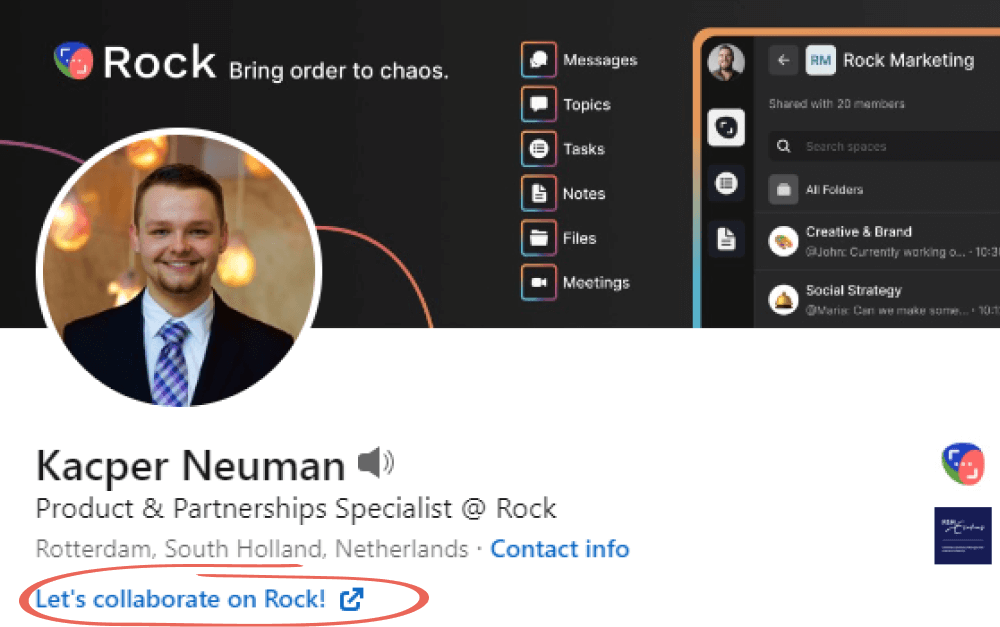
Including an easier way to get in touch with you on LinkedIn can lead to stronger connections. LinkedIn is an important place for you to find clients, partners, and suppliers. By including your Quick Connect in your bio, you can provide them with an easy way to start discussing and collaborating with you. You won’t need to transfer from LinkedIn messages to email to a collaboration tool. With Quick Connect you can directly start working in a space.
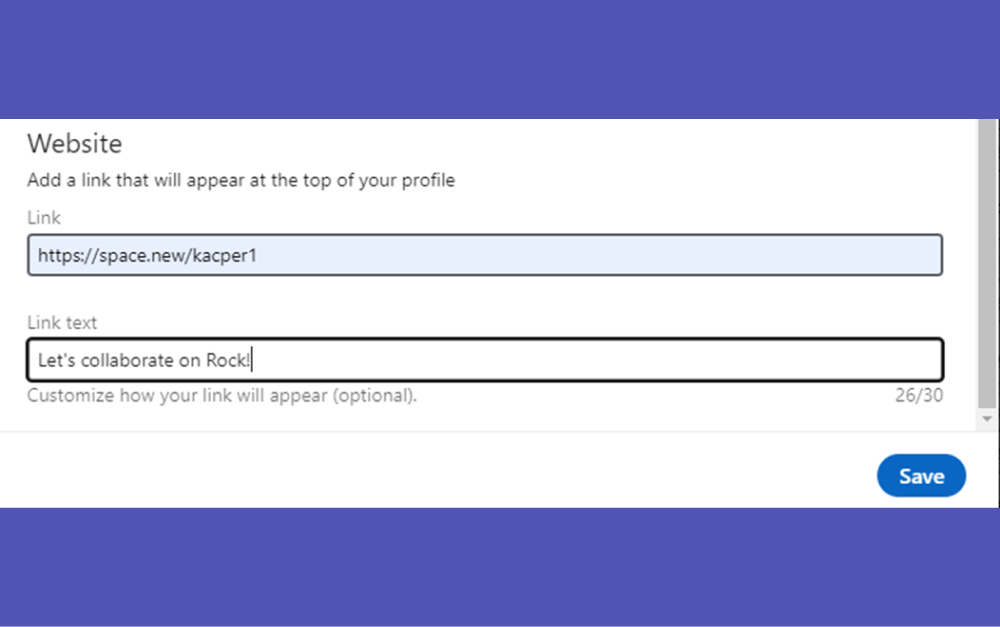
Head to your profile, make sure your Creator mode is turned On, and click on the Edit symbol.
Scroll down to the Website section & paste your Quick Connect link in the Link section.
Then, you will be given the option to create a "Link text" that will show up on your profile such as the one below.
2. Website & Blog
Whether you work in sales or are a marketing agency, the Quick Connect QR code will instantly bring people from your website or blog into a conversation with you. Anyone can follow the Quick Connect link or scan the QR code and open a space with you to chat. You can feature this on your pricing page or customer support page to ensure that current and potential customers have an easy way to get in touch with you. Check out how we do it on our website.
3. Social Media Posts
From Twitter, Instagram, Facebook, and Reddit to YouTube, you are likely spending many hours engaging with your community. Quick Connect provides you with an easy way to get in touch with your biggest promoters beyond your social media channels.
You can use Quick Connect to quickly start communities where you foster discussion by providing a direct way for your audience to reach you. Simply add your Quick Connect to a social media post and share it with your audience.
4. Emails & Messages
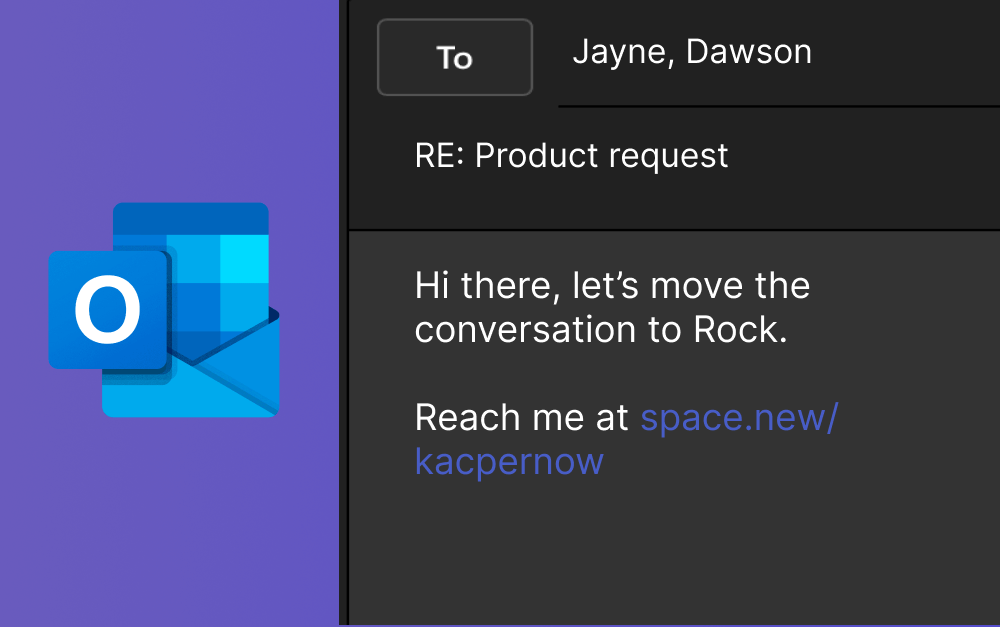
What if we told you that you can get rid of the pain of losing your conversations and important documents in a sea of emails and messages? You can by using Quick Connect!
Including your Quick Connect link or QR code in your messages to potential partners, customers, and suppliers can help provide you with a place to start collaborating right away. You don’t need to miss out on information that’s shared with you or waste time searching through your inbox to discover all the different messages shared.
Quick Connect is especially useful if you are a freelancer working on websites like Fiverr or Upwork. By sharing your Quick Connect in a message, you can quickly move your collaboration to Rock. Collaborating on Rock gives you access to advanced features such as tasks, reminders, and time-tracking, which enable you to track your feedback, progress and time spent all in one tool.
Now, you should be all set to go. Start connecting, share it with us, and enter our contest to win. For more information on this contest, visit our designated T&C page.
We know a lot of teams use Rock to manage projects with freelancers, clients, and agencies so we’ve decided to make all of this a little bit easier. With this release we’re introducing a management dashboard for PRO spaces, a brand-new Time Tracker, and custom and active user status in the TEAMS plan.
We’ve also made TEAMS available to every domain, so you can now benefit from all the advanced features that come with this plan. With all these improvements, we are running a special promotion.
Anyone who signs up for an annual TEAMS plan or new Time Tracker in the upcoming week will receive 10% OFF with the promotion code OCTOBER10.
Questions about the Time Tracker or the benefits of the TEAMS plan? Reach out to us at web.rock.so/hello
Management dashboard
The Management Dashboard provides a summary of tasks across all your PRO spaces. Paid users get a Board View and Summary View of all tasks across spaces that were changed to PRO under the plan.
The Board View allows you to organize information based on group and filter by user, space, label and so much more. This makes it easier to see what is happening across your spaces and allows you to prioritize new action items.
The Summary View gives insight into tasks that were recently started, completed or stale within your team. This allows you to reprioritize and keep track of items that are being completed in time as well as tasks that are taking longer than expected.
If you add Time Tracker to your paid plan, the dashboard will also display tasks that have been consuming a lot of time allowing you to keep an eye on these. Free users can also access the panel with some limitations on which tasks and spaces you can see. Learn more about the management dashboard here.
Time tracker
Track how much time is spent on individual tasks by adding a time tracker to every PRO space. This makes it easier to keep priorities in check, work with freelancers, supervise team members and improve your overall productivity.
The Time Tracker also comes with a dedicated panel in the management dashboard, so you can get more insight into the hours users spend on tasks in your PRO spaces.
Time Tracker is a paid add-on to the PRO and TEAMS plans, so purchase the add-on on a yearly plan with a 10% discount using the code OCTOBER10 by going here.
User Status and Active Status
Rock now gives you two different ways to share if you’re online and what you’re working on. Active Status is available on the TEAMS plan and highlights when people are online and active on Rock. This feature is available for claimed domains and can also be enabled for workspaces on the TEAMS plan.
If you have a corporate domain that has been claimed you can enable this feature for all users on your domain which allows users to share their active status. For each workspace, you can individually enable this for all spaces in that workspace.
Users can choose to disable sharing their Active Status through Settings. This feature is only available on the TEAMS plan. Learn more about how this feature works by checking out the dedicated product guide.
For a limited time only, upgrade in the upcoming week and receive 10% OFF with the promotion code OCTOBER10. Sign up to TEAMS here!
User status
With User Status, anyone can add a custom status to their profile to let people know that they’re working on something, in a meeting, or out of the office. You can set this for a specific duration and automatically switch off notifications for that period.
This feature adds a custom icon next to your user profile. A custom emoji with highlighted text gives more information about your availability. Learn more about user status in this dedicated help guide.
TEAMS for everyone
Any user can now sign up for the TEAMS plan. Benefit from all the features in the TEAMS plan without needing to have a corporate domain (i.e. @gmail.com or @yahoo.com). We have created a special 10% discount for all teams that want to switch to an annual TEAMS plan in the upcoming week. Switching to TEAMS unlocks the following functionality:
Managers & admins: Change spaces to PRO, manage users and access new features.
Management dashboard: Summarize tasks that are being worked on and completed across spaces.
Active status: Highlight whether users in your team are currently active or not.
PRO spaces: Leverage advanced task management, scheduled messages, calendar integrations a pinboard and so much more with PRO spaces.
More & larger workspaces: Create more workspaces with up to 50 group spaces in each.
Custom Quick Connect, duplicate spaces, and so much more…
Grab your discount for the yearly plan while still available using the code OCTOBER10 and upgrade today!
Forwarding messages (mobile)
Want to share something across spaces? With the forwarding feature, you can share messages between spaces and avoid copy and pasting information.You can forward messages between your different spaces on mobile by following these steps:
Select the message you want to forward by pressing on it for a few seconds
Choose ‘forward’ from the option menu
Search for the space where you want to forward to. Make sure to also select it.
Your message is forwarded! Note that @ mentions will not always be recognized when forwarded. Uploaded documents that you forward will also be shared.
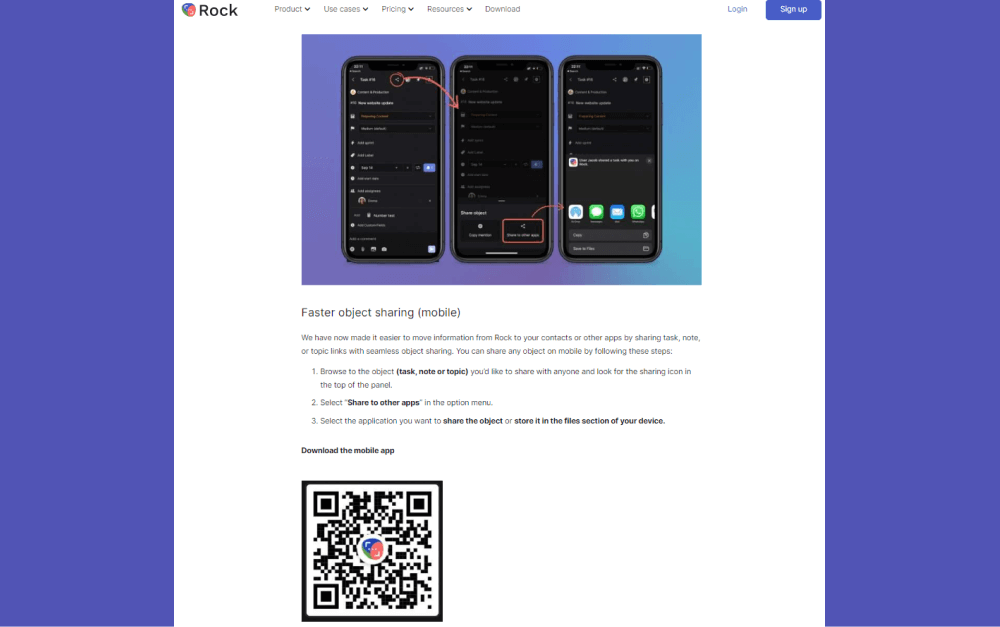
Faster object sharing (mobile)
We have now made it easier to move information from Rock to your contacts or other apps by sharing task, note, or topic links with seamless object sharing. You can share any object on mobile by following these steps:
Browse to the object (task, note or topic) you’d like to share with anyone and look for the sharing icon in the top of the panel.
Select “Share to other apps” in the option menu.
Select the application you want to share the object or store it in the files section of your device.
Download the mobile app
We’re building Rock in public, share your thoughts, ideas, and feedback with us!
Join the Rock team as we build the future of collaboration and productivity. Learn more about upcoming features, share product suggestions and access the latest resources and events from the Rock team. Everyone is welcome to join through this link.
Teams can be difficult to manage. The loudest voices often win because they dominate the discussion. Everyone else gets complacent, and that’s when the group becomes weak. Disengagement has a general negative impact on a group's results, but silencing the loudest person or forcing others to talk is not the solution.
You need to improve your management strategies to optimize team dynamics. It might seem obvious, but teamwork requires work. You can’t just assume that collective brainpower will produce great results magically. To empower people to learn from each other, you have to build collaborative groups.
When you prioritize healthy team dynamics in the workplace, people work better together. And to make that happen, you should also improve cross-functional collaboration.
In this article, you will discover some group dynamics examples. You will understand the disadvantages of faulty team dynamics and how you can use two main management strategies to optimize team dynamics (and a few more!).
Keep reading to learn all about the strategies that can be game changers in the success of your team.
What makes a team a good team?
Why do some teams of talented people underperform while others produce stellar results? Contrary to the common idea of a lone genius, collaborative efforts are more likely to produce knowledge and substantial results in the workplace.
The lone genius myth was deconstructed through extensive research by Alfonso Montuori and Ronald E. Purser in 1995. Their study highlighted “the problematic nature of a hyper-individualistic understanding of creativity”. Working together has always been a part of human nature.
The world’s greatest minds didn’t accomplish their feats all alone. Collaboration with others is key. Let’s take art as an example. From Renaissance to Surrealism, it was the collective groups that made art possible.
There has always been a figurehead (such as Michelangelo or Picasso) who took most of the credit, but they worked with teams to make their imagination come true.Teamwork can also spark creativity in the workplace, but it doesn’t happen overnight. That’s why you need to implement great team dynamics at work.
Having everyone’s voice heard will not only enhance ideas but foster a positive environment. You can use any of the two management strategies to optimize team dynamics and achieve that goal. First let’s find out what team dynamics are and why they matter.
What are group dynamics?
Essentially, they are the invisible forces influencing how we behave in groups. Team dynamics are affected by the roles and responsibilities the members assume. As a team member, you do not merely contribute to the team dynamics but are also affected by them.
Lewin was a pioneer of modern social psychology. He studied examples of team dynamics and leadership styles to understand how individuals react to changes within a group. He stated that groups are dynamic and powerful, and influence individuals and communities.
Changes in the group bring out actions and reactions that affect group members.But he also believed that you can introduce changes to improve those group dynamics. As he famously put it: “If you want to understand something, try changing it”.
According to Lewin’s research, the roles we adopt in a team affect our performance. He studied different leadership styles and concluded that a group conducted democratically will be more successful. In recent years scientists have been using research to build on Lewin's ideas.
They proved that the group itself can have a positive or negative effect on the efficiency of its members. Applying Lewin’ theories to our everyday work environment, we can gain further understanding of why we are where we are.
The importance of team dynamics
Team dynamics can be critical to creating successful projects. It’s important to put efficient management strategies to optimize team dynamics in practice. Here are some reasons why team dynamics matter in the workplace:
Team motivation. Motivated team players have higher levels of engagement. If you feel that you are a part of the team, you are keener to contribute to its success.
Work efficiency. Positive group dynamics will make you perform in your best capacity. As a result, team productivity also increases.
Impact on creativity. Groups have the potential to generate synergy, where creativity is enhanced.
More collaboration. When the right environment is created, there is more collaboration among team members.
Faster decision-making. The group reaches decisions faster because everyone contributes. People participate but also listen to each other.
3 ingredients of successful team dynamics
The basics of team effectiveness were identified by J. Richard Hackman, who began studying teams in the 1970s. He found that what matters most to collaboration is not the personalities or behaviors but certain “enabling conditions”.
Those conditions are created through positive team dynamics. A group with healthy group dynamics performs better in decision making. People trust each other and feel more confident in expressing their views. As a result, they enable a creative and positive environment that unleashes collective thinking.
It’s also possible to make collective thinking happen in remote work settings. By applying some virtual meeting best practices, you can generate effective team dynamics.What are good examples of team dynamics?
There are three basic elements for successful team dynamics at work according to Steve Farber, the founder and CEO of The Extreme Leadership Institute. This is how you can implement them:
Connect team members. You have to create opportunities for people to connect with each other. The better they understand and support one another, the more they’ll grow as a team.
Communicate what needs to be done. Use appropriate communication strategies to set up deadlines and establish tasks and challenges. You need to overcome and resolve the most difficult situations at work in a cooperative way.
Be honest. Don’t wait until the problems arise to have tough conversations. Prepare for these moments. Get to know your team. Build respect.
On the other hand, poor group dynamics can affect your team badly. Let’s explore in greater detail what happens then.
Causes and disadvantages of faulty group dynamics
When a group dynamic turns toxic, you may find it difficult to get the team back on track. But what are the consequences of poor team dynamics in the workplace, and why do they occur?
Clinical psychologist Nicole Lipkin identifies the roots of faulty group dynamics to group conformity. She says that there are four factors that cause a toxic work culture (and negative team dynamics), such as:
Too much competition. Competition can be good, but if it gets too serious it creates unnecessary rivalries.
Unrecognized effort. When personal efforts aren’t recognized, team productivity decreases. So make sure you celebrate your team's wins.
A rotten apple. Someone with a bad attitude can “tremendously impact decision making, problem-solving,attention/focus, interpersonal interactions, performance, productivity, and the whole organizational culture," says Lipkin.
Extreme loyalty to a group. If you devote yourself too much to a group, it can lead to “group conformity”, explains the psychologist. It can disrupt creativity and critical thinking.
How can team dynamics be managed?
Now that you know what group dynamics are, let's have a look into how to improve them. We are going to explore two management strategies to optimize team dynamics, encourage communication and improve performance.
So, how do some leaders improve team dynamics?
1. Effective onboarding
Onboarding is the process in which new employees get acquainted with their roles. When the company utilizes well-thought-out onboarding practices, you feel part of the organization from the first day. Onboarding is supposed to enable newcomers to understand the company’s goals and actively start contributing to them.
If you are on the hiring side, having a well-defined onboarding process brings various benefits. It will help to establish meaningful connections and provide a deeper understanding of the organization’s mission and values to new team members.
Onboarding is a critical aspect in the employee life cycle. Don’t overlook it. It can take months, but you have to set the right tone from the beginning. Here’s how you can start:
Set up a 90-day plan. The first 90 days of a new job can be critical for both employee and employer. You have to help your new hire feel at home while being straightforward about goals and tasks. The organization is key.
Manage different types of communication styles early on. Use different methods - chats, meetings, notes, videos - to communicate different messages. Be straight to the point and give clear instructions regarding tasks and responsibilities, but make some room for fun activities and employee interactions. Most teams thrive when they are engaged.
Nourish collaboration across functions and departments. Both cross-functional and cross-departmental collaboration are essential parts of a company’s success. Setting best practices for collaboration will unite teams in working together towards a common goal.
An optimized onboarding program leads to undenied competitive edges. Only 37% of businesses ensure that their onboarding process is longer than a month, recent statistics show.
However, according to HR experts, 93% of employers believe that for new employees, the onboarding experience is critical in making the decision of staying or leaving the organization.
Once you have provided the most effective onboarding program, you can start thinking about how you are going to give feedback.
2. Introduce ongoing Feedback systems
“No feedback is good feedback”... right? Well, not at all. In fact, it is quite the opposite. If you follow that thinking, you should know you risk your team’s general satisfaction and engagement.
Most employees who have weekly conversations with their managers show higher productivity. Companies that implement regular employee feedback have turnover rates that are 14.9% lower than for employees who receive no feedback, research suggests.
You have to provide both positive and negative feedback for a flourishing work environment. But be mindful of how you do it and which platforms you use.Scientific research supports that feedback dynamics are critical to improving performance.
However, you need to know how to set up feedback effectively. Excessive negative feedback can drain even the most engaged employees. This is what you can do to reach the most fruitful results:
Asynchronous work with feedback through comments on individual tasks. It will enable you to organize the workload better, and will keep everyone up-to-date.
Switch unnecessary meetings for tasks and topics, and use that space to give feedback. Save time by saying no to unnecessary meetings and use that time for feedback sessions. You can leverage 1:1s, coffee chats, and Looms to improve team dynamics. It will help you have your team members on the same page.
Let your employees give you feedback too. Use polls for company-wide feedback. Listen to what your team thinks about various projects and your role as a manager.
And remember that honest feedback, both positive and negative, is always helpful. It’s valuable information that will help both employees and employers make better decisions. It benefits the giver, the receiver, and the organization.
How else can you promote better team dynamics?
We just introduced two management strategies to optimize team dynamics, yet there is more you can do. Follow these suggestions to achieve even more effective team dynamics:
Understand your team. Get to know the people you work with.
Use team-building exercises. It will help you build trust in your team.
Set a new level of safe bidirectional conversations. It will foster collaboration and engagement.
Don’t give up; it’s a process. Implementing and optimizing team dynamics can take time. Be patient and follow a plan to increase productivity in the long term.
Improve your team dynamics with Rock
Rock brings people together - and makes teams more united - by minimizing platform switching. You can enhance your team dynamics with Rock’s all-in-one functionality. Switch to more effective communication with messages, tasks, notes, and files in just one place.
You can also manage onboarding processes with unlimited spaces and members. Assign tasks, and share video recordings as well as relevant notes and files with people when they’re just getting started.Use Rock’s functionality to nourish ongoing feedback systems.
For example, leave actionable comments on tasks and keep everyone in the loop. You can use notes, topics, or comments to provide feedback. And listen to your team by creating polls and asking them to vote.With Rock, you can bring your entire company together.
You’ll have everything you need to optimize your team dynamics and make your dream team a reality.Start optimizing your team dynamics with Rock!
Throughout this article we share how Dylan coordinates a large student group on Rock. But first, let’s learn more about the university course he runs, named the ‘Digital Superstart Challenge’!
What is the ‘Digital Superstart Challenge’?
How can we make universities more productive for societies? Can we prepare students for real life work environments instead of focusing only on academic research? These are the questions that inspired Dylan to create the ‘Digital Superstart Challenge’ program.
The program is part of the course Marketing Diploma that he teaches at the Cape Peninsula University of Technology (CPUT) which was started in 2010.The project connects around 250 students with approximately 400 small businesses.
The aim of the program is to create a mutually beneficial exchange: students help small businesses improve their online presence, and businesses give them a launchpad to obtain real life marketing skills.
For example, students help create social media pages or update business websites. This gives them hands-on experience and marketing skills for their future careers‘.
Small businesses don’t always have resources to pay for expensive marketing. Luckily, there are many talented students who can learn important skills while helping those small companies.’ - Dylan shares the main idea of the project.
How to manage an educational project with 200+ students without breaking the bank?
In 2021, the program was launched for the first time fully online. Dylan shares that in the beginning it was very challenging and stressful to find tools which would allow him to manage such a big project fully remotely. At first, a Whatsapp group with around 200 students was created.
However, it quickly became clear that there were too many variables and people involved to just facilitate the program on Whatsapp. At that time, Dylan started to search for a WhatsApp alternative. He shares that most of the communication and task management tools he encountered were way too expensive as they charge per user.
The list of options narrowed down even further when Dylan realized that they had to look for a free alternative. ‘Firstly, we wanted to combine Discord for chatting, Todoist for task management and Google Drive for file sharing. These were the only free tools that I could find that could manage more than 100 users easily.’ - says Dylan.
However, shortly after starting to combine those different tools, Dylan discovered Rock! and because of the affordable pricing as well as tasks and chat being in one place, Dylan decided to give it a go.
Learnings from the first edition of the fully online Digital Superstart Challenge
After testing Rock for a while, Dylan was confident enough that Rock would work for them and decided to introduce it to students. The program was successfully managed and completed on Rock.
Running the program for the first time added some learnings for the future. ‘The main learning from last year - use one space for the whole project. It was way too complicated to have a space per student.’ - shares Dylan.
Rock makes the Digital Superstart Challenge program work because it’s mainly dependent on tasks being completed. Combining messaging with a task management system makes it easier for students and Dylan to communicate and collaborate.
How to manage an educational project on Rock: Detailed workflow on the second edition of the fully online Digital Superstart Challenge
This year, Dylan and his colleague May are running the ‘Digital Superstart Challenge’ on Rock again. Based on learnings from last year they made some workflow changes that make running the course a smoother experience.
Dylan shares the details of his workflow which allows him to manage a project with around 250 students on Rock successfully. Below you can find a detailed step-by-step management flow of the course:
1. One space per project
Dylan and his colleague created a main project space for the ‘Digital Superstart Challenge’ where participating students are added and all the magic happens.
Dylan’s colleague May is assigned as the space admin. Her job is to monitor the space, update relevant information and assure that everything works smoothly.
‘We recommend having one person as the admin of a space with full editing rights. This person can make sure all tasks are neat and everything is going smoothly. You should add students as guests and not members, so that they have limited rights to change things in a space and can’t create or delete tasks. Otherwise, when hundreds of students have editing rights, it can end up messy.’ - Dylan shares.
2. Students fill out a Google Form
Students who participate in the program are asked to go to the ‘Digital Superstart Challenge’ landing page and fill out a Google Form there. They have one week to register.
Once they complete the form, students get an automated email with a link to join Rock. They create their Rock account and get added as guests in the main project space.
A tip from Dylan: Record a short Loom video to show students how to use Rock and share it in the main project space. It will help students to onboard quicker and start using Rock smoothly from the outset!
3. Everything happens in the Tasks mini-app
Dylan and his colleague add all the tasks that are necessary to be completed by students to the Tasks mini-app. They add due dates and detailed descriptions of what students need to do.
‘I also add links to videos which students need to watch to understand the tasks better. Also, I split tasks into different steps with a Checklist, so it's clear for students what exactly needs to be done to complete each task.’ - says Dylan.
General tasks don’t have assignees as they are the same for all students which are in the space. All students can see these tasks on the Calendar view. This way, they are aware of what needs to be done by when.
4. Automated tasks via Zapier
Students who participate at the program are in charge of finding small businesses to work with. Once they find candidates, they send them to a landing page where businesses can register by filling out a Google Form.
The Google Form is connected to Rock via the Zapier integration. Once a business registers, a task is automatically created in the main Rock project space. It occurs in a specific list dedicated to businesses.
All the business details which they fill out while completing the Google Form appear in the task description, so nothing falls through the cracks.
5. Students take over tasks of businesses
Once a task of a new business registration is automatically created, a notification pops up in the space chat. Students are in charge of finding tasks of companies which they acquired.
They use the tasks comment section to claim their businesses. The space admin confirms and assigns the student as an assignee to the task.
6. Business related details are tracked within a task
From now on, everything that is related to a specific business and the student assigned to that business happens within the comments section of the task. If students have questions or need some help regarding a specific business case, they communicate in the comments.
The space admin, May, helps out by answering questions, editing descriptions of tasks accordingly and adding labels. Everything is structured and all information about each combination of business and student is easy to find.
7. Task labels help to identify students’ progress
A part of the task for students is to invite businesses to join a Facebook group. When students complete it and business owners join that group, students share this information in the comment section of the business task.
The admin checks the comments and adds a label called ‘FB ’in order to identify that this specific business has joined the relevant Facebook group.
Labels indicate which steps students have completed with a specific company, so it gives a good visual representation of where each business stands and how much work a student still needs to do. It also helps us filter tasks based on what has been completed so that we can track progress.
8. Tasks are finished!
Once all relevant labels are collected as well as most important information is up to date, students’ tasks get moved to the next phase. Different lists are used to denote phases.
When all is done, tasks get moved to the ‘Done’ list. This indicates that students completed all the steps with helping businesses to improve their online presence!
Invite businesses to Rock
Rock is being used by software developers, startups, and freelancers because it’s very flexible and customizable. At the moment, around 250 students are involved in the program and update their work on Rock successfully. That relieves Dylan and May from a lot of stress in terms of managing the program.
Dylan shares that it would be great to involve not only students but also businesses on Rock. If businesses would like to continue to work with Dylan’s team after the program, they will be invited to join Rock.‘For now, we only manage our students on Rock.
However, moving forward we would also like to use Rock to engage the businesses we work with. Most of them still use Whatsapp or Facebook for their communication but we would like to introduce them to Rock and show them how easy and structured communication and collaboration can be.’
Some businesses are reluctant to change because they are used to managing their communications on Whatsapp, Slack or Facebook Messenger. However, as the businesses grow, this will become more difficult and chaotic and that’s where Rock will be useful.
Starting educational projects on Rock
Dylan hopes that his experience can help and inspire other educational projects to be executed on Rock.‘I totally recommend using Rock for educational purposes.
You don’t need a huge budget, it has many great features and excellent customer support. I hope people working in education can learn from my experience and adapt my workflow for themselves. So they don’t have to go through a messy trial phase which I had last year.’ - says Dylan.
If you want to implement an educational project on Rock but still have questions, feel free to get in touch with the Rock team.
Productivity is often associated with speed and efficiency with which you can complete tasks. With Rock, we don’t want you to waste any time, so we have made connecting to others faster than ever. We want to test out just how fast you can master features on Rock and invite new members to the platform. To provide you with extra incentive to help you share the value of Rock with your network, we are kicking off the Race to Rock!
When will the contest take place?
From September 28th till October 12th, we will be testing the speed of collaboration on Rock with the Race to Rock.
What are the prizes?
Each winner will receive:
2-year subscription to our TEAMS 5 subscription, or a lifetime subscription to PRO.
And a $50 Amazon Gift Card each
The top 3 users who acquired the most points by October 12th can win special prizes. We will also award the 2 new users (joined from September 28th onwards) with the most credits with the same prize.
How to earn credits?
You can get started with earning credits in many different ways listed in our Credit Program article.
For example, you can earn 10 credits for inviting additional people from outside your domain to Rock or you can receive 5 credits just for downloading the mobile or desktop version of the app if you haven't done this already.
Trying out features such as creating your first note, task, or topic will also grant you 1 credit each.
Connecting with Rock takes seconds: open a space together using Quick Connect or invite new users to a group space by sharing an invite link. By inviting new people to Rock, you can receive:
1 credit per new user
10 credits for each new domain.
50 credits if the invited user upgrades to PRO plan
300 credits if invited user upgrades to TEAMS plan
Not on Rock yet? No problem, sign up quickly and join the fun as we will also be rewarding 2 users who joined Rock from September 28th with the most referral points. That’s right! It also pays to join our platform.
Is it really that easy to collaborate using Rock?
Yes, it is, try it yourself. If you have been holding off on migrating your colleagues or integrating your apps, now is the time! For more information on the Terms & Conditions visit our Rules of the Road page.
Stay tuned to our social media and Rock Support space for tips & updates regarding the contest!
Product manager, project manager, and project lead. Do you know the difference between each of these roles? For people that aren’t in the industry, they could look like a variation of the same job. This is far from true.
The product manager role is fairly new. Despite that, the sector is growing hugely. Glassdoor recently released a study that suggests that product management is the 10th best career path in the US.This article will go into more detail about a product manager job description.
However, as a brief overview, a product manager focuses on the development, strategy, and improvements of a product. The job is increasingly more important in workflow spaces, product teams, and digital industries.
What Does A Product Manager Do?
A digital product manager will take the overall business goals and align them to the customer base’s needs. With this, they steer a product through creation, across multiple teams. The aim is to deliver a final product that satisfies both the user base and achieving business objectives.
Product managers will prioritize the new releases and structure the product life cycle. This as well as delivering the product onto the market.Some key elements of a product manager job description are:
Working closely with internal and external stakeholders on improvements, issues and priorities.
Following customer needs, collecting information, and analyzing it.
Prioritizing product features to be released in the upcoming releases.
Assisting in creating a long-term vision and roadmap of the product.
Translating the organizational strategy into product requirements and required improvements.
A product manager often works across multiple departments. Because of this, a product manager fills any empty space between teams. This creates a cohesive working unit, ensuring that a product release is successful.
It’s unfortunate that sometimes teams such as key account management, customer support, engineering and design, work in isolation. A successful product manager nurtures cross-departmental communication for product improvements, changes and updates.
Putting this into practice, a product manager will define a vision and a strategy. From there, the features get outlined, and a development plan is created. All of these steps create a product’s lifecycle.
Day-to-day activities of a product manager
Over the last 20 years, product manager roles have gotten more and more popular. Even so, compared to other disciplines, there is still much to define about what a product manager does. A product manager balances a variety of responsibilities and tasks, but what that means varies from company to company.
This lack of clear boundaries is one of the things that makes product management such an exciting position. However, there are some core elements outlined about how to be a product manager.
Product management in a large business
A product manager's role and responsibility in a big company could place them within a team of qualified colleagues. There is more support and resources for a product manager. Nevertheless, there is also more time spent on managing stakeholders to keep them in line with the product vision.
As large businesses need to balance more teams and external stakeholders, gathering and managing information becomes a bigger part of day-to-day responsibilities.
Product management in a small business
Compared to a large business, a product manager in a small company spends less time gathering information from different teams and stakeholders. The product role in a smaller business is more focused on direct work, rather than the big picture plans.
They focus on more straightforward tasks that are essential to moving a product towards completion. As the teams are smaller, they can also handle multiple stakeholders easily, as there likely won’t be too many departments or stakeholders to manage.
Product manager responsibilities
No matter the size of the business, there are a few activities that a product manager in any kind of company will focus on.
1. Create a product vision
The product vision must balance the business objectives alongside the needs of the user base. This means reaching out to stakeholders and customers. With this information, a product manager forms a roadmap and strategy to deliver the product into its vision.
2. Fight for the user
A product manager must understand what the users and customers want. To do this, they conduct a large amount of consumer research. A product manager will find the client base, reach out to them and collect key information. This often means working closely with the customer support team to determine issues that aren’t currently addressed. This information is then used to improve the strategy and development.
3. Market and competitor analysis
To fulfill a product vision, a product manager must understand the needs of the user. As well as their competitors’ offerings. A product manager must understand why customers behave as they do, or why competitors have chosen certain paths. Without this, they could not know where their own product is leading.
Skills needed to become a product manager
A product manager has to combine a range of skills. Some of their skills are very technical, others are interpersonal and theoretical. Below you can read more about the 4 most important skills that should be highlighted in the product manager job description.
Communication and negotiation
Despite how hard businesses try, inter-department rivalries can develop. However, a product manager must navigate the needs of multiple departments. Clear communication and good negotiation skills are crucial to bringing stakeholders together around a product vision.
Customer service, design, engineering, operations, and management must all unite. For a business to meet its objectives and create a happy customer base, all departments must work as a team.A good product manager should set up clear communication strategies to make sure everyone is on the same page.
There are multiple ways to ensure clear communication. These include regular briefings, detailed meeting agendas, clear and accessible documentation, and defined opportunities for teams to give and get feedback.
Here's a list of essential skills everyone in product management should possess for communicating effectively:
Setting clear and thought-through priorities is another important aspect. The needs of different stakeholders should get addressed. However, this cannot happen all at once. Most teams, in some capacity, will ask for extra resources. But some teams need resources more than others.
It is the job of the product manager to define the teams that need resources the most. It’s also important to estimate the amount of work that goes into an activity. Product managers should be able to separate a project vs task so teams spend realistic amounts of time and resources on different activities.
Prioritization can get tricky. It doesn’t just cover priorities within a company, but clients as well. For example, is it better to release a feature that satisfies the needs of one big client, but might disadvantage a number of smaller ones? Or does the product diverge from its current path, to better align with new business goals?
The right answer depends on very specific business situations. Any product manager must clearly understand the impact that their decisions have.Here's a list of essential skills you can add in the product manager job description for prioritizing work effectively:
Information pooling and data analytics
Task management
Priority management
Time tracking and skill assessment
Leading the team to work independently
A product manager must have strong leadership skills. This can come in many shapes and sizes, but one thing is for sure. To get a product released, there are too many decisions for a single person to make. It is clear that a product manager couldn’t make all decisions alone.
A product manager has to lead a team of specialists and departments. Ideally, these employees should be capable of deciding the best course of action for their field of expertise. If a decision becomes problematic, a product manager should use their problem-solving and leadership skills wisely.
It’s important to create a space for teams to work independently as well. Especially in remote environments, leveraging asynchronous work as much as possible can be advantageous. Here's a list of essential skills everyone in product management should possess for leading effectively:
Interpersonal skills
Empathy
Recognize and effectively respond to different types of communication styles
Leadership
Coaching & mentoring
Personal development management
Understand how to test and innovate
As a product moves through each stage and gets closer to completion, it enters a testing phase at some point. For example, a software product manager will be in charge of the beta stage and pilot programs of a new product.
They must have a clear understanding of the testing process and how to overcome issues that arise. Learning more about project management frameworks can be very beneficial to people in this role.
Knowledge of the agile framework is extremely useful here. An agile product manager can adjust a project around quick feedback.
Peter Bendor-Samuel, CEO of Everest Group, writes on Forbes: “Product management is a companion component of the Agile methodology and DevOps operations. Product management creates a Product manager – an individual responsible for the software product – who sits outside the development team.”
Why product managers should be fluent in task management
Effective task management is one of the most crucial skills that any IT product manager should master. With many businesses moving to remote and hybrid working patterns, task management is an important bullet to add in your product manager job description.
A product manager must be on top of monitoring multiple coworkers' tasks. This is important to keep all teams on schedule and guarantee that everyone is staying organized at work.
To move a product successfully from conception through to completion, a product manager should have the right remote work tools to help streamline processes and organize workflow.
Manage your products with Rock
This is where Rock comes into the picture. Product managers can bring customers, the development team, and management together in one place. Communicate and collaborate with anyone within seconds.
Task management on Rock makes managing a product way more straightforward. A product manager can create, assign and follow tasks that are necessary to develop and improve a product. This gives the whole team a clear overview of where everyone stands in the process.
The Files mini-app lets all the people involved with a project access files easily. This means all files get organized in one place. Add files directly from your device or connect to Google Drive, Dropbox, OneDrive, Figma, Miro, and many others.
Also, you can store any vital project information for everyone to access in one place. In this case, the Notes mini-app or the Pinboard come in handy. Using these features you can make sure that everyone on the team is on the same page and up to date.
To find out more about how Rock can improve your product management, sign up for free today.


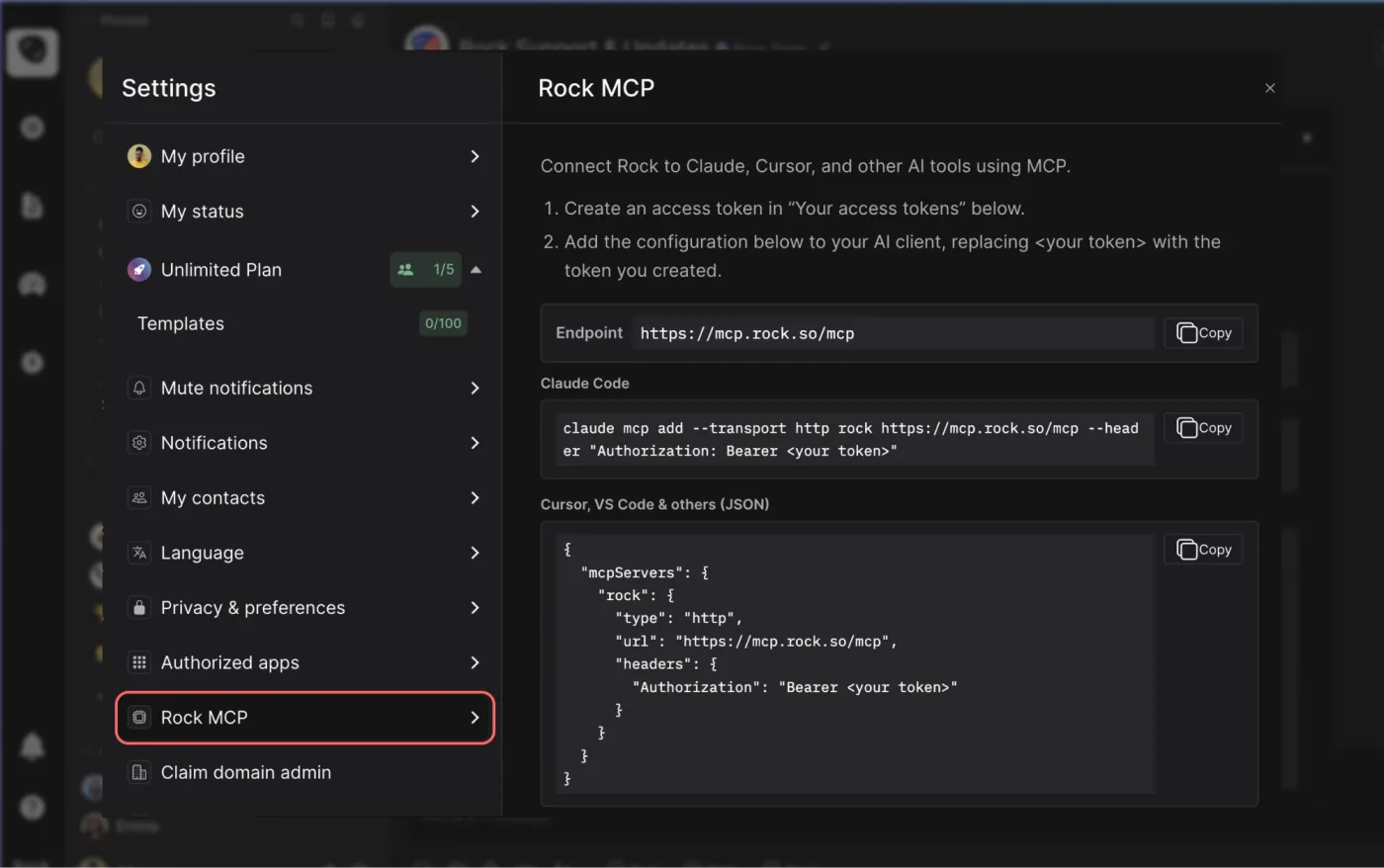


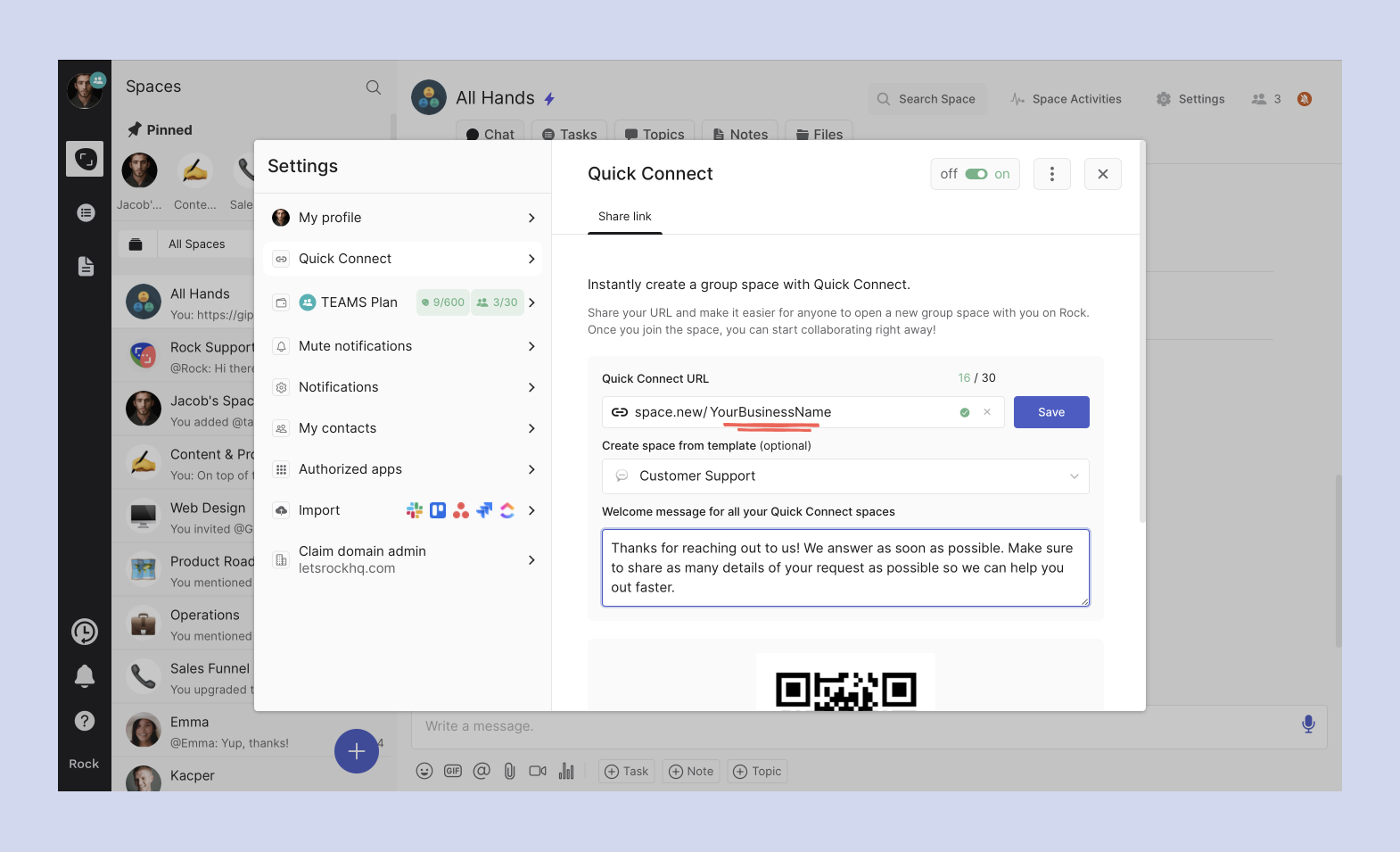
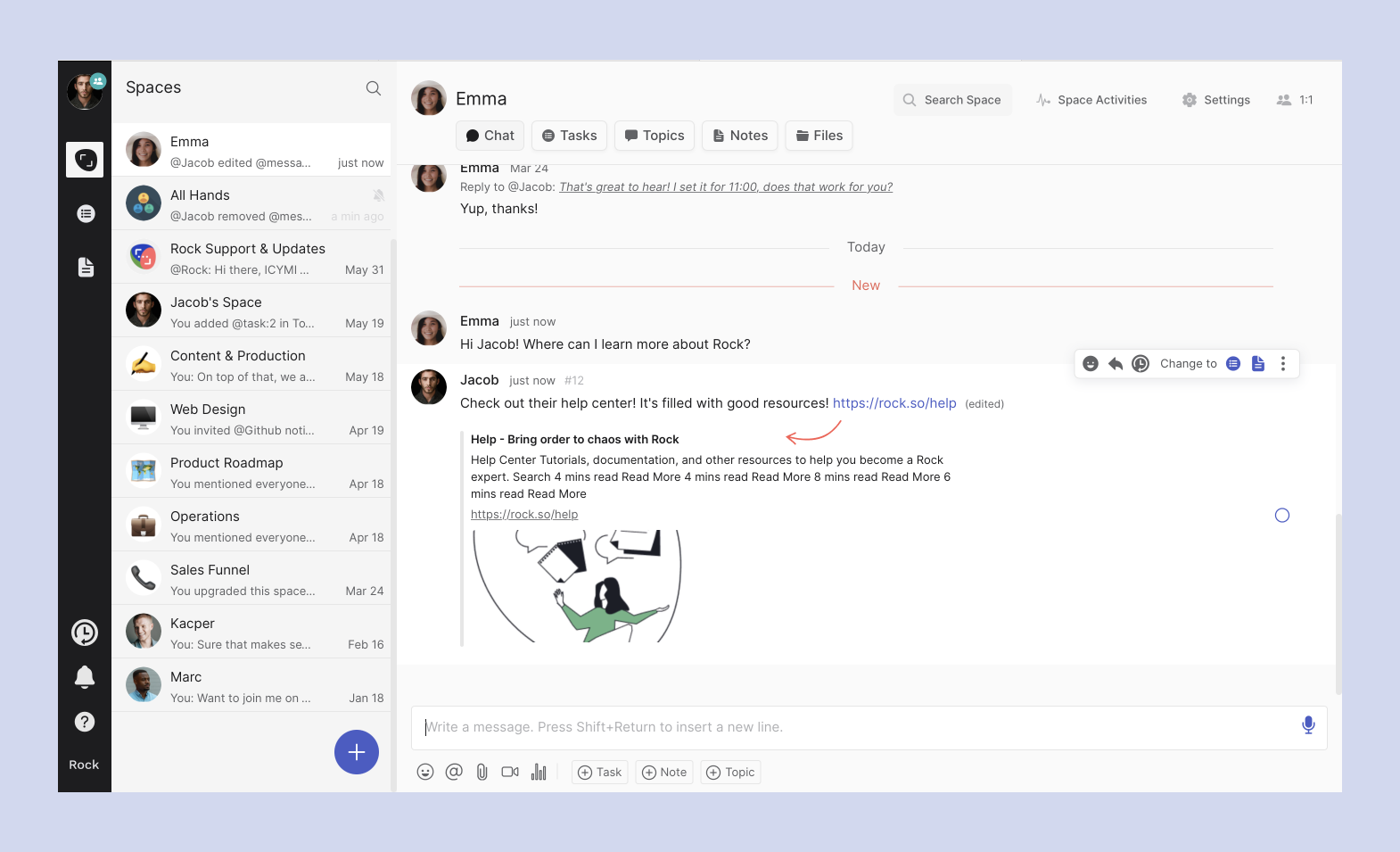
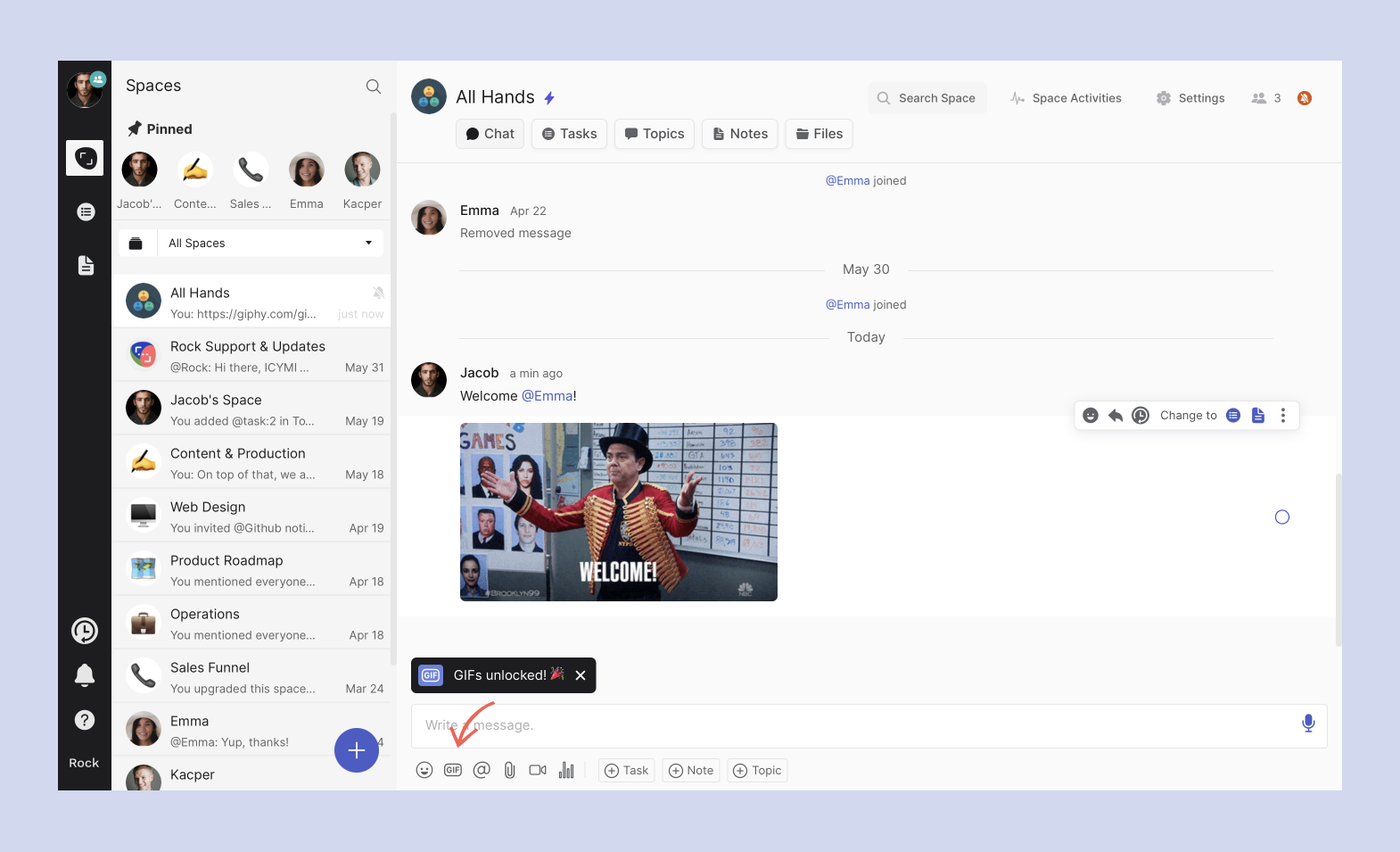
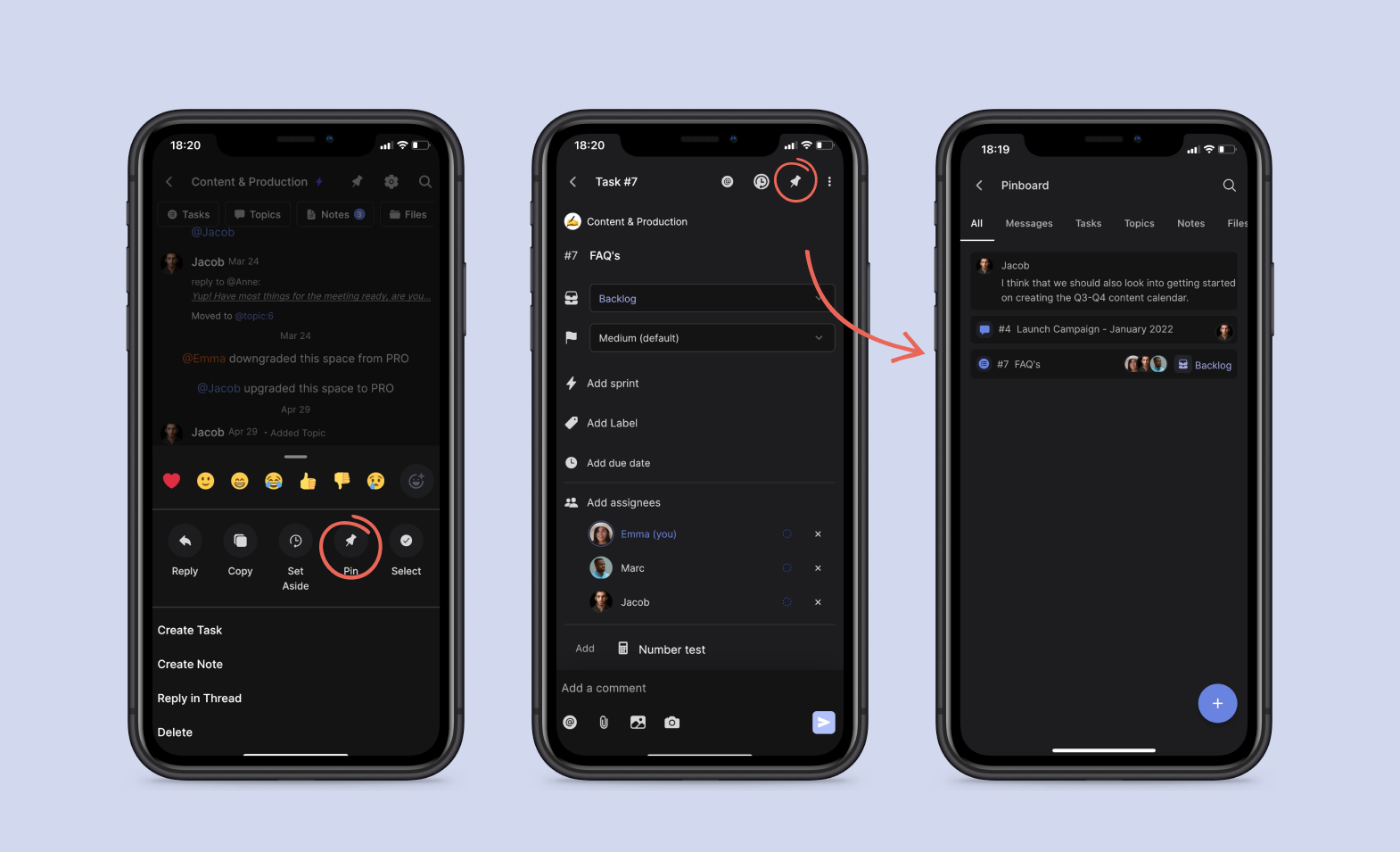
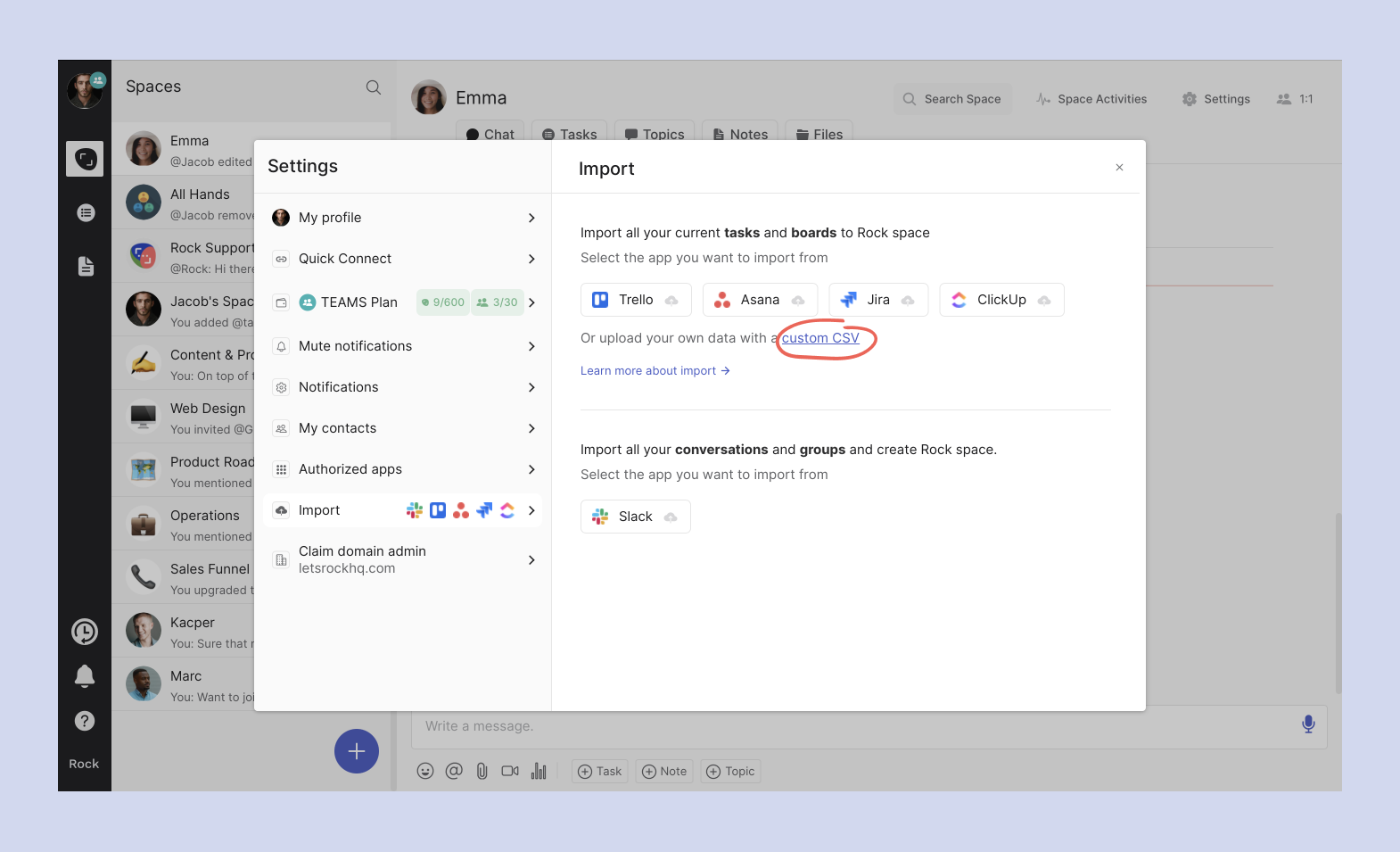
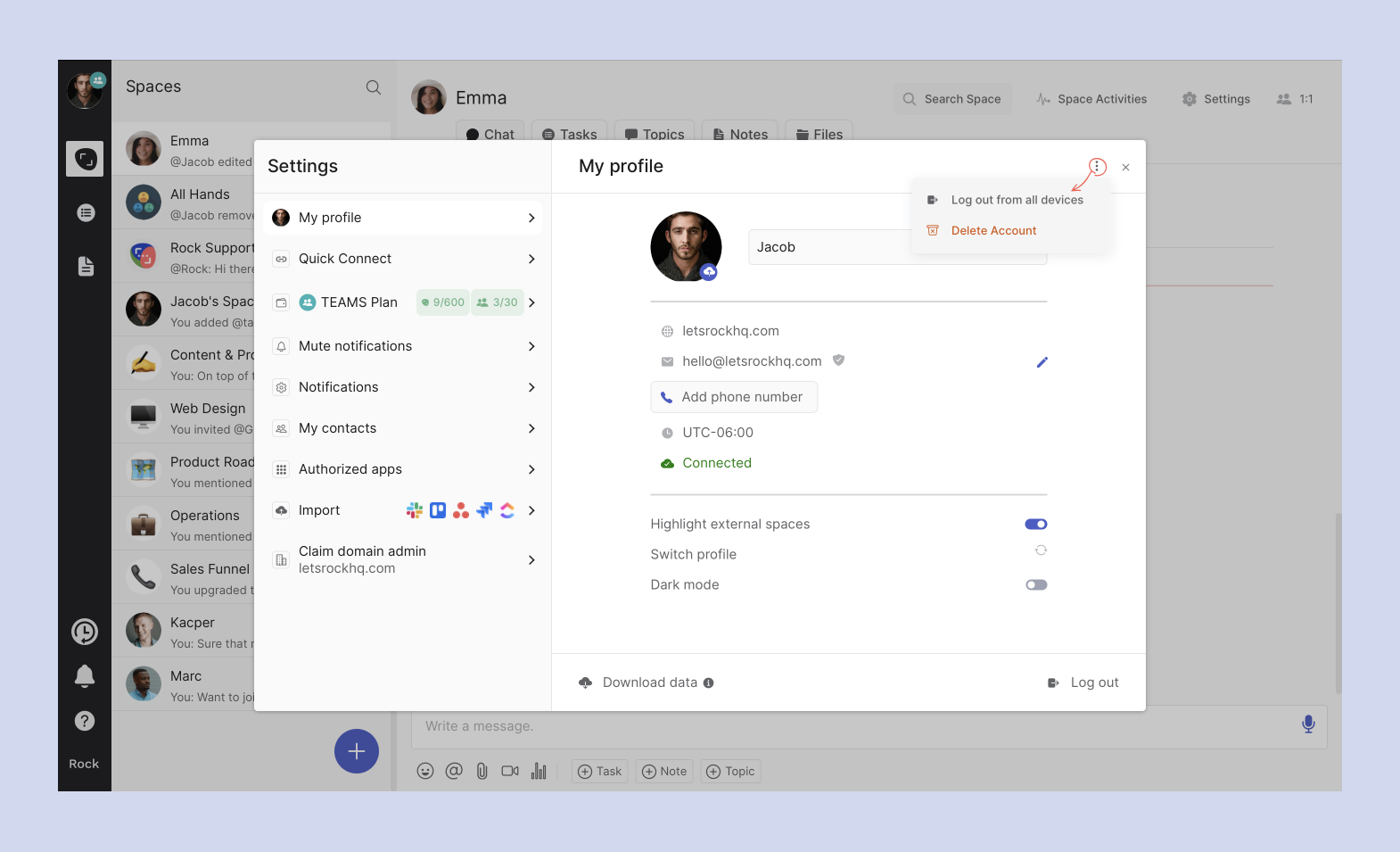


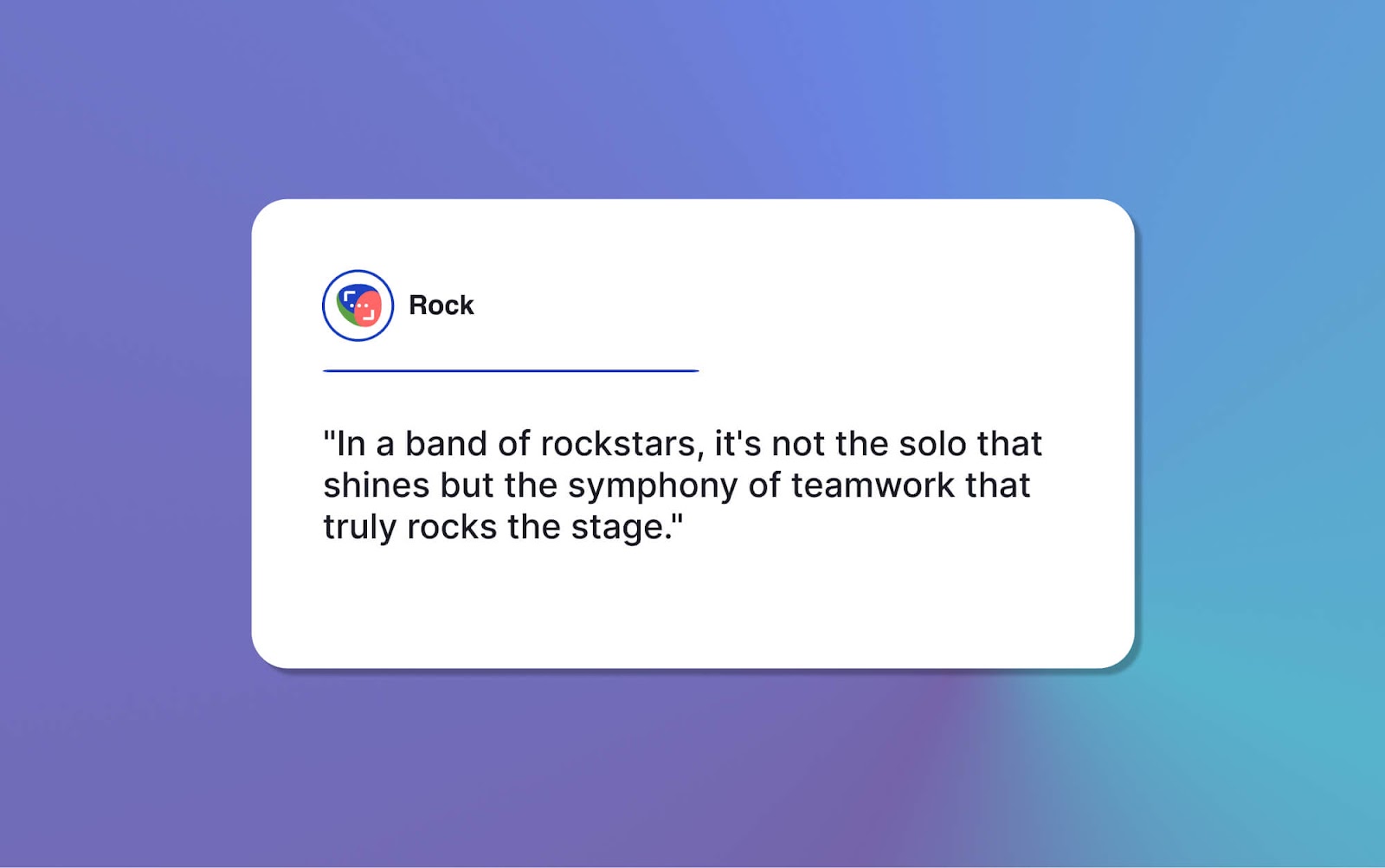


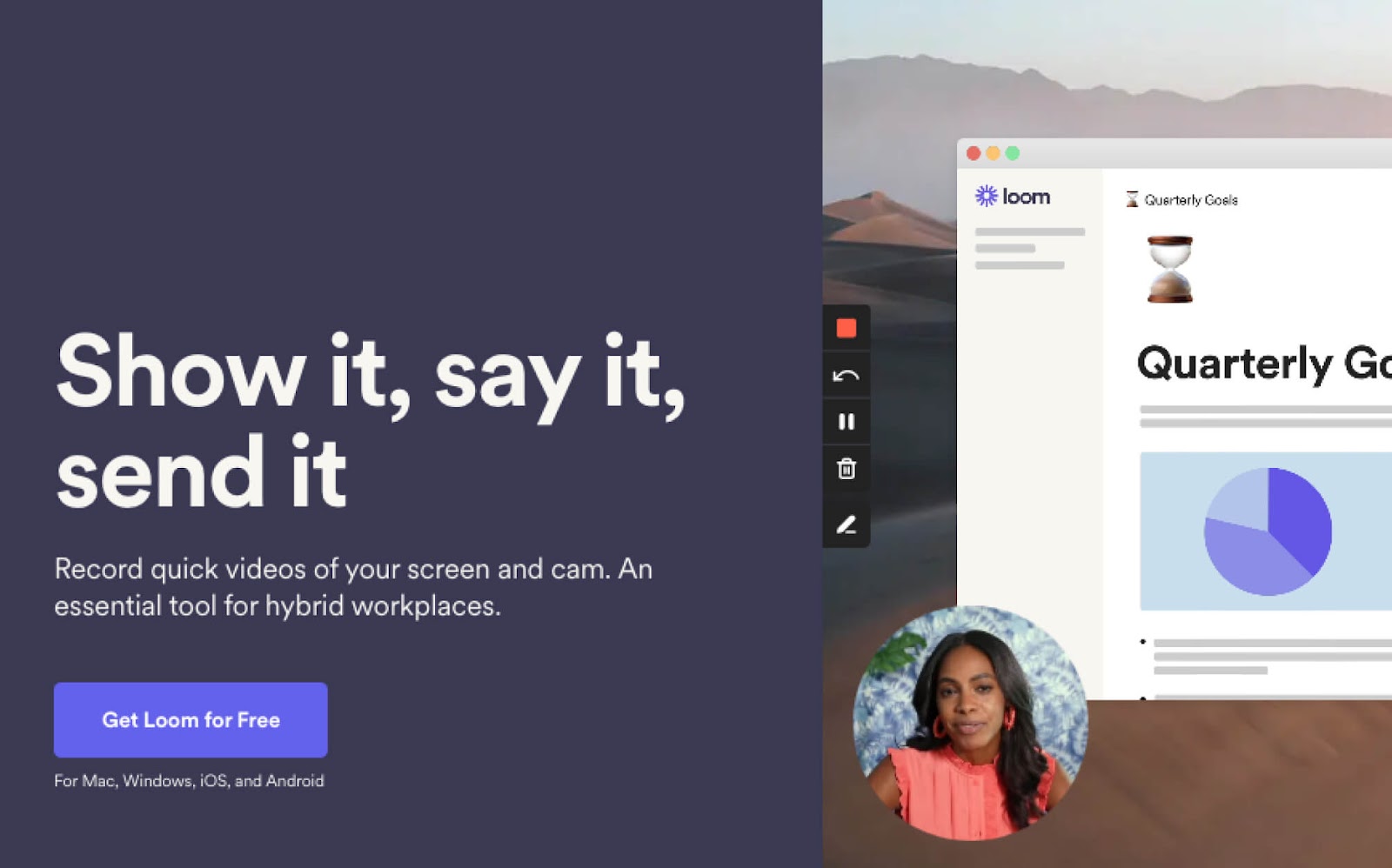



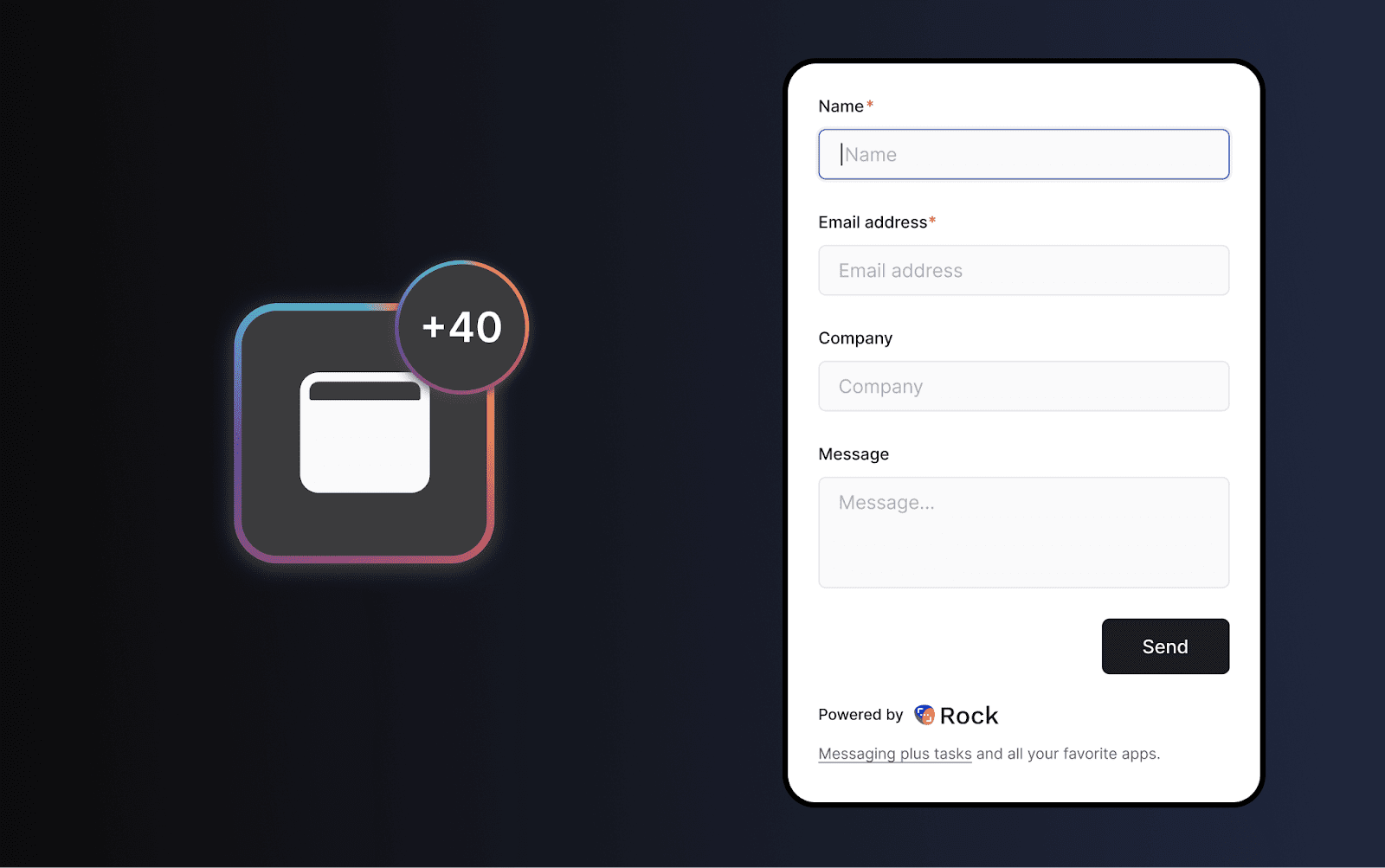

.png)