By clicking Accept, you agree to the storing of cookies on your device to enhance site navigation, analyze site usage, and assist in our marketing efforts. View our Privacy Policy or manage preferences.
Oops! Something went wrong while submitting the form.
or continue with
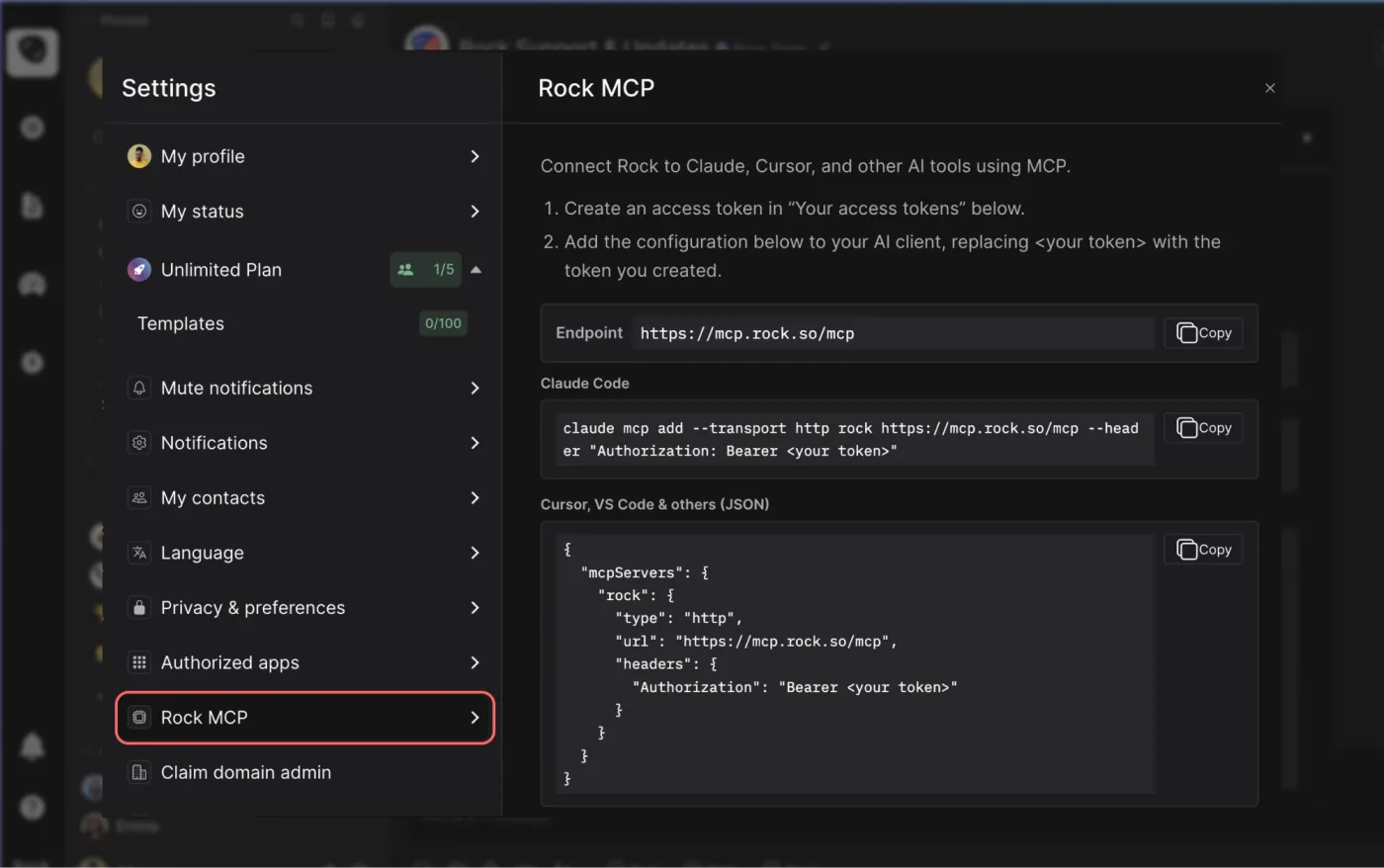
Rock MCP is here. You can now connect Rock to the AI tools you already use. Create a token in Rock, paste it into Claude, Cursor, or another client, and the assistant works inside your spaces as you, across all of them at once.
From earlier calls this month we learned that a lot of our active teams live in tools like Claude and Cursor now, and you would rather they reach into Rock than have you copy things back and forth. We work the same way.
Rock MCP is that connection: your AI assistant reads and updates your spaces directly, making it easier to stay up to date and manage projects across team members.
A few things worth knowing:
It works today with Claude Desktop, Claude Code, Codex, Cursor, VS Code, and Claude Cowork. A one-click connector for Claude on the web and mobile is coming next.
The token acts as you, read and write, across all your spaces. Treat it like a password, and revoke it any time.
It is on every plan, including Free.
Easiest setup: just ask Cowork
Claude Cowork can help you end-to-end with the setup. Share the prompt below and generate a new token, Claude will guide you through all steps.
Keep your token safe, never share in chat.
zsh
Works in coding environments
Add Rock MCP to Claude Code, Codex, Cursor, VS Code, or right from the terminal.
You will find it under your avatar, in a settings panel called Rock MCP. Full setup for every client is in the help guide.
What we use it for
A few of the things we ask it every day:
Search across your whole account. One question searches tasks, notes, and chat messages in every space you belong to. Try "where did we land on the Q3 pricing change?" or "find the onboarding brief and summarize it."
Turn a transcript or doc into tasks. Paste a meeting transcript or point it at a document, and ask it to create the tasks, with owners, due dates, and descriptions already filled in.
Push updates in. Drop your latest growth numbers, funnel metrics, or a status note straight into the right space, so the team sees it where they already work.
Run your to-do list from the chat. Ask "what is my most urgent task?", work on it together, then mark it done or update it without opening the app.
Plus, recent fixes
Since our last update, we also shipped:
Cleaner notifications and unread counts. Unread dots clear correctly for archived spaces and after "Mark all as read," and counts update the moment you open an item.
DMs in custom folders no longer disappear from your sidebar.
Chat threads stay in the right space now, with no more cross-space mix-up when you open one.
Add Spaces picker now targets the correct workspace inside embeds.
Running an agency in 2026 means juggling multiple clients, deadlines, and deliverables. Without the right systems, things can get complicated fast. The right project management software for agencies can change that. The tool is one layer of a broader marketing operations system; choosing it before defining the operating model is where most stack purchases go wrong.
A good tool helps you stay connected with clients and handle revisions smoothly. It brings structure to projects so everyone knows what to expect and when. It also builds accountability across your team.
According to Harvard Business Review, strong project leadership starts with clear systems and communication. Agencies that invest in the right tools see better results and happier clients. For client-facing portal options, see our best client portal software guide.
In this guide, we compare 10 tools that agencies use today. Each one brings something different to the table. We break down features, pricing, and what works best for different setups.
Here is something I keep bumping into as an operator across several companies. I am not sure per-user pricing still makes sense in 2026. Should every client pay extra just to add me to their tool? The usual workarounds are worse: drop back to email, or make everyone join your own systems. For agency work it is cleaner when the people and the work sit in one place at a flat price. Then you plug someone in based on the job, without the bill jumping each time.
What Makes Great Agency Software?
Before diving into the list, it helps to know what matters most. Not every tool fits the unique needs of agency owners.
Agencies need tools that work for both their team and their clients. If your client cannot figure out the tool, they default back to email and texts, and your workflow falls apart.
Here are a few things to consider:
Client access: Can you invite clients without a tricky setup?
Built-in communication: Does the tool support direct messaging or just tasks?
Pricing model: Does per-user pricing get costly as your team grows?
Learning curve: How fast can your team and clients get started?
Templates: Can you set up standard workflows across clients?
With these in mind, let us look at the top picks for agency project management software in 2026.
1. Rock
Best for: Agencies that need chat and tasks in one place
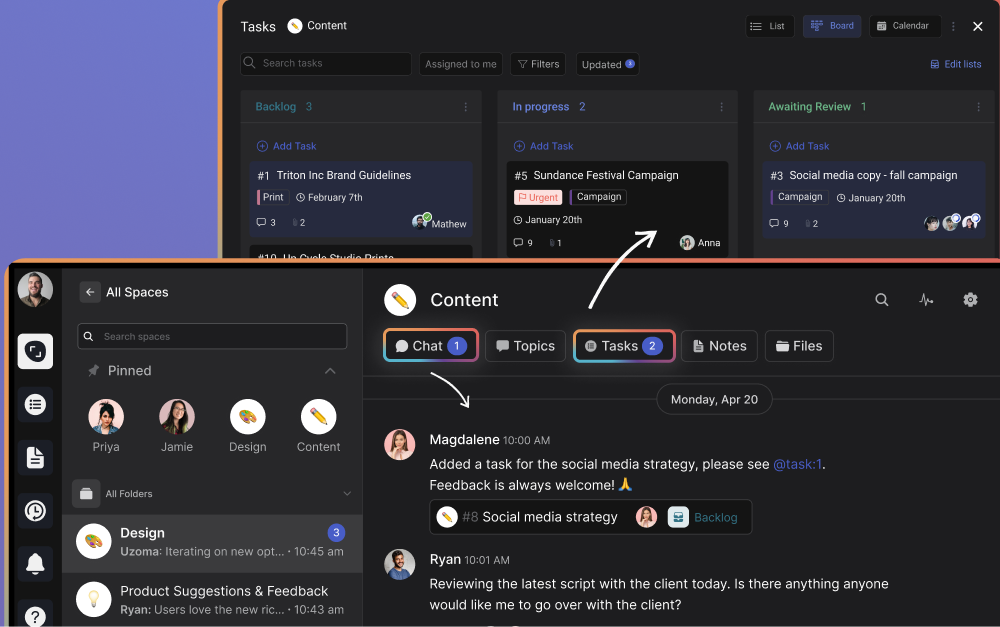
Rock takes a chat-first approach to project management. It combines messaging, tasks, notes, and files in one workspace. This makes it easy to talk with clients and track deliverables side by side.
For agencies, Rock stands out because of its workflow templates. You can set up repeatable processes for onboarding, content production, or design sprints. This keeps work consistent and saves your team time on every new project.
One major advantage is its flat pricing. Rock charges one fixed price rather than per user. This means you can invite unlimited clients and team members without extra costs.
Old client portals stay open for future work. You can pick up where you left off with any client as if nothing changed. This alone makes it a top agency management software choice.
Many creative, marketing, and development agencies use Rock. Its simple design means clients do not need training before they start. As a work management software for agencies, it strikes the right balance between features and ease of use.
“Everybody is different and Rock gives those options to find a way that works best for your specific case. Especially if you are a creative agency, you don’t want to make a burden for yourself by over organizing and that’s okay! Rock gives you the tools to do it in an easy and not overloaded way.” Maximilian HelldörferFounder and Creative Director at New Aesthetics
2. Notion
Best for: Agencies that focus on documentation and async work
Notion offers a flexible workspace with pages, databases, and wikis. Teams can shape these however they like. For agencies, it works well as a knowledge base and project hub.
The downside is that Notion does not include direct chat. You cannot message a client within the platform. All real-time talks must happen through a separate tool, which adds friction.
Notion also comes with a steep learning curve. New users often struggle with its open-ended layout. Per-user pricing can add up fast for growing teams that want to bring clients in.
Key features:
Flexible pages and databases
Wiki and documentation tools
Templates for project setups
Integrations with third-party apps
If your agency relies on asynchronous work, Notion can be a solid pick. Just be ready to pair it with a messaging tool for live conversations.
3. Asana
Best for: Agencies with strong project tracking needs
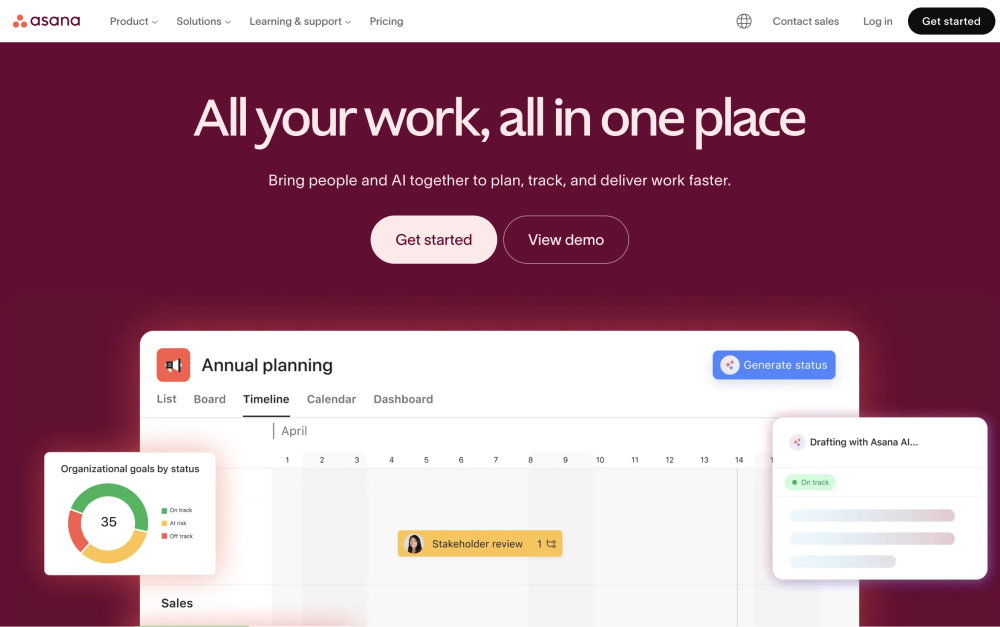
Asana is a well-known agency project management tool with robust task tracking. It offers timeline views, project milestones, and custom fields. These features help teams manage complex projects with many moving parts.
However, Asana is not chat-first. Communication happens through task comments and status updates. This can confuse clients who expect a messaging experience similar to what they use every day.
The learning curve can also be a barrier for clients. Some find the interface overwhelming at first. Per-user pricing adds another concern for agencies that want to include clients in their workspace.
Key features:
Timeline and board views
Project milestones and goals
Custom fields and automations
Reporting dashboards
Asana works best for agencies with strong project management frameworks already in place. It is a solid task management software for agencies that can invest time in setup.
4. Monday.com
Best for: Agencies that want visual project tracking
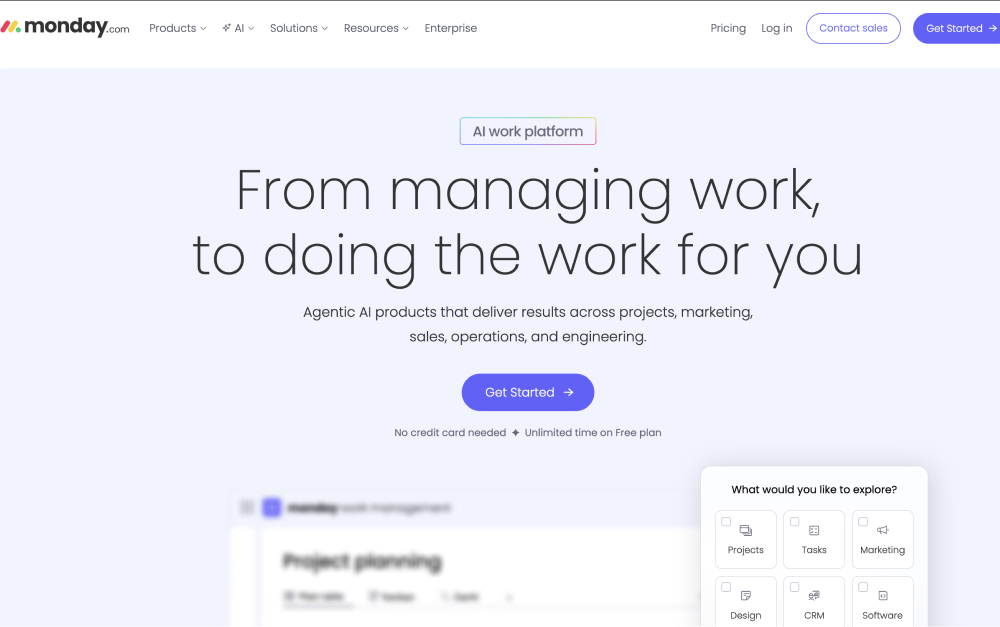
Monday.com offers colorful boards and dashboards for tracking work. It is popular for its visual approach to managing projects. Teams can build custom workflows and automate routine tasks.
Like Asana, it is not built around direct messaging. Client communication stays within task updates and comments. This means agencies still need a separate tool for ongoing conversations.
Pricing follows a per-user model that can grow quickly. As your agency adds client seats, costs rise fast. The platform also offers many features, which can make the initial setup feel heavy.
Key features:
Visual boards and dashboards
Workflow automations
Time tracking features
Multiple view options
Monday.com suits agencies that want a visual project tracking software for agencies. It helps with planning but may need support from other tools for client communication.
5. ClickUp
Best for: Teams that want deep customization
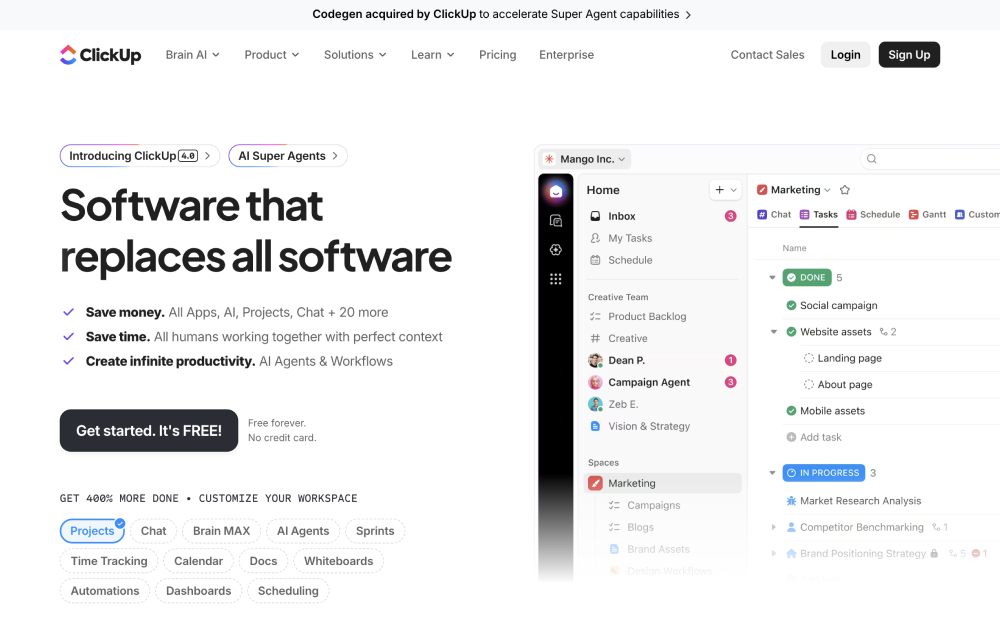
ClickUp offers a wide range of features for managing work. It covers tasks, docs, goals, and even team messaging. The platform tries to be an all-in-one solution for agencies.
The challenge is its learning curve. ClickUp's depth makes it powerful but also complex. Clients who are not familiar with the platform often find it overwhelming and hard to navigate.
Per-user pricing also affects agencies that want to add external collaborators. For teams looking for a simple project management software for agencies, the feature overload might work against them.
Key features:
Tasks, docs, and goals in one tool
Custom views and automations
Team messaging
Integrations with common tools
ClickUp works well for technically minded agencies with internal power users. It is less suited for client-facing setups where ease of use matters most.
6. Basecamp
Best for: Teams that value simplicity and flat pricing
Basecamp is a veteran in the project management space. It offers messaging, to-do lists, file sharing, and scheduling. The tool has a clean, simple interface that most people pick up fast.
Basecamp also uses flat pricing, similar to Rock. However, its price point sits quite a bit higher. Small teams may also face per-user costs under certain plans.
The tool focuses on team collaboration rather than detailed task management. For the broader collaboration software category, see our best collaboration software guide. Agencies that need Gantt charts or advanced reporting may find it lacking. But for basic agency workflow management software needs, it gets the job done.
Key features:
Message boards and campfires
To-do lists and scheduling
File storage and sharing
Client access on projects
Basecamp is a good fit for agencies that prefer a straightforward, no-frills tool. It handles communication well but lacks the depth of full project management software tools.
7. Discord
Best for: Live team discussions
Discord started as a gaming platform but now serves many professional teams too. It offers voice channels, text chat, and screen sharing. Some agencies use it for internal communication and quick syncs.
The main issue is professionalism. Client-facing communication through Discord can feel informal. The platform also does not include task tracking or project milestones of any kind.
For agencies, Discord works as a side tool for team bonding or quick chats. It is not a full agency management software solution on its own.
Key features:
Voice and video channels
Text-based chat rooms
Screen sharing
Community management tools
If your team already uses Discord for internal talk, it can stay as a supplement. But do not rely on it as your main project management tool for agencies.
8. Slack
Best for: Fast-paced team messaging
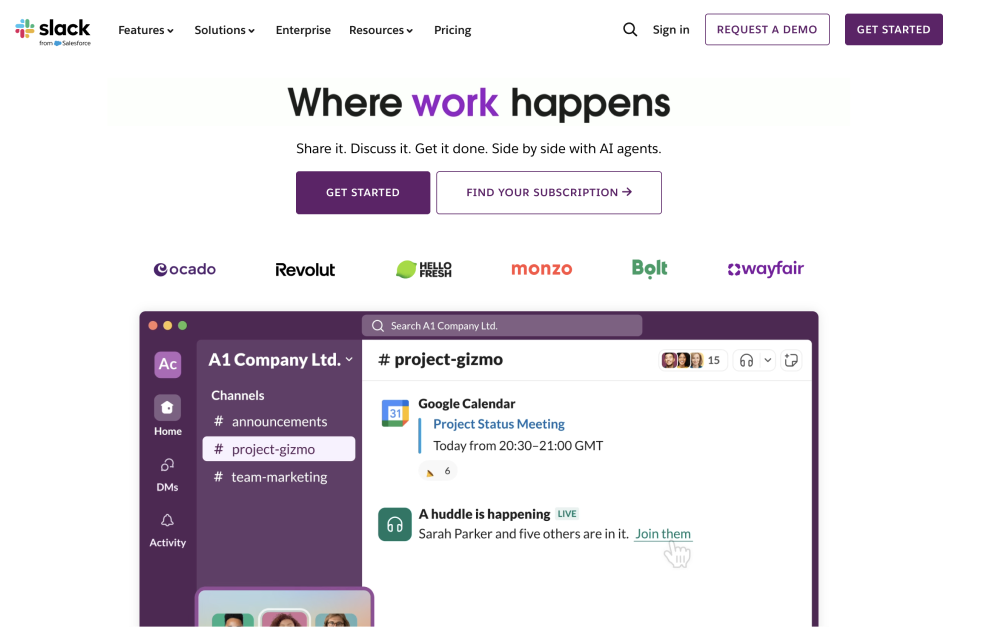
Slack is the go-to for many teams when it comes to instant messaging. It offers channels, direct messages, and integrations with hundreds of apps. Communication speed is its biggest strength.
However, Slack focuses only on messaging. It does not offer built-in task management, notes, or file organization. You need to pair it with other tools to cover the full workflow.
Per-user pricing makes it costly for agencies with many team members and clients. Over time, conversations also get buried, which makes it hard to find past decisions. For alternatives, check out this list of team messaging tools.
Key features:
Channels and direct messaging
Hundreds of integrations
Workflow automations
Search across messages
Slack suits agencies that already use it and pair it with a separate project tracking tool. On its own, it lacks the structure agencies need for full project delivery.
9. WhatsApp
Best for: Quick client check-ins
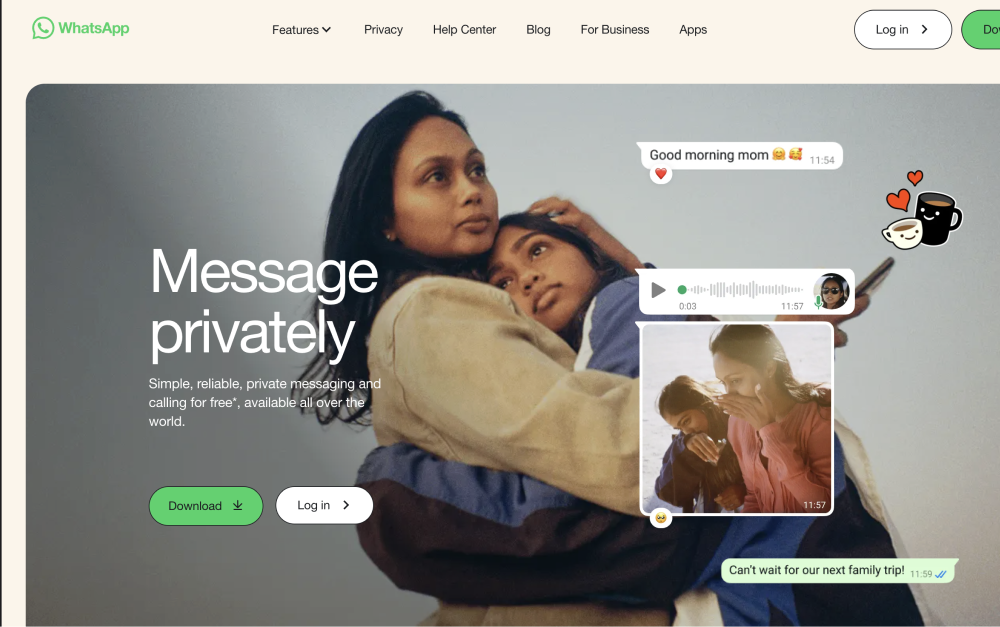
WhatsApp is familiar to most people around the world. Many agency owners use it for informal client communication. It is free and works across devices without any setup.
The problem is that nobody built WhatsApp for project work. There is no task tracking, no file organization, and limited message history on new devices. The casual nature of the app can also feel less professional.
Another issue is regional reach. Some clients in the US or France prefer iMessage or other apps. This creates friction when working with clients abroad. As an agency project management software, it falls short.
Key features:
Free messaging and calls
Group chats
File sharing
End-to-end encryption
WhatsApp works for quick updates. But it should not replace a proper project management template and structured workflow.
10. Trello
Best for: Simple task boards for small projects
Trello uses a Kanban board approach to task management. Cards move across columns as work progresses. It is visual and easy to understand at a glance.
Trello focuses more on individual work than agency setups with multiple clients. For agencies managing several accounts, the board-only format can feel limiting. Complex projects often need more structure than Trello provides.
Trello is part of the Atlassian family, which also offers Jira for advanced work. Jira provides deeper features but can feel overly technical for agency owners. Neither tool is built with client collaboration in mind.
Key features:
Kanban board layout
Card-based task tracking
Power-ups for extra features
Simple drag-and-drop interface
Trello suits small agencies or simple projects with few moving parts. For full project plan templates and client management, look for a more complete tool.
How to Choose the Right Tool
Picking the right tool depends on your agency's priorities. Here are a few questions to guide your decision:
Do you need built-in messaging for client communication?
Does per-user pricing fit your growth plans?
How tech-savvy are your clients?
Do you need templates to set up standard workflows?
According to Forbes, the right project management tool can improve productivity across your entire team. A 2025 PMI report also found that structured project management reduces waste and boosts delivery rates. The key is matching the tool to how your agency works, not the other way around.
Conclusion
Rock stands out as one of the best project management software for agencies in 2026. It combines chat, tasks, notes, and files in one simple workspace. The flat pricing model lets you invite unlimited clients without worrying about per-seat costs.
The other tools on this list each serve a purpose. Notion works for async-heavy teams. Asana and Monday.com suit structured project management needs. Basecamp keeps things simple with basic features.
But for a complete agency project management tool, you want everything in one place. Rock's chat-first design makes it easy enough for clients to use from day one. No steep learning curves, no extra tools, just one workspace for your whole agency.
Looking for a simple project management software for agencies? Rock brings chat, tasks, notes, and files together at one flat price. Set up your workspace and invite your first client today.
Every agency owner knows the feeling. A project that seemed simple three weeks ago has turned into an endless cycle of tweaks. For a design studio that cut revision cycles by structuring deep work, see our New Aesthetics case study and "one more small change." Your team loses motivation as the finish line keeps moving. Meanwhile, you cannot bill for the extra work or take on new clients.
This is the reality of unlimited revisions. It drains your resources, frustrates your team, and eats into your project margins. But it does not have to be this way.
In this article we explain why projects spiral out of control and how to set up systems that protect both your agency and your client relationships.
Why Never-Ending Revisions Happen
The root cause of too many revisions is often a lack of alignment. When neither party knows exactly what the final output should look like, the project becomes a guessing game. Each revision round becomes a chance for the client to add new requirements or change direction.
According to Harvard Business Review, unmanaged scope creep can throw any project off track. A clear scope of work prevents most of this, and a client working agreement locks the revision-count rule into the operational flow. Research shows that 52% of projects across industries face this challenge. For agencies, the impact is even worse because you work with multiple clients at once.
The Hidden Costs of Unlimited Revisions
When you allow client revisions to go unchecked, several problems show up:
Team burnout: Creative people lose motivation when their work is constantly reworked
Project delays: Timelines stretch as new requests pile up
Revenue loss: You cannot bill for scope creep, and you miss chances with other clients
Loss of trust: Clients often get frustrated too when projects drag on which reduces the chances of them rebooking your agency or extending the retainer
The 2025 Creative Industry Report found that agencies with weekly check-ins and clear deliverables see happier clients. Clear communication strategies and well-defined expectations help avoid confusion from the start.
What to Do About It: Setting Clear Boundaries
The goal is not to get rid of revisions entirely. Revisions are a normal part of creative work. The goal is to define the scope, set expectations, and create structure around the feedback process.
Define Revision Rounds and Their Purpose
Before any project begins, set exactly how many revision rounds are included. Make clear what each round is for. Here is an example structure:
Round 1: Align on initial direction and concept
Round 2: Refine details and address specific feedback
Round 3: Final tweaks and small adjustments
Each round should have a clear purpose. This stops clients from nitpicking things you will fix later anyway. It also gives them a framework for sorting their feedback by priority.
"My contracts specifically state what is out of scope, how many revisions and how long they have to approve. Running this on a visible board (see our revision and change request tracker) keeps both sides honest in real time, not at month-end. If they want something that is out of scope, I can either add it hourly or scope it out completely separately." - Alex Wilson, Owner of One Thing Digital
Document Everything in Your Contract
Your contract should clearly state:
Number of included revision rounds
What counts as a revision versus a new request
Cost for extra work beyond the agreed scope
Timeline for each revision round
When you make clear upfront that any work beyond a set number of revisions will cost extra, clients become more careful about what they ask for. For example: "This project includes two rounds of revisions. Extra changes will be billed at $80/hr."
This is not about charging for every little thing. It is about client communication etiquette that respects both sides' time and resources.
Never-ending revisions are one of the most common problems in client work. Having spent years managing stakeholder expectations firsthand, Steven Noble, Digital Designer and UI Developer, offers a simple tactic to keep projects on track:
If you've been in the trenches long enough you know what the stakeholder might ask for next so a short "What's not included" section can sometimes help. Don't frame it as "This is all you're getting" when you hand over the scope. Reassure your clients that anything that doesn't make it in the initial contract can go into a phase 2, and that any new idea that comes up goes in the backlog for the next phase. The client is happy their request is not forgotten, and you don't waste time on endless revisions for the current phase. - Steven Noble, Digital Designer and UI Developer.
How to Set Up a Better Revision System
Knowing what to do is one thing. Putting it into practice needs the right processes and tools.
Put All Client Communication in One Place
Scattered communication is the enemy of revision management. When feedback comes through email, Slack, text messages, and phone calls, things get lost. You end up doing extra work because someone forgot they already approved something.
Create a single source of truth for all project communication. This means using one platform where clients can see upcoming tasks, submit feedback, and track progress. Tools like Rock, Basecamp, or Notion can help bring everything together.
Rock stands out for agencies because it is simple to use. You can set it up quickly and invite clients without worrying about per-user pricing. Unlike competitors that charge for each seat, Rock offers one fixed price. This makes it easy to add and remove clients from your workspace as projects come and go.
The fastest way to cut revision chaos is to bring clients into your workflow. When they can see exactly where things stand, they stop firing off random change requests and start working with your process.
Document Every Meeting and Decision
Last minute changes often happen because someone forgot what was agreed upon. Fight this by documenting everything:
AI tools can help with transcribing and summarizing recordings if your team lacks bandwidth. The 2026 Agency Project Management Guide suggests keeping one source of truth for status and containing change requests to prevent scope creep.
Create Standard Service Packages
Random requests increase when every project is treated as totally custom. Try creating standard workflows with the same structure for all clients.
For example, a website redesign package might include:
Discovery call and requirements gathering
Initial design concepts (3 options)
Two revision rounds
Final delivery with asset handoff
When clients choose from set packages, they understand exactly what they are getting. This cuts down on random tasks your team has to handle. It also speeds up delivery because your team follows a proven project management framework.
Using a task board with set tasks and due dates keeps everyone on track. Clients can see the timeline, and your team knows exactly what comes next.
Use Async Communication When Possible
Not every piece of feedback needs a meeting. In fact, meetings can slow down the revision process. A client might request a call to discuss something that could be solved with a quick message.
Encourage asynchronous work where possible. Clients can leave detailed feedback in writing, and your team can address it during focused work time. This approach cuts down on interruptions and creates a paper trail of all requests.
The key is giving the right format for effective feedback. Give clients specific prompts rather than asking open-ended questions like "What do you think?" Instead, ask targeted questions about specific elements.
Managing Scope Creep When It Happens
Even with the best systems, scope creep (too many unexpected new revisions) will sometimes occur. The question is how you handle it.
Spot the Signs Early
Watch for these warning signs:
Requests that fall outside the original brief
"While you're at it, can you also..." statements
New stakeholders joining mid-project with different opinions
Changing business needs due to outside factors
When you spot these signs, address them right away. Waiting only makes the conversation harder.
Have the Conversation Directly
When a client makes a request that falls outside the agreed scope, respond quickly and professionally:
"That is a great idea, and we can definitely add it to the project. Since it falls outside our original scope, let me put together a quick estimate for the extra work."
This approach recognizes the value of their request while keeping your boundaries. Most clients respect this response because it is honest and professional.
We specify revisions in the contracts and anything extra is invoiced per hour or review round. It does cover you in case you have "messy" clients, which happens especially with too many "cooks" in the review process. For example, when you have multiple stakeholders contradict themselves or go back on what was agreed. Once everyone understands that additional edit rounds are invoiced extra, this can actually often work as an educational tool to get more organized internally on their side. Clemens Rychlik - COO at Hello Operator
Offer Scope Add-Ons at Fair Rates
Sometimes clients truly need extra work beyond the original agreement. Make it easy for them to request it by having a clear process for project changes.
Provide a simple change request form that captures:
What they want to add or change
Why they need it
Their priority level
Budget approval for the extra work
This keeps everything documented and stops scope creep from happening through informal channels.
Building Long-Term Client Relationships
The goal is not just to survive projects but to build lasting partnerships. Clients who understand your process become better partners over time.
Set Expectations from Day One
During your onboarding process, walk clients through your workflow templates and revision process. Show them where to submit feedback, how to track progress, and what to expect at each stage.
Agencies that invest in proper client management see higher retention rates and more referrals. A client who understands your process is far less likely to make unreasonable demands.
Celebrate Wins Along the Way
Revisions often focus on what needs to change. Balance this by highlighting progress and wins. When you deliver a milestone, point it out. When a client provides excellent feedback, thank them.
This positive approach encourages the behavior you want to see more of.
Conclusion: Revisions Are Not the Enemy
Client revisions are not bad by nature. They are part of the creative process. The problem shows up when scope becomes unlimited and requirements keep growing.
The best way to avoid project overrun is to bring clients into a clear system. Define your revision rounds. Document everything. Use tools that put communication in one place. And when extra work is needed, have honest conversations about scope and cost.
You can offer the option of extra scope at a fair price. This creates a better partnership and protects your agency's bottom line. In the long term, clients like working with agencies that have clear processes. It makes their lives easier too.
Stop treating endless revisions as something you just have to accept. Start building systems that protect your team, your profits, and your client relationships.
Ready to make client collaboration simpler? Rock brings messaging, tasks, notes, and meetings into one workspace. Set up in minutes, invite unlimited clients at one fixed price, and finally bring structure to your revision process.
Are you tired of juggling multiple tasks and deadlines for your projects? Look no further – the ultimate management project template is here to streamline your workflow and boost your productivity. Whether you're a seasoned project manager or just starting out, this template is designed to make your life easier.
With its user-friendly interface and comprehensive features, this template is the perfect tool to organize and manage all aspects of your projects. From setting goals and milestones to assigning tasks and tracking progress, you'll have everything in one place.
The ultimate management project template is fully customizable, allowing you to tailor it to your specific needs. Its intuitive design ensures that you can easily navigate through the various sections and quickly access the information you need.
Say goodbye to confusion and missed deadlines – with the ultimate management project template, you'll have full control over your projects. Take your project management skills to the next level and start achieving remarkable results today.
Streamline your projects with this game-changing template and experience the difference it makes in your productivity and success.
Benefits of Using Project Management Templates
Using project management templates can significantly enhance the efficiency and effectiveness of your projects. One of the most prominent benefits is the time saved in planning and organizing tasks. By employing a structured template, you eliminate the need to start from scratch for every project. Instead, you can leverage previously established frameworks to quickly outline key objectives, timelines, and responsibilities, allowing you to focus more on executing the project rather than planning it. This can be a game-changer, especially when deadlines are tight, and every moment counts.
Another major advantage is the consistency that templates bring to project management. With a standardized approach, team members can easily understand their roles and expectations, leading to fewer misunderstandings and miscommunications. This consistency is particularly beneficial for organizations that handle multiple projects simultaneously, as it ensures that all team members are on the same page, regardless of the project they are working on. Such clarity can improve overall team collaboration and significantly enhance project outcomes.
Lastly, project management templates facilitate better tracking and reporting. With built-in sections for monitoring progress, deadlines, and deliverables, you can quickly assess where the project stands at any given moment. This structured approach allows for more informed decision-making, as you have access to all relevant data in one place. Additionally, it makes it easier to identify potential bottlenecks or issues before they escalate, enabling proactive measures to keep the project on track.
Different Types of Project Management Templates
Project management templates come in various forms, each tailored to meet specific needs and scenarios. One of the most common types is the long term planning template. This document outlines the project's objectives, scope, stakeholders, and high-level requirements. A well-crafted planning template serves as a foundational document that provides direction and clarity, ensuring that everyone involved understands the project's purpose from the outset.
Another essential type is the simple project planner template, which helps in detailing the specific tasks that need to be accomplished throughout the project lifecycle. This template often includes sections for task descriptions, responsible team members, deadlines, and status updates. By breaking down the project into manageable tasks, it becomes easier to assign responsibilities and track progress, ultimately contributing to a smoother workflow.
The Eisenhower Matrix template is a simple way of prioritizing tasks. It divides tasks into four quadrants based on urgency and importance. Quadrant 1 is for urgent and important tasks, which need immediate attention. Quadrant 2 contains important but not urgent tasks, making space for longer-term planning. Quadrant 3 is for urgent but not important tasks, which can often be delegated. Lastly, Quadrant 4 holds tasks that are neither urgent nor important, typically suggesting they can be set aside. This method helps streamline focus, ensuring time is spent efficiently on essential tasks.
There are also more specialized templates that could work well for your project. A marketing campaign planning template is a structured guide for organizing and executing campaigns. It covers key areas like goals, target audience, messaging, budget, and timelines. The template helps ensure consistent branding, effective resource allocation, and tracking of campaign performance. It's a helpful tool for teams to collaborate efficiently and achieve marketing objectives.
Features of the Ultimate Management Project Template
The ultimate management project template is designed with a multitude of features that cater to the diverse needs of project managers. One key feature is the customizable dashboard, which provides a visual overview of the project’s progress at a glance. This dashboard typically includes charts and graphs that update in real-time, allowing project managers to quickly assess performance metrics and make data-driven decisions. The ability to visualize data helps in understanding trends and patterns, which can be crucial for successful project management.
Another standout feature is the task assignment and tracking system. This section allows project managers to assign tasks to team members, set deadlines, and monitor progress through various stages. By integrating this functionality into the template, project managers can ensure accountability and transparency within the team. Team members can easily view their assigned tasks, reducing the chances of confusion and missed deadlines, thus streamlining the overall process.
Moreover, the ultimate management project template often includes collaborative features that facilitate communication among team members. Messaging, comment sections, and document sharing capabilities enhance collaboration by allowing team members to discuss tasks, share files, and provide feedback in real time. This fosters a more cohesive working environment, where everyone can contribute to the project's success while staying informed about each other's contributions.
How to Customize the Template for Your Specific Project
Customizing the ultimate management project template is essential to ensure it meets the unique requirements of your project. The first step is to assess the specific goals and objectives of your project. Understanding what you want to achieve allows you to modify the template’s sections accordingly. For instance, if your project emphasizes certain milestones or deliverables, you can add dedicated sections to track these elements in detail, ensuring they align with your project's vision.
Next, consider the team dynamics and structure when customizing the template. Different projects may involve varying team sizes and roles, so it’s important to tailor the task assignment and tracking features to reflect your team’s composition. You can create role-specific categories, allowing team members to focus on their designated responsibilities while providing you with a clear overview of the entire project’s progress. This targeted approach enhances accountability and ensures that everyone knows their contributions to the project’s success.
Finally, don’t forget to customize the aesthetic elements of the template. Visual appeal can play a significant role in user engagement and ease of use. Incorporate your organization’s branding, such as colors, logos, and fonts, to create a cohesive look that resonates with your team. Additionally, using visual cues like color coding for status updates can enhance clarity and make it easier for team members to navigate the template effectively. These customizations transform a generic template into a powerful tool tailored specifically for your project’s needs.
Step-by-Step Guide to Using the Management Project Template
To maximize the effectiveness of your management project template, it’s important to follow a systematic approach. Begin by laying the groundwork with a comprehensive project kickoff meeting. During this session, gather all stakeholders to discuss project objectives, timelines, and roles. This collaborative effort ensures that everyone is aligned and aware of the template's structure and how it will be utilized throughout the project lifecycle.
Once the kickoff is complete, move on to populating the template with relevant data. Start by filling out the project charter section, outlining key objectives, deliverables, and stakeholders. From there, break down the project into manageable tasks, assigning them to the appropriate team members while establishing clear deadlines. This step is crucial in creating a roadmap for project execution, as it sets expectations and provides a framework for tracking progress.
As the project progresses, regularly update the template to reflect the current status of tasks and milestones. Schedule routine check-ins with your team to discuss updates, address any challenges, and make adjustments as necessary. Keeping the template current not only aids in tracking progress but also fosters accountability and open communication among team members. By following this step-by-step guide, you can ensure that your management project template remains a valuable asset throughout the project's duration.
Best Practices for Project Management Using Templates
Implementing project management templates effectively requires adherence to several best practices. One of the foremost practices is to maintain flexibility. While templates provide structure, it's important to adapt them to fit the evolving needs of your project. As circumstances change, be open to modifying sections, adding new features, or streamlining processes to ensure that the template continues to serve its purpose effectively. Embracing flexibility allows your team to respond to challenges proactively, ultimately contributing to project success.
Another critical best practice is to encourage team collaboration and engagement with the template. Ensure that all team members are trained on how to use the template effectively, emphasizing its importance as a communication tool. Foster a culture where team members feel comfortable updating their progress, sharing feedback, and discussing challenges within the template. This collaborative approach can lead to improved accountability and a stronger sense of ownership among team members, enhancing overall project performance.
Lastly, regularly review and assess the effectiveness of the template. Gather feedback from team members on what aspects are working well and identify areas for improvement. Conducting periodic evaluations allows you to refine the template continuously, ensuring it meets the needs of your projects over time. By prioritizing feedback and fostering a culture of continuous improvement, you'll enhance the overall effectiveness of your project management practices.
Tools and Software for Managing Projects with Templates
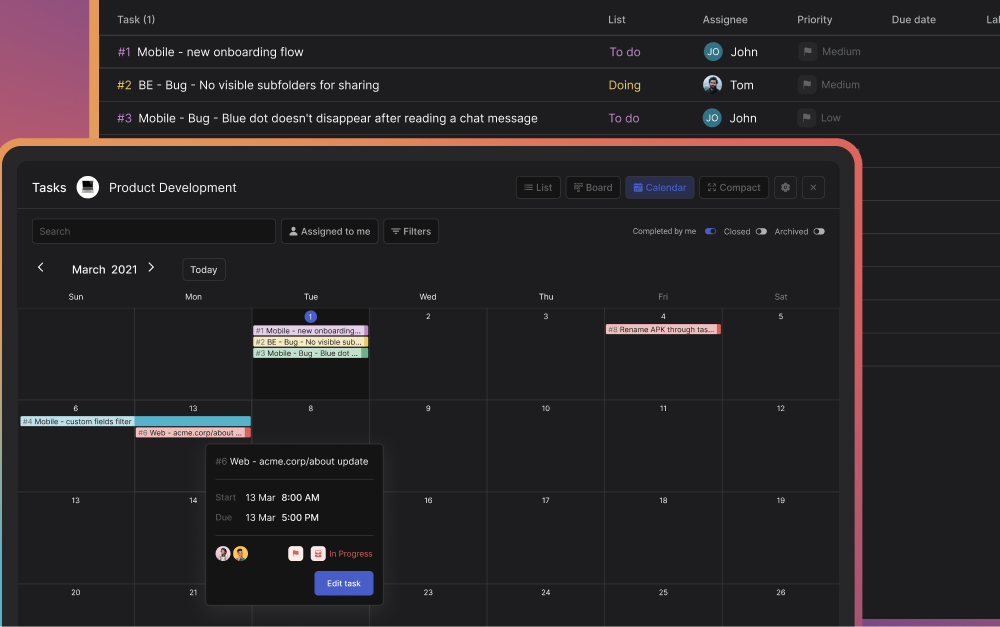
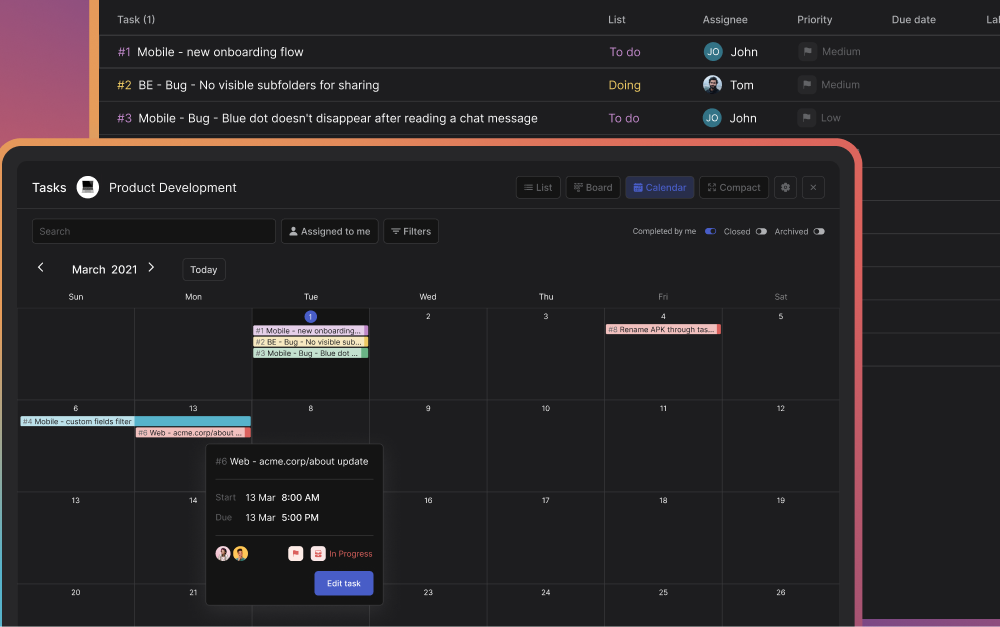
Several tools and software solutions can enhance your project management experience when using templates. Rock is an all-in-one platform that simplifies project management by integrating messaging, tasks, and all your favorite apps in one space. With Rock, you can efficiently manage projects with unlimited members and tasks, keeping everything organized and accessible in one place. It comes with different views to see all your project tasks – from a list view to a board view. The great thing about Rock is that you don't need to deal with the hassle of per-user pricing.
Another popular option is Microsoft Project, a robust tool that offers a wide range of project management features, including customizable templates, Gantt charts, and resource management capabilities. With its intuitive interface and powerful functionalities, Microsoft Project is an excellent choice for teams looking to streamline their project workflows.
A noteworthy tool is Trello, which uses a card-based system to manage tasks and projects visually. Trello's flexibility allows users to create boards and cards that represent different projects and tasks, making it easy to customize the workflow according to the team's needs. Additionally, Trello offers various templates for different types of projects, enabling users to start quickly while still having the ability to tailor their boards as needed.
For teams that prioritize collaboration, Asana is an ideal choice. This platform provides a user-friendly interface with features designed to foster teamwork, including task assignments, progress tracking, and integrated communication tools. Asana also offers pre-built templates for various project types, making it easy for teams to get started while allowing for extensive customization to fit specific project requirements. By leveraging these tools, you can enhance your project management capabilities and make the most of your templates.
Success Stories of Organizations Using Project Management Templates
Numerous organizations have successfully implemented project management templates to streamline their workflows and achieve remarkable results. For instance, a leading marketing agency adopted a project management template to manage its campaigns more efficiently. By utilizing the template, the team was able to clearly outline project objectives, assign tasks, and track progress in real time. As a result, they experienced a 30% reduction in project turnaround time and significantly improved client satisfaction due to timely deliveries.
Another success story comes from a software development firm that employed project management templates to manage its product development lifecycle. The team customized their template to include sections for sprint planning, backlog management, and quality assurance. This structured approach not only improved communication within the team but also led to a smoother development process. Ultimately, they were able to launch their product ahead of schedule, gaining a competitive edge in the market.
Lastly, a nonprofit organization utilized project management templates to streamline its fundraising initiatives. By implementing a comprehensive template that covered everything from task assignments to budget tracking, the team was able to coordinate their efforts more effectively. This resulted in a 50% increase in fundraising success compared to previous years, allowing the organization to expand its outreach and impact in the community. These success stories illustrate the transformative power of project management templates across various industries.
Conclusion: Streamlining Your Projects with the Ultimate Management Project Template
The ultimate management project template is a powerful tool that can revolutionize the way you manage projects. By leveraging the benefits of templates, you can enhance efficiency, foster collaboration, and improve tracking and reporting. With various types of templates available, you can select the one that best suits your specific needs, whether it be for task management, risk assessment, or project charters.
The extensive features of the ultimate management project template allow for customization, enabling you to tailor it to your project's unique requirements. By following a step-by-step approach to implementation and adhering to best practices, you can ensure that the template serves as a valuable asset throughout the project lifecycle.
Moreover, with the availability of various tools and software designed for project management, you can further enhance your experience with templates, making your projects not only more manageable but also more successful. With success stories from organizations across different sectors, it's clear that adopting project management templates can lead to significant improvements in productivity and outcomes. Embrace the ultimate management project template and take your project management skills to new heights.
Product management is a complex and evolving field that requires the right tools to stay ahead of the curve. As we move into 2024, having effective software can make or break a product team's success.
We dive into the 10 best product management tools you should consider in 2024. From AI-powered platforms to visual collaboration tools, we share options to suit different needs.
Whether you’re looking to streamline communication, enhance project timelines, or gain actionable insights, these tools will provide you the edge you need. Ready to elevate your product management game?
Let’s explore the top contenders for 2024!
1. Rock
Rock is a platform designed to streamline product management by combining project management, communication, and integration with other tools. Here's how it can help product teams:
Unified workspace: Rock integrates messaging, tasks, notes, files, and meetings, reducing the need to switch between multiple apps.
Task Management: Track all tasks and priorities with built-in time tracking and project dashboards.
App Integration: Seamless integration with popular apps like Google Drive, Miro, Notion, Zapier, and more, ensuring smooth workflows.
Cost Efficiency: Rock offers unlimited members, projects, and tasks in one simple plan, saving money and improving productivity.
With these features, Rock helps product teams manage projects, communicate, and collaborate efficiently.
2. Linear
Linear is a project management tool designed to streamline the software development process with a focus on speed and a keyboard-first user interface. Work with customizable workflows, issue tracking, and integrate with other tools.
Linear stands out as an exceptional product lifecycle management tool for several reasons:
Efficiency and speed: Linear is designed with performance in mind, offering interactions as quick as 50 milliseconds and real-time synchronization.
Keyboard-first approach: Users can manage tasks quickly without relying on a mouse through a keyboard-first interface with extensive shortcuts for virtually all actions.
Structured workflow customization: Set up automated features like backlog management, where issues are auto-closed and archived to keep a clean and efficient workspace.
3. Amplitude
Amplitude is a product analytics platform that helps companies track and analyze user behavior across digital products. It aims to drive engagement and growth by providing deep data analysis, user journey mapping, real-time analytics, and A/B testing. This enables organizations to understand customer interactions and optimize product features effectively.
Here’s why Amplitude is highly regarded for product management:
Experimentation & optimization: Test, analyze, and scale optimizations effectively to improve product performance with robust A/B testing and experimentation capabilities.
Integrated customer data platform: Work with a single source of truth for user behavior by unifying data across different teams and systems.
User journey analysis: Teams can understand the full user journey through detailed analytics, helping to identify critical touchpoints and optimize user flows.
4. Figma/Figjam
Figma is a design tool that enables users to create, prototype, and collaborate on digital projects in real-time. Product teams can streamline the design process with vector networks, auto layout, and dynamic overlays. Design everything from simple icons to complex interactive applications.
Product teams can work together seamlessly from different locations, making it a popular choice among designers, developers, and product managers.
Figma/FigJam are excellent tools for product management for several key reasons:
Unified design & prototyping: Figma integrates design and prototyping in a single tool, allowing product managers and designers to swiftly move from ideation to interactive prototypes without switching software.
Real-time collaboration: Teams can co-create and iterate on designs and strategies simultaneously since both Figma and Figjam offer real-time collaboration features. .
Versatile use cases: From UX/UI design to wireframing, product marketing and strategic planning, Figma and FigJam cover a broad spectrum of product management workflows.
5. Cron
Cron is a modern calendar application designed for professionals and teams. After its integration with Notion, it is now known as Notion Calendar.
Cron combines advanced scheduling features with Notion's collaborative workspace, making it an effective tool for organizing meetings, deadlines, and projects.
Users also get real-time synchronization, a user-friendly interface, and customization options to suit specific project needs. Here are some standout features that further highlight why Cron is one of the best product manager tools:
Advanced scheduling features: Cron provides sophisticated scheduling capabilities that help product management teams organize meetings, deadlines, and product launches efficiently.
User-friendly interface: Cron is designed to be intuitive and easy to use, making it simple for product teams to plan their workflows, visualize project timelines, and track important milestones.
Customization and flexibility: Teams can customize calendar views and notifications to suit their specific project needs.
6. Arc
Arc is a modern web browser focused on customization, organization, and privacy. It offers unique features such as Spaces and Profiles, which allow users to organize activities efficiently within one window.
Privacy and security are core principles since Arc does not track users' site visits or searches, ensuring a clean and personalized browsing experience.
7. Notion
Notion is a well-known productivity tool that helps product teams with note-taking, task management, databases, and a calendar in one place.
Notion supports real-time editing, sharing, and integration with other popular tools such as Slack. Monday or ClickUp, making it a go-to solution for teams and individuals who need an all-in-one productivity boost.
Notion has versatile features that make it a standout when it comes to product information management tools:
Versatile documentation: Product managers can create, store, and manage all documents—from product requirements documents and roadmaps to meeting notes and project timelines—in one accessible, organized place.
Collaborative features: Everyone from developers to stakeholders can stay in sync with real-time editing, comments, and notifications. Updates, feedback, and changes are communicated instantly through a collaborative environment, improving team efficiency.
8. Miro
Miro helps product teams with functionality such as diagramming, process mapping, whiteboarding, and real-time data visualization. Product managers use Miro for strategic planning, product development workflows, and synchronous or asynchronous teamwork.
Miro is highly effective if you’re looking for product management tools for several reasons:
Visualization tools: Use a suite of visualization options like whiteboarding, mind mapping, and customer journey mapping that help in planning and strategizing complex product roadmaps.
Real-time data visualization: Visualize data and content in real-time to always make informed decisions and ensure all team members have access to the latest information.
9. Coda
Coda is an all-in-one collaborative workspace that combines documents, spreadsheets, and custom applications into one platform, helping teams streamline work.
Coda supports real-time collaboration, integrates with many tools, and offers customizable templates, making it a highly recommended tool for product management and team productivity.
While Rock enables you to organize, discuss, and get things done, these other platforms can complement your work and make you more productive as a remote worker.
Several remote work tools will help you be fruitful and increase your chances of success. Working remotely might seem like an attractive possibility for some, but it comes with some difficulties.
The following article focuses on helping you manage your work more efficiently and get more done while working remotely. Here are some tools and platforms to use alongside Rock on your day-to-day.
Rimuut revolutionizes your administrative work and enables you to go borderless by providing invoicing, payment, and compliance solutions. You can go borderless, send tax-deductible invoices to your clients located anywhere and collect payment securely.
The best part is that Rimuut enables you to invoice clients in almost 150 countries without starting a company and get paid. If you want to be paid on time as a freelancer or a contractor, you can create service contracts and NDAs using readymade samples on Rimuut. It is the easiest way to get paid and comply with regulations.
Figma comes with web and mobile application design elements. The interface is clean and straightforward. A flat design makes it easier to work on various objects. Users can build their page design from scratch and save a template.
This multi-user web design tool is nothing short of revolutionary.Its solutions and low learning curve, user-friendly interface, and various features make web designing accessible to even those new to it in the industry. Figma keeps getting better with time. You can also integrate Figma to the Files mini-app of every Rock space.
If you have ever tried to find a working meeting time with more than one person, you know how frustrating it can be. You get the usual email chain that goes on forever. Calendly is a simple service that fixes this issue. It’s easy to see why using Calendly might save you hundreds of hours over a year.
You can schedule meetings at your convenience and suggest potential meeting dates and times that work with Calendly’s built-in scheduling assistant.
The last thing you want is to let your guard down one night and go on a site for your business only to get locked out because you forgot your password. This can be a nightmare, especially if no one else remembered it!
Thankfully, 1Password is an excellent solution to these problems since it’s secure and allows you to access all of your information from one place.
Essentially, Google Drive can help you become more productive by providing you with a cloud-based repository for your documents, spreadsheets, and presentations. Google Drive also conveniently integrates with Rock.This means that Google Drive removes the need for a local copy of these files and allows you to access them anywhere via the web.
Google Docs is one of the most popular applications in the suite. You can create almost anything with Docs. For example, an excellent Google Slides will assist you with presentations and spreadsheets for your budgeting needs.
Working across spaces and upgrading to Unlimited has never been easier! Create spaces in seconds with template spaces, Gift a month of Rock Unlimited and receive $20 in balance to upgrade, and move discussions across spaces by forwarding messages.
Space templates
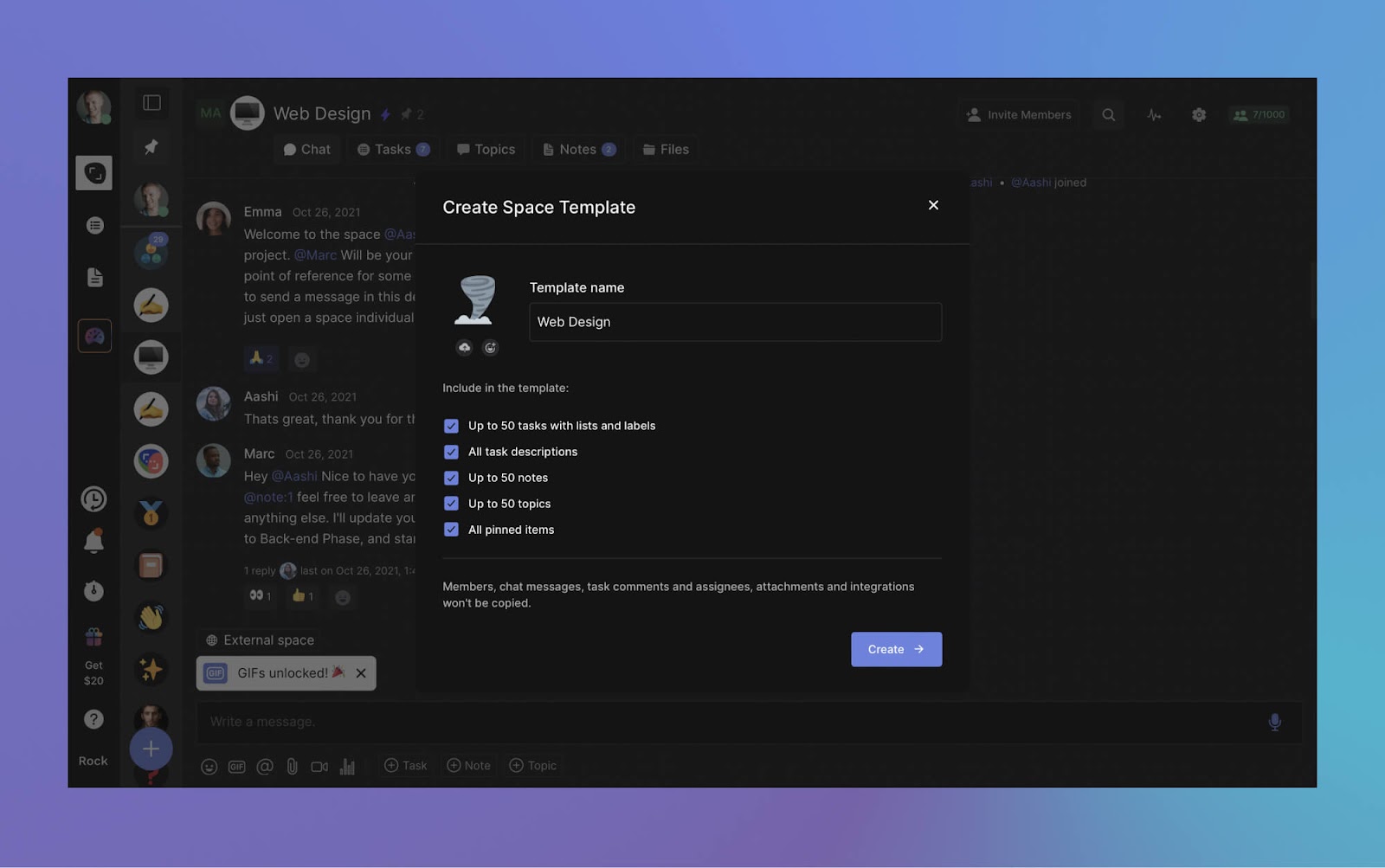
Create new projects faster than ever with space templates. Duplicate any existing space configurations for future collaborations; from client onboarding to marketing campaigns and event management.
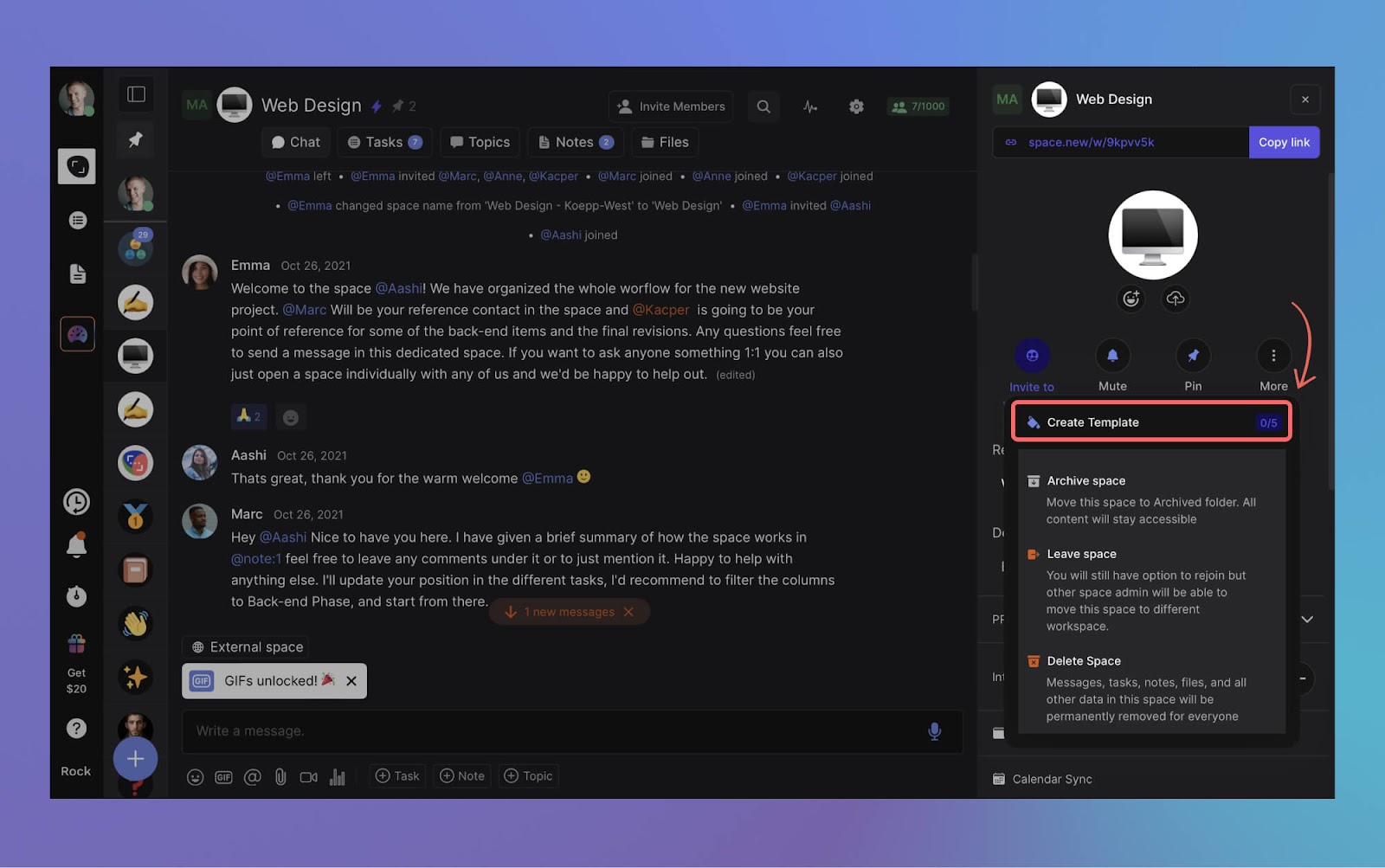
To access templates, go to space settings (admin permissions required) and create a new template.
Select the icon and space name of your template. You can choose what information you want to carry over to future copies (tasks, notes, topics, pinned items).
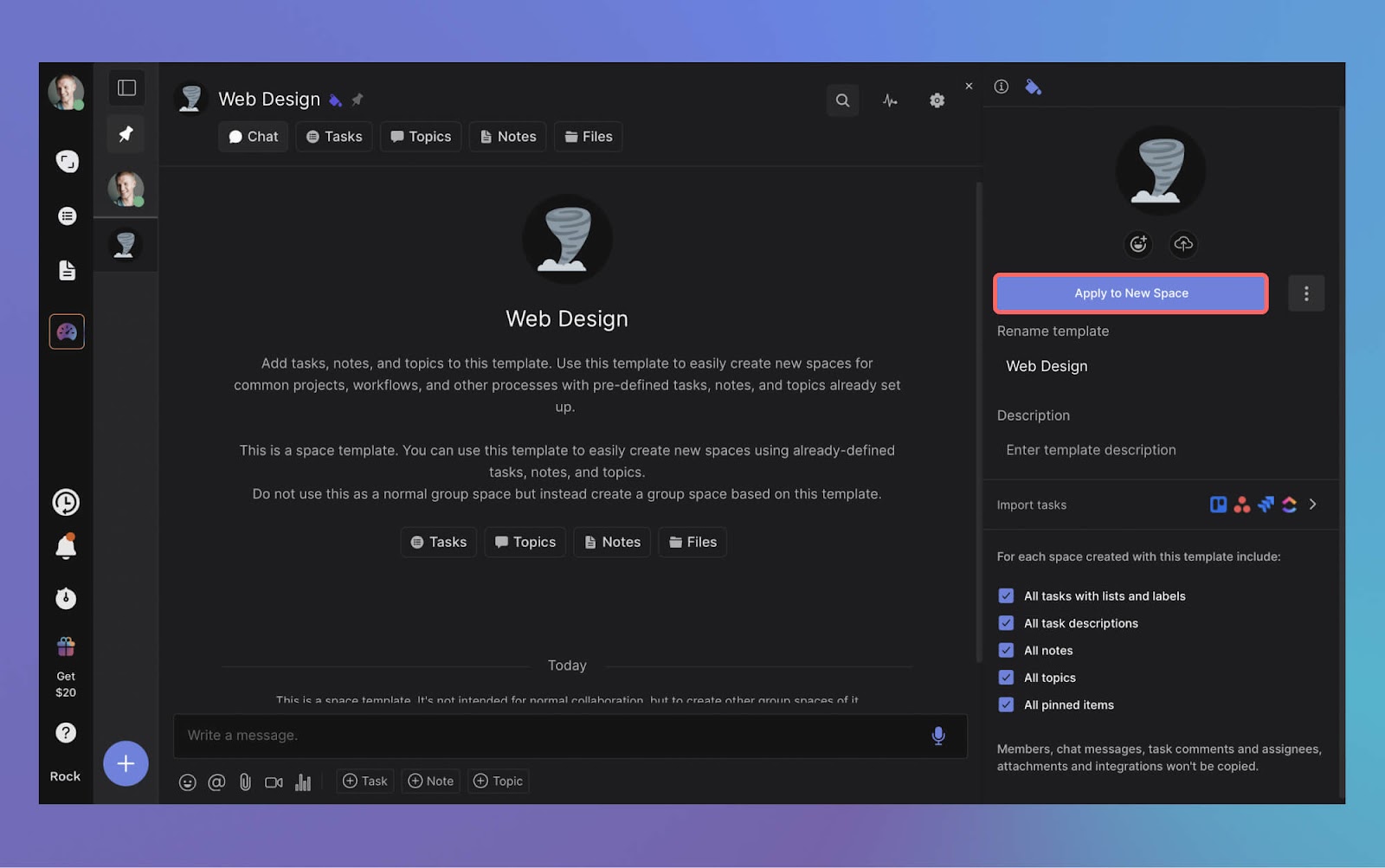
Once you've created a template, access it anytime from your user settings under "templates". Simply select apply to new space and a new space will be created.
Create unlimited new spaces with the template configuration and invite anyone to join you for messaging, tasks, and all your favorite apps in one place.
Looking to help out your clients, freelancers, or contacts while also saving money on your own unlimited plan? You can nowGive a month of Unlimited and get $20 to your own plan.
Once your invitee successfully redeems the reward and signs up they will get a month of unlimited for free. If they stay on the plan, you'll receive $20 off on your own Unlimited plan.
To get started, simply head to your user settings to find your personalized gift link. Share this link with anyone you want to gift a free month of Rock Unlimited to.
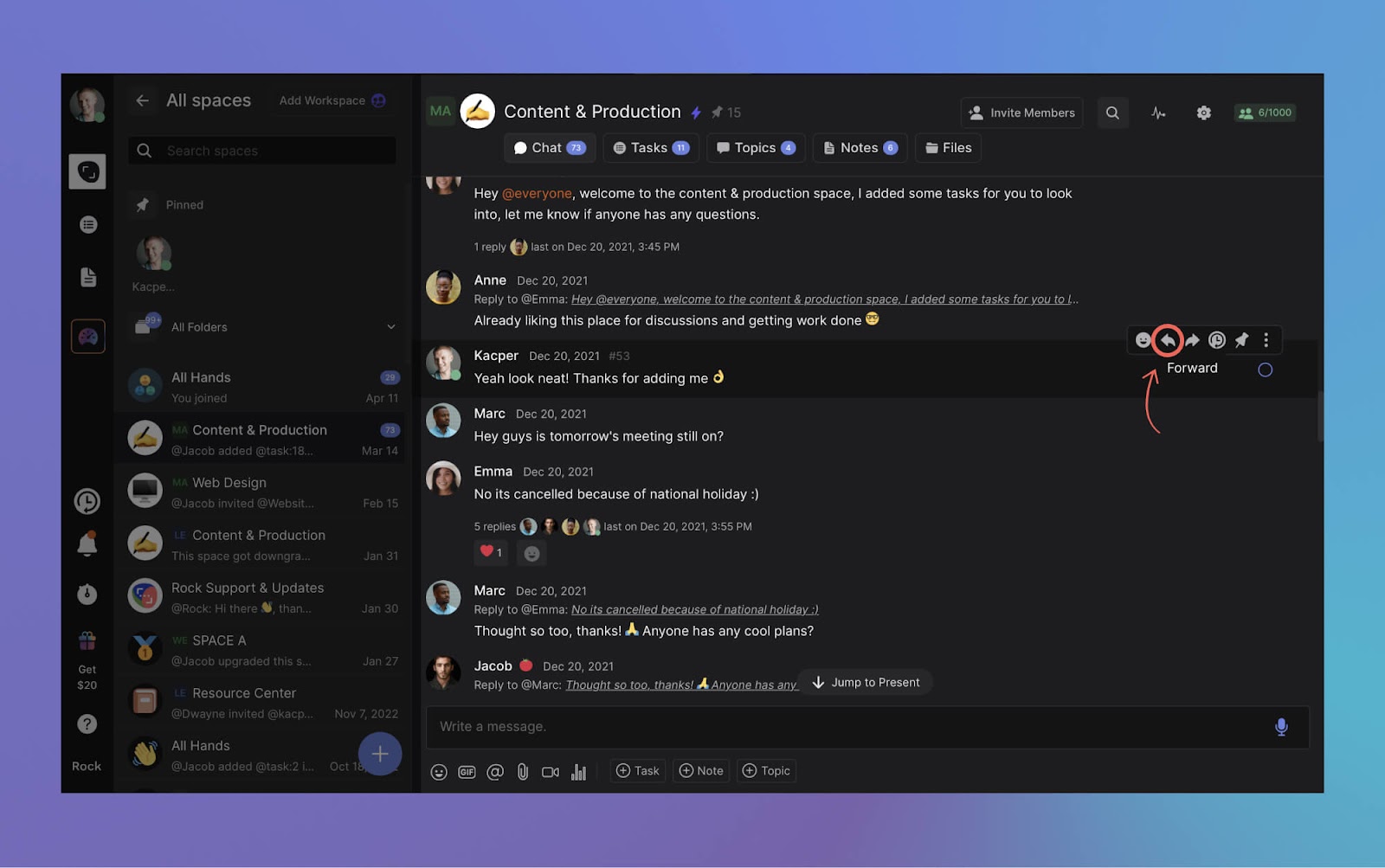
With forwarding messages you can move discussions across spaces without copy-pasting or manually moving messages. To forward a message simply hover over it and select the forward icon.
Improvements on mobile
We have also made a bunch of improvements to the mobile app.
Templates: Create your own space templates. Use templates to skip setting up new spaces from scratch every single time or share your Rock template with others.
Referral program: Gift a month of Unlimited for free and get $20
Chat: More organized and less cluttered message threads
Workspaces: More fine-tuned privacy options for workspaces and spaces
If you have any questions about this release, connect with us at web.rock.so/support.
Slack vs WhatsApp looks like a simple choice on the surface. You open an app, you type, someone types back. That surface similarity is exactly why so many teams agonize over it, and why the debate so often goes in circles.
The clearer way to decide is to look at what each tool was actually built for. WhatsApp is a personal messaging app that got pulled into work. Slack was built as a team workspace from day one. Almost every difference that matters, search, structure, pricing, compliance, falls out of that one fact.
Slack vs WhatsApp: the quick answer
It depends on what your team actually does. Slack fits structured, growing, or multi-client teams that need searchable history, integrations, and a defensible record of decisions. WhatsApp fits a small or casual team, or any team whose clients already live on WhatsApp, which is the regional default across Latin America, Southeast Asia, and Africa. The deeper reason is that the two were built for opposite jobs. WhatsApp is personal messaging stretched to cover work. Slack is a work tool from the ground up. Match the tool to the job and the choice gets easy.
Start with identity. On WhatsApp, you are your phone number. That is perfect for reaching a friend, and awkward for work, because adding a teammate means swapping personal numbers, and removing one when they leave is messy. On Slack, you are an account inside a workspace. An admin adds you, assigns you to channels, and deactivates you on your last day.
Then look at how conversations are shaped. WhatsApp gives you flat group chats. Everything scrolls in one stream, and side topics bury the main one. Slack gives you channels and threads, so a client project, a design review, and the office banter each live in their own space with their own history.
"Searchable Log of All Conversation and Knowledge." That is what Slack stands for, according to co-founder Stewart Butterfield, and it captures the whole point of the team-channel model. - Stewart Butterfield, Co-founder, Slack
Everything downstream follows from this split. Searchable history, admin controls, integrations, and compliance are native to a tool built for teams. They are bolted on, or missing, in a tool built for personal chat. Keep that lens and the rest of this comparison reads as consequences, not a random feature checklist.
Which WhatsApp are we comparing?
This trips up most comparisons, so it is worth being precise. There are three different WhatsApps, and only some of them belong in a Slack comparison.
Consumer WhatsApp. The free app on everyone's phone. Plenty of small teams run their whole operation here, informally.
WhatsApp Business app. Also free, aimed at small businesses. It adds a business profile, a product catalog, and quick replies, but the chat itself is still the same flat, mobile-first experience.
WhatsApp Business Platform (the API). Priced per conversation, used through a provider like Twilio. It is built for customer messaging at scale, things like order updates and support, not for your internal team chat.
For an honest comparison against Slack, the right match is the consumer or Business app. The API solves a different problem, so we leave it out of the team-chat decision below.
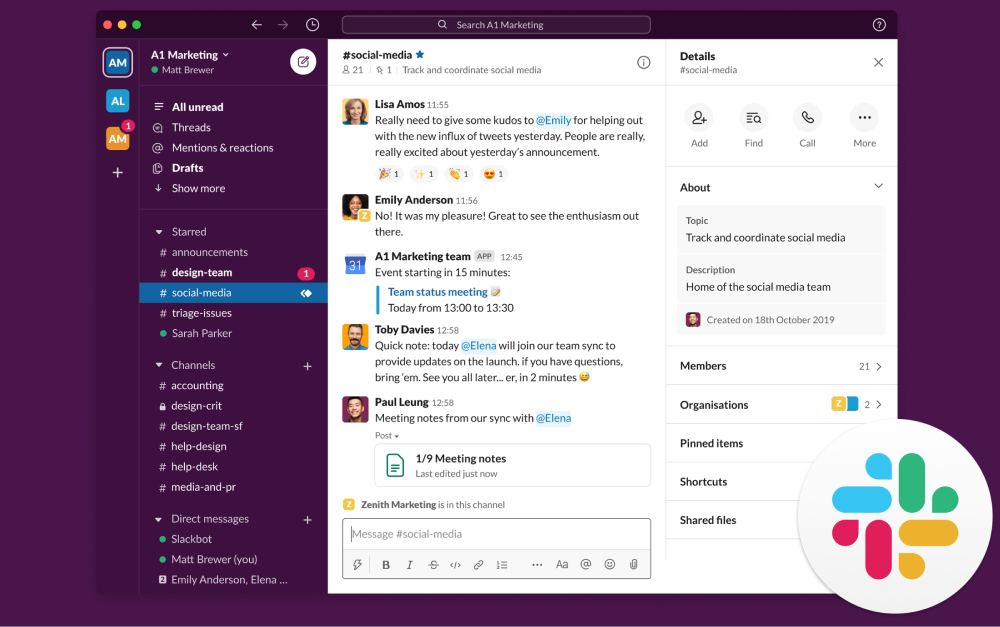
Slack organizes conversations into channels, each dedicated to a project, topic, or team.
Channels and threads vs flat groups
Slack organizes work into channels. You can keep #client-acme, #design, and #random separate, each with its own members, pinned files, and history. Threads hang follow-up replies off a single message, so a side discussion does not derail the main channel.
WhatsApp groups, and the newer Communities feature, stay flat. There are no per-topic channels and no real threads, so messages pile into one stream. Once a conversation scrolls away, you are searching for the exact words you remember, or scrolling for a while.
For a team of five on one or two projects, flat groups are genuinely fine, and the simplicity is a feature. The cost shows up later, when you juggle several clients at once and the single stream stops being enough.
WhatsApp keeps the same mobile-first chat whether you use the consumer or Business app.
Search, history, and file access
Search is where the two models separate most sharply. Slack indexes messages so you can filter by person, channel, date, or file type. On paid plans, every message ever sent stays searchable. Since August 2024, the free plan keeps only 90 days of history, which is a real limit for budget-conscious teams.
WhatsApp stores messages and files on your device, not in a central archive. There is no shared repository, and search is basic keyword matching inside a single chat. A PDF someone shared last month lives in their phone's downloads, not in a place the team can reach.
That gap has a familiar shape. A client asks what you agreed on last month. The answer is buried in a group chat between voice notes and lunch plans, and suddenly the missing record is very concrete. This is also why communicating with clients over a personal app gets risky as the relationship grows.
Integrations and automation
Slack connects to over 2,600 apps, covering project management, cloud storage, developer tools, and CRMs. Its no-code Workflow Builder lets you automate routine steps without writing anything. That breadth exists because a work hub has to talk to the other tools work runs on.
WhatsApp has no built-in integrations for internal teams. The Business API can connect to outside systems, but that needs a provider, developer time, and per-message fees, and it is aimed at customer messaging rather than team workflows.
Be honest about whether you need this. A team that mostly just talks to each other and to clients does not need 2,600 connectors. If your work already lives in other apps and you want chat tied into them, Slack is the clearer fit.
Calls, video, and meetings
This is WhatsApp's clearest free-tier win. You get group voice calls with up to 32 people and video calls with up to 8, no time limit, nothing to install beyond the app. For a quick sync or a client check-in, it just works.
Slack's free plan limits you to one-to-one huddles. Group huddles, with up to 50 participants and screen sharing, need the Pro plan. If informal calls inside your chat tool are a daily habit and budget is tight, that is a genuine gap.
One caveat in both directions. Most teams already run scheduled meetings in Zoom or Google Meet, so the real question is whether you want casual calls living inside the messaging app itself. If you do, WhatsApp wins here on the free tier.
Security: encryption is not a record
People often conflate two different things here, so it helps to separate them. WhatsApp has end-to-end encryption on by default, which is a real privacy strength. What it does not have is an audit trail, central record-keeping, or admin-controlled retention.
Slack is not end-to-end encrypted by default. It uses enterprise-grade encryption in transit, and on paid tiers it adds audit logs, retention policies, single sign-on (SSO), and clean account removal when someone leaves.
The headline here is recent and instructive. Regulators have fined major banks more than 2 billion dollars over staff using WhatsApp for business, with JPMorgan alone paying 200 million. The problem was not weak encryption. It was that those messages were never preserved as records. So the short answer to "is WhatsApp safe for business records" is this: it is private, but it is not a record. If you need a defensible archive, Slack gives you one and WhatsApp does not.
Pricing in 2026
WhatsApp is free for team messaging. The consumer app and the Business app both cost nothing. Only the Business API charges, per conversation, and that is for customer messaging rather than internal chat.
Slack scales per user, which is the number that matters most as you grow.
Pro. $7.25 per user per month on annual billing. Unlimited history, more storage, unlimited integrations, group huddles.
Business+. $15 per user per month on annual billing. Adds single sign-on, audit logs, and data loss prevention.
The math gets real at scale. A 15-person team on Slack Pro runs about $109 a month, which is meaningful money in markets where software budgets are tighter. And the free plan's 90-day limit means older decisions and context quietly disappear. Re-check current pricing before you commit, since these numbers move.
When to pick WhatsApp
WhatsApp is the right call more often than feature checklists admit. It genuinely wins when your situation looks like this.
Your team is small and casual. Under ten people on one or two projects, where flat groups are plenty and structure would just be overhead.
Your clients already live there. If clients message you on WhatsApp by default, meeting them there beats forcing them onto a tool they will not open.
WhatsApp is the regional default. Across Latin America, Southeast Asia, and Africa, adoption is effectively free because everyone is already on it.
You want free group calls and zero setup. No accounts, no admin, no training, just a phone number.
"India is leading the world in terms of how people and businesses have embraced messaging as the better way to get things done." - Mark Zuckerberg, CEO, Meta
None of that is a weakness. For a lot of teams, especially in emerging markets, a client already on WhatsApp is a reason to stay, not a problem to fix.
When to pick Slack
Slack pulls ahead as the work gets more structured. Lean toward it when these are true.
You run several clients or projects at once. Channels keep each one separate instead of collapsing into a single stream.
Searchable history is load-bearing. You routinely need to find what was decided, by whom, and when.
You need integrations. Your work lives in PM, storage, or CRM tools and should surface in chat.
You work async across time zones. Threads, scheduled messages, and notification controls matter more than instant replies.
You need a record or admin control. Audit logs, retention, and clean offboarding are requirements, not nice-to-haves.
Or skip the per-seat math.
Rock combines chat, tasks, and notes for one flat price. Unlimited users, no per-user scaling.
Here is the thing both tools quietly share. Slack and WhatsApp are both chat. Neither is where tasks, owners, and due dates actually live. Slack bolts task management on through paid integrations. WhatsApp has nothing at all. So the real decision is often two tools that still need a third for the work itself.
What we see at Rock is that for many small teams, the pain is not really "which chat app." It is that chat and the work live in different places. Decisions made in a thread never become tasks anyone tracks. A workspace that keeps messaging, tasks, and notes together closes that gap, at one flat price instead of per-seat math.
"Workers toggled between applications and websites roughly 1,200 times each day, adding up to just under four hours a week reorienting themselves." - Rohan Narayana Murty and co-authors, Harvard Business Review
That toggling tax is the real cost of splitting chat from the work it produces. Fewer places to switch between means less time spent just finding where things live.
That is the honest pitch, and it is not for everyone. If you only need to talk, pick Slack or WhatsApp on the criteria above. If you keep losing the work between the messages, it is worth a look. For the full three-way picture, our instant messaging apps roundup compares more options, and switching from WhatsApp walks through the migration if you have already decided to move.
Frequently asked questions
Is WhatsApp or Slack better for business? Neither wins outright. Slack is better for structured, growing, or multi-client teams that need search, integrations, and a record. WhatsApp is better for small, casual teams or when your clients already use it.
Can I use WhatsApp instead of Slack for my team? Yes, and many small teams do. It works well up to about ten people on a couple of projects. The strain appears when you add clients, projects, and the need to find old decisions.
Is WhatsApp safe and legal for business records? It is encrypted and private, but it does not keep a central, retrievable record by default. In regulated settings that is a real problem, which is why banks have been fined billions for relying on it.
Why do companies use Slack instead of WhatsApp? Mainly for searchable history, channels, integrations, and admin controls. As a team grows, those become the difference between finding information fast and digging for it.
Does Slack have free video calls like WhatsApp? Not at the same level. Slack's free huddles are one-to-one. Group huddles need a paid plan, while WhatsApp offers free group voice up to 32 and video up to 8.
What is the best alternative to both for a team that also tracks work? A workspace that combines chat with tasks, like Rock, removes the need for a separate project tool. Compare options in our instant messaging apps guide.
The short version
Slack vs WhatsApp feels like a feature fight, but it is really a fit decision, because the two were built for opposite jobs. Pick Slack for structured, growing, or multi-client teams, and for anyone who needs a searchable record. Pick WhatsApp for small or casual teams, and when your clients already live there. And if the real problem is that the work keeps slipping between the messages, that is the moment to look at a workspace that holds chat and tasks together.
The right messaging tool keeps your team aligned without adding complexity. Rock combines chat, tasks, and notes in one workspace. One flat price, unlimited users. Get started for free.
Effective project management software is more crucial than ever. Whether you're leading a small team or managing complex projects in a multi-national corporation, the right tool can be a game-changer.
Tools in project management are about more than just task management. Nowadays, managing projects is about involving different stakeholders, juggling communication channels, and ultimately driving success.
Finding the perfect fit for your unique needs can feel like searching for a needle in a haystack with all the tools available on the market,.
But fear not.
This comprehensive guide will introduce you to the 10 best project management software tools available in 2026.
Our list includes something for everyone – switch up your current tool or start using free project management software for the first time. From feature-rich platforms to streamlined, user-friendly interfaces, let's explore the solutions currently available on the market.
Read our related article on the best remote work tools for teams who are looking to stay productive in 2026.
10 Project Management Software Tools Worth Checking Out In 2026
Let’s delve into the details of 10 tools in project management that are worth checking out this year.
We've done the heavy lifting for you, examining each tool's features, pricing, as well as listing their pros and cons. Read along to learn more about the best project manager software!
Rock is the ultimate project management software tool on the market. All-in-one functionality allows users to switch between tasks, chat, notes, files, topics and meetings without leaving their project space.
Users can start projects with anyone both in and outside of their organization. This makes Rock a great solution for teams what work with clients, freelancers, and other external stakeholders.
Every project space includes native file management and integrations popular providers such as Google Drive, Dropbox, Figma and OneDrive. Users can attach cloud files to task cards and notes to more easily access work on the cloud.
A flat pricing model makes Rock a very attractive tool for project management. Teams can collaborate with unlimited users both in- and outside of their organization without their bill skyrocketing at the end of the month.
Working with more than 5 or 6 people? Then Rock is most probably your cheapest option if you want to access premium project management software functionality.
What Features Are Available Within Rock’s Project Management Software?
Rock offers all-in-one functionality in one place. Reclaim valuable time and focus on your work. Here are some of the key features within the project management tool:
Spaces: You can organize everything into different spaces. Create a space for 1:1s, group conversations, or projects. Add anyone, inside or outside your organization, to a space so they can participate in a conversation, work on tasks, read notes, and access any file they need.
Task Management: You can use Rock to organize all your work. This feature allows you to create, assign, and manage tasks, making it easier to track project progress and deadlines.
Full-fledged Messaging: Rock features a built-in messaging system that allows you to discuss and connect with anyone, reducing the need for multiple communication platforms.
Meetings: You can conduct video meetings directly within the platform. This feature further enhances the platform's role as a one-stop solution for collaboration and communication.
Dashboard: Rock provides a unified dashboard for all your projects, with a built-in time tracker to help you stay on top of priorities.
Custom Workflows: With Rock's API documentation, you can build custom workflows and tools tailored to your team's needs.
Set Aside: This feature allows users to go through their messages, tasks, and mentions and decide what to work on now versus later.
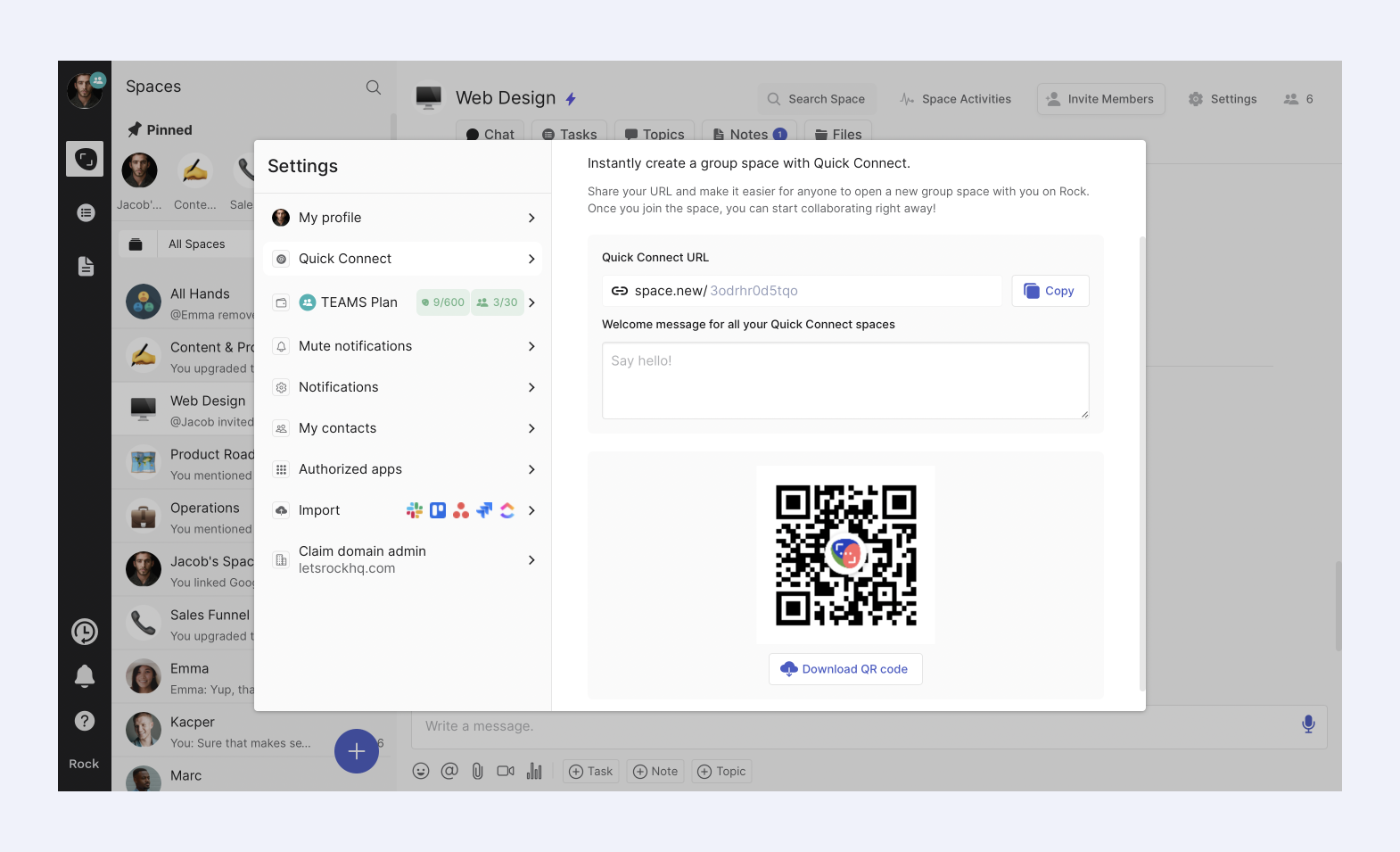
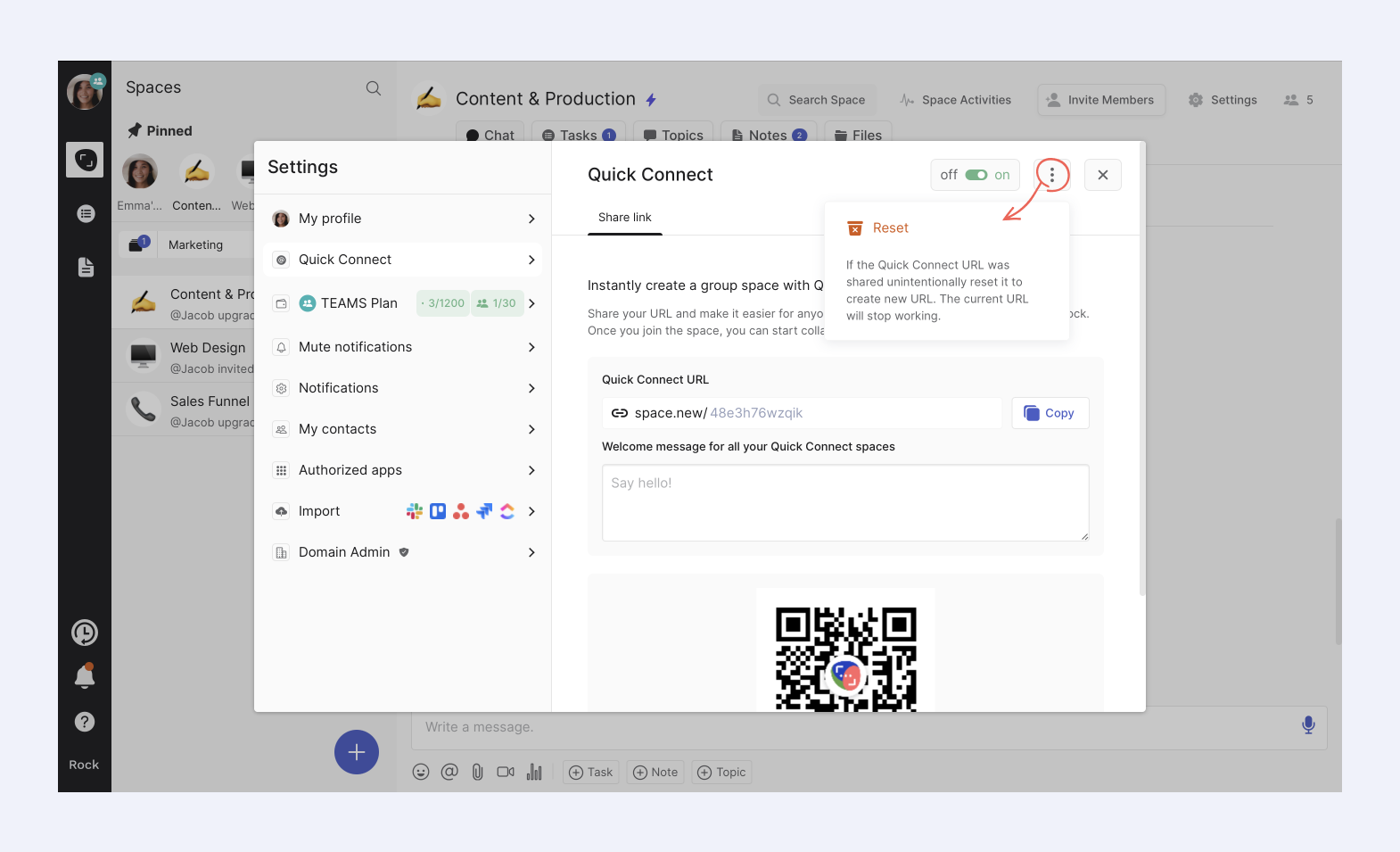
Quick Connect: With Quick Connect, you can start collaborating with anyone quickly using your own personal link. Anyone on the internet that clicks on your link will directly be redirected to a project space with you.
Rock offers two pricing tiers: Free and Unlimited. Pricing is unique to other tools on the market because it's flat. Teams pay a single price regardless of the number of users collaborating in their project spaces.
Free Plan: This plan is best for small projects, and it’s a free software for project management. It includes the following features:
Messaging, tasks, and notes are available in every space.
Up to 50 tasks and 50 notes can be created per space.
Free cloud file storage and meeting integrations.
Import tasks from popular project management and messaging apps.
Unlimited 1:1 peer spaces and 3 group spaces.
Each free group space hosts up to 10 members.
Unlimited Plan: This plan costs $89 per month on a monthly basis and $75 per month if billed yearly, saving 29%. It's best for both small and large teams, especially those who often work with external collaborations such as clients or freelancers.
The Unlimited Plan includes, among other things, the following features:
Unlimited tasks and notes in every space.
Each space hosts up to 1000 members.
Unlimited storage per space is provided.
Online/offline and static user status is available.
Advanced features like time tracker for PRO spaces, 5 managers who can change unlimited spaces to PRO, team dashboard, time tracker dashboard, and custom Quick Connect URL.
Workspaces (50), spaces per workspace (50), group spaces (unlimited), and peer spaces (unlimited) are also included.
The Unlimited plan also provides access to premium features like advanced task functionality, automations, custom integrations, and the ability to build your own bots with the Rock API.
For more information or questions, Rock offers 24/7 customer support and priority support to Unlimited plan users.
Pros And Cons Of Using Rock As Your Project Management Software Tool
The pros and cons of user Rock can vary depending on the specific needs and circumstances of your team or project. Take advantage of the freemium plan to see if Rock is the right fit for you.
Pros Of Using Rock
✅ All-in-one platform: Consolidate messaging, tasks, notes, files, and other favorite apps into one space
✅ Integration with other apps: Work with a large number of other popular tools, such as Google Drive, Dropbox, Zoom, and Github.
✅ Collaboration features: Quickly add other companies, agencies, or freelancers to a space and give everyone access to everything they need to get work done.
✅ Flexible use cases: Rock is designed for a wide variety of use cases, including marketing, startups, freelance, educators, engineering, and more.
✅ Affordable pricing: Upgrade to the Unlimited Plan for a flat price. The paid plan makes Rock a cost-effective solution, particularly for larger teams.
Cons Of Using Rock
❌ Limited offline capabilities: As an online project management software tool, Rock does not offer offline functionality.
What Other People Think About Using Rock
“As a freelancer I work on several projects at the same time with many different people and organization. I use Rock to organize every project in different space, inviting the people I work with. We share plan, tasks, files, and they can follow my workflow, which task is completed or not etc. The massive change compare to Trello and Slack I've been using is that we can discuss at the task level. This means if I'm working on a project with several tasks, we don't have to have endless emails discussing them one by one, the client can just add inputs or comment within the task.” - Capterra Verified Review
"It's easy to use. Quick to setup and basically got all the functions we need to run a collaboration between team members." - Capterra Verified Review
MeisterTask is a comprehensive project management software designed to facilitate effective and efficient team collaborations.
Stemming from the principles of Kanban, MeisterTask presents tasks on a board where they move across columns as they progress through stages. A visual interface allows for an easy overview of project status and workflow at a glance.
The platform is customizable and adaptable, catering to various use cases such as task management, agile project management, workflow management, and teamwork.
MeisterTask Key Features
Kanban-style Project Boards
Task Creation and Management
Personal Agenda Board
Task Assignees and Watchers
Built-in Time Tracker
Attachments
MeisterTask Pricing
MeisterTasks’ management software offers the following pricing plans:
Basic Plan: free, providing core task management features for single users.
Pro Plan: $12 per user per month.
Business Plan: $24 per user per month and is designed for larger teams.
Enterprise Plan: This plan offers custom pricing for large companies with specific requirements. The Enterprise plan is best for large organizations (1000+ employees) looking into software to manage projects
Pros and Cons Of Using MeisterTask For Project Management
Pros of using MeisterTask
✅ Kanban-Style Boards: MeisterTask uses Kanban-style boards to visualize workflows. Board view can help teams better understand their progress and what needs to be done next.
Cons of using MeisterTask
❌ Pricing: Teams can quickly rack up a large bill at the end of the month when paying 12$ or 24$ per user per month.
❌ Potential for Feature Overload: MeisterTask’s project management software offers a lot of features, potentially overwhelming users. Especially those who prefer a more straightforward, simple task management solution.
Hive is a management software designed to optimize workflows, increase productivity, and enable seamless team collaboration.Functionality includes task tracking, time tracking, setting and visualizing milestones, collaboration and messaging, and AI-powered content creation.
Designed for the hybrid working model, Hive is a free project management software that is versatile enough to cater to diverse teams and projects.
Hive offers extensive functionality, but this complexity can sometimes also be an issue for users. Some users have reported finding the interface overwhelming due to the multitude of features and options available.
Additionally, there have been mentions of occasional glitches, and some users have expressed the need for better customer support.
Hive Key Features
Project Management
Time Tracking
Goals
Collaboration & Messaging
Notes AI
Analytics
Hive Pricing Plans
Hive offers three different pricing plans catering to different needs, which are:
1. Solo: This is a free plan aimed at individuals who need to organize their projects in one place. This plan includes:
Up to 2 workspace members
Gantt, Kanban, Calendar & Table views
Email in Hive
Native chat messaging
2. Teams: This is the most popular plan and costs $12/month per user. It's designed for those who need to work without limits and customize their project management experience. This plan includes everything in the Solo plan plus:
Unlimited workspace members
Seven flexible add-ons (extra)
External guest access
Shareable forms
Time tracking
In-app calendar
3. Enterprise: This plan is for users who need more flexibility, extra support, and security. The price isn't listed on the website and you're encouraged to get in touch with Hive for a quote. The Enterprise plan is best for large organizations (1000+ employees) looking into apps for project management.
Pros and Cons Of Using Hive As Your App For Project Management
Pros of using Hive
✅ Integrations: Hive can be integrated with a wide array of external apps, helping to streamline work and centralize information.
Cons of using Hive
❌ Cost Implications: With a rate of $12 per user each month, teams might find themselves with a substantial cumulative expense for management software by month's end.
❌ Learning Curve: Given the wide array of features and customization options, new users might face a steep learning curve.
Trello is a project management tool designed to foster team collaboration and work organization. The platform uses a card-based system where each card represents a task, which can be organized into different lists representing the stages of a project.
Trello strives to make project management simple and efficient for teams of all sizes with features such as automations, power-ups and project plan templates for easy setup.
Although Trello's free project management software is great for visualizing stages, it can lack depth for detailed project management needs. Users have also expressed a need for more robust reporting and analytic features to better track and evaluate the overall progress of their projects.
Standard Plan - $5 per user/month if billed annually ($6 billed monthly).
Premium Plan - $10 per user/month if billed annually ($12.50 billed monthly).
Enterprise Plan - $17.50 per user/month if billed annually ($210.00 annual price per user). The Enterprise plan is best for large organizations (1000+ employees) looking into apps for project management.
Pros And Cons Of Using Trello For Project Management
Pros Of Using Trello
✅ Kanban-Style Boards: Trello uses Kanban-style boards to visualize workflows. Board view can help teams better understand their progress and what needs to be done next.
Cons Of Using Trello
❌ Pricing: Teams can quickly rack up a large bill at the end of the month when paying 5$ or 10$ per user per month.
❌ Potential for Feature Overload: Trello offers a lot of features, potentially overwhelming users. Especially those who prefer a more straightforward, simple task management solution.
Monday.com is a Work Operating System (Work OS) that enables organizations to manage tasks, projects, and team work in one collaborative space. Functionality is designed to suit various team sizes and industries, offering solutions for marketing, sales, engineering, recruiting, and more.
Monday’s management software allows users to create their own workflows, centralize all work and communication in one place, and integrate with other popular tools like Slack, Dropbox, and Adobe Creative Cloud.
While Monday.com’s project management software provides a host of benefits, it isn't without its drawbacks. One common user complaint is about its pricing. Some users feel that the platform can be quite expensive, especially for small businesses or startups.
Furthermore, users have noted a steep learning curve, making initial setup and adoption a challenge.
Monday project management functionality
Boards
Views
Dashboards
Integrations
Automations
Apps
Docs
Monday pricing options
Free Plan - $0 forever
Basic Plan - $8 per seat/month ($24/month total - minimum 3 users) billed annually
Standard Plan - $10 per seat/month ($30/month total - minimum 3 users) billed annually
Pro Plan - $16 per seat/month ($48/month total - minimum 3 users) billed annually
Enterprise Plan - Pricing is provided upon contacting sales. The Enterprise plan is best for large organizations (1000+ employees) looking into software to manage projects
Pros And Cons Of Using Monday Com As Your Project Management Software
Pros Of Using Monday
✅ Customizable views: Monday.com offers 10+ customizable views including Gantt and Kanban, which allows users to visualize tasks and projects based on their specific workflows.
Cons Of Using Monday
❌ Pricing: Teams can quickly rack up a large bill at the end of the month when paying 8$, 10$ or $16 per user per month.
❌ Notification Overload: Some users have reported receiving too many notifications, which can become overwhelming and potentially disrupt productivity.
Microsoft Teams is a unified project management tool that integrates workplace chat, video meetings, file storage, and application integration. The service is part of the Microsoft 365 family of products, providing a hub for teamwork.
Users can create shared workspaces, use AI-powered experiences to make collaboration smarter and easier, and even empower their frontline workers with intelligent operations and seamless communication.
A common complaint from users is that the interface can be somewhat non-intuitive and confusing, especially for first-time users. UI issues within the project management software can lead to difficulties in navigation and locating specific features or tools.
Working with Microsoft Office already? Add the OneDrive integration to your Rock spaces for seamless file access.
Project Management Features In Microsoft Teams
Meetings and Conferencing
Teams Phone
Chat and Collaboration
Teams Devices
Apps
Frontline Workforce Solutions
Real-time Coauthoring
Microsoft Teams Connect
Teams Channels
Microsoft Teams pricing
Teams does not have a free software for project management. Instead, pricing is divided among the following plans:
Microsoft Teams Essentials: Starting from $4 per user/month (Annual subscription—auto renews).
Microsoft 365 Business Basic: Starting from $6 per user/month (Annual subscription—auto renews).
Microsoft 365 Business Standard: Price: Starting from $12.5 per user/month (Annual subscription—auto renews).
Pros And Cons Of Using Microsoft Teams As For Project Management
Pros Of Using Microsoft Teams
✅ Collaborative Workspace: Microsoft Teams integrates with other Microsoft 365 apps like SharePoint, OneNote, Planner, and Power BI, making it a comprehensive platform for team collaboration.
Cons Of Using Microsoft Teams
❌ Integration with Non-Microsoft Apps: While Teams integrates well with Microsoft's own apps, it may not integrate as smoothly with third-party apps.
❌ Notification Management: Users have reported that managing notifications can be overwhelming and confusing.
Asana is a popular project management software that helps teams organize, track, and manage their work. Their primary goal is to facilitate team collaboration and improve productivity.
With a user-friendly interface, Asana allows you to create and assign tasks to team members, set deadlines, and add task descriptions. You can visualize your work in various ways including lists, task boards, calendars, or Gantt charts with the Timeline feature.
Teams can share notes, upload files, and communicate directly in the context of each task or project, keeping all relevant information in one place.
Features that can be found within Asana
Task Management
Project Visualization
File Sharing
Collaboration Tools
Workflow Automation
Integrations
Custom Fields
Goals
Forms
Asana pricing
Basic: This is for individuals or teams just getting started with project management. It's free forever.
Premium: $10.99 per user/month if billed annually ($13.49 billed monthly)
Business: This plan is for teams and companies that need software to manage projects across initiatives. $14.99 per user/month if billed annually ($30.49 billed monthly)
Enterprise: This is Asana's most comprehensive offering, providing powerful, intuitive work management with advanced admin features and security at scale. The price for the Enterprise plan is not provided and you are prompted to contact their sales team for more information.
Asana Pros And Cons For Project Management
Pros Of Using Asana
✅ Features: Asana provides robust features such as task assignments, due dates, project timelines, comments, file attachments, and more.
Cons Of Using Asana
❌ Pricing: Some users find Asana to be expensive, especially for small businesses or startups, as some of the advanced features are only available in the premium tiers.
❌ Overwhelming for Simple Projects: If you're managing a straightforward or small-scale project, Asana might be more complex than you need.
Jira, developed by Atlassian, is a popular issue and project tracking software that provides a comprehensive suite of tools for managing work in agile teams.
The project management software covers aspects from work management and IT service management to agile and DevOps, catering to various team sizes and industries.
One of the most common criticisms of Jira is its complexity. The platform is robust and highly customizable, which can make it overwhelming and difficult to navigate for newcomers.
Jira’s Tools For Project Management
Issue and Project Tracking
Prioritization and Discussion
Fast Release
Reporting
Automation
Templates
Customization
Integration
Open DevOps
Different Pricing Options Within Jira
Free Plan - $0 forever
Standard Plan - $21 per seat/month ($63/month total - minimum 3 users) billed monthly
Premium Plan - $47 per seat/month ($141/month total - minimum 3 users) billed monthly
Enterprise Plan - Pricing is provided upon contacting sales. The Enterprise plan is best for large organizations (1000+ employees) looking into apps for project management.
Jira Pros And Cons For Project Management
Pros Of Using Jira
✅ Strong Support for Agile Methodologies: Jira offers strong support for Agile methodologies, including Scrum and Kanban. Features like customizable boards, backlogs and sprints, make it a good fit for Agile teams.
Cons Of Using Jira
❌ Complexity: The high degree of flexibility and customization can lead to complexity, making it difficult to configure and manage without dedicated administrators.
❌ Cost: While Jira does offer a free tier, the costs can increase quickly as you add more users and need more advanced features.
9. ClickUp
Via ClickUp
ClickUp is a cloud-based project management platform designed to bring all of your work into one centralized location. The platform is designed to be flexible and customizable, enabling teams from all sectors and sizes to plan, organize, and stay organized at work.
ClickUp's goal is to make the world more productive by removing the friction caused by using so many different apps, and to provide a single unified platform for work.
While ClickUp’s project management software is highly praised for its versatility and wealth of features, it also receives some criticism. A common user complaint is about the platform's complexity due to its extensive features and customization options.
Additionally, some users have reported that the software can occasionally be slow and laggy, especially when managing a large number of tasks, which can impact productivity and the user experience.
ClickUp’s Tools For Project Management
Task Management
Customizable Views
Collaboration Tools
Time Tracking
Custom Fields
Integration
Reporting
Automation
Pricing Plans Within ClickUp
Free Forever
Unlimited: $7 per member per month on an annual plan
Business: $12 per member per month on an annual plan
Enterprise: Contact Sales for pricing. The enterprise plan is best for large organizations (1000+ employees) looking into apps for project management.
ClickUp Pros And Cons For Managing Your Project Management
Pros Of Using ClickUp
✅ Collaborative Tools: Users have noted that ClickUp's collaborative tools, like comment sections and document sharing, are very useful for team projects.
Cons Of Using ClickUp
❌ Mobile App: Some reviews indicate that the mobile app could be improved in terms of functionality and performance.
❌ User Interface: A few users have noted that the user interface could be more intuitive and user-friendly.
10. Basecamp
Via Basecamp
Basecamp aims to eliminate the need for multiple apps for chat, file sharing, tasks, or basic scheduling. Thereby, reducing time spent bouncing between different platforms and increasing overall productivity.
Users are offered a unique set of tools for project management like Hill Charts, Campfire and Card Table.
While Basecamp is lauded for its simplicity and ease of use, some users have expressed dissatisfaction with its lack of advanced features, such as Gantt charts and time tracking, which are commonly found in other project management tools.
Lack of functionality may limit its applicability for teams or projects that require more complex or specialized project management functionalities.
Basecamp Project Management Features
Home Dashboard
Messages
File Sharing and Discussion
Schedule
Automatic Check-ins
Reports
Pings
Pricing Options within Basecamp
Basecamp does not offer a free software for project management, instead users can make use of a 30-day trial. Instead, it offers the following two plans:
Basecamp: The pricing model is on a month-to-month basis and is charged at $15/user per month. Only employees are billed, and guests can be invited for free.
Basecamp Pro Unlimited: The cost is $299/month, billed annually with no per-user charges. If you prefer to pay month-to-month, it’s $349/month.
Basecamp Pros And Cons For Managing Your Project Management
Pros Of Using Basecamp
✅ Project Organization: Users appreciate the centralized location for project management, including task assignments, discussions, file sharing, and scheduling.
Cons Of Using Basecamp
❌ Integrations: While Basecamp does integrate with some other tools, users have expressed the desire for more extensive integration capabilities with external apps and services.
❌ Pricing: Some users find the pricing model, especially for small teams, to be more expensive compared to other project management tools.
Get The Most Out Of Your Work With The Best Project Management Software
Wave goodbye to clutter, chaos, and confusion. Embrace the power of seamless collaboration, streamlined communication, and effective tools in project management.
Rock is the best project manager software. You're not just managing projects, you're mastering them. Elevate your teams, optimize your workflow, and start making every project a success story today.
Your journey to effortless project management starts here! Time to get the most out of your work, one project at a time.
In this release we're introducing Rock webforms, adding the ability to display thumbnails on the task board, and making a ton of other improvements to the core Rock experience. Interested in learning more? Check out the key changes below:
Webform - add a Rock webform to any website and when an entry is submitted a task is created in Rock. Use this for incoming requests, sales inquiries, or support tickets, and do the follow-up in Rock.
Thumbnails on the task board - see images on the task board so you can quickly see creative, visuals, and other attachments without having to go into a task.
Scheduled messages- send messages when people are going to be online by scheduling these based on their timezone.
Workspace improvements - instead of automatically adding everyone to all spaces in a workspace, you can now selectively invite people to a specific space.
Minimize space panel - need a bit more space for your space? You can now minimize the space panel so you can see more. No larger monitor needed.
Tons of other improvements - from improved task objects in chat to improvements on the way you navigate around Rock, we've added tens of small improvements that will keep you rocking.
Embeddable Rock webform
Set up new webforms between your website and Rock, available in both free and PRO spaces. Rock webforms automatically convert new website responses into tasks, creating a more centralized and intuitive flow of information.
This makes it easier for website visitors to contact you and allows your team to access and handle new form submissions without leaving Rock.
Here are some instances where the new webform could benefit to your team operations:
Product demos and consultations: Create a form that allows visitors to request a demo or consultation. This helps you gather pre-sales information while also directly assigning a new lead to a space member.
Contact forms: Add a "Contact Us" form to allow visitors to ask questions about your business or products and collect their information for future marketing. Visit our contact page to see this example in action!
Newsletter sign-up: Add a form for visitors to seamlessly sign up for your mailing list to stay engaged with updates, promotions and other important business announcements.
Feedback: Collect reviews or feedback from visitors on a specific product or service. You can use labels to categorize all information within your dedicated Rock space.
Event registration: Make it easy for attendees to register for your next digital or in-person event.
Check out our support page to see the webform in action, feel free to leave any feedback, queries or share anything else with us.
The new webform feature has been made available in both free and PRO spaces. Any user with admin permissions in a space can access the feature by visiting the space settings.
It is now possible to display images on tasks when viewing the Tasks mini-app in board view. This can increase clarity on how to operate tasks, improve engagement or bring more personalized branding to your projects on Rock.
To set an image as a thumbnail, follow these simple steps:
Upload an attachment in .PNG .JPG or .JPEG to a task.
Hover over the element and select “Set as task preview”.
Done! Your preview now shows on the board view. To remove the preview, repeat the steps and click on “Remove thumbnail”.
Workspace improvements
We have implemented an update to workspaces that enables you to selectively invite users to specific spaces within a workspace.
This means that once a user is invited, they will only be part of the spaces chosen by you, and will not automatically become a member of any current or future spaces added to that workspace.
To invite a new user to specific spaces, select the "invite manually" option in the workspaces panel.
Next, ensure to deselect the default option of "invite to all workspace spaces". Then, manually choose the users you want to invite to the subset of spaces in the workspace.
Once you have selected all desired users, press the "next" button.
You now have the option to choose which spaces to add the user to. They will no longer be automatically included in new spaces added to the workspace or already existing spaces within your workspace.
Remove link previews
You now have the ability to eliminate the thumbnail previews for links shared in chat. This change will be reflected for all users sharing the chat space with you.
To remove a thumbnail, simply hover over it once it appears and click the "x" button. Keep in mind, once removed, the thumbnail cannot be restored for that specific message.
Jump to message
Want to quickly access the original message in a notification or thread? The chat panel now offers the option to jump to the message in the chat.
This makes it easier to view past conversations and navigate through messages in your different spaces and discussions. To activate the feature, simply select “Jump to Message” at the top of the panel.
Minimize spaces panel
Maximize your Rock spaces view by hiding the spaces to the left. This feature can be easily enabled by pressing “hide” at the top of the spaces view.
This reduces clutter and increases the size of an open mini-app in a space, making it easier to get work done within your different workstreams.
Tasks objects in chat, now with due date and assignee status
Task objects now provide a more comprehensive view when shared in a space. Along with the standard information, we have added due date and assignee status.
This additional information will automatically appear when creating a new task or mentioning a task in your next conversation.
Time tracker improvements
We have made numerous improvements to the time tracker. This should result in a smoother experience overall with bug fixes and speed improvements across the board. Additionally, the format of the CSV exported from the time tracker has been updated.
To export tracked time in a CSV follow these steps. Go to your personal time tracker or the time view in the management dashboard -> set the desired time frame -> select "export" in the top right corner of the view.
Scheduled messages (unlimited)
Send messages or polls at a convenient time by scheduling them. This enables you to send messages at a time that aligns with your team members' time zones, plan ahead or set reminders.
The unlimited plan is available for everyone, and limits for the free plan are now in effect. All users have access to free spaces, but with limitations.
FREE spaces are limited to creating 50 tasks and notes, adding 10 members, and uploading 250MB of files per FREE space.
Free users can also create only 3 group spaces and one workspace. However, you can create unlimited 1:1 spaces and use the Chat and Topics mini-apps without any restrictions.
Upgrade today and unlock access to PRO spaces for your team, partners, clients, freelancers and anyone else that wants to collaborate together with you on Rock.
Download the mobile app
We’re building Rock in public, share your thoughts, ideas, and feedback with us!
Join the Rock team as we build the future of collaboration and productivity. Learn more about upcoming features, share product suggestions and access the latest resources and events from the Rock team. Everyone is welcome to join through this link.
What if you could speak your success into existence? Career affirmations exist for that exact purpose. Uncover the power of positive affirmations and get started with 100+ powerful statements.
Everyone goes through a set of worries. Concerns can range from the rising cost of living to an increasing workload, news of layoffs, or other events in personal or global surroundings.
Those who work remotely are hit even harder by concerns. One reason for this is that it may be harder to form connections in the digital space. There is less in-person communication with other team members, which decreases reassurance while increasing doubts.
Thankfully, there are many ways to turn difficult days around. One of them is by incorporating positive affirmations for work into your work routine. This article walks you through:
Thedefinition of career affirmations
100+ different positive affirmation examples
How our team implemented positive work affirmations into daily routines
Unleash the full potential of your career journey with our guide and start transforming your productivity today!
Free Project Management Template
How to Work Effectively & Efficiently
Work with tasks, chat, notes, files and meetings in one place.
Career affirmations are a psychological technique involving the repetition of positive phrases related to one's career. These phrases influence the subconscious mind, creating a positive self-perception and a favorable outlook on one's professional life.
Introducing daily affirmations for work can help increase productivity, job satisfaction, and career success. Some people like practicing their positive affirmations at certain times. Alternatively, others repeat the statements when they have an anxious or negative thought.
There’s no one-size-fits-all when it comes to positive affirmations. What is important is finding the ones that work for you and defining when you want to use them.
You can also refresh your affirmations every now and then – it’s totally up to you!
"I am not a product of my circumstances. I am a product of my decisions." - Stephen Covey, author of "The 7 Habits of Highly Effective People".
What are the benefits of career affirmations?
It is widely believed that your thoughts help to shape your reality. This isn’t something that’s meant to be taken in a literal sense (thinking about a scenario won’t magically make it happen). However, having a positive outlook in life certainly helps reduce negative thoughts.
Positive affirmations also help you be more mindful of your train of thought, which subsequently helps with staying organized at work.
Here are a few specific benefits:
Reduced stress: Regularly repeating positive affirmations reduces work-related stress and anxiety. Your mindset is shifted away from worrying or negative thoughts by focusing on positive statements.
Improved focus and productivity: Affirmations can help maintain focus on tasks and goals, which in turn can enhance productivity.
Better communication skills: Focusing your affirmations on empathy, understanding, and effective communication fosters a more cooperative work environment.
Growth mindset: Repeating powerful statements can foster a growth mindset, which is the belief that abilities and intelligence can be developed over time. You become more motivated to take on challenges and see effort as a path to mastery.
"You are never too old to set another goal or to dream a new dream."- C.S. Lewis, British writer
Importance of positive affirmations for employee motivation
Using positive affirmations for work can help you find the motivation you need for the day. It’s a quick, simple, and easy way to get into the right headspace for work. Positive statements also help to decompress from work and reduce stress. Especially when the going gets tough.
In the long run, this will create a more harmonious workspace and prevent a toxic work culture or employee burnout. If you’re in a leadership role, using positive affirmations in your communication strategies can help with your team dynamic.
It’s one way of showing empathy and letting your team know that you’re there for your team. You can opt to have positive affirmation sessions or check-ins – focused on employee well-being and headspace at work.
Depending on what your team prefers, you can also discuss work well-being through check-in questions for meetings, share teamwork quotes that reinforce a shared goal, or just have a space where colleagues share thoughts and feelings. These different activities allow you to better understand what type of help your team needs at work.
Types of positive affirmations for work
Now that you know just how beneficial positive affirmations are at work, it’s time to go over some examples. Because there are different types, it’s good to narrow them down. This will help you choose the ones that you need depending on your situation.
Do you need a positive affirmation regarding a difficult task? Lack of motivation? Work stress? Whatever it is, we have you covered with 100+ workplace positive affirmations for work
Monday affirmations for work
Positive affirmations to start the work week can help set the tone for a productive, successful, and positive week ahead. Shift your mindset from dread or stress about the incoming week to one of anticipation and enthusiasm.
Here are some powerful affirmations you can start using at the start of your week:
This day will be filled with productivity and learning.
A new week means a fresh start.
I will complete all of the tasks I need to complete.
I am capable and knowledgeable in my line of work.
I have insights and ideas that are valuable to my team.
I am taking one step at a time toward my goals.
I’ll get past the Monday blues.
I am excited for the new opportunities this week will bring.
Today is a great day to make a positive impact at work.
There’s something new to learn every day.
This week will be an enjoyable work week.
I am well-prepared and capable of facing any challenges this week.
I am a positive influence on my co-workers and bring value to my team.
I am focused, determined, and ready to accomplish my goals this week.
I am grateful for the chance to make a difference in my work.
Positive affirmations for the workplace
Different personalities and types of communication styles in a team represent a variety of ideas, opinions, and interactions. Positive affirmations can foster a good team dynamic by encouraging collaboration, mutual respect, and shared success.
Try out these affirmations to build better relationships and promote better cross-functional collaboration with your team members!
Every member of my team has something to offer, including me.
Teamwork is essential in succeeding.
My team has my back, and I have theirs.
I collaborate effectively to reach our shared goals.
My team will have a productive day ahead.
My team creates a safe space for ideas and suggestions.
My team consists of different personalities, but we all have one common goal.
I will do my best to help my team whenever I can.
I will create an inviting and inclusive work environment for my team.
Each and every member of the team has a crucial role.
You can also use team affirmations to warm up a meeting. Here are some group statements you can use:
We are open and respectful of each other's ideas and opinions.
Every challenge we face strengthens our team and brings us closer.
We trust and support each other.
Our team communicates openly, honestly, and respectfully.
We celebrate each other's achievements and learn from each other's mistakes.
Our team embraces diversity and values the unique perspectives it brings.
We are all essential pieces of a larger puzzle, working together seamlessly.
We are a unified force, ready to tackle any task together.
Our team is flexible, adaptable, and ready for change.
We collaborate effectively to maximize our collective potential.
Free Project Management Template
Become a More Assertive Communicator
Work with tasks, chat, notes, files and meetings in one place.
Although it’s quite normal to sometimes feel stressed, it’s not something you should constantly feel. Stress can be a difficult thing to manage, but the correct statements can help shift your mindset and reduce feelings of anxiety.
Help combat work stress through these powerful affirmations:
I acknowledge that feeling stressed sometimes is completely normal.
I will let go of the things I can’t control.
My feelings are valid, but they will not consume me.
This moment may be difficult, but I’ll get past it.
My stress doesn’t control me, and it will eventually melt away.
I am in control.
Everything is going to be okay.
I exhale stress and inhale peace.
I will not entertain or feed negativity at work.
I choose to react calmly to any situation I face.
I am capable and calm in the face of challenges.
Every situation is an opportunity for growth and learning.
I am stronger than any stress that comes my way.
I am doing my best and that is enough.
I have successfully navigated through challenges before and I can do it again.
Positive affirmations for practicing work-life balance
Life is not all about work. Learn to find the right balance between focusing on your work and focusing on enriching the other aspects of your life. Reinforce the importance of both professional and personal time, reducing stress, and promoting overall well-being.
Here are some examples of positive affirmations for work-life balance:
Today and every day, I will make time to work towards career and personal success.
Resting is also an essential part of work.
My work does not define my worth.
I rest whenever I need to.
Time for my family, friends, loved ones, and myself is important.
Time for my hobbies and interests outside of work is important.
I should not feel guilty for not answering work emails after work hours.
I take care of both my work life and my personal life.
I am blessed both with my work life and my personal life.
Setting work boundaries is necessary and important.
I respect my personal time as much as my work time.
I am creating a healthy balance between work and my personal life.
I have the power to set boundaries and prioritize my well-being.
My personal life is as important as my professional success.
Time off is a necessity, not a luxury, and I allow myself to enjoy it.
I am more than my job, and I give myself permission to relax and enjoy life.
Work is a part of my life, it is not my entire life.
I am productive at work and fully present in my personal life.
Free Project Management Template
How to Work Effectively & Efficiently
Work with tasks, chat, notes, files and meetings in one place.
Positive work affirmations for dealing with challenges
Making a mistake or two at work is normal, but that doesn’t make the experience less frustrating. Manage negative emotions, build resilience, and maintain a positive outlook even in the face of adversity.
Consider these career affirmations for when you encounter challenges:
I am not defined by my mistakes.
Challenges and struggles help me grow.
It’s okay to ask for help with my tasks.
I am taking things one step at a time.
It’s okay to take a break, but giving up is not an option.
It’s okay to step back when I’m feeling overwhelmed.
I am resilient throughout challenges.
Each challenge I face eventually becomes a useful lesson.
I can overcome difficult tasks and challenging situations.
I don’t dwell on things that have gone wrong – only on how I can move forward.
I am resilient and capable of overcoming any obstacles in my path.
Every step, no matter how small, is progress.
I am brave, I am strong, and I am resilient.
I am not defined by this challenge, but how I respond to it.
I am stronger than this challenge, and this challenge is making me even stronger.
I trust in my ability to navigate through this situation.
Positive affirmations for combatting Imposter Syndrome
Imposter Syndrome is a psychological pattern where individuals doubt accomplishments or talents. As a result, people might have a persistent internalized fear of being exposed as a "fraud". Doubts and anxious feelings through impostor syndrome can occur in various areas of life, including work, school, and personal relationships.
If these feelings sound familiar to you, then the following affirmations might work:
I know what I’m doing.
I am an asset to my team.
I will stop entertaining feelings of self-doubt.
I can do anything that I set my mind to.
I have the skills needed to do my job well.
I am worthy of my achievements.
I deserve the career position I am in now.
I am an expert.
I can successfully complete my tasks.
I contribute to the success of this company.
I am competent, smart, and capable.
My contributions are valuable and necessary.
I am deserving of all my achievements and recognition.
I embrace the opportunity to learn and grow from my mistakes.
My worth is not defined by my performance.
I am more than capable of achieving my goals.
I am confident in my skills and knowledge.
I believe in my unique talents and abilities.
Every day, I am becoming more comfortable with success.
I am deserving of success and happiness.
Subscribe to Rock’s blog
The latest news and insights from our team right in your inbox
Sharing work affirmations with your team
These are just some examples of positive work affirmations you can use. Practicing these statements greatly helps your outlook, especially as you work from home.
Keep in mind that for this technique to be effective, you have to be intentional and consistent in using them. Here is some final advice:
Consistency is key: To reap the benefits of work affirmations, it's important to repeat them regularly. This could be when you start your day, during breaks, or any other time.
Believe in the affirmations: For statements to work, you need to believe in them. Visualize the balance you are striving for as you say the statements out loud.
Personalize your affirmations: We shared 100+ general examples. Feel free to modify them or create your own sentences that resonate with you.
Combine affirmations with actions: While affirmations help shift your mindset, they need to be combined with concrete actions. Start setting boundaries, prioritizing tasks, and scheduling personal time.
If you are looking for an effective way to share positive affirmations with your team, you can check out Rock. It’s a holistic task management and messaging tool that can help you keep tabs on your affirmations.
How our team practices positive affirmations on a regular basis
There are several ways we use Rock to incorporate positive affirmations into our routine. For one, we use the Notes mini-app to write down the ones that suit us best.
The benefit of adding work affirmations on a note is that we can access it without browsing different folders or physical notes.
Lastly, some of our team members use the Tasks mini-app to create to-do’s for positive affirmations. This is a great way to stay consistent. Our team members even receive dedicated notifications by adding due dates and reminders.
Start using positive affirmations for work today
Remember, the key to an extraordinary career lies within you. Embrace these affirmations, let them shape your mindset, and watch as they open the doors to new heights of professional accomplishment.
Your journey to success begins with the words you choose to speak. Affirm positively, believe confidently, and step into a career that's not just successful, but uniquely yours!
Many teams often get lost in the day-to-day of tasks, deadlines, and projects. However, there is so much more to effective team collaboration. Incorporating check-in questions can be a great strategy to keep up with team members and uncover important details.
At the heart of every successful venture is an engaged and motivated team. Smart check-in questions help managers and employees alike to measure moods, discuss doubts and start open conversations.
We've curated a list of over 100 check-in questions designed to break the ice, ignite engaging conversations, and foster a deeper understanding among team members.
Buckle up and get ready to transform your meetings and build better, more connected teams with definitions, 100+ check-in questions and implementation strategies.
What are check-in questions?
Check-in questions are a communication method used at the beginning of meetings, workshops, or team sessions. The questions serve to gauge participants on how they’re feeling, what they're thinking, or where their focus is.
The purpose of good check-in questions is to encourage active participation, build team rapport, and set the tone for the rest of the meeting. Identify issues or distractions that can affect the meeting's productivity, and ensure team members feel heard and understood.
Incorporating check-in questions into your routine can be especially helpful for remote and hybrid teams, who might not have as many daily or in-person interactions.
Why you should use check-in questions
Check-in questions can be a valuable tool for staying in tune with your coworkers. Spot potential roadblocks or bottlenecks and find a helping hand if needed.
Good check-in questions provide an opportunity for everyone to speak, no matter where they’re located or how long they have been part of the team. Great questions also give context for conversations and assignments other attendees might not be aware of.
With more background on someone’s workload, another coworker might be able to help or offer answers. You can have these questions explicitly stated in your meeting agendas or not.
Good check-in questions are part of virtual meeting best practices and should help build a positive team and company culture. Elicit a brief answer from your team members.
You want more than a “yes” or “no” response while also staying away from turning your meeting into a free-for-all storytelling session.
Good check-in questions share several characteristics that boost effectiveness and efficiency in promoting open dialogue and fostering team rapport. Here are 7 key characteristics to implement in your questions:
Open-ended: Effective check-in questions are usually open-ended, inviting more than a simple 'yes' or 'no' answer.
Clear and concise: The question should be easy to understand and not overly complicated. Ensure that everyone can engage in the conversation, regardless role or experience.
Non-judgmental: Create a safe space for honest responses. No one should feel judged or criticized for their answers.
Relevant: The question should be relevant to the team members and the context of the meeting.
Encourages reflection: Good check-in questions prompt team members to reflect on their current state of mind, their feelings, or their position on a particular topic.
Promotes engagement: Stimulate the conversation and foster engagement among team members.
Positive Tone: While not all check-in questions need to be positive, it’s often beneficial to frame questions in a positive way to foster a supportive environment.
🎁 Free resource: Don't let your voice be drowned out in the noise of the world—take control of your life through the Assertiveness Training Template.
5 Signs of bad check-in questions
Make sure that questions aren’t negatively impacting the meeting to prevent a toxic work culture.
Check-in questions can be a powerful tool to foster connection, but should not become the main act. Avoid these 5 pitfalls to effectively implement this communication strategy:
Avoid leading questions: Leading questions subtly guide a person towards a particular response, resulting in a sense of pressure.
Don't make check in questions mandatory: Forcing someone to answer a question when they're uncomfortable can create resentment or discomfort. Allow team members to pass on answering if they wish.
Avoid personal or sensitive topics: Foster connection and understanding without invading personal privacy unless it's appropriate and consent is given.
Don't rush: Give team members time to think and respond. When people feel rushed, they might not share fully or honestly.
Don't dismiss or ignore responses: Make sure that thoughts and responses of team members are acknowledged.
100+ Check-in questions that set you up for success
Check-in questions can adapt to fit your needs. They can be as fun or business-like as you want them to be. You can ask the same question at each meeting or switch up your questions to get different perspectives. We’ll discuss the following categories:
Daily check-in questions
Mental health check-in questions
Team check-in questions
Fun check-in questions
Future-oriented check-in questions
Review these 100+ check-in questions and decide what works for your team and meeting.
Daily check-in questions
Daily check-in questions are prompts used at the beginning of meetings or workdays. Think of daily standups.
These questions are best for agile workplaces, remote teams, or among teams that strongly value interpersonal communication and team cohesion. Use them as morning meeting questions to set the tone for the day.
What do you want to accomplish today?
Can you mention a work challenge you’re facing?
Can you list your biggest priorities?
How can your team support your work?
What's one word that best describes your mood today and why?
What's the most interesting thing you've learned or read about recently?
What's one thing you're looking forward to today?
On a scale of 1-10, how would you rate your energy level today, and why?
What is your main focus for today's tasks?
What was the highlight of your day yesterday?
Is there anything that you're worried might get in your way today?
What's one thing you could use help with today?
What's something you're proud of from your work yesterday?
What's something you're grateful for today?
Are there any obstacles that you anticipate facing today?
How can we as a team make today a great day?
What's one thing that could be done to improve our work process today?
What's a positive change you've noticed in our team recently?
Is there anything you feel stuck on and need some input or help with?
🎁 Free resource: It's time to take control of your hectic schedule and unleash your true potential with our FREE productivity training!
Mental health check-in questions
Mental health is a key priority and dedicated check-in questions can give you a glimpse of your team’s mindset. Keep the professional context of work in mind and avoid any overly personal questions.
These don’t have to be regular morning meeting questions or asked on a daily or regular basis but are important to bring up to spot team members who feel overwhelmed or burnt out.
You can also incorporate mental health check-in questions into one-on-one meetings or more formal situations, like yearly reviews.
How would you describe your current mindset?
What tasks are in outside of your comfort zone?
What has made you feel proud recently?
How is your workload affecting your mindset?
What is your main concern right now?
How are you feeling today, really?
What's one thing you've done for yourself today?
Are you finding it easy to relax and switch off from work?
What's something that's been bringing you joy lately?
What's something that's been causing you stress or worry?
Are you feeling more tired or fatigued than usual?
How are you managing to stay connected with friends and family?
Do you feel like you have someone you can talk to about things that are bothering you?
Are you managing to find time for activities or hobbies you enjoy?
How would you describe your current work-life balance?
What's one thing you could do to take care of your mental health this week?
Are there any tasks or responsibilities that are feeling particularly overwhelming right now?
How are you feeling about your current workload?
Do you feel like you're able to express your feelings and concerns openly?
Is there anything we could do as a team to better support your mental well-being?
What's something positive you've experienced or learned recently?
Check-in questions for groups
Check-in questions for groups serve as conversation starters that allow teams to discuss their collective strengths, challenges, and areas for improvement.
Questions can cover various aspects such as communication, collaboration, team culture, shared goals, and more.
What's one thing you appreciate about our team?
What's one way we could improve our communication?
What's a strength of our team that we could utilize more?
What's one thing we accomplished recently that you're proud of?
What's a challenge we've faced as a team, and how did we overcome it?
How would you describe our team culture?
What's one thing you think our team could do better?
What's a team tradition or practice you love?
What's a recent example of great teamwork you've observed?
What's one way we could better support each other?
What's an aspect of our team dynamic you think we could improve on?
What's something you've learned from a team member recently?
What's a project we worked on that you felt we collaborated well on?
How do you feel our team handles feedback and criticism?
What's a team goal you'd like us to aim for?
What's a skill or strength you think our team is missing?
What's one thing we did as a team this week that you think we should do more often?
What's something you wish people outside our team understood about us?
What's a way we could improve our team meetings?
What's something our team did recently that made you feel valued or appreciated?
What's a quality you admire in one of our team members?
What's an area where you think our team could use more training or knowledge?
What's a recent situation where you felt our team was particularly supportive?
What's something you think our team does really well?
What's a way we could make our team feel more inclusive or welcoming?
Fun check-in questions
Fun check-in questions are light-hearted, entertaining questions used at the beginning of meetings to foster a positive mood. Break the ice, or help new team members get to know the rest of the team better.
The goal is not only to make meetings more enjoyable but also to encourage team members to learn more about each other in a non-work-related context.
Share fact that most people don’t know about you?
If you could have a superpower, which one would it be?
Are there any surprising facts about yourself?
What is your favorite movie?
If you could have any superpower, what would it be and why?
What's the most interesting fact you know?
If you could have dinner with any historical figure, who would it be?
What's your favorite guilty pleasure TV show or movie?
If you were an animal, what would you be and why?
What's something you're absolutely terrible at doing?
What's the strangest food you've ever eaten?
If you were to write a book, what would it be about?
What's your favorite joke?
What's the last thing that made you laugh out loud?
What's your go-to karaoke song?
If you could only eat one food for the rest of your life, what would it be?
What's a movie or book that you think is overrated?
If you could teleport to any place in the world right now, where would you go?
What would your dream vacation look like?
If you could learn to do anything, what would it be?
What's the weirdest gift you've ever received?
If you could choose a new name for yourself, what would it be and why?
If you were a kitchen appliance, which one would you be and why?
If you could learn a new language right now, which one would it be and why?
Future-oriented check-in questions
These group check-in questions are designed to foster forward-thinking and proactive behavior. Encourage team members to think ahead, set goals and anticipate challenges.
Future-oriented questions can be particularly useful in work settings. Help team members stay focused on achieving company goals and objectives, plan for upcoming tasks or projects, and think about their professional development.
What are your top priorities for the coming week?
What's one thing you're looking forward to in the next month?
What's a personal goal you have for the upcoming quarter?
What's one challenge you anticipate facing in the next week? How are you planning to tackle it?
What skill do you want to improve or learn in the next six months?
What's one thing you would like to change about your work routine in the upcoming week?
What project are you most excited to work on in the near future?
What's one way you hope our team will grow in the coming year?
What's a professional goal you're working towards this year?
What's a change you would like to see in our work process in the next month?
What's an upcoming event or meeting you're preparing for?
What's one thing you're hoping to achieve by the end of this month?
What's a habit you're planning to develop in the next few weeks?
What's one way you're planning to challenge yourself in the near future?
What's something you're hoping to learn from your colleagues in the upcoming weeks?
What resource do you think would most help you in your work in the next quarter?
What's one thing you'd like to do to help improve our team dynamic in the future?
What's a book or course you're planning to dive into soon for your professional development?
What's a future project or task that you could use help with?
What is one thing you are aiming to improve in your work-life balance in the next month?
What is one positive change you hope to see in our workplace in the near future?
What's one upcoming challenge you would like the team's input on?
What's a milestone you're hoping to reach in your career in the next year?
What's a leadership quality you're looking to develop in the future?
If you could achieve one big thing in the next six months, what would it be?
Other ways to engage the team besides group check-in questions
It’s important to do what works best for your team. Sometimes, meetings aren’t the best place for individual or group check-in questions — whether you don’t have the time or your meetings include a large number of people.
Create a water-cooler space
Virtual water-cooler spaces enable team members to share non-work-related things and connect. We use group spaces in Rock for this exact purpose.
This is valuable for us as we work asynchronously, subsequently team members can’t always respond in real-time. Water-cooler spaces allow the team to still bond with others across timezones and create interpersonal relationships.
Conduct recurring polls with your team
While it’s not the same level of interaction as an actual or virtual face-to-face, it’s valuable to have a communal space. Rock’s messaging feature enables you to conduct polls to get a quick read on your team’s opinions and mindset.
Polls can help you get an idea of workload, who is busy, and how people are feeling about their work. Team members can tag tasks or projects that they are having trouble with so you can see exactly what they’re talking about. Teams can respond with messages or emojis to continue the conversation or show their support or lack thereof.
Leverage direct messaging or 1:1 channels to check-in with team members
Keep up with your team individually in your one-on-one spaces and follow up on check in questions for staff meetings. If a team member mentions that they feel overwhelmed or bored, creating and following through on action items can demonstrate that you’ve heard them and you’re addressing their concerns.
To be more effective, convert check in-responses into tasks in your personal space so you can follow up on something. Rock’s task management feature enables you to assign tasks to yourself or others, creating an actionable step.
Taking notes is also a good idea, this can help you track progress of a team member who is struggling or burnt out. You can also make sure that your team’s answers to check-in questions are remembered for future reference.
Nurture team relationships through (virtual) coffee chats
You should always be thoughtful about using time for meetings, and cancel meetings where you add no value to the conversation. Nevertheless, coffee chats can be a great strategy to effectively incorporate check-in questions.
(Virtual) Coffee chats offer a relaxed and informal platform that can be extremely beneficial for checking in with team members, particularly in remote or distributed work settings. Here are some reasons why they can be effective:
Informal Check-in: Virtual coffee chats can serve as a less structured, informal way to check in on team members' wellbeing, mood, and general job satisfaction. This can help managers or team leads identify any issues or concerns that may not come up in a more formal setting.
Reducing isolation: For remote and hybrid teams, virtual coffee chats can help reduce feelings of isolation and disconnection by providing regular social interaction.
Boosting Morale: Boost team morale by providing a break from the routine and a chance to relax and enjoy social interaction.
Promoting Inclusivity: Virtual coffee chats, especially when scheduled at times that work for all team members, can help promote a sense of inclusivity and belonging.
It’s not “just” a check-in question
Good check-in questions can be a valuable part of meetings. They offer insight into your team’s current mindset, offer team members a chance to be heard, and help your team connect..
If check-in questions don’t fit in your meetings or don’t work for your team, find another way to touch base. Create a water-cooler space, set up coffee chats or engage your team members more through 1:1 spaces.
What’s your favorite check-in question? Let us know on Twitter!
Rock now provides the fastest way to set up a space with anyone using Quick Connect and your own personal web.rock.so link. Anyone can now quickly open a group space with you using your link which can easily be shared on social media, your website, email, or any other external page.
Read along to learn more about Quick Connect and other new features! This release also includes iCal sync (PRO), animated GIFs (powered by Giphy) and scheduled messages (PRO) on mobile.
Quick Connect ? - The fastest way to set up a space to work together
No more back-and-forth to figure out which tool to use to start working together on a project. With Quick Connecton Rock, anyone can quickly create a brand new group space with you so you can start chatting, working on tasks, or sharing files within seconds.
Share your link in emails or social media or add your QR code to your website, social media posts or anywhere else, and allow anyone to connect and collaborate with you on Rock.
You can find your Quick Connect link by going to Settings. In Settings, you can find your web.rock.so URL as well as a handy QR code anyone can scan to instantly set up a group space with you.
Personalize the experience by adding a welcome message to your Quick Connect spaces. This can be anything from a 'Welcome to my space' to 'Here's some information I need to get started: [...]'.
Keep control over your Quick Connect links by toggling the ON/OFF switch or press the three dots in the top right corner of the panel to reset the link if ever needed.
Note that once you reset your link there is no way of restoring it to a previously used Quick Connect link. This means that you have to update your Quick Connect link on all live pages or visuals.
Stay tuned for lots more on Quick Connect and the web.rock.so domain!
Calendar sync with iCal [PRO]
Sync Rock with Google Calendar, Outlook, and any calendar that supports the iCalendar format. This is not just limited to the Apple/iOS calendar app, but also works with most popular calendar services.
Visualize task deadlines right next to all your other meetings using your favorite calendar app. (Note that this integration is only available in PRO spaces).
Calendar sync can be enabled on web/desktop/mobile by a space admin for the entire space by following these steps:
Go to ⚙️ Space Settings, select integrations and pick ? Calendar Sync from the different options.
Confirm ? Calendar Sync. Note that you can always disable the feature in the future through ⚙️ Space Settings.
Calendar Sync is now enabled for the space.
When copying the link members of the space can choose whether they want to see tasks they are assigned to, they are following or to see all tasks within a space on the calendar.
Anyone can now copy the iCal link and add it to any calendar (e.g. Apple/iOS calendar, Google Calendar, Outlook) that supports the iCal format. Check here to see whether your calendar supports the iCal format.
GIFs on mobile
Purrfect 5-second distractions for any occasion with GIFs in the Chat mini-app! Browse thousands of different options from the Giphy library and share them in the Chat mini-app of any group space you're in.
GIFs can be accessed in the messaging panel by pressing the GIF button. You need at least 3 people in a group space for the feature to be enabled so add people to share your favorite memes!
Schedule messages and polls on mobile [PRO] ⏰
In a PRO space, you can now schedule messages or polls to be sent out when most convenient to you on mobile. This way you can send messages at a time that suits a team members' timezone better.
How to schedule a message or poll
Write down the message or poll you want to schedule in the Chat mini-app.
Keep the send button pressed for a few seconds. The schedule a message panel will automatically open.
Check the time zones of everyone in the space if needed by pressing the arrow right under 'Schedule message'.
Pick one of the suggested times or press 'Pick date and time' to manually adjust a time for the scheduled message.
Press 'Schedule' in the bottom right corner of your screen and your message should be scheduled!
Editing your scheduled messages
You can edit your scheduled message in a few different ways by following these steps:
Press the scheduled messages button on the bottom left corner of your screen. Note that this button only appears when you have one or more messages scheduled.
Press the scheduled message or poll you want to edit.
Pick from the option menu: change schedule, send now, edit message or delete message.
Mobile updates
This release brings a lot of improvements to the experience on the mobile app. Check out the following list for all the new features.
Chat mini-app
Schedule messages: pick times for messages or polls to be sent in the Chat mini-app.
Gifs: Access thousands of gifs and share them in the Chat mini-app of any space.
Tasks mini-app
iCal integration: add task deadlines to your calendar and keep an eye on everything that is going on.
Other
Quick Connect: Allow anyone to open a group space with you within seconds.
Due date notifications for tasks on mobile: receive pop-up banners for due dates on mobile.
Invite new members from @mentions: trying to mention someone that is not in the space yet? Quickly invite them to the space from the @mention list!
Bug fixes and performance improvements
Download the mobile app
If you have any questions or suggestions you are always welcome to ping us in the Rock Support and Updates space.