By clicking Accept, you agree to the storing of cookies on your device to enhance site navigation, analyze site usage, and assist in our marketing efforts. View our Privacy Policy or manage preferences.
Oops! Something went wrong while submitting the form.
or continue with
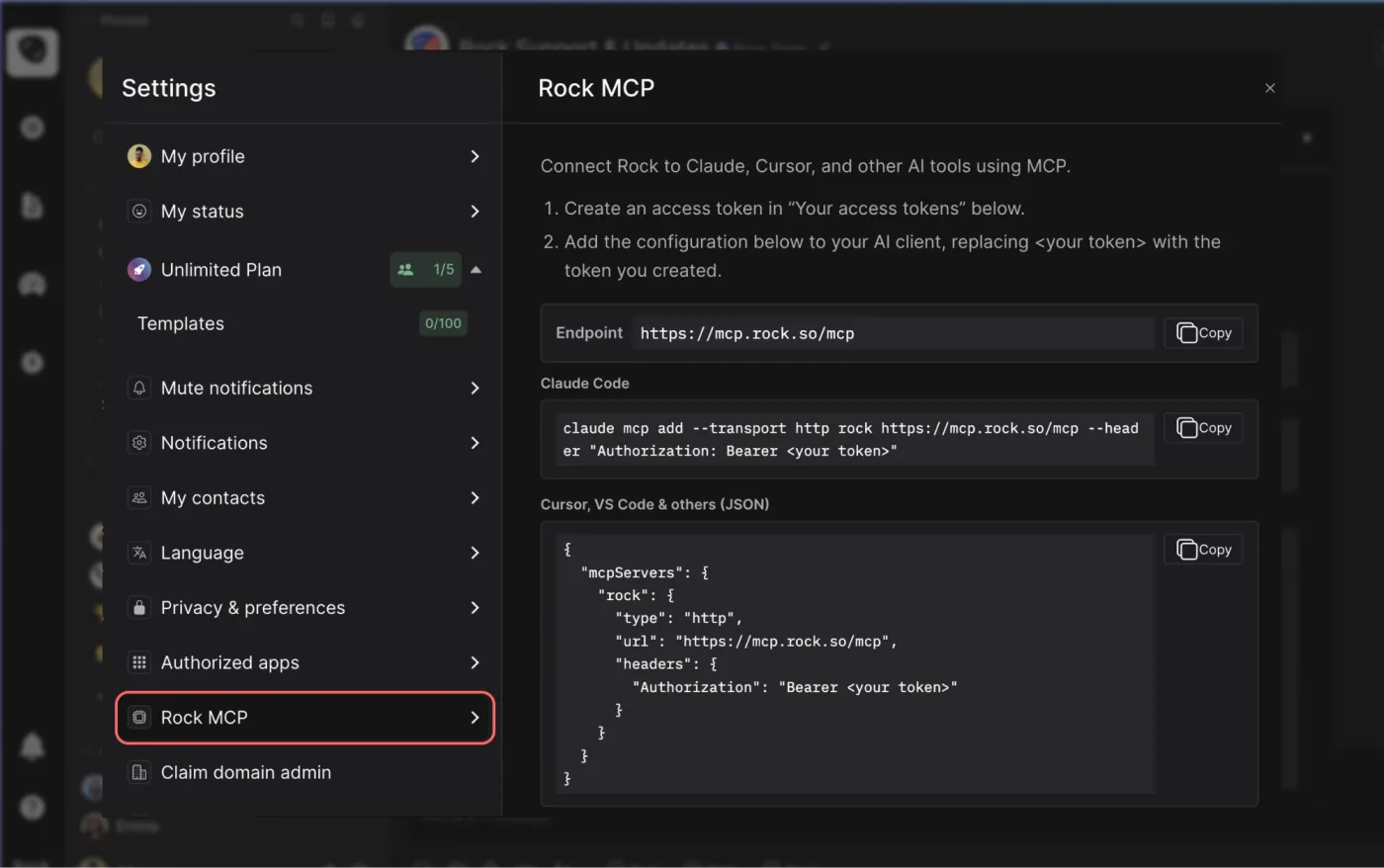
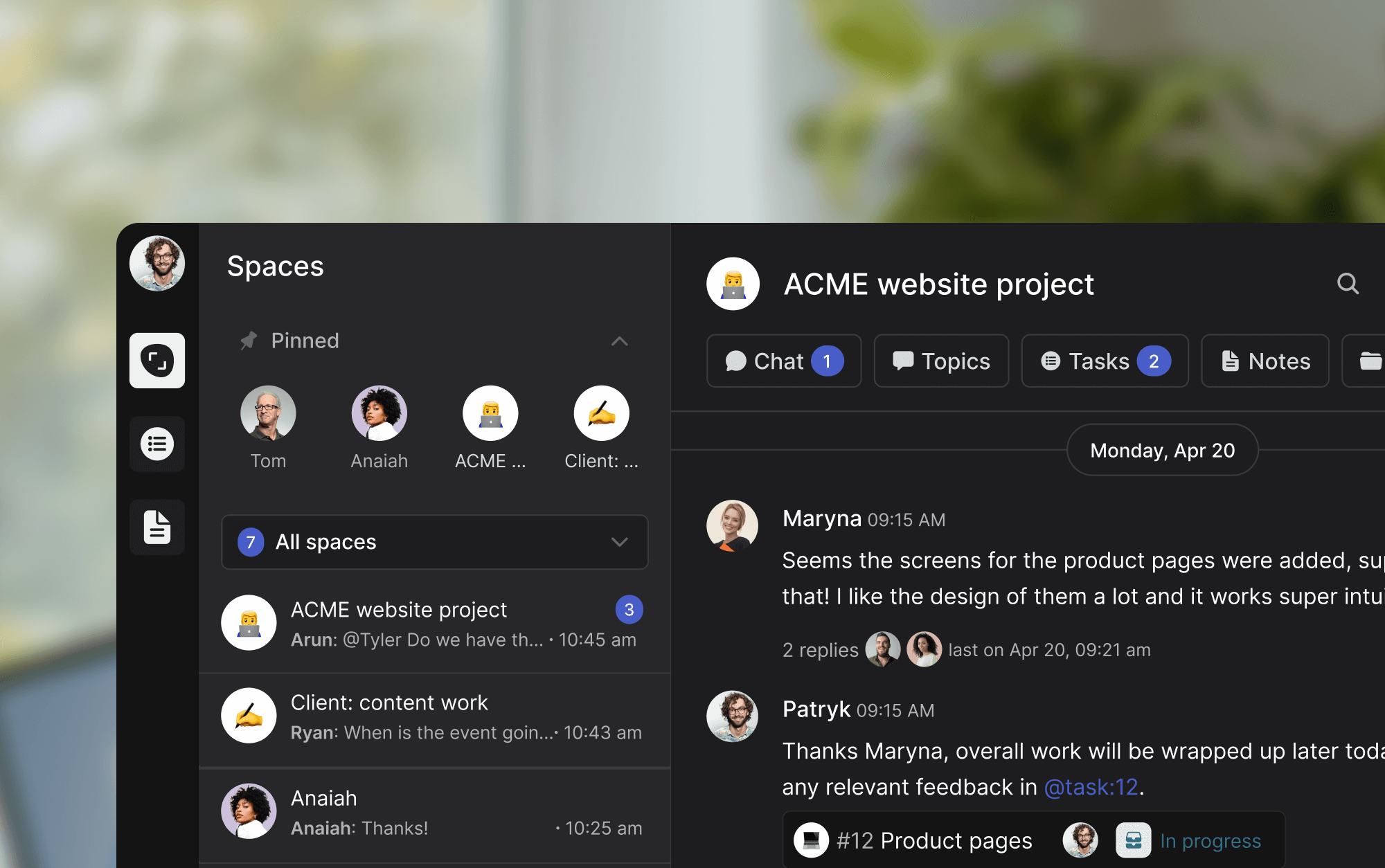
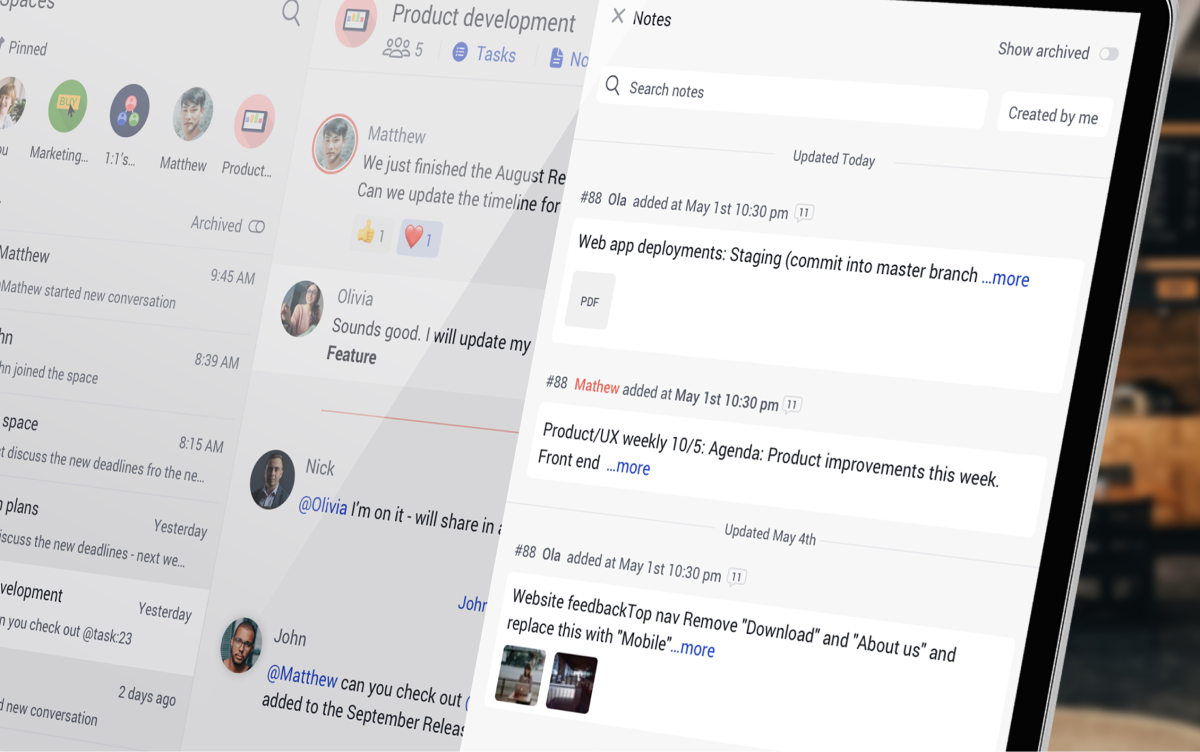
Rock MCP is here. You can now connect Rock to the AI tools you already use. Create a token in Rock, paste it into Claude, Cursor, or another client, and the assistant works inside your spaces as you, across all of them at once.
From earlier calls this month we learned that a lot of our active teams live in tools like Claude and Cursor now, and you would rather they reach into Rock than have you copy things back and forth. We work the same way.
Rock MCP is that connection: your AI assistant reads and updates your spaces directly, making it easier to stay up to date and manage projects across team members.
A few things worth knowing:
It works today with Claude Desktop, Claude Code, Codex, Cursor, VS Code, and Claude Cowork. A one-click connector for Claude on the web and mobile is coming next.
The token acts as you, read and write, across all your spaces. Treat it like a password, and revoke it any time.
It is on every plan, including Free.
Easiest setup: just ask Cowork
Claude Cowork can help you end-to-end with the setup. Share the prompt below and generate a new token, Claude will guide you through all steps.
Keep your token safe, never share in chat.
zsh
Works in coding environments
Add Rock MCP to Claude Code, Codex, Cursor, VS Code, or right from the terminal.
You will find it under your avatar, in a settings panel called Rock MCP. Full setup for every client is in the help guide.
What we use it for
A few of the things we ask it every day:
Search across your whole account. One question searches tasks, notes, and chat messages in every space you belong to. Try "where did we land on the Q3 pricing change?" or "find the onboarding brief and summarize it."
Turn a transcript or doc into tasks. Paste a meeting transcript or point it at a document, and ask it to create the tasks, with owners, due dates, and descriptions already filled in.
Push updates in. Drop your latest growth numbers, funnel metrics, or a status note straight into the right space, so the team sees it where they already work.
Run your to-do list from the chat. Ask "what is my most urgent task?", work on it together, then mark it done or update it without opening the app.
Plus, recent fixes
Since our last update, we also shipped:
Cleaner notifications and unread counts. Unread dots clear correctly for archived spaces and after "Mark all as read," and counts update the moment you open an item.
DMs in custom folders no longer disappear from your sidebar.
Chat threads stay in the right space now, with no more cross-space mix-up when you open one.
Add Spaces picker now targets the correct workspace inside embeds.
Asana and Jira solve project work for different audiences. Jira is purpose-built for software development. Sprints, epics, issues, story points, and releases are first-class, and the Atlassian Marketplace adds 3,000+ apps for any dev workflow. Asana is a do-it-all PM platform for cross-functional teams. Tasks, projects, portfolios, goals, timelines, and bundled AI cover marketing, ops, product, design, and light dev under one roof.
That single difference shapes everything else. This Asana vs Jira guide compares them honestly, axis by axis, and runs the real cost at 5, 15, 30, and 50 seats using 2026 list prices. Engineering teams should usually pick Jira. Cross-functional teams should usually pick Asana. And teams whose work runs in chat first should pick neither. Run the recommender below for a starting point.
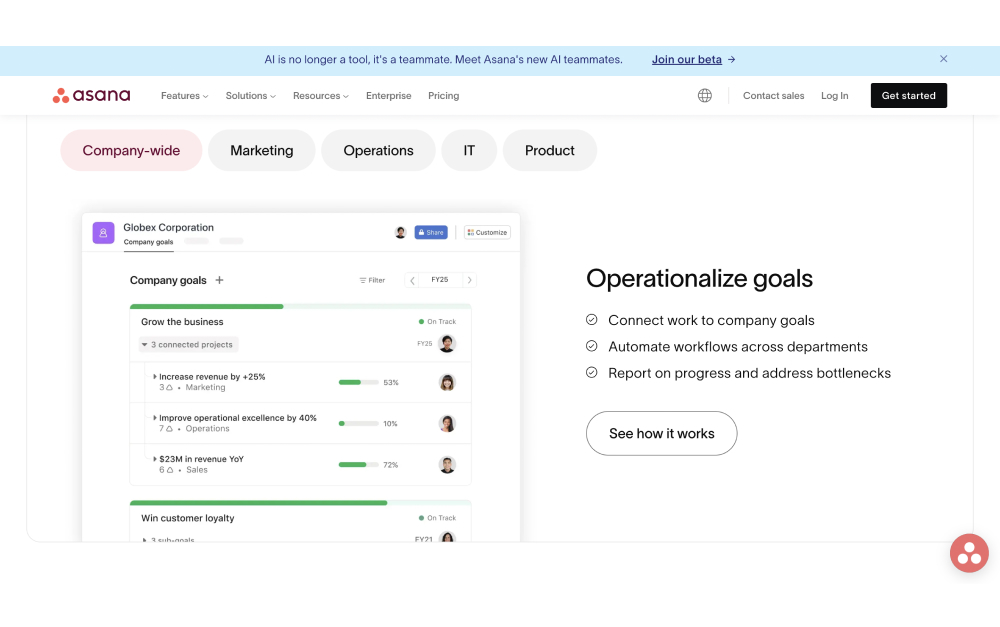
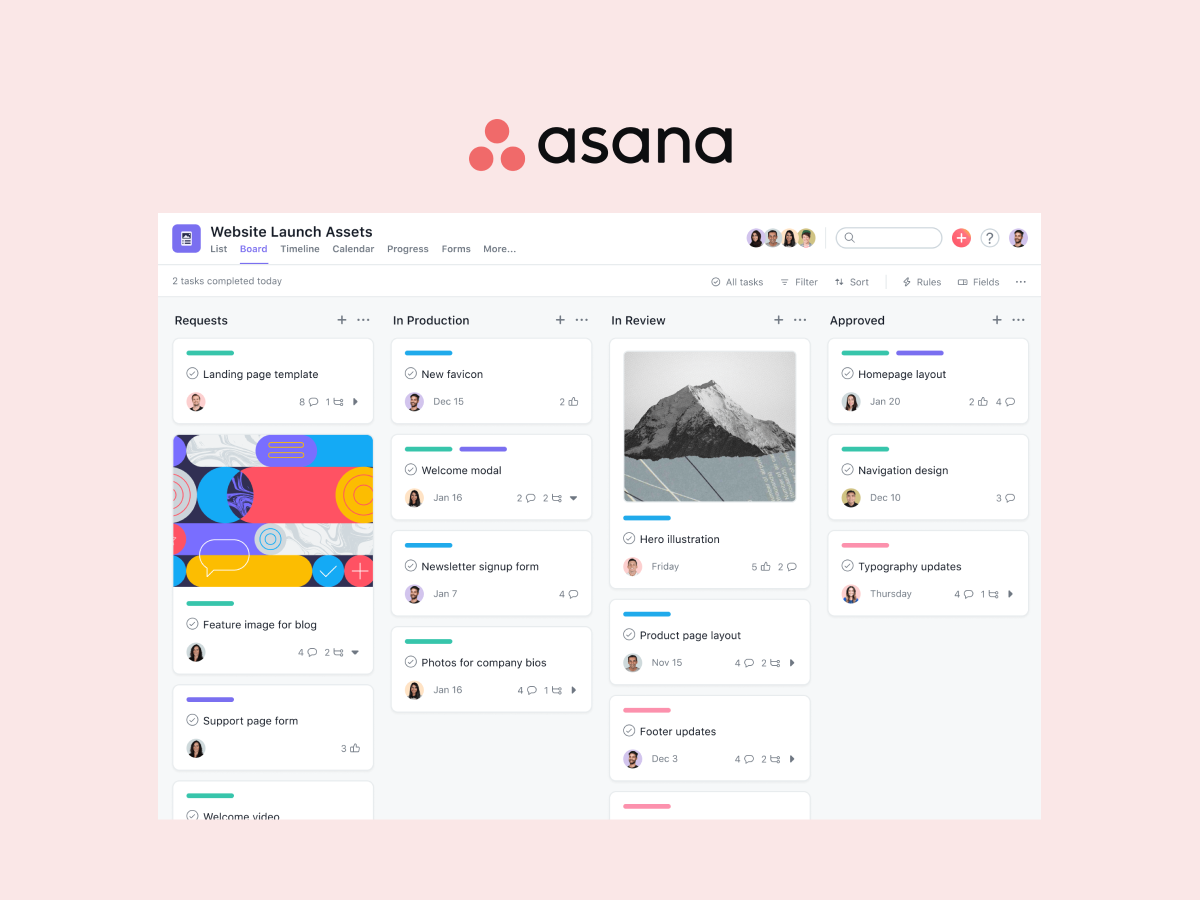
Asana ships a structured project hierarchy: tasks, projects, portfolios, and goals stacked into a clean reporting line.
Quick answer. Jira is the standard for engineering teams running Scrum or Kanban with issues, sprints, and releases. Asana is the cross-functional PM platform for marketing, ops, product, and design teams that want clean visibility across departments. Pick Jira if you ship code. Pick Asana if your work spans multiple non-dev departments. Pick neither if your team works chat-first and lives in messages before tasks.
Need a non-dev alternative?
Rock pairs tasks with chat and notes. Built for marketing, ops, and agency teams that landed on Jira by accident.
Asana launched in 2008 to solve one problem: who is doing what by when. The product has grown around that idea. Tasks have assignees, due dates, and dependencies. Projects bundle tasks into deliverables. Portfolios bundle projects into programs. Goals connect everything to outcomes. Custom fields, timelines, and reporting dashboards turn the data into something any project lead can run, technical or not.
Asana also leaned hard into AI in 2025. Asana AI Studio and AI Teammates ship from the Starter plan and above, with monthly credit allotments scaling up by tier. The bet is that structured project data is exactly what AI agents need to do useful work. Reporting summaries, status updates, dependency suggestions, and risk flags become automatable when the underlying tasks already have rich metadata.
"Users on G2 rate Asana 8.6 out of 10 for ease of use compared to Jira's 8.1." - Soundarya Jayaraman, G2
Jayaraman's data point captures the cross-functional adoption story. Asana wins ease of use because non-engineering users can read and edit tasks without learning Scrum vocabulary. The same G2 data shows Asana's customer mix is 57 percent small business, 32 percent mid-market, 12 percent enterprise. Jira's customer mix is 24 percent small business, 44 percent mid-market, 33 percent enterprise. Asana goes broad and shallow across team types. Jira goes deep into one team type. For the wider Asana field, see our Asana alternatives guide and the what is Asana explainer.
What Jira is built for
Jira launched in 2002 and has stayed close to one audience: software development teams. The unit of work is the issue. Issues stack into epics. Epics roll up into releases. Sprints organize work into time-boxed cycles. Story points size the effort. Boards visualize Scrum or Kanban. Code in Jira links commits, branches, and pull requests directly to issues, with native integrations for Bitbucket, GitHub, and GitLab.
The product depth is what engineering teams pay for. Custom workflows model any process from intake to deploy. JQL (Jira Query Language) lets teams build sophisticated dashboards. Atlassian Intelligence (Jira's AI layer) bundles into Premium and above, handling automation suggestions, summary writing, and natural-language search across issues. The Atlassian Marketplace adds 3,000+ apps for time tracking, test management, advanced reporting, and any dev-tool integration you can name.
"Asana is a do-it-all platform that can support linear and Agile project management methods, while Jira predominantly supports Kanban and Scrum." - Brett Day, Cloudwards
Day's framing captures the audience split. The cost of Jira's depth is a steep learning curve and an interface that feels punishingly spartan to non-engineering users. Marketing teams forced into Jira often hate it. Engineering teams who tried to leave for "simpler" tools often come back within a year because the dev features are not actually replaceable. For the wider Jira context, see our Jira alternatives guide and the recent ClickUp vs Jira head-to-head.
Asana vs Jira side-by-side
Five axes matter when picking between these tools. Audience, project structure, AI in 2026, customer mix, and pricing. Here is how each one stacks up.
Standard $7.91/user/mo, Premium $14.54/user/mo (annual)
Marketplace
200+ integrations
3,000+ apps in Atlassian Marketplace
Learning curve
Moderate, intuitive defaults
Steep, especially for non-engineering users
Audience: cross-functional PM vs software development
This is the spine of the Asana vs Jira comparison. Jira speaks the language of engineering. Issues, story points, sprints, releases, JQL. Marketing, ops, and design teams who get pushed into Jira typically describe the experience as friction at every step. Asana speaks the language of cross-functional PM. Tasks, due dates, custom fields, portfolios, goals. Engineering teams who get pushed into Asana from Jira often describe missing depth in sprint and issue management.
For mixed organizations, the question is usually whether the dev team needs Jira-grade rigor. If yes, run dev in Jira and the rest in Asana. If no, run everyone on Asana. The least common honest answer is "everyone on Jira" because the non-dev cost is too high.
Project structure
Asana wins on cross-team visibility. Portfolios roll up project status across teams. Goals tie tasks to outcomes. Workload views show resource allocation across people. Custom fields cover 15+ types. Five views (List, Board, Timeline, Calendar, Workload) cover most non-dev workflows out of the box. Setup is light, defaults are sane.
Jira wins on dev-specific structure. Issues link to commits, branches, and pull requests. Releases chain issues into shippable bundles. Sprint reports show velocity, burn-down, and cumulative flow. Custom workflows model any state machine your team needs (intake, triage, in-review, blocked, deploy, verified). JQL turns the issue database into a queryable system any analyst can use.
If you do not run sprints and releases, Jira's structure is overhead. If you do, Asana cannot replicate it cleanly without months of custom build.
AI in 2026
Both tools shipped AI heavily in 2025 and 2026. Asana AI Studio and AI Teammates ship from the Starter plan ($10.99 per user per month annual). The credit allotment scales with tier: 50K credits on Starter, 75K on Advanced, 200K on Enterprise. Use cases lean toward project automation: status summaries, risk flags, dependency suggestions, smart routing of incoming work.
Atlassian Intelligence ships on Jira Premium ($14.54 per user per month annual) and Enterprise. Use cases lean toward issue summarization, automation rules, and natural-language search across the issue database. The deeper integration with the Atlassian stack (Confluence, Bitbucket) gives Jira AI more context to draw from for engineering work.
For mixed teams that will use AI heavily, Asana's lower entry point wins. For dev teams that already use the Atlassian stack, Atlassian Intelligence wins. The wedge is whose context fits your work.
Customer mix and team size
This is the angle most ranking comparison articles miss. G2 customer data shows Asana is SMB-heavy (57 percent under 100 employees) while Jira is mid-market and enterprise heavy (77 percent above 100 employees). The math reflects the audience: cross-functional PM scales out (more departments) while software development PM scales up (more issues, more dependencies, more compliance requirements).
For a 15-person agency, Asana usually fits cleaner. For a 500-person engineering org, Jira usually fits cleaner. Trying to flip those choices typically results in the team running both tools or rebuilding one inside the other.
Pricing model
Both use per-user pricing with no flat-rate option. Asana Starter is $10.99 per user per month annual, Advanced is $24.99. Pricing details on asana.com/pricing. Jira Standard is $7.91 per user per month annual, Premium is $14.54. Pricing details on atlassian.com/software/jira/pricing.
Two important details. First, Jira Free covers up to 10 users while Asana Free is now capped at 2 users. For small teams, Jira Free is meaningfully more generous. Second, Jira's per-seat math is cheaper than Asana's at every paid tier. A 50-person engineering team saves over $1,800 per year choosing Jira Standard over Asana Starter.
Real cost at 5, 15, 30, and 50 seats
Most comparison articles model 10 seats and stop, or use the misleading "1-10 user" pricing tier that Atlassian publishes for billing simplicity. Below is the verified annual cost at 5, 15, 30, and 50 seats using 2026 list prices on annual billing. Rock is included as a flat-rate reference because it changes the math at the larger sizes.
Team size
Asana Starter
Asana Advanced
Jira Standard
Jira Premium (incl. AI)
Rock Unlimited
5 people
$659
$1,499
Free
$872
$899
15 people
$1,978
$4,498
$1,424
$2,617
$899
30 people
$3,956
$8,996
$2,848
$5,234
$899
50 people
$6,594
$14,994
$4,746
$8,724
$899
Three things stand out. First, Jira Free covers up to 10 users, which makes Jira Standard kick in only past 10 seats. Below 10, Jira is free if you can fit. Second, Jira Standard runs 28 percent cheaper than Asana Starter at every team size past 10 users. The savings compound: at 50 seats, that is ~$1,848 per year. Third, Rock at $899 per year flat is cheaper than Asana Starter past 7 seats. Past 10 seats it is also cheaper than Jira Standard, but only if your team can fit Rock's chat-first workflow (most engineering teams cannot).
"Most non-specialized tools lack project-focused features such as task dependencies, resource allocation, or time tracking. Teams end up using multiple apps, increasing admin work and chances for error." - Gartner Digital Markets, Project Management Buyer Insights
Gartner's framing applies in reverse here. Both Asana and Jira are project-focused. The risk is not too few features. The risk is buying a tool whose audience does not match your team. A marketing department forced into Jira will work around it. An engineering team forced into Asana will rebuild Jira inside it. Pick by audience, not by feature count.
When to pick Asana
Asana is the right pick for cross-functional teams running formal projects without sprint-based dev work. Some specific cases.
Marketing, ops, and design teams. Campaigns, launches, and creative pipelines fit Asana's task-and-project model. Cross-team visibility through portfolios and goals turns the project lead role from chaser to coordinator.
SMB and growing mid-market teams. G2 data shows Asana's customer mix is 57 percent small business. The defaults are sane enough to ramp up without a dedicated PM administrator.
Teams that want native AI for project work. AI Studio and AI Teammates from the Starter plan are meaningfully cheaper than building the same automation around a flexible workspace.
Teams larger than 15 with budget for per-seat pricing. Asana Advanced at $24.99 per user gets expensive fast, but the feature set (workload, goals, proofing) earns its keep on complex programs.
Skip Asana if. You ship code with formal sprints, story points, and releases. You want a flat-rate price. Or your team will live in chat first and only translate decisions into tasks afterward.
When to pick Jira
Jira is the right pick for software development teams running formal Scrum or Kanban. Some specific cases.
Engineering teams with sprints and releases. Story points, velocity tracking, burn-down charts, sprint reports, and release planning are first-class. General PM tools cannot replicate this without months of custom build, and the result is always a mimicry.
Teams using the broader Atlassian stack. Confluence for docs, Bitbucket for code, Jira for issues. The integration depth across the suite is real, even though Confluence is sold separately.
Teams that need a deep marketplace. The Atlassian Marketplace has 3,000+ apps for test management, time tracking, advanced reporting, and any dev integration you can name. Asana's marketplace is meaningfully smaller.
Mid-market and enterprise teams. G2 data shows Jira's customer mix is 77 percent above 100 employees. The product is shaped around what scaling engineering organizations need: SAML SSO, audit logs, sandbox environments, advanced permission schemes.
Skip Jira if. Your team is not engineering. The setup tax is real and the daily friction for non-dev users is real. Pick a general PM tool instead.
Or skip the per-seat math.
Rock combines chat, tasks, and notes. Flat $89/mo for unlimited users.
Both tools come from earlier eras of building specialized productivity tools. Jira picked engineering and went deep. Asana picked cross-functional PM and went wide. Neither was built around the chat-first workflow that agencies, client-services teams, and remote teams in Latam, SEA, and Africa actually run on.
If your team starts work in WhatsApp, Slack, or a group chat, decisions land in chat first. Translating those decisions into Asana tasks or Jira issues later loses half the context. The fix is a tool where chat, tasks, and notes live in the same space.
Rock is built that way. Every project space has its own chat, task board, notes, and files. Decisions made in chat become tasks with one tap. Files attach to the task or note that needs them. Clients and freelancers join the same space at no extra cost. Pricing is flat at $89 per month for unlimited users. For agencies running 5 to 50 people across client projects, the math and the workflow both line up.
This is not the right pick for engineering teams running formal Scrum. Rock does not replicate Jira-grade issue tracking, story points, or release management. If you ship code, stay on Jira. If you run client projects with chat as the primary surface, Rock is a cleaner fit than either tool here. Direct comparisons: Rock vs Asana, Rock vs Jira. For sibling head-to-heads, see ClickUp vs Jira, Trello vs Jira, ClickUp vs Asana, Asana vs Monday, and Asana vs Notion.
Frequently asked questions
Is Asana a real Jira alternative for engineering teams? For small dev teams (5-15 people) running light Scrum, Asana can work. For teams with formal sprint ceremonies, story points, releases, and Bitbucket or GitLab integrations, Asana lacks the depth. Most engineering teams who try to switch from Jira to Asana end up running both or returning.
Can Jira replace Asana for marketing and ops? Technically yes, in practice no. Jira can model marketing campaigns and ops checklists, but the friction for non-engineering users is steep. Marketing teams forced into Jira typically build a parallel system in another tool within months.
Which one is cheaper? Jira at every paid tier. Jira Standard is 28 percent cheaper than Asana Starter per user. Jira Premium is 42 percent cheaper than Asana Advanced. Plus Jira Free covers up to 10 users while Asana Free is now capped at 2.
Which has better AI in 2026? Different shapes. Asana AI Studio is broader and lighter, fits cross-functional automation. Atlassian Intelligence is deeper inside the dev workflow with Confluence and Bitbucket context. For mixed teams, Asana wins. For dev teams already on Atlassian, Atlassian Intelligence wins.
If chat, tasks, and notes belong together for your team, see how Rock works. Rock combines all three in one workspace. One flat price, unlimited users. Get started for free.
Scrumban gets misread the moment it shows up on a team. Most adopters describe it as "Scrum without the rituals," which is the laziest possible reading. The framework was designed as a transition path from Scrum to Kanban, with structural elements (WIP limits, pull-based work, on-demand planning) that the lazy reading drops first.
This guide covers what Scrumban actually is, who created it, the six core practices that distinguish real Scrumban from abandoned Scrum, when it works, and when it is just an excuse to skip ceremonies. The widget below diagnoses which framework actually fits your team's context, since most teams that say they use Scrumban would benefit from picking Scrum or Kanban directly.
Quick answer: what Scrumban is
Scrumban is an agile framework that combines Scrum's structure (short iterations, prioritization, retrospectives) with Kanban's flow practices (WIP limits, pull-based work, continuous flow). Software development consultant Corey Ladas coined the method in his 2009 book Scrumban: Essays on Kanban Systems for Lean Software Development, originally designing it as a transition path for Scrum teams adopting Kanban concepts.
The name is a portmanteau, not a marketing choice. Most popular Scrumban explainers skip the Ladas attribution and describe the method as "the best of both worlds," which obscures the original intent and produces the most common failure mode: teams calling themselves Scrumban after dropping every Scrum ceremony without adopting any Kanban discipline.
Scrum, Kanban, or Scrumban?
Four questions about your team. The diagnostic outputs which framework actually fits your context, instead of assuming hybrid is always better. Most teams that say "we use Scrumban" mean "we have abandoned Scrum ceremonies."
Question 1 of 4
Whichever framework wins, the work happens better in one workspace. Try Rock free.
If the quiz pointed away from Scrumban, that is a useful result. The framework has a real, narrow zone where it outperforms Scrum and Kanban. Outside that zone, picking one of the parent frameworks directly usually beats hybrid by default.
Origin: Corey Ladas, 2009
Ladas published Scrumban: Essays on Kanban Systems for Lean Software Development through Modus Cooperandi Press in 2009. The book was a collection of essays, not a single methodology specification, and it was written for an audience already running Scrum that wanted to understand Lean and Kanban concepts more easily.
The original framing matters because it changes what counts as the Scrumban methodology. Ladas treated the method as a bridge: Scrum teams keep the iteration rhythm and prioritization discipline they have built, then incrementally adopt Kanban's flow controls (WIP limits, pull-based work, on-demand planning) as the team matures.
The endpoint Ladas had in mind was often pure Kanban, with Scrumban as the intermediate state. Many teams stop on the bridge and stay there, which is fine if it is deliberate but a problem if the team has stalled because nobody noticed.
The Lean software development tradition that Ladas built on captures the underlying logic:
"Reducing batch sizes is the most powerful approach to reducing cycle time, increasing flow, and producing predictable delivery." - Don Reinertsen, in The Principles of Product Development Flow (2009), the Lean reference Ladas cites
The 6 core practices
Scrumban inherits practices from both parents. The structural elements that distinguish real Scrumban from abandoned Scrum or unstructured Kanban are six.
Practice
What it means in Scrumban
Visual board
To Do, Doing, Done columns at minimum, often refined into Ready, In Progress, Review, Done. Same idea as a Kanban board with WIP limits per column.
WIP limits
The non-negotiable. A team without WIP limits per column is not running Scrumban. Limits force pull, prevent multitasking, and surface bottlenecks.
Pull-based work
Team members pull the next task from Ready when their slot opens, instead of being assigned. Replaces sprint-level commitment with column-level commitment.
On-demand planning
Planning is triggered when the Ready column drops below a threshold, not on a fixed cadence. Replaces sprint planning's "every two weeks no matter what" with "when we need it."
Short iterations (optional)
Many Scrumban teams keep 1 to 2 week iterations as a soft cadence for review and retrospective; pure Scrumban does not require them.
Bucket-size planning
Long-term planning happens in three buckets: 1-year, 6-month, 3-month. Items move between buckets as priorities evolve. Replaces sprint backlog with rolling horizon.
The non-negotiable element is WIP limits. A team without per-column WIP limits is not running Scrumban; it is running a to-do list with columns. The other five practices vary in how strictly they apply (some teams keep iterations, others drop them; planning triggers vary), but the WIP limits are the load-bearing piece. Drop them and the framework collapses into either ceremony-light Scrum or unmanaged flow.
Scrum vs Kanban vs Scrumban
The clearest way to see what Scrumban actually is and is not: side-by-side against its parent frameworks. Most articles describe these differences narratively; the structural shape is easier to read in a table.
On-demand, triggered when WIP drops below a threshold
Roles
Scrum Master, Product Owner, Developers
No prescribed roles
Existing roles preserved; Scrum Master often becomes part-time
Work limits
Sprint backlog scope (commitment)
Strict WIP limits per column
WIP limits + bucket-size planning for longer-term work
Ceremonies
Standup, planning, review, retrospective
Optional cadence reviews; standups common
Standup retained; planning and retro often kept; review optional
Best for
Predictable feature work, newer agile teams, projects with clear sprints
Continuous flow work, support, ops, mature self-organizing teams
Mixed work, teams transitioning from Scrum to Kanban, or maturing Scrum teams
Common failure
Ceremony drift; standups become status meetings
WIP limits not enforced; Kanban becomes a glorified to-do list
Calling it Scrumban while abandoning all structure; "we do hybrid" as ceremony excuse
The "best for" row is the most important. Scrum is best for predictable feature work and newer agile teams. Kanban is best for continuous flow work and mature self-organizing teams.
The Scrumban methodology sits in a narrow zone: mixed work types, teams transitioning between the two, or maturing Scrum teams that have outgrown sprint commitment but still want some cadence. If your team does not fit that zone, picking Scrum or Kanban directly produces better outcomes than hybrid.
"In Kanban, we make policies explicit, then evolve them. The change is gradual, not revolutionary; this is what allows Scrumban to work as a transition framework rather than a methodology rupture." - David J. Anderson, in Kanban: Successful Evolutionary Change for Your Technology Business (2010), the Kanban reference Ladas built on
When Scrumban actually works
Three contexts where Scrumban is the genuinely better choice over Scrum or Kanban alone.
A Scrum team running mixed work. The most common honest fit. The team has feature work that fits sprints, but also a steady stream of support tickets, ops requests, or bug fixes that do not. Sprint commitment becomes unrealistic because half the work is unplanned. Scrumban's WIP-limit-based pull handles the unplanned stream without abandoning the sprint cadence the team uses for features.
A Scrum-to-Kanban transition. The original Ladas use case. The team is moving from Scrum toward continuous flow but does not want to drop the iteration rhythm overnight. Scrumban serves as the bridge for 6 to 12 months, then the team either lands on Kanban or finds Scrumban itself stable enough to keep.
A maturing Scrum team where ceremony is producing more theater than value. The team has run Scrum for 2+ years, the rituals are auto-pilot, retrospectives produce the same action items repeatedly, and the team self-organizes more than the framework formally allows. Loosening to Scrumban (keeping retros and standup, dropping fixed sprint commitment, adding WIP limits) often produces more genuine agility than enforcing Scrum more strictly would.
When it is just sloppy Scrum
The honest editorial point most Scrumban explainers avoid. Many teams that say "we use Scrumban" mean "we have stopped doing Scrum properly and have not picked up Kanban discipline either." That is not a framework; it is no framework with a borrowed name.
The diagnostic is simple. A team running real Scrumban has at least three of these structural elements: WIP limits per column, pull-based work selection, on-demand planning triggered by a Ready threshold, short iterations as a soft cadence, retrospectives, and bucket-size planning for longer-term work. A team running sloppy Scrum has none of these. The team has dropped sprints, planning, retros, has no WIP limits, and pulls work ad hoc with no flow controls.
Both modes can ship software for a while. The sloppy mode produces declining cycle time, accumulating work-in-progress, and gradual erosion of delivery predictability. The real mode produces steady flow with fewer ceremonies. The names are the same; the outcomes are not. Calling abandoned Scrum "Scrumban" is not a naming convenience; it makes the underlying problem invisible.
The Scrumban board
The board is the central artifact, and it is where most Scrumban implementations stand or fall. Done well, the board makes the work visible, the WIP limits enforceable, and the flow inspectable. Done poorly, it is a Trello with extra columns.
The minimum columns: To Do (or Ready), In Progress, Done. WIP limits go on at least In Progress, ideally on Review or QA columns if those exist. Many Scrumban teams add a Backlog column to the left of Ready, where prioritized but not-yet-pulled items live.
For tools, any decent task management tool will support the board structure. The constraint is not the tool; it is the discipline to actually enforce the WIP limits when the team wants to take on one more thing. Most board failures are discipline failures, not tool failures.
What we recommend
For most teams considering Scrumban, the practical answer is "diagnose your context first, do not adopt the hybrid by default." The decision quiz above is calibrated to the real fit zone. If the quiz pointed at Scrum or Kanban, picking that directly is usually the better move than reaching for hybrid.
If Scrumban is genuinely the right fit, the practical setup is straightforward: keep your existing Scrum board, add WIP limits per column, switch from sprint commitment to on-demand planning, keep the retrospective. After 90 days, audit honestly: are the WIP limits being held, is delivery still predictable, has someone said "we should just go back to Scrum"? The answers tell you whether the framework is fitting or whether the team is masking a different problem.
What we do at Rock: chat, tasks, and notes live in one workspace, so the Scrumban board, the conversations about flow, and the documentation of decisions all sit together. For a small team or agency running Scrumban with a part-time facilitator, this consolidation matters more than tool sophistication; the framework's leverage depends on visibility, not on a dedicated agile tool.
For small teams running Scrumban with a part-time facilitator, board visibility matters more than tool sophistication.
Common pitfalls
The predictable failure modes when teams adopt Scrumban.
Calling it Scrumban after dropping every ceremonyMost "we do Scrumban" teams have stopped doing standups, planning, retros, AND have no WIP limits. That is not Scrumban. That is no framework with a borrowed name. Pick at least three structural elements (WIP limits, pull-based work, on-demand planning) and hold them deliberately, or admit the team has reverted to ad hoc.
No WIP limitsWIP limits are the load-bearing element of Scrumban inherited from Kanban. Without them you do not have flow control, the In Progress column accumulates, and the team's actual cycle time stays invisible. If you fix only one thing in a struggling Scrumban setup, fix this.
Treating it as "Scrum without the rituals"Scrumban is not Scrum minus discipline. Corey Ladas designed it as a transition framework that pulls toward Kanban discipline (flow, WIP, pull) while keeping useful Scrum elements (short iterations, prioritization, retrospective). Drop the Kanban half and you keep all the rigidity of Scrum without the structure that makes the rigidity productive.
Skipping retrospectives because "we are Scrumban now"Retrospectives are one of the most-kept practices when Scrumban is done well. They are also one of the first to drop when teams use the framework as ceremony cover. The bi-weekly retro is the cheapest agile practice in terms of time-to-value; abandoning it is rarely a good trade.
Permanent transitionLadas wrote Scrumban as a transition path from Scrum to Kanban. Some teams stop on the bridge for years, never reaching the Kanban side, never going back to Scrum. That is fine if it is a deliberate choice; it is a problem if the team has stalled because nobody noticed. Audit the framework yearly: is this still where the team should be?
The right method depends on the work, not on the framework. A team that thrives in continuous flow is not worse for dropping sprints. A team that needs sprint structure is not behind for keeping it. Match the method to the problem.
Frequently asked questions
What is Scrumban?
Scrumban is an agile framework that combines Scrum's structure (short iterations, prioritization, retrospectives) with Kanban's flow practices (WIP limits, pull-based work, continuous flow). Corey Ladas created and named it in 2009 in his book "Scrumban: Essays on Kanban Systems for Lean Software Development," originally designing it as a transition path for Scrum teams adopting Kanban concepts.
Who created Scrumban?
Corey Ladas, a software development consultant, coined and described the method in his 2009 book published by Modus Cooperandi Press. The framework was developed for teams running Scrum who wanted to incorporate Lean and Kanban principles without abandoning Scrum's iterative structure entirely. Most popular Scrumban explainers skip the attribution; the original source is the better read for anyone serious about applying the method.
What is the difference between Scrumban and Kanban?
Kanban has no iterations, no prescribed roles, and no required ceremonies; flow is continuous and managed by WIP limits and pull. Scrumban keeps WIP limits and pull-based work but typically retains short iterations (1 to 2 weeks) and core ceremonies like standup and retrospective. Teams choosing Kanban are usually further along; teams choosing Scrumban are typically transitioning from Scrum or running mixed work types.
What is the difference between Scrumban and Scrum?
Scrum has fixed sprints, sprint commitment, sprint planning every cycle, and prescribed roles (Scrum Master, Product Owner, Developers). Scrumban replaces sprint commitment with WIP-limit-based pull, makes sprint planning on-demand (triggered when Ready column drops below a threshold), and treats roles more flexibly. The structure is lighter and the flow is more continuous, while keeping the cadence Scrum teams are used to.
When should a team use Scrumban?
Three contexts make Scrumban a defensible choice. First, a Scrum team that is finding sprint commitments unrealistic because work types are mixed (planned features plus support tickets). Second, a team transitioning from Scrum to Kanban that wants intermediate structure during the change. Third, a maturing Scrum team where strict ceremony cadence has started producing more theater than value. Outside those contexts, picking Scrum or Kanban directly usually beats hybrid by default.
Is Scrumban just an excuse to skip Scrum ceremonies?
It can be, and frequently is. The honest version of Scrumban preserves at least three structural elements: WIP limits, pull-based work, and either short iterations or on-demand planning triggers. A team that has dropped sprints, planning, retros, AND has no WIP limits is not running Scrumban; it is running no framework with a borrowed name. The pitfalls section above covers this in detail.
Do you need a Scrum Master to run Scrumban?
Not formally. Many Scrumban teams keep a part-time Scrum Master or shift to a facilitator who handles flow management and the surviving ceremonies. The role becomes lighter than in traditional Scrum (no sprint planning every two weeks, less ceremony orchestration) but the work of removing impediments and coaching the team in the framework still exists. The role profile shifts; the work does not disappear.
How to start with Scrumban this week
For teams that ran the diagnostic and landed on Scrumban, the practical setup steps below take roughly two weeks of light effort to land. Start with the existing Scrum board; do not redesign from scratch.
Start with your existing Scrum boardMost teams adopting Scrumban already have a sprint board. Keep it. Rename "Sprint Backlog" to "Ready" and "Done" to "Done This Iteration" if you want; the visual continuity helps the team adopt the change without feeling thrown into a new system. The board is the starting artifact, not a clean redesign.
Set WIP limits per columnFor a team of 5 to 7 developers, In Progress = 3 to 4 is a typical starting point. Review = 2. Numbers are deliberately tight; the discomfort the limits create is the signal you are doing it right. Adjust after two weeks based on observed flow, not on team complaints.
Switch from sprint commitment to on-demand planningStop committing to a fixed sprint scope. Instead, pick a threshold (Ready column below 5 items) that triggers a short planning conversation to refill it. Planning becomes 30 minutes when needed, not 2 hours every sprint. Review after one month to see if the trigger threshold is right.
Keep the retrospective; consider keeping the standupThe retrospective is the cheapest agile practice in time-to-value and the easiest to drop accidentally. Keep it bi-weekly. The daily standup is more debated; many Scrumban teams keep a 10-minute version focused on flow blockers, not status. Test both with and without for two weeks each.
Audit the framework after 90 daysThree questions: are WIP limits being held; are deliverables actually shipping; has anyone said "we should just go back to Scrum"? If the answer to all three is yes, no, or yes, the framework is not working for the context. Scrumban is a means, not a destination; revisit deliberately every quarter.
Whichever framework fits your team, the work happens better when chat, tasks, and notes share a workspace. Rock combines them at one flat price, unlimited users. Get started for free.
ClickUp and Jira solve project work for different audiences. Jira is purpose-built for software development. Sprints, epics, issues, story points, and releases are first-class, and the Atlassian Marketplace adds 3,000+ apps for any dev workflow. ClickUp is a do-it-all PM platform. 15+ views, custom fields, automations, docs, and bundled AI cover marketing, ops, product, design, and light dev under one roof.
That single difference shapes everything else. This ClickUp vs Jira guide compares them honestly, axis by axis, and runs the real cost at 5, 15, 30, and 50 seats using 2026 list prices. Engineering teams should usually pick Jira. Mixed teams that want one tool for everything should usually pick ClickUp. And teams whose work runs in chat first should pick neither. Run the recommender below for a starting point.
ClickUp packs 15+ views, custom fields, and bundled AI into a single platform that aims to cover every team type.
ClickUp or Jira? Or neither?
Answer 4 questions for an honest pick.
1. What kind of work does your team do?
Software development with sprints and issues
Mixed PM (marketing, ops, product, design)
Agency or client-services work
Any of the above
2. How much customization will you tolerate at setup?
Heavy setup is fine if the result is powerful
Light setup, sane defaults preferred
Use it day one with minimal configuration
3. How many people will use it?
1-5
6-15
16-30
30+
4. Do clients or freelancers need access to project work?
Quick answer. Jira is the standard for engineering teams running Scrum or Kanban with issues, sprints, and releases. ClickUp is the do-it-all PM platform for mixed teams (marketing, ops, product, design) that want one tool covering many use cases. Pick Jira if you ship code. Pick ClickUp if your work spans multiple departments and Jira feels overkill. Pick neither if your team works chat-first and lives in messages before tasks.
Need a non-developer alternative?
Rock pairs tasks with chat and notes. Built for marketing, ops, and agency teams.
ClickUp launched in 2017 and has positioned itself as the one app to replace them all. The product surface is wide on purpose. Tasks have 15+ custom field types, dependencies, time tracking, and subtasks. Projects ship with List, Board, Calendar, Timeline, Gantt, Workload, Mind Map, Whiteboard, Form, Table, and a half-dozen other views. ClickUp Docs covers light wikis and project briefs. Goals tie tasks back to outcomes. Automations chain triggers and actions across boards.
ClickUp also leaned into AI in 2025. ClickUp Brain is bundled into the Business plan and above, with use cases including writing assistance, meeting summaries, automation suggestions, and Q&A across the workspace. The bet is that mixed teams will use one platform deeply rather than stitch together six specialized tools.
"ClickUp is better than Jira as a do-it-all project management tool." - Brett Day, Cloudwards
Day's verdict captures the do-it-all framing that ranking comparison articles consistently land on. The trade-off is real: ClickUp's breadth means deeper specialization in any single area lags behind the dedicated tools. Jira's sprint and issue tracking outclass ClickUp's. Notion's wiki outclasses ClickUp Docs. Slack's chat outclasses ClickUp Chat. The pitch is that one solid tool for everything beats five excellent tools you have to context-switch between. For the wider field, see our ClickUp alternatives guide and the what is ClickUp explainer.
What Jira is built for
Jira launched in 2002 and has stayed close to one audience: software development teams. The unit of work is the issue. Issues stack into epics. Epics roll up into releases. Sprints organize work into time-boxed cycles. Story points size the effort. Boards visualize Scrum or Kanban. Code in Jira links commits, branches, and pull requests directly to issues, with native integrations for Bitbucket, GitHub, and GitLab.
The product depth is what engineering teams pay for. Custom workflows model any process from intake to deploy. JQL (Jira Query Language) lets teams build sophisticated dashboards. Atlassian Intelligence (Jira's AI layer) bundles into Premium and above, handling automation suggestions, summary writing, and natural-language search across issues. The Atlassian Marketplace adds 3,000+ apps for time tracking, test management, advanced reporting, and any dev-tool integration you can name.
"Jira is better than ClickUp when it comes to tools for software development teams." - Brett Day, Cloudwards
The same Cloudwards review that puts ClickUp ahead overall acknowledges Jira's dev dominance. The cost is a steep learning curve and an interface that feels punishingly spartan to non-engineering users. Marketing teams forced into Jira often hate it. Engineering teams who tried to leave for "simpler" tools often come back within a year. For Jira's wider context, see our Jira alternatives guide.
ClickUp vs Jira side-by-side
Five axes matter when picking between these tools. Audience, project structure, customization, AI in 2026, and pricing. Here is how each one stacks up.
Feature
ClickUp
Jira
Built for
General PM across teams (marketing, ops, product, design)
Software development with sprints, issues, and releases
Best for
Mixed teams that want one PM tool to cover everything
Engineering teams running formal Scrum or Kanban
Views
15+ (List, Board, Calendar, Gantt, Timeline, Workload, Mind Map, Whiteboard, Form, Table, plus more)
Kanban, Scrum, List, Timeline, Calendar, Dashboard
Unlimited $7/user/mo, Business $12/user/mo (annual)
Standard $7.91/user/mo, Premium $14.54/user/mo (annual)
Marketplace
~1,000 integrations
3,000+ apps in Atlassian Marketplace
Learning curve
Moderate, intuitive defaults
Steep, especially for non-engineering users
Audience: mixed PM vs software development
This is the spine of the ClickUp vs Jira comparison. Jira speaks the language of engineering. Issues, story points, sprints, releases, JQL. Marketing, ops, and design teams who get pushed into Jira typically describe the experience as friction at every step. ClickUp speaks the language of general PM. Tasks, due dates, custom fields, multiple views. Engineering teams who get pushed into ClickUp from Jira often describe missing depth in sprint and issue management.
For mixed organizations, the question is usually whether the dev team needs Jira-grade rigor. If yes, run dev in Jira and the rest in ClickUp (or another general PM tool). If no, run everyone on ClickUp. The least common answer is "everyone on Jira" because the non-dev cost is too high.
Project structure and views
ClickUp wins on view variety. List, Board, Calendar, Timeline, Gantt, Workload, Mind Map, Whiteboard, Form, Table, plus more. Custom fields cover 15+ types. Templates cover dozens of starting points. The platform earns its "Swiss Army knife" reputation here, for better and for worse.
Jira wins on dev-specific structure. Issues link to commits, branches, and pull requests. Releases chain issues into shippable bundles. Sprint reports show velocity, burn-down, and cumulative flow. Custom workflows model any state machine your team needs (intake, triage, in-review, blocked, deploy, verified). JQL turns the issue database into a queryable system any analyst can use.
If you do not run sprints and releases, Jira's structure is overhead. If you do, no amount of ClickUp custom fields and automations replicates it cleanly.
Customization vs simplicity
Both tools are highly customizable. The difference is the floor and ceiling. ClickUp is more customizable out of the box without admin training. Anyone can create a board, add custom fields, and set up an automation. Jira is more customizable with admin training. Workflows, screens, permission schemes, and JQL queries unlock real depth, but the ramp is steep.
For teams with a dedicated PM admin, Jira's ceiling is higher. For teams without one, ClickUp's floor is higher.
AI in 2026
Both tools shipped AI heavily in 2025 and 2026. ClickUp Brain is included on the Business plan ($12 per user per month annual) and above. Use cases lean toward writing, summarization, automation suggestions, and Q&A across the workspace. Atlassian Intelligence is included on Jira Premium ($14.54 per user per month annual) and Enterprise. Use cases lean toward issue summarization, automation rules, and natural-language search across the issue database.
For teams that will use AI heavily, both bundle reasonable functionality at their respective Business and Premium tiers. The wedge is whose AI fits your workflow better. ClickUp Brain is broader and lighter. Atlassian Intelligence is deeper inside the dev workflow.
Pricing model
Both use per-user pricing. ClickUp Free covers small teams generously. ClickUp Unlimited is $7 per user per month annual. Business is $12. Pricing details on clickup.com/pricing. Jira Free covers up to 10 users. Standard is $7.91 per user per month annual. Premium is $14.54. Pricing details on atlassian.com/software/jira/pricing.
The headline math is closer than most articles suggest. Jira Standard is slightly more expensive than ClickUp Unlimited per seat, but Jira's free tier covers up to 10 users while ClickUp's Free covers smaller teams with limits. Real cost depends on team size and feature needs.
Real cost at 5, 15, 30, and 50 seats
Most comparison articles model 10 seats and stop. Below is the verified annual cost at 5, 15, 30, and 50 seats using 2026 list prices on annual billing. Rock is included as a flat-rate reference because it changes the math at the larger sizes.
Team size
ClickUp Unlimited
ClickUp Business
Jira Standard
Jira Premium (incl. AI)
Rock Unlimited
5 people
$420
$720
Free
$872
$899
15 people
$1,260
$2,160
$1,424
$2,617
$899
30 people
$2,520
$4,320
$2,848
$5,234
$899
50 people
$4,200
$7,200
$4,746
$8,724
$899
Three things stand out. First, Jira Free covers up to 10 users, which makes Jira Standard kick in only past 10 seats. Below 10, Jira is free if you can fit. Second, ClickUp Unlimited is the cheapest paid option at every size, with Business stepping up roughly 1.7x for AI and advanced features. Third, Rock at $899 per year flat is cheaper than every option past 12 seats on ClickUp Unlimited and past 10 seats on Jira Standard. The catch: Rock fits chat-first agency work, not engineering sprint workflows.
"Most non-specialized tools lack project-focused features such as task dependencies, resource allocation, or time tracking. Teams end up using multiple apps, increasing admin work and chances for error." - Gartner Digital Markets, Project Management Buyer Insights
Gartner's framing applies in reverse here. Both ClickUp and Jira are project-focused. The risk is not too few PM features. The risk is buying a tool whose audience does not match your team. A marketing department forced into Jira will work around it. An engineering team forced into ClickUp will rebuild Jira inside it. Pick by audience, not by feature count.
When to pick ClickUp
ClickUp is the right pick for mixed-team organizations and small businesses that want one PM platform covering many use cases. Some specific cases.
Mixed-team organizations. Marketing campaigns, product specs, ops checklists, design pipelines, and light dev work all in one workspace. ClickUp covers each adequately, which beats running five separate tools for most teams.
Small businesses scaling past spreadsheets. The free plan is generous, the paid Unlimited tier at $7 per user per month is cheap, and the breadth means teams rarely outgrow a single feature category for years.
Teams that want bundled AI for general work. ClickUp Brain on Business handles drafting, summarization, and automation suggestions at a price point that beats most standalone AI subscriptions.
Cross-functional teams without a PM admin. ClickUp's defaults are sane enough that a team can ramp up in days without a dedicated administrator.
Skip ClickUp if. You ship code with formal sprints, story points, and releases. You need Jira-grade issue tracking with commit linking. Or your team will rebuild Jira inside ClickUp using custom fields and automations, which is a sign you should be using Jira.
When to pick Jira
Jira is the right pick for software development teams running formal Scrum or Kanban. Some specific cases.
Engineering teams with sprints and releases. Story points, velocity tracking, burn-down charts, sprint reports, and release planning are first-class. Marketing-PM tools cannot replicate this without months of custom build, and the result is always a mimicry.
Teams using the broader Atlassian stack. Confluence for docs, Bitbucket for code, Jira for issues. The integration depth across the suite is real, even though Confluence is sold separately.
Teams that need a deep marketplace. The Atlassian Marketplace has 3,000+ apps for test management, time tracking, advanced reporting, and any dev integration you can name. ClickUp's marketplace is meaningfully smaller.
Enterprises with security and compliance needs. Jira Premium and Enterprise include SAML SSO, audit logs, sandbox environments, and unlimited automation runs. ClickUp Enterprise is similar but smaller in deployment and certification footprint.
Skip Jira if. Your team is not engineering. The setup tax is real and the daily friction for non-dev users is real. Pick a general PM tool instead.
That third option, simply.
Rock combines chat, tasks, and notes. One flat price, unlimited users.
Both tools come from earlier eras of building specialized productivity tools. Jira picked engineering and went deep. ClickUp picked breadth and went wide. Neither was built around the chat-first workflow that agencies, client-services teams, and remote teams in Latam, SEA, and Africa actually run on.
If your team starts work in WhatsApp, Slack, or a group chat, decisions land in chat first. Translating those decisions into Jira issues or ClickUp tasks later loses half the context. The fix is a tool where chat, tasks, and notes live in the same space.
Rock is built that way. Every project space has its own chat, task board, notes, and files. Decisions made in chat become tasks with one tap. Files attach to the task or note that needs them. Clients and freelancers join the same space at no extra cost. Pricing is flat at $89 per month for unlimited users. For agencies running 5 to 50 people across client projects, the math and the workflow both line up.
This is not the right pick for engineering teams running formal Scrum. Rock does not replicate Jira-grade issue tracking, story points, or release management. If you ship code, stay on Jira. If you run client projects with chat as the primary surface, Rock is a cleaner fit than either tool here. Direct comparisons: Rock vs ClickUp, Rock vs Jira. For sibling head-to-heads in the same cluster, see ClickUp vs Asana, ClickUp vs Monday, ClickUp vs Basecamp, Asana vs Jira, and Trello vs Jira.
Frequently asked questions
Is ClickUp a real Jira alternative for engineering teams? For small dev teams (5-15 people) running light Scrum, ClickUp can work. For teams with formal sprint ceremonies, story points, releases, and Bitbucket or GitLab integrations, ClickUp lacks the depth. Most engineering teams who try to switch from Jira to ClickUp end up running both or returning.
Can Jira replace ClickUp for marketing and ops? Technically yes, in practice no. Jira can model marketing campaigns and ops checklists, but the friction for non-engineering users is steep. Marketing teams forced into Jira typically build a parallel system in another tool within months.
Which one has better AI in 2026? Different shapes. ClickUp Brain is broader and lighter, fits writing and general automation. Atlassian Intelligence is deeper inside the dev workflow, fits issue summarization and JQL natural language. For mixed teams, ClickUp Brain wins. For dev teams, Atlassian Intelligence wins.
How do their free tiers compare? ClickUp Free has no user cap but limits storage and feature access. Jira Free covers up to 10 users with reasonable feature access. For small teams, Jira Free is the more generous deal if your work is engineering-shaped. For general PM, ClickUp Free has more headroom.
If chat, tasks, and notes belong together for your team, see how Rock works. Rock combines all three in one workspace. One flat price, unlimited users. Get started for free.
Basecamp and Monday solve project work in opposite directions. Basecamp is a finished product. The opinions are baked in. To-dos, schedules, message boards, Hill Charts, and Campfire chat all live in one calm workspace, and you adjust your team to the tool. Monday is a customizable platform. Boards, columns, automations, AI, and 200+ integrations give you the building blocks, and you assemble your own workflow on top.
That single difference shapes everything else. This Basecamp vs Monday guide compares them honestly, axis by axis, and runs the real cost at 5, 15, 30, and 50 seats using 2026 list prices. Some teams should pick Basecamp. Some should pick Monday. And some should pick neither because the chat-first workspace closer to how an agency team actually communicates lives somewhere else. Run the recommender below for a starting point.
Basecamp bundles to-dos, schedules, message boards, and Campfire chat into one calm finished-product interface.
Basecamp or Monday? Or neither?
Answer 4 questions for an honest pick.
1. What does your team need most?
Calm async PM with built-in chat
Customizable boards with timelines and automations
Quick answer. Basecamp is calm async PM with built-in chat and a flat-rate option that wins on cost at scale. Monday is a customizable work platform with timelines, automations, and bundled AI for power users. Pick Basecamp if you want simple, opinionated PM with chat included and predictable pricing. Pick Monday if you want to model complex workflows visually and use native AI. Pick neither if you want chat-first agency work with clients and freelancers in the same space.
Need chat alongside your PM?
Rock pairs messaging with tasks and notes. One flat price, no per-seat scaling.
Basecamp has been around since 2004 and has stayed close to one idea: project management should be calm. Each project gets a message board, to-do lists, a schedule, a chat room (Campfire), real-time pings, file storage, and Hill Charts for visualizing progress. The features are deliberately limited. There is no Gantt chart with cross-task dependencies, no time tracking on the base plan, no native automation builder, and no native AI.
That last point is intentional. 37signals, the company behind Basecamp, has been openly skeptical of bolting AI features onto every product. In late 2025, founder DHH wrote about Basecamp becoming agent-accessible. The reframe was direct. Instead of baking AI features in, 37signals revamped the API and added a CLI so external agents can drive Basecamp. The bet is that users will want to choose their own AI rather than have one chosen for them.
"Basecamp believes most projects fail because of bad communication, not missing features." - Stevia Putri, eesel AI
Putri's line captures the Basecamp thesis. Communication beats capability. Features are subtractive by design. Card Tables (lightweight Kanban) shipped in 2024. Hilltop View, which aggregates Hill Charts across projects, shipped in 2025. Each release adds one or two things and stays within the calm framework. Teams that want to onboard freelancers and clients without training appreciate that finished-product feel. Teams that want a power tool find it limiting. For the wider field, see our Basecamp alternatives guide.
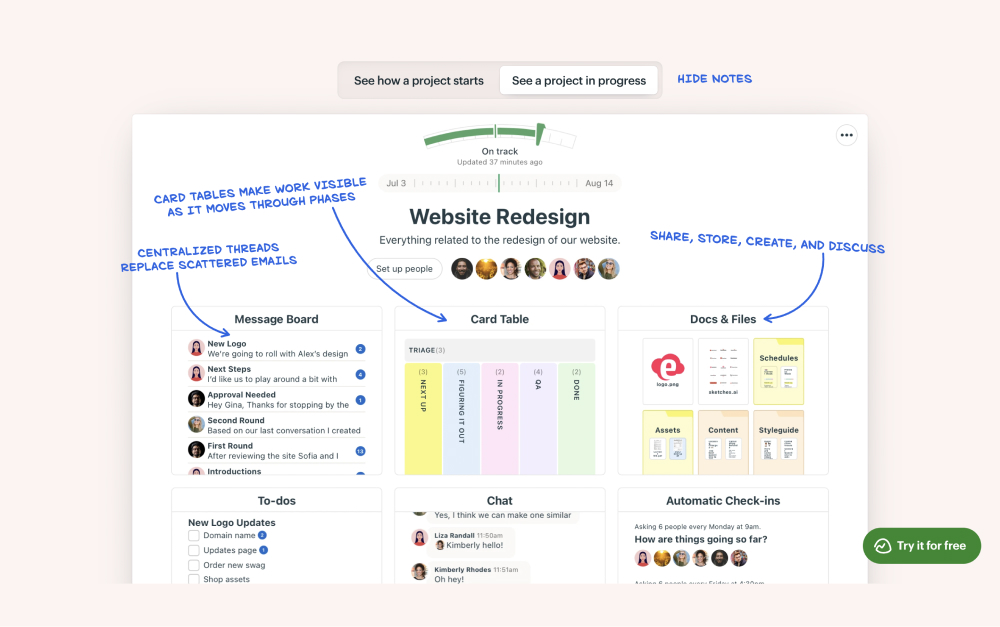
Basecamp keeps every project in one workspace: to-dos, schedule, message board, Campfire chat, and Hill Charts.
What Monday is built for
Monday launched in 2014 and has grown into a customizable work platform built around boards. Every project becomes a board with rows (items) and columns (any data type you choose). Views include Table, Kanban, Timeline, Gantt, Calendar, Chart, and Workload. Custom automations chain triggers and actions. The result is a flexible system that can model almost any workflow, from simple task lists to complex CRM pipelines and inventory tracking.
Monday also leaned hard into AI in 2025. monday Sidekick AI Assistant ships in lite form on the Standard plan and full form on Pro, with credit allotments scaling by tier. Use cases include drafting content, analyzing board data, generating formulas, and automating task routing. The product positioning is plainly that AI is the future of how teams configure and run their workflows, not an optional add-on.
Michelsen's framing captures Monday's strength and its trade-off in one line. Flexibility is the product. The cost is that teams have to build a system before they can use it, and many teams build elaborate Monday workspaces that nobody but the original architect understands. Monday Free was reduced to 2 seats in 2024, joining the trend of competitor downgrades that pushes more teams onto paid tiers earlier. For the broader Monday view, see our Monday alternatives guide and the what is Monday explainer.
Monday boards stack columns of any type and pivot into Table, Kanban, Timeline, Gantt, Calendar, and Workload views.
Basecamp vs Monday side-by-side
Five axes matter when picking between these tools. Philosophy, tasks and PM, communication, AI in 2026, and pricing. Here is how each one stacks up.
Feature
Basecamp
Monday
Philosophy
Opinionated finished product, calm by design
Customizable platform, build your own system
Best for
Async PM with built-in messaging, client services
Visual workflows with timelines, automations, and AI
Tasks and PM
To-dos, schedules, Card Tables (Kanban), Hill Charts
Boards with Table, Kanban, Timeline, Gantt, Calendar, Workload
Built-in chat
Yes (Campfire group chat plus Pings for one-on-ones)
Comments and updates only, no real-time chat
Automations
Deliberately limited, no automation builder
250+ pre-built automations on Pro, plus custom recipes
AI in 2026
None native (deliberate). Agent-accessible API + CLI
monday Sidekick AI bundled (lite on Standard, full on Pro)
Free plan
1 project, 3 users, 1GB storage
2 seats max, up to 3 boards
Paid from
Plus $15/user/mo, Pro Unlimited $299/mo flat (annual)
Basic $9, Standard $12, Pro $19/user/mo (annual, min 3 seats)
Client access
Built-in Clientside view that hides internal threads
Guests on paid plans, count as fractional seats
Integrations
~30 native
200+ native
Learning curve
Minimal, opinions are baked in
Steep, every team builds its own boards and workflows
Philosophy: finished product vs building material
This is the spine of the Basecamp vs Monday comparison. Basecamp arrives with opinions. The features are decided, the layout is fixed, and the workflow is on rails. New teammates open it and know where to write a status update, where to add a to-do, where to start a chat. Onboarding takes minutes.
Monday arrives with components. Boards, columns, views, automations, integrations. The team architect decides what a project tracker looks like, what fields a task has, how dashboards roll up status. Onboarding takes longer because every workspace looks different. The flexibility is real and the trade-off is real.
For agency owners onboarding freelancers across time zones, the finished-product model wins. For founders or operations teams who want to shape the workspace to match exactly how they think, the building-material model wins.
Tasks and project management
Monday wins this axis on raw capability. Boards ship with Table, Kanban, Timeline (Gantt), Calendar, Chart, and Workload views out of the box. Columns can hold any data type. 250+ pre-built automations chain triggers and actions. Reporting dashboards roll up status across boards. Teams that need formal PM with dependencies, workload, and rich reporting find Monday answers most questions.
Basecamp covers PM differently. To-dos handle simple task tracking. Card Tables (added in 2024) cover lightweight Kanban. Schedules handle dates. Hill Charts visualize progress along uphill and downhill phases of work. There is no Gantt chart, no resource workload view, no automation builder, and no time tracking on the standard tier. Teams that need formal project management hit a wall in Basecamp within months.
If your work needs Gantt charts and dependencies, Monday is the cleaner fit. If your work fits inside calm to-dos and message boards, Basecamp is the cleaner fit. For broader category context, see our task management apps roundup.
Communication and collaboration
Basecamp wins this axis decisively. Campfire group chat and Pings (one-on-one DMs) are first-class features, not afterthoughts. The message board format encourages thoughtful written updates instead of rapid-fire chat. Clientside view hides internal threads from clients on the same project. The whole product is shaped around how teams communicate during work.
Monday has comments and updates on items. There is no real-time chat, no DMs, no group chat surface. Teams that pick Monday usually pair it with Slack or Teams for the chat layer, which means another tool, another seat fee, and another place where decisions disappear. The Inbox helps, but it is a notification feed, not a conversation surface.
This wedge matters for client-services teams. If clients need to message you mid-project, Basecamp keeps them inside the project. Monday sends them to your inbox or your separate chat tool. That choice cascades through the whole engagement.
AI in 2026
This is the cleanest philosophical split between the two products. Monday went all-in. monday Sidekick AI ships in lite form on Standard ($12 per user per month annual) and full form on Pro ($19 per user per month). Use cases include drafting board updates, summarizing data, generating formulas, automating task routing, and answering questions across the workspace.
Basecamp went the opposite direction. 37signals deliberately ships no native AI features. The company has stated that they experimented with AI internally and chose not to ship most of what they built because it was not actually useful. Their public bet is on agent-accessibility instead: a revamped API and CLI so external agents (Claude, ChatGPT, Cursor, others) can drive Basecamp from the outside. Users bring their own AI rather than have one chosen for them.
Most ranking comparison articles have not caught up with this split. If AI is part of how your team works, Monday's bundled approach is the smoother experience. If you want to choose your own AI tools (or pay for none), Basecamp's stance is more aligned with how you operate.
Pricing model
This is where the math gets interesting. Monday uses per-user pricing only, with a 3-seat minimum on paid tiers. Basic is $9 per user per month annual, Standard is $12, Pro is $19. Pricing details on monday.com/pricing.
Basecamp uses two pricing models. Plus is $15 per user per month, which favors small teams. Pro Unlimited is a flat $299 per month annual ($349 monthly billing) for unlimited users, which favors teams above 20 people. Pricing details on basecamp.com/pricing.
Worth flagging: Monday's free tier was reduced to 2 seats in 2024. Teams that joined Monday on the older 5-seat free tier face an upgrade cliff. Basecamp's free tier covers 1 project, 3 users, and 1GB storage. The headline math at scale depends on team size, and we model that next.
Real cost at 5, 15, 30, and 50 seats
Most comparison articles model 10 or 100 seats and stop. Below is the verified annual cost at 5, 15, 30, and 50 seats using 2026 list prices on annual billing. Rock is included as a flat-rate reference because the math gets interesting at the larger sizes.
Team size
Basecamp Plus
Basecamp Pro Unlimited
Monday Standard
Monday Pro (incl. AI)
Rock Unlimited
5 people
$900
$3,588
$720
$1,140
$899
15 people
$2,700
$3,588
$2,160
$3,420
$899
30 people
$5,400
$3,588
$4,320
$6,840
$899
50 people
$9,000
$3,588
$7,200
$11,400
$899
Three things stand out. First, Monday Standard is the cheapest paid option below 6 people. Past that, Rock at $899 a year flat undercuts every option except Basecamp Pro Unlimited. Second, Basecamp Pro Unlimited at $3,588 per year stays flat regardless of team size. That makes it cheaper than Monday Standard from 25 people onward, and saves ~$7,800 per year vs Monday Pro at 50 seats. Third, Rock is cheaper than every option except Monday Standard at 5 people, and from 7 seats up Rock is cheaper than Monday Standard too.
"Most non-specialized tools lack project-focused features such as task dependencies, resource allocation, or time tracking. Teams end up using multiple apps, increasing admin work and chances for error." - Gartner Digital Markets, Project Management Buyer Insights
Gartner's framing is the honest version of the trade-off. Pick Basecamp for calm and chat, get flat pricing once you scale. Pick Monday for power and AI, pay for it per seat. The wrong tool is wrong regardless of price, but Basecamp vs Monday is one of the few comparisons where the pricing model itself shapes the decision.
When to pick Basecamp
Basecamp is the right pick for teams that want calm, opinionated PM with chat included. Some specific cases.
Async-first agencies and consultancies. The message board format encourages thoughtful written updates instead of rapid-fire chat. Hill Charts give a sense of progress without daily status meetings. The whole product is shaped around how async teams actually work.
Teams that bring clients into projects. Basecamp's Clientside mode hides internal threads and gives clients a curated view of project progress. The flow is built in, not bolted on. For agencies that ran into Monday's guest-seat fees, Basecamp is a relief.
Teams that prefer no AI. If you want a tool that does not push you to use AI features, Basecamp is rare in the modern PM market. The 37signals stance on AI is genuine, not marketing.
Teams larger than 25 with a flat-rate preference. Pro Unlimited at $3,588 per year covers any number of users. At 50 people, that is ~$3,600 per year cheaper than Monday Standard and ~$7,800 cheaper than Monday Pro. The savings compound as headcount grows.
Skip Basecamp if. You need formal project management with Gantt charts, dependencies, and workload views. You want to model custom workflows visually with automations. Or you want native AI as part of the daily flow.
When to pick Monday
Monday is the right pick for teams that want a flexible work platform with native AI and visual workflows. Some specific cases.
Operations teams modeling complex workflows. CRM pipelines, inventory tracking, hiring funnels, marketing calendars, and content production lines fit Monday's board-and-column model. The flexibility earns its keep when no single template covers the work.
Teams that want native AI for project work. monday Sidekick on Standard ($12 per user per month) and Pro ($19) handles drafting, summarization, formula generation, and automation suggestions. For teams that will use AI heavily, this is meaningfully cheaper than building automation around a flexible workspace separately.
Teams that need rich reporting and dashboards. Charts, Workload, and high-level dashboards roll up data across boards into something an operations leader can actually run. Basecamp does not have a comparable reporting layer.
Teams under 20 with budget for per-seat pricing. Monday Standard at $12 per user per month is the cheapest paid option below 6 people, and stays competitive up to about 24 people on Standard or 15 on Pro.
Skip Monday if. You want chat as a core surface in your PM tool. You want a flat-rate price. Or your team will not invest the time to build a board system before using it.
Or pick the third option.
Rock combines chat, tasks, and notes in one workspace. Free for small teams.
Both tools come from earlier eras of building specialized productivity tools. Basecamp picked calm and stayed disciplined. Monday picked the customizable board and went wide. Neither was built around the chat-first workflow that agencies, client-services teams, and remote teams in Latam, SEA, and Africa actually run on.
If your team starts work in WhatsApp, Slack, or a group chat, decisions land in chat first. Translating those decisions into Basecamp to-dos or Monday board items later loses half the context. The fix is a tool where chat, tasks, and notes live in the same space.
Rock is built that way. Every project space has its own chat, task board, notes, and files. Decisions made in chat become tasks with one tap. Files attach to the task or note that needs them. Clients and freelancers join the same space at no extra cost. Pricing is flat at $89 per month for unlimited users, which crosses Monday Standard at 7 people and is always cheaper than Basecamp Pro Unlimited. For agencies running 5 to 50 people across client projects, the math and the workflow both line up.
Is Basecamp still relevant in 2026? Yes, for the right team. The 37signals philosophy of intentional simplicity has aged well. Card Tables (2024) and Hilltop View (2025) show ongoing investment. The product is not chasing AI features, which is a feature for some teams. Where Basecamp falls short is teams that need formal PM with Gantt and dependencies, or those who want bundled AI as part of the daily flow.
Does Monday have built-in chat? No. Monday has comments and updates on items, plus an Inbox notification feed, but no real-time chat, DMs, or group chat. Most teams pair Monday with Slack or Teams for the chat layer, which adds another tool and another seat fee.
Can Basecamp replace Monday for complex workflows? For small teams running simple projects, yes. For teams that need timelines, dependencies, custom automations, or rich dashboards, no. Basecamp's PM is opinionated and limited by design. Pushing it into formal workflow territory will frustrate the team within weeks.
How does Basecamp Pro Unlimited compare to Monday at 50 seats? At 50 seats annual, Basecamp Pro Unlimited is $3,588 a year flat. Monday Standard is $7,200 a year and Monday Pro is $11,400. Basecamp saves $3,612 to $7,812 per year against Monday at that size, before factoring in the chat-tool cost most Monday users add separately.
If chat, tasks, and notes belong together for your team, see how Rock works. Rock combines all three in one workspace. One flat price, unlimited users. Get started for free.
The Critical Path Method gets cited more than it gets used. Most teams know it as "the longest sequence of tasks," draw a quick arrow diagram once, and move on. The actual value of CPM shows up later, when an activity slips and the project manager needs to know within a minute whether the slip will move the end date. CPM is the math that answers that question.
This guide covers CPM as it actually works in 2026. The 1957 origin story. The math behind earliest start, latest finish, and float. A worked example using a SaaS feature launch. The comparison to PERT, Gantt, and WBS, and an honest take on when CPM is overkill. Use the calculator below to compute your own critical path as you read.
Find your critical path
Add activities, durations, and what each one depends on. The widget runs the math.
Interactive · CPM Calculator
⚠
Critical path identified. Rock turns each activity into a task with dependencies and owners next to chat.
Quick answer. The Critical Path Method (CPM) is a project scheduling technique that finds the longest dependency-respecting sequence of activities through a project network. Activities on the critical path have zero float, meaning any slip on them delays the whole project. CPM uses a forward pass (earliest start and finish) and a backward pass (latest start and finish) to compute the schedule and identify which activities have wiggle room.
What the Critical Path Method is
CPM is a deterministic scheduling technique. It takes a list of activities, their durations, and the dependency relationships between them. From those inputs, it computes the earliest and latest moments each activity can start and finish without delaying the project. The chain of activities with no slack is the critical path, and its total duration equals the project duration.
The output is more than a schedule. It is a structural diagnosis of the project. The critical path tells the project manager which activities deserve daily attention. Float tells them which activities can absorb a slip. Together they turn schedule risk from a vague worry into a managed quantity. Without the math, every delay feels equally serious; with it, only the critical-path delays really are.
Where CPM came from
The technique was developed in 1957 by Morgan R. Walker at DuPont and James E. Kelley at Remington Rand. They were trying to schedule plant maintenance shutdowns where the math of overlapping dependencies had outgrown what could be done by hand. CPM gave them a repeatable way to calculate which activities mattered most for total downtime.
"The advent of computers and the development of associated mathematical techniques gave rise to a number of new approaches to the management of large-scale projects. The Critical Path Method, originally introduced by James E. Kelley, Jr., of Remington Rand and Morgan R. Walker of Du Pont, has proven to be one of the most useful." - Levy, Thompson, and Wiest, "The ABCs of the Critical Path Method," Harvard Business Review, September 1963
The Navy was running a parallel effort. The Polaris missile program needed to schedule thousands of activities with novel durations no one had ever measured. Their answer was PERT, which uses three-point estimates instead of single values. CPM and PERT converged in practice, and the modern field treats them as variants of the same family.
CPM glossary
Six terms do most of the work in any CPM conversation. The notation looks intimidating in textbooks but reads cleanly once you have seen it twice.
Term
What it means
Notation
Activity
A single piece of work in the project. Each activity has a duration and zero or more predecessor activities.
Letter or numeric ID (A, B, 1, 2)
Duration
How long the activity takes once it starts. Usually expressed in days, but can be hours, weeks, or any time unit.
d
Dependency
The relationship that says one activity cannot start until another finishes. The most common type is finish-to-start.
FS, SS, FF, SF
Earliest startES
The earliest moment the activity can start, given that all its predecessors must finish first. Comes from the forward pass.
ES
Earliest finishEF
Earliest start plus duration. The earliest the activity can finish.
EF = ES + d
Latest finishLF
The latest the activity can finish without delaying the project. Comes from the backward pass, working from the end.
LF
Latest startLS
Latest finish minus duration. The latest the activity can start without pushing the project end date.
LS = LF - d
Float (slack)
How much the activity can slip without delaying the project. Activities with zero float are on the critical path.
Float = LS - ES
Critical path
The longest sequence of dependent activities through the network. Total duration of the critical path equals the project duration.
Bold or red in diagrams
Network diagram
A visual of activities (nodes) connected by dependency arrows. Activity-on-Node (AON) is the standard format used today.
AON, ADM
The four time values (ES, EF, LS, LF) for any single activity are usually drawn in the four corners of the activity node in a network diagram. Float sits in the middle. Critical-path activities are highlighted, often in red or with a thicker border.
How to find your critical path in 6 steps
The process is the same whether you do it on a whiteboard, in a spreadsheet, or with the calculator above. Six steps, walked here with the SaaS feature launch example used in the calculator preset.
List every activityPull the activity list from the Work Breakdown Structure. Each activity needs a short ID (A, B, C), a name, and an estimated duration. CPM is only as good as the activity list. If a real piece of work is missing here, the critical path will be wrong by exactly that piece of work.Example: A Spec doc (5d), B Backend API (10d), C Frontend UI (8d), D Launch (3d)
Map the dependenciesFor each activity, write down what must finish first. Most dependencies are finish-to-start: B cannot start until A finishes. The dependency mapping is where most CPM errors originate. If two activities can actually run in parallel, do not chain them. False dependencies inflate the critical path.Example: A starts the project. B and C both need A (parallel: backend and frontend can build at the same time). D (Launch) needs both B and C to finish.
Run the forward passWalk the network from start to finish. For each activity, the Earliest Start (ES) is the maximum Earliest Finish (EF) of all its predecessors. The Earliest Finish equals ES plus duration. Activities with no predecessors start at ES = 0. The largest EF in the network is the project end date.Example: A: ES 0, EF 5. B: ES 5, EF 15. C: ES 5, EF 13. D: ES 15 (max of B and C), EF 18. Project ends at 18 days.
Run the backward passNow walk the network from finish back to start. The Latest Finish (LF) of the last activity equals the project end date. For every other activity, LF equals the minimum Latest Start (LS) of all its successors. LS equals LF minus duration. The backward pass tells you the latest each activity can run without delaying the project.Example: D: LF 18, LS 15. C: LF 15 (D's LS), LS 7. B: LF 15 (D's LS), LS 5. A: LF 5 (min of B's and C's LS), LS 0.
Calculate float for each activityFloat (also called slack) equals LS minus ES, or equivalently LF minus EF. Activities with float greater than zero have wiggle room. Activities with zero float have none. Float tells the project manager which tasks can slip without consequences and which ones cannot. It is the single most useful number CPM produces.Example: C has 2 days of float (LS 7 minus ES 5). A, B, and D all have zero float.
Identify the critical pathThe critical path is the chain of activities with zero float. It is the longest dependency-respecting path through the network, and its length equals the project duration. Any delay on a critical path activity delays the whole project. Multiple critical paths can exist when several chains tie for the longest. Re-run the calculation whenever durations or dependencies change.Example: A → B → D is the critical path (all zero float, total 18 days). C is the only off-path activity. Pull C early or push it late, the project still ships in 18 days.
The math is mechanical once you have the activity list and dependencies. The intellectual work is in steps 1 and 2: getting the activities right, getting the dependencies honest. Most CPM errors trace back to a missing activity or a fake dependency.
Worked example: SaaS feature launch
Run the calculator at the top with the SaaS preset selected. The math produces the result below: a 4-activity project that finishes in 18 days, with a clear critical path and one activity carrying float.
Read the diagram. A blocks B and C (both can start once A finishes). B is the longer parallel branch and gates D. C finishes 2 days earlier than B, which gives it 2 days of float. Slipping C by 1 day changes nothing. Slipping B by 1 day pushes the launch to day 19.
What the project manager learns from this. Frontend UI can slip up to 2 days without consequence. Backend API has zero room. If B slips by 1 day, the project ends a day later. If C slips by 1 day, nothing changes.
If C slips by 3 days, the critical path moves to A → C → D and total duration becomes 19 days. The math tells you when the path itself shifts, not just whether your favorite activity is late.
This is the operational value of CPM. Without it, every slip looks equally urgent. With it, the project manager can say "B slipped, this matters" or "C slipped, no action needed" within seconds of seeing the update. The critical path is a triage tool as much as a schedule.
CPM vs PERT vs Gantt vs WBS
Four scheduling and scope methods get conflated in most project management conversations. Each one answers a different question. Treating them as one bloated artifact is how teams end up with a 50-page PMBOK Word doc that nobody updates.
When each task happens on a calendarVisual timeline, tracks progress against dates
Horizontal bars on a timeline
Communicating schedule to stakeholders, day-to-day execution
The sequence in practice. The Work Breakdown Structure decomposes scope into deliverables and work packages. CPM (or PERT) computes which sequence drives the schedule. The Gantt chart visualizes the schedule on a calendar with the critical path highlighted. None of them replaces the others. Each one is the right tool for its specific job, and a project plan that uses all four covers different angles of the same underlying scope.
CPM in agile programs
Most CPM articles treat the method as waterfall-only. That framing is outdated. CPM does not survive at the user-story level inside a single sprint, where iteration speed matters more than dependency math. But it absolutely survives at the program level, where multiple agile teams have hard cross-team dependencies that span sprints.
The Scaled Agile Framework calls these dependencies the program board. The activities are not stories; they are epics, integration milestones, hardening sprints, and release events. The critical path runs through whichever epics genuinely block release. A release train with 8 teams, 60 epics in the program increment, and 3 hard external dependencies has a critical path. Identifying it is the same calculation as in waterfall, just at a different altitude.
"CPM is over a half century old, has been computerized for over 35 years, and has been the keystone of major capital projects throughout that time. Yet many of its features and capabilities are unknown or misunderstood by today's planning and scheduling community." - James M. Bedrick, PMP, "A Better Way to Schedule," Project Management Institute
The pattern we see at Rock. Cross-functional teams running quarterly programs use CPM-style dependency mapping for their 4 to 8 most important deliverables, even when the underlying execution is sprint-based. The calculator at the top of this article models exactly that scale. 4 activities, mixed parallel and sequential work, output that fits on one screen and gets re-run when something shifts.
Common CPM mistakes
Five patterns account for most of the failures we see. They are easy to spot in a draft network diagram if you know what to look for.
Treating soft sequences as hard dependenciesTwo activities that "usually" happen in order are not the same as two activities that must happen in order. False finish-to-start chains inflate the critical path and make the project look longer than it actually is. Before drawing a dependency, ask whether the second activity literally cannot start until the first finishes. If the answer is "no, it just usually does," remove the link.
Using single-point duration estimatesCPM uses one number per activity, which makes the math clean but the schedule fragile. Real durations vary. The original method assumes deterministic estimates; PERT exists precisely to handle this with three-point estimates (optimistic, most likely, pessimistic). For projects with novel work or genuine uncertainty, plain CPM understates risk. Either pad estimates honestly or move to PERT.
Ignoring resource constraintsPlain CPM assumes infinite resources. The math says C and D can run in parallel, but if the same engineer does both, they cannot. The critical path on paper diverges from the executable schedule. Run a resource-leveling pass after the CPM calculation, or surface the conflict in the project plan and re-sequence accordingly.
Building it once and never updatingA CPM diagram from week one is a one-shot artifact. By month two, durations have shifted, dependencies have changed, and one activity that did not exist at kickoff is now blocking everything. The critical path can move during execution. Recompute at every phase boundary, every scope change, and any time an activity slips by more than its float.
Confusing CPM with the Gantt chartCPM produces dependency math (which sequence drives the schedule). A Gantt chart visualizes when work happens on a calendar. They are not interchangeable, and a Gantt chart with no critical-path overlay misses the whole point of doing CPM in the first place. Always render the critical path as a distinct color or band on the Gantt, or the calculation has no operational impact.
The first three are structural (false dependencies, single-point estimates, ignored resource constraints). The last two are operational (one-shot artifact, no Gantt overlay). Both kinds matter, and a CPM diagram that fails on either side stops being load-bearing within a month.
When to skip CPM
CPM is not load-bearing for every project. Three contexts where skipping it is the right call.
Projects with fewer than ~15 activities. If the entire project fits on a sticky-note timeline, CPM is overhead. The dependencies are obvious by inspection, the critical path is whatever you eyeball, and the math adds nothing the project manager could not already see. Run a simple ordered task list with target dates instead.
Projects with no hard dependencies. If activities can mostly run in parallel and the team is capacity-bound rather than dependency-bound, CPM produces a near-flat critical path that maps to whatever activity has the longest duration. The diagram looks impressive but tells the team nothing they did not already know. Resource leveling is the more useful tool for this shape of project.
Highly iterative work. Discovery engagements, R&D phases, and product work where the activity list itself is the output of the project. CPM built before you know what the activities are is fiction. Either run the discovery first and apply CPM to the implementation, or accept that an agile backlog is the better fit.
Most projects do not fall into these three buckets. For mid-size to large projects with hard dependencies, fixed launch dates, and parallel workstreams, CPM is worth the hour it takes to set up. Recomputing when something shifts takes about 5 minutes.
What we recommend
Most teams skip CPM because the textbook treatment makes it look academic. It is not. It is a 1-hour scheduling exercise that prevents two patterns of pain. First, the team treats every slip as equally urgent, exhausting itself on activities with float. Second, the team underreacts to a critical-path slip because nobody flagged it as critical until the project missed its end date.
Build the network in whatever tool makes the math visible. The calculator above runs the forward and backward pass instantly and works for projects up to about 30 activities. Spreadsheets work for the same range with the right formulas. Specialized tools (MS Project, Smartsheet, GanttPRO, Primavera) are appropriate above that scale.
The tool matters less than two checks: the activity list comes from a real Work Breakdown Structure, and dependencies are honest finish-to-start relationships, not narrative sequences.
Then move execution to a workspace tool that keeps the activities, owners, and status next to the team conversation. The pattern we see at Rock is consistent. Cross-functional teams compute the critical path in a calculator or spreadsheet, then map each activity to a task in Rock with the predecessor relationships visible.
The team chat sits next to the tasks. When an activity slips, the conversation, the dependency, and the status update happen in the same space, not across three tools. That is what turns CPM from a kickoff diagram into a tool that gets re-used during execution.
The hardest part of using CPM is not the math. It is keeping the dependency list honest and updating it when things change. Half the value comes from the discipline of asking which activities genuinely cannot start until others finish.
Two failure modes to watch. First, the team builds a beautiful network diagram and never recomputes. By month two, the critical path has moved and the team is still optimizing the wrong activities. Recompute at every phase boundary.
Second, the team computes the critical path but does not surface it to the daily conversation. Mark critical-path activities visibly in the project workspace, label them in standups, color them in the Gantt overlay. CPM is only as useful as its visibility.
FAQ
What are the 6 steps of the Critical Path Method?
List every activity, map dependencies, run the forward pass to find earliest start and earliest finish, run the backward pass to find latest start and latest finish, calculate float for each activity, then identify the chain of zero-float activities. The chain is the critical path. The total of its durations equals the project duration.
What is float in CPM?
Float (also called slack) is how much an activity can slip without delaying the project. It equals Latest Start minus Earliest Start. Activities with zero float are on the critical path. Activities with positive float have wiggle room. Float is the most operationally useful number CPM produces, because it tells the project manager which slips are recoverable and which ones move the end date.
What is the difference between CPM and PERT?
CPM uses single-point duration estimates and assumes deterministic activity times. PERT uses three-point estimates (optimistic, most likely, pessimistic) and produces a probabilistic project duration. CPM was developed at DuPont in 1957 for industrial maintenance with well-known durations. PERT was developed at the US Navy in the same era for the Polaris missile program where many activities were novel. For most modern projects with mixed certainty, CPM with padded estimates is the practical default.
Can CPM be done in Excel?
Yes, for projects under about 30 activities. Set up columns for ID, name, duration, predecessors, ES, EF, LS, LF, and float. Use formulas to compute each pass. Highlight zero-float rows. Beyond 30 activities the network gets hard to maintain in a flat spreadsheet, and a dedicated tool (or the calculator at the top of this page) is faster.
Where did the Critical Path Method come from?
CPM was developed in 1957 by Morgan R. Walker at DuPont and James E. Kelley at Remington Rand. They needed to schedule plant maintenance shutdowns where the math of overlapping dependencies was getting too complex to do by hand. The 1963 Harvard Business Review article "The ABCs of the Critical Path Method" by Levy, Thompson, and Wiest popularized it for general project management.
Does CPM still apply in agile projects?
Partly. Inside a single sprint, CPM is overkill. But at the program level, where multiple agile teams have hard cross-team dependencies (release trains, hardening sprints, release dates tied to events), CPM-style dependency mapping is still useful. The critical path runs through the few activities that genuinely block release, not through every backlog item.
The right project tool keeps the schedule and the conversation in the same place. Rock turns each activity into a task with dependencies, owners, and chat next to it. One flat price, unlimited users, clients included. Get started for free.
Asana and Basecamp solve project work in opposite directions. Asana is structured project management. Tasks roll up into projects, projects into portfolios, portfolios into goals, with timelines, dependencies, and AI baked in from day one. Basecamp is calm finished-product PM. To-dos, schedules, message boards, Hill Charts, and Campfire chat all live in one workspace, the opinions are baked in, and you adjust your team to the tool.
That single difference shapes everything else. This Asana vs Basecamp guide compares them honestly, axis by axis, and runs the real cost at 5, 15, 30, and 50 seats using 2026 list prices. Some teams should pick Asana. Some should pick Basecamp. And some should pick neither because the chat-first workspace closer to how an agency team actually communicates lives somewhere else. Run the recommender below for a starting point.
Asana ships a structured project hierarchy: tasks, projects, portfolios, and goals stacked into a clean reporting line.
Quick answer. Asana is structured project management with timelines, dependencies, and AI features baked in. Basecamp is calm async PM with built-in messaging and a flat-rate option that wins on cost at scale. Pick Asana if you run formal projects with reporting and want native AI. Pick Basecamp if you want simple, opinionated PM with chat included and predictable pricing. Pick neither if you want chat-first agency work with clients and freelancers in the same space.
Want chat in the same workspace?
Rock pairs messaging with tasks and notes. One flat price, unlimited users.
Asana launched in 2008 to solve one problem: who is doing what by when. The product has grown around that idea. Tasks have assignees, due dates, and dependencies. Projects bundle tasks into deliverables. Portfolios bundle projects into programs. Goals connect everything to outcomes. Custom fields, timelines, and reporting dashboards turn the data into something a project lead can actually run.
Asana also leaned hard into AI in 2025. Asana AI Studio and AI Teammates ship from the Starter plan and above, with monthly credit allotments scaling up by tier. The bet is that structured project data is exactly what AI agents need to do useful work. Reporting summaries, status updates, dependency suggestions, and risk flags become automatable when the underlying tasks already have rich metadata.
"Perfection is achieved, not when there is nothing more to add, but when there is nothing left to take away." - Antoine de Saint-Exupéry, Author of Wind, Sand and Stars
Saint-Exupéry's line captures both philosophies in a single sentence. Asana adds. Basecamp subtracts. Asana gives you everything a project lead might need and trusts you to use the parts that matter. Basecamp gives you a small set of features and trusts that you do not actually need the rest. For the wider Asana field, see our Asana alternatives guide and the what is Asana explainer.
Asana projects ship with timelines, assignees, and dependencies. The structure is the product.
What Basecamp is built for
Basecamp has been around since 2004 and has stayed close to one idea: project management should be calm. Each project gets a message board, to-do lists, a schedule, a chat room (Campfire), real-time pings, file storage, and Hill Charts for visualizing progress. The features are deliberately limited. There is no Gantt chart with cross-task dependencies, no time tracking on the base plan, and no native AI.
That last point is intentional. 37signals, the company behind Basecamp, has been openly skeptical of bolting AI features onto every product. In late 2025, founder DHH wrote about Basecamp becoming agent-accessible. The reframe was direct. Instead of baking AI features in, 37signals revamped the API and added a CLI so external agents can drive Basecamp. The bet is that users will want to choose their own AI rather than have one chosen for them.
"Basecamp is a communication tool with some task management abilities, as well as the ability to host add-ons with some interesting uses." - Fergus O'Sullivan, Cloudwards
Most reviews frame Basecamp as Cloudwards does: a communication tool with task management bolted on. That framing misses the point. Basecamp's simplicity is intentional, not a gap. The features are subtractive by design. Card Tables (lightweight Kanban) shipped in 2024. Hilltop View, which aggregates Hill Charts across projects, shipped in 2025. Each release adds one or two things and stays within the calm framework. Teams that want to onboard freelancers and clients without training appreciate that finished-product feel. Teams that want a power tool find it limiting. For the wider field, see our Basecamp alternatives guide.
Basecamp bundles to-dos, schedules, message boards, and Campfire chat into one calm interface.
Asana vs Basecamp side-by-side
Five axes matter when picking between these tools. Philosophy, tasks and PM, communication, AI in 2026, and pricing. Here is how each one stacks up.
Plus $15/user/mo, Pro Unlimited $299/mo flat (annual)
Client access
Guests on paid plans, count toward seat limits at full access
Built-in Clientside view that hides internal threads
Mobile
Strong, full feature parity
Strong, native iOS and Android apps
Learning curve
Moderate, structured templates help
Minimal, opinions are baked in
Philosophy: power tool vs calm finished product
This is the spine of the Asana vs Basecamp comparison. Asana arrives with structure and a wide feature set. Tasks have first-class assignees, due dates, dependencies, custom fields, subtasks, and 5 project views (list, board, timeline, calendar, dashboard). New teammates open it and see the full toolbox.
Basecamp arrives with opinions. To-dos, schedules, message boards, Campfire chat, file storage, Hill Charts. The feature set is decided. The layout is fixed. New teammates open it and know where to write a status update, where to add a to-do, where to start a chat. Onboarding takes minutes.
For project leads who want to model dependencies and run formal portfolio reviews, Asana wins. For agency owners onboarding freelancers and clients across time zones, the finished-product model wins.
Tasks and project management
Asana wins this axis on raw capability. Timelines (Gantt), dependencies, workload, and reporting dashboards ship out of the box. Custom fields turn task lists into structured databases. Portfolios roll project-level status into program-level visibility. None of this needs setup beyond naming things.
Basecamp covers the basics differently. To-dos handle simple task tracking. Card Tables (added in 2024) cover lightweight Kanban. Schedules handle dates. Hill Charts visualize progress along uphill and downhill phases of work. There is no native Gantt chart, no resource workload view, and no time tracking on the standard tier. Teams that need formal project management will hit a wall in Basecamp within months.
If your work needs Gantt charts and dependencies, Asana is the cleaner fit. If your work fits inside calm to-dos and message boards, Basecamp is the cleaner fit. For the broader category, see our task management apps roundup.
Communication and collaboration
Basecamp wins this axis decisively. Campfire group chat and Pings (one-on-one DMs) are first-class features, not afterthoughts. The message board format encourages thoughtful written updates instead of rapid-fire chat. Clientside view hides internal threads from clients on the same project. The whole product is shaped around how teams actually communicate during work.
Asana has comments on tasks. There is no real-time chat, no DMs, no group chat surface. Teams that pick Asana usually pair it with Slack or Teams for the chat layer, which means another tool, another seat fee, and another place where decisions disappear. The Asana Inbox helps, but it is a notification feed, not a conversation surface.
This wedge matters for client-services teams. If clients need to message you mid-project, Basecamp keeps them inside the project. Asana sends them to your inbox or your Slack. That choice cascades through the whole engagement.
AI in 2026
This is the cleanest philosophical split between the two products. Asana went all-in. AI Studio and AI Teammates ship from the Starter plan ($10.99 per user per month annual). The credit allotment scales with tier: 50K credits on Starter, 75K on Advanced, 200K on Enterprise. Use cases lean toward project automation: status summaries, risk flags, dependency suggestions, smart routing of incoming work.
Basecamp went the opposite direction. 37signals deliberately ships no native AI features. The company has stated that they experimented with AI internally and chose not to ship most of what they built because it was not actually useful. Their public bet is on agent-accessibility instead: a revamped API and CLI so external agents (Claude, ChatGPT, Cursor, others) can drive Basecamp from the outside. Users bring their own AI rather than have one chosen for them.
Most ranking comparison articles have not caught up with this split. If AI is part of how your team works, Asana's bundled approach is the smoother experience. If you want to choose your own AI tools (or pay for none), Basecamp's stance is more aligned with how you operate.
Pricing model
This is where the math gets interesting. Asana uses per-user pricing only. Starter is $10.99 per user per month on annual billing. Advanced is $24.99. Pricing details on asana.com/pricing.
Basecamp uses two pricing models. Plus is $15 per user per month, which favors small teams. Pro Unlimited is a flat $299 per month (annual) or $349 per month (monthly billing) for unlimited users, which favors teams above 20 people. Pricing details on basecamp.com/pricing.
Worth flagging: Asana's free tier was reduced to 2 users in 2025. Teams that joined Asana on the old 10 to 15-user free tier face an upgrade cliff. Basecamp's free tier covers 1 project, 3 users, and 1GB storage. The headline math at scale depends on team size, and we model that next.
Real cost at 5, 15, 30, and 50 seats
Most comparison articles model 50 or 100 seats and stop. Below is the verified annual cost at 5, 15, 30, and 50 seats using 2026 list prices on annual billing. Rock is included as a flat-rate reference because the math gets interesting at the larger sizes.
Team size
Asana Starter
Asana Advanced
Basecamp Plus
Basecamp Pro Unlimited
Rock Unlimited
5 people
$659
$1,499
$900
$3,588
$899
15 people
$1,978
$4,498
$2,700
$3,588
$899
30 people
$3,956
$8,996
$5,400
$3,588
$899
50 people
$6,594
$14,994
$9,000
$3,588
$899
Three things stand out. First, Asana Starter is the cheapest paid option below 8 people, and Asana Advanced doubles the cost of Starter at every size. Second, Basecamp Pro Unlimited at $3,588 per year stays flat regardless of team size. That makes it cheaper than Basecamp Plus once you cross 20 people, and saves ~$11,406 per year vs Asana Advanced at 50 seats. Third, Rock at $899 per year is cheaper than every option except Asana Starter at 5 people, and from 7 seats up Rock is cheaper than Asana Starter too.
"Most non-specialized tools lack project-focused features such as task dependencies, resource allocation, or time tracking. Teams end up using multiple apps, increasing admin work and chances for error." - Gartner Digital Markets, Project Management Buyer Insights
Gartner's framing is the honest version of the trade-off. Pick Asana for power, pay for it per seat. Pick Basecamp for calm and chat, get flat pricing once you scale. The wrong tool is wrong regardless of price, but Asana vs Basecamp is one of the few comparisons where the pricing model itself shapes the decision.
When to pick Asana
Asana is the right pick for teams that run formal projects with deadlines, dependencies, and reporting. Some specific cases.
Project-led teams with timelines and dependencies. Marketing campaigns, product launches, client deliverables with multi-step approvals. Asana's Gantt-style timeline view and dependency tracking turn the project lead role from babysitter to coordinator.
Teams that need portfolio visibility. Operations leaders running 10 to 30 active projects across teams. Portfolios roll up status, owners, and progress without manual aggregation.
Teams that want native AI for project work. AI Studio and AI Teammates from the Starter plan are meaningfully cheaper than building the same automation around a flexible workspace.
Teams larger than 15 with budget for per-seat pricing. Asana Advanced at $24.99 per user gets expensive fast, but the feature set (workload, goals, proofing) earns its keep on complex programs.
Skip Asana if. You want chat as a core surface in your PM tool. You want a flat-rate price. Or your team will not use formal PM features and will live in the task list and chat instead.
When to pick Basecamp
Basecamp is the right pick for teams that want calm, opinionated PM with chat included. Some specific cases.
Async-first agencies and consultancies. The message board format encourages thoughtful written updates instead of rapid-fire chat. Hill Charts give a sense of progress without daily status meetings. The whole product is shaped around how async teams actually work.
Teams that bring clients into projects. Basecamp's Clientside mode hides internal threads and gives clients a curated view of project progress. The flow is built in, not bolted on. For agencies that ran into Asana's guest-seat fees, Basecamp is a relief.
Teams that prefer no AI. If you want a tool that does not push you to use AI features, Basecamp is rare in the modern PM market. The 37signals stance on AI is genuine, not marketing.
Teams larger than 20 with a flat-rate preference. Pro Unlimited at $3,588 per year covers any number of users. At 50 people, that is ~$11,406 per year cheaper than Asana Advanced. The savings buy a lot of other things.
Skip Basecamp if. You need formal project management with Gantt charts and dependencies. You write more than you ship and need a deep wiki. Or you want native AI as part of the daily flow.
Or skip the choice entirely.
Rock combines chat, tasks, and notes in one workspace. Free for small teams.
Both tools come from earlier eras of building specialized productivity tools. Asana picked PM and went deep. Basecamp picked calm and stayed disciplined. Neither was built around the chat-first workflow that agencies, client-services teams, and remote teams in Latam, SEA, and Africa actually run on.
If your team starts work in WhatsApp, Slack, or a group chat, decisions land in chat first. Translating those decisions into Asana tasks or Basecamp to-dos later loses half the context. The fix is a tool where chat, tasks, and notes live in the same space.
Rock is built that way. Every project space has its own chat, task board, notes, and files. Decisions made in chat become tasks with one tap. Files attach to the task or note that needs them. Clients and freelancers join the same space at no extra cost. Pricing is flat at $89 per month for unlimited users, which crosses Asana Starter at 7 people and is always cheaper than Basecamp Pro Unlimited. For agencies running 5 to 50 people across client projects, the math and the workflow both line up.
Is Basecamp still relevant in 2026? Yes, for the right team. The 37signals philosophy of intentional simplicity has aged well. Card Tables (2024) and Hilltop View (2025) show ongoing investment. The product is not chasing AI features, which is a feature for some teams. Where Basecamp falls short is teams that need formal PM with Gantt and dependencies.
Does Asana have built-in chat? No. Asana has comments on tasks and an Inbox notification feed, but no real-time chat, DMs, or group chat. Most teams pair Asana with Slack or Teams for the chat layer, which adds another tool and another seat fee.
Can Basecamp replace Asana for formal project management? For small teams running simple projects, yes. For teams that need timelines, dependencies, workload, or portfolio reporting, no. Basecamp's PM is opinionated and limited by design. Pushing it into formal PM territory will frustrate the project lead within weeks.
Are Asana AI and Basecamp's no-AI stance both real positions? Yes. Asana shipped AI Studio and AI Teammates from the Starter plan in 2025 and continues investing. 37signals (Basecamp) has publicly said they will not bake AI features in and instead made the API agent-accessible so users can bring their own AI. Two genuinely different bets.
If chat, tasks, and notes belong together for your team, see how Rock works. Rock combines all three in one workspace. One flat price, unlimited users. Get started for free.
Most project manager job descriptions read the same. Five to ten generic responsibilities, a list of skills any office worker would claim, a salary band hidden at the bottom or omitted entirely. The result: confused candidates, slow hires, and postings that do not reflect what the role actually does at the seniority you need.
This guide covers what a project manager actually does, with a JD builder that outputs a tailored description by seniority and industry, real 2026 salary ranges from BLS and Robert Half data, and a clean comparison with the three roles people most often confuse with project manager. The goal is a JD you can post that brings in the right candidates the first time.
Quick answer: what a project manager does
A project manager owns delivery: scope, schedule, budget, stakeholder communication, risk, team coordination, and closeout for a defined project. The role plans the work, runs the team execution, surfaces risks early, and reports progress to sponsors. The job description structure is consistent across industries; the responsibilities and salary band shift meaningfully by seniority level and by sector (IT, marketing, healthcare, construction, generic knowledge work).
The role is distinct from Scrum Master, Product Manager, and Program Manager. Each owns a different question, even though the day-to-day skills overlap. Most JD writing failures trace back to mixing two of these roles into one posting.
Project Manager JD Builder
Pick a seniority and an industry. The builder outputs a tailored job description with responsibilities, skills, and a 2026 salary range. None of the top JD templates online segment by both. Most pretend a Junior PM and a Director are the same role.
Step 1: Seniority
Step 2: Industry / context
JD ready. Want to track the role on a real board, not in a doc? Try Rock free.
The builder above generates a JD by seniority and industry. The remaining sections cover the structural pieces in detail: core responsibilities, the seniority breakdown, the industry breakdown, the role comparison, salary data, and certifications.
Project manager core responsibilities
The category-standard pattern across the top JD templates is five to seven core responsibilities. Indeed extends to seven; Workable, Glassdoor, and BambooHR sit at five. The fuller seven-point version below maps cleanly to the PMI Process Groups (Initiating, Planning, Executing, Monitoring/Controlling, Closing) and is the version we recommend for postings.
Plan project scope, milestones, and deliverables. Before kickoff, document what the project will and will not do. Get sign-off from stakeholders. Most schedule problems trace back to scope problems that were never resolved before work started.
Build and maintain the project schedule. Sequence tasks, identify dependencies, mark the critical path, set milestones with realistic buffers. The schedule survives reality only when the PM updates it weekly, not annually.
Manage budget and forecast. Track actual spend against forecast, surface variance early, escalate when the band is at risk. Junior PMs report variance; senior PMs negotiate the trade-offs that resolve it.
Coordinate cross-functional team execution. Get designers, engineers, marketers, and ops aligned on the same plan and shipping to it. This is the hardest skill in the role and no certification teaches it.
Communicate progress, risks, and trade-offs. Sponsors, clients, and team members each need a different communication cadence and format. Senior PMs match the message to the audience without rewriting the underlying truth.
Identify and mitigate risks early. Maintain a risk register; score each risk by impact and likelihood; act on the ones above threshold. Risk management separates strong PMs from process administrators.
Run project closeout. Final delivery, retrospective, handoff documentation, lessons learned. Skipping closeout is the most common quiet failure of the role; it turns each project into a one-time event instead of compounding capability.
"Project management is the planning, organizing, directing, and controlling of company resources for a relatively short-term objective that has been established to complete specific goals and objectives." - Harold Kerzner, in Project Management: A Systems Approach to Planning, Scheduling, and Controlling
JD by seniority level
Most JD templates online ignore seniority. A "Project Manager" posting that mixes coordinator-level tasks with director-level tasks pulls in candidates from every band and confuses the interview process. The five-tier breakdown below is the realistic shape of the career path.
Level
Years
Owns
2026 US salary range
Project Coordinator
0 to 2
Documentation, scheduling, status tracking, meeting prep. Supports a senior PM; rarely owns a full project end-to-end.
$50K to $70K
Junior Project Manager
1 to 3
One workstream within a larger project, or one small standalone project under supervision. Tracks risks and dependencies; escalates upward.
$70K to $95K
Project Manager (Mid)
3 to 7
End-to-end delivery of mid-complexity projects, independently. Coaches Junior PMs and Coordinators on practice. Most "Project Manager" job postings target this level.
$95K to $125K
Senior Project Manager
7 to 12
Multiple concurrent projects or a program-level initiative. Owns the senior client relationship; negotiates scope and trade-offs at executive level.
$125K to $165K
Director / Head of PMO
12+
The project management function across the organization. Hires and develops PMs, sets delivery standards, owns delivery metrics for the company.
$165K to $230K+
The Mid Project Manager band is what most "Project Manager" job postings target. If you are hiring for it, write the JD to that band cleanly. Coordinator and Junior bands need different titles, simpler responsibility lists, and different interview rubrics; Senior and Director bands need explicit scope and stakeholder language that signals the elevation.
JD by industry
Industry shapes the JD more than most templates admit. The seven core responsibilities stay; one or two industry-specific responsibilities replace generic ones, the certifications change, and the salary band shifts.
Add agile delivery framework knowledge; familiarity with software development lifecycle, CI/CD, and engineering ceremonies. Highest salary band of the five.
Marketing / Creative
Run campaign timelines across creative, content, paid media, and lifecycle teams; manage creative review and approval cycles
Add campaign analytics, creative workflow tools, and review-cycle management. Often heavier client-facing component for agency PMs.
Healthcare
Ensure project work meets HIPAA, regulatory, and clinical compliance standards; coordinate with clinical staff on workflow changes
Manage subcontractors, permits, inspections, on-site safety, and material logistics across the build cycle
Add OSHA awareness, blueprint reading, contract administration, on-site coordination. PMP common; PMI-CP construction credential a plus.
General / Knowledge Work
Adapt the delivery framework (agile, hybrid, or waterfall) to project type; cross-functional coordination across operations, finance, HR
Generalist version. Lower industry-premium but often more flexible across project types.
The construction PM band is one of the highest-paying because the role layers safety compliance, contract administration, and physical-world scheduling on top of the standard PM work. The IT PM band is similarly elevated by the agile delivery and engineering-cycle knowledge requirements. Marketing and healthcare PMs sit closer to the generic knowledge-work band but with their own compliance or workflow specializations.
PM vs Scrum Master, Product, and Program Mgr
The single most common JD writing failure is hiring two roles in one posting. The four roles overlap in skills (facilitation, coordination, communication) but answer different questions.
Role
Owns
Time horizon
Common confusion
Project Manager
Delivery: scope, schedule, budget, stakeholders, risk for one project
Project lifecycle (weeks to a year)
Confused with all three roles below; the PM is the "did we ship" owner
The product backlog, product goal, and value the product delivers to users
Quarterly to annual
The PdM owns "what to build and why"; the PM owns "did we ship the agreed scope on time"
Program Manager
A portfolio of related projects, dependencies across them, program-level outcomes
Multi-quarter to multi-year
A senior version of PM scope, plus cross-project coordination; not a "manager of PMs" by definition
The Project Manager owns "did we ship the agreed scope on time and on budget." The Scrum Master owns "is the team getting better at how they work."
The Product Manager owns "what should we build and why." The Program Manager owns a portfolio of related projects and the dependencies across them. JD postings that ask one person to do all four end up with mediocre coverage on each.
"Most of the work of project management is correctly prioritizing things and leading the team in carrying them out." - Scott Berkun, in Making Things Happen: Mastering Project Management
Skills that actually matter
Most skills sections read as generic communication advice. The honest list is shorter and more specific.
Skill area
What it actually means in the role
Planning and scheduling
Building a realistic schedule (Gantt, sprint board, hybrid) that survives reality. Includes estimating, sequencing, and identifying critical path. The skill is judgment about uncertainty, not Microsoft Project mastery.
Risk management
Spotting risks early, scoring them by impact and likelihood, and acting on the ones above threshold. Junior PMs log risks; senior PMs reduce them.
Stakeholder communication
Translating between technical and business audiences, managing expectations on scope and trade-offs, running client conversations without flinching from bad news.
Budget tracking
Owning the project P&L: forecast vs actual, burn rate, variance analysis. The honest version is knowing when to surface a budget problem and how to negotiate the trade-offs.
Cross-functional coordination
Getting designers, engineers, marketers, and ops to agree on the same plan and ship to it. The hardest skill; no certification teaches it.
Decision discipline
Making the call when the team is split. Senior PMs add value here; junior PMs typically default to escalation. The career inflection point is when escalation becomes the exception, not the default.
The career inflection point for most PMs is moving from escalation as the default to decision as the default. Junior PMs surface decisions to senior PMs; mid PMs make most calls themselves; senior PMs hold the authority to negotiate trade-offs without asking permission. Writing the JD to match the level of decision discipline you actually need is more important than listing every soft skill in the dictionary.
Salary ranges (2026)
Project manager compensation varies by seniority, industry, and region. The grounded numbers come from two sources: the US Bureau of Labor Statistics and Robert Half's annual salary guide. Both are updated regularly and free to access.
Per the US Bureau of Labor Statistics (May 2024 data), Project Management Specialists earn a median annual wage of $100,750 in the US. The role is projected to grow 6% from 2024 to 2034, with approximately 78,200 openings per year on average. This is faster than the average for all occupations and reflects the structural shift toward project-based work.
Robert Half's 2026 Salary Guide breaks the role out further. General Project Managers fall in the $69,500 to $100,000 band. IT Project Managers run $103,500 to $147,000, with senior IT PMs reaching $147,000 and above. Construction PMs and senior Healthcare PMs sit at the higher end. The seniority table above and the JD builder both reflect these figures.
The PMP certification carries a notable salary premium: industry sources cite roughly a 33% lift versus uncertified peers at comparable seniority. The lift is most pronounced at the mid-level transition; it narrows at senior and director levels where track record matters more than credentials.
Career path and certifications
Three credentials dominate the field at the entry and mid level. Each is a reasonable signal; none is a substitute for actual project delivery experience.
PMP (Project Management Professional) from PMI is the most widely recognized certification globally. It requires 36 months of project leadership experience plus a 35-hour education prerequisite, and renewal every 3 years. PMP carries the highest salary premium of the three and is the de facto standard for mid-career PMs in the US.
PRINCE2 originated in the UK government and dominates Europe and the Commonwealth. The Foundation level covers methodology basics; Practitioner is the next tier. PRINCE2 maps to a specific structured methodology and is most valuable in organizations that have adopted PRINCE2 explicitly.
CAPM (Certified Associate in Project Management) from PMI is the entry-level credential, often pursued by Project Coordinators or Junior PMs before they have the experience hours for full PMP. It signals discipline and methodology grounding to hiring managers.
For PMs whose role intersects with Scrum work, CSM (Certified Scrum Master) or PSM (Professional Scrum Master) add agile-specific signaling. For construction PMs, the PMI-CP (Construction Professional) credential adds industry-specific weight. Beyond senior level, certifications matter less than demonstrated delivery and stakeholder management track record.
Where the role is going
The project management profession is in active demand and structural change at the same time. PMI's 2025 talent gap research projects the global economy will need 25 to 30 million new project professionals by 2030 to 2035 to keep pace with project-based work. The demand side is unambiguous.
The role configuration is shifting at the same time. AI tooling is absorbing routine PM tasks: status report generation, scheduling, risk logging, basic budget variance analysis. The administrative side of the role is being automated faster than the strategic side. JDs written for 2026 should weight the human-judgment work (stakeholder leadership, scope negotiation, decision-making under uncertainty) more heavily than the tracking work AI tooling now handles credibly.
"The shortage of project talent endangers global growth. Organizations that fail to invest in developing project professionals risk falling behind." - Project Management Institute, 2025 Talent Gap update
For someone hiring a PM today, the practical implication is to hire for judgment and stakeholder skill, then equip the role with modern tooling. A junior PM with strong communication and pattern-recognition skills, paired with AI-augmented status and risk tools, often outperforms a more credentialed PM running 2018-era processes manually.
What we recommend (template + workspace)
For most teams, the right move is not "post a generic JD" but "use a tailored JD that matches the band and industry you actually need, then run the role on a real workspace, not in a doc." Generic JDs attract generic candidates; targeted JDs attract the right band; the workspace is what determines whether the new hire succeeds in the first 90 days.
What we do at Rock: chat, tasks, and notes live in the same workspace. Project plans, risk logs, status updates, and stakeholder communications all sit next to the actual work, not scattered across email, a project tool, and a chat app. For a new project manager, this consolidation matters more than tooling sophistication; the role's leverage depends on visibility into the work, not on switching between five tools to assemble a status report.
Project plans, risk logs, status updates, and stakeholder communications all sit next to the actual work in one workspace.
Common pitfalls in JD writing
The predictable failure modes when writing or reviewing a project manager job description.
Writing one JD for all seniority levels"Project Manager" postings that lump Coordinator-level tasks (note-taking, status reports) with Senior-level tasks (program ownership, client negotiation) attract candidates from every band and a confused interview process. Every JD should target one band cleanly.
Listing 25 responsibilitiesLong responsibility lists feel comprehensive and read as nothing. The role has 5 to 7 core responsibilities. Anything more is either redundant or actually a different role you should not be hiring for. Cut to seven.
Confusing PM, SM, PO, and Program ManagerA JD that asks the candidate to "own product roadmap, run sprint ceremonies, and remove team impediments" is hiring three people in one job. The roles overlap in skills but answer different questions. Pick one and write the JD for that role; reference the comparison table above to verify.
Salary band hidden or omittedJDs without salary ranges underperform on application volume and concentrate replies from underqualified candidates. Several US states now require salary disclosure on postings; even where not required, including a band saves both sides time. Use the JD builder above for current ranges.
Overweighting certificationsPMP, PRINCE2, CSM, and CAPM open doors at the entry and mid level; they do not predict senior performance. JDs that require PMP for a Junior PM role miss talented junior candidates; JDs that demand it for a Director role are signaling a cargo-cult hiring process.
Frequently asked questions
What is a project manager job description?
A project manager job description outlines the responsibilities, required skills, qualifications, and salary range for the role. The standard structure covers the role summary, 5 to 7 core responsibilities (scope, schedule, budget, team coordination, stakeholder communication, risk, quality), required skills, preferred certifications, and reporting relationships. The shape changes meaningfully by seniority level and industry.
What does a project manager actually do day to day?
A working project manager spends most of the day on coordination: clarifying scope, unblocking the team, communicating progress, and tracking risks against the plan. Roughly 60 to 70% of the time is communication-heavy work; the remaining 30 to 40% is analytical (planning, budget tracking, risk scoring, reporting). Junior PMs spend more time on documentation; senior PMs spend more time on stakeholder negotiation and decision-making.
What is the salary for a project manager in 2026?
Per the Bureau of Labor Statistics (May 2024 data, the most recent), Project Management Specialists in the US earn a median of $100,750 annually. Robert Half's 2026 Salary Guide pegs general PMs at $69,500 to $100,000 and IT PMs at $103,500 to $147,000+, with Senior IT PMs reaching $147,000 and above. Industry, region, and seniority all drive material variance. The JD builder above outputs ranges for each combination.
What qualifications does a project manager need?
For most mid-level PM roles: a bachelor's degree in a relevant field, 3 to 7 years of project delivery experience, and ideally one of PMP (Project Management Professional), PRINCE2, or CAPM (Certified Associate in Project Management). PMP is the most widely recognized; PRINCE2 dominates in the UK and parts of Europe; CSM applies if the role intersects with Scrum work. Certifications are useful but not predictive of senior performance.
What is the difference between a project manager and a scrum master?
A project manager owns delivery commitments: scope, schedule, budget, and stakeholder coordination for a defined project. A Scrum Master owns process effectiveness and team agility, but does not own the date the team ships. The two roles can be combined in small teams or agencies, but they answer different questions. The 4-role comparison table above details the distinction across PM, SM, Product Manager, and Program Manager.
Do project managers need a PMP certification?
No, not strictly. PMP is widely recognized and tends to come with a salary premium (industry sources cite around 33% lift), but many strong PMs do not have one. PMP is most valuable at the entry-to-mid transition, where it signals discipline and a baseline of methodology. At senior and director levels, demonstrated delivery track record matters more than the credential.
How is the project manager role evolving?
PMI's 2025 talent gap research projects 25 to 30 million new project professionals will be needed globally by 2030 to 2035 to keep pace with project-based work. At the same time, AI tooling is absorbing routine PM tasks (status report generation, scheduling, risk logging), shifting the role toward stakeholder leadership, judgment under uncertainty, and cross-functional negotiation. The administrative side is being automated; the human side is becoming more important.
How to use this guide
Run the JD builder above with the seniority and industry that match your hire. Copy the output, edit for company specifics (team size, sponsor name, reporting structure), and post. The structure aligns with what candidates expect and recruiters scan.
Hiring a project manager? Run them on Rock from day one. Rock combines chat, tasks, and notes in one workspace. One flat price, unlimited users. Get started for free.
A Work Breakdown Structure is the artifact most teams skip and then quietly miss for the rest of the project. It sits between the project charter (which authorizes the work) and the project plan (which schedules the work). Without it, scope estimates are guesses, ownership is fuzzy, and the team finds out at week 8 that nobody owned the thing nobody talked about.
This guide covers the WBS as it actually works in 2026. The 100% rule, the 8/80 rule, deliverable-based vs phase-based decomposition. Modern examples for SaaS launches and client engagements (not the same construction-house example everyone reuses). How it compares to the charter and roadmap, and when skipping the WBS is the right call. Use the visual builder below to draft your own WBS as you read, then copy the outline into a project workspace.
Build a Work Breakdown Structure
Pick a starting project, edit any node, copy the outline.
Quick answer. A Work Breakdown Structure (WBS) is a hierarchical decomposition of a project into deliverables and work packages. It answers what the work is, not who does it or when. The 100% rule says the children of any node must add up to all the work of that node. The 8/80 rule says each work package should take between 8 and 80 hours.
Build it once the charter is signed, before the project plan.
Here is how I would frame the WBS in 2026. AI assistants can draft a breakdown in seconds, so the work is no longer doing the decomposition by hand. The value has moved to the judgment: checking the breakdown is right, and keeping scope from quietly growing. A WBS is most useful as the thing you sanity-check, not the thing you spend an afternoon building.
What a Work Breakdown Structure is
The Project Management Institute defines it precisely.
"A deliverable-oriented hierarchical decomposition of the work to be executed by the project team to accomplish the project objectives and create the required deliverables." - A Guide to the Project Management Body of Knowledge (PMBOK Guide), Project Management Institute
Three words in that definition do most of the work. Deliverable-oriented means the nodes are nouns (Brand strategy doc, QA test report), not verbs (Write strategy, Run tests). Hierarchical means parents and children, with the children always adding up to the parent. Decomposition means breaking the work down until each leaf is small enough to estimate and assign.
The WBS is not a task list, not a Gantt chart, not a critical path diagram, and not a status report. It is the structural map of scope. Once it exists, the project plan, the budget, the risk register, and the schedule all reference it by node number. Without it, those artifacts each define scope in their own way and quietly drift apart.
The levels of a WBS
A standard WBS has three or four levels. Going deeper than four is usually a sign that the structure has slipped into project-plan territory.
Level 0 is the project itself. One node, named in the charter. For a 6-month brand refresh, Level 0 reads "Brand refresh launch." Not "launch the brand refresh." The verb form is a phase or activity, not a deliverable.
Level 1 holds the major deliverables, usually 3 to 7 of them. For the brand refresh: brand strategy, design system, asset rollout, launch communications. Each one is a tangible output the project produces. Level 1 is where the deliverable-oriented vs phase-oriented choice shows up most visibly.
Level 2 decomposes each Level 1 deliverable into its component sub-deliverables. Brand strategy might decompose into audience research, positioning statement, messaging framework, naming review. Each Level 2 node is still a deliverable, just smaller.
Level 3 (and sometimes 4) holds the work packages. These are the smallest deliverables in the WBS, the level at which work gets estimated and assigned. The 8/80 rule governs depth here: a work package should take between 8 and 80 hours. Smaller and it belongs on the task board, not the WBS. Larger and it cannot be estimated reliably.
Most teams over-decompose. Five-level WBS structures with 200 nodes look thorough but lose the scannability that made the format useful in the first place. Three levels deep, 30 to 60 work packages total, is the sweet spot for most agency-scale projects.
The 100% rule
The 100% rule is the structural integrity check. The children of any node must add up to all the work of that node, with no gaps and no overlaps. Apply it at every level, not just the top.
Gaps are the more common failure mode. Cross-cutting work (project management, QA, stakeholder communication, legal review) often gets missed because it does not belong to any one deliverable. The fix is either a dedicated parent for it (Level 1 node "Project management") or explicit distribution across the deliverables it supports. Skipping it just means the work gets done anyway, but without budget, owner, or schedule visibility.
Overlaps are subtler. Two nodes both claim ownership of the same work package, usually because the decomposition split a deliverable along the wrong axis. The 100% audit catches this in 5 minutes. Without the audit, the project plan inherits the overlap and two owners assume the other one is doing it until week 6.
The 100% rule is not a PMI ceremony. It is the discipline that turns a hierarchical drawing into a usable scope artifact. A WBS that violates the rule is not a WBS, it is a structured wishlist.
Deliverable-based vs phase-based
The two main WBS types differ in how Level 1 is decomposed. The choice usually follows the project's billing model and stage-gate structure.
Most agency client engagements work better as deliverable-based WBS structures. The Level 1 nodes match what the client paid for (a brand strategy, a design system, a launch). Estimation per deliverable is cleaner. Ownership is unambiguous.
Phase-based WBS structures fit projects with formal stage gates: construction, regulated software builds, government programs. Each phase has its own kickoff and sign-off, and the schedule is structured around phase boundaries rather than deliverable handoffs. NASA's WBS Handbook treats phase-based as a valid pattern for systems engineering.
"The WBS provides a common framework from which the program can be described, defined, and developed. It is the natural framework for summarizing project costs and schedule." - NASA Work Breakdown Structure (WBS) Handbook
Mixing is fine. A deliverable-based WBS at the top, with phase-based decomposition inside one or two of the deliverables, is common in practice. The dogma about "pick one type" is usually less important than the 100% rule and the 8/80 rule applied honestly.
Work Breakdown Structure examples
Most WBS guides use the same construction-house example. It works, but it is not how most agency or product teams actually use a WBS in 2026. Three modern examples below, plus the construction nod for completeness.
The work packages from a WBS map directly onto a Rock project workspace as tasks, with owners and status next to the chat.
How to create a WBS in 6 steps
The process is the same whether the WBS lives in PowerPoint, a spreadsheet, or a workspace tool. Six steps, roughly an hour for a 6-month project, longer for multi-quarter programs.
Anchor on the project objectiveThe Level 0 node is the project itself, named in the charter. Write it as a deliverable noun (Brand refresh launch, SaaS feature GA), not a verb (Launch the brand refresh). The anchor sets the tone for everything below; if it is fuzzy here, the WBS will be fuzzy throughout. Pull the exact phrasing from the project charter so the artifacts stay aligned.
Identify the major deliverables (Level 1)Most projects have 3 to 7 major deliverables. For a brand refresh: brand strategy, design system, asset rollout, launch communications. For a SaaS launch: product spec, build, beta program, GA announcement. Each Level 1 node is a tangible thing the project produces, not a phase of activity. If you find yourself writing Discovery, Build, Launch, you are slipping into a phase-based WBS, which is fine but a different shape.
Decompose into work packages (Level 2 and beyond)Break each deliverable into smaller deliverables until each work package is between 8 and 80 hours of effort. The 8/80 rule keeps the WBS at the right altitude. Smaller work packages slide into task-tracker territory. Larger ones cannot be estimated reliably. Three levels deep is usually enough; four levels is the upper limit before the structure becomes noise.
Apply the 100% rule at every levelWalk through each parent node and check that its children add up to 100% of the work, with no gaps and no overlaps. Cross-cutting work like QA, project management, and stakeholder communication often gets missed because it does not belong to one deliverable. Either add a dedicated parent for it or distribute it explicitly across the deliverables it supports.
Number the nodes and assign ownersApply numeric codes (1.0 for the project, 1.1 for the first Level 1, 1.1.1 for the first work package). The numbers are not aesthetic. They become anchors for the schedule, the budget, the risk register, and any reference between artifacts. Assign one owner per work package, even when several people contribute. Shared ownership is the most common failure mode at the work-package level.
Validate with the team and the sponsorWalk the WBS with the people who will execute it before the project plan goes live. Two questions: is anything missing, and does the 8/80 rule hold for every work package. Then walk it with the sponsor or client to confirm scope alignment. The WBS is the last cheap chance to catch a missing deliverable. After kickoff, every gap costs change-order money or schedule slip.
The biggest single-source error is doing steps 1 through 5 alone in a slide deck and skipping step 6. A WBS validated only by the project manager misses the cross-cutting work that the team would have flagged in 10 minutes. The validation walk is the cheapest scope-protection step in the entire project.
WBS vs charter vs roadmap vs plan vs SOW
Five documents get conflated at the start of projects. The differences are real, and treating them as one bloated artifact is how scope conversations go sideways at month two.
What the client agreed to in writingContract attachment, signed by both sides
Detailed contract document
Client, legal, finance
The sequence matters. The charter authorizes the work. The roadmap shows direction at the level a stakeholder absorbs in 30 seconds. The WBS decomposes scope into deliverables and work packages. The plan operationalizes the WBS into tasks, owners, and dates. The SOW codifies the scope in a contract attachment for the client. Skip any one and the team fills the gap with improvisation.
Common WBS mistakes
Five patterns account for most of the failures we see in practice. They are easy to spot in a draft WBS if you know what to look for.
Listing tasks instead of deliverablesA WBS captures the what, not the how. Nodes should be nouns (Brand strategy doc, QA test report) not verbs (Write strategy, Run tests). When the level 2 nodes read like a to-do list, the structure has slipped into project-plan territory and lost its decomposition value.
Decomposing too deepThe 8/80 rule says a work package should take between 8 and 80 hours of effort. Smaller than 8 hours and the WBS becomes a task tracker. Larger than 80 and the work is still too big to estimate. Most WBS errors are on the deep side, with five and six levels that bury the structure in detail.
Skipping the 100% ruleThe children of a node must add up to all the work of that node. No more, no less. When a WBS has gaps (work that no node owns) or overlaps (work that two nodes both claim), the project plan built on top of it inherits the same gaps and overlaps. The 100% check is a 5-minute audit that prevents weeks of confusion.
Re-creating the WBS in four toolsA WBS in PowerPoint, the same WBS in a Gantt tool, the same WBS as a spreadsheet, and the same WBS as a task board. Every change has to be made four times, and three of them get skipped. Pick one source of truth and let the other views generate from it.
Treating the WBS as a kickoff artifactThe WBS gets built in week one, presented to stakeholders, and never updated. By month three, the project has new deliverables the WBS does not capture, and old work packages that no longer apply. A WBS that is not maintained becomes wallpaper. Update it at every phase boundary or scope change.
The first three (tasks instead of deliverables, decomposing too deep, skipping the 100% rule) are structural. The last two (re-creating in four tools, treating as a kickoff artifact) are operational. Both kinds matter, and a WBS that fails on either side stops being load-bearing within a month.
When to skip the WBS
The WBS is not load-bearing for every project. Three contexts where skipping it is the right call.
Small projects under 80 hours. If the entire project fits inside what would be a single Level 3 work package, the WBS is overhead. A simple task list with owners and a target date does the same job in 5 minutes instead of 60. The 8/80 rule applies in reverse: if your project total is below 80 hours, skip the formal decomposition.
Agile teams with mature backlogs. When the team is already running discovery-driven work with user stories, an MVP scope, and biweekly sprints, the WBS often duplicates work the backlog already does. Mike Cohn and others have argued that user stories serve a similar decomposition function in agile contexts. The WBS still has a place for the few fixed deliverables (release notes, training assets) but does not need to cover the iterative work.
Highly exploratory work. Research projects, R&D phases, and discovery engagements where the deliverables are not knowable at kickoff. A WBS built before you know what you are decomposing is fiction. Run the discovery first, then build the WBS for the implementation phase.
Most projects do not fall into any of these three buckets. For client work, marketing programs, software builds, events, and operations initiatives, the WBS is worth the hour it takes. The objection most teams have ("we already have a Gantt chart") confuses the WBS with the schedule. They are different artifacts, and the WBS comes first.
What we recommend
Most teams skip the WBS because the documentation makes it look like a PMI ceremony. It is not. It is a 1-hour scope-protection step that prevents weeks of "we never agreed to that" conversations in month two.
Build the WBS in whatever tool makes the structure visible. The visual builder above is enough for a first draft you can screenshot into a slide deck or paste into a workspace. PowerPoint, Lucidchart, and Miro all work. A spreadsheet works if the team thinks in numeric outlines. The tool matters less than two checks: every node is a deliverable noun, and the 100% rule holds at every level.
Then move execution to a workspace tool that turns each work package into a task with an owner, a status, and a chat thread next to it. The pattern we see at Rock is consistent. Agencies running multi-deliverable client engagements draft the WBS in a visual tool, then run the actual work in Rock alongside the team and client chat.
The WBS becomes the structure of the project workspace. Each Level 1 deliverable is a task list. Each Level 2 is a sub-section. Each Level 3 is a task with an owner and a status. The structure stays load-bearing because the team is in it daily, not just at kickoff.
The work breakdown structure is the cornerstone of every project plan. Without it, the project has no structure, and structure is what separates managed work from chaos.
Two failure modes to watch. First, the team builds a beautiful WBS and never updates it. By month three, half the work packages no longer match the work happening. Update at every phase boundary or scope change.
Second, the WBS lives in a tool the team does not open. Pick the tool that someone actually uses every day, even if it is less polished than the alternatives. A workspace WBS that gets touched weekly beats a Lucidchart WBS that nobody opens after the kickoff.
FAQ
What is the 100% rule in a WBS?
The 100% rule says the children of any node must add up to all the work of that node. No gaps, no overlaps. The rule applies at every level, from the project (Level 0) down to the deepest work package. A WBS that violates the rule produces a project plan with hidden gaps in scope or duplicated work between owners.
What are the 5 elements of a WBS?
The WBS itself (the visual or numbered breakdown), the WBS dictionary (descriptions of each work package), the numbering scheme (1.0, 1.1, 1.1.1), the work packages at the lowest level (the 8/80-hour units), and the deliverables that group them. Some sources name only three (project, deliverables, work packages); others add governance and ownership as separate elements.
What is the 8/80 rule?
A work package at the lowest level of the WBS should take between 8 and 80 hours of effort. Less than 8 means the WBS has decomposed into individual tasks, which belong on the task board, not the WBS. More than 80 means the work is still too big to estimate or assign cleanly. The 8/80 rule is the depth check that keeps a WBS useful.
Deliverable-based or phase-based, which is better?
PMI prefers deliverable-based for most projects, because it produces clearer ownership and easier estimation. Phase-based is acceptable when the project has stage gates or milestone-based payment, common in construction and regulated build-test-launch programs. The two formats often coexist: a deliverable-based WBS at the top, with phase-based decomposition inside one or two of the deliverables.
What is the difference between a WBS and a Gantt chart?
A WBS shows what the work is (deliverables and work packages, no dates). A Gantt chart shows when the work happens (tasks on a timeline with dependencies). The WBS comes first; the Gantt is built from it. Tools like Asana, Smartsheet, and TeamGantt collapse the two into one view, which speeds setup but blurs the conceptual difference. Keep them mentally separate.
How deep should a WBS go?
Three levels is the sweet spot for most projects. Four is the upper limit before the structure stops being scannable. The depth is governed by the 8/80 rule, not by a level count. Stop decomposing when each leaf node falls inside the 8/80 band. A 6-month brand refresh might need 3 levels; a multi-year construction program needs 5. Both can be valid WBS structures.
The right WBS is the one your team actually maintains. Rock turns each work package into a task with owners, status, and chat next to it. One flat price, unlimited users, clients included. Get started for free.
Asana and Notion solve project work in opposite directions. Asana is structured project management. Tasks roll up into projects, projects into portfolios, portfolios into goals, with timelines, dependencies, and reporting baked in from day one. Notion is a flexible workspace. Pages turn into databases, databases into views, and you assemble your own project tracker, wiki, or spec library on top.
That single difference shapes everything else. This Asana vs Notion guide compares them honestly, axis by axis, and runs the real cost at 5, 15, 30, and 50 seats using 2026 list prices. Some teams should pick Asana. Some should pick Notion. And some should pick neither because the chat-first workspace closer to how an agency team actually communicates lives somewhere else. Run the recommender below for a starting point.
Asana ships a structured project hierarchy: tasks, projects, portfolios, and goals stacked into a clean reporting line.
Quick answer. Asana is structured project management with timelines, dependencies, and goal tracking. Notion is a flexible workspace built around the page. Pick Asana if you run formal projects with deadlines and reporting. Pick Notion if you want to build a real knowledge base and assemble your own task system. Pick neither if you want chat-first agency work with clients and freelancers in the same space.
That third option, simply.
Rock is chat-first with tasks and notes in the same workspace. Built for client work, free for small teams.
Asana launched in 2008 to solve one problem: who is doing what by when. The product has grown around that idea. Tasks have assignees, due dates, and dependencies. Projects bundle tasks into deliverables. Portfolios bundle projects into programs. Goals connect everything to outcomes. Custom fields, timelines, and reporting dashboards turn the data into something a project lead can actually run.
Asana also leaned hard into AI in 2025. Asana AI Studio and AI Teammates ship from the Starter plan and above, with monthly credit allotments scaling up by tier. The bet is that structured project data is exactly what AI agents need to do useful work. Reporting summaries, status updates, dependency suggestions, and risk flags become automatable when the underlying tasks already have rich metadata.
"Perfection is achieved, not when there is nothing more to add, but when there is nothing left to take away." - Antoine de Saint-Exupéry, Author of Wind, Sand and Stars
Saint-Exupéry's line captures the Asana philosophy. The product is opinionated about what a task is, what a project is, what a goal is. Teams that want a clear hierarchy and standard reporting appreciate the structure. Teams that want to build a wiki, a CRM, a content calendar, and a meeting notes system in the same tool find it limiting. For the wider field, see our Asana alternatives guide, the what is Asana explainer, or our Asana vs Basecamp head-to-head.
Asana projects ship with timelines, assignees, and dependencies. The structure is the product.
What Notion is built for
Notion takes the opposite approach. Every page is a flexible block-based document. Any page can become a database. Tables, kanban boards, calendars, and galleries are all views over the same data. The trade-off is that nothing comes pre-built. You decide what your project tracker looks like, what fields a task has, how docs are organized, and how teams navigate the workspace.
Product specs, engineering wikis, content calendars, OKR trackers, customer research libraries, and onboarding handbooks live well in Notion. The free plan is generous for individuals and small teams. Notion AI was bundled into the Business plan in May 2025. Teams paying $20 per user per month or more get a writing assistant, summarization, action-item extraction, Notion Agent, and Q&A across the workspace at no extra cost.
Day's line captures one half of the Asana vs Notion trade-off. Asana wins on PM. Notion wins on docs and flexibility. The other half is harder. Notion's flexibility means teams have to build a system before they can use it. Many teams end up with elaborate Notion workspaces that nobody but the original architect understands. For the broader field of options, see our Notion alternatives guide. For deeper Notion comparisons, see Notion vs ClickUp, Notion vs Trello, and Basecamp vs Notion.
Notion's strength is the page. Wiki pages, linked databases, and synced blocks scale into a real knowledge base for teams willing to build the structure.
Asana vs Notion side-by-side
Five axes matter when picking between these tools. Philosophy, tasks and PM, docs and wiki, AI in 2026, and pricing. Here is how each one stacks up.
Guests on paid plans, count toward seat limits at full access
Guests on paid plans, page-level access
Mobile
Strong, full feature parity
Functional, slower than desktop
Learning curve
Moderate, structured templates help
Steep, every team builds its own system
Philosophy: structured PM vs building material
This is the spine of the Asana vs Notion comparison. Asana arrives with structure. The hierarchy is decided, the field types are decided, the reporting views are decided. New teammates open it and know where to log a task, where to set a due date, where to flag a blocker. Onboarding takes minutes for anyone who has used a PM tool before.
Notion arrives with components. Pages, databases, properties, views, relations, formulas. The team architect decides what a project tracker looks like, what a meeting note template includes, how the wiki nests. Onboarding takes longer because every workspace looks different. The flexibility is real and the trade-off is real.
For agency owners running multiple client projects with similar shapes, Asana's structured model keeps everyone consistent. For founders or product teams who want to shape the workspace to match exactly how they think, Notion's building-material model wins.
Tasks and project management
Asana wins this axis decisively. Tasks have first-class assignees, due dates, dependencies, custom fields, and subtasks. Projects ship with list, board, calendar, timeline (Gantt), and workload views out of the box. Portfolios, goals, and reporting dashboards roll task-level data up into program-level visibility. None of this needs setup beyond naming things.
Notion has no native PM features. Tasks are a database of pages with date and status fields. Teams build their own kanban or list views. Templates from the community fill some gaps, but the result is always a mimicry of dedicated PM tools rather than the real thing. Teams that need formal project management often hit a wall in Notion within months and end up running both tools.
If your work needs Gantt charts and dependencies, look at our ClickUp alternatives roundup or ClickUp vs Asana for the next-tier comparison. Notion alone will frustrate teams running formal projects.
Docs and wiki
Notion wins this axis decisively. The block-based editor, nested page hierarchy, linked databases, and synced blocks make Notion the strongest knowledge tool in the comparison. Teams that build wikis, product specs, and meeting note systems in Notion rarely move away because the doc experience itself is the product.
Asana's docs and project briefs cover the basics. They handle short documents, decisions, and announcements well enough. They are not the place to build a 500-page wiki or a customer support knowledge base. Teams that want both formal PM and a deep wiki end up running Asana plus Notion or Asana plus Confluence.
AI in 2026
This is the closest race in the comparison. Both tools bundle AI into their paid plans, which makes the cost-per-AI-feature comparison interesting.
Asana ships AI Studio and AI Teammates from the Starter plan ($10.99 per user per month annual). The credit allotment scales with tier: 50K credits on Starter, 75K on Advanced, 200K on Enterprise. Use cases lean toward project automation: status summaries, risk flags, dependency suggestions, smart routing of incoming work.
Notion bundles Notion AI into the Business plan ($20 per user per month annual). Use cases lean toward writing and knowledge work: drafting, summarization, Q&A across the workspace, Notion Agent, AI Meeting Notes, and Enterprise Search. The Plus tier ($10 per user per month) gets a limited trial of these features.
If your team will use AI heavily for project work, Asana's lower entry point wins. If your team will use AI heavily for writing and knowledge retrieval, Notion's deeper feature set on Business wins. Most teams use AI for both, which is where the wedge gets fuzzy.
Pricing model
Both tools use per-user pricing with no flat-rate option, which matters as headcount grows. Asana Starter is $10.99 per user per month on annual billing, Advanced is $24.99. Pricing details on asana.com/pricing. Notion Plus is $10 per user per month, Business is $20. Pricing details on notion.com/pricing.
Worth flagging: Asana's free tier was reduced to 2 users in 2025. Teams that joined Asana on the old 15-user free tier now face an upgrade cliff. Notion's free tier has stayed generous for individuals but limits team-block uploads. Verify both before committing.
Real cost at 5, 15, 30, and 50 seats
Most comparison articles model 10 seats and stop. Below is the verified annual cost at 5, 15, 30, and 50 seats using 2026 list prices on annual billing. Rock is included as a flat-rate reference because the math gets interesting at the larger sizes.
Team size
Asana Starter
Asana Advanced
Notion Plus
Notion Business (incl. AI)
Rock Unlimited
5 people
$659
$1,499
$600
$1,200
$899
15 people
$1,978
$4,498
$1,800
$3,600
$899
30 people
$3,956
$8,996
$3,600
$7,200
$899
50 people
$6,594
$14,994
$6,000
$12,000
$899
Three things stand out. First, Notion Plus is the cheapest option below 9 people, beating both Asana tiers and Rock. Second, Asana Advanced doubles the cost of every other option at every team size, which is a big premium for portfolios, workload views, and proofing. Third, Rock at $899 per year flat is cheaper than Asana Starter past 7 people, cheaper than Notion Plus past 9 people, and cheaper than Notion Business past 5 people.
"Most non-specialized tools lack project-focused features such as task dependencies, resource allocation, or time tracking. Teams end up using multiple apps, increasing admin work and chances for error." - Gartner Digital Markets, Project Management Buyer Insights
Gartner's framing is the honest version of the trade-off. Notion will let you build something close to PM, but it is still a flexible workspace pretending to be a PM tool. Asana will let you write notes and decisions, but it is still a PM tool pretending to be a wiki. The right move depends on which gap is bigger for your team. For more cost modeling, see our best task management apps roundup.
Need notes, tasks, and chat in one place?
Rock combines all three in one workspace. One flat price, unlimited users.
Asana is the right pick for teams that run formal projects with deadlines, dependencies, and reporting. Some specific cases.
Project-led teams with timelines and dependencies. Marketing campaigns, product launches, client deliverables with multi-step approvals. Asana's Gantt-style timeline view and dependency tracking turn the project lead role from babysitter to coordinator.
Teams that need portfolio visibility. Operations leaders running 10 to 30 active projects across teams. Portfolios roll up status, owners, and progress without manual aggregation.
Teams that want native AI for project work. AI Studio and AI Teammates from the Starter plan are meaningfully cheaper than building the same automation around a flexible workspace.
Teams larger than 15 with budget for per-seat pricing. Asana Advanced at $24.99 per user gets expensive fast, but the feature set (workload, goals, proofing) earns its keep on complex programs.
Skip Asana if. You write more than you ship and need a deep wiki. You want a flat-rate price. Or your team will not use formal PM features and will live in the task list and chat instead.
When to pick Notion
Notion is the right pick for teams that lead with writing and want to build a system. Some specific cases.
Doc-heavy product and content teams. Product specs, engineering wikis, editorial calendars, content briefs, and customer research libraries fit Notion's flexibility. The page-and-database model handles these out of the box.
Teams that want native AI bundled into the price. Since May 2025, Notion AI is included in the Business plan. For teams that will use AI heavily for writing, this is meaningfully cheaper than buying a writing AI separately.
Solo founders and small teams that want one tool. Notion can be a personal CRM, a project tracker, a journal, and a wiki at the same time. Few tools can. Below 10 people the per-seat cost is reasonable.
Knowledge bases that get heavy daily use. Customer support docs, internal HR handbooks, onboarding wikis, and policy libraries earn back the setup time within weeks.
Skip Notion if. You need formal project management with timelines, dependencies, and reporting. You want a tool running today without configuration. Or your team will not invest the time to build a system before using it.
When you should not pick either
Both tools come from the same era of building specialized productivity tools. Asana picked PM and went deep. Notion picked the page and went wide. Neither was built around the chat-first workflow that agencies, client-services teams, and remote teams in Latam, SEA, and Africa actually run on.
If your team starts work in WhatsApp, Slack, or a group chat, decisions land in chat first. Translating those decisions into Asana tasks or Notion pages later loses half the context. The fix is a tool where chat, tasks, and notes live in the same space.
Rock is built that way. Every project space has its own chat, task board, notes, and files. Decisions made in chat become tasks with one tap. Files attach to the task or note that needs them. Clients and freelancers join the same space at no extra cost. Pricing is flat at $89 a month for unlimited users, which crosses Asana Starter at 7 people and Notion Business at 5. For agencies running 5 to 50 people across client projects, the math and the workflow both line up.
Can Notion replace Asana? For small teams running light projects, yes. For teams that need timelines, dependencies, workload, or portfolio reporting, no. Notion's PM is a database with task-shaped fields. Asana's PM is purpose-built and ships with views Notion cannot replicate without months of custom build.
Does Asana have a wiki? Asana has Project Briefs and rich text in task descriptions, plus a Knowledge Base feature on Advanced and above. It is not a Notion-style nested wiki. Teams with serious documentation needs run Asana plus Confluence or Asana plus Notion.
Is Asana or Notion better for agencies? Neither is the natural fit. Agencies need client access, real-time chat with the team and client in the same space, and flat pricing as headcount grows. Both tools support guests on paid plans, but neither has chat as a core surface. The cleaner fit is a chat-first workspace with PM built in.
Are Asana and Notion AI features worth the upgrade? Notion AI is bundled into Business at $20 per user per month and earns its keep for doc-heavy teams. Asana AI Studio is included from Starter at $10.99 per user per month and earns its keep for project-heavy teams. For teams that use AI lightly, both are still worth it. For teams that will not use AI at all, both Plus and Starter tiers without AI are the better deal.
If chat, tasks, and notes belong together for your team, see how Rock works. Rock combines all three in one workspace. One flat price, unlimited users. Get started for free.
The Scrum Master is one of the most-explained and most-misunderstood roles in software work. Most articles describe it as servant leader, coach, facilitator, and impediment remover, in that order. The official Scrum Guide moved on from that framing in 2020, and the role itself has been quietly changing since.
This guide covers what a Scrum Master actually does in 2026, using the official 2020 Scrum Guide structure. It separates Scrum Master from Project Manager, Product Owner, and Tech Lead. It explains where the role flexes for small teams and dual-hat realities. And it covers honestly where the role is going as some companies eliminate dedicated Scrum Master positions while the work itself continues.
Quick answer: what is a Scrum Master
A Scrum Master is a role on a Scrum team accountable for the team's effectiveness, defined by the official 2020 Scrum Guide as a "true leader who serves the Scrum Team and the larger organization."
The role spans three services: serving the Scrum Team, serving the Product Owner, and serving the broader organization. The Scrum Master coaches, facilitates, removes impediments, and improves how Scrum is implemented, but does not own delivery commitments, scope, or what gets built.
The role is not a project manager, not a tech lead, and not a product owner, even when the same person sometimes holds multiple titles. The next sections cover what each service looks like in practice, how the role compares to adjacent roles, and where the realistic shape of the position has been changing.
Scrum Master Role Mapper
Five questions about your team. The mapper outputs the realistic shape of the Scrum Master role for your context, instead of assuming a 50-person engineering org with a dedicated SM.
Question 1 of 5
Whatever shape the role takes, the work happens better in one workspace. Try Rock free.
The mapper above is calibrated for actual team contexts, not the textbook ideal. Use it before reading the rest; many readers discover their team needs a different shape of the role than they assumed.
What a Scrum Master actually does
The 2020 Scrum Guide is the authoritative source on what is a Scrum Master and what the role is accountable for. Sutherland and Schwaber, the framework's co-creators, deliberately rewrote the Scrum Master section that year to fix what they saw as the most common misread. Per the official 2020 Scrum Guide, the Scrum Master is "accountable for establishing Scrum as defined in the Scrum Guide" and "accountable for the Scrum Team's effectiveness."
The bigger 2020 change was deliberate: the long-standing phrase "servant leader" was replaced with "true leaders who serve." Schwaber explained the reasoning publicly. Many practitioners had read the original phrasing as a license for passive facilitation, treating the Scrum Master as someone who avoided hard conversations and accommodated the team rather than challenging it. The rewrite reasserts that the Scrum Master is a leader, not a facilitator emeritus.
Most popular Scrum Master explainers still parrot "servant leader." That is a small tell when you read role guides. The ones that quote the 2020 wording have done more recent homework than the ones that did not.
The 3 services: Team, Product Owner, Organization
The 2020 Scrum Guide structures the role as three services rather than four or five responsibilities. Most competing role guides default to a 4 or 5 item responsibilities list; the 3-services framing is canonical and underused.
Serves
What that looks like in practice
The mistake to avoid
The Scrum Team
Coaching the team in self-management and cross-functionality, removing impediments to progress, ensuring all events happen and stay timeboxed and productive.
Becoming the team's secretary or note-taker. Facilitation is the work; documentation should belong to the team.
The Product Owner
Helping with effective product backlog management, communicating the product goal, coaching on empirical product planning in complex environments.
Shielding the team from the PO's priorities or stepping into product decisions. The SM coaches the PO; the SM does not replace the PO.
The Organization
Leading and coaching agile adoption beyond the team, planning Scrum implementations within the company, removing barriers between stakeholders and the Scrum Team.
Treating this as someone else's job. The organizational service is what separates a senior SM from a junior facilitator, and it is where the role contributes most strategic value.
The third service is where most of the role's strategic value lives, and it is also the most-skipped. A Scrum Master who only serves the team produces a well-run team in a poorly run company. The organizational service requires uncomfortable conversations with managers above the team, which is why junior Scrum Masters tend to avoid it and senior Scrum Masters lean into it.
Daily, weekly, sprint-cycle work
The role does not look like a typical 9-to-5 role with a fixed schedule. The work clusters around ceremonies and impediments, with coaching woven through the rest of the time.
Cadence
What the Scrum Master is doing
How long it actually takes
Daily
Facilitating the daily standup if needed, listening for impediments raised but not yet acted on, having one-on-ones, surfacing patterns to the PO, unblocking external dependencies.
1 to 2 hours, mostly in 15-minute increments scattered through the day.
Within sprint
Refinement support, coaching individuals or pairs on agile practices, attending design or architecture discussions to listen for process drift, removing organizational blockers between sprints.
4 to 8 hours per week, depending on team maturity.
Sprint boundary (planning + review + retro)
Facilitating sprint planning, the sprint review with stakeholders, and the retrospective. Ensuring action items from the retro actually land.
4 to 6 hours per 2-week sprint, concentrated on the boundary days.
Quarterly / organizational
Coaching other SMs and managers, working on agile maturity beyond the team, addressing systemic blockers, contributing to release planning at scale.
4 to 12 hours per quarter, more in transformation contexts.
One detail surprises new Scrum Masters: the role can be done well part-time. Mountain Goat Software estimates a Scrum Master can effectively cover one team in roughly 20 to 30 hours per week.
Below 15 hours per week, the role becomes a facilitator title without enough time for real coaching. Above one full team for full-time, the depth of organizational service starts to compound, but there is no automatic justification for two teams unless both are in active transformation.
Scrum Master vs PM, PO, and Tech Lead
The most common confusion is between Scrum Master and Project Manager. The two roles overlap in skills (facilitation, coordination, problem-solving) but answer different questions. The PM owns "did we ship by the date." The SM owns "is the team getting better at how they work."
Most agencies that try to convert their PMs into SMs without changing the underlying expectations end up with PMs who run sprint ceremonies but do not coach. The job title changed; the day-to-day did not.
Role
Owns
Cares about
Does not own
Scrum Master
Process effectiveness, team agility, ceremony quality
How the team works, blockers, coaching depth
What the team builds, deadlines, stakeholder commitments
The product backlog, product goal, value delivered
What gets built next and why
How the team works internally, ceremony format
Project Manager
Delivery commitments, scope, schedule, dependencies across teams
Did the team ship by the date, on budget
Coaching, agile practice maturity, internal team dynamics
Tech Lead / Engineering Manager
Technical direction, code quality, individual development
Architecture, hiring, growth conversations
Sprint ceremony facilitation, agile process discipline
The Scrum Master and Product Owner overlap is more philosophical. The PO advocates for what to build; the SM coaches the team in how. The 2020 Scrum Guide explicitly notes the conflict that arises when one person tries to do both: priority advocacy and process coaching pull in different directions, and one usually crowds out the other.
"The Scrum Master is a team captain, coach, and servant leader, not a formal project manager. The Scrum Master guides the team, encourages it to continuously improve, and works to remove impediments that are reducing flow." - Jeff Sutherland, in Scrum: The Art of Doing Twice the Work in Half the Time (2014)
Where the role flexes for small teams
Most ranking role-explainer pages assume a 50-person engineering organization with a dedicated Scrum Master. That is not most teams. In practice the role flexes by team size, agile maturity, and time available.
For a team of 4 to 7 with 6 to 18 months of agile experience, a part-time Scrum Master (15 to 25 hours per week) is realistic. For an early-stage team just starting Scrum, a 3 to 6 month engagement with an external coach often beats promoting an internal person too soon.
For a mature team of 5 with 3 plus years of practice, rotating facilitation among team members and bringing in an external coach quarterly often outperforms a dedicated SM. The honest test is whether the work is getting done well, not whether the org chart shows a Scrum Master role.
The dual-hat reality is also normal. Many small businesses, agencies, and startups run an SM-plus-PM hybrid, an SM-plus-Engineering Manager hybrid, or rotate the SM role weekly. The trade-off is real: PM duties tend to crowd out coaching, and the team experiences the role mostly during ceremonies. Done deliberately the dual-hat works because the same person sees both the agile process and the broader project context. Done accidentally it produces a PM who runs retros.
Skills that actually matter
Most skills lists for the role read as generic communication advice. The honest list is shorter and more specific.
Reading a room. The single most predictive skill for ceremony quality. Knowing when to let silence sit, when to push, when to redirect, when to end early. This is learned by running ceremonies, not by reading about them.
Holding uncomfortable conversations. The organizational service requires escalating impediments to managers two levels up. It also requires telling a Product Owner their backlog refinement is failing the team, or telling a senior engineer their behavior is hurting the team's psychological safety. Avoiding these conversations is the most common failure mode of the role.
Coaching versus telling. The discipline of asking the question that helps the team see the answer, instead of giving the answer. Lyssa Adkins's Coaching Agile Teams remains the canonical text on this.
"If you have a problem and to solve it you need someone else to change, you do not understand your problem yet." - Lyssa Adkins, in Coaching Agile Teams (2010)
Pattern recognition across sprints. A Scrum Master sees the same team for many sprints. The work is noticing the patterns the team cannot see from the inside. Recurring impediments, conversations that keep getting deferred, architectural decisions that produce the same sprint pain.
Domain context, eventually. The senior version of the role requires enough understanding of the technical and product context to know what is realistic. Generic facilitation skill is necessary but not sufficient at the senior level.
Certifications: a neutral take
Two main entry-level certifications dominate the field. Both are reasonable as learning credentials, neither is a substitute for actual practice. The Professional Scrum Master (PSM) from Scrum.org is more rigorous at the entry level, does not expire, and is taken via online assessment. The Certified ScrumMaster (CSM) from Scrum Alliance requires a 2-day course, is more popular by enrollment, and renews every 2 years.
For someone entering the field, either is a defensible signal. PSM is harder to bluff through because it lacks the in-person course component; some hiring managers weight it more heavily. CSM is easier to schedule and includes structured learning. Both are dwarfed in importance by actual team-facing experience after the first 18 months in the role.
Do not buy the certification industry's salary uplift claims. The credential opens doors at the entry level and matters less the further into the role you go. Senior agile coaches often have one, often have neither. Advanced certifications (A-CSM, PSM II, PSM III) signal genuine expertise and are worth the investment for senior practitioners.
Where the role is going (2026 and beyond)
The dedicated Scrum Master role has been contracting at scale across 2024 and 2025. Three patterns are worth understanding because they change what new Scrum Masters should plan for.
Layoffs at scale. Capital One eliminated approximately 1,100 Scrum Master roles in 2024. Royal London cut roughly 90% of its Scrum Master positions. A UK bank eliminated around 1,000 SM and Agile Coach roles in the same period (data via Humanizing Work and Age of Product).
The training pipeline reflects the shift. Entry-level Scrum Master class enrollment fell from a 24% share in 2022 to under 5% in 2024. The work has not disappeared; the dedicated role has.
The Spotify-influenced "no Scrum Master" pattern. Spotify's 2012 Kniberg-Ivarsson whitepaper renamed the Scrum Master role to Agile Coach and made it optional. Spotify itself has since moved away from the model the whitepaper described. But the rebrand-or-eliminate pattern spread. Some organizations now run team-led facilitation with rotating responsibility, supplemented by part-time Agile Coaches who span multiple teams.
AI absorption of administrative work. Sprint metrics, blocker tracking, retro analysis from chat transcripts, and ceremony scheduling are increasingly handled by AI tooling. Both Scrum.org and Scrum Alliance launched AI-for-Scrum-Master content and microcredentials in 2024 and 2025, evidence the role is being reshaped, not preserved. The administrative side of the role is the side AI absorbs first; the coaching, organizational impediment work, and pattern-recognition pieces remain genuinely human.
"The biggest problem in Scrum is the word 'Servant Leadership.' Many people interpreted that as meaning they do not need to enable the team to improve." - Ken Schwaber, on the 2020 Scrum Guide rewrite (per ZenTao Scrum Guide 2020 commentary)
What this means for someone entering the role in 2026: optimize for the parts of the work that are not being absorbed. Coaching depth, organizational leverage, and pattern recognition across sprints. The career path increasingly runs Scrum Master to Agile Coach to Engineering Manager or Product Operations, rather than Scrum Master forever.
This is consistent with the Digital.ai State of Agile data showing Scrum still at 87% adoption among agile teams. The framework is healthy; the role configuration around it is evolving.
What we recommend
For most teams the practical answer is not "should we hire a Scrum Master" but "what shape of the role does our context need." For a small team or agency, the dual-hat or part-time version is realistic and effective when held deliberately.
For a team in early agile adoption, an external coach for 3 to 6 months often outperforms an internal hire. For a mature team, rotating facilitation supplemented by a part-time coach often beats a full-time SM.
What we do at Rock: chat, tasks, and notes live in the same workspace, so sprint coordination, retro action items, and impediment tracking sit next to the work itself. Sprint planning, daily standups, and retrospectives all happen against the same task board the team is working from. For dual-hat or part-time SMs, this matters more than for full-time ones; the role's leverage depends on staying close to the actual work without adding tool overhead.
Sprint coordination, retro action items, and impediment tracking sit next to the work itself when chat, tasks, and notes share a workspace.
Common pitfalls
The predictable failure modes for the role, in order of frequency observed.
Becoming the team's secretaryNote-taking, calendar wrangling, and ticket housekeeping creep into the role until coaching disappears underneath. The team learns to depend on the SM for admin instead of owning their own process. Push administrative work back to the team; protect the calendar for coaching and impediment removal.
Confusing servant leadership with passive facilitationThe 2020 Scrum Guide explicitly moved from "servant leader" to "true leaders who serve" because too many SMs read the original phrasing as a license to avoid hard conversations. Schwaber himself flagged this. The SM is supposed to challenge the team and the organization, not just nod through retros.
Owning impediments instead of removing themAn impediment list with 30 open items and no movement is a sign the SM is logging blockers rather than escalating them. Removal often requires uncomfortable conversations with managers two levels up. That is the work.
Defending Scrum dogmaticallyThe framework is a means; team effectiveness is the end. SMs who treat estimation rituals, ceremony length, or every Scrum Guide line as immutable produce ceremony theater. Adapt the practice when the principle is preserved; remove it when neither holds.
Skipping the organizational serviceThe Scrum Guide names three services: serving the Team, the Product Owner, and the Organization. Most SMs only show up for the first. The third is where senior SMs add the most value: coaching managers, removing systemic blockers, working on agile maturity beyond their team. Skipping it is also why the role gets seen as ceremony-keeper rather than strategic contributor.
Frequently asked questions
What does a Scrum Master do?
Per the official 2020 Scrum Guide, the Scrum Master is accountable for the Scrum Team's effectiveness and serves three audiences: the Scrum Team, the Product Owner, and the wider Organization. In practice the role spans facilitation of ceremonies, coaching the team in agile practices, removing impediments, and improving how Scrum is implemented across the company.
Is a Scrum Master the same as a Project Manager?
No. A Project Manager owns delivery commitments such as scope, schedule, and dependencies across teams. A Scrum Master owns process effectiveness and team agility but does not own the date the team ships. The two roles can be combined in small teams, but they answer different questions: did we ship versus did we build the right way to keep shipping.
Does a small team need a dedicated Scrum Master?
Often no. Mountain Goat Software estimates a Scrum Master can effectively cover one team in roughly 20 to 30 hours per week, which means a dual-hat role (SM combined with PM, EM, or Tech Lead) is normal for teams under 8 people. The work itself is still real; it just does not require a full-time position.
Is the Scrum Master role declining?
In some organizations, yes. Capital One eliminated around 1,100 SM roles in 2024; Royal London cut roughly 90% of its Scrum Masters; entry-level SM training class share fell from 24% in 2022 to under 5% in 2024 (Humanizing Work data). The work has not disappeared; it is being absorbed by Engineering Managers, Agile Coaches, and team-led facilitation models. The dedicated SM role is contracting; the responsibilities are not.
Do you need a certification (CSM, PSM, A-CSM) to be a Scrum Master?
No, you do not need one to do the work. Many practitioners get one to enter the field; many senior SMs and agile coaches do not have one. PSM (Scrum.org) tends to be the more rigorous of the entry-level certifications; CSM (Scrum Alliance) is more popular by enrollment. Either is reasonable as a learning credential; neither is a substitute for actual coaching practice.
What is the difference between a Scrum Master and an Agile Coach?
A Scrum Master typically works with one team at a time on Scrum-specific practice. An Agile Coach typically works across multiple teams and the broader organization, often on agile maturity beyond a single framework. Career-wise, Agile Coach is the common next step from senior Scrum Master, especially as organizations consolidate roles.
Can the same person be Scrum Master and Product Owner?
Officially discouraged because the two roles answer different questions and create a conflict of interest. The PO advocates for what to build; the SM coaches the team in how. One person trying to do both tends to lose the coaching depth on the SM side and the strategic clarity on the PO side. In small teams the dual role appears anyway; treat it as a known compromise, not a sustainable design.
How to grow into a Scrum Master role
For someone who wants to enter or grow into the role from an adjacent position (developer, project manager, team lead), the path is more about deliberate practice than credentials.
Read the Scrum Guide twiceThe 2020 version is roughly 13 pages and is the authoritative source on what the role accountabilities are. Read it once for orientation, then again with a highlighter for the specific phrasing on Scrum Master accountabilities. Most working SMs cannot quote the three services accurately; doing so is a small but meaningful credential.
Volunteer to facilitate one ceremony for an existing teamRetros are the easiest entry point because the format is well-defined and the stakes are low. Run one. Get feedback. Run another. Facilitation is muscle memory, not a personality trait, and the only way to build it is in front of real teams.
Pick a coaching practice book and apply one chapter at a timeLyssa Adkins's Coaching Agile Teams is the most-cited entry. Read one chapter, try the practice with one teammate, repeat. Coaching is the part of the role that does not get better through certification courses; deliberate practice is the only path.
Decide between PSM and CSM, then enrollPSM (Scrum.org) is more rigorous at the entry level and does not expire. CSM (Scrum Alliance) is more popular and includes a 2-day course. Either works as a learning credential. Skip the certification industry's marketing claims about salary uplift; the credential opens doors but does not do the work.
Find a senior SM or Agile Coach to shadowWatching an experienced SM run a difficult retrospective or escalate a structural blocker teaches more in two sessions than 10 books. If your company does not have one, agile communities and conferences (Scrum Gathering, Agile Alliance) are the next best path.
Pick up the third service earlyMost junior SMs default to serving the Team and avoid the Product Owner and the Organization. Pick at least one organizational coaching task in your first 90 days, even a small one (improving the cross-team dependency conversation, for instance). It signals you understand the full role and accelerates the path to senior SM or coach.
Whatever shape the Scrum Master role takes for your team, the work happens better when chat, tasks, and notes share a workspace. Rock combines them at one flat price for unlimited users. Get started for free.
Most project roadmaps fail in one of two ways. They are too detailed (a Gantt chart with every task that becomes a project plan in disguise). Or they are too vague (a slide with three boxes labeled Q1, Q2, Q3 and no real content). Neither version helps the team work. Neither survives the first month of execution.
This guide covers the project roadmap as it actually works in 2026. The 3 types you can choose from. What belongs on the roadmap and what does not. The crisp difference between a roadmap, a charter, a plan, and a timeline. Plus a 5-step build process. Use the visual creator below to draft a roadmap as you read, then copy the outline or open it as a Rock workspace.
Build a project roadmap
Click a bar to rename it. Drag a bar to move it. Drag the edges to resize. Rock does not render Gantt charts. Once your roadmap is drafted, copy the outline or start the project workspace in Rock.
Tip: hover a bar to see resize handles on its edges. Click + Add phase to create a new bar (it opens for you to type a name).
Quick answer. A project roadmap is a high-level visual that shows phases, milestones, and direction across months or quarters. The 3 main formats are a timeline (Gantt-style), now-next-later (no fixed dates), and outcome-driven (organized by goals). Use a roadmap to align stakeholders on direction. Use a project plan for the task-level detail. Use a project charter to authorize the work in the first place.
What a project roadmap is for
A project roadmap has a specific job. It shows where the project is going at the level a stakeholder can absorb in 30 seconds. Phases, milestones, owners, top risks. Not tasks, not assignment hours, not full risk matrices. The roadmap survives because it stays high-level and gets re-read; a plan that tries to be both roadmap and plan becomes neither.
Three things follow from that. First, the roadmap is for stakeholders, not for the team executing. The team uses the project plan and the task board. The roadmap is what you show the client, the executive, the board. Second, the roadmap should fit on one screen. If it scrolls beyond a single view, it has slipped into project-plan territory. Third, the roadmap is a living document, not a kickoff artifact. Update it monthly, at sprint boundaries, or when phases shift.
The "right" roadmap format is not a universal choice. It depends on how firm your dates are, who the audience is, and whether the project organizes around a fixed timeline or a moving target.
Type
Best when
Format
Stakeholder fit
Example use
Timeline (Gantt)
Dates are firm and stakeholders need to see when
Phases as colored bars across months or quarters
Clients, executives, anyone who needs delivery dates
Agency client engagement with contracted milestones
Now-Next-Later
Dates flex with discovery and you do not want to commit to specific months
Three columns: in motion, coming next, on the horizon
Internal teams, product orgs, agile shops
Product feature rollout where scope shifts as you learn
Outcome-driven
Strategy is the priority and timeline is secondary
Initiatives grouped under measurable goals or KPIs
Leadership, board, stakeholders focused on impact
Multi-quarter strategic initiative tied to revenue or retention targets
Timeline (Gantt-style) roadmaps are the default for client-facing engagements with contracted dates. Phases as colored bars across months or quarters. Easy to read at a glance. The risk: dates feel committed even when they are estimates. Communicate ranges, not specific days, when uncertainty is real.
Now-Next-Later roadmaps drop fixed dates entirely. Three columns: what is in motion, what is coming next, what is on the horizon. Best for product work, agile teams, and engagements where discovery shapes scope as you go. The honesty about uncertainty is the feature, not a bug.
Outcome-driven roadmaps organize around measurable goals or KPIs instead of dates. Initiatives ladder up to outcomes like "increase trial conversion to 8%" or "reduce churn by 1.5 points." Best for multi-quarter strategic work. The date matters less than the impact.
Most real roadmaps mix elements of these. A timeline at the top for the firm-date phases, a now-next-later band underneath for discovery work, a list of target outcomes at the bottom. Pure types are rare in practice.
What goes in (and what stays out)
The single biggest predictor of a useful roadmap is what you leave off. Most failed roadmaps fail because they tried to be the project plan in visual form. Hold the line on the high-level frame.
What goes in
What stays out
In Major phases or workstreams (Discovery, Build, Launch). 4 to 8 phases for a full project.
Out Individual tasks. Daily standup items. Anything that fits on a task board.
In Milestones (kickoff, beta, public launch, project closure). Dated when known, range-based when not.
Out Sub-deliverables that ladder up to a milestone. Those live in the project plan.
In Phase owners. One named person accountable per phase, even if a team executes.
Out Resource hours, role assignments, capacity math. Capacity planning is a separate document.
In Hard dependencies between phases that gate the timeline.
Out Soft dependencies, nice-to-haves, second-order risks. Risk register handles those.
In Top 2 or 3 risks that could shift dates by weeks. Mitigation owner only.
Out Full risk matrix with probability and impact scores. That belongs in the project plan.
In A current-state marker showing where the team is right now, updated weekly or sprint by sprint.
Out Real-time status of every task. The roadmap is a calendar of phases, not a kanban board.
Two patterns to watch. First, if the team starts asking for "where do I see my tasks on the roadmap," the roadmap has slipped into project-plan territory. Move task-level detail to the task board and update the roadmap to phase level. Second, if the roadmap stops moving for a month, it is no longer a working document. Either the project is on autopilot (good news, just leave it) or no one is updating (warning sign, surface in a status review). For team capacity behind the phases, see our capacity planning guide.
Roadmap vs charter vs plan vs timeline
Four documents get confused at the start of projects. The differences are real, and conflating them is how projects end up with one bloated artifact that authorizes nothing, plans poorly, and shows nothing useful to stakeholders.
Aspect
Project Charter
Project Roadmap
Project Plan
Project Timeline
Primary purpose
Authorizes the project
Visualizes phases and direction
Specifies how work gets done
Schedules tasks against dates
Audience
Sponsor and approvers
Leadership, clients, broader team
Project team and PM
PM and execution team
Granularity
High level (1 to 2 pages)
Mid level (4 to 8 phases over months)
Detailed (every task, owner, dependency)
Detailed (every task with start and end dates)
Time horizon
Whole project
Whole project, often by quarter
Whole project, broken to days or weeks
Whole project at task resolution
Update cadence
At material scope changes
Monthly or at sprint boundaries
Continuously throughout execution
Continuously throughout execution
Signed by
Sponsor (formal authorization)
No formal sign-off
No formal sign-off
No formal sign-off
When written
At project initiation, before authorization
After charter, before plan
After roadmap, before execution
After plan, refined during execution
Failure mode
Dies in a Word doc; team forgets the original scope
Drifts when not updated; becomes wallpaper
Goes stale within weeks if not maintained
Misleading when a slip cascades and dates do not update
The sequence matters. The charter authorizes. The roadmap visualizes the direction the charter sets. The plan operationalizes the roadmap. The critical path identifies which sequence drives the schedule. The timeline schedules the plan. In practice: charter signs at initiation, roadmap goes up after the charter is signed, plan gets built once the roadmap shape is clear, timeline emerges from the plan during execution. Skip any one and you create a gap that the team fills with improvisation. For more on the SOW that often runs alongside the charter on client work, see our scope of work guide.
How to build a project roadmap
The 5-step process below works for any of the 3 formats. The difference between a timeline roadmap and a now-next-later roadmap is in how step 3 plays out, not in the steps themselves.
Step 1: Pick the format. Use the picker logic from the table above. Firm dates and external stakeholders point to a timeline. Flex dates and internal teams point to now-next-later. Strategic horizon and KPI focus point to outcome-driven. Mixed signals usually mean a timeline with a now-next band for the uncertain parts.
Step 2: Identify phases. 4 to 8 phases is the right range. Fewer than 4 and the roadmap is too coarse to be useful. More than 8 and it slides into plan territory. Common phases for client work: Discovery, Strategy, Design, Build, Test, Launch, Optimize. Common phases for internal initiatives: Plan, Pilot, Rollout, Measure.
Step 3: Place phases on the format. For timeline, set start and end months for each phase. For now-next-later, drop each phase into the right column. For outcome-driven, assign each phase to its target outcome. Use color to differentiate by workstream or by owner, not arbitrarily.
Step 4: Mark milestones. The 4 to 6 dated points where the team or stakeholders need to align. Kickoff, beta, public launch, project closure. Milestones are the fixed dots; phases are the bars between them. Skip too many and the roadmap becomes noise. Add the right ones and stakeholders track progress without asking weekly.
Step 5: Add a current-state marker. A vertical line, a colored dot, a "today" indicator. The roadmap should show where the team is right now, not just where it is going. Update the marker weekly or at every sprint review. A roadmap without a current-state marker becomes wallpaper within 30 days.
The whole process fits inside an hour for a 6-month project, longer for multi-quarter strategic work. The biggest single-source error: building a beautiful roadmap once and never touching it again. The roadmap is a working document, not a kickoff artifact.
Project roadmap examples
Two worked examples, one timeline and one now-next-later.
Example 1: Agency client engagement (timeline roadmap). A 6-month brand refresh for a software company.
Example 1: Brand refresh for a software company
A timeline roadmap. 6 months, 5 phases, fixed delivery dates.
Timeline · Client work
Phases
Jan
Feb
Mar
Apr
May
Jun
DiscoveryAS
StrategyAS
Design systemCD
Asset rolloutAL
LaunchVP
Milestones
Jan 8Kickoff
Feb 28Strategy sign-off
Apr 15Design review
Jun 5Launch
Jun 26Retrospective
Owners
ASDiscovery & strategy:agency strategist
CDDesign:creative director
ALRollout:account lead
VPLaunch:client VP marketing
⚠
Top risk. Client legal review on payment terms slows asset rollout. Mitigation: kick off legal review at the Feb sign-off, not at May.
This roadmap fits on one screen. The client knows what is happening, when, and who owns each phase. Material changes (a phase slipping by more than 2 weeks) trigger a roadmap update and a status note in the project space.
Example 2: Product launch (now-next-later roadmap). A new feature rollout for an existing product, where exact dates depend on beta feedback.
Example 2: New feature rollout for an existing product
A now-next-later roadmap. No fixed dates. Scope flexes with beta feedback.
Now-Next-Later · Product
Now (in motion)
Internal alpha with sales and CS teamsCS
API documentation and onboarding flowsEL
Pricing model decisionPM
Next (1-2 months)
Public beta with 50 invited customersPM
Help center articles and video walkthroughsCS
Sales enablement and demo trainingSL
Later (next quarter+)
General availability and marketing launchMK
Enterprise tier with SSO and custom limitsEL
Partner integrationsPM
⚠
Top risk. Pricing model decision blocks GA. Mitigation: sponsor commits to pricing call by end of alpha.
The honesty about uncertainty makes the roadmap more useful, not less. Both formats are valid roadmaps. The choice between them is a function of project shape, not personal preference. For agile teams running quarterly planning, see our sprint duration guide.
Project roadmap template
The visual creator at the top of this page is the fastest way to draft a Gantt-style roadmap from scratch. Drag phases to reposition, drag edges to resize, double-click to rename, copy the outline. Five minutes from blank to first draft. Use the visual itself as the artifact you screenshot or paste into a slide deck.
For the project workspace that runs the work (not the Gantt visual itself), pair the roadmap with two Rock templates. The 30-60-90 day plan template structures phases as a board with milestones as cards, owners assigned, and current-state visible to anyone in the project space. The project charter template holds the authorization document the roadmap visualizes.
The honest split: Rock does not render Gantt charts. It runs the project workspace. Use the creator above (or a tool like Office Timeline or Asana for polished Gantt visuals), then run the kickoff, the charter, and the team chat in Rock alongside it.
The roadmap as a Rock calendar view: phases, milestones, owners, and current-state marker visible to the team and the client at a glance.
What we recommend
The right roadmap format depends on your project shape. Most teams default to a timeline because that is what they have seen at past jobs. That is fine when dates are firm and the audience is external. It is the wrong call when discovery genuinely changes scope or when the strategic horizon outranks the calendar.
Pick a timeline roadmap when the project has firm dates and external sign-off. Client engagements with contracts. Hard launch dates tied to events or seasons. Regulated work with compliance windows. The timeline format communicates clearly to stakeholders who need to plan around your dates.
Pick a now-next-later roadmap when dates flex with discovery. Product work where scope shifts on user feedback. Internal initiatives without firm deadlines. Agile teams that prefer not to commit to dates that will need re-litigation later. Honest uncertainty beats false precision.
Pick an outcome-driven roadmap when the strategic horizon is the priority. Multi-quarter initiatives tied to revenue, retention, or market position. Boards and leadership who care about impact more than calendar. The format forces you to keep work tied to outcomes, not the other way around.
The pattern we see at Rock is consistent. Agencies running multiple client engagements run the project workspace in Rock for the charter, kickoff actions, file storage, team and client chat. They produce the Gantt-style visual in a separate tool when stakeholders need a polished timeline image. Rock is not a Gantt tool, and pretending otherwise sets the wrong expectation. The split that works: the workspace lives where the work happens; the visual lives where you screenshot it from.
FAQ
What is the difference between a project roadmap and a project plan?
The roadmap is the high-level visual (phases, milestones, owners). The project plan is the detailed work breakdown (tasks, dependencies, hours, owners). Roadmap is for stakeholders. Plan is for the team. Roadmap fits on a screen. Plan can be 50 pages or a full workspace. Use both, in sequence: roadmap first, then plan.
How long should a project roadmap be?
One screen. If it scrolls beyond a single view, it has slipped into project-plan territory. For a 6-month engagement, that is usually 4 to 8 phases on a 12-month grid. For a multi-year strategic initiative, group by quarter rather than month to keep the whole horizon visible.
Who creates the project roadmap?
The project manager creates it, usually after the charter is signed. The sponsor and key stakeholders review and adjust. For client engagements, the client often joins the review even if they do not author. The roadmap is a shared artifact, not a PM solo project.
How often should you update the roadmap?
Monthly at minimum, weekly if the project is fast-moving. Update at every major milestone, every sprint boundary, or whenever a phase shifts by more than 2 weeks. A roadmap that has not been touched in 6 weeks is wallpaper, not a working document.
What is the best tool for a project roadmap?
For a Gantt-style timeline visual, Asana and Monday include Gantt views, and specialized tools like Office Timeline or PowerSlides export polished slides to PowerPoint. The creator at the top of this page is enough for most teams to draft and screenshot. For the project workspace that runs the work alongside the roadmap (charter, kickoff actions, team chat, files), Rock or Basecamp work well. Note that Rock and Basecamp are not Gantt tools. They hold the workspace; you build the Gantt elsewhere.
Should the roadmap include the budget?
Usually no. The roadmap is about phases and dates, not financials. Budget belongs in the project charter (headline number) and the project plan (line-item math). Adding budget to the roadmap clutters it and pulls focus away from the direction-setting job. Exception: outcome-driven roadmaps where each initiative has an attached cost-of-investment, and the budget is part of the strategic story.
The right roadmap is the one your team and clients actually re-read. Rock runs the project workspace alongside the roadmap (charter, kickoff actions, team chat, files). Flat pricing, unlimited users, clients included. Get started for free.
Most project charters are written, signed off, and forgotten. They look impressive at kickoff. A month later they live in a shared drive folder nobody opens, and the team improvises against weekly demands. Three months in, the charter and the work no longer match each other. By month six, the charter is wallpaper.
This guide covers the project charter as it actually works in 2026. The 7 essential elements. The lean vs full split. The difference between a charter, an SOW, and a project plan. Plus a 5-step process to write one in under an hour. Run the picker below to find out whether your project needs a lean or full charter before you start writing.
Lean charter or full charter?
Answer 4 questions for a recommendation on the right depth.
Quick answer. A project charter is the document that formally authorizes a project. It captures purpose, objectives, scope, stakeholders, timeline, budget, and risks in 1 to 2 pages. Use a lean charter (1 page, 4 sections) for short, low-budget, single-team work. Use a full charter (2 pages, all 7 sections plus sign-off) for cross-team initiatives, regulated work, or client-facing engagements. The charter is not the project plan, and it is not the SOW.
What a project charter is for
The project charter has a specific job in project management. It authorizes the work to start, names who has authority over what, and creates a written record of what was agreed before any tasks were assigned. Without it, scope creep is unprovable, sign-off is verbal, and accountability is whoever was in the room at kickoff.
"A document issued by the project initiator or sponsor that formally authorizes the existence of a project, and provides the project manager with the authority to apply organizational resources to project activities." - PMI, PMBOK Guide (6th edition)
The PMBOK definition captures the function. The charter is the authorization document. Three things follow from that. First, the sponsor is the person who signs it; for client work, that is the client lead with budget authority, not your internal account manager. Second, the charter is written before the project plan, not after. The plan operationalizes the charter. Third, the charter stays as the reference point through the project. Material changes to scope, timeline, budget, or stakeholders go back to the charter and trigger a re-sign-off, not a Slack message. The project roadmap is what visualizes those phases over time so stakeholders can see them at a glance.
For more on how scope is captured inside the charter, see our project scope guide. For the legal-contract side of client engagements, see our scope of work template, which compares cleanly to the charter further down this page.
The 7 essential elements
The charter is built around 7 elements. Each captures a distinct part of the work and a distinct kind of risk. Skip an element and the charter has a hole that scope creep eventually fills.
Element
What it captures
Common mistake
Agency example
Purpose
Why the project exists, the problem it solves, cost of inaction
Vague mission language ("improve customer experience")
"Cut checkout abandonment from 22% to 15% to recover $1.2M in annual revenue"
Objectives and success criteria
2 to 4 SMART objectives with baselines and targets
Activities listed instead of outcomes
"Ship redesigned checkout by Sept 30; reduce 3-step checkout from 47s to 25s median"
Scope
In-scope deliverables and an explicit out-of-scope list
Skipping the out-of-scope list (the strongest defense against scope creep)
Top 3 to 5 risks with owner and mitigation; key assumptions
Listing risks without owners or mitigations
"Stripe API changes (PM owns; mitigation: lock SDK version). Assumption: client legal turnaround under 5 days"
Two notes on the elements. The out-of-scope list inside Scope is the strongest single defense against scope creep. It costs 5 minutes to write and saves weeks of re-litigation. Write it explicitly, by name. "Account management is out of scope. Marketing email flows are out of scope." Vague exclusions get ignored.
The Risks element is the most commonly skipped. Teams write the charter, capture the obvious risks, and forget that risks need owners and mitigations. A risk listed without an owner is a problem nobody solves. Assign each risk to a named person, write down the mitigation in 1 sentence, and re-read at major milestones.
Lean charter vs full charter
Not every project needs a 2-page charter. The same is true in reverse: a 1-pager is not enough for a $200K cross-team initiative with regulatory exposure. Match the charter depth to the project size before you start writing.
Aspect
Lean charter
Full charter
When to use
Under 8 weeks, single team, under $50K, internal
8+ weeks, cross-team, $50K+, regulated, or client-facing
Length
1 page (or 1 short Note)
1 to 2 pages (or 1 longer Note with all 7 sections)
Time to draft
30 to 60 minutes
2 to 4 hours, plus 1 to 3 days for review and sign-off
Sections included
Purpose, Objectives, Scope (in/out), Sign-off
All 7 elements plus Sign-off log
Risk treatment
One sentence on top risk; mitigation in project plan
3 to 5 risks with owners and mitigations
Stakeholder list
Sponsor and PM only
Sponsor, PM, core team, approvers (RACI optional)
Sign-off
Sponsor approval inline (single signature)
Sponsor + relevant approvers (legal, finance for client work)
Re-read cadence
At end of project for closeout
At each major milestone or scope change
The lean version covers 4 of the 7 elements (Purpose, Objectives, Scope with in/out, Sign-off). It takes 30 to 60 minutes to draft and gets sponsor approval the same day. Use it for short engagements with low scope-creep risk.
The full version covers all 7 elements plus a Sign-off log. It takes 2 to 4 hours to draft and 1 to 3 days for review. Use it whenever the project crosses one or more thresholds: 8+ weeks, 4+ team members, $50K+ budget, regulated industry, or client-facing. Any one of those is enough to justify the longer version.
Most charters that fail are picking the wrong depth. A lean charter on a 6-month client engagement leaves too much room for scope drift. A full charter on a 2-week internal task wastes hours and signals over-process. The picker at the top of this page makes the call in under 2 minutes.
Charter vs SOW vs project plan
Three documents get confused at the start of agency engagements. The project charter, the statement of work (SOW), and the project plan. They have different purposes, different audiences, and different signers. A team that conflates them ends up with one bloated doc that does none of the three jobs well.
Aspect
Project Charter
Statement of Work (SOW)
Project Plan
Primary purpose
Authorizes the project to start
Defines what will be delivered (often contractual)
Specifies how the work will get done
Audience
Sponsor, executive, client lead
Buyer and seller (legal-binding)
Project team and PM
Length
1 to 2 pages
5 to 30 pages depending on scope
10 to 100+ pages or a structured workspace
Signed by
Sponsor (and major approvers)
Buyer and seller (legally binding)
PM (no formal sign-off needed)
When written
At project initiation, before authorization
During contract negotiation, before kickoff
After charter is signed, before execution begins
Key sections
Purpose, scope, stakeholders, budget headline
Deliverables, acceptance criteria, terms, payment
WBS, schedule, resource plan, communication plan, risk register
Mostly used in
All formal projects (internal and client work)
Client engagements and procurement
Mid-to-large projects past kickoff
Failure mode
Dies in a Word doc; team forgets the original scope
Becomes legalese nobody re-reads after signing
Goes stale within weeks of kickoff if not updated
The charter authorizes. The SOW contracts. The plan executes. In sequence: SOW gets signed during procurement (legal-binding), charter gets signed at project initiation (authorization), and plan gets built once the charter is approved (operational).
For a typical agency client engagement, all three exist. The SOW lives with the client legal team and gets referenced when payment terms or acceptance criteria come up. The charter lives in the project workspace where the team works daily. The plan lives in the PM tool with the task board and the schedule. Treating them as one document is the most common cause of charters that fail to authorize anything.
How to write a project charter
The 5-step process below works for both lean and full charters. The difference is depth at each step, not the steps themselves.
Step 1: Build the business case. Write 2 to 3 sentences on why the project exists. What problem it solves, what the cost of inaction is, and what success looks like at a high level. If you cannot write this in 30 seconds, the project is not ready to start.
Step 2: Define scope explicitly. List the in-scope deliverables in 3 to 8 lines. Then list the out-of-scope items in 3 to 8 more lines. The out-of-scope list takes longer to draft because it forces you to name what you are NOT doing. That is the point. Specific exclusions block scope creep at the source.
Step 3: Set SMART objectives. Write 2 to 4 measurable success criteria with baselines and targets. "Reduce checkout abandonment from 22% to 15% by Sept 30." Vague goals like "improve conversion" cannot be evaluated at project close. The team will declare success regardless of the actual outcome.
Step 4: Name stakeholders and roles. Sponsor signs off on the charter. Project manager is accountable for delivery. Core team is 3 to 6 names with roles. Approvers are anyone who signs off on key decisions outside the sponsor. For client work, the sponsor is the client lead with budget authority. Document their full name, role, and contact.
Step 5: Capture risks and route for sign-off. List the top 3 to 5 risks with owners and mitigations. List the top 3 to 5 assumptions. Then send the charter to the sponsor for formal approval. Once signed, the charter authorizes the project to proceed and material changes need re-approval.
The 5 steps fit inside an hour for a lean charter and inside an afternoon for a full one. The single biggest predictor of charter quality is whether someone other than the project manager reads the draft before sign-off. Get a second pair of eyes on it. The errors are usually in the Scope section.
Project charter examples
Two worked examples, one lean and one full.
Example 1: Agency client engagement (lean charter).
Project name: Brand refresh for software company client. Purpose: Update the client brand identity to match a Series B repositioning. Cost of inaction: continued mismatch between sales messaging and brand voice. Objectives: Ship new logo, type system, and brand guidelines by August 15. Capture client approval at the end of week 4. Scope: In: logo, type system, color palette, brand guidelines doc, 4 brand asset templates. Out: website redesign, email templates, social ad creative. Sponsor: Client VP Marketing. PM: Agency creative lead. Timeline: 8 weeks, kickoff June 18, delivery August 15. Budget: $32,000 fixed-fee. Sign-off: Client VP Marketing, signed June 17.
This lean charter is ~150 words. It fits on one page. It authorizes the project, names the sponsor, and locks scope. Anything outside the in-scope list needs a change order.
Example 2: Internal initiative (full charter).
Project name: CRM migration to HubSpot. Purpose: Replace legacy CRM with HubSpot to reduce per-seat cost and unify sales and marketing data. Cost of inaction: $80K annual licensing premium plus blocked attribution reporting. Objectives: 1) Cut CRM licensing cost from $120K to $40K annually. 2) Migrate 100% of contact records by Sept 30. 3) Sales team trained and operating in HubSpot by October 15. Scope: In: contact migration, deal pipeline configuration, sales-marketing data model, training for 35 sales reps. Out: marketing automation rebuild, custom reporting dashboards (separate project), Salesforce data archive (kept, not migrated). Stakeholders: Sponsor: VP Revenue. PM: RevOps lead. Core team: IT director, sales ops manager, marketing ops manager, 2 RevOps analysts. Approvers: CFO (budget over $150K), VP IT (data residency). Timeline: Kickoff July 8, data migration Aug 8, training Sept 1-15, go-live Oct 15. 6 milestones. Budget: $180,000 (HubSpot license $90K, data migration vendor $50K, internal effort 280 hours, training contractor $40K). Risks: Data integrity during migration (PM owns; mitigation: 2-week dry run). Sales team adoption (RevOps owns; mitigation: phased training, 1:1 office hours). Vendor delay (PM owns; mitigation: 2-week buffer in schedule). Sign-off: VP Revenue + CFO + VP IT, signed July 5.
This full charter is ~250 words. It authorizes a 14-week internal initiative with clear scope boundaries, named risks, and sign-off from 3 approvers. Material changes (new scope, budget overage, timeline slip) trigger a re-sign-off. For more on resource modeling at this stage, see our capacity planning guide.
Project charter template
The Rock project charter template ships as a workspace, not a Word doc. The charter lives as a Note pinned to the project space. Kickoff actions live on a task board next to it. Sponsor sign-off is logged at the bottom of the same Note, with version history visible. Clients can join the space cross-org at no extra cost, so sign-off happens inline instead of in a separate email thread.
The template includes 2 notes (orientation and the charter itself), a 5-card kickoff task board, and a budget sheet stub in Files. It works for both lean and full charters; readers skip the optional sections for the lean version.
The charter lives as a Note next to tasks and chat in the project space. Sponsor sign-off, version history, and team visibility happen inline.
If you prefer a static Word or PDF charter, plenty of options exist (Asana, Smartsheet, ProjectManager.com all publish free downloads). The structural difference is that a Word doc gets signed at kickoff and forgotten. A workspace-based charter stays in front of the team daily because it lives where the work happens. For a similar workspace-style approach to other PM artifacts, see our project management framework guide and stakeholder map walkthrough.
What we recommend
The honest answer is that the charter format matters less than whether the team re-reads it. Most charter failures are not about which template you used. They are about charters that get signed at kickoff and never reopened.
Pick a workspace-based charter when the project will run more than 4 weeks. Or when the client or sponsor needs visibility into status. Or when scope changes are likely (most agency client work). Charter as a Note in the project space stays visible. The team sees it daily. Sign-off is inline.
Pick a Word doc charter when your organization has compliance requirements that force PDF sign-off. Or when the sponsor only uses email and Office. Or when the project is internal with no daily team-client contact. The Word doc is fine for these cases. Just schedule re-reads at major milestones to avoid the wallpaper failure.
Skip the charter when the project will run under 1 week. Or when the work is fully automated routine (recurring monthly reports). Or when an existing master agreement or SOW already contains the same elements. In that last case, link the SOW from the project space and skip the charter.
The pattern we see at Rock is consistent. Agencies running multiple client engagements get the most value from a charter living in the same workspace as their chat, tasks, and files. Cross-org makes sponsor sign-off literal: the client opens the Note, types their approval, and it logs with a timestamp. No PDF chasing, no separate email thread, no version drift between agency and client copies.
FAQ
What is the difference between a project charter and a project plan?
The charter authorizes the project at high level (purpose, scope, stakeholders, budget headline). The project plan operationalizes the charter (work breakdown, schedule, resource plan, communication plan). The charter is signed at initiation by the sponsor. The plan is built after sign-off by the PM and team. A charter is 1 to 2 pages; a project plan can be 10 to 100+ pages or a full workspace.
Who writes the project charter?
The project manager writes the charter. The sponsor signs it. For client engagements, the sponsor is the client lead with budget authority. The PM drafts, routes for review, captures stakeholder input, and gets formal sign-off before the project starts.
How long should a project charter be?
One page for a lean charter, two pages for a full charter. Anything longer is creeping into project plan territory. The charter is meant to be re-read at major milestones, which only happens if it is short enough to scan in 5 minutes.
Can a project charter prevent scope creep?
It cannot prevent scope creep on its own, but it gives you the tool to defend against it. The out-of-scope list is the strongest single mechanism. When a stakeholder requests something outside the explicit out-of-scope list, the charter is the artifact that triggers a change order discussion instead of a quiet expansion of the work.
Do small projects need a charter?
Not always. Projects under 1 week or with under $5K in effort usually do not need a formal charter. Projects under 8 weeks with under $50K in effort can use a lean 1-page charter (the picker at the top of this page makes the call). Skip the formality when the work is genuinely small. Add it back when the project crosses a threshold.
Is a project charter the same as a statement of work?
No. The charter is internal authorization (signed by the sponsor). The SOW is contractual (signed by buyer and seller, often with legal review). For client engagements both usually exist: the SOW with client legal, the charter inside the project workspace. The charter references the SOW; the SOW does not replace the charter.
The right charter is the one your team re-reads. Rock keeps the charter, the kickoff actions, and the sign-off log in one project space. Flat pricing, unlimited users, clients included. Get started for free.