By clicking “Accept All Cookies”, you agree to the storing of cookies on your device to enhance site navigation, analyze site usage, and assist in our marketing efforts. View our Privacy Policy for more information.
Discover our insights on the Future of work, learn how to build better teams & work environments .
Thank you! Your submission has been received!
Oops! Something went wrong while submitting the form.
or continue with
Navigating through a sea of urgency and identifying what truly deserves our focus can be challenging. Multiple tasks and responsibilities demand our immediate attention making it hard to just keep up.
This is where the Eisenhower Matrix comes in. Developed by President Dwight Eisenhower, this matrix is a simple yet effective tool for prioritizing tasks based on their urgency and importance.
Throughout this article we’ll explain:
The history and rise in popularity of the Eisenhower decision matrix
Concise description of how the matrix classifies tasks
A practical example of the matrix in action
How to apply the Eisenhower matrix for time management into your task management
History of the Eisenhower Matrix
What is the Eisenhower Matrix? The Eisenhower Matrix, also known as the Urgent-Important Matrix, is a time-management and prioritization framework developed by President Dwight Eisenhower.
President Eisenhower used the matrix to manage his time and make important decisions during his presidency term. The Eisenhower prioritization Matrix has garnered popularity for its simplicity and effectiveness in distinguishing between task urgency and importance.
“What is important is seldom urgent and what is urgent is seldom important.” — Dwight D. Eisenhower
We often find ourselves caught up in a never-ending loop of urgent tasks, neglecting the ones that are truly important. This leads to a lack of progress on our long-term goals and a feeling of constant busyness without true accomplishment.
By using the matrix, individuals can avoid getting overwhelmed by urgent but unimportant tasks. Instead, the framework focuses on the tasks that will have the greatest impact in achieving company goals and objectives.
Free Eisenhower Matrix Template
Prioritize tasks based on urgency and importance
Work with tasks, chat, notes, files and meetings in one place.
“The key is not to prioritize what’s on your schedule, but to schedule your priorities.” — Stephen R. Covey
His endorsement of the matrix made it widely popular among organizations seeking better productivity and decision-making.
The book emphasized the importance of distinguishing between urgent and important tasks. Covey believed that people often focus on urgent tasks that may not necessarily contribute to long-term goals. Meanwhile, they often neglected tasks that matter most but lack a deadline.
He encouraged individuals to allocate meaningful time to important tasks, even if they are not urgent, in order to achieve long-term success.
Covey also discussed eliminating or delegating tasks that are not important, regardless of their urgency. As a result, people can set aside more time and energy to what truly matters.
The Eisenhower Decision Matrix Explained
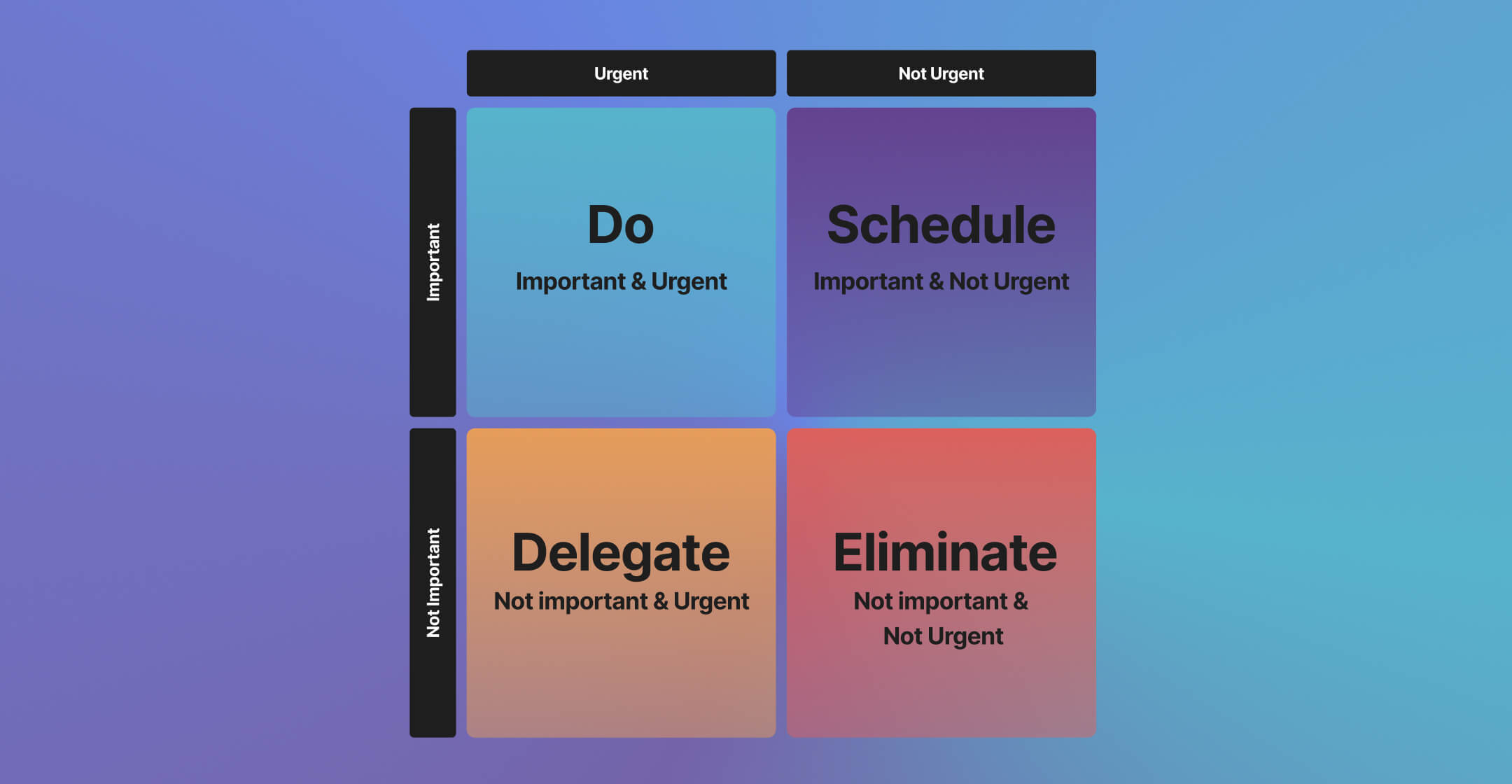
The Eisenhower prioritization matrix consists of four quadrants that sort tasks into four clear categories.
Urgent & Important (Quadrant I): These activities require immediate attention and directly impact long-term goals. Act on them first.
Not Urgent & Important(Quadrant II): Think of activities that are crucial for your long-term success but do not require immediate action. Think personal development, strategic planning, and goal setting.
Urgent & Unimportant (Quadrant III): Work that is urgent but does not contribute significantly to your long-term goals. Quadrant III activities are often distractions, interruptions, or tasks that can be delegated to others.
Not Urgent & Unimportant (Quadrant IV): These tasks are neither urgent nor important and should be minimized to maximize your effectiveness. Not urgent and unimportant tasks often include unnecessary meetings, or trivial tasks.
Each quadrant highlights a different action: do it now, schedule it, delegate it, or drop it. This clarity helps you escape the trap of busywork disguised as progress.
The Importance of Distinguishing Between the Urgent and the Important
Distinguishing between the urgent and the important is crucial for making progress on your goals and achieving long-term success.
When you focus on tasks that are important, even if they are not urgent, you can proactively work towards your long-term goals. Applying this strategy can help you avoid the constant firefighting mode of addressing only urgent tasks.
Let’s see what actually implementing this framework would look like with real life Eisenhower Matrix examples.
Eisenhower Matrix Examples: The Case of The Project Manager
For this Eisenhower Matrix example, let’s say you are a project manager working on multiple projects with strict deadlines. You have a long to-do list that includes tasks such as meeting with stakeholders, reviewing project documents, and updating project status reports.
You are also responsible for managing your team and ensuring they are staying on track. Using the Eisenhower decision matrix, you categorize your tasks as follows:
1. Urgent & Important (Quadrant I):
Meeting with stakeholders to address any issues or concerns that may impact project progress.
Resolving any critical project errors
Related problems that need immediate attention.
2. Not Urgent & Important (Quadrant II):
Reviewing project documents to identify any potential risks or areas for improvement.
Setting long-term goals for your projects and creating a plan to achieve them.
Allocating time to mentor and support your team members to enhance their skills and productivity.
3. Urgent & Unimportant (Quadrant III):
Responding to non-essential emails or phone calls that require immediate attention but do not contribute directly to project success.
Attending meetings or conferences that are not directly related to your project but others label as urgent.
4. Not Urgent & Unimportant (Quadrant IV):
Checking social media or browsing the internet for personal or non-work-related purposes.
Participating in non-work-related activities during office hours.
By using the Eisenhower Matrix, you can prioritize your tasks in a better way:
Your primary focus would be on Quadrant I tasks to ensure project success and address any urgent issues.
You would also allocate sufficient time for Quadrant II activities to prevent urgent issues from arising and work towards long-term project goals.
Delegate or minimize Quadrant III tasks as much as possible to ensure they do not take away valuable time from important activities.
Avoid spending significant time on Quadrant IV tasks that do not contribute to your work or project success. (For example, cancel a meeting if you are not contributing to it)
Applying the Eisenhower Matrix in your project management role allows you to work more effectively and efficiently. The framework allows you to manage your time, prioritize tasks, and achieve long-term success in your projects.
Implementing the Eisenhower Matrix in task management apps like Rock can further enhance productivity and make progress towards achieving success.
Putting The Eisenhower Decision Matrix Into Action With Task Management
A task management app brings this framework to life. You can quickly sort what needs doing now from what can wait. Users can focus on high-impact work, delegate distractions, and cut unnecessary activities.
The best Eisenhower Matrix app can make it easier to prioritize tasks effectively. Rock allows you to do so by organizing lists into the four quadrants.
The key benefits of implementing the Eisenhower Matrix in a task management app is the visual clarity it brings to your daily priorities.
Here’s what Rock would look like when used as an online Eisenhower Matrix app:
Urgent and important (Quadrant I): Do
Not urgent but important (Quadrant II): Schedule
Urgent but not important (Quadrant III): Delegate
Not urgent and not important (Quadrant IV): Delete
By delegating or eliminating unimportant tasks, users can free up valuable time and focus on more meaningful and impactful activities.
We’ve created a dedicated template where you can easily convert Rock into an Eisenhower Matrix app. Try it out for free yourself!
Staying organized and managing tasks efficiently is more crucial than ever. Having the right tools makes all the difference when juggling multiple projects at work, coordinating team efforts, or simply trying to keep your personal to-do list in check.
Task management apps continue to evolve, offering innovative features designed to streamline your work and boost productivity.
We’ll explore 10 of the best task management apps available in 2024. Different options cater to a variety of needs and preferences, ensuring that you can find the perfect solution to organize your projects, meet deadlines, and achieve your goals.
From intuitive user interfaces to advanced collaboration capabilities, these task management tools are equipped to help you stay on top of your tasks and manage your time effectively. Let's dive in and discover the top task management apps that can transform the way you work.
Rock is the best task manager app with an all-in-one collaboration platform designed to simplify teamwork by combining messaging, task management, notes, files, and meetings in a single space. Seamlessly integrate with popular apps like Google Drive, Slack, Trello, GitHub, and more
The task management suite is tailored for a diverse range of users, including startups, freelancers, educators, agencies and engineering teams, offering a versatile solution for managing projects and communication efficiently.
What sets Rock apart from other tools in the market is a flat rate pricing model. Unlike many collaboration tools that charge per user, Rock offers a single, all-inclusive plan with unlimited members, projects, tasks, and advanced functionalities.
Calendar and list task management app views within Rock
Pros and cons of using Rock as your task management app
Here are some of the main pros and cons users have encountered when using Rock as their solution to manage tasks:
✅Pro: All-in-one functionality: Rock is the best task management app because every project space combines messaging with tasks, notes, files and meetings. As a result, teams can reduce their tool stack and focus on collaborating and getting work done instead.
✅Pro: No per-user pricing: Unlike many other tools that charge per user, Rock offers a single, all-inclusive Unlimited Plan at a flat rate with unlimited members, projects, tasks, and advanced functionality. This can significantly reduce costs and simplify budgeting for teams of all sizes.
✅Pro: Quick Connect for instant collaboration: Rock’s Quick Connect feature allows teams to instantly start collaborating with anyone, whether they are internal team members, external companies, agencies, or freelancers. This makes collaboration and starting new projects seamless and efficient.
✅Pro: Comprehensive integrations and custom workflows: Rock integrates with a wide range of popular apps (e.g., Google Drive, Zoom, Google Meet, OneDrive, Dropbox) and supports custom workflows through its API and Zapier integration. This flexibility allows teams to tailor the platform to their specific needs and maintain their existing workflows.
✅Pro: Available on web, desktop and mobile: Quickly access your workspace with a dedicated desktop app. Rock is also the task manager for android and Apple with dedicated mobile apps for Google Play and iOS
⛔Con: Limited offline availability: While Rock is accessible in offline mode, changes can’t be made to different project spaces without a stable internet connections.
Cost: $89/month (monthly) or $74.92/month (yearly) - Flat pricing (unlimited team members, clients, freelancers and other external partners at one flat rate).
Features:some text
Unlimited group spaces, 50 workspaces
Unlimited Messaging, tasks, notes, members, and storage
Advanced features like PRO spaces, time tracker, custom integrations, and more!
Todoist is a powerful task manager and to-do list app designed to help teams organize work in a seamless way.
What sets Todoist apart from other task management tools is its unique approach to simplicity combined with powerful features. Todoist is one of the few task management apps that offers a natural language recognition capability to speed up the process of task entry.
Pros & cons of using Todoist when managing your tasks
✅Pro: User-friendly interface: Todoists’ simplicity helps users focus on their tasks without getting bogged down by a complicated setup process, which is ideal for both personal use and small teams.
✅Pro: Cross-platform availability: Todoist is available on multiple platforms, including web, desktop (Windows and macOS), and mobile (iOS and Android). This ensures that users can access their task lists from virtually any device, providing great flexibility and convenience for managing tasks on the go.
⛔Con: Per-user pricing: Todoist has per-user pricing which can quickly make it a costly tool when introducing more team members, freelancers, clients or other external parties to the online task manager.
⛔Con: Basic project management: Todoist is primarily designed for task management and may not be suitable for complex project management needs such an instant messaging app, note taking and advanced file management capabilities.
⛔Con: Customization limitations: Users enjoy some degree of customization but it is limited compared to other task management apps. Todoist’s capabilities might be too restrictive for users looking for highly customizable workflows or advanced automation options.
Todoist pricing
Beginner: Free forever with 5 personal projects, smart quick add, flexible list & board layouts, 3 filter views, 1-week activity history, and basic integrations with email and calendar.
Pro: $4 per month billed yearly ($5 when billed monthly) (20 users = $100/month), includes everything in Beginner plus 300 personal projects, calendar layout, task reminders & duration, 150 filter views, unlimited activity history, and an AI Assistant.
Business: $6 per month billed yearly ($8 when billed monthly) (20 users = $160/month), includes everything in Pro for each team member, plus a shared team workspace, up to 500 team projects, team calendar layout, granular team activity logs, 1000 team members & guests, 1000 project folders, team roles & permissions, and centralized team billing.
ClickUp is one of the best task management software designed to centralize all your work in one place. Users can manage tasks, projects, documents, and communications in one place. The task app's flexibility helps with customizing workflows, from simple task lists to complex project management processes.
What sets ClickUp apart from other task management software is the breadth of features it offers. Flexibility does come at a cost though since many users claim there is a big learning curve and managing workflows can become complicated quite quickly.
Pros & cons of using ClickUp when managing your tasks
✅Pro: Highly customizable: Users can make use of high customizability to tailor their workflows, views, and dashboards to fit their specific needs.
✅Pro: All-in-one solution: ClickUp integrates a wide range of features into a single platform. Beyond online task management, it includes time tracking, document creation, goal setting, and communication tools.
⛔Con: Complexity: The extensive range of features and customization options can make ClickUp overwhelming for new users. There is a steep learning curve, and it may take time for teams to fully understand and use all available features.
⛔Con: Performance issues: Some users have reported performance issues, such as slow loading times and occasional glitches, especially when managing large projects with many tasks.
⛔Con: Overwhelming interface: While the interface is powerful, it can be cluttered and confusing, particularly for those who prefer a simpler, more streamlined task management software.
⛔Con: Per-user pricing: Paid plans are per-user which can quickly rise as you introduce more team members, clients and partners to the platform.
ClickUp pricing
ClickUp has a per-user pricing model:
Free Forever: Ideal for personal use, includes 100MB storage, unlimited tasks, unlimited free plan members, collaborative docs, real-time chat, Kanban boards, sprint management, calendar view and more.
Unlimited: Best for small teams, costs $7 per user per month (billed annually) ($70 per month for a team of 10). Everything in Free Forever plus unlimited storage, unlimited integrations, unlimited dashboards, unlimited Gantt charts, agile reporting, AI compatibility and more.
Business: Best for mid-sized teams, costs $12 per user per month (billed annually) ($120/month for a team of 10), includes everything in Unlimited plus Google SSO, unlimited teams, custom exporting, advanced public sharing, advanced automations…
Enterprise: Best for large teams, custom pricing, includes everything in Business plus white labeling, advanced permissions, conditional logic in forms, enterprise API…
Trello is a highly visual task management app that helps teams organize and track projects through boards, lists, and cards. Each board represents a project, lists represent the stages of the project, and cards represent individual tasks or ideas.
What sets Trello apart from other online task managers is its emphasis on simplicity. While Trello’s ease-of-use is a big plus for many there have also been complaints about the lack of more complex features and task views such as a list view.
Pros & cons of using Trello as your task management software
✅Pro: User-friendly interface: Trello's visual Kanban-style boards are intuitive and easy to use. This makes it simple to create, organize, and manage tasks, even for users who are new to task management tools.
✅Pro: Flexibility and customization: Trello offers a high degree of flexibility with customizable boards, lists, and cards. Users can adapt these elements to suit various workflows and projects.
⛔Con: Per-user pricing: Per user pricing can make trello a costly task management solution for teams that aim to collaborate with a lot of internal and external team members. Per-user-per-month pricing can quickly run a bill into hundreds of dollars every month.
⛔Con: scalability issues: Trello's simplicity can be a drawback for larger teams or more complex projects. It becomes challenging to maintain an overview and manage dependencies effectively as the number of tasks and boards grows.
⛔Con: Lack of advanced reporting: Trello does not offer built-in advanced reporting or analytics features.
⛔Con: Limited task dependencies and timeline views: While Trello is great for simple task management, it lacks sophisticated features like task dependencies and advanced timeline views.
Trello pricing
Trello’s task management software works with a 4-tier per-user pricing model:
Free: $0 USD - Task manager for free for individuals or teams looking to organize any project.
Standard: $5 USD per user/month if billed annually ($6 billed monthly) - $60/month for a team of 10 – For small teams that need to manage work and scale collaboration.
Premium: $10 USD per user/month if billed annually ($12.50 billed monthly) $125/month for a team of 10 – For teams that need to track and visualize multiple projects in several ways.
Enterprise: $17.50 USD per user/month billed annually ($210 annual price per user) - For organizations that need to connect work across teams with more security and controls.
Wrike distinguishes itself as a task management software with advanced features that streamline and automate workflows. It offers versatile project views like Gantt charts and Kanban boards, enabling users to visualize progress in their preferred format.
What makes Wrike unique in the market is its robust integration with over 400 popular apps, ensuring seamless connectivity and collaboration across platforms like Slack and Microsoft Teams.
Pros & cons of using Wrike as your task management app
✅Pro: Comprehensive project management features: Wrike offers a robust set of tools for project management, including Gantt charts, task dependencies, time tracking, and custom workflows. These features help teams plan, execute, and monitor projects efficiently.
✅Pro: Strong collaboration tools: Wrike excels in facilitating cross-functional team collaboration with features like real-time activity streams, document sharing, and integrated communication tools. This ensures that team members stay connected and informed throughout the project lifecycle.
⛔Con: Steep learning curve: Due to its extensive features and capabilities, new users may find Wrike challenging to learn and navigate initially. This can result in a longer onboarding process and require more training.
⛔Con:High cost for advanced features: While Wrike offers a free plan and various pricing tiers, access to advanced features and integrations can be expensive. This can make it less accessible for smaller teams or organizations with limited budgets.
⛔Con: Complex user interface: Some users find Wrike's interface to be cluttered and overwhelming, especially when managing multiple projects simultaneously. This complexity can hinder usability and efficiency for some team members.
⛔Con: Limited customization options: Although Wrike provides many features, some users may find the customization options for dashboards and reports limited compared to other task management tools. This can restrict how teams tailor the platform to their specific needs.
Wrike pricing
Wrike’s task management software has a 4-tier per-member pricing model:
Free: $0/user/month - Intelligent online task manager with active task limitations, one user only.
Team: $9.80/user/month($98/month for a team of 10)- Only available for 2-25 users – unlimited projects, tasks, and automations (50 actions/user/month).
Business: $24.80/user/month - ($248/month for a team of 10) Available for 5-200 users with custom item types, resource management, and automations (200 actions/user/month).
Enterprise: Contact for pricing - 5 to unlimited users with advanced security features and automations (1000 actions/user/month).
6. Asana
Via Asana
Asana is a task management app designed to help teams organize, track, and manage their work efficiently.
What makes Asana unique in the task management landscape is its strong emphasis on simplicity combined with powerful functionality. Its intuitive design ensures that even non-technical users can quickly adopt the platform without a steep learning curve.
Pros & cons of using Asana as your task management app
✅Pro: User-friendly interface: Asana is known for its intuitive and easy-to-navigate interface, which helps teams quickly get up to speed. The drag-and-drop functionality for tasks and projects simplifies organization and workflow management.
✅Pro: Robust task and project management features: Asana offers a comprehensive set of features, including task assignments, due dates, project timelines, and customizable project views like lists, boards, and calendars. These features allow teams to manage tasks efficiently and keep track of project progress.
⛔Con: High per-user pricing: Asana's starter plan costs $10.99/user/month when billed annually. This means you’ll quickly be spending over three or four figures for your task management every month.
⛔Con: Complexity with large projects: While Asana is great for small to medium-sized projects, it can become cumbersome and less efficient when managing very large projects with numerous tasks and dependencies.
⛔Con: Limited time tracking and budgeting tools: Asana lacks built-in time tracking and budgeting features, which are essential for many project management needs. Users often need to rely on third-party integrations to fill this gap, which can complicate the workflow.
⛔Con: Email overload: Asana generates a significant amount of email notifications, which can overwhelm users and lead to important updates being missed in a cluttered inbox. While notifications can be customized, users often find the default settings to be excessive.
Asana pricing
Personal: $0/user/month - Free task manager with unlimited tasks, projects, and messages.
Starter: $10.99/user/month(billed annually) ($109.9/month for a team of 10) - Advanced project tracking with timeline view, workflows, and up to 500 teammates.
Advanced: $24.99/user/month(billed annually) - ($249.90/month for a team of 10) Enhanced portfolio and goal management with 25,000 automations and advanced reporting.
Enterprise: Contact for pricing - Unlimited users with advanced security features, custom branding, and premium support.
Enterprise+: Contact for pricing - Includes all Enterprise features plus additional compliance and security integrations like SIEM and HIPAA.
7 Basecamp
Via Basecamp
Basecamp is a task management software that simplifies project management by providing an all-in-one platform for teams to collaborate effectively.
What makes Basecamp one of the best apps for task management is its emphasis on communication and simplicity. Basecamp prioritizes clear communication with built-in message boards, group chat (Campfires), and automatic check-ins to keep everyone on the same page.
Pros & cons of using Basecamp as your task management app
✅Pro: All-in-one collaboration tool: Basecamp combines multiple tools into one platform, including to-do lists, file sharing, message boards, schedules, and real-time group chat. This integration helps teams keep all their communications and project details in one place, reducing the need for multiple apps.
✅Pro: Simplicity and ease of use: Basecamp's user-friendly interface and straightforward design make it easy for teams to adopt and use effectively. Its simplicity is especially beneficial for small to medium-sized teams that need to get organized quickly without a steep learning curve.
⛔Con: Limited advanced project management features: Unlike some other project management tools, Basecamp lacks advanced features such as Gantt charts, task dependencies, and detailed reporting.
⛔Con: No time tracking: Basecamp does not offer built-in time tracking, which can be a critical feature for teams needing to monitor the time spent on tasks and projects. Users must rely on third-party integrations to add this functionality.
⛔Con: Limited customization: Basecamp offers fewer customization options compared to other task management tools. Users may find it challenging to tailor the platform to their specific needs, as there is less flexibility in adjusting workflows, dashboards, and reports.
Basecamp pricing
Basecamp has a per-user pricing model for its task management application up until a certain amount, after which it becomes flat rate.
Basecamp Per User: $15/user per month - ($150/month for a team of 10) Ideal for freelancers, startups, or smaller teams with every feature included and 500 GB storage.
Basecamp Pro Unlimited: $299/month billed annually (or $349/month billed monthly) - Perfect for larger businesses with unlimited users, 5 TB storage, 24/7 priority support, and additional features like Timesheet and Admin Pro Pack add-ons.
8. Hive
Via Hive
Hive is a versatile task management app that consolidates project planning, execution, and tracking into one platform.
Comprehensive proofing and approval processes are one of Hive’s main selling points. Teams can centralize document reviews and feedback to improve collaboration and ensure all necessary steps are followed.
Pros & cons of using Hive as your task management app
✅Pro: Team interaction and communication: Hive facilitates excellent team interactions and communications. Users appreciate the ability to catch up with team members and find the software effective for collaborative work, making it a valuable tool for team-based projects.
✅Pro: Ease of use and frequent updates: Users find Hive efficient and easy to use. The platform is regularly updated with new features, which users enjoy learning about and integrating into their workflows.
⛔Con: Reporting and accountability issues: Some users have reported that Hive's reporting and accountability features are lacking. There are issues with the logic in recurring actions, which can prevent the generation of accurate productivity reports.
⛔Con: Inability to create dependent tasks in recurring actions: A notable drawback mentioned by users is the inability to create dependent tasks within project actions that recur. This limitation can hinder the effective management of complex projects that require dependencies.
⛔Con: Annoying aspects and quirks: Users have pointed out certain annoying aspects and quirks of Hive. For example, "future" actions are not always treated as future actions, which can cause confusion and disrupt planning.
⛔Con: Complexity in some features: While Hive offers a range of features, some users find certain functionalities complex or not intuitive. This can lead to a steeper learning curve and may require more time for teams to fully utilize the tool's capabilities.
Hive pricing
Free: $0/month: Free task manager thatIncludes 200MB storage, up to 10 workspace members, unlimited tasks and collaborative notes, various work views, email integration, and native chat messaging.
Starter: $5/month per user ($50/month for a team of 10) Includes everything in Free plus unlimited storage, up to 10 workspace members, up to 10 projects, Gantt view, cloud storage integrations, in-app calendar, Zoom and Slack integration, and an AI Assistant.
Teams: $12/month per user: Includes everything in Starter plus unlimited workspace members, flexible add-ons, shareable forms, time tracking, portfolio view, unlimited workflows, team sharing, and custom fields, labels, and statuses.
9. Meistertask
MeisterTask streamlines workflows and boosts team productivity with its intuitive, Kanban-style project boards. Teams can easily visualize tasks and track progress from start to finish.
What sets MeisterTask apart is its robust automation features and strong security focus. Users can automate repetitive workflow steps, saving time and ensuring consistency.
Pros & cons of using Meistertask as your task management app
✅Pro: User-friendly interface and robust features: MeisterTask boasts an intuitive and user-friendly interface, paired with a wide range of robust features and collaboration tools. These attributes make it an outstanding project management solution for users.
⛔Con: Lack of internal calendar: A notable drawback is the absence of an internal calendar feature. Users have expressed the need for an integrated calendar to enhance task scheduling and time management.
⛔Con: Poor file sharing and revision management: File sharing and revision management within MeisterTask are considered poor by some users. There is a desire for improved handling of these aspects to better support collaborative work.
⛔Con: Dependability issues for remote work: For users with remote teams, MeisterTask has been criticized for its lack of dependability in assigning tasks and managing timekeeping for clients. This can be a significant issue for businesses that rely on remote collaboration.
Meistertask pricing
Basic: Free – Core task management features for single users. Includes up to 3 projects, unlimited project members, customizable project boards, up to 5 collaborative notes, and quick reports.
Pro: $13.5 per user/month: ($135/month for a team of 10) Includes all Basic features plus external sharing, unlimited projects and notes, agenda, unlimited integrations, private projects, automations, and advanced search.
Business: $24 per user/month ($240/month for a team of 10) Includes all Pro features plus subtasks, timeline, roles and permissions, custom fields, security restrictions, priority email and phone support, and custom reports.
Enterprise: Custom pricing – Includes all Business features plus tailored pricing offer, dedicated account manager, personalized onboarding assistance, and SAML Single Sign-On.
10. Notion
Notion redefines task management by offering a highly customizable and all-in-one workspace that goes beyond simple task tracking. Users can create tasks and projects within a flexible, modular environment, allowing them to tailor workflows to their exact needs.
What sets Notion apart from other task management apps is its unparalleled versatility and customization. Users can design their own task boards, tables, calendars, and lists, adapting Notion to any project management style, whether it's Kanban, Agile, or a personalized method.
Pros & cons of using Notion as your task management app
✅Pro: Integrated templates: Notion provides integrated templates that help users quickly launch new projects or tasks. This feature allows for easy integration of information from various sources, making it highly efficient for project setup.
✅Pro: Ease of organizing notes: Organizing notes or dashboards in Notion is super easy and fun. The ability to create a note within another note and link it to a line in a note is highly beneficial, helping users maintain organized and interconnected information.
⛔Con: Per-user pricing: Per-user pricing options can quickly skyrocket depending on who you’re collaborating with and the number of external people like clients, freelancers or other stakeholders need to access and collaborate with you.
⛔Con: Navigation difficulties: Some users find Notion difficult to navigate. This can result in inefficiencies and frustrations, especially when transitioning from other project management tools that might have simpler interfaces.
⛔Con:Initial learning curve: New users might face a steep learning curve when starting with Notion.
⛔Con: Lack of direct communication features: Notion does not have a built-in chat feature which can make communicating between team members challenging.
Notion pricing
Notion has a 4-tier pricing model with an AI add-on:
Free Plan: $0 per month: Free task manager with up to 10 guests, basic page analytics, 7-day page history, and limited block storage for multiple members.
Plus Plan: $10 per seat/month (billed annually) or $12 per seat/month (billed monthly): Everything in Free, plus unlimited blocks for teams, unlimited file uploads, 30-day page history, invite up to 100 guests, synced databases, custom websites, custom automations, and charts & dashboards.
Business Plan: $15 per seat/month (billed annually) or $18 per seat/month (billed monthly): Everything in Plus, plus SAML SSO, private teamspaces, bulk PDF export, advanced page analytics, 90-day page history, and invite up to 250 guests.
Enterprise Plan: Contact Sales for pricing: Everything in Business, plus SCIM API for user provisioning, advanced security & controls, audit log, customer success manager, workspace analytics, unlimited page history, security & compliance integrations, and invite up to 250 guests.
Notion AI: $8 per member/month (billed annually) or $10 per member/month (billed monthly): Add to any plan for unlimited use of Q&A, autofill, and writer features.
Smaller teams, tighter deadlines and fiercer competition across the board make effective project management tools more critical than ever.
While Trello has long been a favorite tool for teams seeking simplicity and efficiency, a growing number of alternatives are taking the market by storm. Cheaper plans, unique features and advanced capabilities allow many tools to position themselves as valuable alternatives to Trello.
Exploring these options can help you find the perfect fit for your team, pick a trello alternative that is free, with next-level customization, advanced integrations, or cost-effective task management plans.
If you’re looking for a change, read along. We'll delve into 10 compelling Trello alternatives and competitors that could be a better fit for the collaboration needs of your team.
Teams on Rock streamline their work by integrating communication within task management directly, without relying on external apps. Project spaces incorporate functionality that enables people to communicate in different ways depending on the urgency and importance of their message.
Rock is the best trello alternative, widely used by a large variety of teams, from startups to large organizations. Users can collaborate with a flat pricing model which can quickly save hundreds if not thousands of dollars compared to Trello when working with larger teams.
Users also highlight how Rock makes it easier to collaborate with external people like freelancers, agencies, clients and partners since there are no price barriers or separate “guest” plans for external users.
Benefits of Rock Over Trello
Users' reviews highlight the following features most often when arguing that Rock is better than Trello. Rock can be the best free alternative to trello for the following reasons:
Flat Pricing Solution Instead of Per-User Pricing
Rock offers an unlimited flat-rate plan which includes unlimited members, projects, tasks, and advanced features for $75 per month. This pricing model is more effective for both small (5-10+) and larger teams, as it avoids the per-user fees typically associated with other platforms.
Trello provides various plans: Free, Standard ($5 per user/month billed annually), Premium ($10 per user/month billed annually), and Enterprise ($17.50 per user/month billed annually). Teams can save hundreds if not thousands of dollars by making the switch to Rock.
All-in-One Collaboration Instead of Only Tasks
Rock integrates messaging, tasks, notes, and files in one platform, which can reduce the need for additional tools. Project spaces also include integrations with popular apps and services (Figma, Google Drive, OneDrive, Dropbox, Zoom, Google Meet and many more), making it versatile for different workflows.
Trello is known for its easy-to-use boards and visual project management style. Users can make use of powerful automation features and integrations, but communication relies on external tools, which complicates workflows and supposes an additional monthly plan for teams.
Multiple Task Management Views Instead of Just Boards & Cards
Rock offers multiple task management views for users to collaborate more effectively. Every space in Rock offers task management with a list, board and calendar view. Additionally, there is a “My Tasks” panel for users to manage their workload across all spaces they are a member in.
Trello excels in visual project management and is widely adopted due to its simplicity and flexibility. However, teams with extensive collaboration needs might find Rock's flexibility in organizing tasks more efficient.
Meistertask
MeisterTask is a free Trello alternative that offers a flexible and intuitive platform for teams to manage projects.
The platform emphasizes seamless collaboration and effective task tracking, integrating features like customizable project boards, automation, and collaborative documentation with MeisterNote.
Benefits of MeisterTask Over Trello
Reporting and insights: MeisterTask provides detailed reporting features that help teams identify bottlenecks and optimize processes. While Trello offers some reporting through its Power-Ups, MeisterTask includes these features more comprehensively.
MeisterNote integration: MeisterTask includes MeisterNote for project documentation, enhancing collaboration by allowing teams to create and share notes directly within the platform. Trello lacks a built-in documentation feature, requiring external tools for similar functionality.
Unlimited collaborative notes: Even in the Pro plan, users have access to unlimited collaborative notes, which facilitates better information sharing and team collaboration compared to Trello's limited note capabilities.
Basecamp
Basecamp is a Trello alternative designed to help teams streamline their workflows and increase productivity.
User reviews emphasize the ease of use and a unified workspace to reduce the need for multiple apps.
Using Basecamp as an alternative to Trello is a simple yet powerful solution for small teams and large organizations that includes to-do lists, real-time chat, file storage, and scheduling all in one platform.
Benefits of Basecamp Over Trello
Pricing structure for larger teams: Basecamp offers a flat-rate pricing model with the Basecamp Pro Unlimited plan at $299/month for unlimited users. A flat pricing model (Like with Rock) can be more cost-effective for larger teams compared to Trello's per-user pricing.
All-in-one collaboration: Basecamp includes integrated features such an instant messaging app, to-do lists, file storage, and scheduling, all within one platform. Teams can eliminate additional tools whereas Trello may require additional Power-Ups and integrations for similar functionality.
Enhanced support and onboarding: Basecamp provides first-in-line 24/7/365 priority support and a personalized onboarding tour. Quick support ensures that teams can resolve issues and effectively adopt the platform.
Todoist
Todoist is a leading task management and to-do list app designed to help individuals and teams organize their work and life efficiently.
Users highlight features like natural language processing for quick task entry, customizable views for prioritizing tasks, and shared spaces for team collaboration as main reasons for choosing Todoist over Trello.
Todoist is marketed as a tool that helps users achieve mental clarity by seamlessly organizing tasks into intuitive categories.
Benefits of using Todoist as a Trello alternative
Natural language processing: Todoist's standout feature is its natural language recognition, allowing users to quickly add tasks by typing them in plain language. This feature simplifies task entry and saves time, while Trello requires more manual input for task creation.
Customizable filters and views: Todoist offers extensive filtering options, allowing users to sort tasks by priority, due date, and more. This level of customization helps users focus on what’s most important, whereas Trello's views are more board-centric, requiring Power-Ups for similar functionality.
Offline access: Todoist offers robust offline functionality, allowing users to manage tasks without an internet connection. Trello's offline capabilities are more limited.
Hive
Hive is a comprehensive project management tool designed to streamline team collaboration and improve productivity. Hive offers a range of features, including project tracking, time tracking, resourcing, and analytics.
Hive is a free alternative to Trello that focuses on providing a unified project management solution for managing tasks, automating workflows, and integrating with various apps to suit different organizational needs.
Reasons to choose Hive over Trello
Customizable task management views: Hive offers a more extensive range of views like Kanban, Gantt, timeline, and calendar, allowing teams to visualize projects in ways that best suit their needs.
Time tracking: Hive includes features for time tracking that allow teams to track time spent on tasks, which is more advanced compared to Trello's offerings.
Integrated communication tools: Hive includes native chat and email integration, enabling teams to communicate directly within the platform, reducing the need for external communication tools.
Monday.com
Monday.com is a versatile work platform designed to streamline workflows and enhance team collaboration. Functionality and features are positioned as a comprehensive solution for managing projects, sales, development, and more, with a focus on customization and automation.
The platform offers tailored products for different team needs, including CRM, work management, and development, making it adaptable for various industries and business sizes.
Choosing Monday.com as a Trello Alternative
More task views and features: Monday.com offers advanced views like Gantt, Timeline, and Calendar, allowing users to visualize projects in multiple ways. Trello primarily focuses on boards and cards, which may not provide the same level of detail for complex projects.
Automation and integration: Both platforms offer automation, but Monday.com provides more extensive automation capabilities with higher action limits, especially in higher-tier plans. It also supports a wide range of integrations with other tools, centralizing team workflows more effectively.
Advanced reporting and dashboards: Monday.com's dashboards can combine data from multiple boards, offering deeper insights and analytics. This feature is especially beneficial for tracking progress across various projects simultaneously, which Trello's simpler dashboard features might not fully support.
nTask
nTask is an all-in-one project management software designed to streamline workflows and enhance team collaboration. User reviews highlight how it offers a comprehensive solution for managing projects, tasks, meetings, and more.
With features like Gantt charts, time tracking, and risk management, nTask aims to provide businesses with a versatile platform that can accommodate various project management needs.
Why Users are Opting for nTask as an Alternative to Trello
Integrated meeting management: nTask offers built-in meeting management features, allowing users to schedule, manage, and document meetings directly within the platform. Trello requires external tools or integrations for similar functionality.
Time tracking and timesheets: nTask includes time tracking and timesheet capabilities, enabling teams to log hours and monitor productivity. Trello does not offer native time tracking, requiring third-party integrations instead.
Advanced Gantt Chart features: nTask includes interactive Gantt charts for detailed project planning and task dependencies. While Trello offers timeline views in its Premium plan, nTask provides more comprehensive Gantt functionalities at a lower cost.
Notion
Notion is an all-in-one workspace designed to help teams and individuals organize their work in a flexible and collaborative environment. The Notion app offers a wide range of functionality including note-taking, task management, databases, and wikis to centralize information and streamline workflows.
Users have shared in their reviews that Notion is a versatile tool for a wide variety of use cases, from personal productivity to enterprise-level solutions.
Reasons for Picking Notion as Your Trello Alternative
Integrated workspace: Notion offers a unified platform that combines notes, tasks, databases, and wikis in one place. Trello primarily focuses on task management through boards and cards, requiring integrations for similar functionality.
Advanced content blocks: Notion allows for the use of various content blocks, such as text, images, and embeds, to create rich documents. This is more advanced compared to Trello's card-based system.
Version history: Notion provides extensive version history with options for 30-day and 90-day history, even unlimited for Enterprise users, allowing users to track changes over time. Trello offers limited change tracking.
Asana
Asana is a work management platform designed to help teams organize, track, and manage their work. Positioned as a comprehensive tool for project management, Asana connects work to goals and automates workflows, leveraging AI to maximize productivity.
Platform functionality caters to diverse teams, from marketing to engineering, offering solutions that promote clarity, accountability, and scalability.
Benefits of Asana Over Trello
Advanced reporting and dashboards: Asana offers detailed reporting dashboards and goal management features, which provide real-time insights into project progress. This can be beneficial for teams needing in-depth analytics.
Workflow automation: While both platforms offer automation, Asana’s Workflow Builder allows for more complex automations with branching logic and approvals, providing more control over processes.
Scalability and security: With enterprise-grade security and advanced admin controls, Asana is well-suited for larger organizations that require stringent data protection and user management.
ClickUp
ClickUp is an all-in-one productivity platform designed to connect tasks, docs, people, and knowledge. It positions itself as "The Everything App" for work, aiming to streamline workflows and enhance productivity by offering a single platform for managing any type of work.
ClickUp emphasizes flexibility, customization, and integration to replace multiple apps, making it a comprehensive solution for diverse teams.
Benefits of ClickUp Over Trello
Advanced customization: ClickUp allows extensive customization with custom fields, dashboards, and templates, enabling users to tailor their workspace to specific needs, which may not be as flexible in Trello.
Integrated time tracking: ClickUp offers native time tracking, a feature that is not inherently available in Trello, allowing teams to manage and log time more effectively without third-party integrations.
Automation and AI integration: ClickUp provides powerful no-code automation and AI capabilities across all plans, enhancing productivity by automating repetitive tasks and offering AI-driven insights.
Product management is a complex and evolving field that requires the right tools to stay ahead of the curve. As we move into 2024, having effective software can make or break a product team's success.
We dive into the 10 best product management tools you should consider in 2024. From AI-powered platforms to visual collaboration tools, we share options to suit different needs.
Whether you’re looking to streamline communication, enhance project timelines, or gain actionable insights, these tools will provide you the edge you need. Ready to elevate your product management game?
Let’s explore the top contenders for 2024!
1. Rock
Rock is a platform designed to streamline product management by combining project management, communication, and integration with other tools. Here's how it can help product teams:
Unified workspace: Rock integrates messaging, tasks, notes, files, and meetings, reducing the need to switch between multiple apps.
Task Management: Track all tasks and priorities with built-in time tracking and project dashboards.
App Integration: Seamless integration with popular apps like Google Drive, Miro, Notion, Zapier, and more, ensuring smooth workflows.
Cost Efficiency: Rock offers unlimited members, projects, and tasks in one simple plan, saving money and improving productivity.
With these features, Rock helps product teams manage projects, communicate, and collaborate efficiently.
2. Linear
Linear is a project management tool designed to streamline the software development process with a focus on speed and a keyboard-first user interface. Work with customizable workflows, issue tracking, and integrate with other tools.
Linear stands out as an exceptional product lifecycle management tool for several reasons:
Efficiency and speed: Linear is designed with performance in mind, offering interactions as quick as 50 milliseconds and real-time synchronization.
Keyboard-first approach: Users can manage tasks quickly without relying on a mouse through a keyboard-first interface with extensive shortcuts for virtually all actions.
Structured workflow customization: Set up automated features like backlog management, where issues are auto-closed and archived to keep a clean and efficient workspace.
3. Amplitude
Amplitude is a product analytics platform that helps companies track and analyze user behavior across digital products. It aims to drive engagement and growth by providing deep data analysis, user journey mapping, real-time analytics, and A/B testing. This enables organizations to understand customer interactions and optimize product features effectively.
Here’s why Amplitude is highly regarded for product management:
Experimentation & optimization: Test, analyze, and scale optimizations effectively to improve product performance with robust A/B testing and experimentation capabilities.
Integrated customer data platform: Work with a single source of truth for user behavior by unifying data across different teams and systems.
User journey analysis: Teams can understand the full user journey through detailed analytics, helping to identify critical touchpoints and optimize user flows.
4. Figma/Figjam
Figma is a design tool that enables users to create, prototype, and collaborate on digital projects in real-time. Product teams can streamline the design process with vector networks, auto layout, and dynamic overlays. Design everything from simple icons to complex interactive applications.
Product teams can work together seamlessly from different locations, making it a popular choice among designers, developers, and product managers.
Figma/FigJam are excellent tools for product management for several key reasons:
Unified design & prototyping: Figma integrates design and prototyping in a single tool, allowing product managers and designers to swiftly move from ideation to interactive prototypes without switching software.
Real-time collaboration: Teams can co-create and iterate on designs and strategies simultaneously since both Figma and Figjam offer real-time collaboration features. .
Versatile use cases: From UX/UI design to wireframing, product marketing and strategic planning, Figma and FigJam cover a broad spectrum of product management workflows.
5. Cron
Cron is a modern calendar application designed for professionals and teams. After its integration with Notion, it is now known as Notion Calendar.
Cron combines advanced scheduling features with Notion's collaborative workspace, making it an effective tool for organizing meetings, deadlines, and projects.
Users also get real-time synchronization, a user-friendly interface, and customization options to suit specific project needs. Here are some standout features that further highlight why Cron is one of the best product manager tools:
Advanced scheduling features: Cron provides sophisticated scheduling capabilities that help product management teams organize meetings, deadlines, and product launches efficiently.
User-friendly interface: Cron is designed to be intuitive and easy to use, making it simple for product teams to plan their workflows, visualize project timelines, and track important milestones.
Customization and flexibility: Teams can customize calendar views and notifications to suit their specific project needs.
6. Arc
Arc is a modern web browser focused on customization, organization, and privacy. It offers unique features such as Spaces and Profiles, which allow users to organize activities efficiently within one window.
Privacy and security are core principles since Arc does not track users' site visits or searches, ensuring a clean and personalized browsing experience.
7. Notion
Notion is a well-known productivity tool that helps product teams with note-taking, task management, databases, and a calendar in one place.
Notion supports real-time editing, sharing, and integration with other popular tools such as Slack. Monday or ClickUp, making it a go-to solution for teams and individuals who need an all-in-one productivity boost.
Notion has versatile features that make it a standout when it comes to product information management tools:
Versatile documentation: Product managers can create, store, and manage all documents—from product requirements documents and roadmaps to meeting notes and project timelines—in one accessible, organized place.
Collaborative features: Everyone from developers to stakeholders can stay in sync with real-time editing, comments, and notifications. Updates, feedback, and changes are communicated instantly through a collaborative environment, improving team efficiency.
8. Miro
Miro helps product teams with functionality such as diagramming, process mapping, whiteboarding, and real-time data visualization. Product managers use Miro for strategic planning, product development workflows, and synchronous or asynchronous teamwork.
Miro is highly effective if you’re looking for product management tools for several reasons:
Visualization tools: Use a suite of visualization options like whiteboarding, mind mapping, and customer journey mapping that help in planning and strategizing complex product roadmaps.
Real-time data visualization: Visualize data and content in real-time to always make informed decisions and ensure all team members have access to the latest information.
9. Coda
Coda is an all-in-one collaborative workspace that combines documents, spreadsheets, and custom applications into one platform, helping teams streamline work.
Coda supports real-time collaboration, integrates with many tools, and offers customizable templates, making it a highly recommended tool for product management and team productivity.
While Rock enables you to organize, discuss, and get things done, these other platforms can complement your work and make you more productive as a remote worker.
Several remote work tools will help you be fruitful and increase your chances of success. Working remotely might seem like an attractive possibility for some, but it comes with some difficulties.
The following article focuses on helping you manage your work more efficiently and get more done while working remotely. Here are some tools and platforms to use alongside Rock on your day-to-day.
Rimuut revolutionizes your administrative work and enables you to go borderless by providing invoicing, payment, and compliance solutions. You can go borderless, send tax-deductible invoices to your clients located anywhere and collect payment securely.
The best part is that Rimuut enables you to invoice clients in almost 150 countries without starting a company and get paid. If you want to be paid on time as a freelancer or a contractor, you can create service contracts and NDAs using readymade samples on Rimuut. It is the easiest way to get paid and comply with regulations.
Figma comes with web and mobile application design elements. The interface is clean and straightforward. A flat design makes it easier to work on various objects. Users can build their page design from scratch and save a template.
This multi-user web design tool is nothing short of revolutionary.Its solutions and low learning curve, user-friendly interface, and various features make web designing accessible to even those new to it in the industry. Figma keeps getting better with time. You can also integrate Figma to the Files mini-app of every Rock space.
If you have ever tried to find a working meeting time with more than one person, you know how frustrating it can be. You get the usual email chain that goes on forever. Calendly is a simple service that fixes this issue. It’s easy to see why using Calendly might save you hundreds of hours over a year.
You can schedule meetings at your convenience and suggest potential meeting dates and times that work with Calendly’s built-in scheduling assistant.
The last thing you want is to let your guard down one night and go on a site for your business only to get locked out because you forgot your password. This can be a nightmare, especially if no one else remembered it!
Thankfully, 1Password is an excellent solution to these problems since it’s secure and allows you to access all of your information from one place.
Essentially, Google Drive can help you become more productive by providing you with a cloud-based repository for your documents, spreadsheets, and presentations. Google Drive also conveniently integrates with Rock.This means that Google Drive removes the need for a local copy of these files and allows you to access them anywhere via the web.
Google Docs is one of the most popular applications in the suite. You can create almost anything with Docs. For example, an excellent Google Slides will assist you with presentations and spreadsheets for your budgeting needs.
The world is rapidly changing with the future of work embracing remote work, hybrid offices and distributed teams. This has led to the widespread search for fast, flexible and reliable remote work tools.
To settle debate, we created an overall comparison of the most popular team communication tools: WhatsApp vs Slack vs Rock.
WhatsApp vs Slack vs Rock - A Quick Rundown
You may already know about WhatsApp. More likely than not, you've already used it to communicate with your team, friends and family.
WhatsApp was initially designed for personal (more informal) communication. Nevertheless, many companies have still adopted WhatsApp to send messages to their customers or communicate among team members.
Slack on the other hand is a business communication tool used by corporate teams, usually bigger in size. The app is more often used in business environments, with fewer informal conversations compared to WhatsApp.
Last but not least, Rock is an all-in-one communication tool that alongside messaging also provides built-in task and note functionality. What makes Rock stand out is the combination of messaging with tasks, notes, files and meetings in one place.Let’s jump right into the comparison.
A variety of interfaces - WhatsApp vs Slack vs Rock
WhatsApp has a clean and elegant design that makes it easy to use for personal communication. There is virtually no learning curve. Recent chats can easily be retrieved, and any team member can be found with a simple search.
WhatsApp’s simplicity can be key for small teams, but as more chats are opened it can quickly become confusing.
Rock and Slack, unlike WhatsApp, are particularly designed for business communication, so they include additional buttons for advanced functionality. Think of integrations, advanced team management features and functionality aimed at getting work done.
WhatsApp, Slack and Rock are all cross-platform and mobile-friendly, allowing your team to communicate just as effectively outside of the office as they can inside.
Rock is the only platform that also provides collaboration functionality through native task management and note functionality. Task and note management functionality in every space allow teams to get work done more easily.
Set base in one tool with all-in-one messaging functionality. Notifications and reminders apply to both your messaging and project management allowing you to quickly jump between priorities.
Conversation management across platforms
WhatsApp excels at the basics of messaging. There is also a universal search option available to retrieve anything from messages to contacts. Additionally, the reply and forward options, file sharing and other features are all easy to use.
Rock, Slack and WhatsApp all allow you to mute spaces/channels or the tool completely so team members can stay focused or disconnect when necessary. Message reactions are also present in all three options. WhatsApp provides 6 options whereas Slack and Rock offer hundreds.
Both Rock and Slack incorporate workspaces into their functionality. This allows teams to quickly add new people to multiple spaces without sending individual invites. The chat interface looks similar on all three tools, with straightforward navigation throughout the different functionality.
Rock is a WhatsApp alternative excels in conversation add-ons – replying, editing, deleting, setting aside messages, and a unique “Tap to Organize” feature that converts messages into tasks, notes or comments.
You can also @mention anything in your different work spaces, including people, tasks, notes, files, and even tasks and notes from other spaces!
What apps can you integrate? WhatsApp vs Slack vs Rock
WhatsApp is primarily used for personal messaging and does not support third-party apps. This might be a dealbreaker for you if you require integrations in your day-to-day work.
Rock and Slack, on the other hand, integrate well with a wide range of third-party business tools to help with various tasks for efficient business communication.
Google Drive, for example, is tightly integrated with Rock and can be viewed from within the app. If you are a Google Workspace user, this integration will allow you to keep your documents organized and accessible at all times.
Both Rock and Slack support third-party integrations. Team members can add context to conversations by sharing files from Google Drive, Design materials from Adobe Creative Cloud, or even hosting Zoom meetings.
Video & voice conferencing options across platforms
WhatsApp makes audio and video calling quick and easy, but there is one catch – it is only available on mobile devices. This is fine if your team is constantly on the move, but Rock and Slack provide more robust cross-platform video and voice conferencing possibilities for business communication.
There are certain benefits of cross-platform video and audio calls like screen sharing that can help you make your point more effectively. Seamlessly integrate Zoom, Google Meet and Jitsi with Rock. Meanwhile, the free Slack plan doesn’t offer Zoom integrations.
Now, let’s talk about voice messages. When your team is on the go or you need to quickly share an idea, WhatsApp voice messages come in handy.
Rock and WhatsApp both allow you to speed up voice messages, which can come in handy when listening to longer form messages. Meanwhile, Slack has a more basic audio message feature that does not allow for speeding up messages yet.
Who has the best pricing options? WhatsApp vs Slack vs Rock
It's difficult to argue with a price tag that says "free". All you need is a phone number and data connection to get started with WhatsApp. Everything else is, well, free.
You’d assume WhatsApp wins right away in the pricing category, but that might not fully be the case. Even though Rock has a paid plan, its free version surpasses WhatsApp in terms of communicating and collaborating with team members.
Unlimited users, messages, uploads, one-on-one & group spaces and meetings.
Collaboration functionality including tasks, notes, checklists, board view and more in every space.
Free integrations to Google Drive, Dropbox, OneDrive, Adobe Creative Cloud and Smartsheet. Share as many files as you want and pick and choose which storage provider to use besides Rock.
Create cross-organizational spaces. Invite anyone from any email domain, or just a phone number.
Meanwhile, the cost of Slack is a major reason why more and more businesses are looking for alternatives. It does have a free version, but it might be a bit more limiting. The free version of Slack includes:
One workspace, limited message search (up to 10,000 messages), unlimited channels, and one-on-one video calls are all unlimited. Group video calls are only available in the paid version.
For shared files, 5GB of file storage is provided, with limited Google Drive integrations.
Cross organization messaging is not available under the free plan.
Up to ten service integrations are possible. A paid plan, which starts at $6.67/user/month, is required for more integrations.
An important difference between the paid plans of Slack and Rock: per user pricing. On Slack you pay for every user that you want to upgrade. Meanwhile, on Rock it is based on spaces with advanced functionality. This means that you pay for functionality, not team size.
So what’s special about Rock?
There are hundreds of business communications tools available, what makes Rock better?
If you have been following the article thus far, you may have noticed that Rock is not just a business communication tool. A starting business, organization, team, freelancer or individual gets all the functionality they need in one place.
Rock is a Slack alternative who's free plan provides a great entry point for all the businesses who want an all-in-one tool to supercharge their growth. Teams get all the tools necessary to get work done with messaging + tasks in one place.
Rock vs Whatsapp vs Slack - Who’s the winner?
Every team or business, no matter how big or small, requires a business communication tool to keep team collaborations running smoothly.
WhatsApp is easy to use but not powerful enough to actually get work done. You have to switch between tools to manage projects as you can’t create tasks, notes, or add integrations.
Slack has been the top business communication tool since its launch. Despite its widespread popularity there are still a lot limitations when it comes to project management. Task management and note taking are something still not available. This leads many teams to seek a solution that provides more all-in-one functionality.
Rock provides all communication and messaging functionality in one place. In addition to that you can also seamlessly collaborate with team members by having your tasks and notes in the same spaces you are having conversations. Get started today, for free.
During the first 90 days at a new job, your new hire needs to learn the ropes and figure out how to succeed. By implementing a 90-day plan, you create a foundation for a new employee to thrive by integrating seamlessly into your company’s culture.
A good onboarding program can increase employee retention rates by 50%. A 90-day plan helps with the onboarding process by giving clear direction on what new hires need to accomplish in their first few weeks. In addition, employees receive the support and resources to succeed early on.
The goal for the first 90 days is not only for the new hire to meet their objectives but also to gain confidence in their ability to bring value. This way, employees can hit the ground running by the time they wrap up their first quarter with the company.
What is a 90-day plan?
A 90-day plan is a short-term guide for a new hire. It's a low-friction way to get started and create a sense of momentum. The idea behind the 90-day plan is that it provides a framework for what the employee should be doing over the next three months.
The first 90 days are critical for new employees, so it's essential to use this time to set them up for success. One of the most important goals of your 90-day plan is to help your new hire feel at home in their new position. For a productive start, they need the right resources (hardware, remote work tools, training, or anything else). This way, they can start contributing immediately.
A well-defined onboarding process is especially important when hiring remote employees. Explaining your communicating practices is even more critical when you can't meet face-to-face. Make new hires familiar with communication best practices to avoid a toxic work culture later on. New hires should feel included in your team from the start, whether you work fully remote or not.
What to include in a 90-day plan template
Implementing the 90-day plan makes the onboarding process more straightforward and effective. A properly-organized plan is crucial for the onboarding manager, coworkers, and the new hires themselves. There are three critical stages in any effective virtual onboarding program:
Onboarding Plan – The first step is setting up an onboarding plan that outlines how long it will take for a new hire to get up to speed and become productive within your organization (what to achieve in 30, 60, or 90 days). The length of time for different items should be based on how much training is required for remote employees to feel comfortable with activities.
Communication strategies – For remote employees to feel like they are part of the team, they need to have well-defined communication practices for the company. For example, explain who to reach out to for specific queries, how to send a meeting request, when to create a task, take notes, update work, send files, etc.
Learning milestones – Once you know what they need to accomplish over the next three months, it's time to create an actionable path with clear milestones over the 90 days (and beyond).
Task management software is one of the most effective ways to organize a 90-day plan. Tasks streamline activity tracking for everyone involved instead of juggling documents and excel sheets. Furthermore it makes it easier to discuss, involve stakeholders, and manage activities on an individual level.
Below is a 90-day business plan template to support an optimal onboarding experience with tasks. In this example, a sales hire.
30-day plan and goals
The first 30 days are about getting your new hires up-to-speed with their roles and responsibilities.
During this time, they'll be learning how to do their job while also getting familiar with company culture and processes.You can set up formal training programs and informal conversations with managers or peers for remote employees.
After the first 30 days on the job, each new hire should have a clear idea of what their role entails. Also, new hires should know how they fit into their department and company. Some goals to include during the first 30 days include:
Introduce yourself to your department
Meet your manager and coworkers by asking them about their interests, background, career, etc.
Get to know your team members’ roles/responsibilities
Read a list of resources about your company and its products/services (e.g., training videos, manuals)
Understand the competitive landscape: key competitors, company positioning, differentiation, etc.
Learn about the company's culture and history, its vision for the future, and its values
Become familiar with company policies and procedures
Shadow a coworker or manager to become more familiar with daily tasks in a full-time position. This way, employees can fully understand what activities the role entails and ask questions about their specific responsibilities if necessary.
Complete at least one position related deliverable, preferably more.
For each milestone in your 30-60-90 plan, you can also include specific goals to help your employee get there. These goals should be measurable and achievable within that time frame (no vague statements like “learn all our products”).
For example, consider a 90-day plan example with realistic and specific goals like completing tutorials one through five on how to use Salesforce within the first two weeks. You can create a task, assign the new hire, and set the deadline so they know when to work on it.
Once they're finished they can move it to the done list informing the onboarding manager that they looked through it. If they have questions they can just drop a comment in the task so the manager directly gets more context.
Steps to manage the first 30-days
The hire can become his own 30 60 90 day plan leader and involve or update different stakeholders without too much struggle. With assignees and followers, you can already get everyone connected to certain activities before the new hire even joins.
Create an onboarding timeline including regular check-ins over chat, tasks, asynchronous video and in-person meetings with their manager during the first few weeks. By staying in touch, you can ensure everyone is on track with their goals and that there are no questions about what needs to be done next. It'll also allow managers to provide feedback on how things are going so far and make necessary adjustments.
You can build lists using task management software instead of putting the information on a Google sheet. Individuals can view their duties for each list during the first 30 days, 60 days, or 90 days of work.First, you would invite employees and anybody relevant to the onboarding process to a virtual onboarding space. That way, new hires can tag someone when they need to ask a question.
In addition, you can arrange assignments into individual tasks.Opening each task lets you have a conversation about the activity and clarify details. In addition, you can include any checklist items, along with start and due dates.
Finally, you can add a resources list with tasks, or you can add the resources in the notes. You can include:
Documents that describe the new hire's roles and responsibilities
Expectations for work during the first few weeks
Instructions for completing specific tasks
Other relevant information
Similarly, you can use the Files mini-app for onboarding resources and directly connect relevant cloud files to the space, tasks and notes.
60-day plan and goals
Employees should feel ready to take on some work, the goals within the first 60 days should focus on getting fully comfortable in the role. Here are some goals you can set for your employees during their first 60 days on the job:
Master the company's products, services, or projects and how they fit into the overall organization strategy
Learn to proficiently use any software tools your department needs (such as a CRM or Design tool). Make sure to enlist new hires in a remote tech course if you have no internal resources or documentation for this.
Get to know the company's customers (if you're working directly with them) or at least understand the market segments that your products/services serve (this can be done through interviews or by reading past case studies)
Learn about the key internal stakeholders (e.g., HR) and their expectations about deliverables and performance metrics
Start building relationships with coworkers outside of your department who could be valuable allies in the future (e.g., if you want to help with cross-department projects or initiatives)
Become proficient at understanding what other departments need from you, and start delivering on those requests
In addition to learning about your company's products and services, it's also essential that new hires learn about the culture of your organization. The best way to communicate company culture is by talking with people inside and outside their department.
One of the most crucial parts of onboarding is helping new hires find their voice within company chat rooms to have a sense of belonging within their team. New employees should talk to others in their department and colleagues across departments.
Setting up a virtual water cooler or digital office environment for employees can facilitate such relationships.
Steps to manage the first 60-days
Suppose you have a question concerning a specific document. With a task management approach, the employee can ask a question within the task and mention the hiring manager. Then, the hiring manager receives a notification and can provide an answer.
As a result, communication is better organized and its easier to find the person responsible. Additionally, the ability to check off completed tasks is rewarding for the new hire. Watching that onboarding to-do list go from 20 tasks to 10 can feel like a great accomplishments in the first few days. At the same time, it gives a perspective of how far along the employee is in their onboarding.
On the management side, instead of meeting continuously you can switch to more asynchronous work. Schedule a monthly meeting to review how each procedure in a 30, 60, 90-day plan is doing and keep other communications going with messages and comments.
You can adjust filters in your virtual workspace to categorize everything included in the 30-day plan. Similarly, you can separate tasks by the 30 and 60-day plans together, or only the 60-day ones. Using deadlines helps new hires stay organized during the onboarding process.
Employees can easily switch to a calendar view to visualize which tasks need completing and when.
90-Day Plan and Goals
Once your new employee has been working for a couple of months, it's time to start thinking about the 90-day goals. The next step could include more advanced training or certifications. Also, you want to ensure they're ready for whatever comes next in their career path at your company.
Maybe it's not time for new hires to take on additional responsibilities or projects, but they must know where those opportunities lie. That way, they can start preparing themselves now rather than later.Below are five goals to consider as new employees move from day 60 to 90 at your company.
Become fully integrated with the company culture
Set performance metrics for monthly, quarterly, and annual reviews
Start building relationships with customers and clients, if applicable
Set up a network with mentors and other leaders within the organization
Assess where the involvement of the employee for the onboarding of new team members
Set up a process for suggesting new ideas or projects that could improve your company long-term
The 90-day business plan should include personal development goals. For example, learning new skills or taking classes could be options. Give your new employees autonomy by handing over some responsibility and letting them take ownership of their roles.
It's crucial to regularly communicate with your new hire while getting settled into their role (and even after joining the team). The more often new hires hear from their manager and coworkers, the more engaged they'll feel during their first few weeks.
As a result, companies experience better performance and long-term retention rates.
Steps to manage the first 90-days
Instead of creating a template that nobody uses, a hands-on idea of doing a 90-day onboarding plan is more effective and engaging. In addition, you feel like your team is connected to your onboarding experience.
During the last 30 days of onboarding, employees may consider inviting a mentor or manager to the virtual space. Anyone who wants to participate can join the discussion or start conversations. At the end of 90 days, it's time to evaluate your new employee's performance and determine whether she's meeting or exceeding expectations.
Check whether every item in the original list has been moved to done and create new tasks if necessary. You might want to keep this onboarding space for performance assessment, quarterly reviews or other relevant post-onboarding activities.
Additional Tips for Onboarding New Employees
In addition to the 90-day action plan template, here are some tips for onboarding remote employees:
Provide detailed instructions on how to use software tools. Remember to attach instructional videos or files to each task to keep them organized.
Train everyone who will interact with new hires during onboarding. These employees could be managers or someone else in HR, IT or their new team.
Leverage asynchronous videos with tools like Loom so new hires can connect in a personal way. This way, employees can follow virtual meetings best practices and connect with multiple team members without scheduling too many meetings. Set clear expectations around job responsibilities so there aren't any surprises down the road.
When you're growing your team, keeping up with the onboarding process can be challenging. But one of the biggest mistakes you can make is not setting up an actionable plan.
Conclusion
Virtual onboarding programs rely more on technology to get the same work done compared to face-to-face. Help make the transition easier by outlining what you expect from new employees, what they expect from you, and how you prefer to communicate.
Manage your team onboarding with Rock to quickly integrate new hires into your workspaces and day-to-day project management. Organize all your data in one place and build a positive company culture.
What is file management? File management, in its simplest form, refers to the process of organizing and controlling data files stored on the cloud, or a device, such as a computer or smartphone. Virtual filing systems involve the way files are named, stored, retrieved, and organized.
The situation is all too familiar: you know the file you need, if only you could find it! The file could be in your inbox, desktop, or maybe someone else has a more recent version?
You unnecessarily waste time when you’re spending hours searching through work files. Different types of filing then become a roadblock that's entirely avoidable.
How can we avoid doing deep dives into unknown folders? For starters, it doesn't involve plumbing the depths of inboxes or shared drives.
Read on to learn more establishing an effective file management system for your project management!
What are the benefits of a file management system?
When left to their own devices, each worker will likely organize their documents and files in their own way - some may be similar to each other, while others may be wildly unique.
A good file system will standardize the organization of information so everyone is familiar with the structure and location of documents. It should also make the information more accessible so it can be used more easily.
You’ll be able to leverage the following benefits when implementing structured file management:
Improved organization: Systematically organized work files are easy to locate and access when needed. You can also prevent duplicate files taking up unnecessary storage space.
Increased productivity: When virtual files are easy to find and manage, you waste less time searching for them thus improving effectiveness and efficiency.
Version control: A virtual filing system often includes version control features. Use version control to track changes, revert to previous versions, and prevent accidental overwrites.
Scalability: As your organization grows, so does the amount of data. A good file management system can scale with your needs, making it easy to manage an increasing number of files.
With an intuitive structure, new team members will be able to pick up on how things are done more quickly and anyone can find important details without needing to bother another team member.
Free Simple Project Planner Template
Kickstart New Projects 10x Faster
Work with tasks, chat, notes, files and meetings in one place.
Asynchronous work is a work style that allows team members to complete their tasks and communicate on their own schedules, rather than requiring immediate responses or actions. In other words, work doesn't have to happen in real-time or face-to-face. Team members can contribute whenever they can or prefer, within agreed-upon deadlines.
Structured virtual file systems help keep your team on the same page. Whether team members log on at 6am or 6pm, they don’t have to ping a coworker to find an important work files.
Well organized files are a must for asynchronous work to succeed. Synchronous communication becomes needed when people can't access important information in their own time. Subsequently, certain team members block work progress when others can’t find their files
A well organized file system provides structure and an intuitive arrangement of important documentation. You won’t need to wait for a coworker to log on to get information because information is easy for you to retrieve and use.
Free Project Management Template
How to Work Effectively & Efficiently
Work with tasks, chat, notes, files and meetings in one place.
A logical grouping of folders and files makes information more navigable that people outside your organization — like clients and freelancers. In today’s interconnected world, it shouldn’t be a hassle to connect outsiders to your teams digital file organization.
The correct file management system makes it easier to loop key stakeholders in. Any invited person can review and revise files wherever they can connect to the internet. Hosting your work files on the cloud also means that you won’t need to track multiple versions of the same file.
When external partners are more involved in the review and editing of files, the flow of communication is better and you can be confident that you’re delivering a better product.
Free Stakeholder Engagement Plan Template
Don't Leave Stakeholders in the Dark
Work with tasks, chat, notes, files and meetings in one place.
6 Popular File Management Systems That You Can Use For Free
In an era where digital data is integral to our daily operations, the importance of efficient file management cannot be overstated.
Whether you're an individual trying to keep your personal documents in order, a small business owner juggling multiple tasks, or a team leader coordinating collaborative projects, reliable documentation management systems can be a game-changer.
Fortunately, the market offers a variety of robust virtual filing systems that are not only user-friendly but also free to use. Next up, we'll delve into six popular free file management systems that can help with staying organized at work.
Rock features a file management system that enables teams to store files in multiple different formats through the files mini-app. Every project space comes with file storage where your team can store relevant work files in a single place.
Any file that is uploaded to the chat, notes and topics mini-apps also become easily retrievable from within the files mini-app.
Rock also features free cloud integrations with file management systems such as Figma, Google Drive, Dropbox, OneDrive, Adobe CC and Smartsheet to Rock spaces. These files can then directly be added into individual task cards, notes and topics.
🚀 Run any project on Rock, work together within seconds and stop switching between different apps to get work done. Try it out for free!
2. Google Drive
Google Drive is readily available to just about anyone with internet access. With it, you can upload documents to your Drive or create new ones. You can store documents, work files and folders in the cloud; readily available for everyone.
When you give team members or clients access to files, you can determine whether they’ll just be able to view the file (good for clients or final drafts) or if allow them to edit the work files. This ensures only the appropriate people are making changes to documents.
🚀 Rock offers a free integration with Google Drive in every project space. Add relevant folders and attach documents to tasks, notes and topics for easy access. Try it out for free!
3. Dropbox
Dropbox provides a centralized file management system that’s cloud-based. Tailor your organization structure and file hierarchy to your team’s needs and workflows with a customizable system.
With these features, you can ensure that file organization is easy to understand. Additionally, you can navigate and track different versions of work files because edits are synced almost instantaneously.
🚀 Rock has a free file management integration with Dropbox in every project space. Attach folders and documents to tasks, notes and topics for seamless project management workflows. Try it out for free!
4. OneDrive
With Microsoft’s OneDrive, workers can access files anywhere since it is also a cloud-based file management system. OneDrive enables people to edit, share and collaborate more easily. OneDrive also connects seamlessly with some organizational platforms.
Think of Word, Powerpoint and Excel easily integrated into your documentation management systems.
🚀 Rock offers a free file system integration with OneDrive in every project space. Add relevant folders and attach documents to tasks, notes and topics for easy access. Try it out for free!
5. Smartsheet
Smartsheet is a cloud-based platform that combines elements of project management, task collaboration, and a file management system into one versatile tool. Teams can plan, capture, manage, automate, and report on projects, all while storing and organizing related files and documents.
A spreadsheet-like interface allows users to navigate and manage data. Robust file management ensures that all project-related files are easily accessible and securely stored.
🚀 Rock offers a free file management integration with Smartsheet in every project space. Add relevant folders and attach documents to tasks, notes and topics for easy access. Try it out for free!
6. Notion
Notion is an all-in-one workspace that combines elements of note-taking, database management, project management, and digital file organization into one platform.
Individuals can create, share, and manage a wide range of content, from simple notes to complex projects. Within its user-friendly interface, Notion's file management system enables users to store, organize, and access related files and documents.
🚀 Rock offers a free work files integration with Notion in every project space. Add relevant folders and attach documents to tasks, notes and topics for easy access. Try it out for free!
Streamline your digital file organization
Introducing streamlined file management can make your team’s everyday lives easier and less stressful.
Pat yourself in the back if you already have a unified system in place and have avoided different types of filing. But remember, simply having a file management system in place isn’t enough. Your documentation should be optimized to work with other remote work tools and your team, aligning with your workflows and always remaining intuitive.
With a digital file organization, you can empower your team by giving them convenient access to the information they need. With the right information at their fingertips, they can boost their productivity and streamline their work.
Since they can get relevant work files and folders whenever they need to, your team can eliminate roadblocks and extra steps from the process.
Start collaborating with Rock.
Messaging, tasks, notes, files, and all your favorite apps in one space.
Effective project management software is more crucial than ever. Whether you're leading a small team or managing complex projects in a multi-national corporation, the right tool can be a game-changer.
Tools in project management are about more than just task management. Nowadays, managing projects is about involving different stakeholders, juggling communication channels, and ultimately driving success.
Finding the perfect fit for your unique needs can feel like searching for a needle in a haystack with all the tools available on the market,.
But fear not.
This comprehensive guide will introduce you to the 10 best project management software tools available in 2026.
Our list includes something for everyone – switch up your current tool or start using free project management software for the first time. From feature-rich platforms to streamlined, user-friendly interfaces, let's explore the solutions currently available on the market.
Read our related article on the best remote work tools for teams who are looking to stay productive in 2026.
10 Project Management Software Tools Worth Checking Out In 2026
Let’s delve into the details of 10 tools in project management that are worth checking out this year.
We've done the heavy lifting for you, examining each tool's features, pricing, as well as listing their pros and cons. Read along to learn more about the best project manager software!
Rock is the ultimate project management software tool on the market. All-in-one functionality allows users to switch between tasks, chat, notes, files, topics and meetings without leaving their project space.
Users can start projects with anyone both in and outside of their organization. This makes Rock a great solution for teams what work with clients, freelancers, and other external stakeholders.
Every project space includes native file management and integrations popular providers such as Google Drive, Dropbox, Figma and OneDrive. Users can attach cloud files to task cards and notes to more easily access work on the cloud.
A flat pricing model makes Rock a very attractive tool for project management. Teams can collaborate with unlimited users both in- and outside of their organization without their bill skyrocketing at the end of the month.
Working with more than 5 or 6 people? Then Rock is most probably your cheapest option if you want to access premium project management software functionality.
What Features Are Available Within Rock’s Project Management Software?
Rock offers all-in-one functionality in one place. Reclaim valuable time and focus on your work. Here are some of the key features within the project management tool:
Spaces: You can organize everything into different spaces. Create a space for 1:1s, group conversations, or projects. Add anyone, inside or outside your organization, to a space so they can participate in a conversation, work on tasks, read notes, and access any file they need.
Task Management: You can use Rock to organize all your work. This feature allows you to create, assign, and manage tasks, making it easier to track project progress and deadlines.
Full-fledged Messaging: Rock features a built-in messaging system that allows you to discuss and connect with anyone, reducing the need for multiple communication platforms.
Meetings: You can conduct video meetings directly within the platform. This feature further enhances the platform's role as a one-stop solution for collaboration and communication.
Dashboard: Rock provides a unified dashboard for all your projects, with a built-in time tracker to help you stay on top of priorities.
Custom Workflows: With Rock's API documentation, you can build custom workflows and tools tailored to your team's needs.
Set Aside: This feature allows users to go through their messages, tasks, and mentions and decide what to work on now versus later.
Quick Connect: With Quick Connect, you can start collaborating with anyone quickly using your own personal link. Anyone on the internet that clicks on your link will directly be redirected to a project space with you.
Rock offers two pricing tiers: Free and Unlimited. Pricing is unique to other tools on the market because it's flat. Teams pay a single price regardless of the number of users collaborating in their project spaces.
Free Plan: This plan is best for small projects, and it’s a free software for project management. It includes the following features:
Messaging, tasks, and notes are available in every space.
Up to 50 tasks and 50 notes can be created per space.
Free cloud file storage and meeting integrations.
Import tasks from popular project management and messaging apps.
Unlimited 1:1 peer spaces and 3 group spaces.
Each free group space hosts up to 10 members.
Unlimited Plan: This plan costs $89 per month on a monthly basis and $75 per month if billed yearly, saving 29%. It's best for both small and large teams, especially those who often work with external collaborations such as clients or freelancers.
The Unlimited Plan includes, among other things, the following features:
Unlimited tasks and notes in every space.
Each space hosts up to 1000 members.
Unlimited storage per space is provided.
Online/offline and static user status is available.
Advanced features like time tracker for PRO spaces, 5 managers who can change unlimited spaces to PRO, team dashboard, time tracker dashboard, and custom Quick Connect URL.
Workspaces (50), spaces per workspace (50), group spaces (unlimited), and peer spaces (unlimited) are also included.
The Unlimited plan also provides access to premium features like advanced task functionality, automations, custom integrations, and the ability to build your own bots with the Rock API.
For more information or questions, Rock offers 24/7 customer support and priority support to Unlimited plan users.
Pros And Cons Of Using Rock As Your Project Management Software Tool
The pros and cons of user Rock can vary depending on the specific needs and circumstances of your team or project. Take advantage of the freemium plan to see if Rock is the right fit for you.
Pros Of Using Rock
✅ All-in-one platform: Consolidate messaging, tasks, notes, files, and other favorite apps into one space
✅ Integration with other apps: Work with a large number of other popular tools, such as Google Drive, Dropbox, Zoom, and Github.
✅ Collaboration features: Quickly add other companies, agencies, or freelancers to a space and give everyone access to everything they need to get work done.
✅ Flexible use cases: Rock is designed for a wide variety of use cases, including marketing, startups, freelance, educators, engineering, and more.
✅ Affordable pricing: Upgrade to the Unlimited Plan for a flat price. The paid plan makes Rock a cost-effective solution, particularly for larger teams.
Cons Of Using Rock
❌ Limited offline capabilities: As an online project management software tool, Rock does not offer offline functionality.
What Other People Think About Using Rock
“As a freelancer I work on several projects at the same time with many different people and organization. I use Rock to organize every project in different space, inviting the people I work with. We share plan, tasks, files, and they can follow my workflow, which task is completed or not etc. The massive change compare to Trello and Slack I've been using is that we can discuss at the task level. This means if I'm working on a project with several tasks, we don't have to have endless emails discussing them one by one, the client can just add inputs or comment within the task.” - Capterra Verified Review
"It's easy to use. Quick to setup and basically got all the functions we need to run a collaboration between team members." - Capterra Verified Review
MeisterTask is a comprehensive project management software designed to facilitate effective and efficient team collaborations.
Stemming from the principles of Kanban, MeisterTask presents tasks on a board where they move across columns as they progress through stages. A visual interface allows for an easy overview of project status and workflow at a glance.
The platform is customizable and adaptable, catering to various use cases such as task management, agile project management, workflow management, and teamwork.
MeisterTask Key Features
Kanban-style Project Boards
Task Creation and Management
Personal Agenda Board
Task Assignees and Watchers
Built-in Time Tracker
Attachments
MeisterTask Pricing
MeisterTasks’ management software offers the following pricing plans:
Basic Plan: free, providing core task management features for single users.
Pro Plan: $12 per user per month.
Business Plan: $24 per user per month and is designed for larger teams.
Enterprise Plan: This plan offers custom pricing for large companies with specific requirements. The Enterprise plan is best for large organizations (1000+ employees) looking into software to manage projects
Pros and Cons Of Using MeisterTask For Project Management
Pros of using MeisterTask
✅ Kanban-Style Boards: MeisterTask uses Kanban-style boards to visualize workflows. Board view can help teams better understand their progress and what needs to be done next.
Cons of using MeisterTask
❌ Pricing: Teams can quickly rack up a large bill at the end of the month when paying 12$ or 24$ per user per month.
❌ Potential for Feature Overload: MeisterTask’s project management software offers a lot of features, potentially overwhelming users. Especially those who prefer a more straightforward, simple task management solution.
Hive is a management software designed to optimize workflows, increase productivity, and enable seamless team collaboration.Functionality includes task tracking, time tracking, setting and visualizing milestones, collaboration and messaging, and AI-powered content creation.
Designed for the hybrid working model, Hive is a free project management software that is versatile enough to cater to diverse teams and projects.
Hive offers extensive functionality, but this complexity can sometimes also be an issue for users. Some users have reported finding the interface overwhelming due to the multitude of features and options available.
Additionally, there have been mentions of occasional glitches, and some users have expressed the need for better customer support.
Hive Key Features
Project Management
Time Tracking
Goals
Collaboration & Messaging
Notes AI
Analytics
Hive Pricing Plans
Hive offers three different pricing plans catering to different needs, which are:
1. Solo: This is a free plan aimed at individuals who need to organize their projects in one place. This plan includes:
Up to 2 workspace members
Gantt, Kanban, Calendar & Table views
Email in Hive
Native chat messaging
2. Teams: This is the most popular plan and costs $12/month per user. It's designed for those who need to work without limits and customize their project management experience. This plan includes everything in the Solo plan plus:
Unlimited workspace members
Seven flexible add-ons (extra)
External guest access
Shareable forms
Time tracking
In-app calendar
3. Enterprise: This plan is for users who need more flexibility, extra support, and security. The price isn't listed on the website and you're encouraged to get in touch with Hive for a quote. The Enterprise plan is best for large organizations (1000+ employees) looking into apps for project management.
Pros and Cons Of Using Hive As Your App For Project Management
Pros of using Hive
✅ Integrations: Hive can be integrated with a wide array of external apps, helping to streamline work and centralize information.
Cons of using Hive
❌ Cost Implications: With a rate of $12 per user each month, teams might find themselves with a substantial cumulative expense for management software by month's end.
❌ Learning Curve: Given the wide array of features and customization options, new users might face a steep learning curve.
Trello is a project management tool designed to foster team collaboration and work organization. The platform uses a card-based system where each card represents a task, which can be organized into different lists representing the stages of a project.
Trello strives to make project management simple and efficient for teams of all sizes with features such as automations, power-ups and project plan templates for easy setup.
Although Trello's free project management software is great for visualizing stages, it can lack depth for detailed project management needs. Users have also expressed a need for more robust reporting and analytic features to better track and evaluate the overall progress of their projects.
Standard Plan - $5 per user/month if billed annually ($6 billed monthly).
Premium Plan - $10 per user/month if billed annually ($12.50 billed monthly).
Enterprise Plan - $17.50 per user/month if billed annually ($210.00 annual price per user). The Enterprise plan is best for large organizations (1000+ employees) looking into apps for project management.
Pros And Cons Of Using Trello For Project Management
Pros Of Using Trello
✅ Kanban-Style Boards: Trello uses Kanban-style boards to visualize workflows. Board view can help teams better understand their progress and what needs to be done next.
Cons Of Using Trello
❌ Pricing: Teams can quickly rack up a large bill at the end of the month when paying 5$ or 10$ per user per month.
❌ Potential for Feature Overload: Trello offers a lot of features, potentially overwhelming users. Especially those who prefer a more straightforward, simple task management solution.
Monday.com is a Work Operating System (Work OS) that enables organizations to manage tasks, projects, and team work in one collaborative space. Functionality is designed to suit various team sizes and industries, offering solutions for marketing, sales, engineering, recruiting, and more.
Monday’s management software allows users to create their own workflows, centralize all work and communication in one place, and integrate with other popular tools like Slack, Dropbox, and Adobe Creative Cloud.
While Monday.com’s project management software provides a host of benefits, it isn't without its drawbacks. One common user complaint is about its pricing. Some users feel that the platform can be quite expensive, especially for small businesses or startups.
Furthermore, users have noted a steep learning curve, making initial setup and adoption a challenge.
Monday project management functionality
Boards
Views
Dashboards
Integrations
Automations
Apps
Docs
Monday pricing options
Free Plan - $0 forever
Basic Plan - $8 per seat/month ($24/month total - minimum 3 users) billed annually
Standard Plan - $10 per seat/month ($30/month total - minimum 3 users) billed annually
Pro Plan - $16 per seat/month ($48/month total - minimum 3 users) billed annually
Enterprise Plan - Pricing is provided upon contacting sales. The Enterprise plan is best for large organizations (1000+ employees) looking into software to manage projects
Pros And Cons Of Using Monday Com As Your Project Management Software
Pros Of Using Monday
✅ Customizable views: Monday.com offers 10+ customizable views including Gantt and Kanban, which allows users to visualize tasks and projects based on their specific workflows.
Cons Of Using Monday
❌ Pricing: Teams can quickly rack up a large bill at the end of the month when paying 8$, 10$ or $16 per user per month.
❌ Notification Overload: Some users have reported receiving too many notifications, which can become overwhelming and potentially disrupt productivity.
Microsoft Teams is a unified project management tool that integrates workplace chat, video meetings, file storage, and application integration. The service is part of the Microsoft 365 family of products, providing a hub for teamwork.
Users can create shared workspaces, use AI-powered experiences to make collaboration smarter and easier, and even empower their frontline workers with intelligent operations and seamless communication.
A common complaint from users is that the interface can be somewhat non-intuitive and confusing, especially for first-time users. UI issues within the project management software can lead to difficulties in navigation and locating specific features or tools.
Working with Microsoft Office already? Add the OneDrive integration to your Rock spaces for seamless file access.
Project Management Features In Microsoft Teams
Meetings and Conferencing
Teams Phone
Chat and Collaboration
Teams Devices
Apps
Frontline Workforce Solutions
Real-time Coauthoring
Microsoft Teams Connect
Teams Channels
Microsoft Teams pricing
Teams does not have a free software for project management. Instead, pricing is divided among the following plans:
Microsoft Teams Essentials: Starting from $4 per user/month (Annual subscription—auto renews).
Microsoft 365 Business Basic: Starting from $6 per user/month (Annual subscription—auto renews).
Microsoft 365 Business Standard: Price: Starting from $12.5 per user/month (Annual subscription—auto renews).
Pros And Cons Of Using Microsoft Teams As For Project Management
Pros Of Using Microsoft Teams
✅ Collaborative Workspace: Microsoft Teams integrates with other Microsoft 365 apps like SharePoint, OneNote, Planner, and Power BI, making it a comprehensive platform for team collaboration.
Cons Of Using Microsoft Teams
❌ Integration with Non-Microsoft Apps: While Teams integrates well with Microsoft's own apps, it may not integrate as smoothly with third-party apps.
❌ Notification Management: Users have reported that managing notifications can be overwhelming and confusing.
Asana is a popular project management software that helps teams organize, track, and manage their work. Their primary goal is to facilitate team collaboration and improve productivity.
With a user-friendly interface, Asana allows you to create and assign tasks to team members, set deadlines, and add task descriptions. You can visualize your work in various ways including lists, task boards, calendars, or Gantt charts with the Timeline feature.
Teams can share notes, upload files, and communicate directly in the context of each task or project, keeping all relevant information in one place.
Features that can be found within Asana
Task Management
Project Visualization
File Sharing
Collaboration Tools
Workflow Automation
Integrations
Custom Fields
Goals
Forms
Asana pricing
Basic: This is for individuals or teams just getting started with project management. It's free forever.
Premium: $10.99 per user/month if billed annually ($13.49 billed monthly)
Business: This plan is for teams and companies that need software to manage projects across initiatives. $14.99 per user/month if billed annually ($30.49 billed monthly)
Enterprise: This is Asana's most comprehensive offering, providing powerful, intuitive work management with advanced admin features and security at scale. The price for the Enterprise plan is not provided and you are prompted to contact their sales team for more information.
Asana Pros And Cons For Project Management
Pros Of Using Asana
✅ Features: Asana provides robust features such as task assignments, due dates, project timelines, comments, file attachments, and more.
Cons Of Using Asana
❌ Pricing: Some users find Asana to be expensive, especially for small businesses or startups, as some of the advanced features are only available in the premium tiers.
❌ Overwhelming for Simple Projects: If you're managing a straightforward or small-scale project, Asana might be more complex than you need.
Jira, developed by Atlassian, is a popular issue and project tracking software that provides a comprehensive suite of tools for managing work in agile teams.
The project management software covers aspects from work management and IT service management to agile and DevOps, catering to various team sizes and industries.
One of the most common criticisms of Jira is its complexity. The platform is robust and highly customizable, which can make it overwhelming and difficult to navigate for newcomers.
Jira’s Tools For Project Management
Issue and Project Tracking
Prioritization and Discussion
Fast Release
Reporting
Automation
Templates
Customization
Integration
Open DevOps
Different Pricing Options Within Jira
Free Plan - $0 forever
Standard Plan - $21 per seat/month ($63/month total - minimum 3 users) billed monthly
Premium Plan - $47 per seat/month ($141/month total - minimum 3 users) billed monthly
Enterprise Plan - Pricing is provided upon contacting sales. The Enterprise plan is best for large organizations (1000+ employees) looking into apps for project management.
Jira Pros And Cons For Project Management
Pros Of Using Jira
✅ Strong Support for Agile Methodologies: Jira offers strong support for Agile methodologies, including Scrum and Kanban. Features like customizable boards, backlogs and sprints, make it a good fit for Agile teams.
Cons Of Using Jira
❌ Complexity: The high degree of flexibility and customization can lead to complexity, making it difficult to configure and manage without dedicated administrators.
❌ Cost: While Jira does offer a free tier, the costs can increase quickly as you add more users and need more advanced features.
9. ClickUp
Via ClickUp
ClickUp is a cloud-based project management platform designed to bring all of your work into one centralized location. The platform is designed to be flexible and customizable, enabling teams from all sectors and sizes to plan, organize, and stay organized at work.
ClickUp's goal is to make the world more productive by removing the friction caused by using so many different apps, and to provide a single unified platform for work.
While ClickUp’s project management software is highly praised for its versatility and wealth of features, it also receives some criticism. A common user complaint is about the platform's complexity due to its extensive features and customization options.
Additionally, some users have reported that the software can occasionally be slow and laggy, especially when managing a large number of tasks, which can impact productivity and the user experience.
ClickUp’s Tools For Project Management
Task Management
Customizable Views
Collaboration Tools
Time Tracking
Custom Fields
Integration
Reporting
Automation
Pricing Plans Within ClickUp
Free Forever
Unlimited: $7 per member per month on an annual plan
Business: $12 per member per month on an annual plan
Enterprise: Contact Sales for pricing. The enterprise plan is best for large organizations (1000+ employees) looking into apps for project management.
ClickUp Pros And Cons For Managing Your Project Management
Pros Of Using ClickUp
✅ Collaborative Tools: Users have noted that ClickUp's collaborative tools, like comment sections and document sharing, are very useful for team projects.
Cons Of Using ClickUp
❌ Mobile App: Some reviews indicate that the mobile app could be improved in terms of functionality and performance.
❌ User Interface: A few users have noted that the user interface could be more intuitive and user-friendly.
10. Basecamp
Via Basecamp
Basecamp aims to eliminate the need for multiple apps for chat, file sharing, tasks, or basic scheduling. Thereby, reducing time spent bouncing between different platforms and increasing overall productivity.
Users are offered a unique set of tools for project management like Hill Charts, Campfire and Card Table.
While Basecamp is lauded for its simplicity and ease of use, some users have expressed dissatisfaction with its lack of advanced features, such as Gantt charts and time tracking, which are commonly found in other project management tools.
Lack of functionality may limit its applicability for teams or projects that require more complex or specialized project management functionalities.
Basecamp Project Management Features
Home Dashboard
Messages
File Sharing and Discussion
Schedule
Automatic Check-ins
Reports
Pings
Pricing Options within Basecamp
Basecamp does not offer a free software for project management, instead users can make use of a 30-day trial. Instead, it offers the following two plans:
Basecamp: The pricing model is on a month-to-month basis and is charged at $15/user per month. Only employees are billed, and guests can be invited for free.
Basecamp Pro Unlimited: The cost is $299/month, billed annually with no per-user charges. If you prefer to pay month-to-month, it’s $349/month.
Basecamp Pros And Cons For Managing Your Project Management
Pros Of Using Basecamp
✅ Project Organization: Users appreciate the centralized location for project management, including task assignments, discussions, file sharing, and scheduling.
Cons Of Using Basecamp
❌ Integrations: While Basecamp does integrate with some other tools, users have expressed the desire for more extensive integration capabilities with external apps and services.
❌ Pricing: Some users find the pricing model, especially for small teams, to be more expensive compared to other project management tools.
Get The Most Out Of Your Work With The Best Project Management Software
Wave goodbye to clutter, chaos, and confusion. Embrace the power of seamless collaboration, streamlined communication, and effective tools in project management.
Rock is the best project manager software. You're not just managing projects, you're mastering them. Elevate your teams, optimize your workflow, and start making every project a success story today.
Your journey to effortless project management starts here! Time to get the most out of your work, one project at a time.
What can a business do to improve its productivity? Companies always strive to maximize productivity to remain profitable and competitive. In this article, we share 11 simple strategies you can implement today if you want to improve team productivity.
Labor productivity is defined as a measure of performance. The metric compares the amount of goods and services (output) to the number of labor hours used. Productivity is typically calculated as output divided by labor hours.
Improving labor productivity means more goods and services can be produced with the same amount of labor. Factors that can improve the output of your workforce include technology, training, and worker efficiency.
“Time is money” when it comes to the output and ultimate efficiency of your team. Read along to learn how to improve productivity and get more out of your time with these productivity resources today.
How to improve productivity in an organization
With an increase in digital distractions and the stresses of everyday life, it can be hard to stay focused. Productivity can be improved by implementing these 11 simple strategies.
1. Set clear goals and milestones
A large part of teamwork is taking responsibility for goals that need to be met on schedule. Confusion arises when this is not the case. You need to make sure people are held accountable with clear and achievable goals and milestones.
Every business should have goals aimed at increasing productivity in the workplace. The more productive your company is, the easier it is to boost profits and improve business relationships. - Beth Worthy @Forbes
Ticking off completed goals gives employees a sense of fulfillment and satisfaction. Remember, a goal can be finalizing a task/project or it can be quantitative, such as hitting a certain number or metric.
Having a clear timeframe for a goal, whether it be quarterly or yearly, also helps employees remain motivated and materializes productivity planning.
🎁 Free resource: Define your goals and objectives within your organizational strategy with this Long term planning template.
2. Trust your team & say no to micromanagement
When asked how to implement productivity improvements, bad managers might describe micromanagement practices. Think of an overload of meetings (that could have been an email), reviewing every small activity, asking for updates that offer no new information…
Micromanagement is a costly management style. Not only does it decrease both employee and manager productivity, but it can also lead to increased employee turnover.
Replacing an employee can cost companies from one-half to two times that employee’s salary. - Ben Wigert from Gallup
Promoting ineffective workflows is a leadership flaw that kills the productivity of employees. Micromanagement can bring the mood down and lead to unproductive types of communication styles among the team, such as passive-agressiveness.
While supervision at work can be complementary to productivity, going overboard has negative impacts. Instead, try promoting accountability, documentation and assertiveness in your team:
Accountability: Encourage employees to take responsibility for their tasks. This fosters a sense of ownership and pride in their work, which can boost productivity. Progress reports can help maintain accountability without being intrusive.
Documentation: Implement a system of documenting work processes and progress. This not only provides a tangible record of an employee's work but also can serve as a guide for future tasks.
Assertiveness: An assertive team is one that feels empowered and confident, which can lead to increased creativity and productivity. Foster a culture of open communication where problems and challenges can be addressed quickly and efficiently.
🎁 Free resource: Don't let your voice be drowned out in the noise of the world—take control of your life through the Assertiveness Training Template.
3. Leverage asynchronous communication channels
Asynchronous work refers to the exchange of information that does not require participants to be available at the same time. Examples of asynchronous communication include emails, instant messaging, collaborative documents, and task boards.
Leveraging these channels can significantly improve productivity in several ways:
Flexibility: Asynchronous communication allows team members to respond when it's most convenient for them. Flexibility is particularly beneficial for remote or distributed teams across different time zones.
Efficiency: Asynchronous communication enables people to take the time to think through their responses. As a result, there will be more thoughtful communication and fewer misunderstandings.
Record Keeping: Written asynchronous communication provides a record of discussions and decisions. This can be helpful for reference, accountability, and bringing new team members up to speed.
Reduced Interruptions: Instead of constant meetings or messages that require immediate attention, employees can handle asynchronous communications at their own pace.
Inclusivity: Some individuals may feel more comfortable expressing their thoughts and ideas in writing, rather than in a live meeting. Asynchronous communication can provide these team members with a more comfortable platform for participation.
However, it's crucial to balance asynchronous communication with synchronous (real-time) communication to maintain personal connections.
Rock has multiple asynchronous communication channels in a single workspace, such as tasks, file sharing, and audio messages.
4. Document as much as possible
Documentation is the process of providing written evidence or records. It's a way of keeping track of various processes, decisions, and actions in a structured file management manner.
How you store information plays a significant role in organizational productivity. Here's why:
Knowledge preservation: Documentation ensures that the critical knowledge and information are preserved and accessible. When employees leave or roles change, this documentation can be invaluable in transferring knowledge to new employees.
Efficiency: Well-documented processes or procedures provide clear instructions that can prevent confusion or mistakes. You can save a significant amount of time that might otherwise be spent on troubleshooting or redoing tasks.
Training and Onboarding: Documentation can serve as a training guide for new employees. Having a detailed record of procedures and policies can help new team members become productive more quickly.
Consistency: Documentation ensures that tasks are performed consistently, regardless of who is performing them. Work uniformity improves the quality of work and the efficiency of processes.
Accountability: When tasks and processes are documented, it is easier to hold people accountable for their responsibilities. Documentation provides a clear record of what was done, by whom, and when.
Communication: Documentation helps maintain clear and consistent communication among team members. Everyone can stay informed by having a solid record of information, decisions, and plans, .
To start documenting effectively, consider using tools like shared drives, project management software, or wikis. Remember, the goal is to make information accessible, organized, and easy to understand. This maximizes both employee and manager productivity.
With Rock, everything is more structured and documented, particularly task management. Employees know where to find the documents and information for every task being worked on in a company.
Along with documenting your tasks, other team members can easily take over tasks asynchronously without waiting for a meeting.
5. Reduce meetings
Meetings are an important part of a company’s day-to-day, we are not denying that. However, many employees spend too much time of their day in meetings. Often, employees find that they don’t have time to get their work done as a result of all the meetings they have to sit through.
Meetings have increased in length and frequency over the 50 years. More than ever before, with the popularity of remote working, Zoom fatigue is the reality for many.- The Harvard Business Review
If you value your employees’ time, it’s time to save meetings for when you really need them.
There’s a clear difference between an unproductive meeting and a good one. The latter is usually established by a clear meeting agenda. What is the meeting about and what are the desired outcomes?
A good meeting is not set last minute, but rather, fits around the productive working hours of employees. Encourage team members to cancel the meeting if they believe that it is not productive to get together in real-time.
🎁 Free resource: Ready to become a well-rounded expert on canceling meetings? Get started with the dedicated FREE template!
6. Adopt task management
Task management refers to the process of managing responsibilities through actionable and timeboxed task cards. Work is typically tracked over a view such as list, Kanban boards or calendars.
Tasks are a crucial component of improving productivity in both personal and professional settings. Here's why:
Prioritization: Task management helps in identifying what tasks are most important and need to be done first. Critical tasks aren't overlooked and you can prevent wasted time on less essential tasks.
Organization: Keeping track of all tasks, big or small, prevents them from falling through the cracks. A well-managed task list provides a clear overview of everything that needs to be done.
Delegation: In a team setting, task management makes it easy to assign tasks to different team members, ensuring a balanced workload and clear responsibilities.
Progress Tracking: Having an overview of progress not only provides a sense of accomplishment but also identifies bottlenecks or issues in the process.
Various digital tools can assist with task management, ranging from simple to-do list apps to comprehensive project management software. This allows you to focus both on employee and manager productivity.
🎁 Free resource: This streamlined workspace is designed to kickstart your next project with ease. Get started with the Simple Project Planner template and invite anyone!
7. Promote time off
A well-rested team is a more productive team. Promoting time off provides burnout relief while simultaneously promoting innovation.
Without recovery periods, the ability to perform at a high level diminishes. Taking time off is not a luxury, but a necessity for productivity.The Havard Business Review
Without time off, employees will not have the mental ability or motivation to be productive. Many employees might opt from taking their vacation time so managers must persuade them to do so.
Time off from everyday corporate life allows employees to stimulate their creative muscles and come up with groundbreaking ideas. Fun fact - Kevin Synstrom came up with the idea for Instagram while vacationing in Mexico.
8. Nurture organizational culture
How can businesses increase productivity if they neglect organizational culture? They can’t!
Organizational culture refers to the collection of values and practices that guide team members. The way a company’s culture makes its employees feel affects organizational productivity. It all starts with nurturing connection.
Employees must feel like managers have their back and support them, rather than work against them. Here are a few ways through which you can promote a strong team culture:
1-1 Check-ins: Managers can foster relationships by booking 1-1 check-ins to discuss their employees’ well-being. By fostering open communication and trust, employees are also more likely to respond positively to feedback and implement it.
Check in questions for meetings: Make sure to use check in questions for meetings to let employees know you have their back, are receptive to feedback and want to learn more about them.
Mindfulness: In a traditional workplace setting companies can set up meditation rooms, there are many remote alternatives. Companies can organize a weekly meditation session via video chat, followed by a presentation by a mindfulness coach.
Career affirmations:Career affirmations are phrases or statements that are used to challenge and overcome self-doubt and negative thoughts. They can help inspire you, boost your mood, and increase your productivity.
9. How to improve productivity in an organization: recognize employees
Recognizing employees for their hard work boosts morale and fosters a sense of fulfillment, motivating team members to work harder. When people are not recognized, they become disengaged, ultimately resulting in a drop in productivity.
Annual losses from lost productivity due to employee disengagement amount to a whopping $483 to $605 billion in the United States alone. - Finances Online
Companies often only reward employees for major accomplishments. To increase company productivity, managers should recognize both large and small achievements.
Rewards and recognition can happen in a variety of ways:
Financial: Offering an employee a pay rise, bonus, or other financial incentives is a clear way of showing your appreciation.
Non-financial: Think of words of recognition, working flexible hours, professional development opportunities, PTO, wellness programs… While not directly involving money, they can also have a significant impact on employee productivity.
10. Invest in training and development
Investing in your team is vital. At the end of the day, the workforce is the most valuable asset to most organizations.
Training and development refers to educational activities that improve the knowledge and skills of employees. Think of an effective 90 day plan for onboarding, ongoing courses and gaining new skills.
Designed to improve the performance of employees, training and development programs lead to increased productivity. Companies committed to the growth of employees will invest in them, leading to greater dedication by the team members.
Training and development can also lead to a decrease in employee turnover. Ottawa University found that 93% of employees will stay longer when a company invests in their development. In fact, these kinds of programs are now seen as a competitive advantage when hiring.
11. What can a business do to improve its productivity: Use all-in-one platforms
Company productivity is directly impacted by the tools used at work. “The more the merrier” is untrue when it comes to productivity. The more tools you have, the more work you have.
The constant context switching will leave you disorganized and makes staying organized at work a real challenge.
An all-in-one platform like Rock solves this issue. Everything is right where you need it, in one place. By reducing the time employees spend looking for documents or tools, they can focus on getting their work done right.
How to improve productivity in an organization: Concluding thoughts
Improving productivity in your business doesn't have to be a complicated process. By implementing these 11 simple strategies you can maximize the efficiency and effectiveness at the workplace.
Remember that productivity is not just about working harder, but also about working smarter.
Create an environment that supports focus, organization, motivation, and continuous learning. You're not only boosting productivity but also fostering a positive work culture that can drive your business to new heights.
As you implement these productivity resources, remember to keep monitoring and adjusting as necessary. Here's to a more productive future!
Some communication styles can generate conflict. This can be an issue if you want to build a healthy culture and productive team. Get more out of daily interactions by learning how to spot each type and react accordingly.
Assertive, passive, aggressive, and passive-aggressive are the most common types of communication styles. If you want to nurture clear, direct, and respectful interactions, then prioritizing the assertive conversation style is key.
This article walks you through the following:
Defining types of communicators
Assertive communicators: benefits & how to become one
How to interact with other communicators
Read on if you want to master the art of assertiveness.
You can also get started with our free template with a step-by-step process to master the art of assertiveness. 🎁
Different types of communication styles: definitions
To master your communication skills, it's essential to understand common 4 styles of communication. Recognizing communication patterns allows you to take action and stay confident and productive in conversations.
What is your communication style? Let's dive into the 4 most common conversation styles:
Passive Communication: Often characterized by avoiding conflict, passive communicators may not express their thoughts or feelings. They prioritize others' needs, sometimes at the expense of their own.
Aggressive Communication: Aggressive communicators express themselves forcefully, often dominating conversations. They may disregard others' opinions, feelings, and overall presence.
Assertive Communication: Striking a balance, assertive communicators express themselves openly and respectfully. This style fosters clear communication, healthy boundaries, and positive relationships.
Passive-Aggressive Communication: This style involves the indirect expression of feelings. Passive-aggressive communicators often use sarcasm or subtle actions to convey their message.
Embracing the art of assertiveness is key if you want to be effective and efficient in your communication.
Assertive types of communicators nurture effective and respectful conversations. Qualities of assertive speakers are often related to leadership communication styles. Let’s dive further into that!
Types of communication styles: the art of assertive communication
Assertive communication is a game-changer. People who have perfected this conversation style perfectly balance between passive and aggressive types of communication styles. Assertive communicators express themselves confidently while respecting others.
No more tiptoeing around issues. Assertiveness empowers you to state your needs and opinions. Communication with this style is about honest, open conversations.
"Assertiveness is not what you do, it's who you are!" - Shakti Gawain
How can someone master assertiveness you ask? Embrace active listening, clear language, and empathy. Here are some types of communication strategies for assertive speakers:
Active Listening: Understand others' viewpoints. No more misinterpretations or assumptions. Pay full attention, provide feedback, and ask questions.
Clarity: Assertiveness demands straightforward, concise expressions. Say what you mean, and mean what you say. Avoid jargon, over-complicated phrases, or beating around the bush.
Empathy: Put yourself in others' positions. Acknowledge their feelings and viewpoints without judgment. Assertiveness is about mutual respect, not bulldozing over others' opinions.
Assertiveness is often associated with leadership communication styles because it embodies a balance of respect for oneself and others
Combine the aforementioned skills to master assertive communication patterns. We share a hands-on workflow you can start with today to become a more assertive communicator. Get started now or read on to see what’s included!
Becoming more assertive: 6 actionable steps you can implement today
Being an assertive communicator is easier said than done. People, ever-changing social environments, and internal mood factors can all play into how you communicate.
There is no “one-fits-all” path to becoming an assertive communicator. Nevertheless, we’ve gone ahead and summarized 6 activities anyone can start with today that will put you on the right path:
Observe and Learn: Identify assertive types of communicators you admire. Observe their techniques and demeanor. Try booking between 1 and 3 coffee chats to discuss assertive communication with your role models.
Prepare and Plan: Before engaging in challenging conversations, prepare and plan. Outline your key points and desired outcomes. Anticipate potential objections and responses.
Embrace Assertive Phrases: Incorporate assertive phrases into your vocabulary. Examples include: "I believe," "I would like," and "I prefer." These statements convey conviction and self-assurance.
Give and Receive Criticism: Learn to provide and accept constructive criticism. Focus on behavior, not personal traits. Offer suggestions for improvement, and receive feedback gracefully.
Watch TED Talks: Watch TED Talks on assertiveness, communication, and confidence. Learn from inspiring speakers, and apply their wisdom to your life.
Use Affirmations: Recite daily affirmations to reinforce your assertiveness. Positive statements like "I am confident in expressing my needs" help rewire your mindset.
Curious to learn more about each activity? Get started with the “Art of Assertiveness” template! The step-by-step template includes more details, checklists, notes and more resources, all for free.
How to effectively collaborate with other types of communicators
Assertive communicators possess the skills to articulate thoughts and emotions with clarity and respect. Nevertheless, to collaborate effectively, you must adapt to the diverse communication profiles found within your team or network.
Next up, we delve into strategies that enable successful interactions with passive, aggressive, and passive-aggressive communication patterns.
By honing this adaptability, you can cultivate thriving relationships with different conversation styles, significantly improving relationships across the board. The next sections cover types of communication strategies for managing other communicators.
Empowering Passive Communicators: Encourage Openness and Confidence
Passive communicators tend to avoid expressing their thoughts, feelings, and needs directly. This can lead to misunderstandings and unaddressed concerns. As an assertive communicator, you can play a pivotal role in empowering passive communicators.
Foster an environment that encourages openness and confidence in conversation styles by implementing some of these strategies:
1. Create a Safe Space: Establish a supportive and non-threatening atmosphere where passive communicators feel comfortable sharing their thoughts. Show empathy, maintain a non-judgmental attitude, and actively listen to their concerns.
2. Use Open-Ended Questions: Encourage passive communicators to open up by asking open-ended questions that require more than a simple yes or no answer. This approach demonstrates your interest in their perspective and support for them to share their thoughts.
Example: Instead of asking, "Did you agree with the decision?" try "What are your thoughts on the decision we made?"
3. Provide Reassurance and Validation: Validate the passive communicator's feelings and opinions to help build their confidence. Reassure them that their input is valued and essential to the team's success.
Example: "I appreciate your perspective on this issue, and I think it's important for us to consider all possible angles."
4. Encourage Gradual Assertiveness: Help passive communicators develop their assertiveness by providing opportunities to practice expressing their thoughts and needs. Start with smaller, less intimidating situations and gradually progress to more challenging contexts.
5. Offer Constructive Feedback: Provide feedback on the passive communicator's progress, highlighting their achievements while offering guidance for further improvement. Be supportive and patient as they work towards becoming more assertive.
By empowering passive communicators to express themselves with openness and confidence, you can enhance collaboration and foster stronger, more effective relationships within your team or network.
Managing Aggressive Communicators: Navigating Confrontation with Tact
Aggressive communicators often express their thoughts and feelings in a forceful manner, potentially leading to conflicts and strained relationships. Here are some strategies you can employ to manage interactions with aggressive communicators.
1. Remain Calm and Composed: When faced with aggressive communication, maintain your composure and respond calmly. Demonstrating emotional control can help de-escalate tensions and encourage more constructive conversation styles.
2. Practice Active Listening: Ensure the aggressive communicator feels heard by actively listening to their concerns. Use verbal and non-verbal cues, such as nodding or summarizing their points, to show that you are genuinely trying to understand their perspective.
3. Set Boundaries: Assertively communicate your boundaries, making it clear that you expect respectful and professional behavior. This may involve interrupting an aggressive communicator and stating your expectations.
Example: "I understand you're upset, but I would like us to discuss this issue respectfully and calmly."
4. Use "I" Statements: Express your thoughts and feelings using "I" statements to reduce defensiveness and convey your perspective without placing blame.
Example: Instead of saying, "You're not listening to me," try "I feel unheard when my concerns are dismissed."
5. Focus on Common Ground: Identify shared goals or interests to redirect the conversation toward a more collaborative and solution-oriented approach. By emphasizing common ground, you can foster a sense of teamwork and mutual understanding.
6. Know When to Disengage: Recognize when a conversation with an aggressive communicator is unproductive or emotionally draining. If necessary, disengage from the conversation and suggest reconvening at a later time.
Example: "It seems we're not making progress right now. Let's take a break and come back to this discussion later with fresh perspectives."
By employing these strategies, you can effectively manage interactions with aggressive communicators. Navigate confrontations with tact, and maintain a respectful and productive environment.
Transforming Passive-Aggressiveness: Fostering an Assertive Mindset
To help passive-aggressive communicators adopt an assertive mindset and enhance collaboration, consider these concise types of communication strategies:
Identify Signs: Recognize passive-aggressive behaviors, such as subtle criticism or avoidance.
Promote Directness: Encourage open, honest communication by asking open-ended questions.
Validate Emotions: Acknowledge and validate their emotions and perspectives to build trust.
Lead by Example: Model assertive communication in your interactions.
Offer Feedback: Provide constructive feedback on their progress towards more direct communication.
Create a Supportive Environment: Foster a non-judgmental atmosphere that encourages open dialogue and assertiveness.
Implementing these strategies can help transform passive-aggressive behaviors. This can lead to improved collaboration and stronger relationships within your team or network.
Leadership Communication Styles: Time To Go Assertive
Now that you understand the 4 styles of communication it’s time to take action! Adopt leadership communication styles to employ effective communication strategies. Nurture productive work relationships and create a thriving team or network environment.
Keep all the important resources close to you with our “The Art of Assertiveness” template. Inside, we offer a workflow for becoming more assertive and resources on different communication patterns.
Get started today and invite team members or other contacts to join you in the space and discuss. Work with tasks, notes, files and meetings in the same space, all for free!
Project vs Task: A project is a large, overarching goal that involves multiple steps, stages, or tasks to complete. Meanwhile, a task is a single, specific duty or action that contributes to the completion of a larger project. In essence, a project is like a book, while tasks are the individual chapters that make up the book.
In the fast-paced world of productivity and project management, clarity is the compass that guides us towards success. When it comes to projects and tasks, understanding their nuances is crucial for efficient execution and achieving company goals and objectives.
Now, when we discuss project management vs task management, there are different priorities and activities. Throughout this article we will delve into the differences between project vs task and offer dedicated templates and software to manage tasks and projects.
Project management vs task management
Project management and task management are both crucial parts of staying organized at work and achieving goals, but they focus on different scales and complexities.
Project management is a holistic approach that involves overseeing a large initiative or a complex project from start to finish. It includes defining the project's scope, setting timelines, allocating resources, managing risks, and coordinating the various tasks in a project. A project management framework can take many shapes and forms, with some more complex than others.
Task management is about handling individual tasks efficiently. It involves defining, assigning, and project task tracking to ensure they are completed on time. While task management is a component of project management, it doesn't capture the entire picture - it doesn't necessarily involve coordinating multiple tasks or managing the overall project scope, timeline, or resources.
So, while both are important, project management is a broader, more strategic process, while task management focuses more on the tactical, day-to-day execution of individual tasks in a project.
Here’s another example of project vs task: Imagine you are relaunching a brand for a company. There are multiple elements to a new brand, including on-product branding, logo design, website, and a marketing brochure. Within each of these elements, you have to complete a number of tasks.
In the brand launch example example something like a marketing brochure would be a project tackled by multiple team members. A set of multiple task would take it from concept to reality.
🎁 Free resource: This comprehensive guide will introduce you to the 10 best project management software tools
The 9 most important project management components
Now that we have defined project vs task, let's delve into the essential components of project management
Scope Management: Defining and controlling what is and isn't included in the project.
Time Management: Planning and scheduling timelines to ensure project completion within the specified timeframe.
Cost Management: Estimating, budgeting, and controlling costs to ensure the project is completed within the approved budget.
Quality Management: Ensuring that the project's output meets the required standards and customer expectations.
Risk Management: Identifying, analyzing, and responding to potential risks that could negatively affect the project.
Resource Management: Managing all resources, including people, materials, equipment, and technology, efficiently.
Stakeholder Management: Managing the expectations and interests of those who have a stake in the project.
Integration Management: Coordinating all aspects of the project to work together seamlessly.
Task management: 8 components your team should focus on
Next up, let’s do a deep dive into the components you should focus on when discussing task management with your team.
Task Definition: Clearly defining the tasks that need to be completed.
Task Assignment: Allocating tasks to individuals or teams based on their skills and availability.
Prioritization: Determining the order in which tasks should be completed based on their importance, deadlines, or dependencies.
Project task tracking: Monitoring the progress of tasks to ensure they are completed on time.
Collaboration: Facilitating communication and collaboration among team members to complete tasks effectively and efficiently.
Status Updates: Regularly updating the status of tasks to keep everyone informed about their progress.
Time Tracking: Recording the amount of time spent on each task.
Notifications and Reminders: Sending alerts or reminders about upcoming deadlines or pending tasks.
Project vs task: 3 templates to get you started
Everything on the task vs project front should be clear now. Let's dive into the dynamic world of projects and tasks with 3 power-packed templates that are set to revolutionize the way you work!
The simple project planner serves as a visual roadmap, helping you navigate tasks, ideas, and progress. It's a versatile tool, suitable for both individual and team-based projects.
Here's a snapshot of what the simple project planner template offers:
It's divided into four intuitive categories: Brainstorm, TODO, DOING, and DONE.
The 'Brainstorm' category acts as a think-tank, promoting the generation and refining of ideas through essential questions.
Once an idea matures, it transforms into a task and finds its place in the 'TODO' category.
The 'DOING' category is a hub for tasks that are currently underway.
Upon completion, tasks move to the 'DONE' category, marking your progress and achievements.
The template allows the addition of extra lists and labels, offering a deeper level of organization.
Agile sprint planning revolves around brief, designated timeframes in which a team tackles predetermined tasks.
Sprint planning unfolds in several stages: initial planning, task breakdown, key performance indicators (KPIs) establishment, and feedback analysis.
Initial planning sets the stage, laying down sprint objectives, highlighting priority items, and crystallizing requirements.
The project plan template not only helps in defining tasks but also facilitates daily operations, team communication, and sharing of meeting agendas.
Task breakdown, or Work Breakdown Structure (WBS), and assign work to team members, ensuring clear responsibility and accountability.
Establishing KPIs provides a yardstick to monitor progress and evaluate the effectiveness of sprint goal attainment.
The feedback analysis or retrospective phase is a learning curve, pinpointing areas of improvement and fine-tuning processes.
The project plan template is user-friendly, adaptable, and infinitely reusable.
By optimizing your Scrum process, you can boost efficiency and consistently hit the bull's-eye with every sprint. So why wait? Propel your engineering team towards peak performance and success.
Preview of the Marketing Campaign Management template
A structured approach to marketing campaigns is not just a benefit, but a necessity. It can be your time saver, stress buster, and the secret sauce to ensuring your marketing endeavors hit the mark.
Yet, for many marketing teams, the management of campaigns often feels like juggling flaming torches - chaotic and overwhelming. This is where our tailor-made template steps in to bring order to chaos.
Here's what our marketing campaign project task plan template brings to the table:
Peak Efficiency: Say goodbye to misallocated resources and wasted time. Our template ensures a smoother, more efficient management of campaigns.
Superior Organization: With clearly assigned tasks and defined roles, confusion is out and enhanced organization is in.
Strategic Foresight: Align your marketing blitz with your overarching business objectives for a more strategic campaign planning and execution.
ROI Boost: With streamlined processes, improved organization, and data-backed decisions, watch your marketing ROI skyrocket.
Adapt and Overcome: Stay on your toes and swiftly respond to market shifts or consumer trends, keeping your campaigns fresh, relevant, and engaging.
To harness the full power of your marketing prowess and fuel business growth, it's time to embrace effective marketing campaign management.
🎁 FREE Resource: Check out these 16 must-have project plan templates that are absolutely FREE.
Projects vs Tasks: 3 project management and task software
Ready to transform the way you’re managing tasks at work? Unleash the power of organization with as we explore 3 game-changing project management and task software to streamline your workflow and supercharge productivity
Rock is a complete, unified project management and task software designed to bring teams together, streamline workflows, and elevate productivity. Packed with a suite of robust features, Rock is the ultimate destination for efficient teamwork.
At its core, Rock consolidates messaging, tasks, notes, files, and your favorite apps in one place, allowing you to reclaim valuable time and focus on work that matters.
Users can access a free full-fledged messaging experience. Discuss projects with your team and external users alike in every 1:1 and group spaces. With Rock, communication is both synchronous and asynchronous, adapting to your team's needs and working styles.
Tasks are given a new depth with Rock's full-fledged task management functionality in every space. Whether you need a simple task list or advanced features like multiple assignees, checklists, and labels for complex project tasks, Rock has got you covered.
Regardless of your team size and the industry you're in, Rock can help you organize, discuss, and get things done. It's perfect for marketing, engineering, freelancers, educators and more. Plus, with Rock's straightforward pricing and a free tier available, getting started is as easy as signing up.
Experience the future of managing tasks at work with Rock. It's more than a tool - it's a platform built to power your team's best work.
Notion offers surprisingly simple yet powerful document creation capabilities, making it ideal for crafting engaging, next-generation documents. Its wiki feature allows you to centralize all your knowledge, making it easier to find and share information.
In addition to being a robust document and wiki solution, Notion shines as a software to manage tasks and projects. It allows you to manage any type of project efficiently without the need for separate, clunky systems.
Asana is software to manage tasks and projects that aims to help teams organize, project task tracking, and manage their work. The platform facilitates team collaboration and work management, allowing teams to coordinate tasks and hit deadlines.
While Asana is a robust and comprehensive project management tool, it can be overwhelming for new users owing to its vast array of features. Some users have expressed frustration about the steep learning curve, especially for team members who are not technologically savvy.
Project vs task: manage both in one place with Rock
To wrap projects vs tasks up: one of the biggest differences between task management and project management is the scale.
Projects involve organizing wider teams and stakeholders.
Tasks concentrate on managing singular activities and an individual’s work.
Manage task projects in a single place with Rock’s all in one project management and task software. Sign up for free today to learn more about how Rock can improve your workflows and bring order to chaos.
What if you could speak your success into existence? Career affirmations exist for that exact purpose. Uncover the power of positive affirmations and get started with 100+ powerful statements.
Everyone goes through a set of worries. Concerns can range from the rising cost of living to an increasing workload, news of layoffs, or other events in personal or global surroundings.
Those who work remotely are hit even harder by concerns. One reason for this is that it may be harder to form connections in the digital space. There is less in-person communication with other team members, which decreases reassurance while increasing doubts.
Thankfully, there are many ways to turn difficult days around. One of them is by incorporating positive affirmations for work into your work routine. This article walks you through:
Thedefinition of career affirmations
100+ different positive affirmation examples
How our team implemented positive work affirmations into daily routines
Unleash the full potential of your career journey with our guide and start transforming your productivity today!
Free Project Management Template
How to Work Effectively & Efficiently
Work with tasks, chat, notes, files and meetings in one place.
Career affirmations are a psychological technique involving the repetition of positive phrases related to one's career. These phrases influence the subconscious mind, creating a positive self-perception and a favorable outlook on one's professional life.
Introducing daily affirmations for work can help increase productivity, job satisfaction, and career success. Some people like practicing their positive affirmations at certain times. Alternatively, others repeat the statements when they have an anxious or negative thought.
There’s no one-size-fits-all when it comes to positive affirmations. What is important is finding the ones that work for you and defining when you want to use them.
You can also refresh your affirmations every now and then – it’s totally up to you!
"I am not a product of my circumstances. I am a product of my decisions." - Stephen Covey, author of "The 7 Habits of Highly Effective People".
What are the benefits of career affirmations?
It is widely believed that your thoughts help to shape your reality. This isn’t something that’s meant to be taken in a literal sense (thinking about a scenario won’t magically make it happen). However, having a positive outlook in life certainly helps reduce negative thoughts.
Positive affirmations also help you be more mindful of your train of thought, which subsequently helps with staying organized at work.
Here are a few specific benefits:
Reduced stress: Regularly repeating positive affirmations reduces work-related stress and anxiety. Your mindset is shifted away from worrying or negative thoughts by focusing on positive statements.
Improved focus and productivity: Affirmations can help maintain focus on tasks and goals, which in turn can enhance productivity.
Better communication skills: Focusing your affirmations on empathy, understanding, and effective communication fosters a more cooperative work environment.
Growth mindset: Repeating powerful statements can foster a growth mindset, which is the belief that abilities and intelligence can be developed over time. You become more motivated to take on challenges and see effort as a path to mastery.
"You are never too old to set another goal or to dream a new dream."- C.S. Lewis, British writer
Importance of positive affirmations for employee motivation
Using positive affirmations for work can help you find the motivation you need for the day. It’s a quick, simple, and easy way to get into the right headspace for work. Positive statements also help to decompress from work and reduce stress. Especially when the going gets tough.
In the long run, this will create a more harmonious workspace and prevent a toxic work culture or employee burnout. If you’re in a leadership role, using positive affirmations in your communication strategies can help with your team dynamic.
It’s one way of showing empathy and letting your team know that you’re there for your team. You can opt to have positive affirmation sessions or check-ins – focused on employee well-being and headspace at work.
Depending on what your team prefers, you can also discuss work well-being through check-in questions for meetings or just have a space where colleagues share thoughts and feelings. These different activities allow you to better understand what type of help your team needs at work.
Types of positive affirmations for work
Now that you know just how beneficial positive affirmations are at work, it’s time to go over some examples. Because there are different types, it’s good to narrow them down. This will help you choose the ones that you need depending on your situation.
Do you need a positive affirmation regarding a difficult task? Lack of motivation? Work stress? Whatever it is, we have you covered with 100+ workplace positive affirmations for work
Monday affirmations for work
Positive affirmations to start the work week can help set the tone for a productive, successful, and positive week ahead. Shift your mindset from dread or stress about the incoming week to one of anticipation and enthusiasm.
Here are some powerful affirmations you can start using at the start of your week:
This day will be filled with productivity and learning.
A new week means a fresh start.
I will complete all of the tasks I need to complete.
I am capable and knowledgeable in my line of work.
I have insights and ideas that are valuable to my team.
I am taking one step at a time toward my goals.
I’ll get past the Monday blues.
I am excited for the new opportunities this week will bring.
Today is a great day to make a positive impact at work.
There’s something new to learn every day.
This week will be an enjoyable work week.
I am well-prepared and capable of facing any challenges this week.
I am a positive influence on my co-workers and bring value to my team.
I am focused, determined, and ready to accomplish my goals this week.
I am grateful for the chance to make a difference in my work.
Positive affirmations for the workplace
Different personalities and types of communication styles in a team represent a variety of ideas, opinions, and interactions. Positive affirmations can foster a good team dynamic by encouraging collaboration, mutual respect, and shared success.
Try out these affirmations to build better relationships and promote better cross-functional collaboration with your team members!
Every member of my team has something to offer, including me.
Teamwork is essential in succeeding.
My team has my back, and I have theirs.
I collaborate effectively to reach our shared goals.
My team will have a productive day ahead.
My team creates a safe space for ideas and suggestions.
My team consists of different personalities, but we all have one common goal.
I will do my best to help my team whenever I can.
I will create an inviting and inclusive work environment for my team.
Each and every member of the team has a crucial role.
You can also use team affirmations to warm up a meeting. Here are some group statements you can use:
We are open and respectful of each other's ideas and opinions.
Every challenge we face strengthens our team and brings us closer.
We trust and support each other.
Our team communicates openly, honestly, and respectfully.
We celebrate each other's achievements and learn from each other's mistakes.
Our team embraces diversity and values the unique perspectives it brings.
We are all essential pieces of a larger puzzle, working together seamlessly.
We are a unified force, ready to tackle any task together.
Our team is flexible, adaptable, and ready for change.
We collaborate effectively to maximize our collective potential.
Free Project Management Template
Become a More Assertive Communicator
Work with tasks, chat, notes, files and meetings in one place.
Although it’s quite normal to sometimes feel stressed, it’s not something you should constantly feel. Stress can be a difficult thing to manage, but the correct statements can help shift your mindset and reduce feelings of anxiety.
Help combat work stress through these powerful affirmations:
I acknowledge that feeling stressed sometimes is completely normal.
I will let go of the things I can’t control.
My feelings are valid, but they will not consume me.
This moment may be difficult, but I’ll get past it.
My stress doesn’t control me, and it will eventually melt away.
I am in control.
Everything is going to be okay.
I exhale stress and inhale peace.
I will not entertain or feed negativity at work.
I choose to react calmly to any situation I face.
I am capable and calm in the face of challenges.
Every situation is an opportunity for growth and learning.
I am stronger than any stress that comes my way.
I am doing my best and that is enough.
I have successfully navigated through challenges before and I can do it again.
Positive affirmations for practicing work-life balance
Life is not all about work. Learn to find the right balance between focusing on your work and focusing on enriching the other aspects of your life. Reinforce the importance of both professional and personal time, reducing stress, and promoting overall well-being.
Here are some examples of positive affirmations for work-life balance:
Today and every day, I will make time to work towards career and personal success.
Resting is also an essential part of work.
My work does not define my worth.
I rest whenever I need to.
Time for my family, friends, loved ones, and myself is important.
Time for my hobbies and interests outside of work is important.
I should not feel guilty for not answering work emails after work hours.
I take care of both my work life and my personal life.
I am blessed both with my work life and my personal life.
Setting work boundaries is necessary and important.
I respect my personal time as much as my work time.
I am creating a healthy balance between work and my personal life.
I have the power to set boundaries and prioritize my well-being.
My personal life is as important as my professional success.
Time off is a necessity, not a luxury, and I allow myself to enjoy it.
I am more than my job, and I give myself permission to relax and enjoy life.
Work is a part of my life, it is not my entire life.
I am productive at work and fully present in my personal life.
Free Project Management Template
How to Work Effectively & Efficiently
Work with tasks, chat, notes, files and meetings in one place.
Positive work affirmations for dealing with challenges
Making a mistake or two at work is normal, but that doesn’t make the experience less frustrating. Manage negative emotions, build resilience, and maintain a positive outlook even in the face of adversity.
Consider these career affirmations for when you encounter challenges:
I am not defined by my mistakes.
Challenges and struggles help me grow.
It’s okay to ask for help with my tasks.
I am taking things one step at a time.
It’s okay to take a break, but giving up is not an option.
It’s okay to step back when I’m feeling overwhelmed.
I am resilient throughout challenges.
Each challenge I face eventually becomes a useful lesson.
I can overcome difficult tasks and challenging situations.
I don’t dwell on things that have gone wrong – only on how I can move forward.
I am resilient and capable of overcoming any obstacles in my path.
Every step, no matter how small, is progress.
I am brave, I am strong, and I am resilient.
I am not defined by this challenge, but how I respond to it.
I am stronger than this challenge, and this challenge is making me even stronger.
I trust in my ability to navigate through this situation.
Positive affirmations for combatting Imposter Syndrome
Imposter Syndrome is a psychological pattern where individuals doubt accomplishments or talents. As a result, people might have a persistent internalized fear of being exposed as a "fraud". Doubts and anxious feelings through impostor syndrome can occur in various areas of life, including work, school, and personal relationships.
If these feelings sound familiar to you, then the following affirmations might work:
I know what I’m doing.
I am an asset to my team.
I will stop entertaining feelings of self-doubt.
I can do anything that I set my mind to.
I have the skills needed to do my job well.
I am worthy of my achievements.
I deserve the career position I am in now.
I am an expert.
I can successfully complete my tasks.
I contribute to the success of this company.
I am competent, smart, and capable.
My contributions are valuable and necessary.
I am deserving of all my achievements and recognition.
I embrace the opportunity to learn and grow from my mistakes.
My worth is not defined by my performance.
I am more than capable of achieving my goals.
I am confident in my skills and knowledge.
I believe in my unique talents and abilities.
Every day, I am becoming more comfortable with success.
I am deserving of success and happiness.
Subscribe to Rock’s blog
The latest news and insights from our team right in your inbox
Sharing work affirmations with your team
These are just some examples of positive work affirmations you can use. Practicing these statements greatly helps your outlook, especially as you work from home.
Keep in mind that for this technique to be effective, you have to be intentional and consistent in using them. Here is some final advice:
Consistency is key: To reap the benefits of work affirmations, it's important to repeat them regularly. This could be when you start your day, during breaks, or any other time.
Believe in the affirmations: For statements to work, you need to believe in them. Visualize the balance you are striving for as you say the statements out loud.
Personalize your affirmations: We shared 100+ general examples. Feel free to modify them or create your own sentences that resonate with you.
Combine affirmations with actions: While affirmations help shift your mindset, they need to be combined with concrete actions. Start setting boundaries, prioritizing tasks, and scheduling personal time.
If you are looking for an effective way to share positive affirmations with your team, you can check out Rock. It’s a holistic task management and messaging tool that can help you keep tabs on your affirmations.
How our team practices positive affirmations on a regular basis
There are several ways we use Rock to incorporate positive affirmations into our routine. For one, we use the Notes mini-app to write down the ones that suit us best.
The benefit of adding work affirmations on a note is that we can access it without browsing different folders or physical notes.
Lastly, some of our team members use the Tasks mini-app to create to-do’s for positive affirmations. This is a great way to stay consistent. Our team members even receive dedicated notifications by adding due dates and reminders.
Start using positive affirmations for work today
Remember, the key to an extraordinary career lies within you. Embrace these affirmations, let them shape your mindset, and watch as they open the doors to new heights of professional accomplishment.
Your journey to success begins with the words you choose to speak. Affirm positively, believe confidently, and step into a career that's not just successful, but uniquely yours!